Attendance
All modules
Fixing a forgotten clock-out
Attendance · 9 of 16 · 5 min read
When a person doesn't clock out, the session is closed automatically, and the Adjustments screen is used to record the real time. This article explains what the system does, how to decide the time credited in the meantime, and how to enter the real time.
What happens when the clock-out is missing
A session still open after the number of hours in the Auto-close after (hours) field is closed automatically and shows Closed automatically. The system also creates a pending adjustment, without anyone requesting it.
The adjustment is found in Attendance › Adjustments and shows:
- Raised automatically: in place of the name of the person who requested it.
- The reason: the session was closed automatically and the real clock-out time is needed.
- The change: the clock-out is missing and the time still needs to be entered.
The automatically closed session is not final data. Until the adjustment is approved, the time credited depends on the rule A forgotten clock-out counts.
Choosing how much a missing clock-out is worth
Before you start: Attendance rules is available to the Administrator group.
The rule decides what is credited to a session without a clock-out until the real time is entered. It applies only to sessions closed from now on.
- Open Attendance › Attendance rules.
- In Applies to choose Organisation default or a location. A location's value replaces the organisation value for that location.
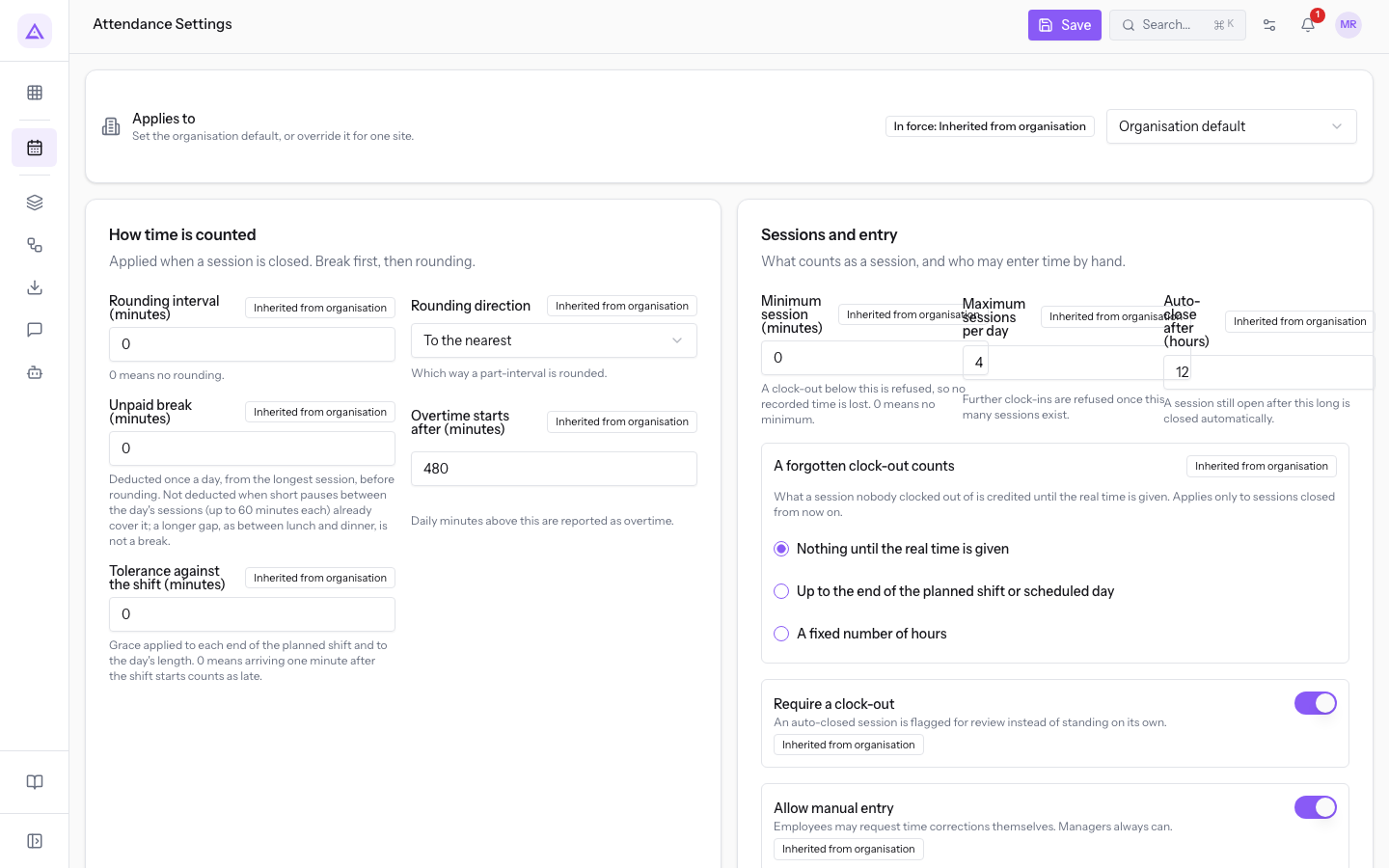
- Set the fields below and press Save.
The rule fields are:
- Auto-close after (hours): the hours after which an open session is closed automatically. In the demo organisation the organisation default is 12; the location «Restaurant kitchen» has 14 hours.
- A forgotten clock-out counts: the time credited while waiting for the real time. The credited value never exceeds the time between clock-in and closing. The options are:
- Nothing until the real time is given: the session counts no hours until the adjustment is approved. This is the option set in the demo organisation.
- Up to the end of the planned shift or scheduled day: the time runs until the end of the planned shift or day.
- A fixed number of hours: shows the Hours credited field, suggested at 8.
If the hours should reach the timesheet only once the time is known, choose Nothing until the real time is given. If you work with planned shifts and want an estimate while the adjustment is pending, choose Up to the end of the planned shift or scheduled day.
Important: a change does not affect sessions already closed. These keep their recorded totals.
Entering the real time from Adjustments
Before you start: Adjustments is available to the Manager and Administrator groups.
An adjustment without a time is approved by entering when the person actually left. An adjustment that already has a time is approved in a single step, with no window.
The adjustment goes to the direct manager recorded in Human Resources, if that manager is active and has a login; otherwise to someone with authority over the whole organisation or to the Manager or Administrator group. Matteo Ferrari has Mario Rossi as manager.
- Open Attendance › Adjustments and, in the status filter, choose Pending.
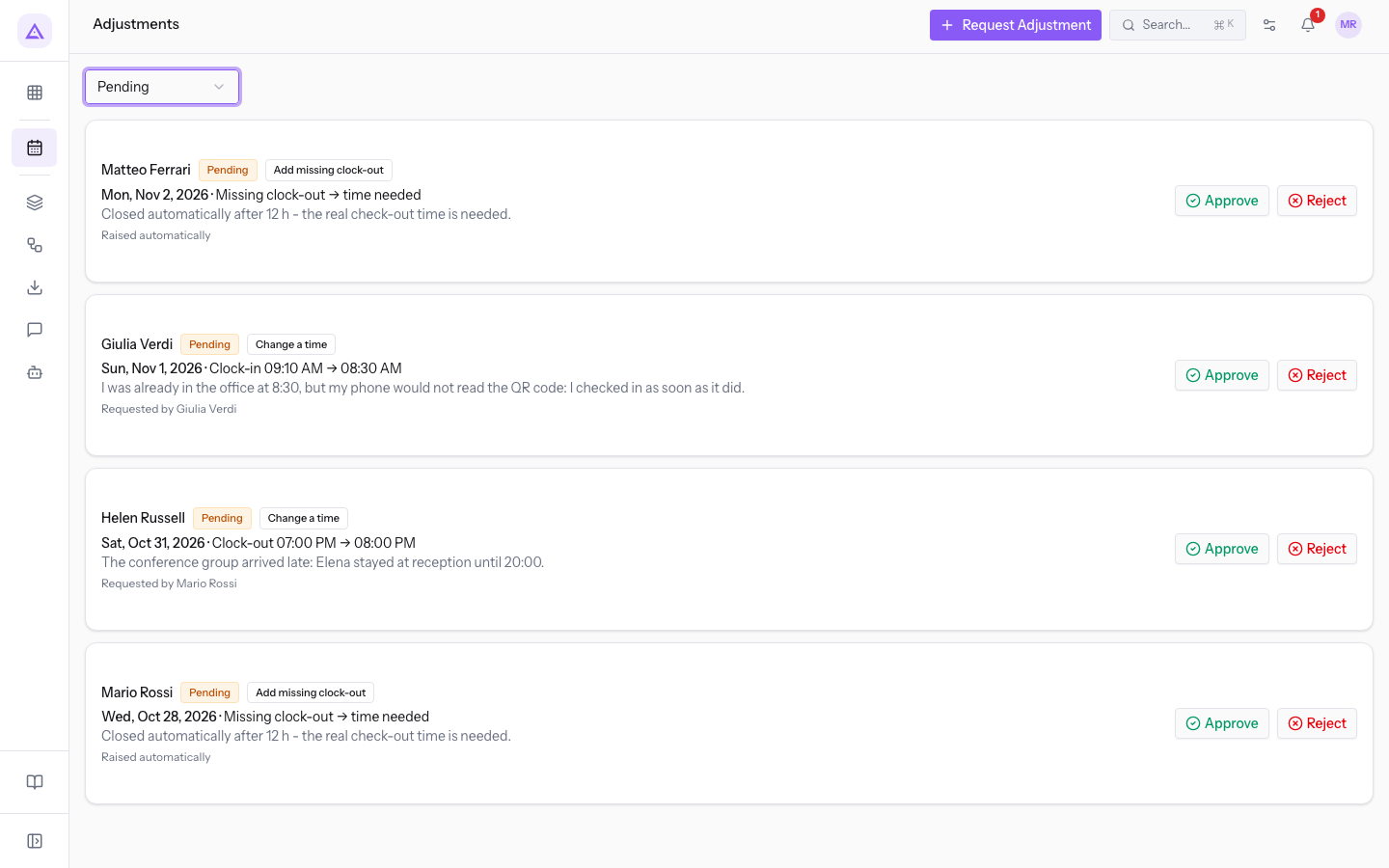
- On the Raised automatically adjustment, press Approve. The Approve with the real time window opens.
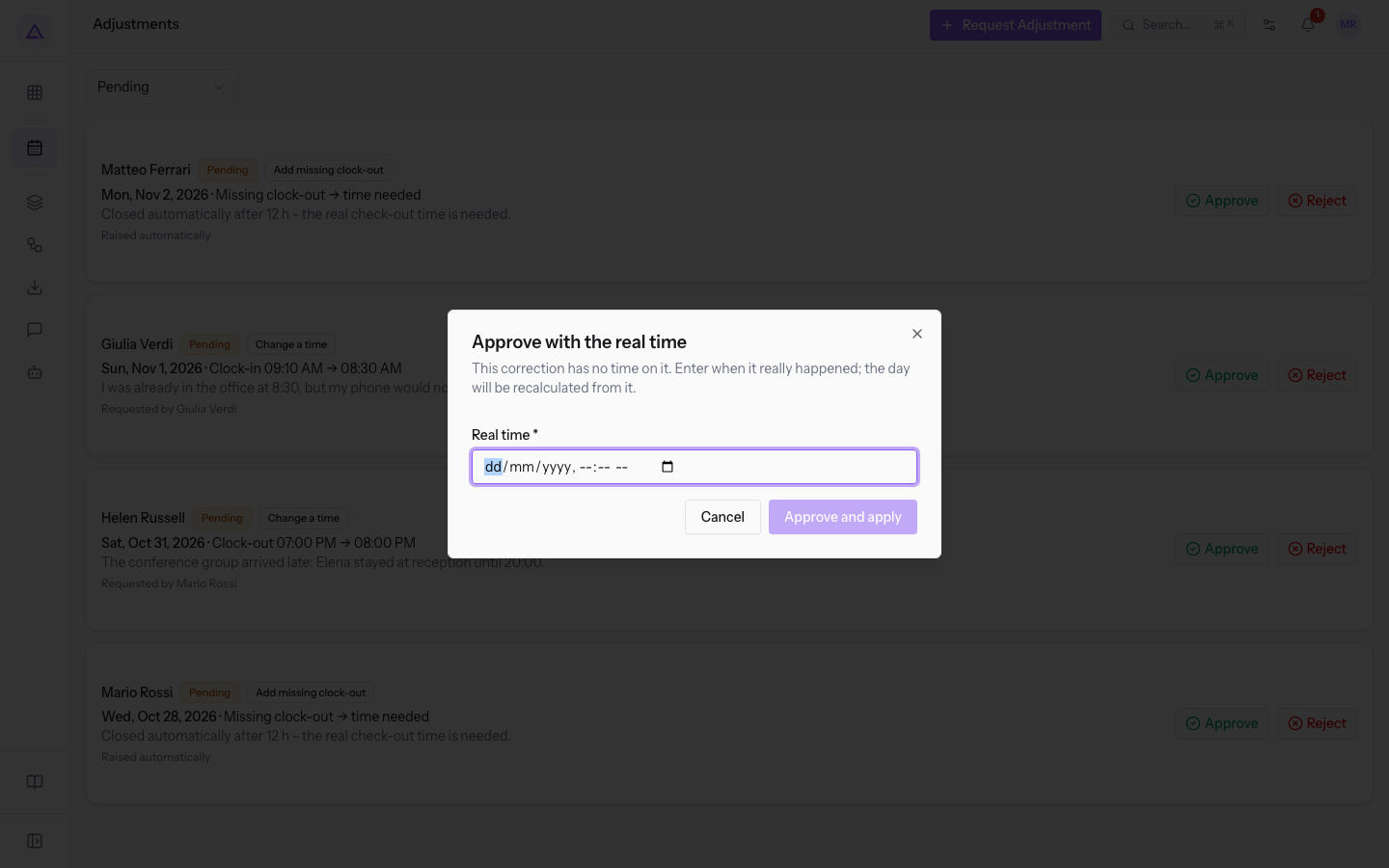 3. In Real time enter the date and time of the clock-out: for Matteo Ferrari's session, clocked in at 07:30 AM on 1 November, enter 04:30 PM on the same day.
4. Press Approve and apply. The time is written to the session.
Real time is the date and time of the clock-out, in the person's time zone. Approve and apply stays disabled while the field is empty.
Note: a day within a closed period cannot be corrected. The approval is refused and the adjustment stays pending until the administrator reopens the period.
How it appears in My attendance
In Attendance › My Attendance the person sees their automatically closed session. The Auto-Closed card counts these sessions in the month shown.
- Open Attendance › My Attendance and, if the session is in the previous month, press Previous month.
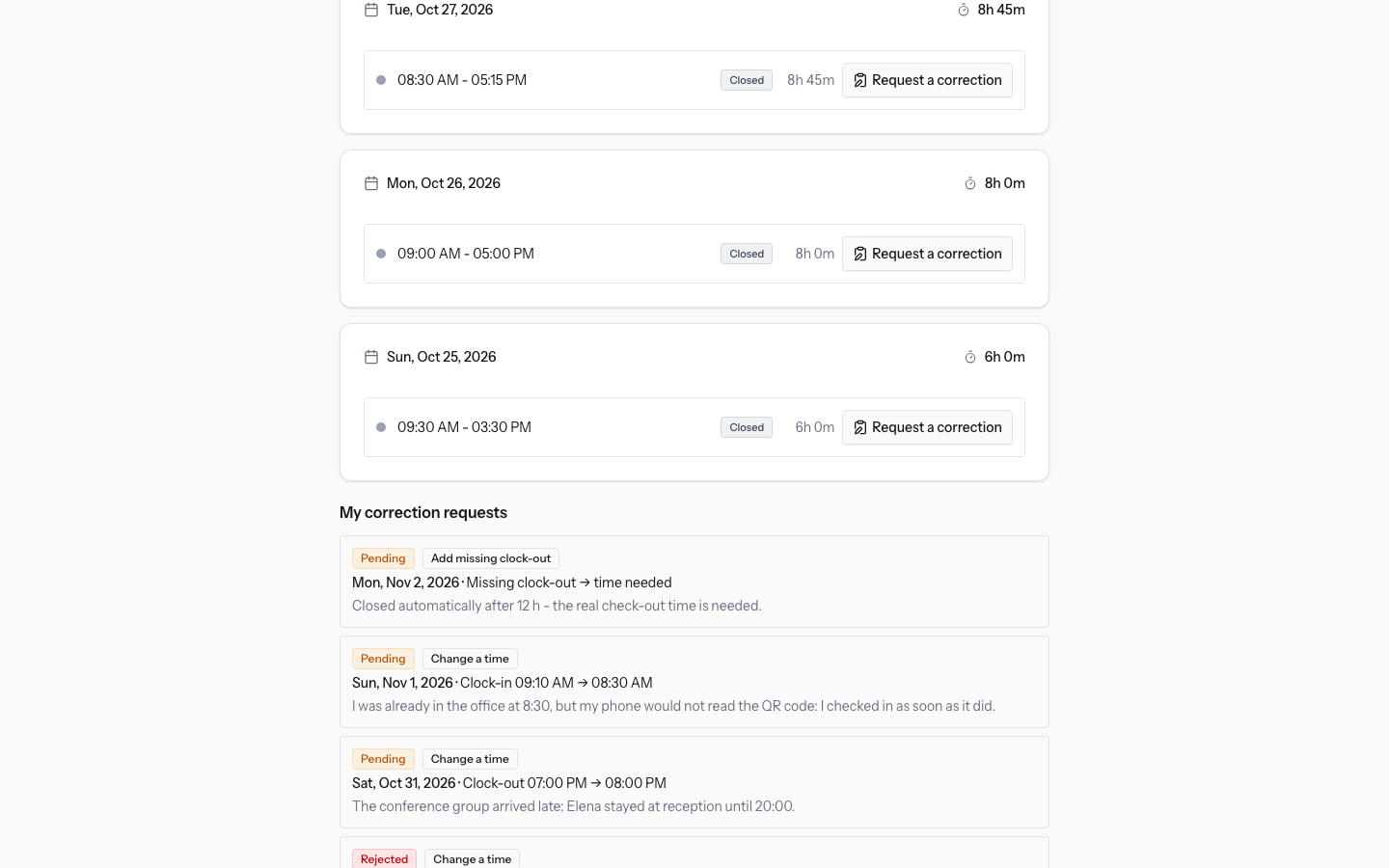
- Find the session by one of these texts:
- not clocked: the real time is missing, as in Mario Rossi's session of 27 October.
- Correction requested - waiting for approval: a pending adjustment exists on the session.
- Press Request a correction on the session and enter the real time.
The time entered completes the clock-out adjustment already pending, without creating a second one. At that point the adjustment has a time and the manager approves it with Approve, with no window.
A person without a platform login clocks in at the kiosk and does not have My attendance: the real time is entered by the manager from Adjustments. In the demo organisation this is the case of Matteo Ferrari.
How it appears in the timesheet
Before you start: Reports is available to the Manager and Administrator groups.
The timesheet shows the month's missing clock-outs, so you can find them before closing attendance.
- Open Attendance › Reports. In Search a person type the name and choose the person in Person, here
Matteo Ferrari.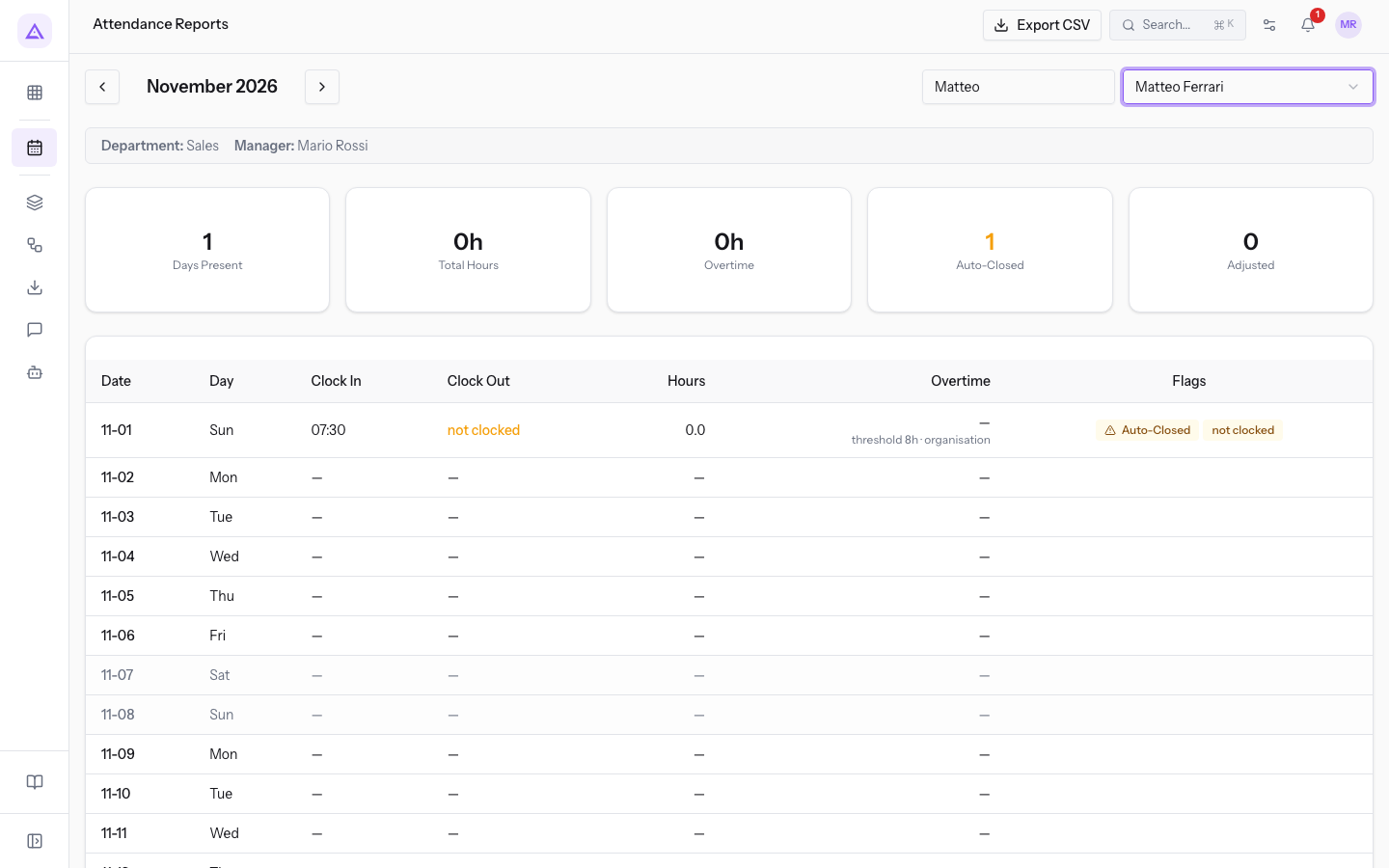
In the session row you find:
- Clock Out: in place of the time, not clocked appears.
- Hours: the time credited by the rule. With Nothing until the real time is given the value is 0.0.
- Flags: the Auto-Closed mark and the not clocked mark.
The Auto-Closed card at the top of the timesheet counts sessions of this type in the month.
See it on your company, not on a slide deck.
In 30 minutes we map the software you use today.We show you how much work and how much margin Archimedes gives back.
Show me on my business →What industry are you in?
One tap — it lets us prepare the demo around your world.
What tools do you use today?
Pick the ones you recognise — or just type them. It helps us show you how they migrate.
Last step: your details.
We reply within one working day — and right after, if you like, you pick the demo slot yourself.
We couldn't send your request. Try again, or write to us at [email protected].
By sending, you agree to your data being processed so we can get back to you about the demo. Privacy notice.
Preview form — nothing is sent from this page.
Want to schedule the demo now?
Your call: book the slot you prefer yourself, or we'll call you to arrange it.
Live availability, 30 minutes, instant confirmation. The calendar opens in a new tab.
Lock in your slot ↗We'll get back to you within one working day — and we'll join the call already knowing your world.
The calendar is open in another tab: pick a slot and the demo is booked. Can't see it? Reopen it ↗
Preview page: nothing was sent.
Our calendar is live: take the slot that suits you and the demo is booked. 30 minutes, instant confirmation, no waiting.
Lock in your slot ↗