Attendance
All modules
Reading the monthly attendance sheet and overtime
Attendance · 10 of 16 · 5 min read
The Attendance Reports screen shows the timesheet, that is, the monthly summary for one person: days present, hours, overtime, and sessions to check. From here you review it day by day and export it for the labour consultant.
Opening one person's timesheet
Before you start: Reports is available to the Manager and Administrator groups.
The screen opens on My sheet, for the current month. If you are checking your own hours, stay on this choice. If you are preparing another person's month, pick them in Person.
- Open Attendance › Reports.
- In Search a person type part of a name to narrow the Person list. This field is useful when the list is long.
- In Person choose the timesheet to read:
Ahmed Benali. The timesheet updates with that person's data.
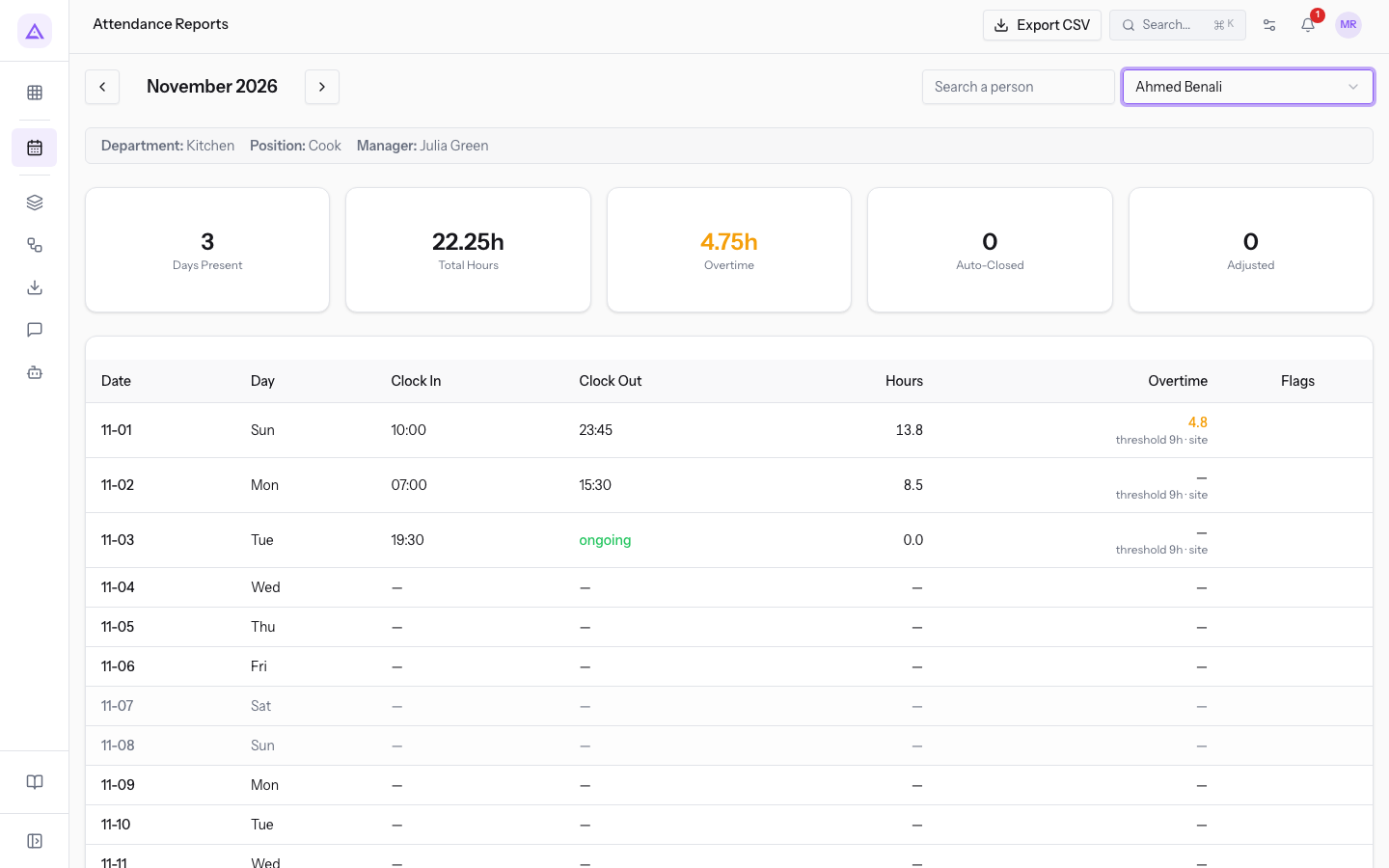
- Use Previous month and Next month to change the month. The selected person stays selected.
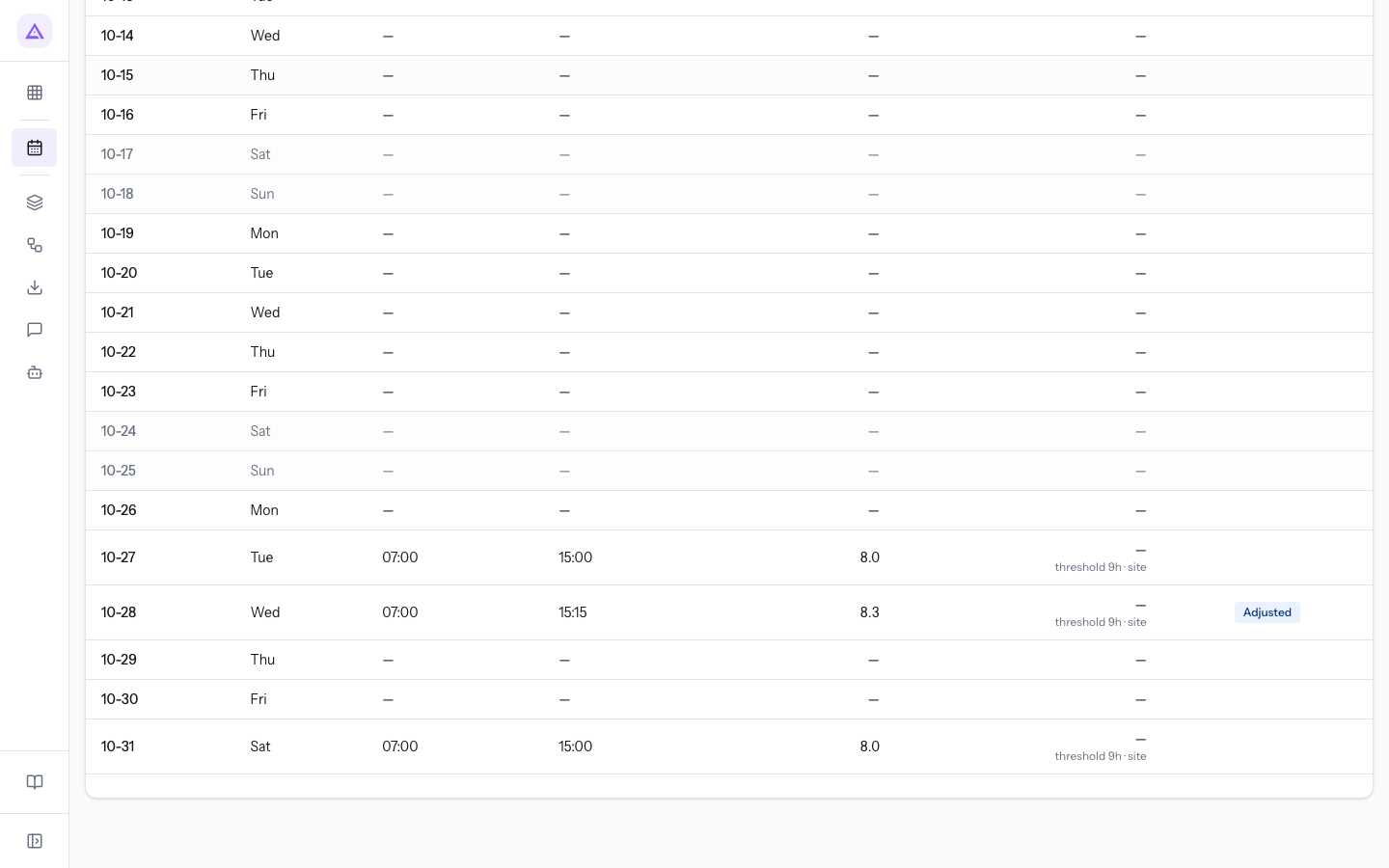
The fields on this screen are:
- Search a person: filters the Person list by name.
- Person: contains My sheet and the people with at least one session in the month shown. It also includes people who clock in at the kiosk without a platform login.
- Department, Position and Manager: the person's details. Each detail appears only when it is present: Manager is missing on Mario Rossi's timesheet.
Reading the month's totals
The totals summarise the month and the person shown. Hours are in decimal form: 4.75h means 4 hours and 45 minutes.
- Days Present: the days with at least one session.
- Total Hours: the sum of the hours of all sessions in the month.
- Overtime: the sum of the overtime of each day.
- Auto-Closed: the days with a session closed by the system.
- Adjusted: the days with a session corrected by an adjustment.
In a month with no sessions the totals are zero. When there is no timesheet to show, the screen reports No data available for this period. and Export CSV is not active.
Reading the day table
The table has one row for each day of the month, including days without attendance, which show a dash. A day with several sessions has several times in the same row and the total in Hours.
- Date: the month and the day, in month-day form.
- Day: the day of the week in abbreviated form. Weekend days without attendance are dimmed.
- Clock In: the start time of each session. For declared hours without a start time, declared appears.
- Clock Out: the end time of each session. If it is missing, one of these texts appears:
- ongoing: the session is still open.
- auto-closed: the system closed the session.
- not clocked: the person did not clock out and the time does not come from a punch.
- Hours: the hours of the day, with one decimal. The 13.75 hours of a shift appear as 13.8.
- Overtime: the hours beyond the threshold, with one decimal, and, below it, the threshold applied. The value 4.75 appears as 4.8. A day without overtime shows a dash.
- Flags: the signs to check for the day. The options are:
- Auto-Closed: the day has a session closed by the system.
- Adjusted: the day has a session corrected by an adjustment.
- not clocked: the day has a session without a clock-out.
Declared hours enter the timesheet after approval. The timesheet is for reading the data: a wrong time is fixed with an adjustment from Attendance › Adjustments.
Understanding overtime
The overtime of a day is the difference between the hours of the day and the threshold. The threshold comes from the field Overtime starts after (minutes) in Attendance rules: the organisation value applies, which a location can replace.
The text below the value shows the threshold and where it comes from. It appears on days with attendance:
- "threshold 8h · organisation": the organisation rule of 480 minutes applies. Mario Rossi has 45 minutes of overtime on 8 hours and 45 worked.
- "threshold 9h · site": the rule of the location
Restaurant kitchenapplies, of 540 minutes. Ahmed Benali's shift 10:00-23:45 is worth 13.75 hours, so 4 hours and 45 of overtime.
Note: a change to a rule applies to sessions closed from the day it is made. Sessions already closed keep their recorded totals and the overtime threshold they were closed with.
Exporting the timesheet for the labour consultant
Export CSV downloads a file with the timesheet of the person and month shown. For several people, repeat the export for each one.
Important: before exporting, check the days with auto-closed or not clocked. An automatically closed session is not a final figure until the real time is entered.
- In Person choose the person.
- With Previous month or Next month bring the screen to the month to deliver.
- Press Export CSV.
The file contains this data:
- one row for each session, with date, day, clock in, clock out, hours, overtime, status, flags and the source of the clock-in.
- one row for each day without sessions, with hours at zero.
- at the bottom, the total of hours and overtime, then the days present, the days closed automatically and those adjusted.
On a day with several sessions, date, day, overtime and flags appear only on the first row. Unlike the table, the file reports hours with two decimals.
See it on your company, not on a slide deck.
In 30 minutes we map the software you use today.We show you how much work and how much margin Archimedes gives back.
Show me on my business →What industry are you in?
One tap — it lets us prepare the demo around your world.
What tools do you use today?
Pick the ones you recognise — or just type them. It helps us show you how they migrate.
Last step: your details.
We reply within one working day — and right after, if you like, you pick the demo slot yourself.
We couldn't send your request. Try again, or write to us at [email protected].
By sending, you agree to your data being processed so we can get back to you about the demo. Privacy notice.
Preview form — nothing is sent from this page.
Want to schedule the demo now?
Your call: book the slot you prefer yourself, or we'll call you to arrange it.
Live availability, 30 minutes, instant confirmation. The calendar opens in a new tab.
Lock in your slot ↗We'll get back to you within one working day — and we'll join the call already knowing your world.
The calendar is open in another tab: pick a slot and the demo is booked. Can't see it? Reopen it ↗
Preview page: nothing was sent.
Our calendar is live: take the slot that suits you and the demo is booked. 30 minutes, instant confirmation, no waiting.
Lock in your slot ↗