Messages and collaboration
All modules
Search messages and files in chat
Messages and collaboration · 10 of 15 · 4 min read
Chat search finds the messages and files exchanged in the channels and direct messages you take part in. Use it to find information that was already written, for example the amount of a deposit, a colleague's messages, or a file shared in a channel.
Choosing how to search
You can search in two ways.
- To search for a word or a message from a person or a channel, use the search from the conversation header.
- To search for a file in a specific channel, open the Files tab in the channel details.
In search you can write only text, only filters, or both. Filters are written in the text, for example from:@name in:#channel after:2026-01-01, or they are chosen in the fields below the search box.
Searching messages
The Search messages… box is in the header of every conversation.
- Open Chat and choose a conversation, for example weddings.
- In the Search messages… box, write the text to search for.
- Press Enter to search. The results page opens.
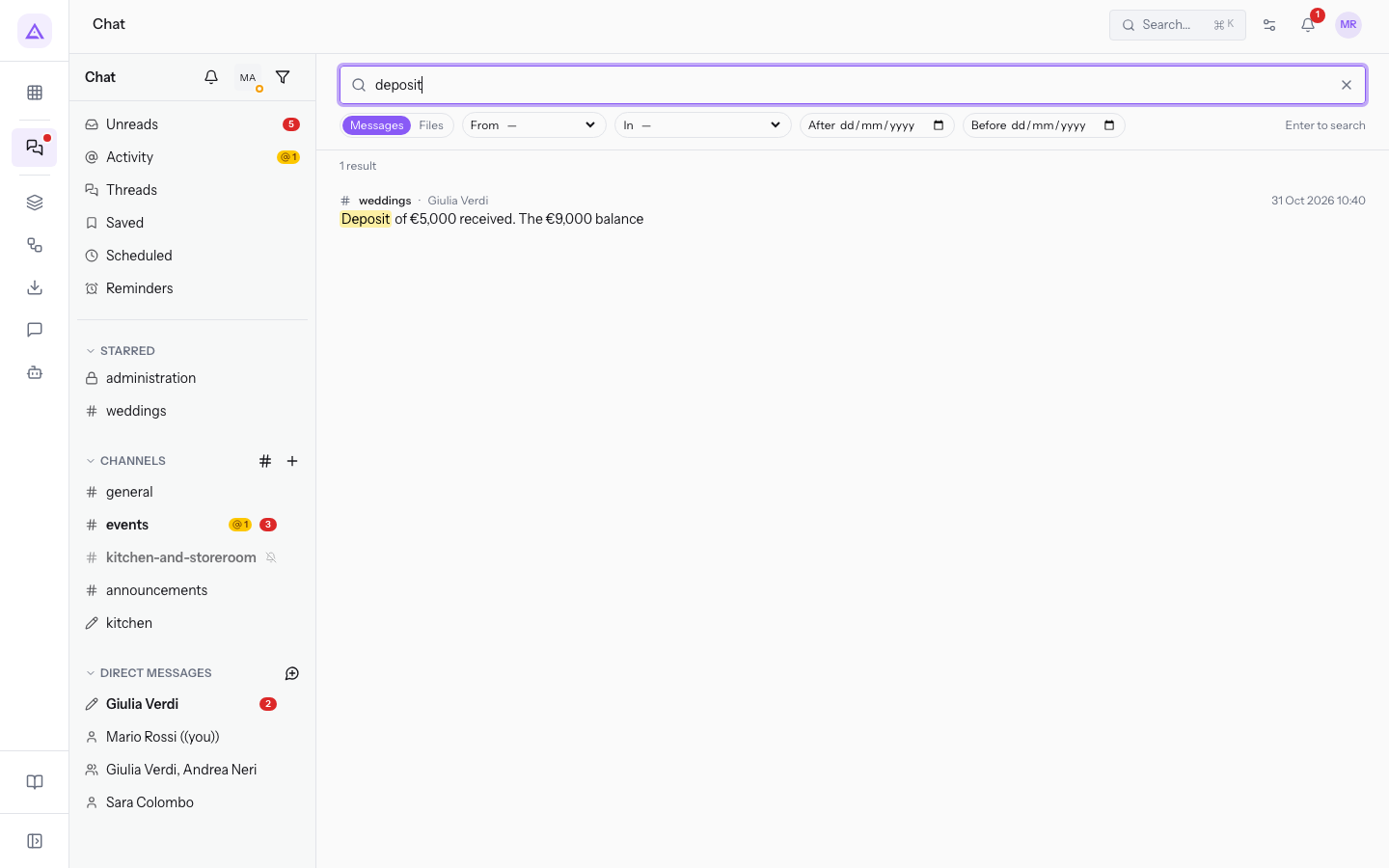
Searching for «deposit» finds the message from Julia Green in weddings about the €5,000 deposit for Sara and Luca's wedding.
Each result shows the conversation, the author, the date and time, and the start of the text. For direct messages, the abbreviation DM appears in place of the channel.
Note: with fewer than two characters the search does not start, and the page shows Type at least two characters, or pick a filter. If no message matches, the page says there are no results for the text searched.
The fields on the results page
The results page has the search box and the filters to narrow the results.
- Search messages — try from:@name in:#channel after:2026-01-01: the search text, with the filters typed by hand. You can change it and press Enter again.
- From: shows only the messages of a colleague. The options are the colleagues in chat. When you choose a name, the filter is added to the search text, for example
deposit from:Julia Green. - In: shows only the messages of a channel. The options are your channels: general, weddings, kitchen, admin.
- After: shows only the messages after a date.
- Before: shows only the messages before a date.
- Search in: chooses what to search.
- Messages: the text of messages. This is the default choice.
- Files: the files attached to messages.
- Clear search: empties the search.
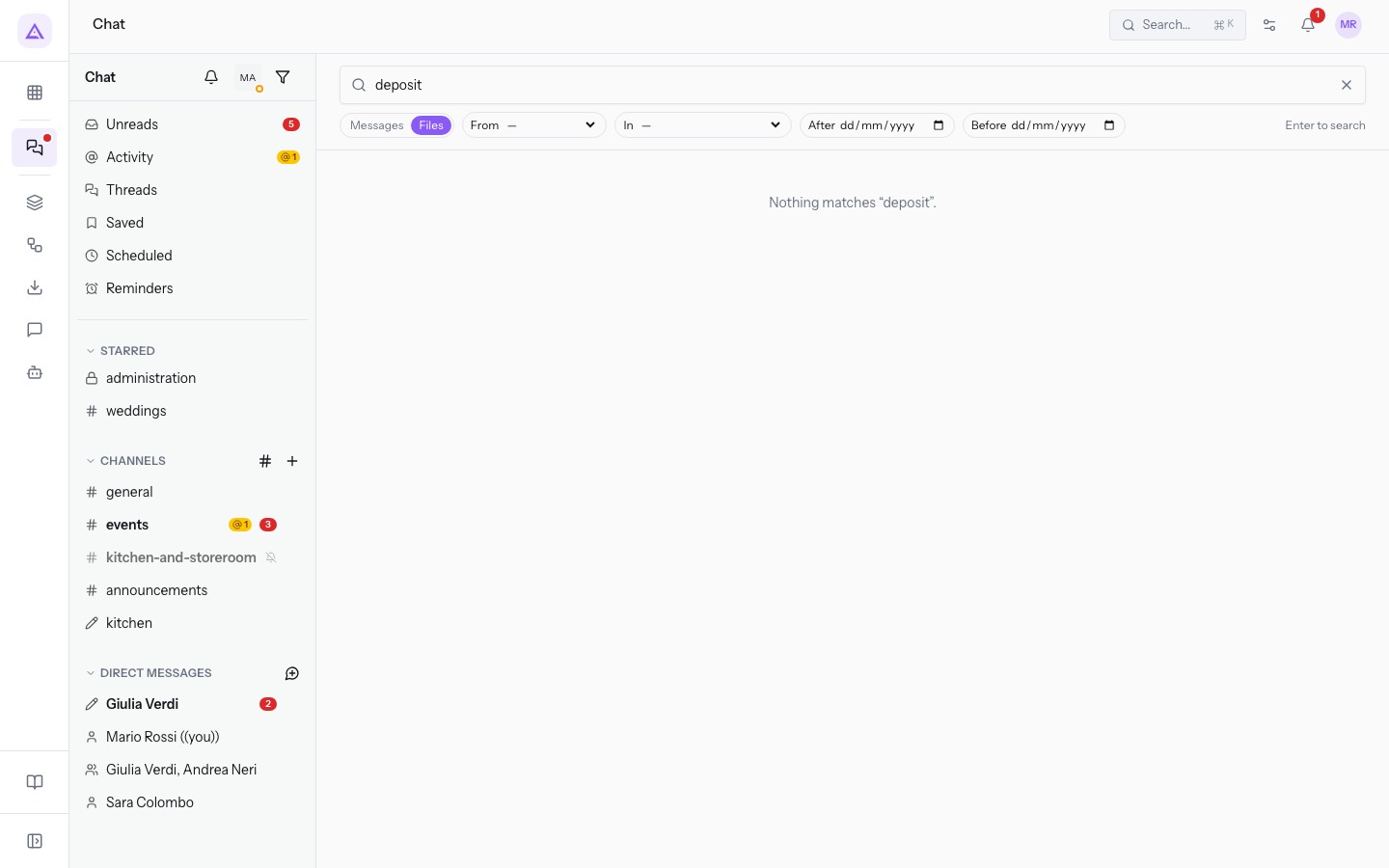
Using filters in the search text
Filters written in the text also work without a word to search for.
- from:@Julia Green: finds the messages of Julia Green, including in direct messages.
- in:#kitchen: finds the messages of the kitchen channel, such as those of Martin Ross and Julia Green about Tommaso's christening and the Verdi Construction company dinner.
after:2026-01-01: finds the messages after the date given.
- In the Search messages… box, write the filter, for example from:@Julia Green.
- Press Enter.
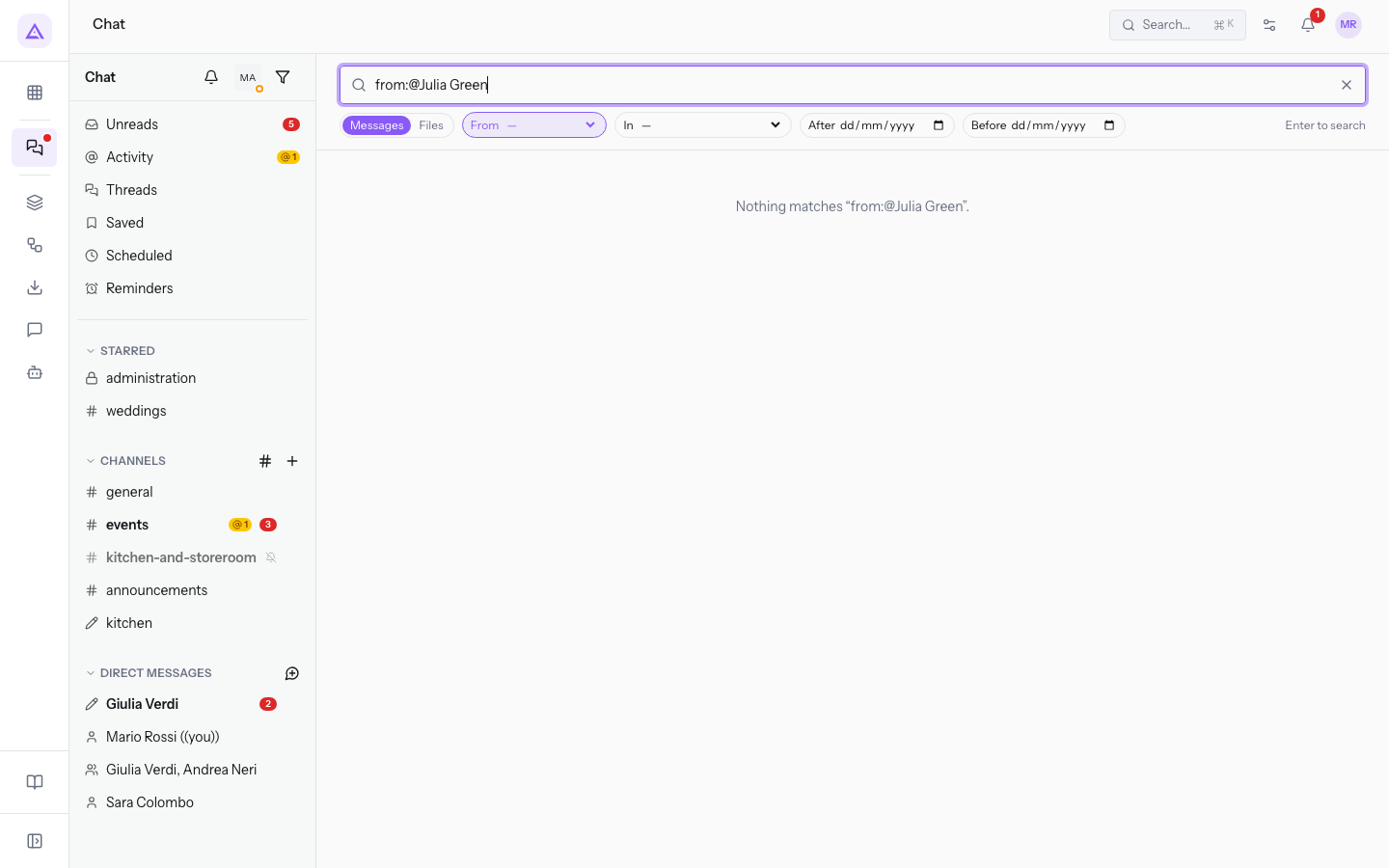
Tip: combine text and filters to narrow the results, as in
deposit from:Julia Green.
Opening a result
From a result you go straight to the message in its conversation.
- On the results page, press the result, for example Julia Green's message about the deposit.
- The weddings channel opens. If the message is part of a thread, the Thread panel opens on the right.
Finding the files of a channel
The Files tab in the channel details collects the files shared in the channel.
- In the sidebar, open the Conversation options menu of the channel, for example weddings.
- Choose Channel details.
- Open the Files tab.
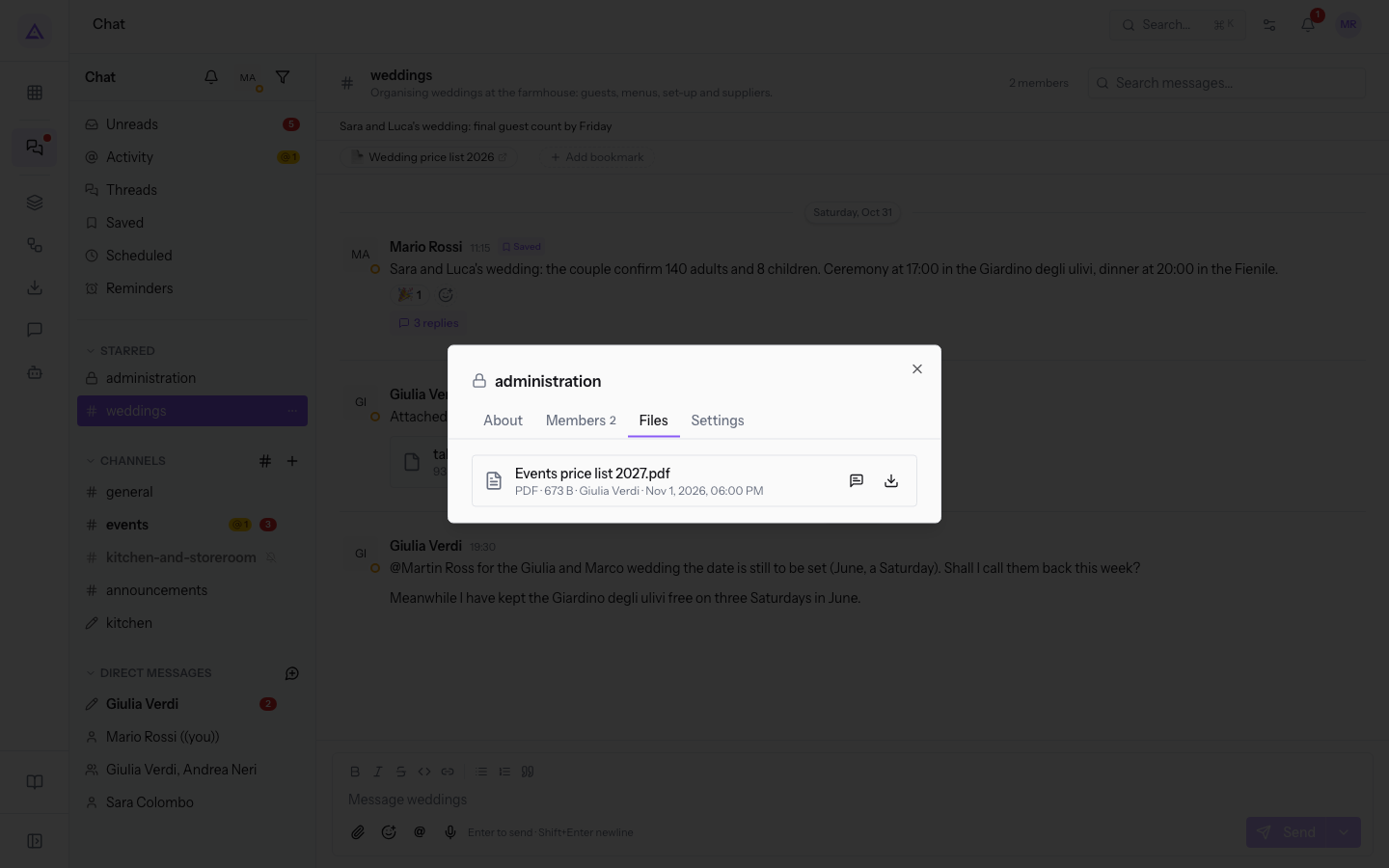
For each file the tab shows the name, the type, the size, who shared it, and the date and time. In #weddings there is tableau-sara-e-luca.pdf, a PDF of 938 B, shared by Julia Green.
- Show in conversation: opens the message in which the file was shared.
- Download: downloads the file.
See it on your company, not on a slide deck.
In 30 minutes we map the software you use today.We show you how much work and how much margin Archimedes gives back.
Show me on my business →What industry are you in?
One tap — it lets us prepare the demo around your world.
What tools do you use today?
Pick the ones you recognise — or just type them. It helps us show you how they migrate.
Last step: your details.
We reply within one working day — and right after, if you like, you pick the demo slot yourself.
We couldn't send your request. Try again, or write to us at [email protected].
By sending, you agree to your data being processed so we can get back to you about the demo. Privacy notice.
Preview form — nothing is sent from this page.
Want to schedule the demo now?
Your call: book the slot you prefer yourself, or we'll call you to arrange it.
Live availability, 30 minutes, instant confirmation. The calendar opens in a new tab.
Lock in your slot ↗We'll get back to you within one working day — and we'll join the call already knowing your world.
The calendar is open in another tab: pick a slot and the demo is booked. Can't see it? Reopen it ↗
Preview page: nothing was sent.
Our calendar is live: take the slot that suits you and the demo is booked. 30 minutes, instant confirmation, no waiting.
Lock in your slot ↗