Messages and collaboration
All modules
Planning and completing follow-up activities
Messages and collaboration · 13 of 15 · 4 min read
Activities are the actions to take on a record, for example a quote, an event or a contact. They help you remember an action linked to that record: a call to the customer, sending an email, a meeting or a document to receive.
Every activity has a type, a due date, a summary and a note. It closes in two ways: you mark it as done, optionally with feedback, or you cancel it.
Where to find activities
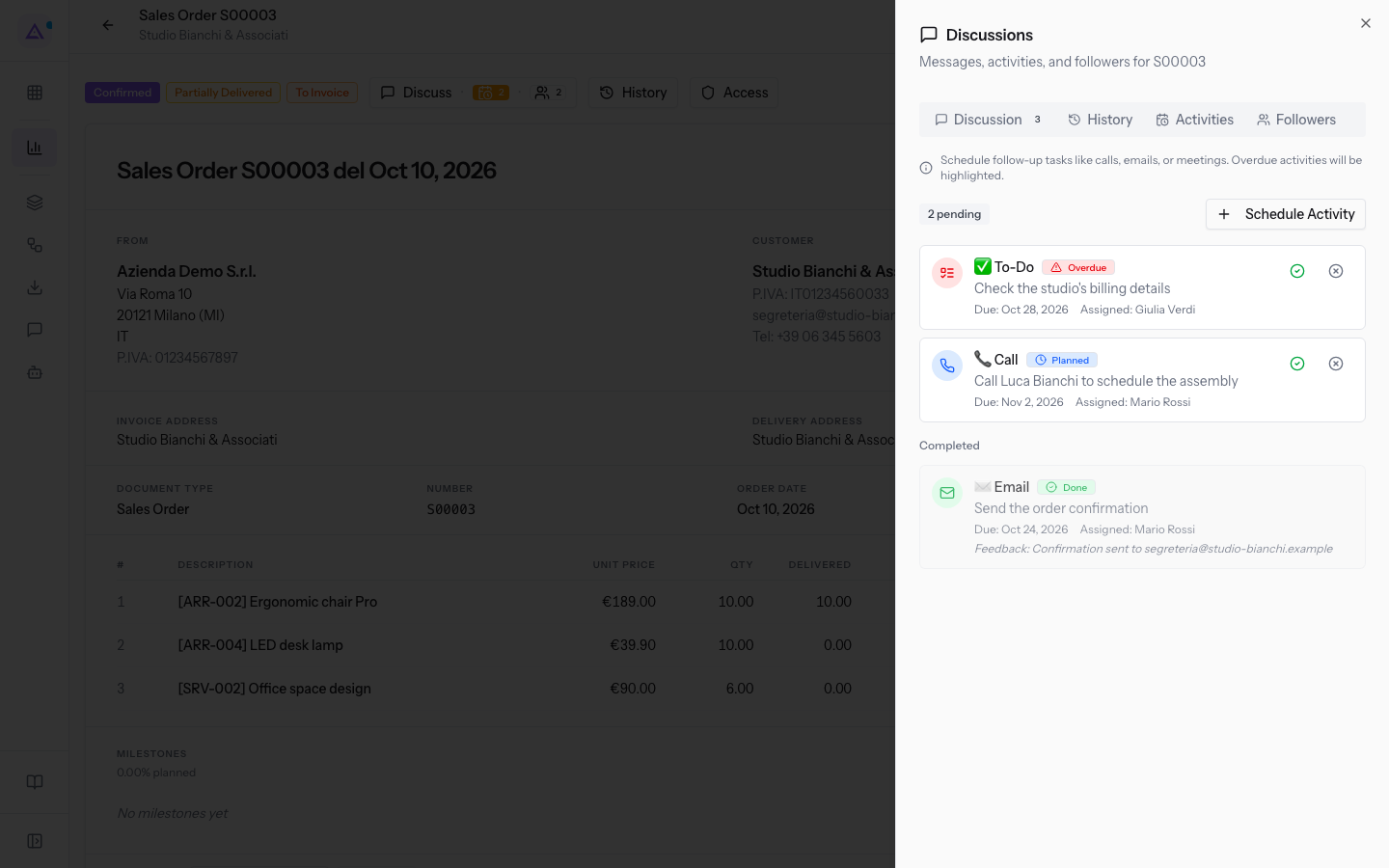
The activities of a record are in the Activities tab of that record's Discussion panel. The tab shows the text "Schedule follow-up tasks like calls, emails, or meetings. Overdue activities will be highlighted." and the number of pending activities.
- On the quote, such as
S00003: open the quote and press Discuss in the header. The Discussions panel opens with the tabs Discussion, History, Activities and Followers. Press Activities. - On the event, such as Sara and Luca's wedding (EV-0002): the discussion is a column of the event tab. The column has the tabs Discussion, History, Activities and Followers and the Schedule Activity button.
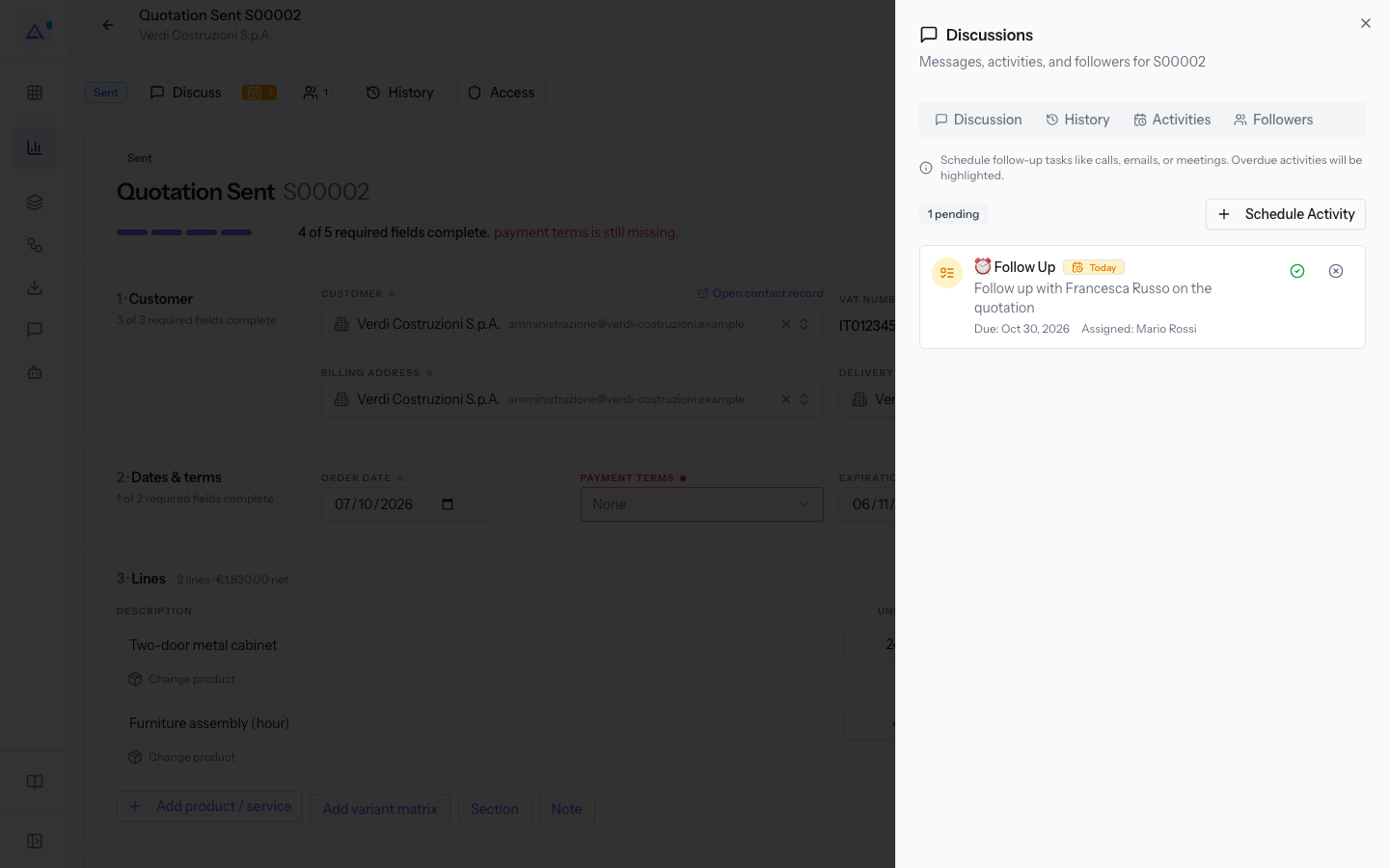
In the quote header, the Discuss button also shows the count: on quote S00002 the hint is "Discussion, 1 pending activity, 1 follower".
To read the messages of the record, see Discussing an order, event, or contact. To know who receives notifications, see Follow a record and read notifications.
Activity states
The state of an activity depends on the Due Date and is calculated automatically. You do not choose it.
- Planned: the due date is a future day.
- Today: the due date is today. On quote S00002 there is an activity due today.
- Overdue: the due date has passed and the activity is not closed. Overdue activities are highlighted.
- Done: you marked it as done.
- Cancelled: you cancelled it.
Each activity in the list shows the due date in the form "Due: …". On quote S00003 there are three activities: one done, one overdue assigned to Julia Green, and one planned call.
Note: planned activities also appear in the Calendar, among the deadlines.
Planning an activity
Plan an activity when a record still has an action to take by a date.
Before you start: at least one activity type is needed. If none exists, the form shows "No activity types have been set up yet. An administrator adds them in the CRM settings, under Activity types." and you cannot plan anything.
- Open the Activities tab of the record's Discussion panel.
- Press Schedule Activity. The Schedule Activity form opens.
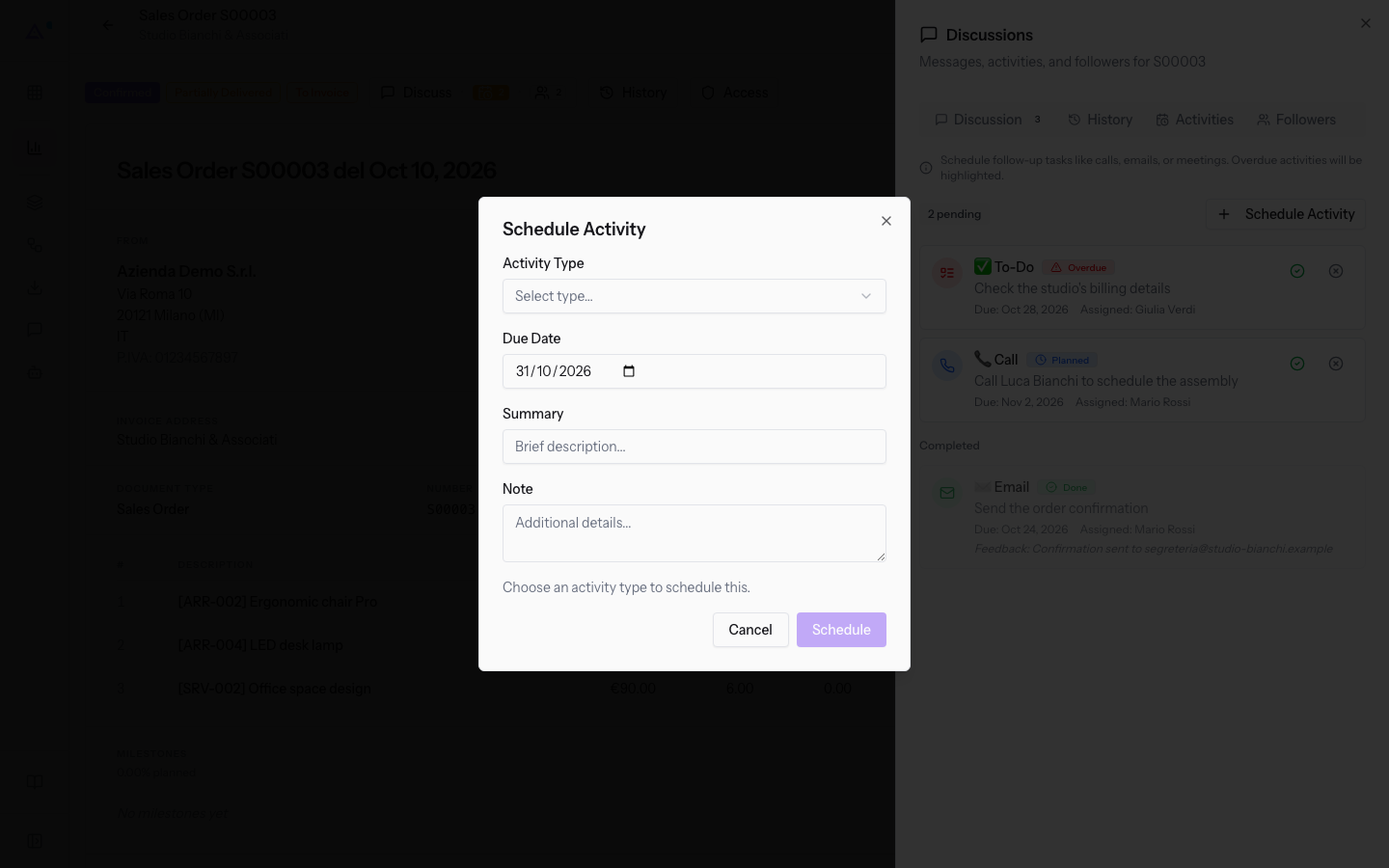
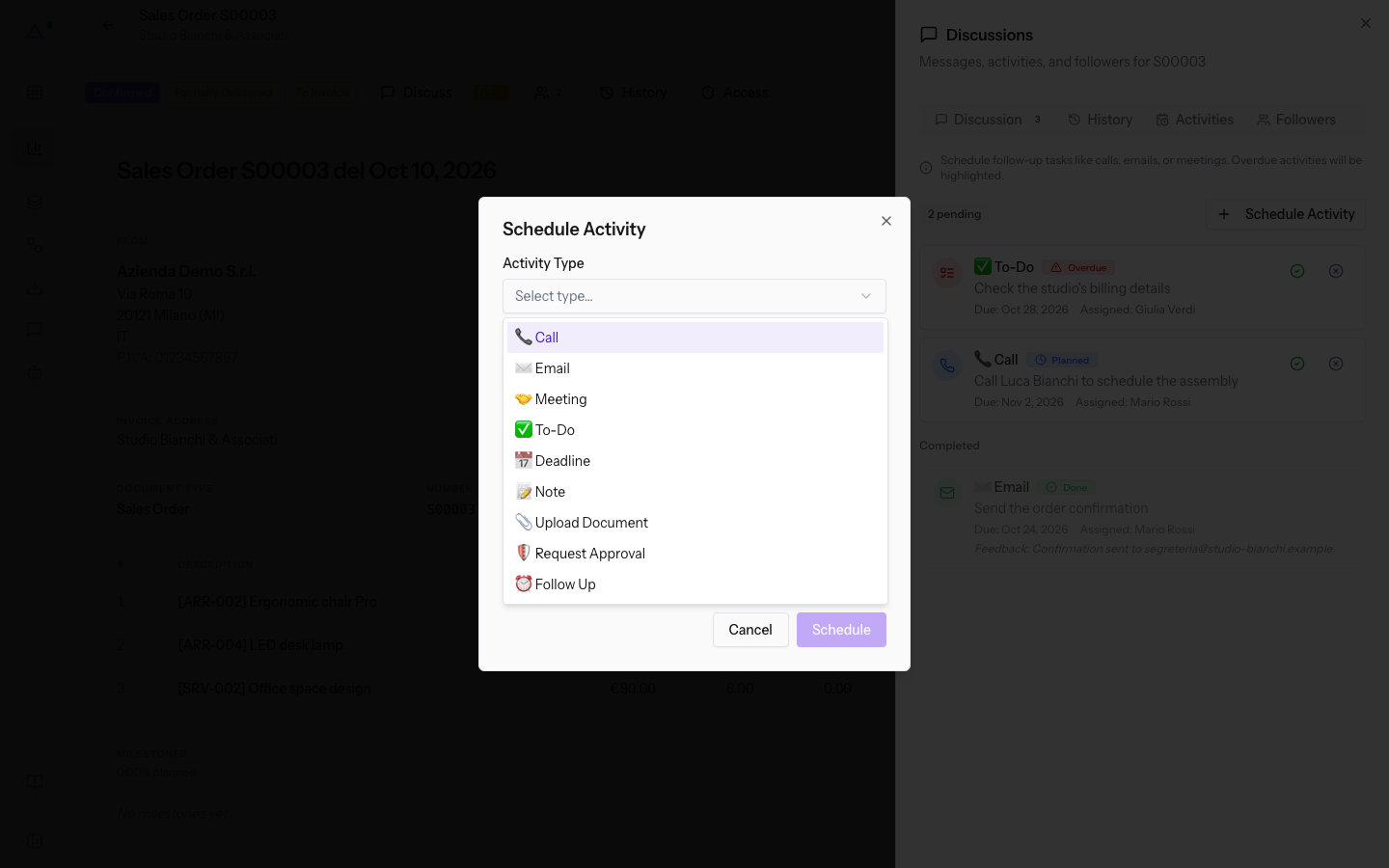
- In the Activity Type field, press Select type… and choose the type.
- Fill in Due Date, Summary and, if needed, Note, and press Schedule.
The form fields:
- Activity Type: the kind of action to take. The field is required: while it is empty the form shows "Choose an activity type to schedule this.". In the demo the options are Call, Email, Meeting, To-Do, Deadline, Note, Upload Document, Request Approval and Follow Up.
- Due Date: the day by which to do the activity. The field is required: without a date the form shows "Choose a due date to schedule this.". The state of the activity depends on this date.
- Summary: a short description, for example
Call Julia Ferris about the tasting. The placeholder is "Brief description...". - Note: additional details. The placeholder is "Additional details...".
If saving fails, the message "Failed to schedule activity" appears.
Note: planning an activity writes a line in the record's history. See Reading a record's change history.
Completing an activity
Mark an activity as done when you have carried out the action. You can leave feedback, for example the outcome of a call.
- In the Activities tab, on the activity to close, press Mark as Done. The Complete Activity window opens.
- If needed, write the feedback in the field with the placeholder "Add feedback or notes (optional)...", then press Mark as Done again.
The feedback stays on the completed activity in the form "Feedback: …".
Note: completing an activity also writes a line in the record's history.
Cancelling an activity
Cancel an activity when the action is no longer needed, for example because the customer already replied in another way.
- In the Activities tab, on the activity to remove, press Cancel this activity. The message Activity cancelled appears.
If the record has no open activity left, the tab shows "No activities scheduled".
See it on your company, not on a slide deck.
In 30 minutes we map the software you use today.We show you how much work and how much margin Archimedes gives back.
Show me on my business →What industry are you in?
One tap — it lets us prepare the demo around your world.
What tools do you use today?
Pick the ones you recognise — or just type them. It helps us show you how they migrate.
Last step: your details.
We reply within one working day — and right after, if you like, you pick the demo slot yourself.
We couldn't send your request. Try again, or write to us at [email protected].
By sending, you agree to your data being processed so we can get back to you about the demo. Privacy notice.
Preview form — nothing is sent from this page.
Want to schedule the demo now?
Your call: book the slot you prefer yourself, or we'll call you to arrange it.
Live availability, 30 minutes, instant confirmation. The calendar opens in a new tab.
Lock in your slot ↗We'll get back to you within one working day — and we'll join the call already knowing your world.
The calendar is open in another tab: pick a slot and the demo is booked. Can't see it? Reopen it ↗
Preview page: nothing was sent.
Our calendar is live: take the slot that suits you and the demo is booked. 30 minutes, instant confirmation, no waiting.
Lock in your slot ↗