Messages and collaboration
All modules
Writing a direct message to a colleague
Messages and collaboration · 5 of 15 · 4 min read
A direct message is a private conversation with a colleague, outside the channels. Use it for things that only concern the two of you, for example the contract with Neri Supplies or quote S00002. The same section also holds your personal notes.
- If the topic concerns only one colleague, send them a direct message.
- If it concerns several colleagues, start a group conversation from the same window (up to 7 colleagues).
- If it concerns a team or a subject, write in a channel.
- If you want to note something that no one else should read, use notes to yourself.
Note: only users who have access can write in chat. Employees without access do not appear among the people you can message.
Opening an existing direct message
Direct messages appear in the chat sidebar, in the DIRECT MESSAGES section.
- Open Chat.
- In the DIRECT MESSAGES section of the sidebar, press the colleague's name, for example Julia Green.
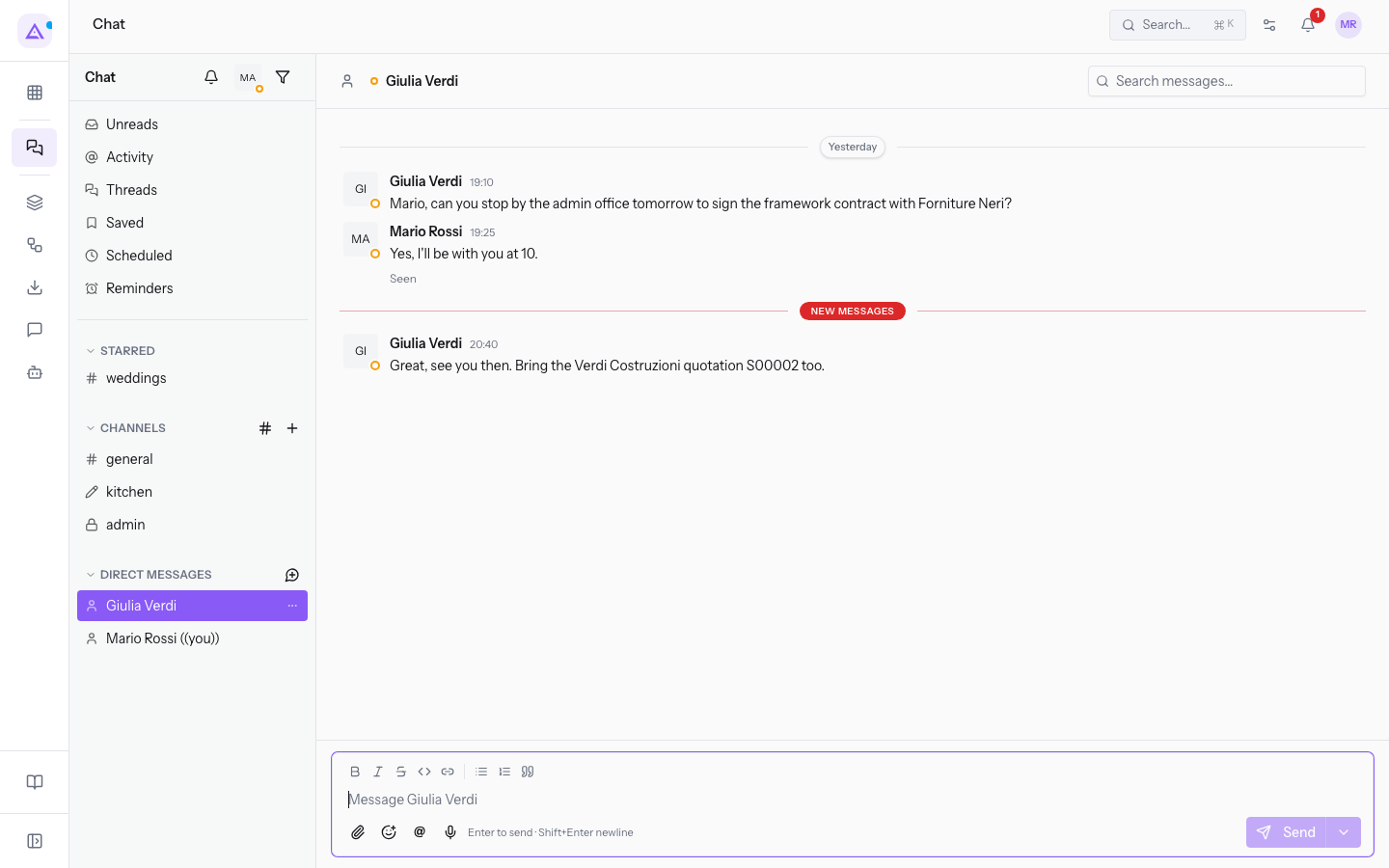
- Write the message in the composer at the bottom and press Send.
The composer is the same as in channels: it has the buttons Bold (⌘B), Italic (⌘I), Strikethrough (⌘⇧X), Code (⌘⇧C), Link, Bulleted list, Numbered list, Quote, Attach file, Insert emoji and Mention someone. With Schedule for later, next to Send, you schedule the message to be sent at a later time.
Starting a new direct message
To write to a colleague you don't yet have a direct message with, open the direct messages window.
- In Chat, press the New direct message icon next to DIRECT MESSAGES. The Start a direct message window opens.
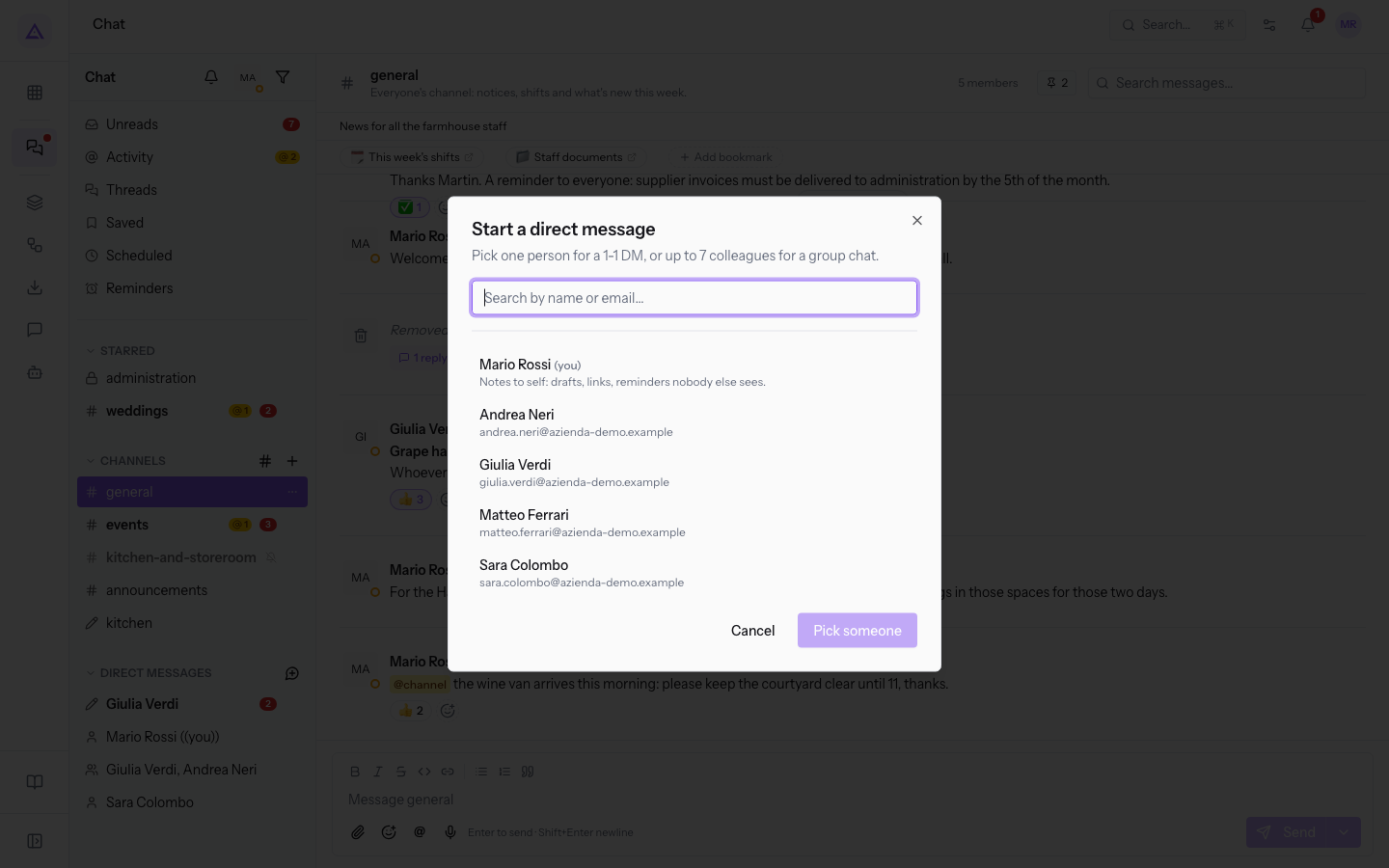
- Search for the colleague in the Search by name or email… field, or choose them from the list, for example Julia Green (
[email protected]). - Press DM Julia Green. The direct message with the colleague opens.
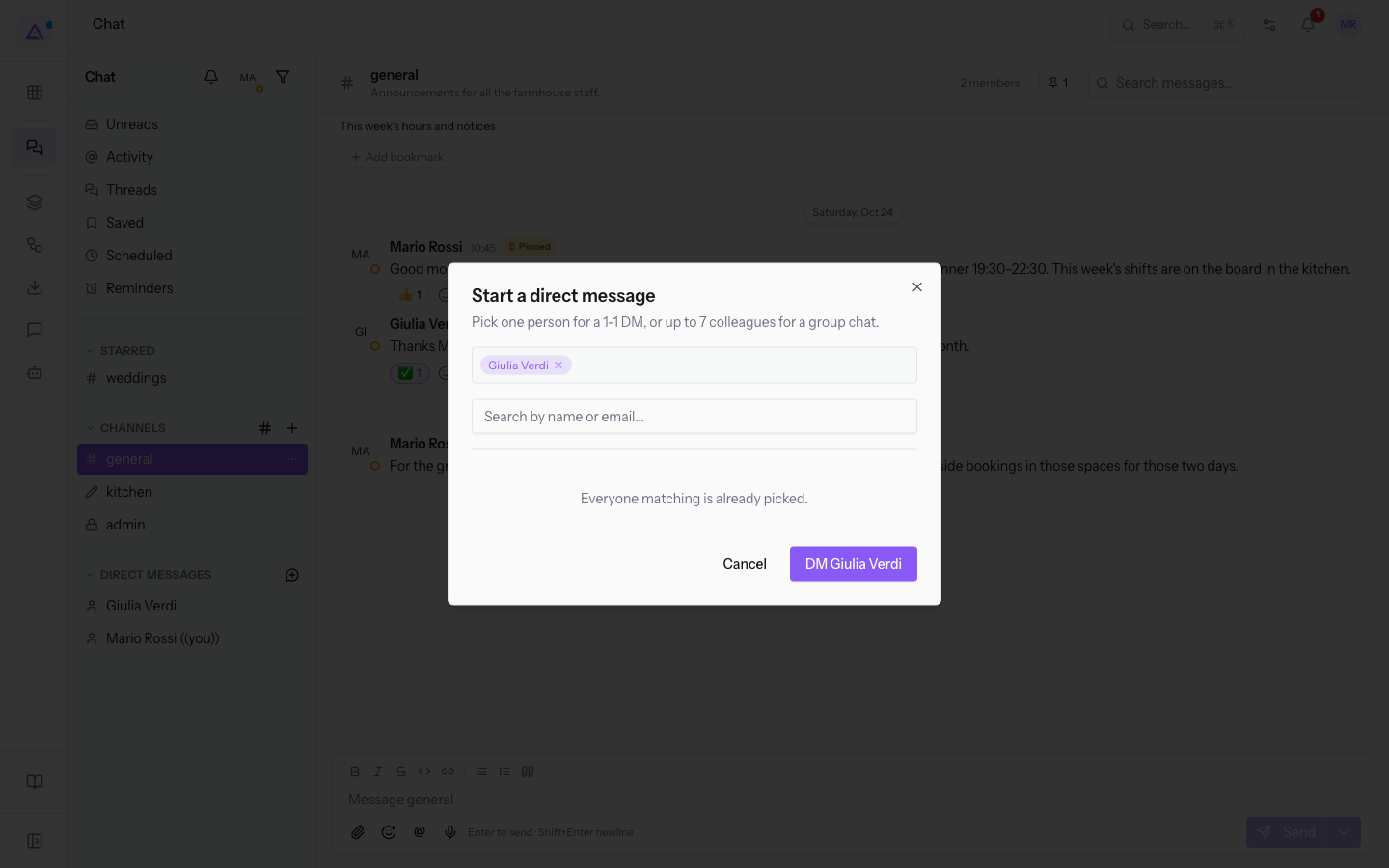
The window contains:
- The text
Pick one person for a 1-1 DM, or up to 7 colleagues for a group chat. - Search by name or email…: filters the list of people. The field is not required.
- The list of people, with name and email. The first entry is you, with your name followed by (you) and the text
Notes to self: drafts, links, reminders nobody else sees. - The chosen people appear at the top of the window. To remove one, press Remove Julia Green. When you have chosen all the people found, the list shows
Everyone matching is already picked. - The confirm button: it shows Pick someone until you have chosen no one, then shows the colleague's name, such as DM Julia Green.
- Cancel and Dismiss: close the window without opening conversations.
Starting a group conversation
From the same window you can choose several colleagues, up to 7, for a group conversation. In this case the window offers New group conversation and the confirm button becomes Start group with {{count}} people, where {{count}} is replaced by the number of people.
Note: a group conversation requires at least three people. In the demo only Martin Ross and Julia Green have access, so a group conversation cannot be started.
Writing notes to yourself
The conversation with yourself is for drafts, links and personal reminders: no one else can see it.
- In Chat, in the DIRECT MESSAGES section, press your name followed by (you).
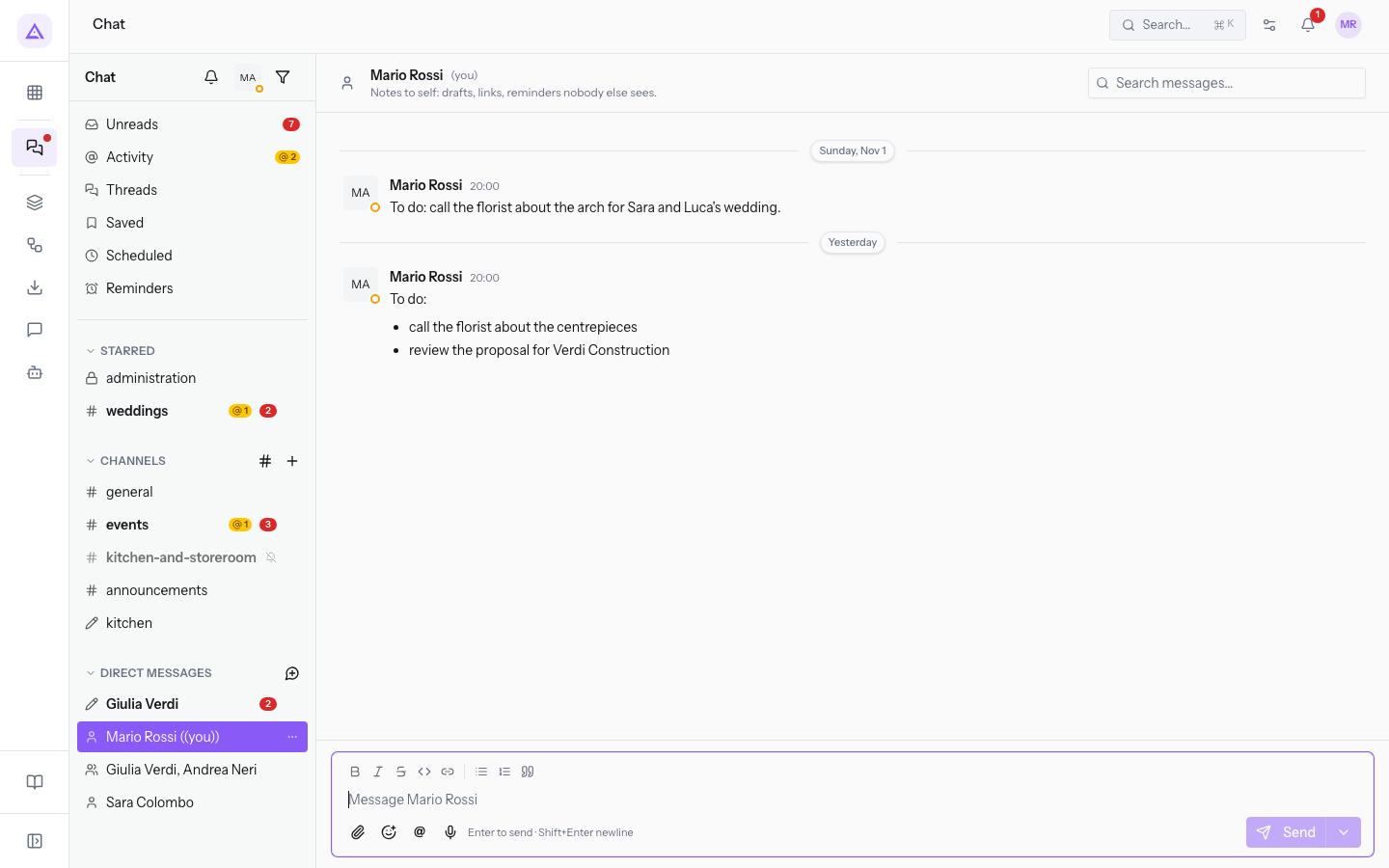
- Write the note in the composer and press Send.
You can also open the same conversation from the Start a direct message window, by choosing the entry with your name.
Writing to a channel member
From a channel's members panel, open a direct message with a colleague without searching for them.
- In Chat, open a channel, for example weddings.
- In the channel header, press the member count, such as 2 members. The Members panel opens, with the Search members… field.
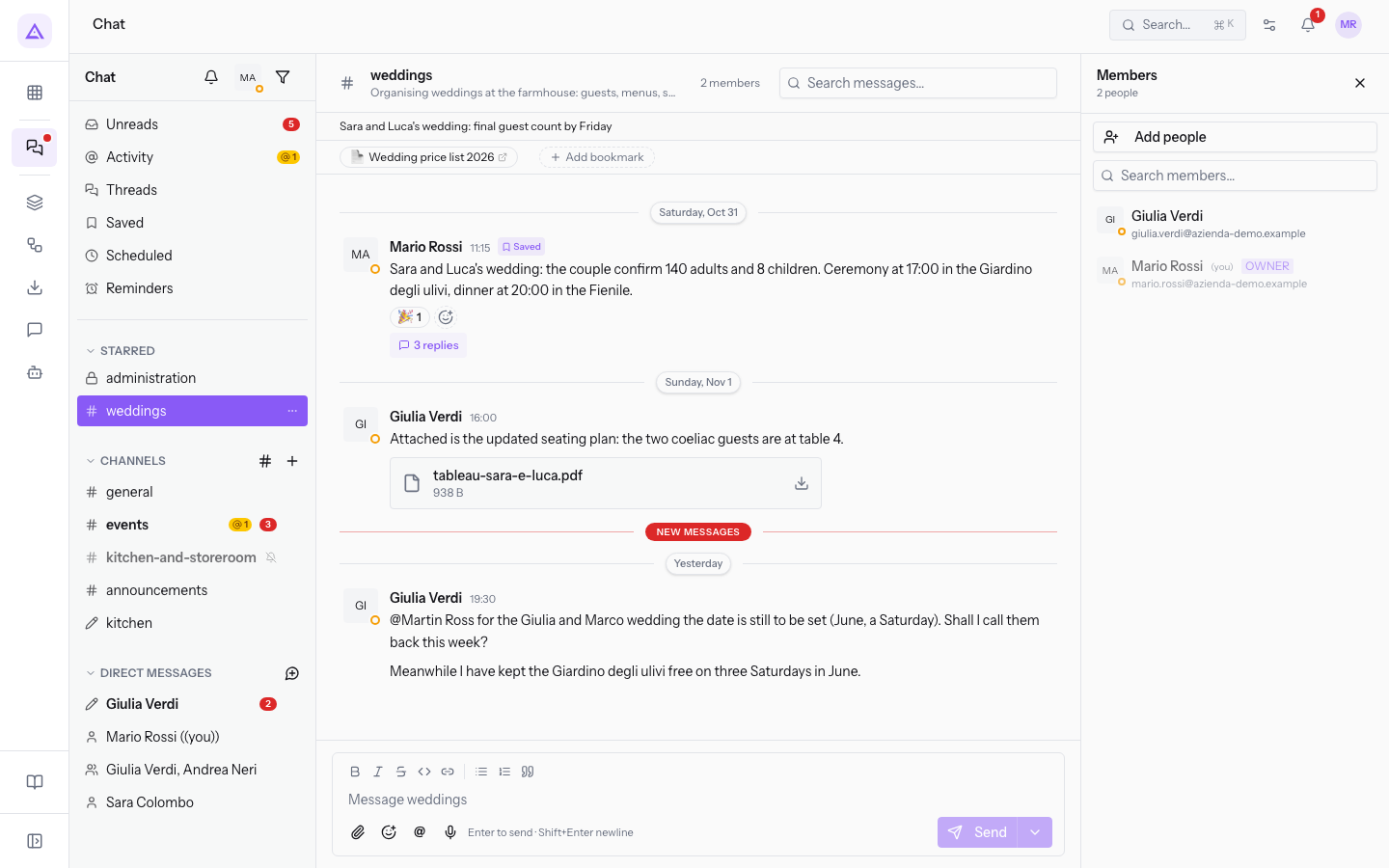
- Press the colleague's name. The direct message with that colleague opens, the same one you find under DIRECT MESSAGES.
See it on your company, not on a slide deck.
In 30 minutes we map the software you use today.We show you how much work and how much margin Archimedes gives back.
Show me on my business →What industry are you in?
One tap — it lets us prepare the demo around your world.
What tools do you use today?
Pick the ones you recognise — or just type them. It helps us show you how they migrate.
Last step: your details.
We reply within one working day — and right after, if you like, you pick the demo slot yourself.
We couldn't send your request. Try again, or write to us at [email protected].
By sending, you agree to your data being processed so we can get back to you about the demo. Privacy notice.
Preview form — nothing is sent from this page.
Want to schedule the demo now?
Your call: book the slot you prefer yourself, or we'll call you to arrange it.
Live availability, 30 minutes, instant confirmation. The calendar opens in a new tab.
Lock in your slot ↗We'll get back to you within one working day — and we'll join the call already knowing your world.
The calendar is open in another tab: pick a slot and the demo is booked. Can't see it? Reopen it ↗
Preview page: nothing was sent.
Our calendar is live: take the slot that suits you and the demo is booked. 30 minutes, instant confirmation, no waiting.
Lock in your slot ↗