Messages and collaboration
All modules
Follow a record and read notifications
Messages and collaboration · 14 of 15 · 3 min read
Following a record means you get a notification when someone writes a message on that record or changes a field. You can follow a quote, an event or a contact. You read all your notifications on one page, and from there you open the record with its Discussion panel.
Who gets a notification
Who receives the notification depends on what you write in the record's Discussion panel:
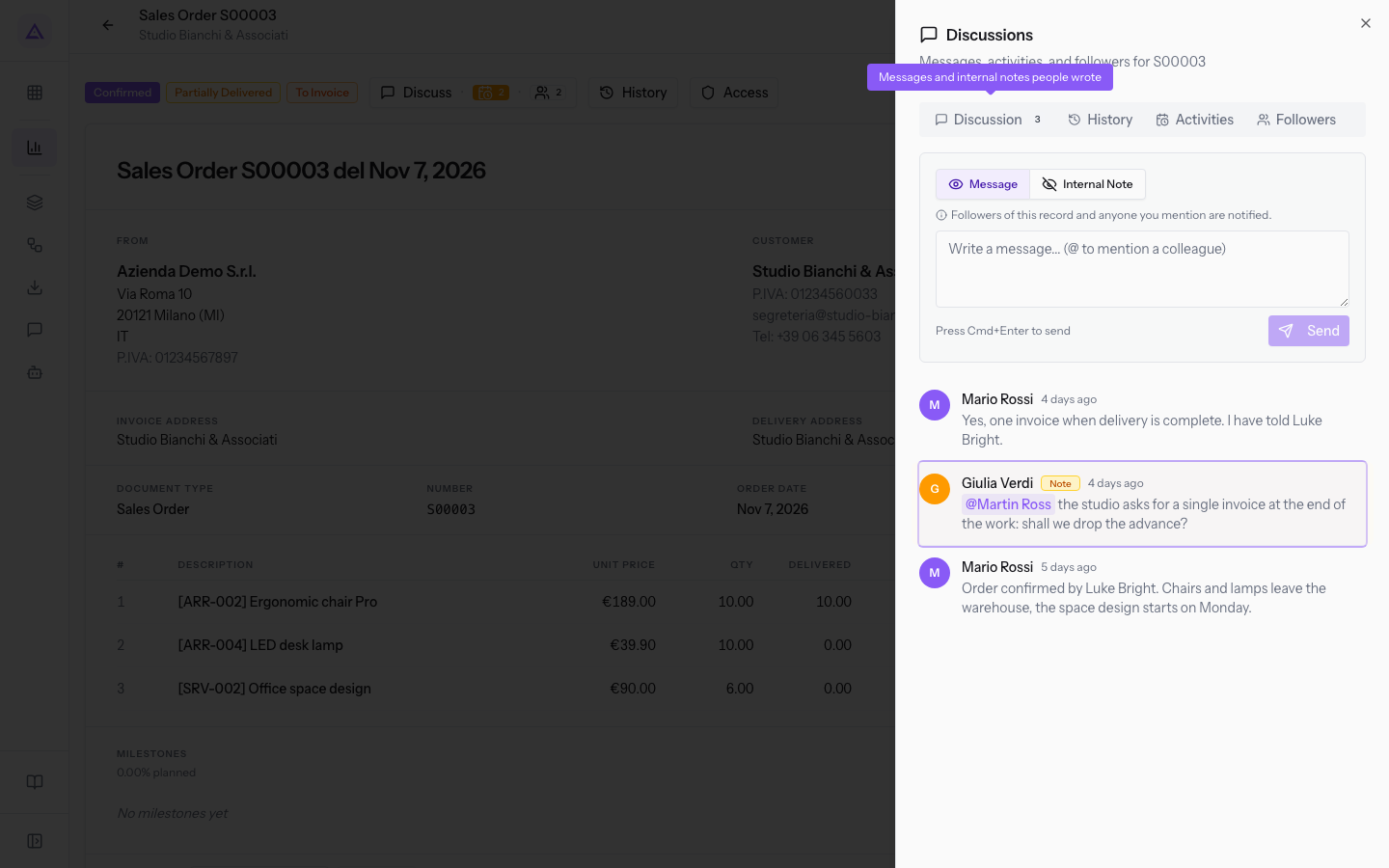
- Message: notifies all followers of the record and the colleagues you mention. The composer reminds you with the text "Followers of this record and anyone you mention are notified."
- Internal Note: notifies only the colleagues you mention. Customers never see it.
Followers also get a notification when a field on the record changes.
If the information concerns only the staff, write an Internal Note. If all followers need to know, write a Message.
Note: Whoever creates a record automatically becomes a follower. They receive notifications until they stop following it.
See the followers of a record
The Followers tab of the Discussions panel lists who follows the record.
- Open the record, for example the quote
S00003. - Press Discuss in the tab header. The Discussions panel opens.
- Press the Followers tab.
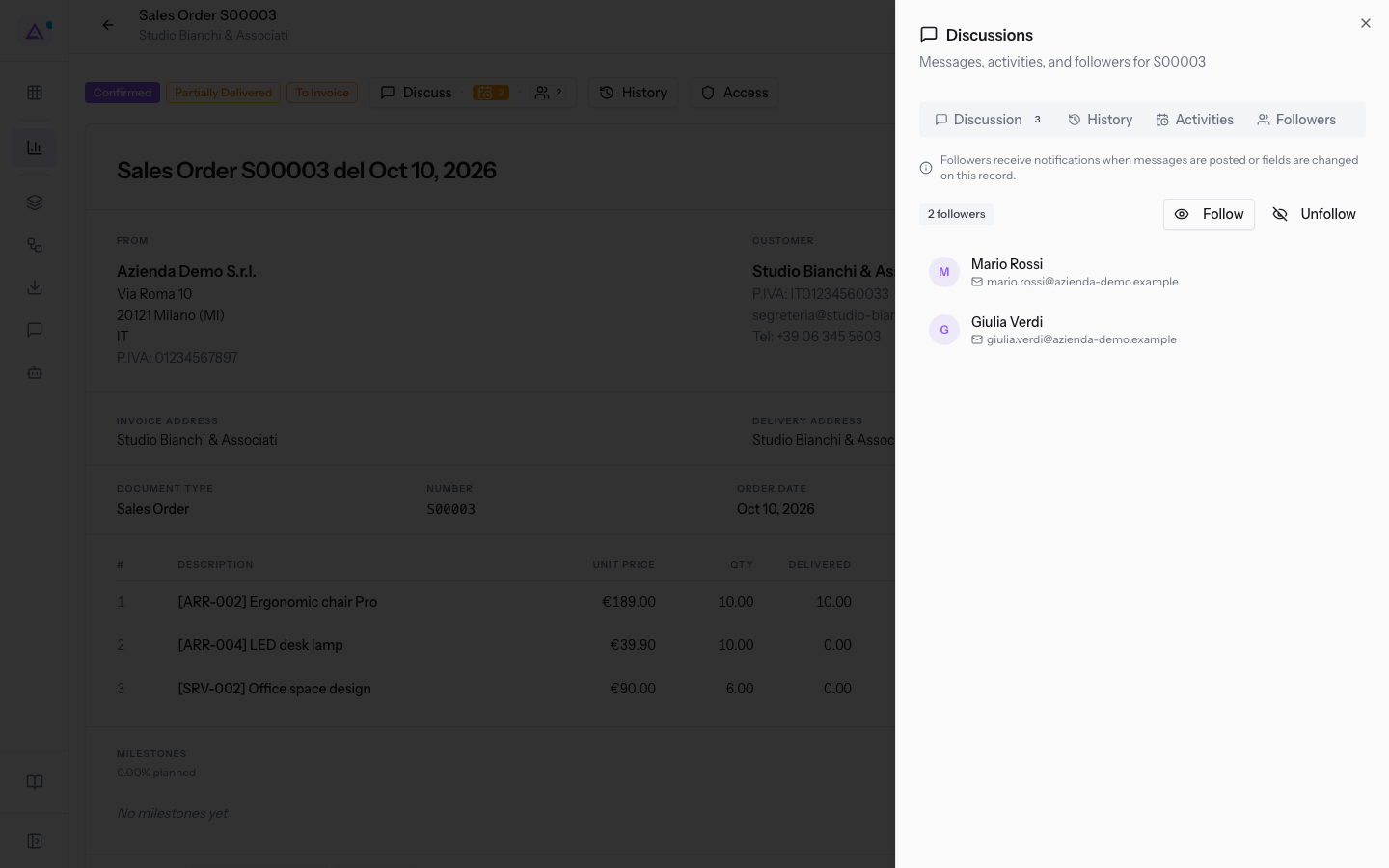
The tab shows:
- the text "Followers receive a notification when messages are posted or fields are changed on this record.";
- the number of followers. On quote S00003 there are 2 followers: Martin Ross and Julia Green;
- the Follow and Unfollow buttons;
- Remove this follower next to each follower, to remove them from the list;
- the text No followers yet, if nobody follows the record.
Follow or stop following a record
Follow a record to receive notifications, or stop following it to stop receiving them.
- Open the Followers tab of the Discussions panel.
- Press Follow. The message You are now following this record appears and the number of followers goes up by one.
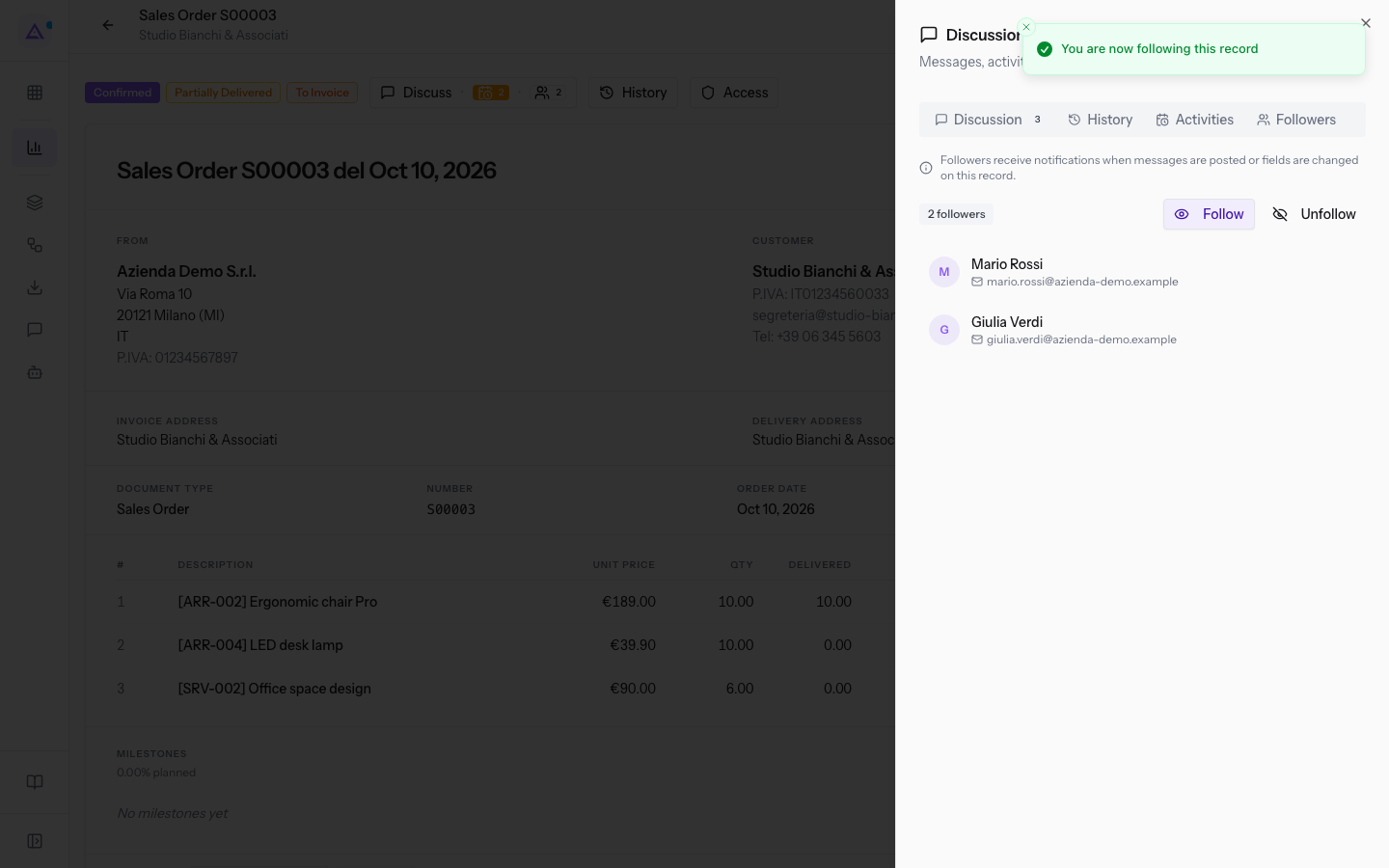
To stop receiving notifications, press Unfollow. The message You unfollowed this record appears and the number of followers goes down by one.
Note: Even if you don't follow the record, you still receive a notification when a colleague mentions you.
Read notifications
The Notifications page collects the notifications you have received. It opens with the Notifications button in the top bar.
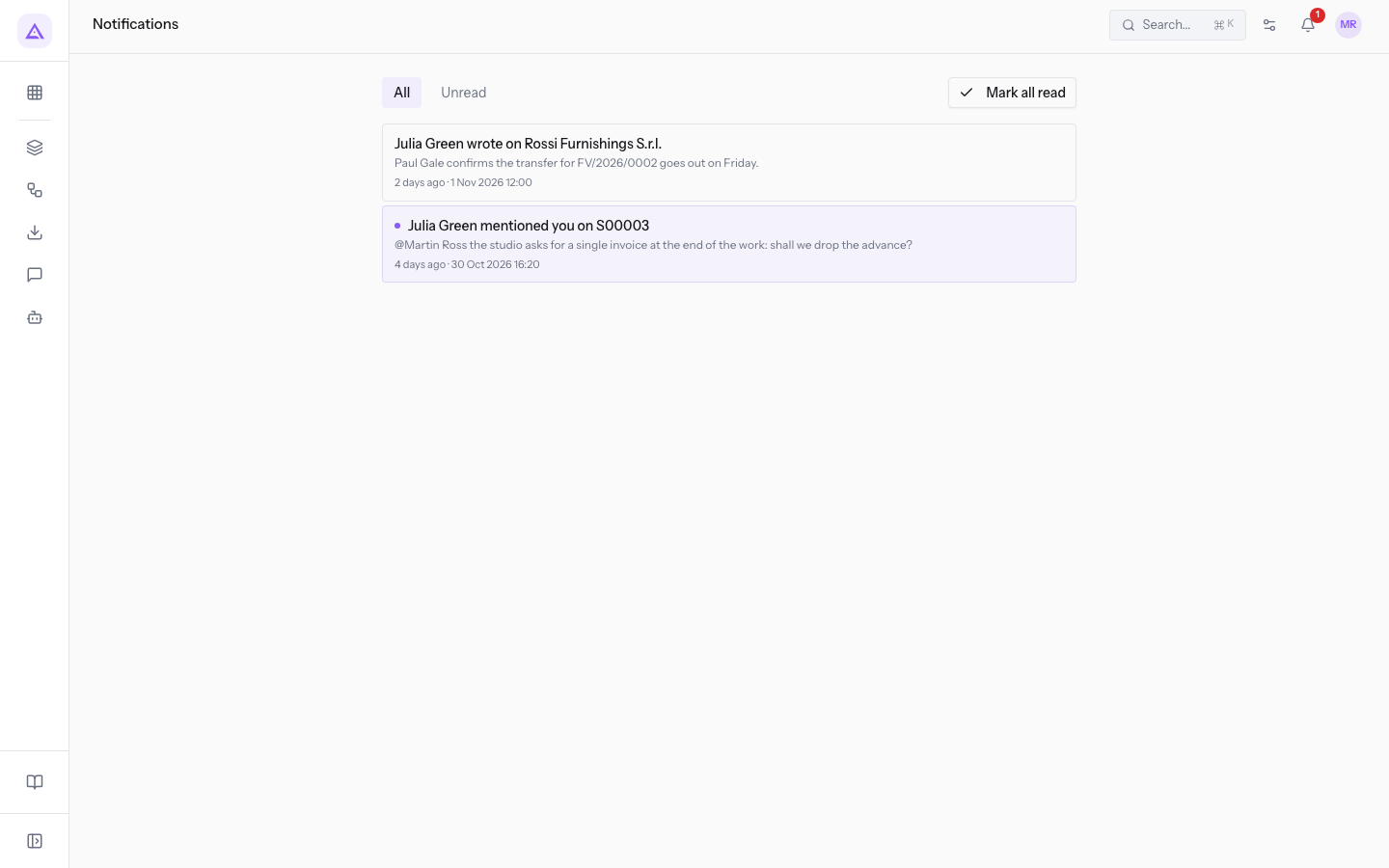
Each notification shows who wrote, on which record, an excerpt of the message and the date. For example:
- "Julia Green mentioned you on S00003", with the note excerpt "@Martin Ross the studio asks for a single invoice at the end of the work: shall we drop the advance payment?". The notification is not read yet.
- "Julia Green wrote on Rossi Furnishings S.r.l.", with the excerpt "Paul Gale confirms the transfer for FV/2026/0002 goes out on Friday.". The notification is already read.
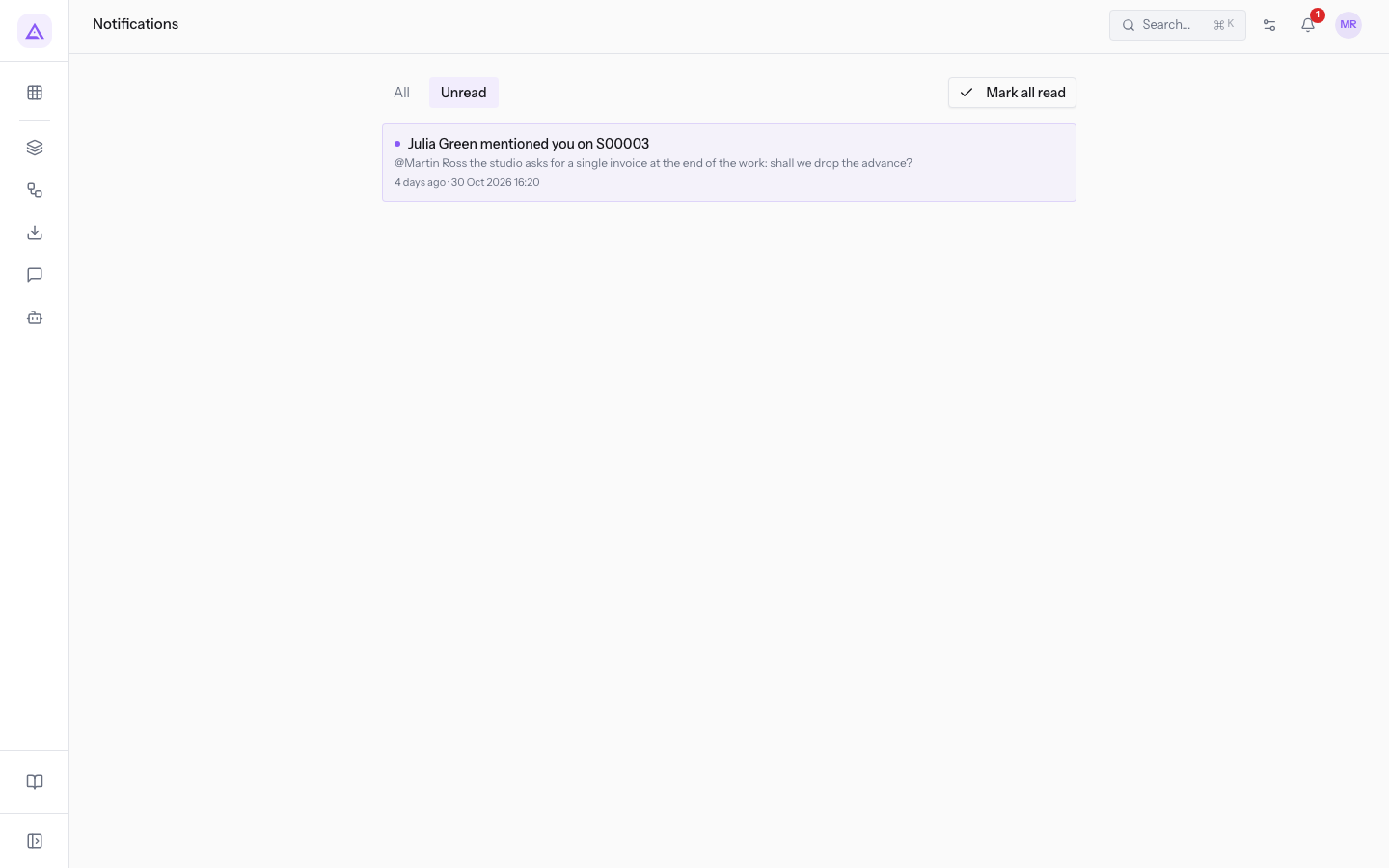
At the top of the page you find:
- All: shows all notifications.
- Unread: shows only the unread notifications.
- Mark all read: marks all notifications as read.
To delete a notification, press Delete notification on its row.
Open the record from a notification
From a notification you can open the message it refers to directly.
- Open the Notifications page.
- Press the notification, for example "Julia Green mentioned you on S00003".
The record opens with the Discussions panel open and the notification's message highlighted. From the composer you can reply right away with a Message or an Internal Note.
See it on your company, not on a slide deck.
In 30 minutes we map the software you use today.We show you how much work and how much margin Archimedes gives back.
Show me on my business →What industry are you in?
One tap — it lets us prepare the demo around your world.
What tools do you use today?
Pick the ones you recognise — or just type them. It helps us show you how they migrate.
Last step: your details.
We reply within one working day — and right after, if you like, you pick the demo slot yourself.
We couldn't send your request. Try again, or write to us at [email protected].
By sending, you agree to your data being processed so we can get back to you about the demo. Privacy notice.
Preview form — nothing is sent from this page.
Want to schedule the demo now?
Your call: book the slot you prefer yourself, or we'll call you to arrange it.
Live availability, 30 minutes, instant confirmation. The calendar opens in a new tab.
Lock in your slot ↗We'll get back to you within one working day — and we'll join the call already knowing your world.
The calendar is open in another tab: pick a slot and the demo is booked. Can't see it? Reopen it ↗
Preview page: nothing was sent.
Our calendar is live: take the slot that suits you and the demo is booked. 30 minutes, instant confirmation, no waiting.
Lock in your slot ↗