Messages and collaboration
All modules
Writing, mentioning and reacting in a channel
Messages and collaboration · 3 of 15 · 5 min read
In a channel you write messages for all members, mention colleagues and react to other people's messages. For example, a notice about hours in #general or a question about the menu in #kitchen.
To take part in the chat you need access to the organization. You can mention and add only colleagues who have access. In the demo they are Martin Ross and Julia Green.
Writing a message
The composer is at the bottom of every channel. You can use it in all the channels you belong to.
- In Chat, press the channel in the CHANNELS section, for example #kitchen.
- Type the text in the composer and press Enter or Send.
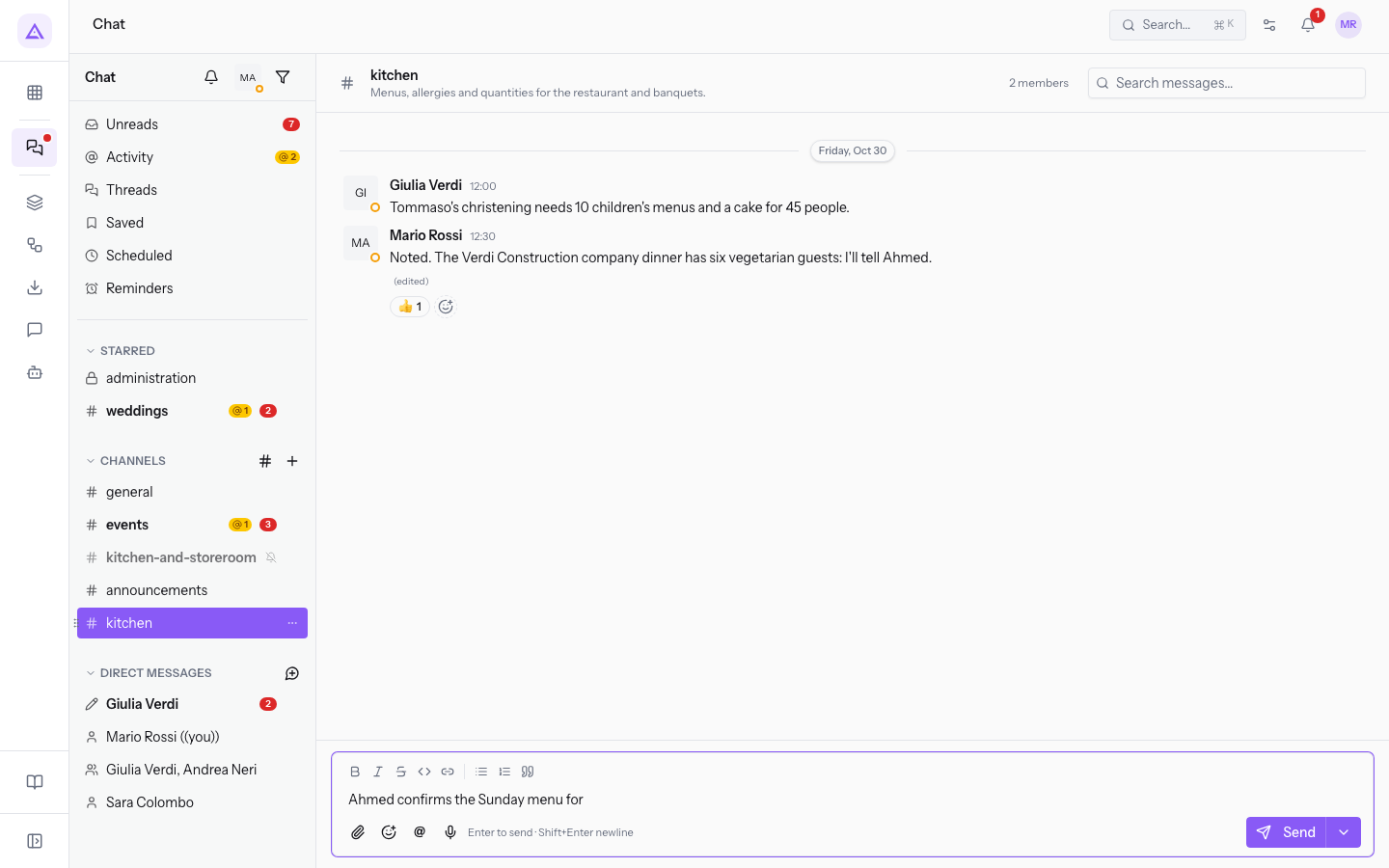
The composer shows the shortcuts: Enter to send · Shift+Enter newline. Use Shift+Enter to start a new line without sending.
A message that is too long does not go out. In this case the warning This message is too long. Shorten it to send it. appears.
Note: if you leave a channel with text not yet sent, the text stays in the composer. In the sidebar the channel appears marked Draft. In #kitchen there is a draft by Martin Ross about the Sunday menu.
Tip: to choose when to send a message, use Schedule for later, next to Send.
Formatting the text
The buttons above the composer apply formatting to the selected text or to the text you type next.
- Bold (⌘B): bold text.
- Italic (⌘I): italic text.
- Strikethrough (⌘⇧X): struck-through text.
- Code (⌘⇧C): monospaced text, useful for a code or a reference.
- Link: inserts a link.
- Bulleted list: a list with bullet points.
- Numbered list: a list with numbers.
- Quote: a quoted text.
To insert a link:
- Press Link.
- Fill in the fields of the window and press Add link.
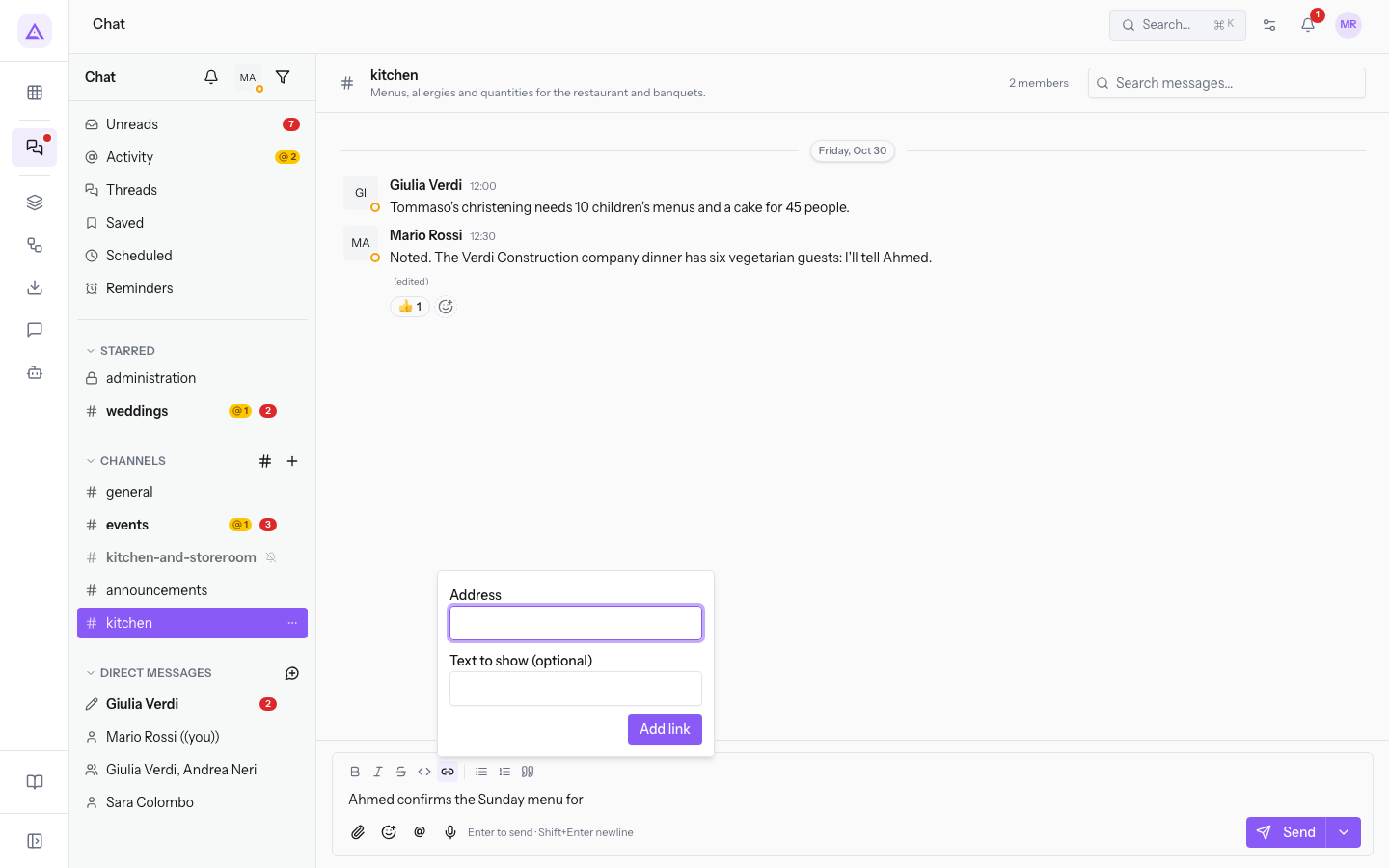
The fields of the window:
- Address: the address of the page to link.
- Text to show (optional): the link text in the message.
Adding emoji and attachments
Besides text you can insert emoji and attach files.
- For an emoji, press Insert emoji.
- Search for the emoji in the Search emoji… field or pick it from the list.
- For a file, press Attach file and choose the file from your computer.
Mentioning a colleague
A mention notifies the colleague even if they are not reading the channel. The mentions you receive are collected in the mentions view.
- In the composer, type @ followed by the colleague's name, or press Mention someone.
- Choose the colleague from the list, for example Julia Green.
Only colleagues who have access appear in the list. Employees without access cannot be mentioned.
Notifying the whole channel
To notify all members of a channel instead of just one colleague, type @channel, @here or @all in the message. In the mentions list these entries are described as Notify everyone in this conversation and Notify everyone online in this conversation.
- If the message concerns all members, for example a schedule change in #general, notify the whole channel.
- If it concerns one or two people, mention them by name: the other members do not receive the notification.
Important: the organization may reserve whole-channel notifications for the channel owners and admins. In this case, if you do not have the permission, the composer shows before sending In this organization only channel owners and admins can notify everyone. @channel, @here and @all in your message will notify nobody.
Reacting to a message
A reaction is an emoji under a message. It is used for a quick confirmation without writing a reply.
- Hover over the message.
- Press Add reaction.
- Choose the emoji, also by searching for it in Search emoji….
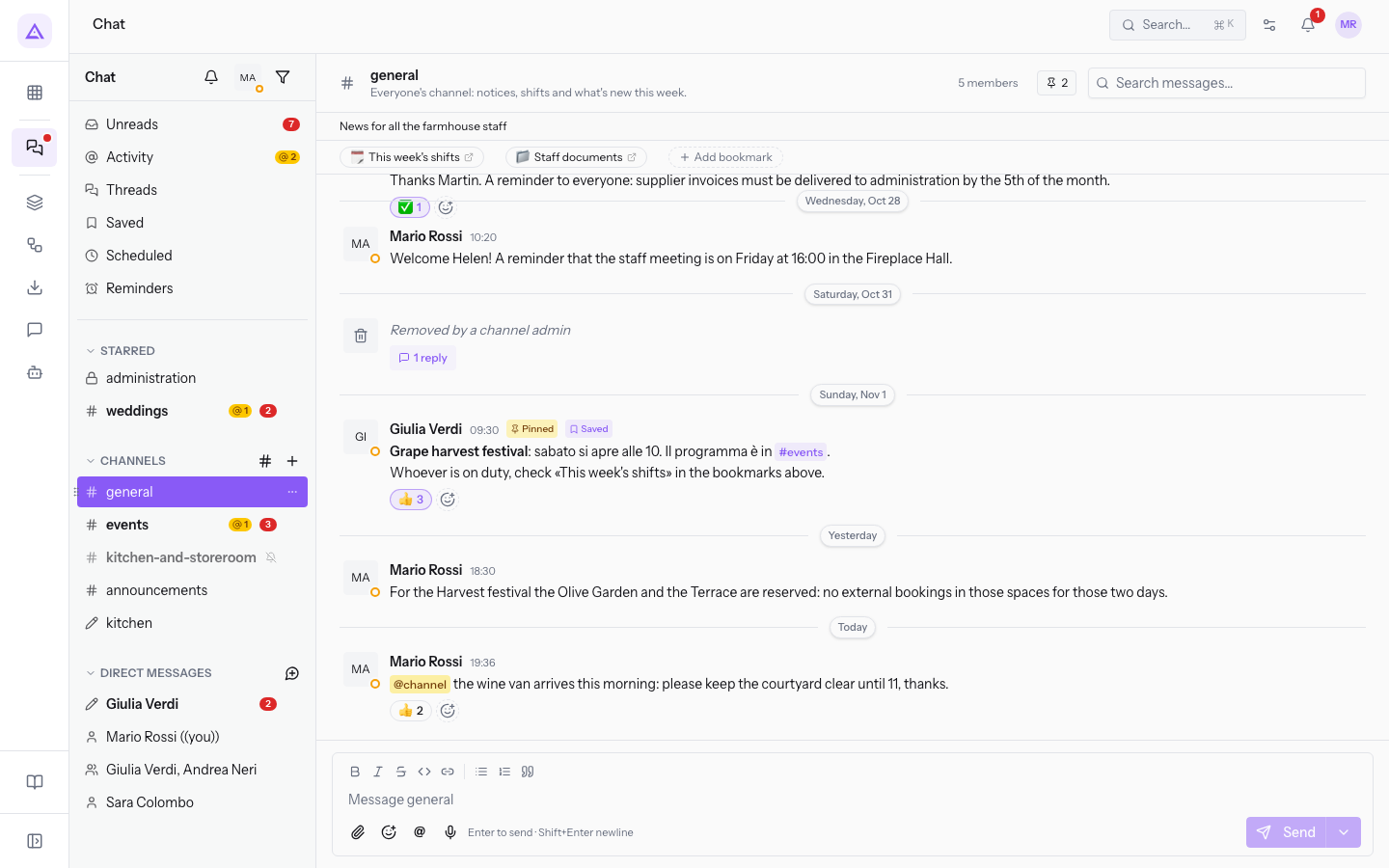
Reactions appear under the message, each with the number of people who chose it. In #general a message has the reactions 👍 1 and ✅ 1.
Actions on a message
When you hover over a message the message bar appears, with the reaction, the thread, saving and the other actions.
- Add reaction: adds an emoji under the message.
- Reply in thread: opens the replies to the message in a separate panel.
- Save for later: adds the message to your Saved.
The menu of the other actions contains:
- Edit message: changes the text of one of your messages. Press Enter to save or Esc to cancel, as the note Enter to save · Esc to cancel reminds you. After editing, the message shows (edited).
- Copy text: copies the text of the message. The confirmation Text copied appears.
- Copy link: copies the link to the message. The confirmation Link copied appears.
- Mark unread from here: marks the message as unread.
- Forward message…: sends the message to another conversation, with an optional note.
- Delete message…: deletes one of your messages.
Forwarding a message
Forward a message when it is also needed in another conversation, for example to bring to #kitchen a notice written in #general.
- Hover over the message and open the menu of the other actions.
- Press Forward message….
- Choose the destination conversation and, if you want, add a note.
The forwarded message shows where it comes from: the words Forwarded from followed by the name of the source channel. If it comes from a direct message it shows Forwarded from a direct message, if it comes from a private conversation Forwarded from a private conversation.
Deleting a message
You can delete only your own messages.
- Hover over the message and open the menu of the other actions.
- Press Delete message….
- At the question Delete this message? confirm the deletion.
Important: This cannot be undone. If the message has a thread, the replies in the thread remain.
Tip: if you wrote a test message, delete it when you are done.
See it on your company, not on a slide deck.
In 30 minutes we map the software you use today.We show you how much work and how much margin Archimedes gives back.
Show me on my business →What industry are you in?
One tap — it lets us prepare the demo around your world.
What tools do you use today?
Pick the ones you recognise — or just type them. It helps us show you how they migrate.
Last step: your details.
We reply within one working day — and right after, if you like, you pick the demo slot yourself.
We couldn't send your request. Try again, or write to us at [email protected].
By sending, you agree to your data being processed so we can get back to you about the demo. Privacy notice.
Preview form — nothing is sent from this page.
Want to schedule the demo now?
Your call: book the slot you prefer yourself, or we'll call you to arrange it.
Live availability, 30 minutes, instant confirmation. The calendar opens in a new tab.
Lock in your slot ↗We'll get back to you within one working day — and we'll join the call already knowing your world.
The calendar is open in another tab: pick a slot and the demo is booked. Can't see it? Reopen it ↗
Preview page: nothing was sent.
Our calendar is live: take the slot that suits you and the demo is booked. 30 minutes, instant confirmation, no waiting.
Lock in your slot ↗