Messages and collaboration
All modules
Reading a record's change history
Messages and collaboration · 12 of 15 · 3 min read
The History tab records what happened on a record, for example a quote or an event: who did it and when. Use it to trace changes to a record without searching through the messages.
Discussion and History
A record's Discussion panel has two different reading tabs.
- Discussion: the messages and internal notes written by people.
- History: the events the system records on the record, for example the scheduling of an activity and changes to tracked fields.
If you want to know what colleagues said to each other, open Discussion. If you want to know what changed on the record and who changed it, open History. When a record has no messages yet, the Discussion tab reminds you: «Start a conversation by sending a message or logging an internal note. Changes to this record are listed in the History tab.»
Note: history writes itself. You cannot add or edit its lines.
Opening a quote's history
On a quote, history is a tab in the Discussions panel.
- In the Sales module, open the quote, for example
S00003(quote). - In the header, press History, next to Discuss. Alternatively, press Discuss and then the History tab.
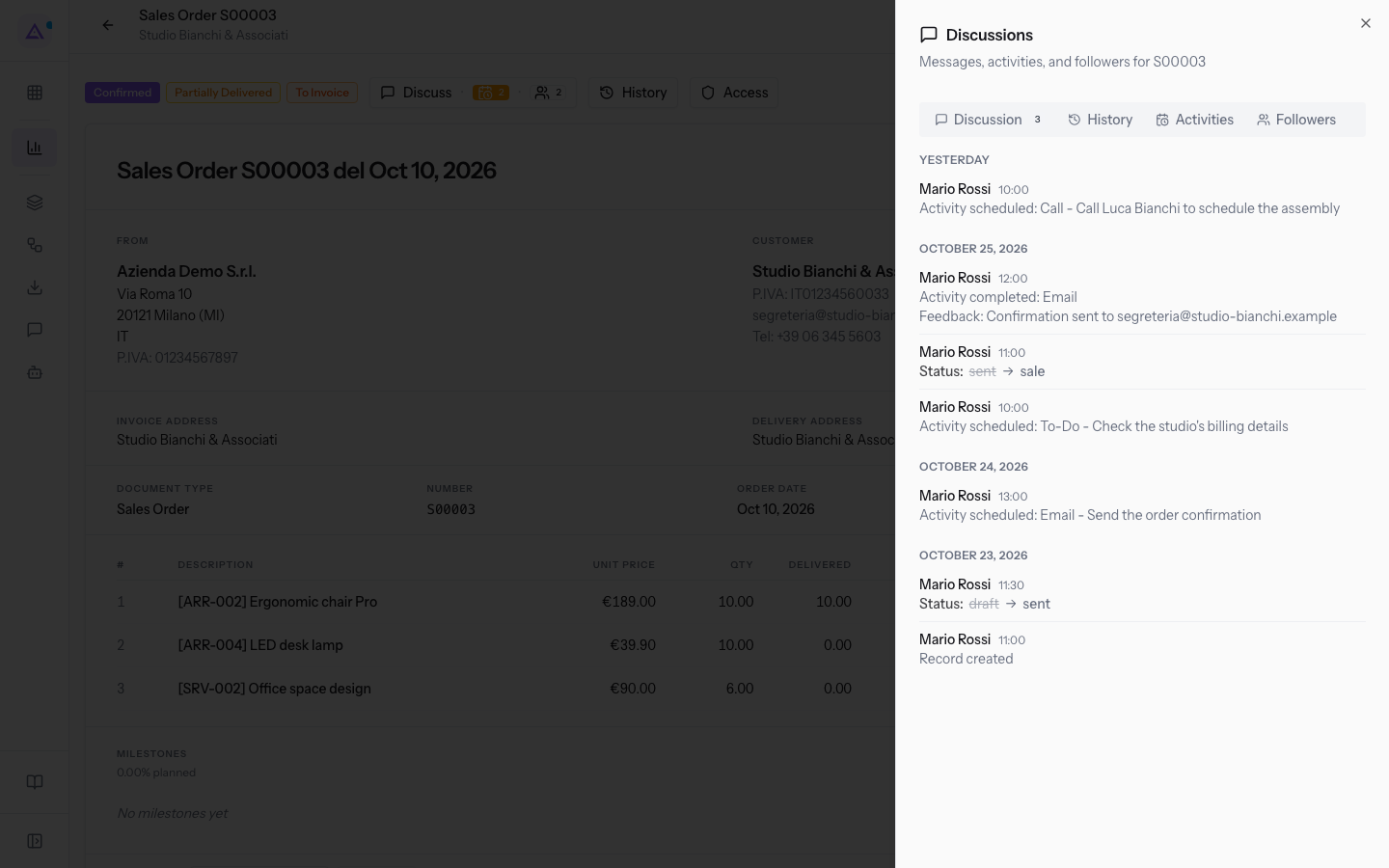
The panel has the subtitle «Messages, activities, and followers for S00003» and the tabs Discussion, History, Activities and Followers.
Reading the events
The History tab lists the record's events from most recent.
- Grouping by day: events are divided by date. The previous day appears as YESTERDAY, the others with the date, such as OCTOBER 25, 2026.
- Author and time: each line shows who performed the action and at what time.
- Description: what happened. Activity lines show the type and summary of the activity, for example
Activity scheduled: Call - Call Luke Bright to schedule the assemblyonS00003andActivity scheduled: Follow Up - Follow up with Frances Russell on the quotationonS00002. - Record created: the line recording the creation of the record.
At the bottom of the list, the Load older events button shows earlier events. If loading fails, Could not load older events appears.
If nothing has happened on the record yet, the tab shows Nothing recorded yet. While loading, Loading history… appears; if the history does not load, Could not load the history.
Opening an event's history
On an event, the discussion is a column of the tab, titled Discussion, and history is one of its tabs.
- In the Events module, open the event, for example
Sara and Luca's wedding. - In the Discussion column, press the History tab.
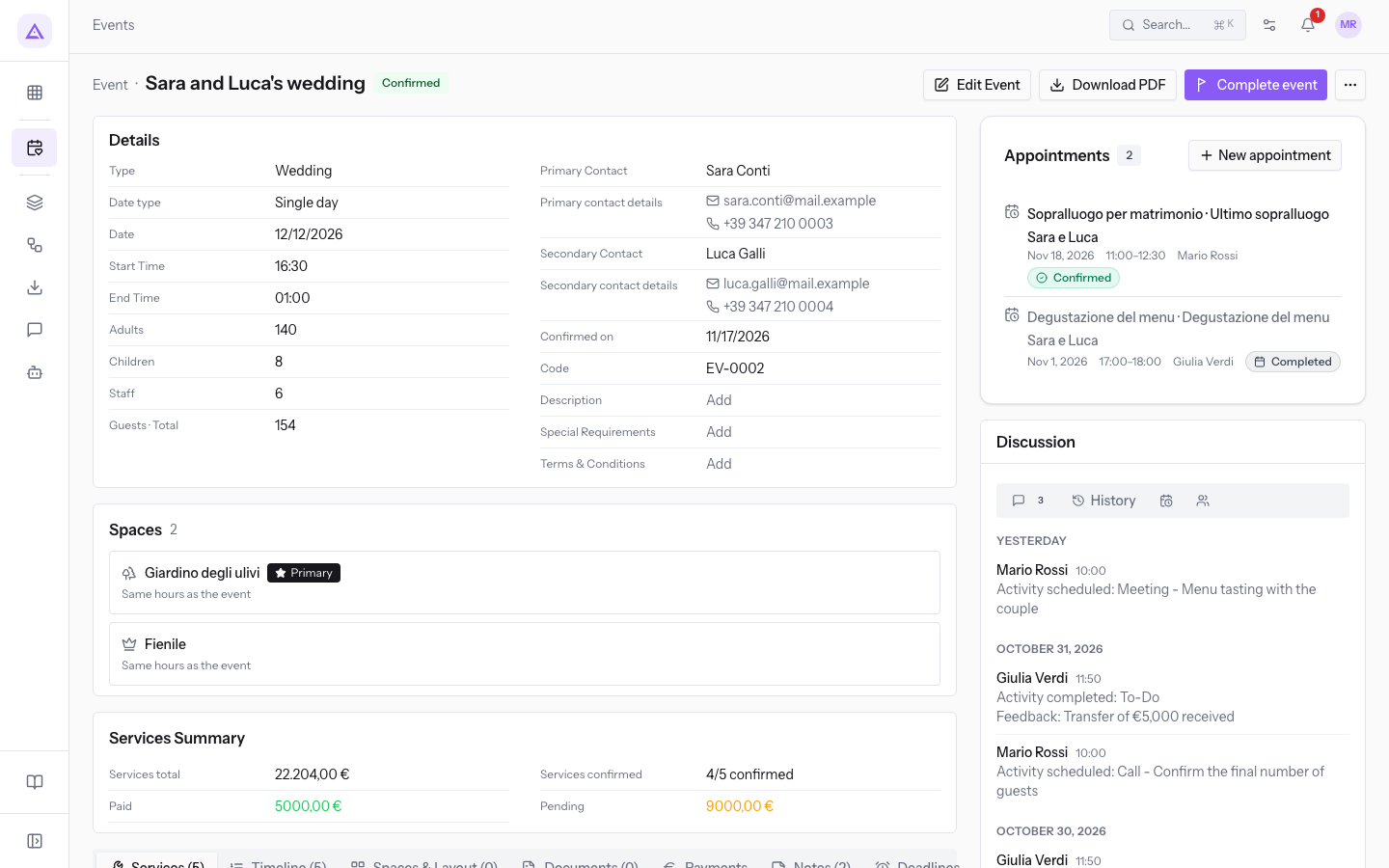
Events are grouped by day as on a quote, for example YESTERDAY, OCTOBER 27, 2026, OCTOBER 26, 2026 and OCTOBER 5, 2026.
See it on your company, not on a slide deck.
In 30 minutes we map the software you use today.We show you how much work and how much margin Archimedes gives back.
Show me on my business →What industry are you in?
One tap — it lets us prepare the demo around your world.
What tools do you use today?
Pick the ones you recognise — or just type them. It helps us show you how they migrate.
Last step: your details.
We reply within one working day — and right after, if you like, you pick the demo slot yourself.
We couldn't send your request. Try again, or write to us at [email protected].
By sending, you agree to your data being processed so we can get back to you about the demo. Privacy notice.
Preview form — nothing is sent from this page.
Want to schedule the demo now?
Your call: book the slot you prefer yourself, or we'll call you to arrange it.
Live availability, 30 minutes, instant confirmation. The calendar opens in a new tab.
Lock in your slot ↗We'll get back to you within one working day — and we'll join the call already knowing your world.
The calendar is open in another tab: pick a slot and the demo is booked. Can't see it? Reopen it ↗
Preview page: nothing was sent.
Our calendar is live: take the slot that suits you and the demo is booked. 30 minutes, instant confirmation, no waiting.
Lock in your slot ↗