Messages and collaboration
All modules
Pinning, saving and reminding yourself of important messages
Messages and collaboration · 8 of 15 · 5 min read
In the staff chat you can keep the messages that matter within reach in four ways: pin them in the conversation, save them for yourself, ask for a reminder, or schedule the sending of one of your own messages. For example, you can pin the restaurant's opening hours in #general, save the message about Sara and Luca's wedding, or schedule a notice for the staff.
Which tool to use
The four tools have different purposes.
- If a message must stay visible in a conversation, pin it. It appears in the Pinned messages window of that conversation.
- If the message is only for you, save it. It appears in Saved messages.
- If you need to come back to a message at a precise time, set a reminder. It appears in the Reminders view.
- If you want one of your messages to go out later, schedule it. It stays in Scheduled messages until it is sent, and until then you can cancel it.
The Saved, Scheduled and Reminders entries are in the chat sidebar, under the Chat heading.
Pinning a message in the conversation
A pinned message stays highlighted in the conversation where it was written.
- Open the conversation, for example general.
- Hover over the message to show the message action bar.
- Choose Pin to conversation. The message shows the Pinned badge.
To see pinned messages, press the button with the number of pinned messages in the conversation header (1 in #general). The Pinned messages window opens: "Messages important enough to stay accessible from the top of this conversation."
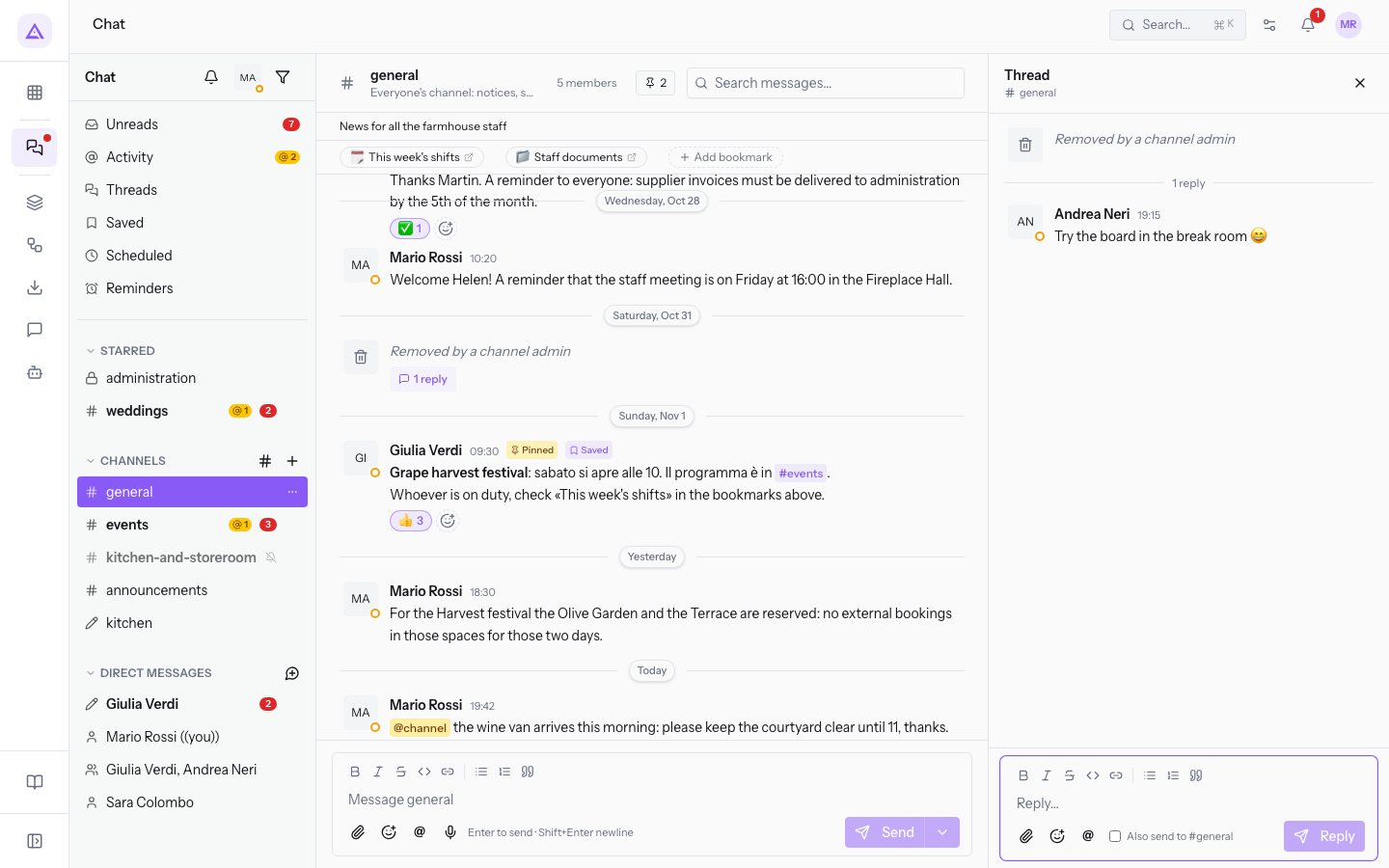
Each entry in the window shows the author, the message date, when it was pinned and the text. In #general the message from Martin Ross about the restaurant's new opening hours is pinned.
- To remove a message from the pinned ones, choose Unpin from conversation.
- If the conversation has no pinned messages, the window shows No pinned messages yet.
Saving a message for later
Only you can see a saved message.
- Hover over the message to show the action bar.
- Press Save for later.
To find your saved messages, press Saved in the sidebar. The Saved messages window opens: "Your personal bookmarks. Click any item to jump to the original message."
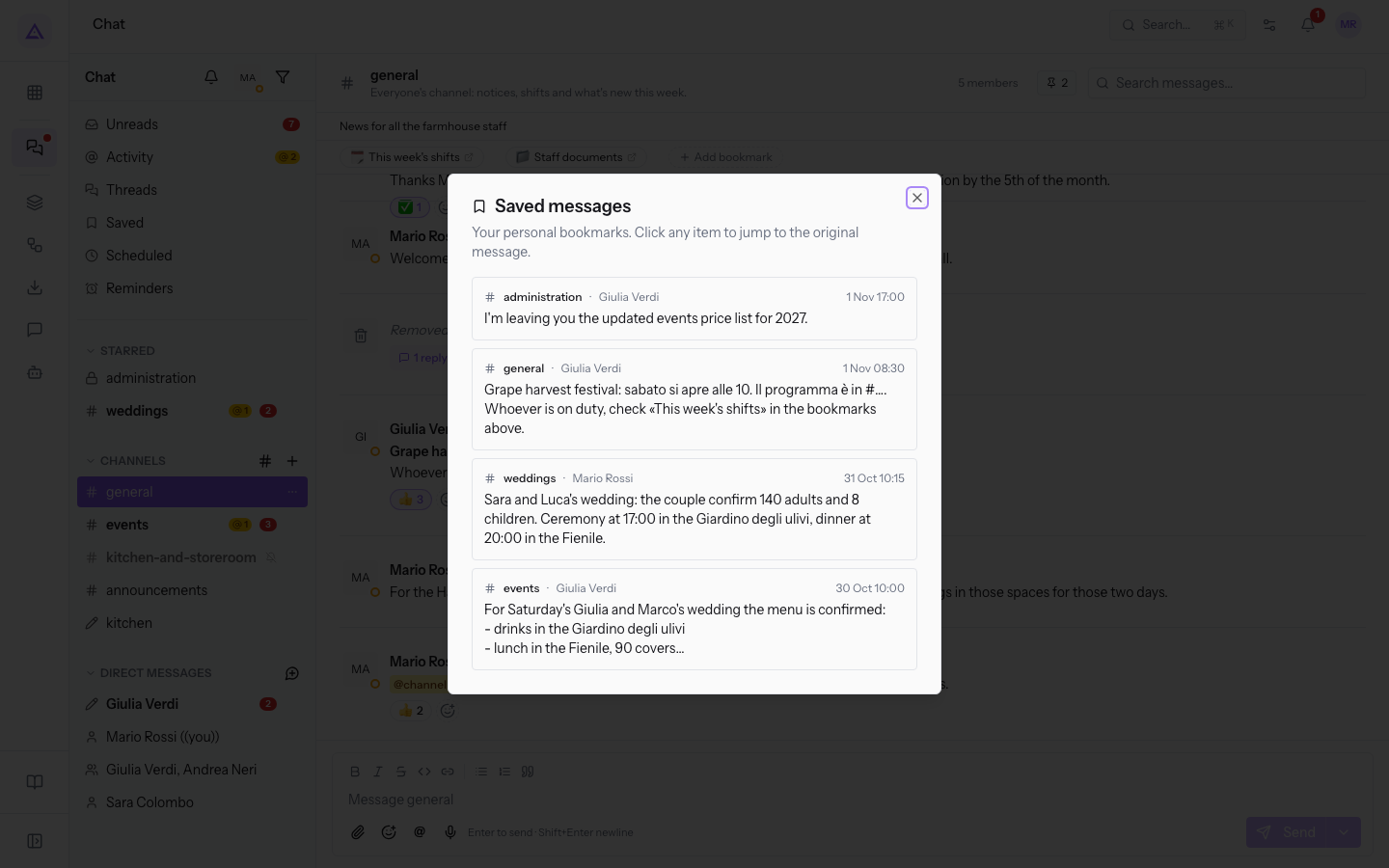
Each entry shows the channel, the author, the date and the text of the message. In the demo Martin Ross saved the message in #weddings about Sara and Luca's wedding. Press the entry to open the message in its conversation.
Being reminded of a message
A reminder brings you back to a message at the time you choose.
- Hover over the message to show the action bar.
- Choose Remind me about this…. The Remind me about this dialog opens.
- Choose when: In 20 minutes, In 1 hour, In 3 hours or Tomorrow at 9:00, and press Set reminder. The message "Reminder set for" appears, followed by the time.
Alternatively, you can type the command /remind me in 20m … in the composer, as the Reminders view suggests when it is empty.
Managing reminders
The Reminders view lists your pending reminders.
- Press Reminders in the sidebar.
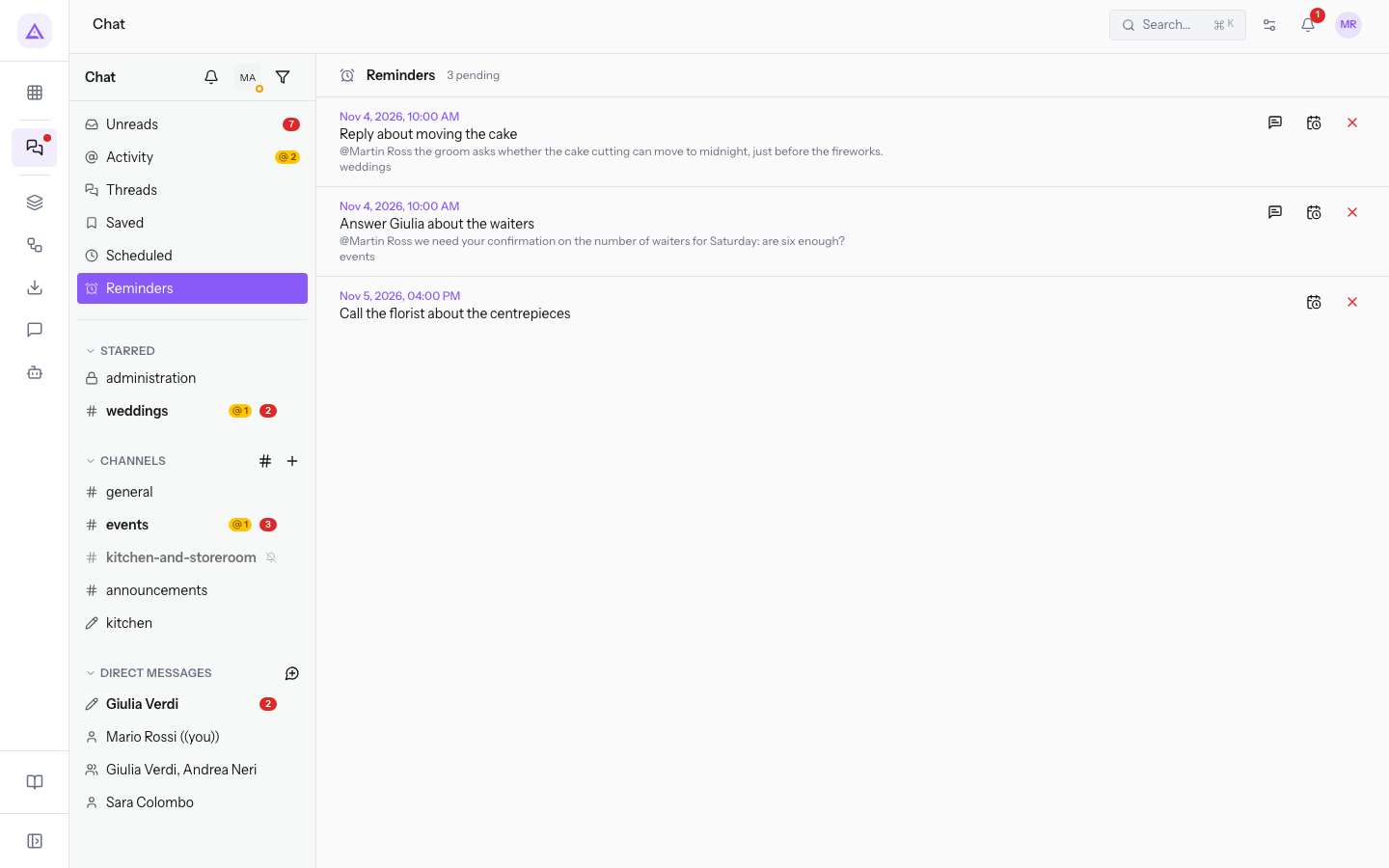
- On each reminder, use one of these actions:
- Go to the message: opens the message in its conversation.
- Reschedule: shows the New time field with the reminder's current date and time. Change the time and press Save. The message "Reminder moved to" appears, followed by the new time.
- Snooze: moves the reminder later. The message "Snoozed until" appears, followed by the new time.
- Cancel reminder: asks for confirmation with Cancel this reminder?. After confirming, Reminder cancelled appears.
In Demo Company S.r.l. Martin Ross has a reminder for tomorrow at 10:00. If there are no reminders, the view shows No pending reminders.
Scheduling a message
A scheduled message is sent by itself at the time you choose. It is useful for a notice that must reach the staff at a specific moment.
- Open the conversation and write the message in the composer.
- Press the ▾ arrow next to Send (Schedule for later).
- Choose when to send it, for example In 1 hour or Tomorrow morning. For a different time use the Schedule message window and confirm with Schedule.
- The message shows "Scheduled for" followed by the sending time.
Viewing and cancelling scheduled messages
The Scheduled messages window collects your messages waiting to be sent.
- Press Scheduled in the sidebar. The Scheduled messages window opens: "Pending messages waiting to be sent. You can cancel any of them before they fire."
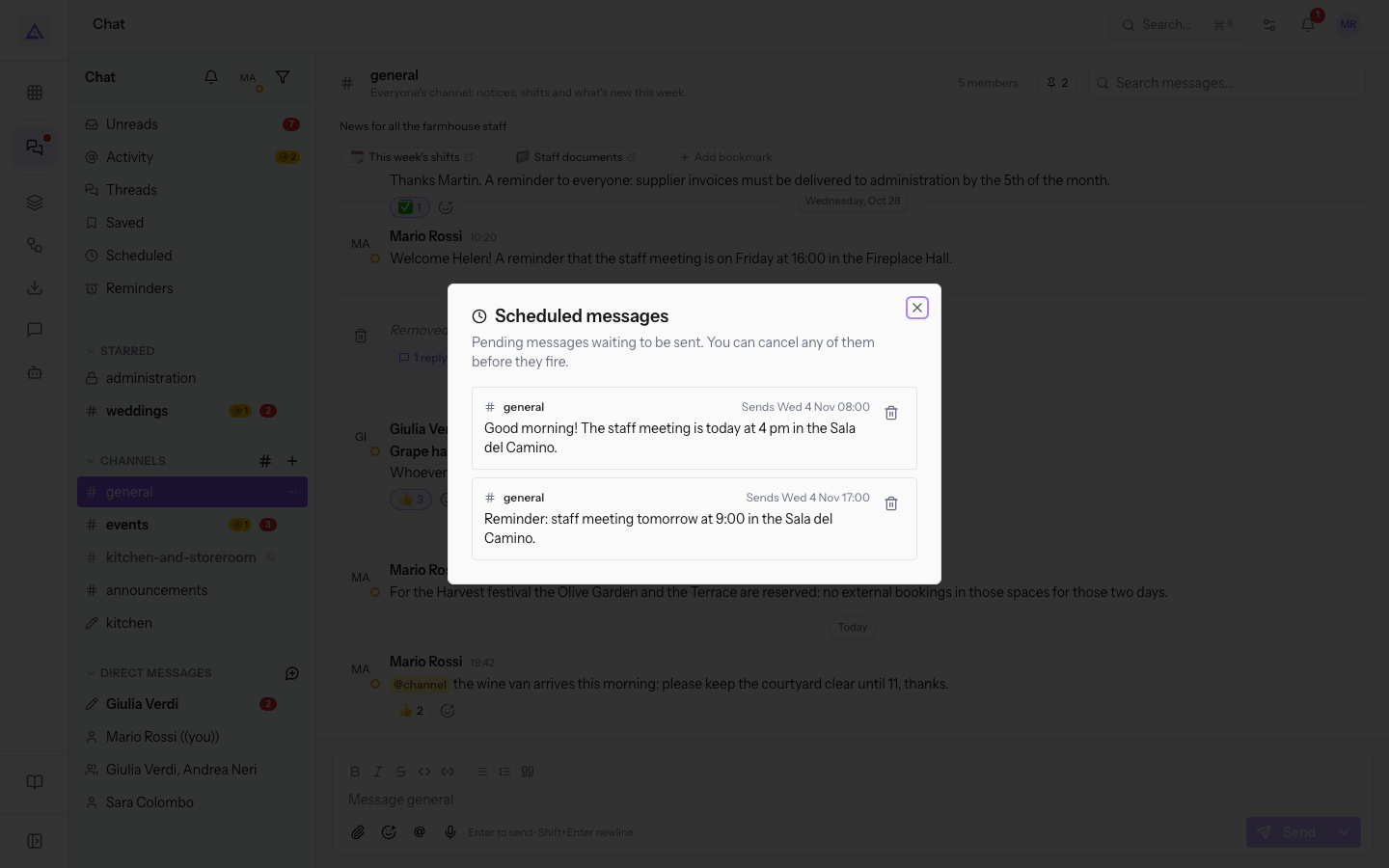
- Each entry shows the conversation, the sending time and the text. In the demo, in
#generalthere is Martin Ross's message about the staff meeting in the Hall of Camino, to be sent tomorrow at 17:00. - To prevent it from being sent, press Cancel scheduled message. Scheduled message cancelled appears.
Note: if you have no scheduled messages, the window shows "Nothing scheduled. Use the ▾ next to Send to schedule a message."
See it on your company, not on a slide deck.
In 30 minutes we map the software you use today.We show you how much work and how much margin Archimedes gives back.
Show me on my business →What industry are you in?
One tap — it lets us prepare the demo around your world.
What tools do you use today?
Pick the ones you recognise — or just type them. It helps us show you how they migrate.
Last step: your details.
We reply within one working day — and right after, if you like, you pick the demo slot yourself.
We couldn't send your request. Try again, or write to us at [email protected].
By sending, you agree to your data being processed so we can get back to you about the demo. Privacy notice.
Preview form — nothing is sent from this page.
Want to schedule the demo now?
Your call: book the slot you prefer yourself, or we'll call you to arrange it.
Live availability, 30 minutes, instant confirmation. The calendar opens in a new tab.
Lock in your slot ↗We'll get back to you within one working day — and we'll join the call already knowing your world.
The calendar is open in another tab: pick a slot and the demo is booked. Can't see it? Reopen it ↗
Preview page: nothing was sent.
Our calendar is live: take the slot that suits you and the demo is booked. 30 minutes, instant confirmation, no waiting.
Lock in your slot ↗