Messages and collaboration
All modules
Discussing a topic in a thread
Messages and collaboration · 4 of 15 · 3 min read
A thread gathers the replies to a single message in a channel, in a panel separate from the main conversation. Use it to go deeper into a topic without cluttering the channel: for example the details of a wedding, a question about a menu, or a supplier's confirmation.
When to reply in a thread
A message with replies shows the reply counter below it, for example 3 replies. The replies do not appear in the channel, only in the Thread panel.
- If the reply concerns only that message, write it in the thread.
- If the reply must also be read by those following the channel, select Also send to #weddings before sending it: the reply also appears in the channel.
Note: in the channel, a reply also sent there appears with the wording «replied in a thread:» followed by an excerpt of the text.
Opening a thread
In the demo, the #weddings channel contains the thread on Martin Ross's message «Sara and Luca's wedding: the couple confirm 140 adults and 8 children…».
- In the chat sidebar, press weddings in the STARRED section.
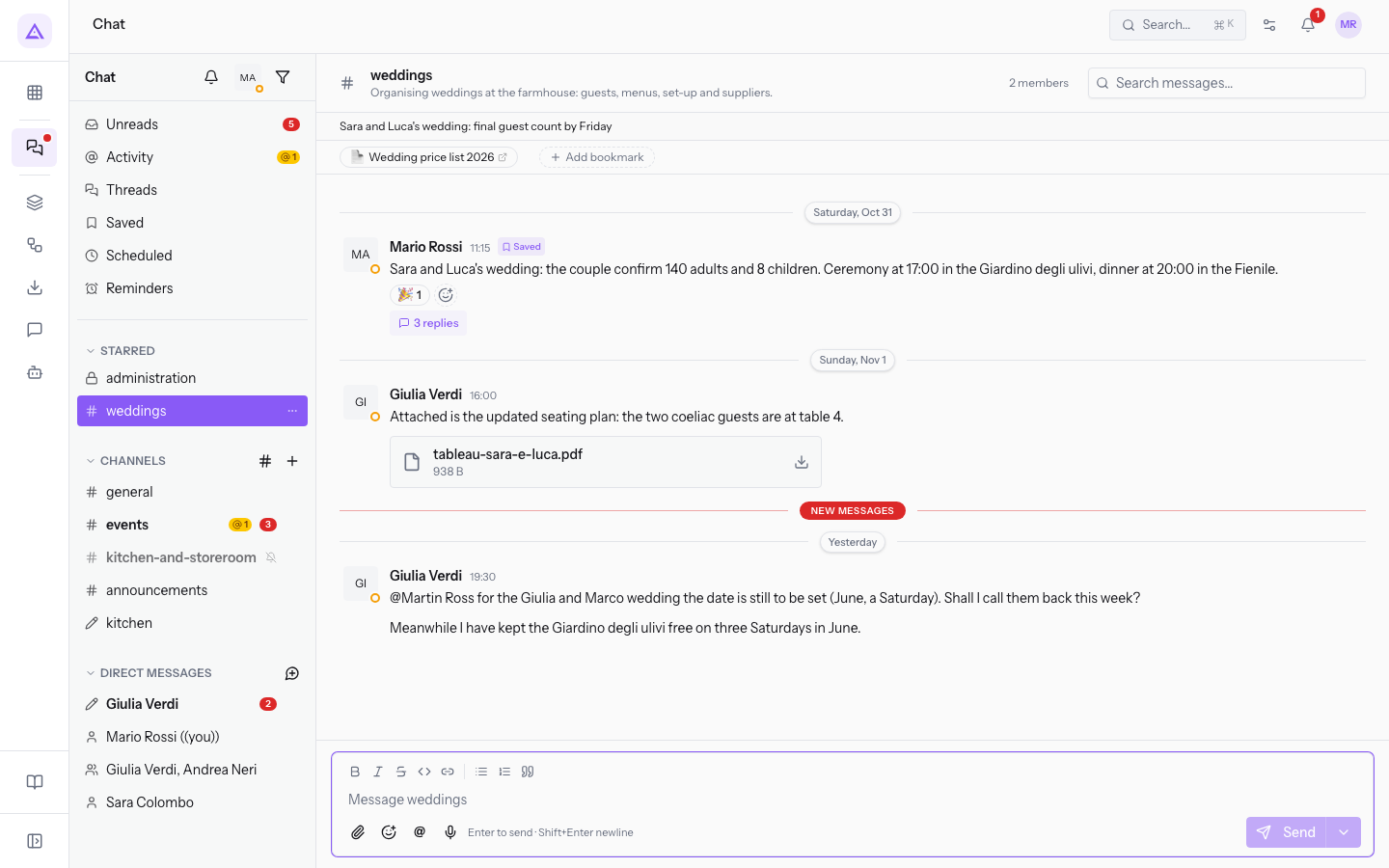
- Below the message about Sara and Luca's wedding, press 3 replies. Alternatively, hover over the message and press Reply in thread.
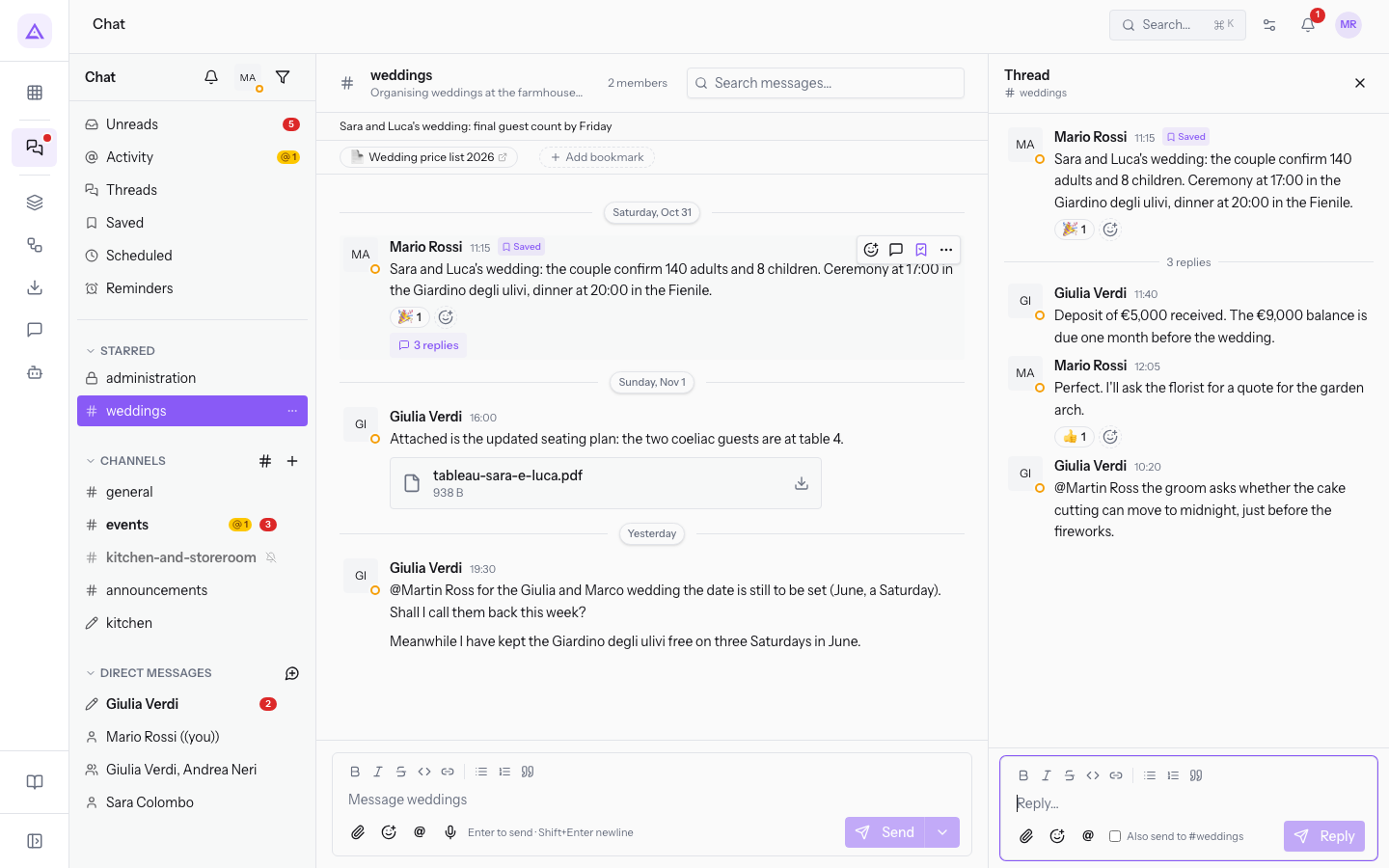
The Thread panel opens to the right of the conversation. At the top it shows the starting message; below, the replies in the order they were sent, with the author of each.
Replying in the thread
At the bottom of the Thread panel is the box for writing the reply.
- Open the thread as described above.
- Write the text in the Reply… box. You can use formatting, attachments, emoji and mentions with @name, as in a channel message.
- If you want the reply to also appear in the channel, select Also send to #weddings.
The fields of the reply box are:
- Reply…: the text of the reply.
- Also send to #weddings: checkbox, not selected on opening. The name shows the channel of the thread. If you select it, the reply is also published in the channel conversation.
Note: if the starting message is deleted, the replies in its thread remain. In the channel, the reply then appears with the wording «replied in a thread whose first message was deleted».
Finding the threads you take part in
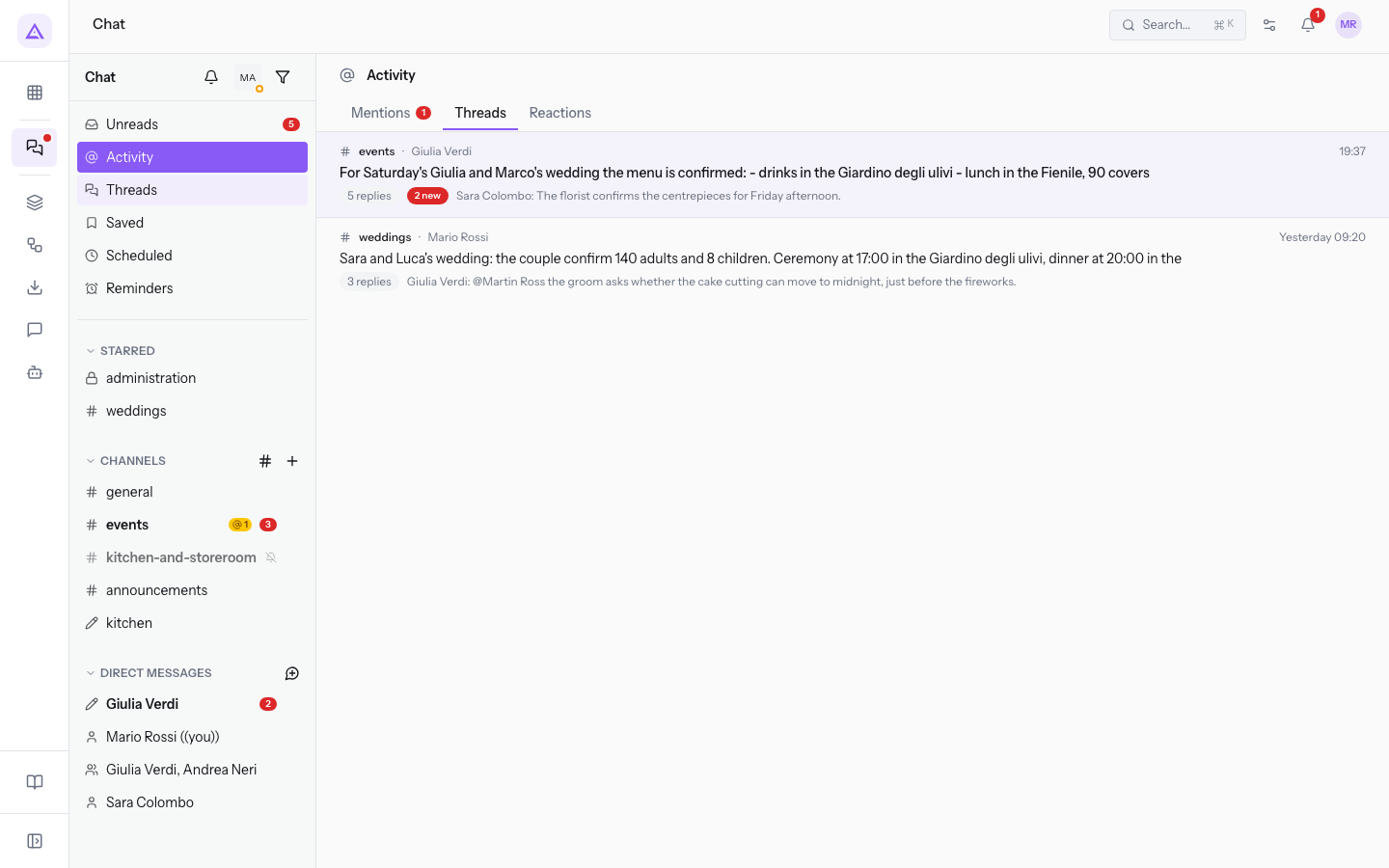
The Threads entry in the sidebar gathers in one view the threads you started or replied to, across all channels.
- In the chat sidebar, press Threads.
The Activity view opens with the Threads tab selected. The other tabs are Mentions and Reactions. Each row shows the channel, the author and the beginning of the starting message, for example «weddings · Martin Ross … Sara and Luca's wedding: the couple confirm 140 adults and 8 children…», with the number of replies. If the thread has replies you have not yet read, the row shows how many are new.
If you have not yet started any threads or replied to anyone, the view shows «No threads yet. Threads you start or reply to show up here.»
Tip: replies in your threads also reach you as a notification, like direct messages and mentions.
See it on your company, not on a slide deck.
In 30 minutes we map the software you use today.We show you how much work and how much margin Archimedes gives back.
Show me on my business →What industry are you in?
One tap — it lets us prepare the demo around your world.
What tools do you use today?
Pick the ones you recognise — or just type them. It helps us show you how they migrate.
Last step: your details.
We reply within one working day — and right after, if you like, you pick the demo slot yourself.
We couldn't send your request. Try again, or write to us at [email protected].
By sending, you agree to your data being processed so we can get back to you about the demo. Privacy notice.
Preview form — nothing is sent from this page.
Want to schedule the demo now?
Your call: book the slot you prefer yourself, or we'll call you to arrange it.
Live availability, 30 minutes, instant confirmation. The calendar opens in a new tab.
Lock in your slot ↗We'll get back to you within one working day — and we'll join the call already knowing your world.
The calendar is open in another tab: pick a slot and the demo is booked. Can't see it? Reopen it ↗
Preview page: nothing was sent.
Our calendar is live: take the slot that suits you and the demo is booked. 30 minutes, instant confirmation, no waiting.
Lock in your slot ↗