Messages and collaboration
All modules
Finding your way around the staff chat
Messages and collaboration · 2 of 15 · 5 min read
The staff chat is the organization's internal communication space. Here you find channels by topic, such as weddings, the kitchen or administration, and direct messages with colleagues.
This page describes the main screen: the sidebar, the menu of each conversation, and the header of the open conversation.
Who uses the chat
Only users who have an account take part in the chat. In the demo organization they are Martin Ross and Julia Green. Other employees cannot be members of a channel and cannot be mentioned.
Note: a group conversation requires at least three people. In the demo, only two people have an account, so you cannot start one.
The sidebar
The sidebar lists the chat views and all the conversations you are part of.
- Open the chat. The last conversation opens.
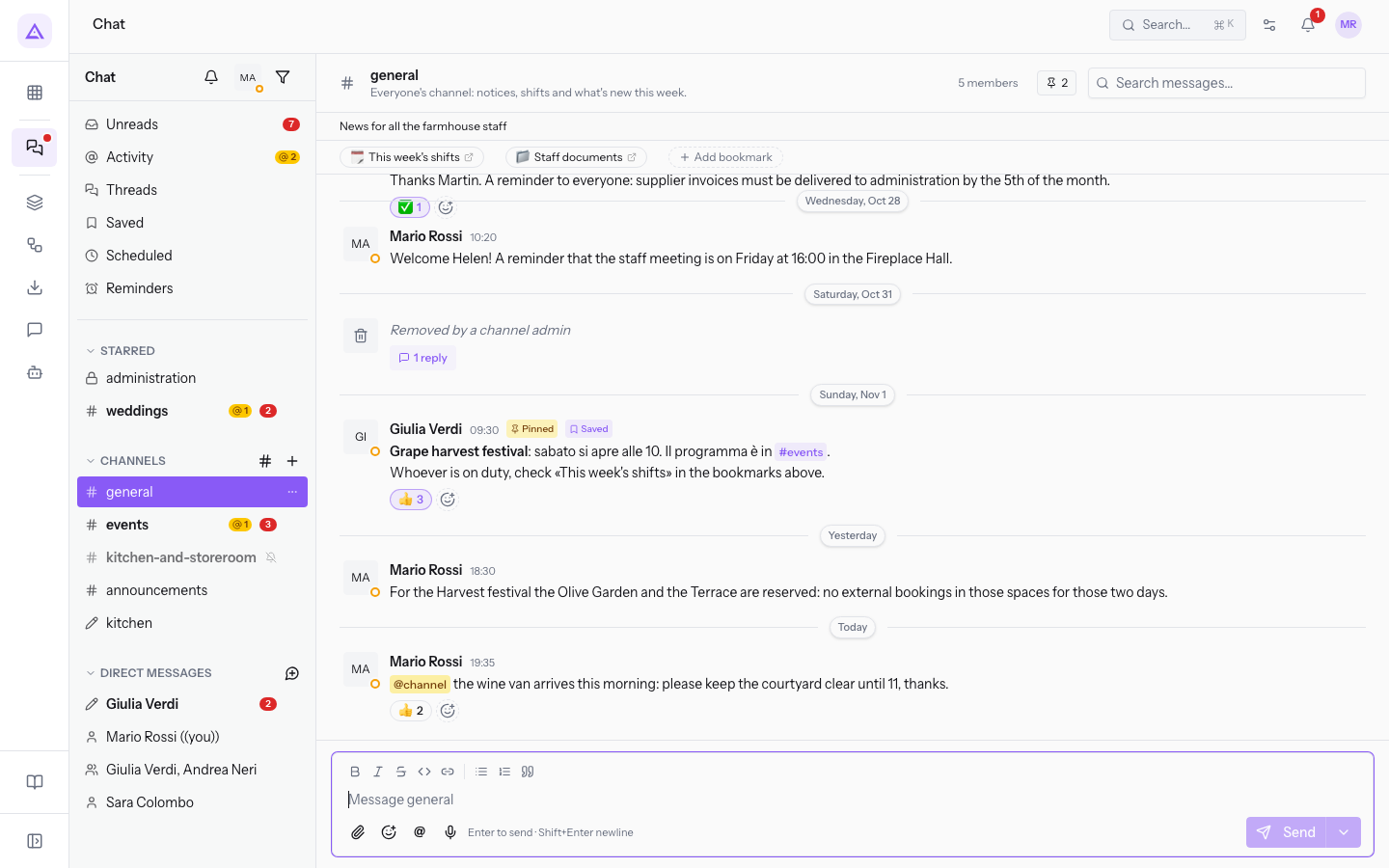
At the top there are two personal buttons:
- Pause notifications: temporarily suspends the chat alerts.
- My status and availability: sets your status and availability.
Then come the views, which gather the messages from all conversations:
- Unreads: the messages you have not read yet. Next to the name their number appears.
- Activity: mentions and other activity that concerns you. A counter also appears here when there is something new.
- Threads: replies to messages in the threads you take part in.
- Saved: the messages you saved for later.
- Scheduled: the messages you scheduled to be sent later.
- Reminders: the reminders you set on messages.
Below the views are the conversation sections:
- STARRED: the conversations you added to your favourites. In the demo #weddings is among Martin Ross's favourites.
- CHANNELS: the channels you are part of, for example #general, #kitchen and #admin. #general is the default channel. #admin is a private channel. Next to the title there are Browse channels, to find public channels you are not part of, and New channel.
- DIRECT MESSAGES: direct messages with colleagues and notes to yourself, marked (you). Next to the title there is New direct message.
Next to a conversation's name the number of unread messages appears: in the demo 1 next to Julia Green. When you open the conversation, the counter resets and the total of Unreads goes down.
Note: Martin Ross is not part of #front-desk, so the channel does not appear in the sidebar. He finds it under Browse channels.
Showing only conversations with unread messages
The unread filter narrows the sidebar to the conversations where there is something to read.
- Press Show only unread at the top of the sidebar.
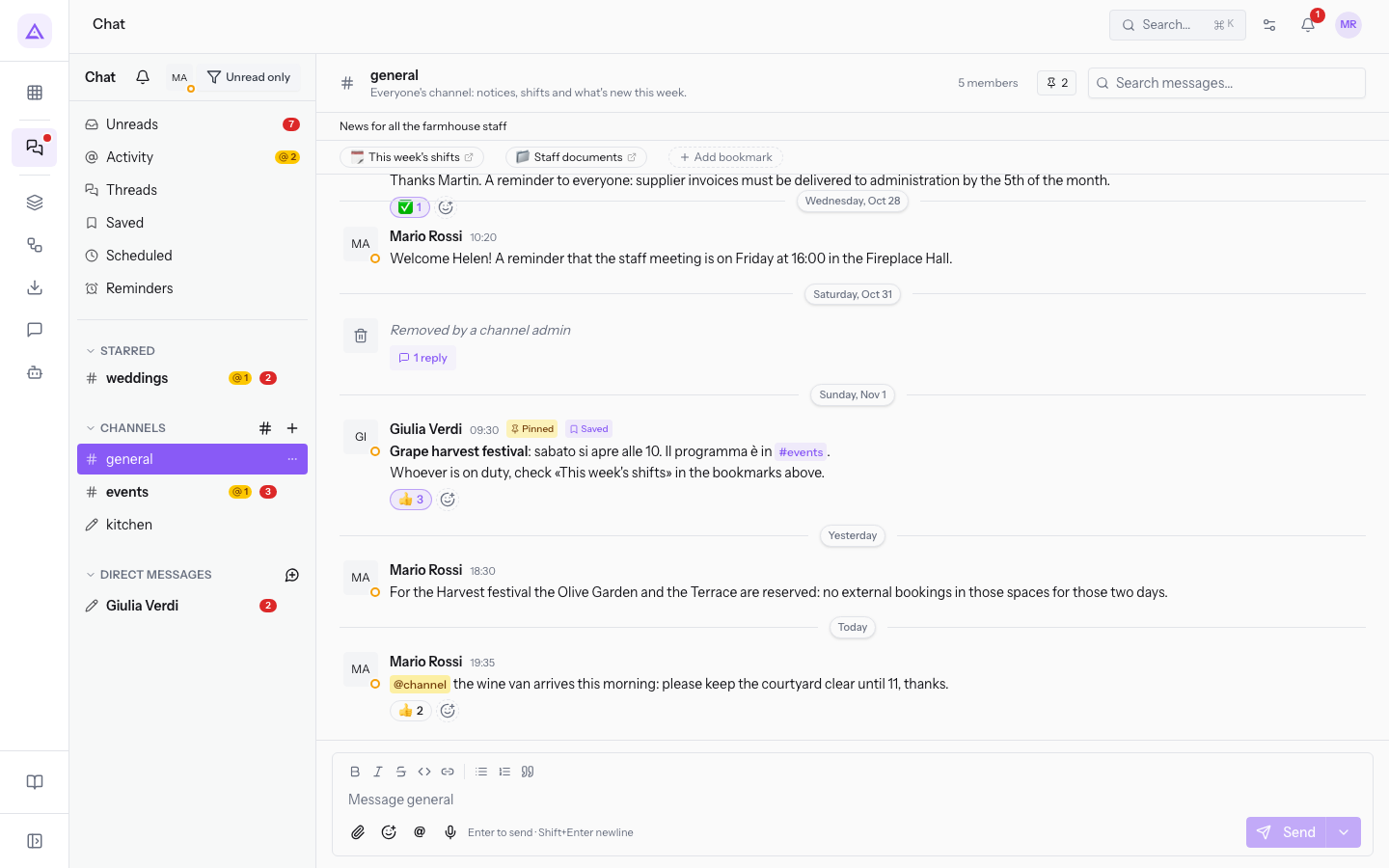
- The button becomes Unread only. Conversations with no new messages, for example #admin and the notes to yourself, disappear from the list.
- To see all conversations again, press Unread only.
Collapsing and expanding a section
You can close a sidebar section to keep only the others in view.
- Press the section title, for example CHANNELS. The section closes and its channels are no longer listed.
- Press the title again to reopen it.
The two actions are called Collapse section and Expand section.
The menu of a conversation
Each conversation in the sidebar has a menu with actions that concern it.
- Hover over the conversation, for example #weddings.
- Press Conversation options.
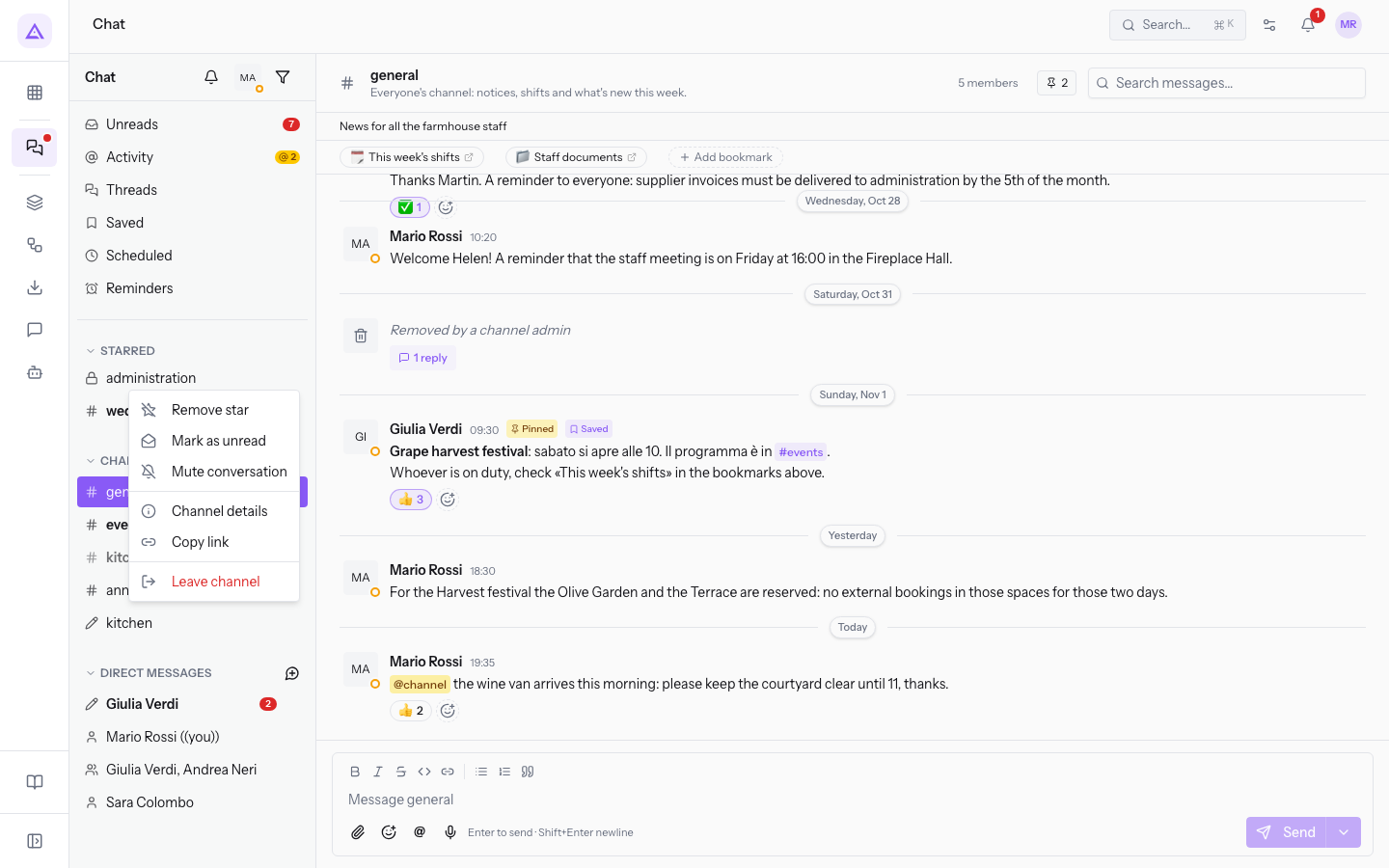
The menu contains these items:
- Star / Remove star: moves the conversation into the STARRED section or removes it. On #weddings, which is already a favourite, Remove star appears.
- Mark as unread: puts the conversation back among those to read.
- Mute conversation: stops alerting you to new messages in the conversation.
- Channel details: opens the channel's information, members and settings.
- Copy link: copies the link to the conversation.
- Leave channel: removes you from the channel. You can rejoin a public channel you left from Browse channels.
The order of channels
In the CHANNELS section each channel has a handle for moving it, for example Move #general. By dragging channels you set the order everyone sees them in: the handle's tooltip is Drag to set the channel order for everyone.
The conversation header
When you open a conversation, at the top you find the name, the description and some buttons.
- Press a conversation in the sidebar, for example #weddings.
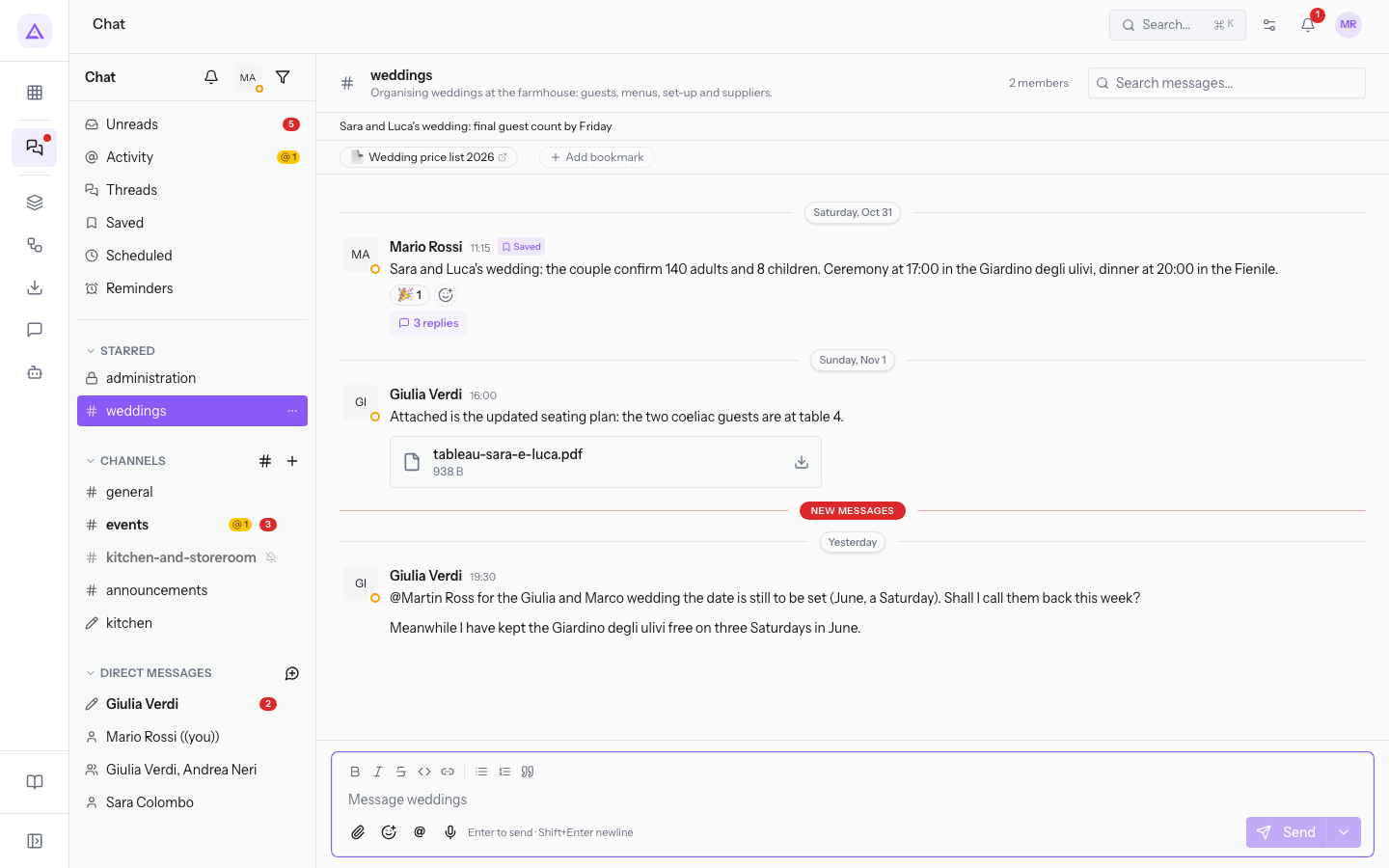
The header contains:
- The channel name and its description: on #general it is
Announcements for all the farmhouse staff. - The number of members, such as 2 members. Press it to open the Members panel, with the Search members… field, the Add people button and the list of members with their email. Next to the channel owner their role is shown.
- The number of pinned messages: on #general it is 1. Press it to open the Pinned messages window, with the messages that stay within easy reach in the conversation. On #general there is Martin Ross's message about the new restaurant hours.
- The Search messages… field, to search for text in the chat messages.
Below the header is the channel's bookmark bar, with Add bookmark. On #weddings there is the bookmark Wedding price list 2026.
At the bottom of the conversation is the box where you write, with the formatting buttons, Attach file, Insert emoji, Mention someone and Send. Next to Send is Schedule for later.
Quick jump
Quick jump takes you to a conversation by typing its name. Its box has the text Jump to channel, DM, or person….
The chat also has a Keyboard shortcuts window with the available key combinations.
See it on your company, not on a slide deck.
In 30 minutes we map the software you use today.We show you how much work and how much margin Archimedes gives back.
Show me on my business →What industry are you in?
One tap — it lets us prepare the demo around your world.
What tools do you use today?
Pick the ones you recognise — or just type them. It helps us show you how they migrate.
Last step: your details.
We reply within one working day — and right after, if you like, you pick the demo slot yourself.
We couldn't send your request. Try again, or write to us at [email protected].
By sending, you agree to your data being processed so we can get back to you about the demo. Privacy notice.
Preview form — nothing is sent from this page.
Want to schedule the demo now?
Your call: book the slot you prefer yourself, or we'll call you to arrange it.
Live availability, 30 minutes, instant confirmation. The calendar opens in a new tab.
Lock in your slot ↗We'll get back to you within one working day — and we'll join the call already knowing your world.
The calendar is open in another tab: pick a slot and the demo is booked. Can't see it? Reopen it ↗
Preview page: nothing was sent.
Our calendar is live: take the slot that suits you and the demo is booked. 30 minutes, instant confirmation, no waiting.
Lock in your slot ↗