Messages and collaboration
All modules
Stay up to date: unreads, mentions and pauses
Messages and collaboration · 9 of 15 · 6 min read
The chat collects the messages that concern you in two views. Unreads shows new messages from all conversations. Activity shows mentions, threads and reactions. From the sidebar you can also mute a conversation, pause notifications and tell colleagues your status, for example In a meeting or Out for lunch.
Which tool to use
Each tool answers a different need.
- If you want to read everything that arrived from all conversations, open Unreads.
- If you want to see only the messages where you are tagged with @, open Activity and the Mentions tab.
- If you want to resume a thread, open the Threads tab of Activity.
- If a conversation is useful but not urgent, use Mute conversation. The choice applies only to that conversation.
- If for a while you don't want notifications from any conversation, use Pause notifications.
- If you want colleagues to know what you are doing, set a status from My status and availability.
Reading new messages in Unreads
The Unreads view collects new messages from all the conversations you are in, grouped by conversation.
- In the chat sidebar, press Unreads.
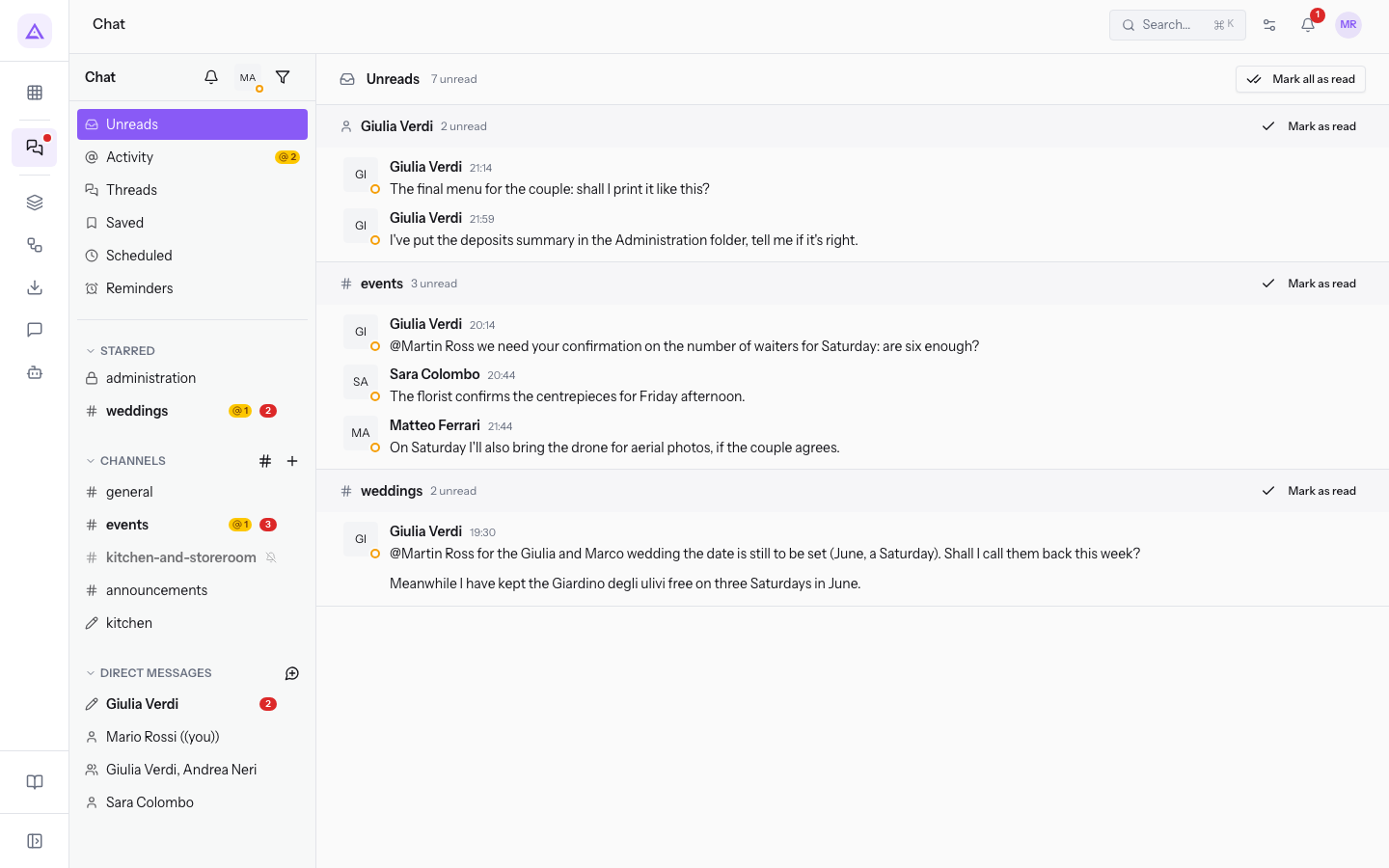
For Martin Ross the view shows the new messages in the direct message with Julia Green and in weddings.
- To mark as read the messages of a single conversation, press Mark as read.
- To mark as read the messages of all conversations, press Mark all as read.
- To read the rest of the conversation, press Open the conversation for the rest. The conversation opens.
When there are no more messages to read, the view shows You're all caught up.
Note: the Unreads view covers only the conversations you are part of. Channels you find in Browse channels, such as
front-deskfor Martin Ross, do not appear until you join them.
Resuming reading inside a conversation
When you open a conversation with new messages, the New messages line separates the messages you have already read from those still to read.
- In the sidebar, press the conversation, for example
weddings.
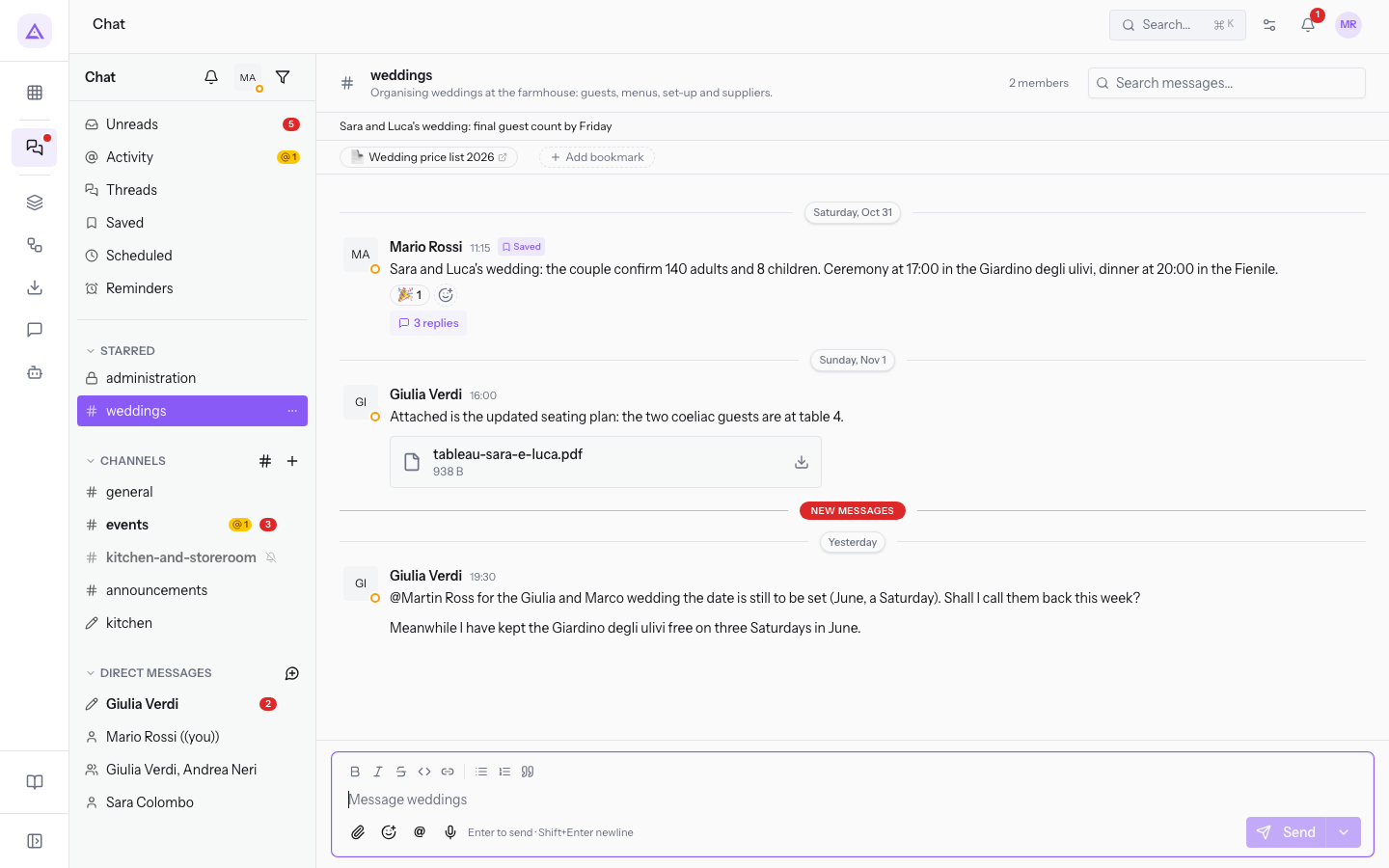
- If you are reading older messages, press Jump to latest to return to the bottom of the conversation.
Marking a conversation as unread
If you have read a conversation but want to resume it later, you can mark it as unread again.
- In the sidebar, open the Conversation options menu of the conversation.
- Press Mark as unread.
The Conversation options menu also contains these items:
- Remove star or Star: moves the conversation to or from favorites.
- Mute conversation or Unmute conversation: see the section on muting.
- Channel details, Copy link, Leave channel: the other actions on the channel.
Seeing mentions, threads and reactions in Activity
The Activity view collects the messages that involve you directly, divided into three tabs: Mentions, Threads and Reactions.
- In the chat sidebar, press Activity. The Mentions tab opens.
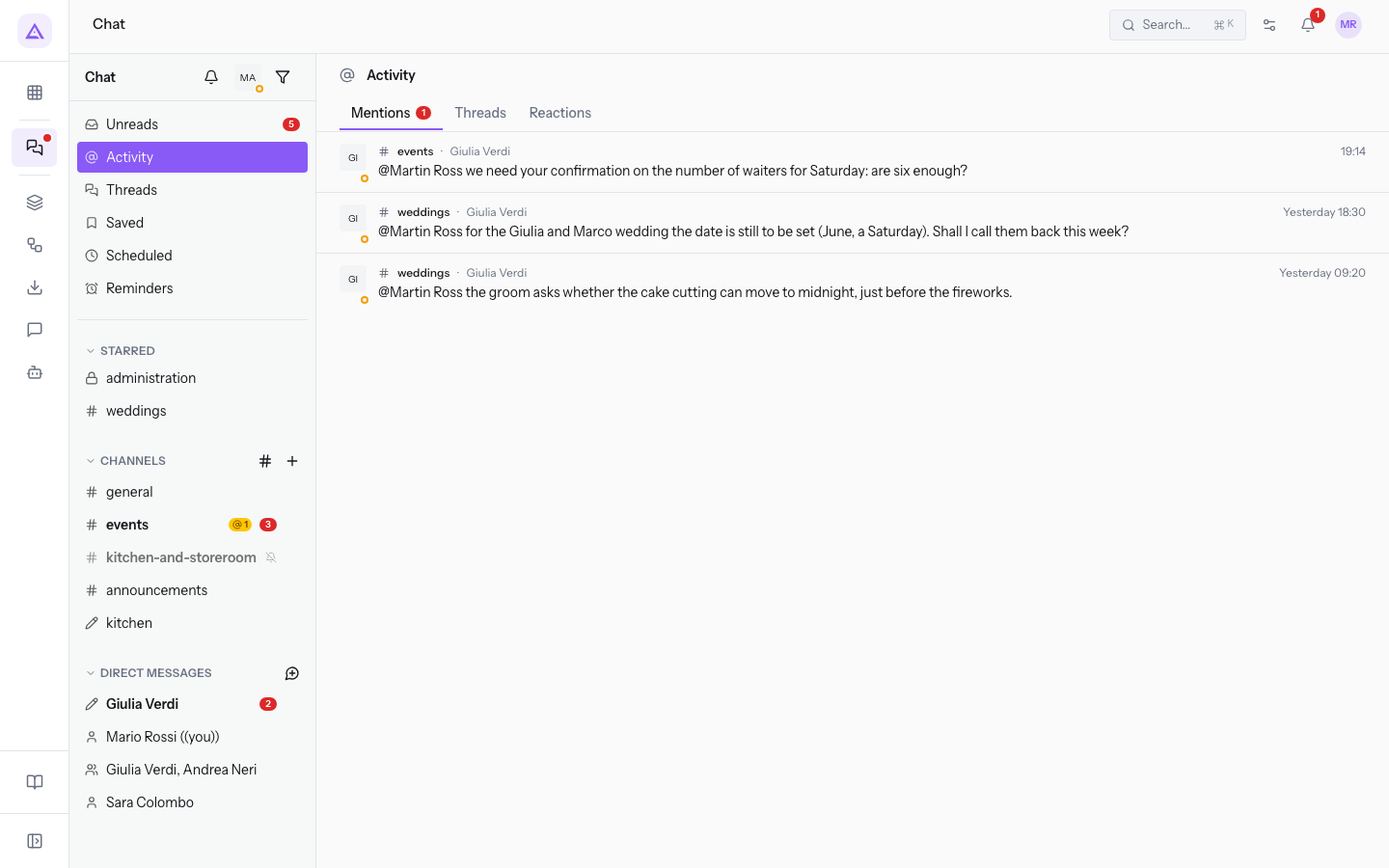
The tabs:
- Mentions: the messages where someone mentioned you with @. Each row shows the conversation, the author, the time and the text. For Martin Ross there are two messages from Julia Green in
weddingsthat start with@Martin Ross. If nobody has mentioned you, the tab shows Nobody has mentioned you yet. When someone writes @you, it lands here. - Threads: the threads you take part in, with the number of replies. For Martin Ross there is the message in
weddingsabout Sara and Luca's wedding with 3 replies. - Reactions: the messages with reactions, for example Julia Green's message in
generalwith the ✅ reaction.
Tip: the Threads item in the sidebar opens the Threads tab of Activity directly.
Muting a conversation
Mute a conversation when you want to stay part of it but do not want to be disturbed. The choice applies only to that conversation and does not change the others.
- In the sidebar, open the Conversation options menu of the conversation, for example
general. - Press Mute conversation.
To undo, open Conversation options again and press Unmute conversation. The item appears in place of Mute conversation while the conversation is muted.
Pausing notifications
The pause suspends notifications from all conversations for a period you choose. Use it during a meeting or outside working hours.
- In the chat sidebar, press Pause notifications.
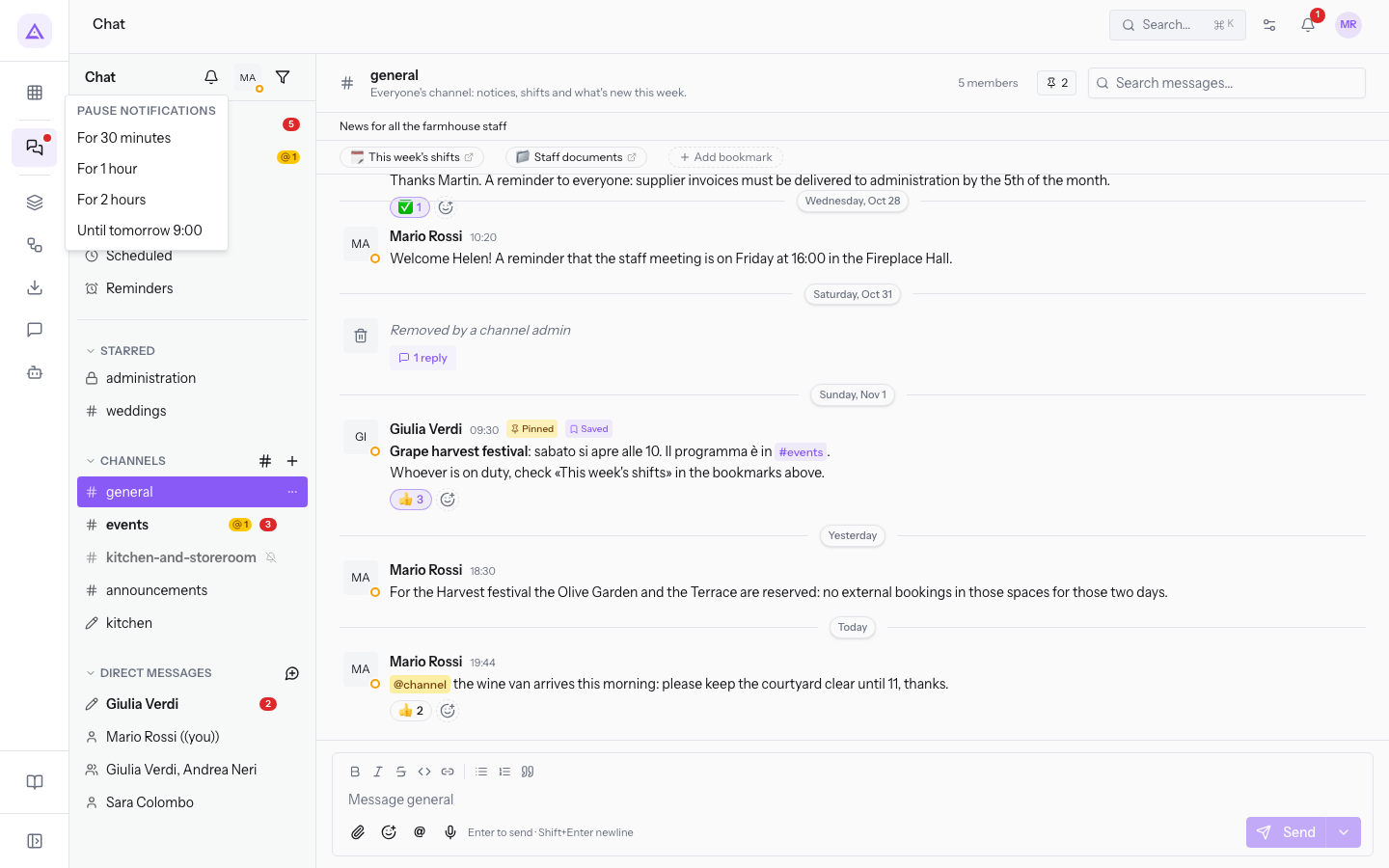
- Choose the duration:
- For 30 minutes
- For 1 hour
- For 2 hours
- Until tomorrow 9:00
During the pause, the Pause notifications button in the sidebar shows a crossed-out bell and the date and time the pause ends. The My status and availability menu shows the same information as «Notifications paused until» followed by the time. When it expires, the pause ends on its own.
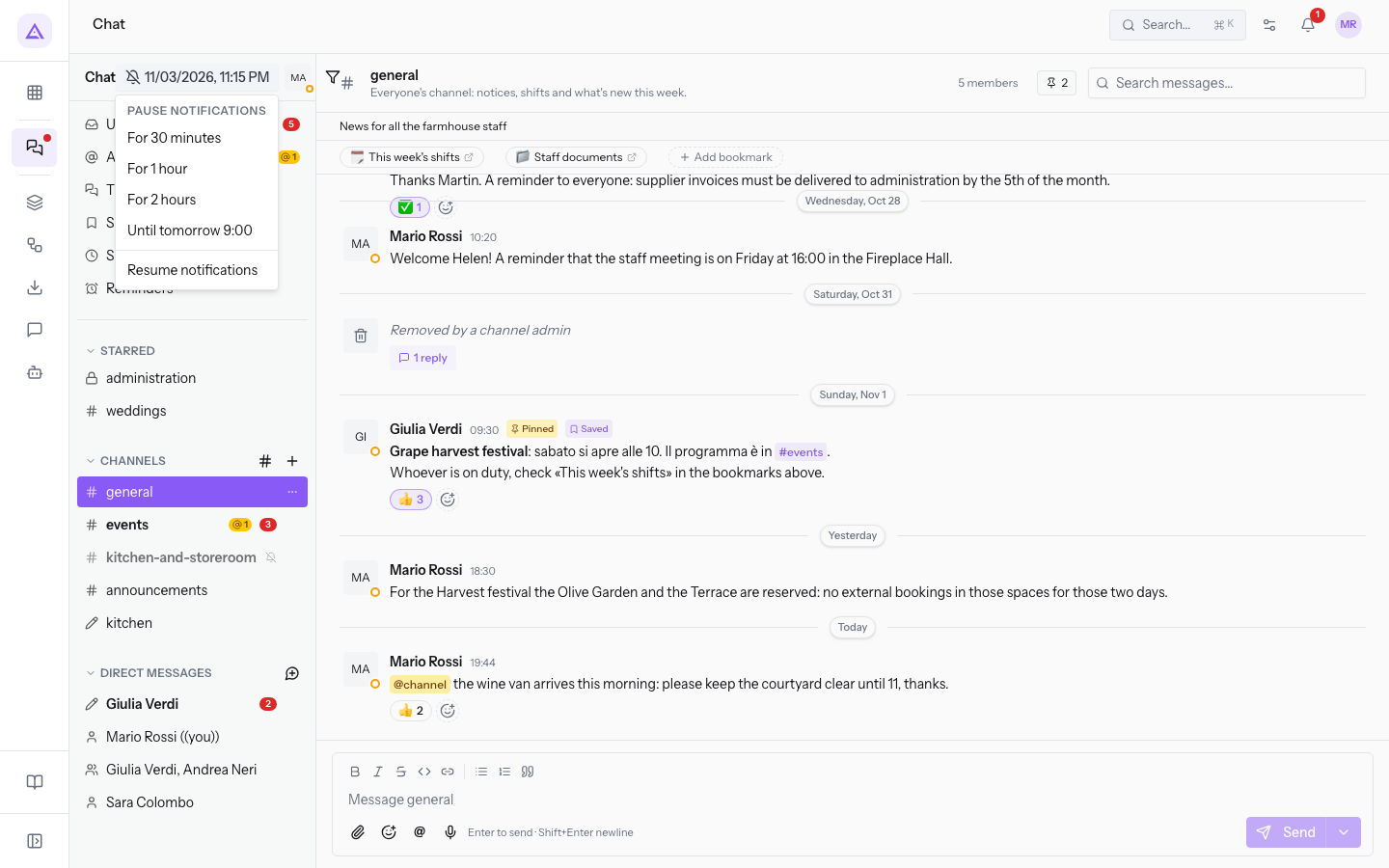
To end the pause sooner, press Pause notifications again and choose Resume notifications. From the same menu you can also choose a different duration.
Note: you can also pause notifications from the My status and availability menu. To set the hours in which to receive notifications, use Notification schedule… in the same menu.
Setting status and availability
The My status and availability menu lets colleagues know what you are doing and whether you are available.
- In the chat sidebar, press My status and availability.
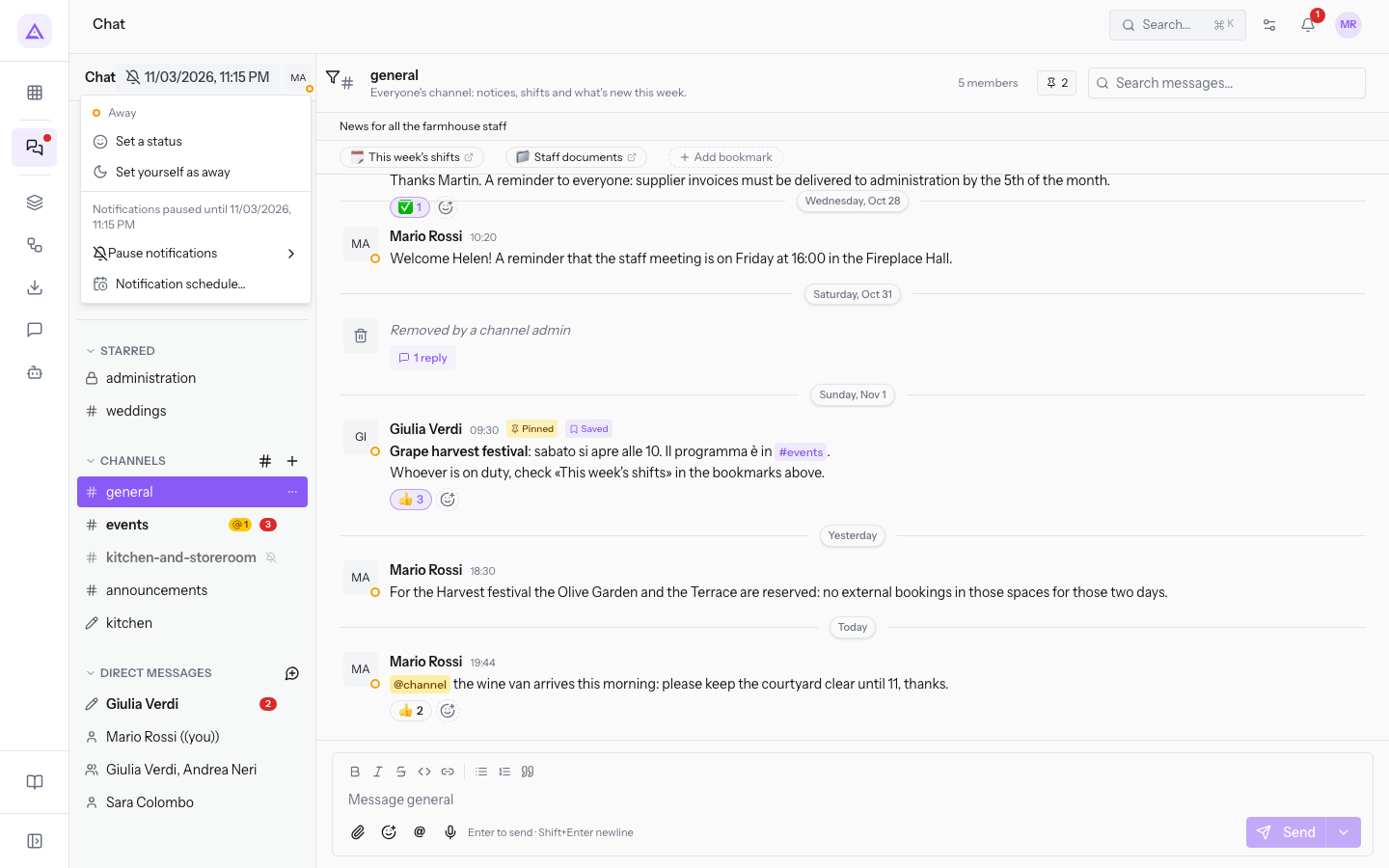
The menu contains these items:
- Set a status: opens the status window.
- Set yourself as away: marks you as away. When you are away, Set yourself as active appears in its place, which marks you as active again.
- Pause notifications: the same durations as the button in the sidebar.
- Notification schedule…: the hours in which to receive notifications.
Setting a status
A status is a short indication, with an emoji and a text, that tells colleagues what you are doing.
- In the My status and availability menu, press Set a status. The Set a status window opens.
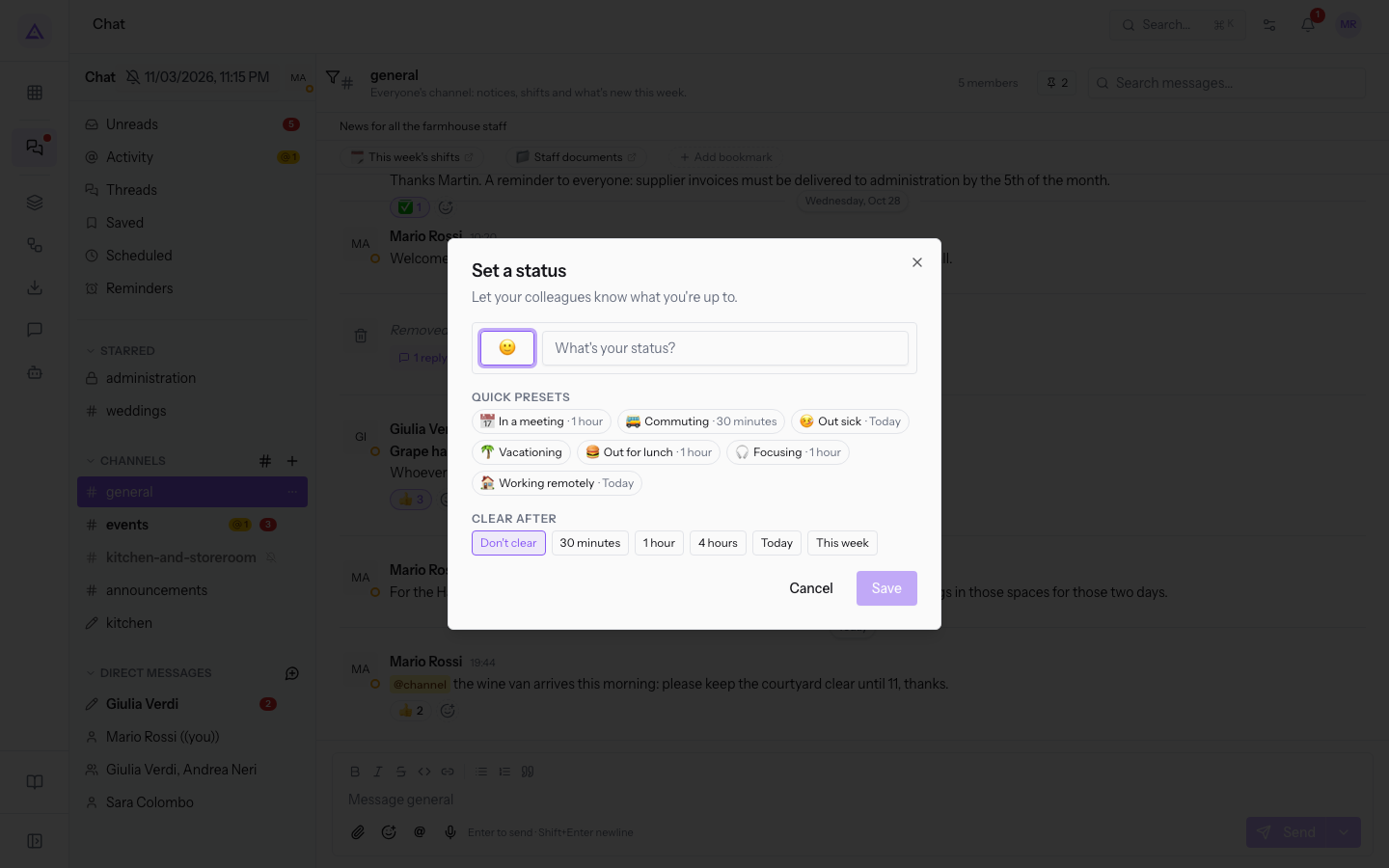
- Choose one of the quick statuses or fill in the fields.
- Choose after how long the status is cleared and press Save.
The fields of the window:
- Status emoji: the emoji that accompanies the status. The field is optional.
- Status text: the text of the status, for example
In a meeting. The field is optional. - Quick statuses: ready-made statuses, some with a duration.
- In a meeting, for 1 hour.
- Commuting, for 30 minutes.
- Out sick, for today.
- Vacationing, with no duration.
- Out for lunch, for 1 hour.
- Focusing, for 1 hour.
- Working remotely, for today.
- Clear after: when the status clears on its own.
- Don't clear: the status stays until you change it.
- 30 minutes, 1 hour, 4 hours: the status clears after the chosen time.
- Today, This week: the status clears at the end of the chosen period.
Note: the status and the notification pause are separate items in the menu. A status informs colleagues; to suspend notifications use Pause notifications.
See it on your company, not on a slide deck.
In 30 minutes we map the software you use today.We show you how much work and how much margin Archimedes gives back.
Show me on my business →What industry are you in?
One tap — it lets us prepare the demo around your world.
What tools do you use today?
Pick the ones you recognise — or just type them. It helps us show you how they migrate.
Last step: your details.
We reply within one working day — and right after, if you like, you pick the demo slot yourself.
We couldn't send your request. Try again, or write to us at [email protected].
By sending, you agree to your data being processed so we can get back to you about the demo. Privacy notice.
Preview form — nothing is sent from this page.
Want to schedule the demo now?
Your call: book the slot you prefer yourself, or we'll call you to arrange it.
Live availability, 30 minutes, instant confirmation. The calendar opens in a new tab.
Lock in your slot ↗We'll get back to you within one working day — and we'll join the call already knowing your world.
The calendar is open in another tab: pick a slot and the demo is booked. Can't see it? Reopen it ↗
Preview page: nothing was sent.
Our calendar is live: take the slot that suits you and the demo is booked. 30 minutes, instant confirmation, no waiting.
Lock in your slot ↗