Messages and collaboration
All modules
Choosing how and when to receive notifications
Messages and collaboration · 15 of 15 · 5 min read
The Notifications page in your profile settings decides which notifications you receive and how, that is, in the app or by email. From here you also decide whether to hear a sound for new messages and whether to pause notifications for a while. You can also set quiet hours, for example at night.
Preferences apply only to your account. They do not change your colleagues' notifications.
Opening notification preferences
Preferences are found among your profile settings.
- Open the Settings page of your profile.
- In the side menu, press Notifications. The Notifications page opens.
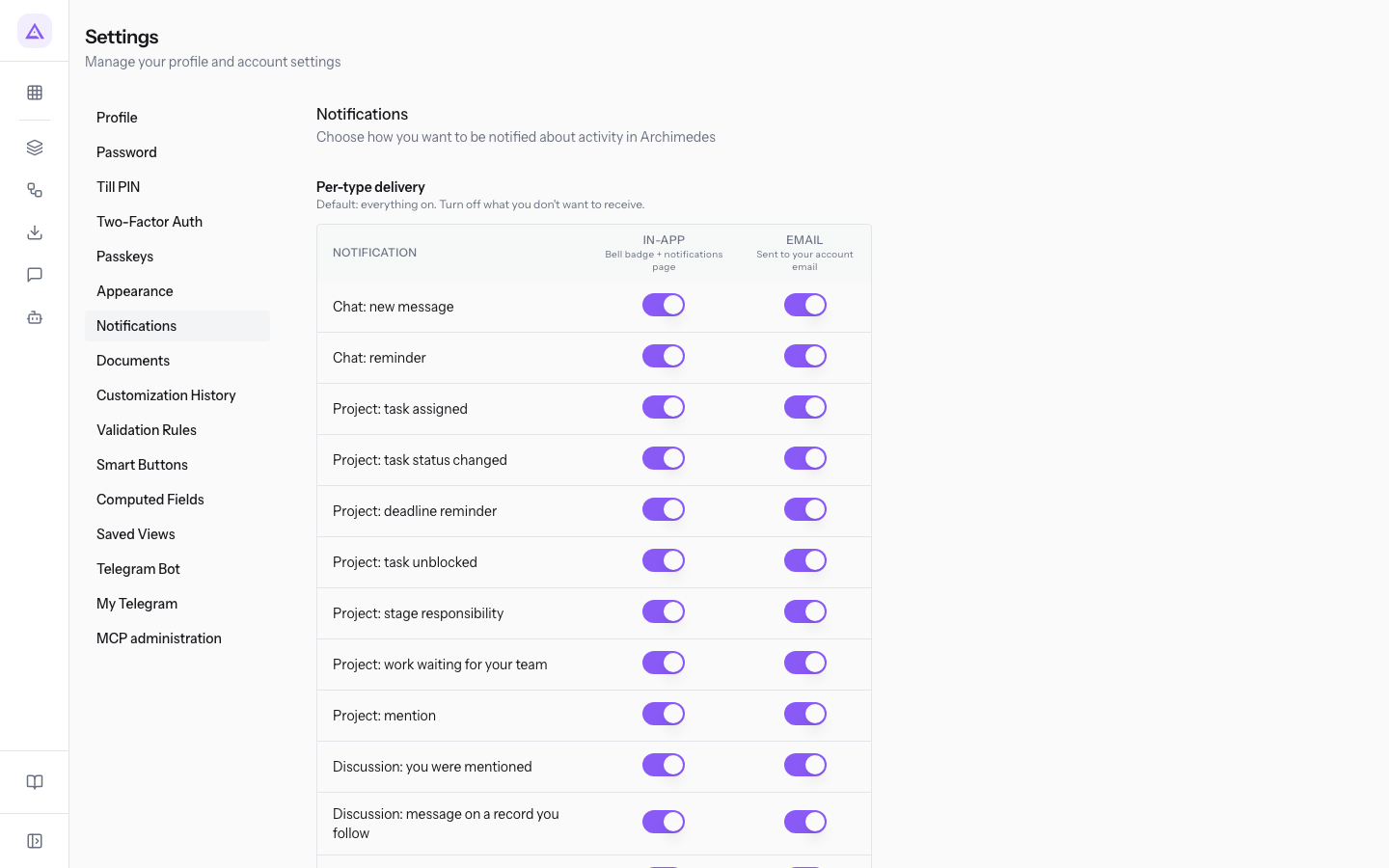
The page has these sections, in this order: Per-type delivery, Sound on new message, Desktop notifications, Pause notifications and Do Not Disturb.
The sections do not all save in the same way:
- The Per-type delivery table and the quiet hours save only when you press the Save preferences button at the bottom of the page.
- Sound on new message and Pause notifications save immediately, as soon as you change the setting. They apply to all browsers and devices where you are signed in.
Choosing notifications by type and delivery method
The Per-type delivery table has one row for each notification type and one column for each delivery method. Use it to keep only the notifications you need, with the method you prefer.
At the start, all the switches are on. A notification type you have never changed stays on for both delivery methods.
- If you want to read mentions in the app but not by email, leave the In-app switch of Discussion: you were mentioned on and turn off its Email switch.
- If you follow many records, such as quotes, and receive too many emails, turn off the Email switch of Discussion: message on a record you follow.
- In the Per-type delivery table, find the row of the notification type.
- Press the switch in the delivery method's column to turn it on or off.
- Press the Save preferences button. The message Notification preferences saved appears.
Important: if you leave the page without pressing the Save preferences button, changes to the table are not saved.
The table columns:
- Notification: the name of the notification type. It starts with the product area it comes from, for example Chat, Discussion, Projects, Shifts or Sales.
- In-app: the notification arrives in the app.
- Email: the notification arrives at your account's email address.
Notification types for chat and the records' Discussion panel:
- Chat: new message: a new message in the staff chat.
- Chat: reminder: a reminder you set on a message.
- Discussion: you were mentioned: a colleague mentioned you in a record's Discussion panel.
- Discussion: message on a record you follow: a new message on a record you are following.
The other types in the table relate to other modules. A few examples: Project: task assigned, HR: leave request submitted, Shifts: plan published, Sales: quotation expiring, Open Banking: consent expiring.
Turning the sound for new messages on or off
The Sound on new message option plays a light alert when a direct message, a mention or a reply in a thread you follow arrives. It is enabled at the start.
- In the Sound on new message section, press the toggle.
- When you turn it on, you immediately hear the test sound.
The choice is saved immediately to your account. You do not need to press the Save preferences button.
Pausing notifications
With Pause notifications you pause notifications for a set time, for example during a meeting or an event. The pause is the same one you can turn on from the chat sidebar.
- For a short break, choose For 30 minutes.
- If you do not want to be disturbed for the rest of the day, choose Until tomorrow 9:00.
- In the Pause notifications section, press the pause duration. The options are For 30 minutes, For 1 hour, For 2 hours and Until tomorrow 9:00.
- Under the title, the text Paused until {{time}} on every device. appears, with the pause end time in place of {{time}}.
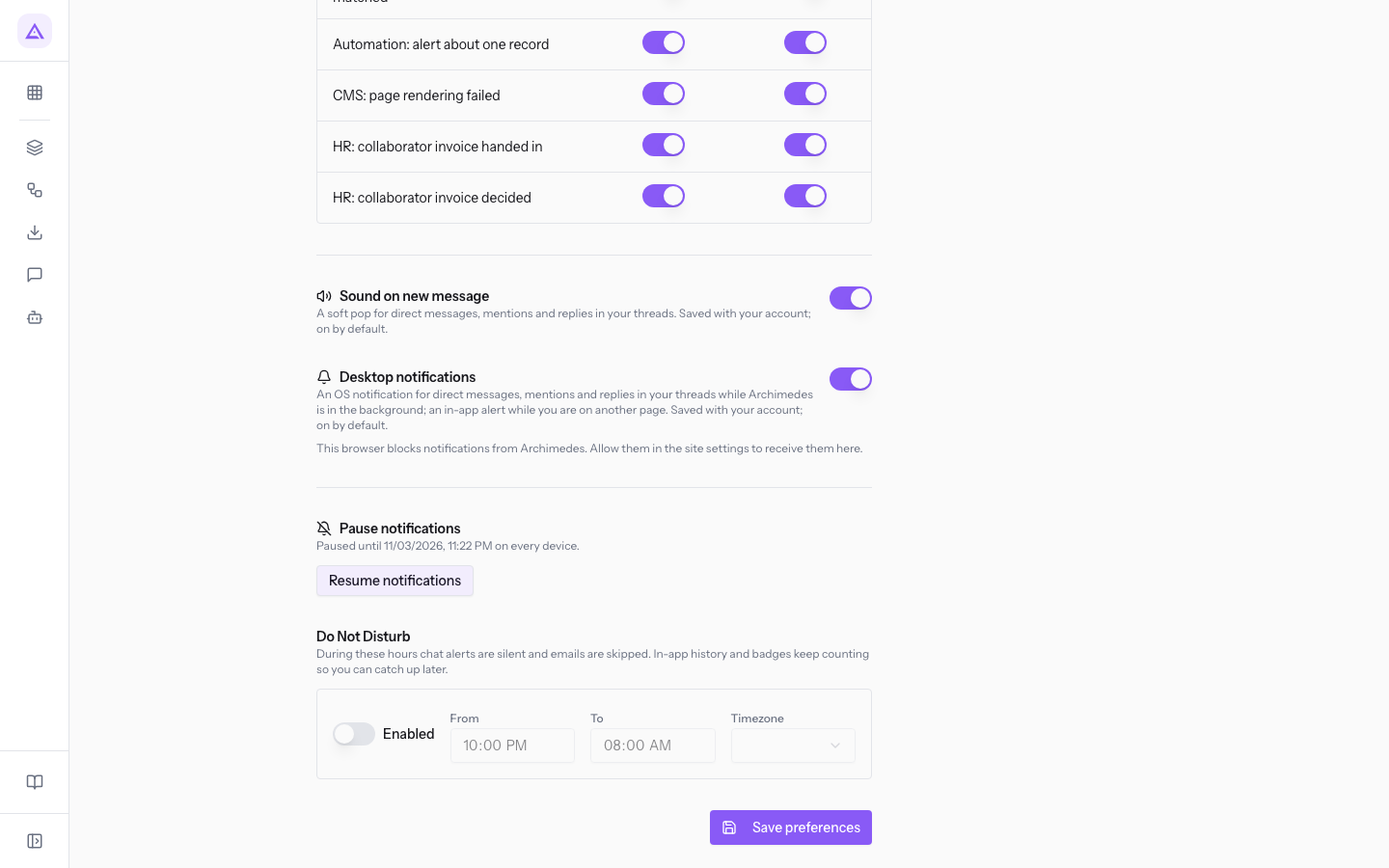
The pause saves immediately and applies to all devices where you are signed in.
To end the pause before it expires, press Resume notifications. The duration buttons appear again.
Setting quiet hours
Quiet hours are a daily time window that repeats every day, for example from 22:00 to 08:00. They are set in the Do Not Disturb section. Unlike a pause, they have no expiry. They stay active until you turn them off.
During these hours chat alerts are muted and emails are not sent. The history in the app and the counters keep updating. So, at the end of the window, you find everything that arrived.
- In the Do Not Disturb section, turn on the Enabled switch. This makes the other fields editable.
- Enter the start time in From and the end time in To.
- Choose the timezone.
- Press the Save preferences button. The message Notification preferences saved appears.
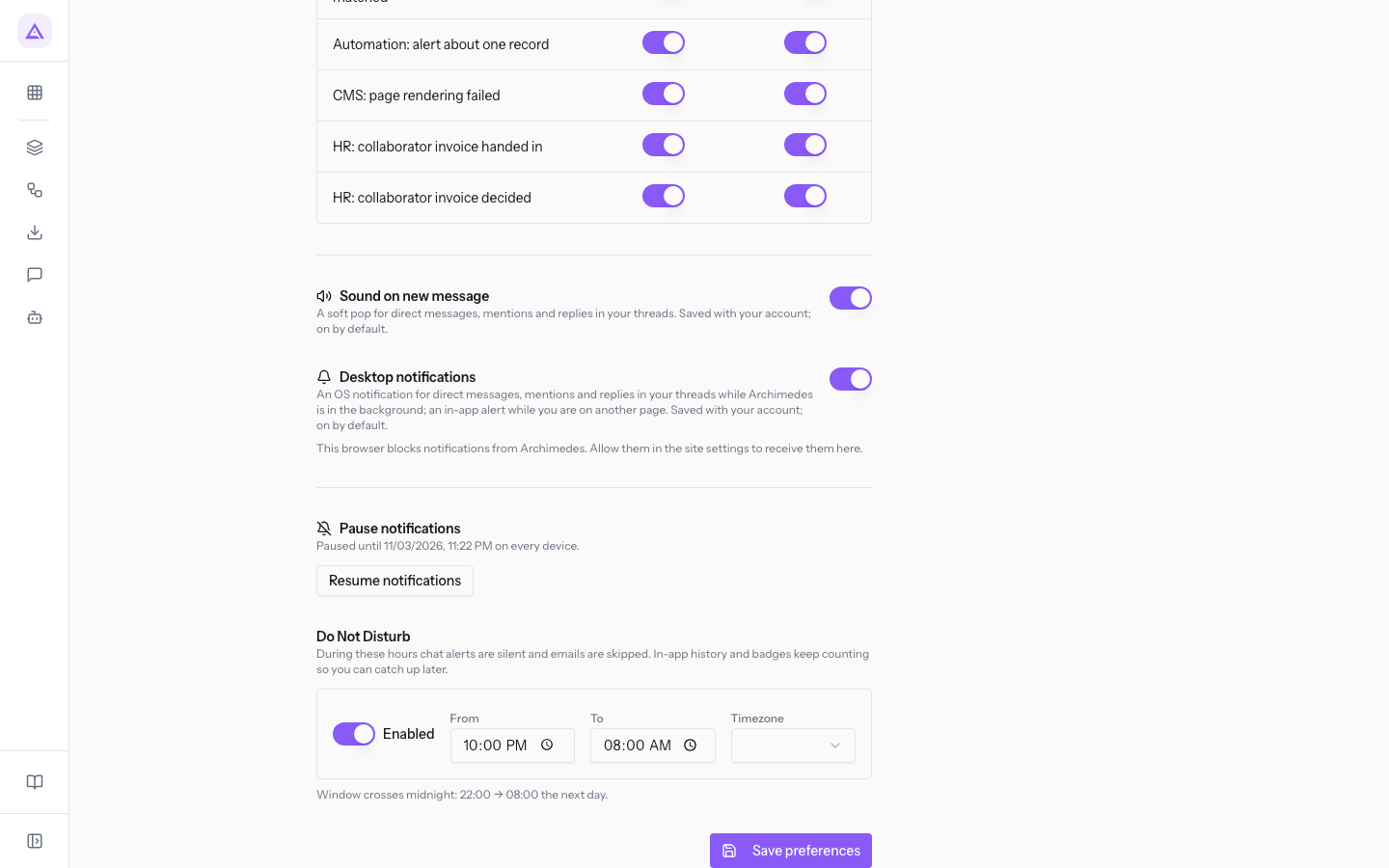
The fields in this section:
- Enabled: turns quiet hours on or off. It is off at the start.
- From: the start time of the window. You can change it only if Enabled is on.
- To: the end time of the window. If it is earlier than the time in From, the window ends the next day. You can change it only if Enabled is on.
- Timezone: the timezone in which the times are read. You can change it only if Enabled is on. The options are:
- Europe/Rome, Europe/Paris, Europe/Madrid, Europe/Berlin, Europe/London;
- America/New_York, America/Los_Angeles;
- Asia/Tokyo;
- UTC.
Tip: if you work in Italy, choose Europe/Rome.
See it on your company, not on a slide deck.
In 30 minutes we map the software you use today.We show you how much work and how much margin Archimedes gives back.
Show me on my business →What industry are you in?
One tap — it lets us prepare the demo around your world.
What tools do you use today?
Pick the ones you recognise — or just type them. It helps us show you how they migrate.
Last step: your details.
We reply within one working day — and right after, if you like, you pick the demo slot yourself.
We couldn't send your request. Try again, or write to us at [email protected].
By sending, you agree to your data being processed so we can get back to you about the demo. Privacy notice.
Preview form — nothing is sent from this page.
Want to schedule the demo now?
Your call: book the slot you prefer yourself, or we'll call you to arrange it.
Live availability, 30 minutes, instant confirmation. The calendar opens in a new tab.
Lock in your slot ↗We'll get back to you within one working day — and we'll join the call already knowing your world.
The calendar is open in another tab: pick a slot and the demo is booked. Can't see it? Reopen it ↗
Preview page: nothing was sent.
Our calendar is live: take the slot that suits you and the demo is booked. 30 minutes, instant confirmation, no waiting.
Lock in your slot ↗