Messages and collaboration
All modules
Discussing an order, event, or contact
Messages and collaboration · 11 of 15 · 4 min read
The Discussion panel of a record gathers in one place the messages, internal notes, activities and followers of that record. In the demo you find it on quotes, events and contacts: it keeps the exchange between colleagues next to the document being discussed.
Message or internal note
The Discussion panel composer has two modes. The choice decides who gets the notification.
- Message: notifies the followers of the record and the colleagues you mention. Under the composer the text Followers of this record and anyone you mention are notified. appears.
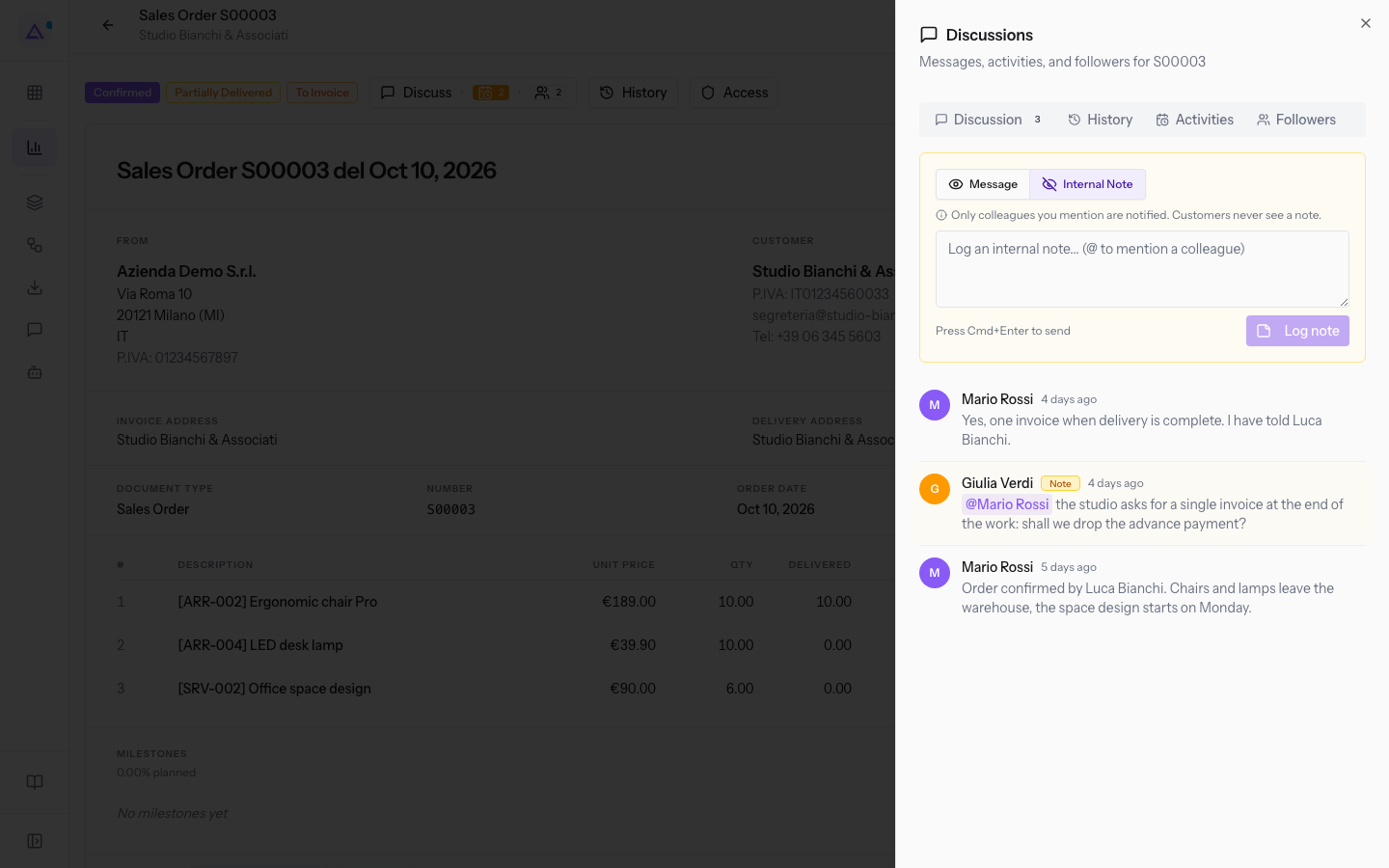
- Internal Note: notifies only the colleagues you mention. Customers never see it. Under the composer the text Only colleagues you mention are notified. Customers never see a note. appears.
If the information concerns only staff, for example a margin or a doubt about the customer, choose Internal Note. If you want everyone who follows the record to be notified, choose Message.
Note: whoever creates a record automatically becomes its follower and receives message notifications until they stop following it.
Opening the Discussion panel of a quote
On quotes and sales orders the Discussion panel opens at the side.
- Open the list of sales orders and press the quote, for example
S00003of Bianchi & Associates. - In the header press Discuss. Next to the button two numbers appear: the pending activities and the followers (2 and 2 on
S00003). - The Discussions panel opens, with the subtitle indicating the record: "Messages, activities, and followers for S00003".
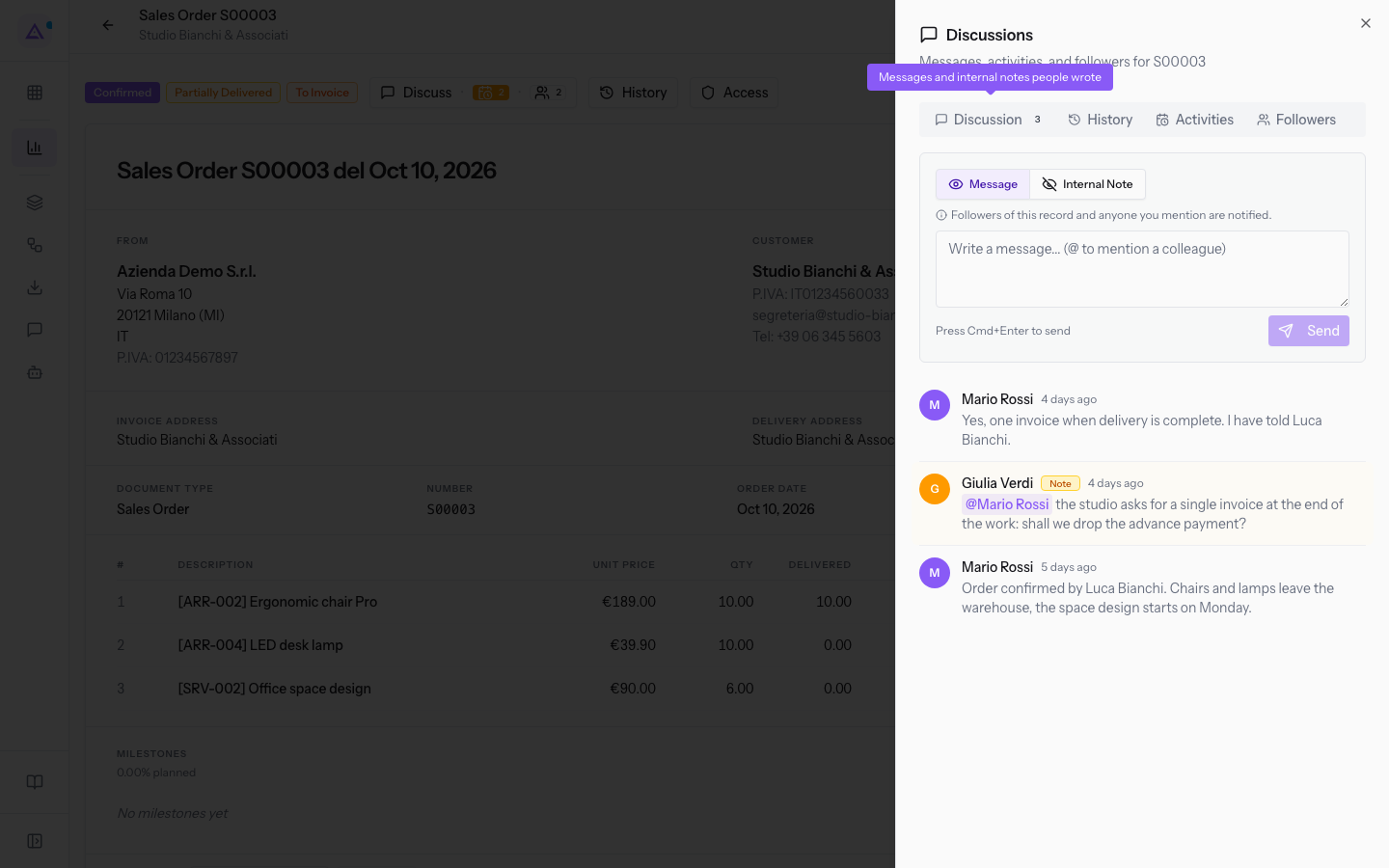
The panel has four tabs:
- Discussion: the messages and notes of the record, with their count next to the name (3 on
S00003). - History: the changes recorded on the record.
- Activities: the activities to do on the record.
- Followers: the users who follow the record.
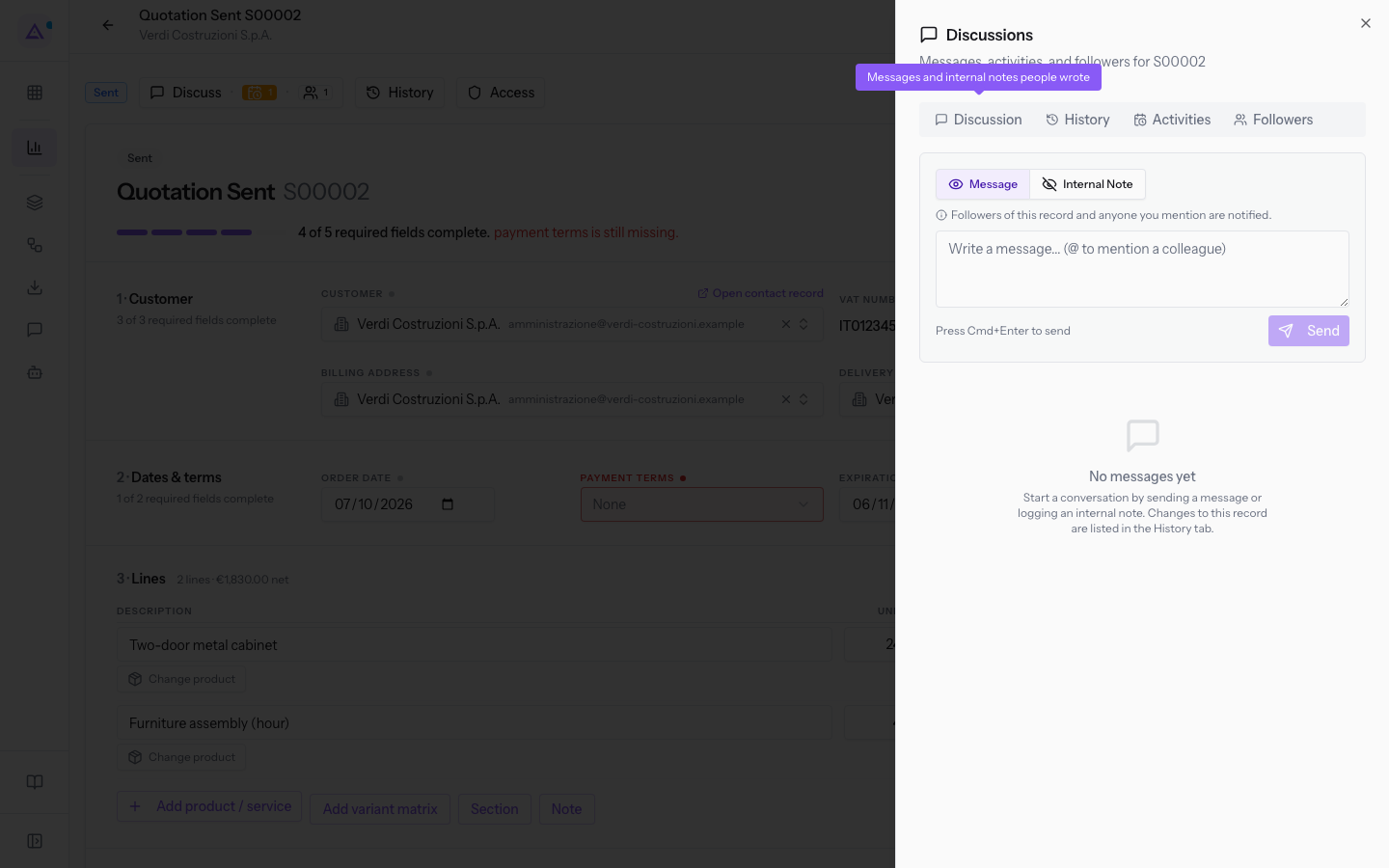
When a record has no messages yet, the Discussion tab shows no number, as on quote S00002. Instead of messages, No messages yet appears, inviting you to start a conversation.
Writing a message
A message stays in the record's Discussion panel and notifies the followers.
- Open the record's Discussion panel.
- Check that Message is selected.
- Write the text in the Message field.
- Press Send. You can also send with the Cmd+Enter key combination shown under the composer.
While you write, Cancel also appears, which closes the writing without sending.
Logging an internal note and mentioning a colleague
An internal note is for information reserved to staff. It notifies only the colleagues you mention.
- Open the record's Discussion panel.
- Press Internal Note. The text under the composer changes and the send button becomes Log note.
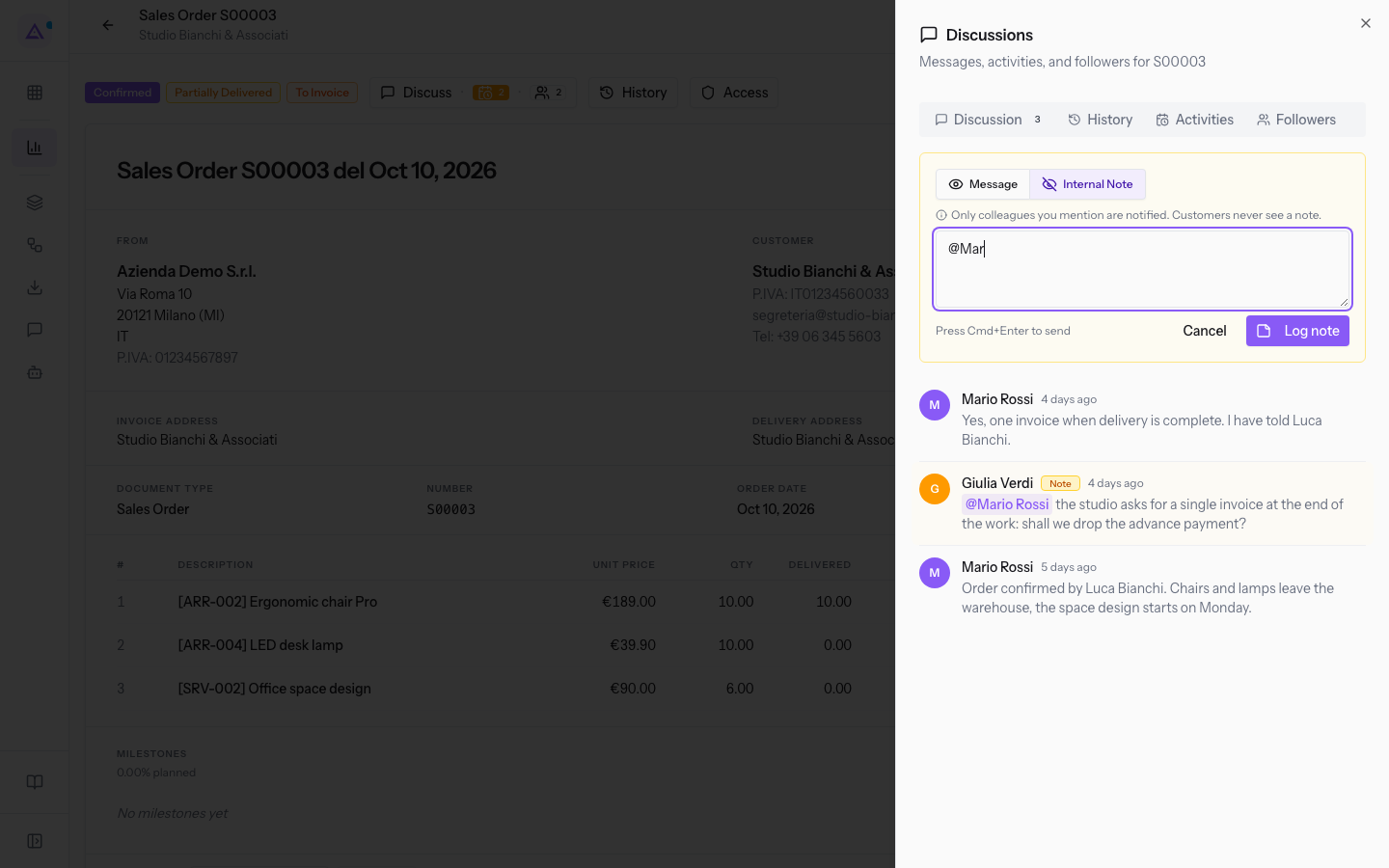
- Write the text. To mention a colleague type @ followed by the first letters of the name, for example
@Mar, and choose the colleague from the menu that appears. The field placeholder reminds you: Log an internal note... (@ to mention a colleague).
Mentioning works the same way in a message too.
Important: you can mention only colleagues who have access to Archimedes. In the demo these are Martin Ross and Julia Green; other employees do not appear among the colleagues you can mention.
Reading and deleting messages
The Discussion tab lists the messages and notes of the record. On quote S00003 there are messages from Martin Ross and an internal note from Julia Green that mentions Martin Ross.
- If there are many messages, press Load older messages to see the older messages.
- To remove one of your messages use Delete message and confirm at the question Delete this message?.
Note: you can delete only the messages you wrote yourself.
Discussion on an event
On an event's page the discussion is not a panel: it is a column of the page, with the title Discussion.
- Open the list of events and press the event, for example
Sara and Luca's wedding. - In the Discussion column you find the same tabs as the panel, some shown only as an icon: Discussion, History, Activities and Followers.
- Write with Message or Internal Note and press Send, as on the quote.
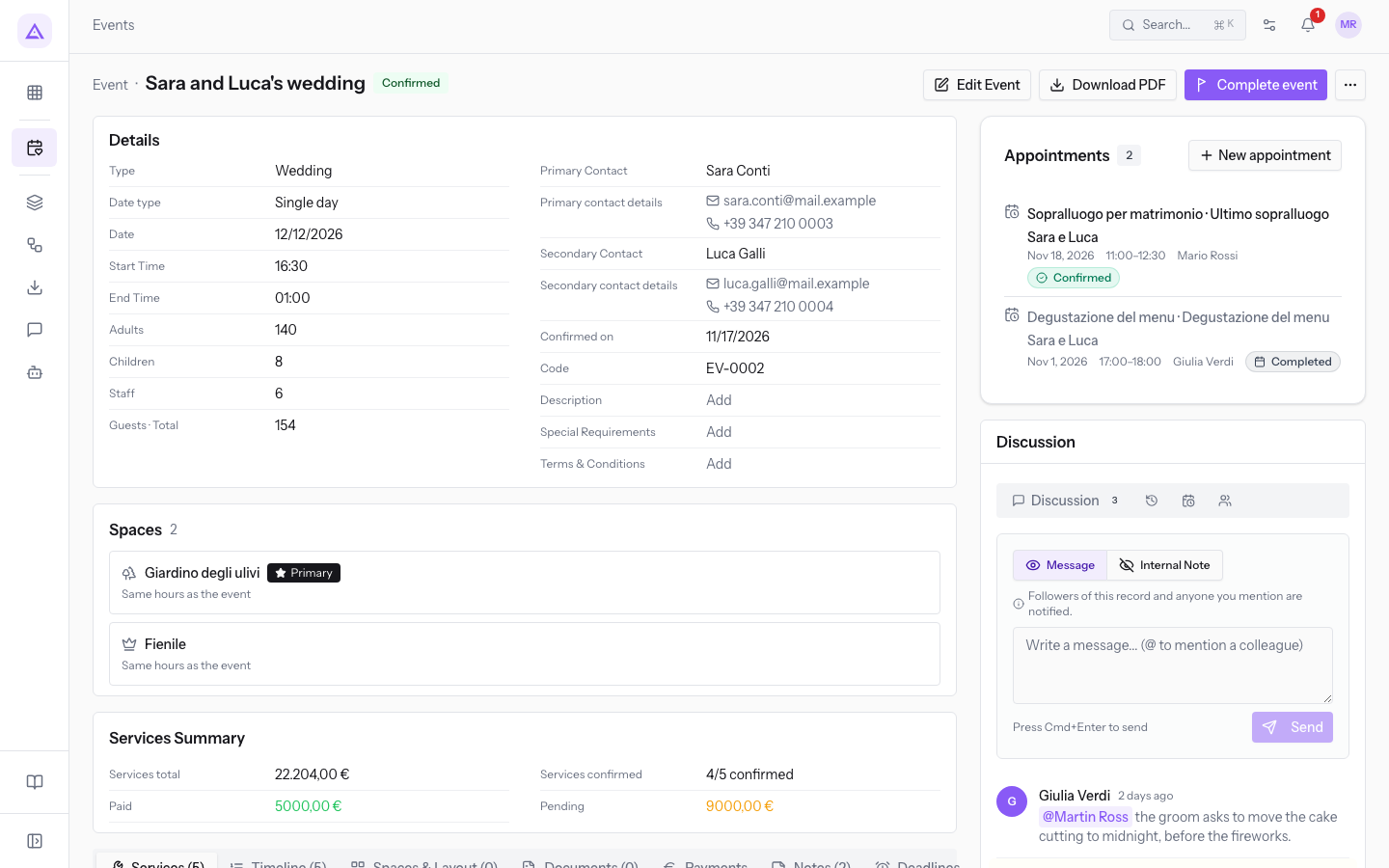
On Sara and Luca's wedding the Discussion tab shows 3 items.
Discussion on a contact
On a contact's page the Discussion panel opens from the Discuss button in the header, next to History.
- Open the list of contacts and press the contact, for example
Rossi Furnishings S.r.l.. - Press Discuss. The Discussions panel opens with the subtitle "Messages, activities, and followers for Rossi Furnishings S.r.l.".
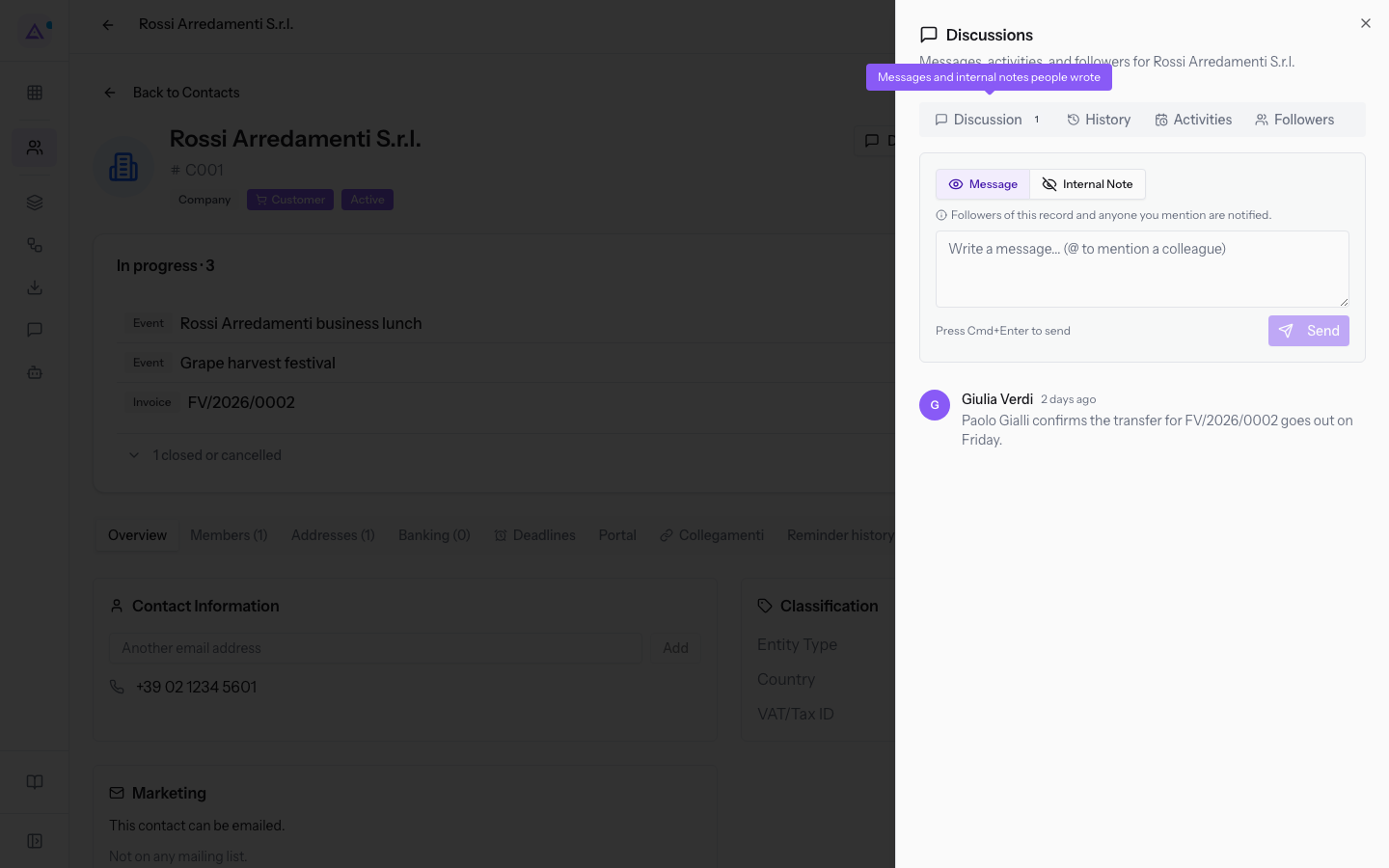
On Rossi Furnishings S.r.l. the Discussion tab contains a message from Julia Green.
See it on your company, not on a slide deck.
In 30 minutes we map the software you use today.We show you how much work and how much margin Archimedes gives back.
Show me on my business →What industry are you in?
One tap — it lets us prepare the demo around your world.
What tools do you use today?
Pick the ones you recognise — or just type them. It helps us show you how they migrate.
Last step: your details.
We reply within one working day — and right after, if you like, you pick the demo slot yourself.
We couldn't send your request. Try again, or write to us at [email protected].
By sending, you agree to your data being processed so we can get back to you about the demo. Privacy notice.
Preview form — nothing is sent from this page.
Want to schedule the demo now?
Your call: book the slot you prefer yourself, or we'll call you to arrange it.
Live availability, 30 minutes, instant confirmation. The calendar opens in a new tab.
Lock in your slot ↗We'll get back to you within one working day — and we'll join the call already knowing your world.
The calendar is open in another tab: pick a slot and the demo is booked. Can't see it? Reopen it ↗
Preview page: nothing was sent.
Our calendar is live: take the slot that suits you and the demo is booked. 30 minutes, instant confirmation, no waiting.
Lock in your slot ↗