Accounting
All modules
Post the month's payroll
Accounting · 6 of 17 · 4 min read
The Payroll entry records the month's staff cost from the summary your payroll consultant sends. You enter five amounts, and the module creates the journal entry, for example the demo's "This month's salaries" entry.
How it works
Choose once which account each summary line goes to. Then, each month, you only enter the amounts.
- The Cost is the sum of Gross salaries and Employer social contributions.
- The Payable is the sum of Withholding tax payable, Social contributions payable and Net payable to employees.
- The Difference is Cost minus Payable. The Book the entry button is only enabled when the Difference is 0.00 and the Cost is greater than zero.
If the consultant's summary does not balance, the Difference turns red and shows which side is missing. Correct the amounts before posting.
Note: the Payroll entry does not record the payment of salaries. Paying from the bank is a separate entry in the Bank journal (see the section Paying salaries from the bank).
Choosing the account for each line
The accounts decide where each summary amount goes. You usually set them once and they stay the same every month.
- Open Accounting › Payroll entry.
- Press Change accounts. A list of accounts appears under each line.
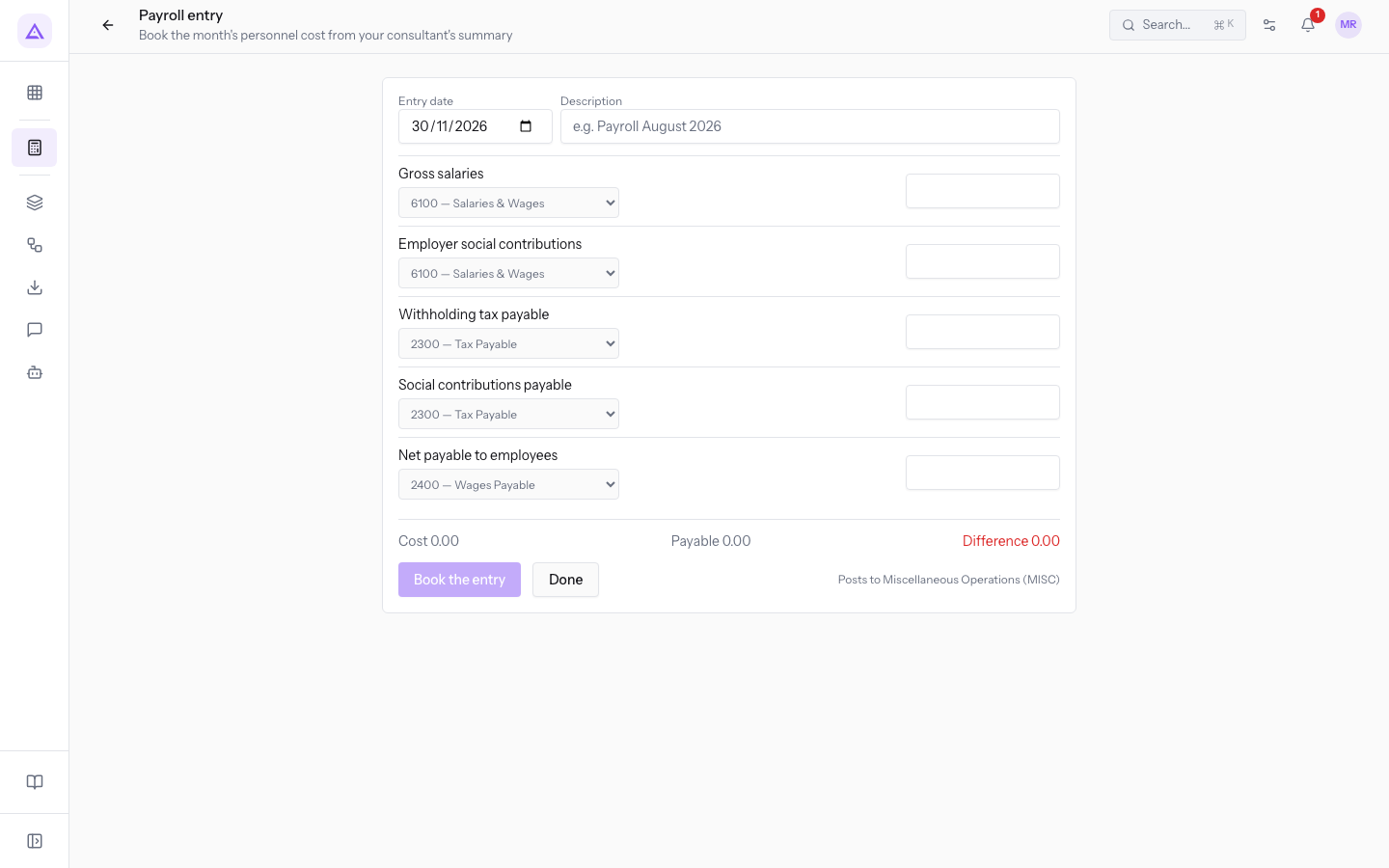
- For each line, choose the account from the list. The list shows all accounts in the chart of accounts, with code and name. The chosen account is saved immediately.
- Press Done to return to the page with the amounts.
In the demo, the accounts set are these:
- Gross salaries: 6100 — Salaries & Wages.
- Employer social contributions: 6100 — Salaries & Wages.
- Withholding tax payable: 2300 — Tax Payable.
- Social contributions payable: 2300 — Tax Payable.
- Net payable to employees: 2400 — Wages Payable.
If a line has no account assigned, the page flags it under the line. To remove it, choose Choose an account.
Note: next to the buttons, the page shows Posts to with the journal where the entry is created. In the demo, the "This month's salaries" entry is in the Miscellaneous Operations journal.
Posting the month's salaries
Each month, enter the amounts from the consultant's summary on the page.
Before you start: the accounts for all lines must be set. You need Accounting access that allows creating entries: with read-only access, you cannot post.
- Open Accounting › Payroll entry.
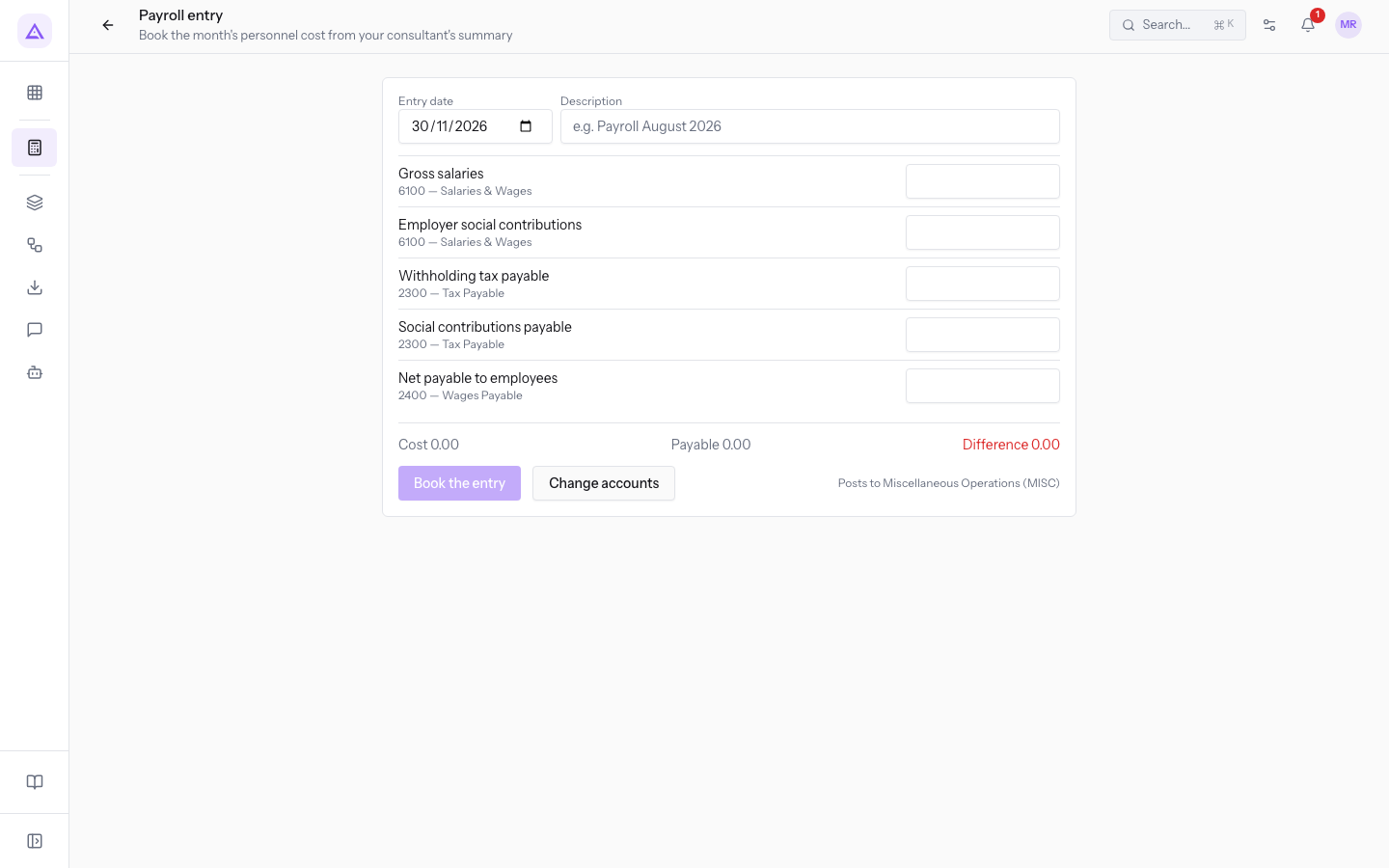
- Check the Entry date and write the description.
- Enter the five amounts from the summary.
- Check that the Difference is 0.00.
- Press Book the entry. The entry you just created opens.
Page fields:
- Entry date: the date of the entry. It is filled in automatically with the last day of the current month; you can change it.
- Description: the text that identifies the entry, for example
Payroll August 2026. The field is optional. - Gross salaries: the total gross pay for the month.
- Employer social contributions: the contributions the company pays.
- Withholding tax payable: the withholdings deducted from employees, to be paid to the tax authority.
- Social contributions payable: the contributions to be paid to the agencies.
- Net payable to employees: what is owed to employees.
Amounts cannot be negative and have two decimal places. An empty amount counts as zero.
Below the amounts, the page shows the totals Cost, Payable and Difference, updated as you type.
If posting fails, the page shows the message Could not book the payroll entry with the reason.
The resulting entry
After Book the entry, the page of the created entry opens. In the demo, it is the "This month's salaries" entry.
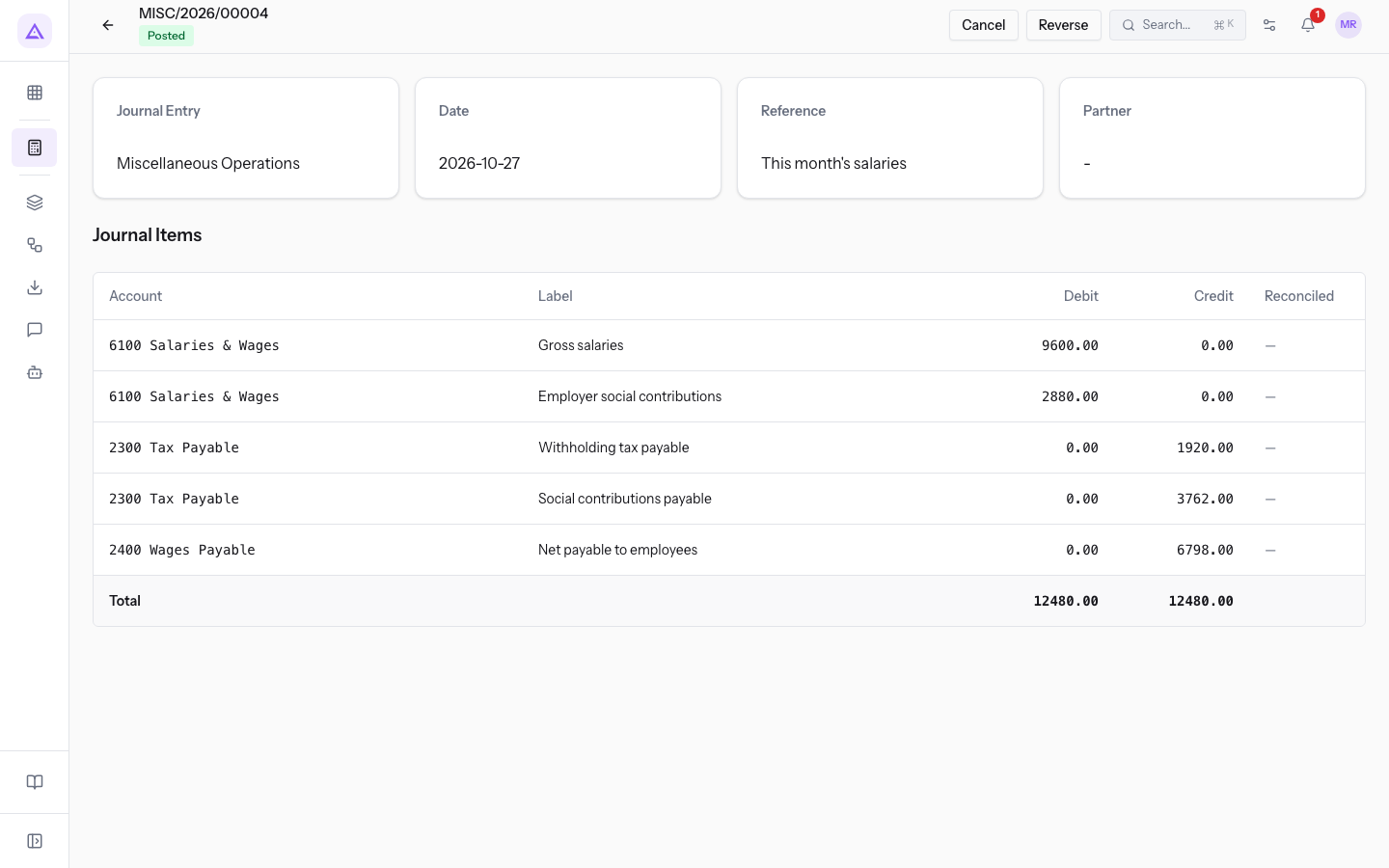
In the demo, the entry:
- has the number MISC/2026/00004 and is in the Miscellaneous Operations journal;
- is in the Posted status;
- shows "This month's salaries" as the Reference;
- lists the accounts and amounts in Journal Items.
From this page you can use Cancel or Reverse, as for any other posted entry. A cancelled entry can be reset to Draft and keeps its number. A reversal can only be done once.
Paying salaries from the bank
Paying employees' salaries is a separate entry in the Bank journal. In the demo, it is the "Salary transfers" entry.
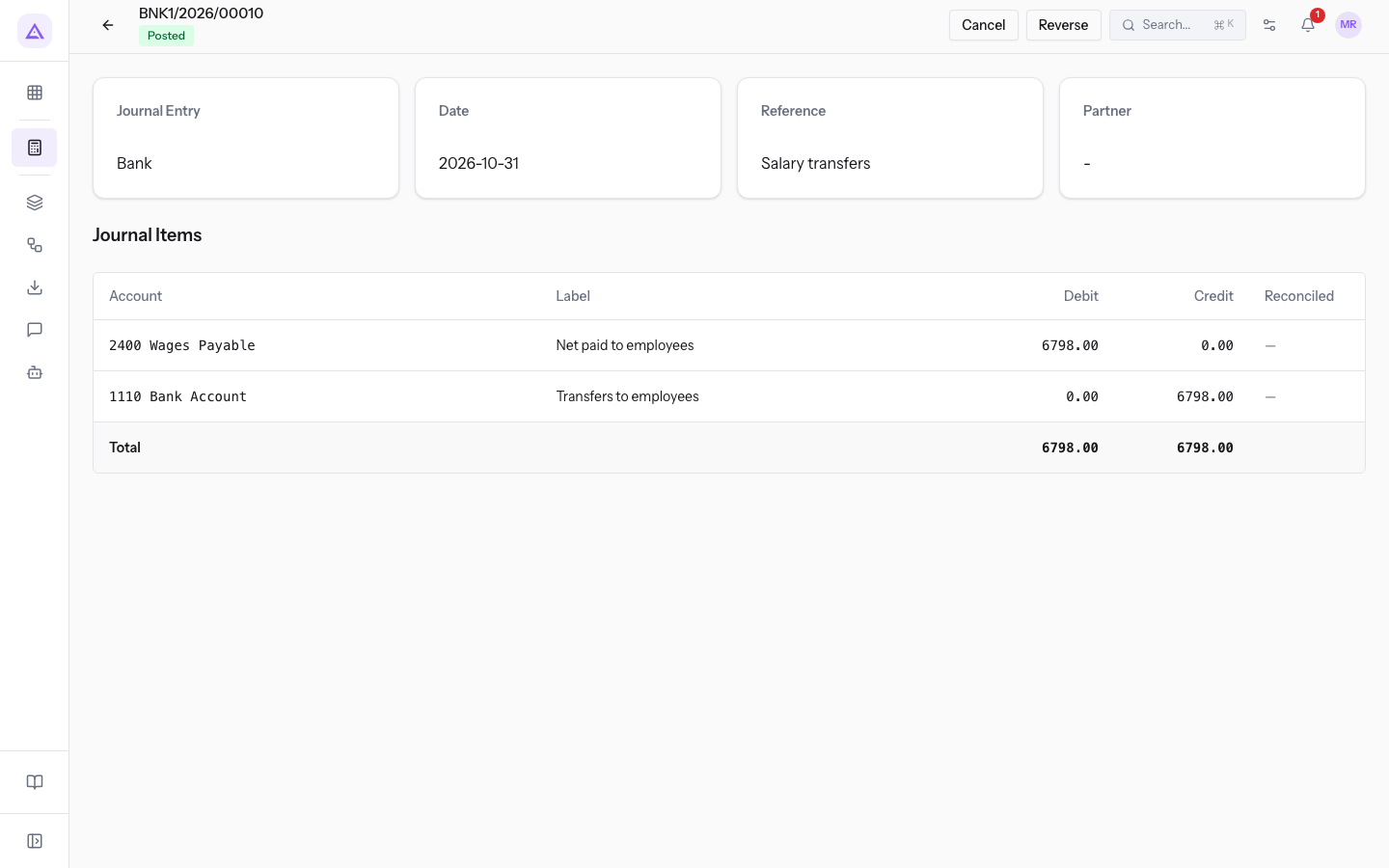
In the demo, the "Salary transfers" entry has the number BNK1/2026/00010, the date 2026-10-03, and is in the Posted status.
Note: the salary entry is posted on the chosen date, usually the last day of the month. The payment has the date of the transfer, which may fall in the following month.
See it on your company, not on a slide deck.
In 30 minutes we map the software you use today.We show you how much work and how much margin Archimedes gives back.
Show me on my business →What industry are you in?
One tap — it lets us prepare the demo around your world.
What tools do you use today?
Pick the ones you recognise — or just type them. It helps us show you how they migrate.
Last step: your details.
We reply within one working day — and right after, if you like, you pick the demo slot yourself.
We couldn't send your request. Try again, or write to us at [email protected].
By sending, you agree to your data being processed so we can get back to you about the demo. Privacy notice.
Preview form — nothing is sent from this page.
Want to schedule the demo now?
Your call: book the slot you prefer yourself, or we'll call you to arrange it.
Live availability, 30 minutes, instant confirmation. The calendar opens in a new tab.
Lock in your slot ↗We'll get back to you within one working day — and we'll join the call already knowing your world.
The calendar is open in another tab: pick a slot and the demo is booked. Can't see it? Reopen it ↗
Preview page: nothing was sent.
Our calendar is live: take the slot that suits you and the demo is booked. 30 minutes, instant confirmation, no waiting.
Lock in your slot ↗