Accounting
All modules
Reading the trial balance, profit and loss and balance sheet
Accounting · 8 of 17 · 5 min read
The Financial Reports page shows the organization's accounting position in three statements: trial balance, profit and loss, and balance sheet. For example, you use it to check account balances at month end, the result for the period, or the financial position to pass on to your accountant.
How the reports are calculated
The reports read only journal entries in the Posted status. Entries in Draft and Cancelled do not count in the totals. For example, the entry Inventory adjustment, in draft in the demo, does not appear until you post it.
The three statements treat closing and opening entries of the fiscal year differently:
- the trial balance shows all entries, including closing and opening;
- the profit and loss does not count the closing entry, so a closed year does not show zero;
- the balance sheet does not count closing and opening, so each balance is counted only once.
The type and group of each account in the chart of accounts decide which section of the reports the account appears in.
Opening the reports and choosing the period
The page has four tabs: Trial Balance, Profit & Loss, Balance Sheet and the withholding tax register tab. The period and the download buttons apply to the open tab.
- Open Accounting › Reports. The Financial Reports page opens on the Trial Balance tab.
- Choose the tab of the statement you want to read.
- Enter the period in the two date fields at the top: in the first the start date, in the second the end date. The report updates as soon as you change a date.
If you leave the start date empty, the report has no start limit. If you leave the end date empty, it has no end limit. If you leave both dates empty, the trial balance, profit and loss and balance sheet read all posted entries.
Note: the withholding tax register tab always requires both dates. Until one is missing, the tab shows no data and the CSV and PDF buttons are disabled.
Trial balance
The trial balance lists the accounts with movements in the period, with their debit and credit totals and balance. Use it to check that each account has the expected balance.
- Open Accounting › Reports.
- Stay on the Trial Balance tab and enter the period.
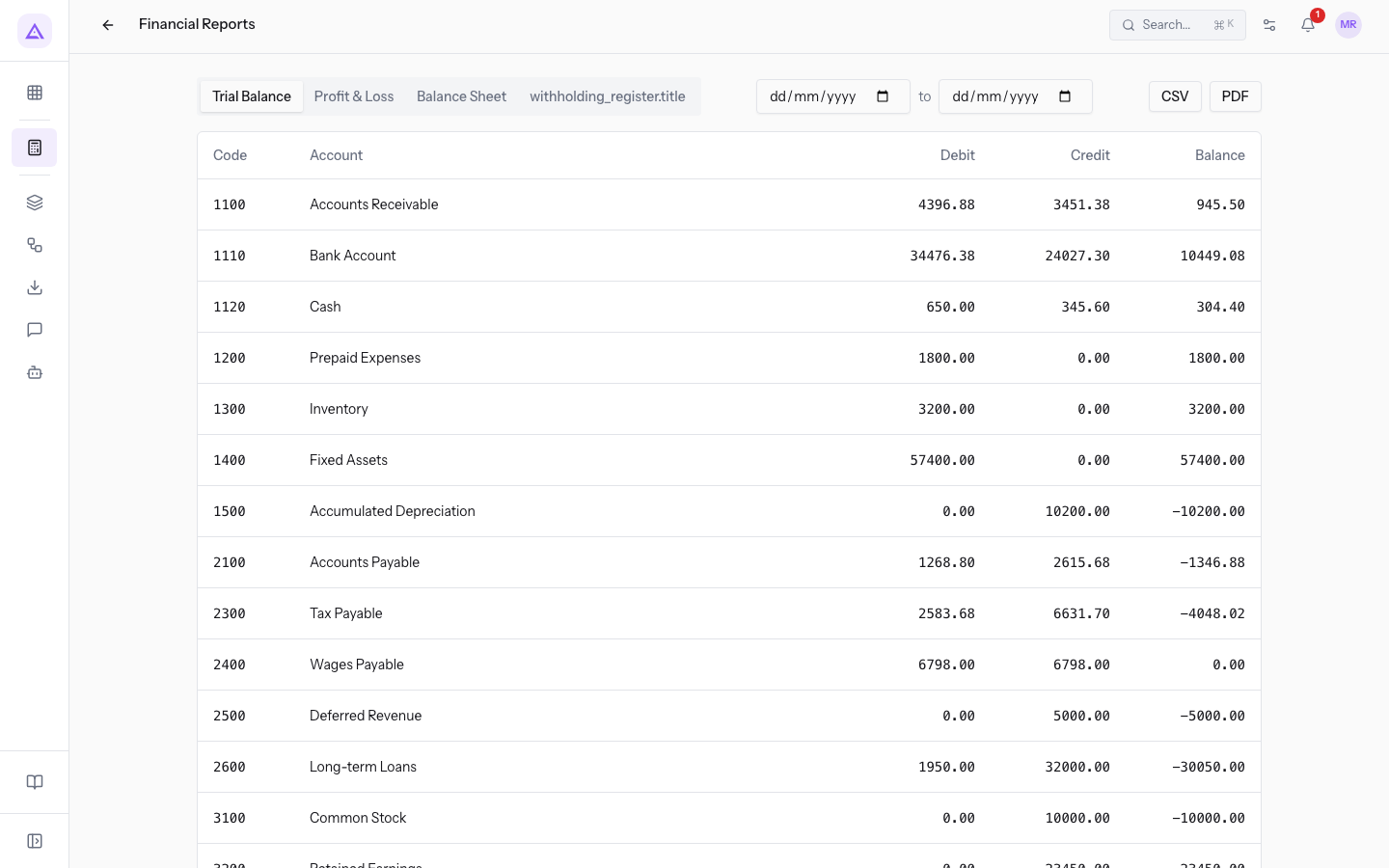
The table has these columns:
- Code: the account code in the chart of accounts.
- Account: the account name.
- Debit: the total debit movements of the account in the period.
- Credit: the total credit movements of the account in the period.
- Balance: the difference between debit and credit. A negative balance means an account with more credits than debits.
Profit and loss
The profit and loss compares income and expenses for the period and calculates the result.
- Open Accounting › Reports.
- Press the Profit & Loss tab and enter the period.
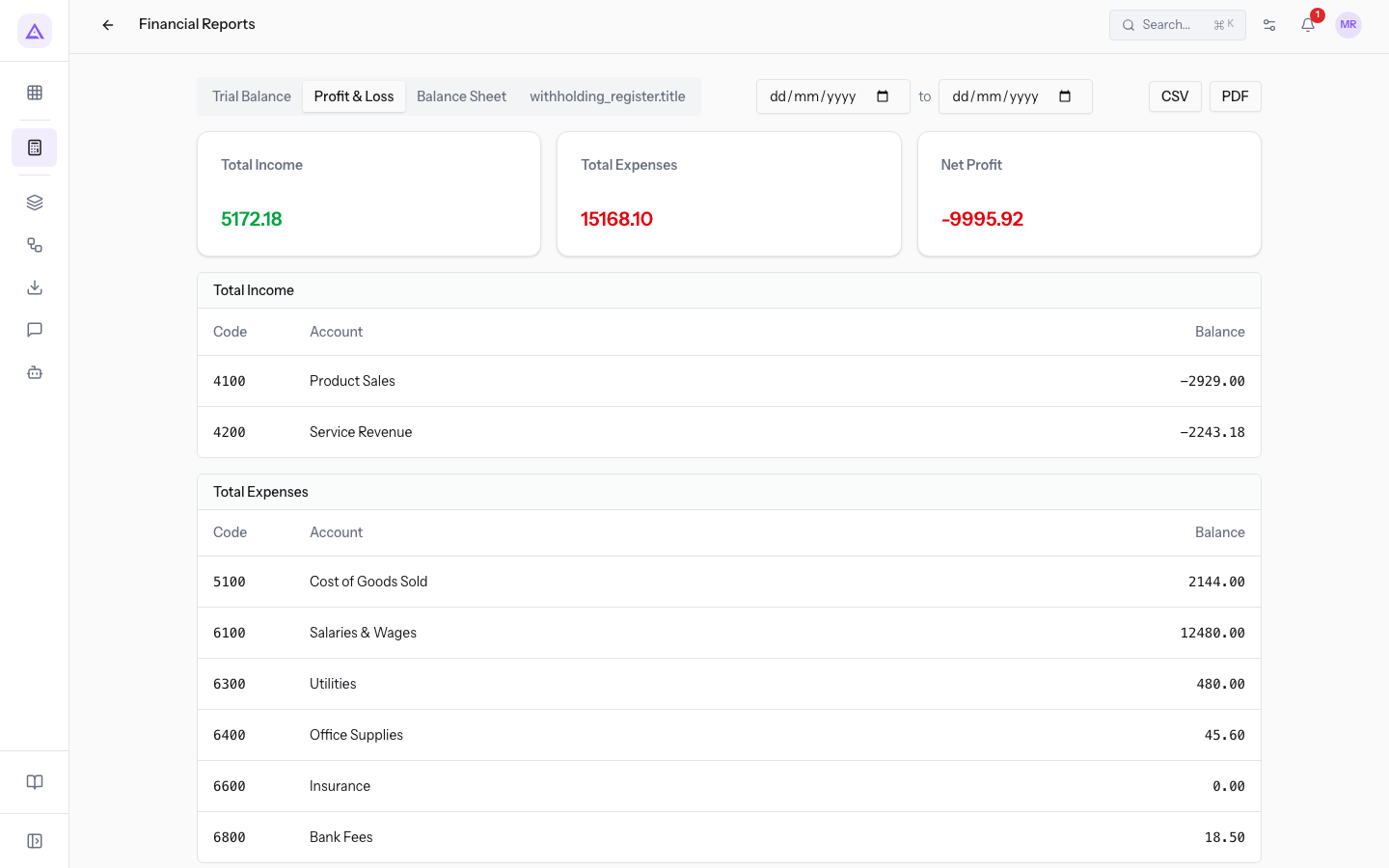
At the top, the tab shows three boxes:
- Total Income: the sum of the balances of the income accounts. In the demo, without a period, it is
5172.18. - Total Expenses: the sum of the balances of the expense accounts. In the demo it is
15168.10. - Net Profit: total income minus total expenses. It is green if positive or zero, red if negative. In the demo it is
-9995.92, which is a loss.
Below the boxes, the Total Income and Total Expenses sections list the accounts that make up each total, with the columns Code, Account and Balance. This lets you check which accounts each amount comes from.
Note: a negative total means at least one account in the category has a balance of the opposite sign, for example a refund recorded as a credit on an expense account. The profit calculation remains correct.
Balance sheet
The balance sheet shows the organization's assets, liabilities and equity.
- Open Accounting › Reports.
- Press the Balance Sheet tab and enter the period.
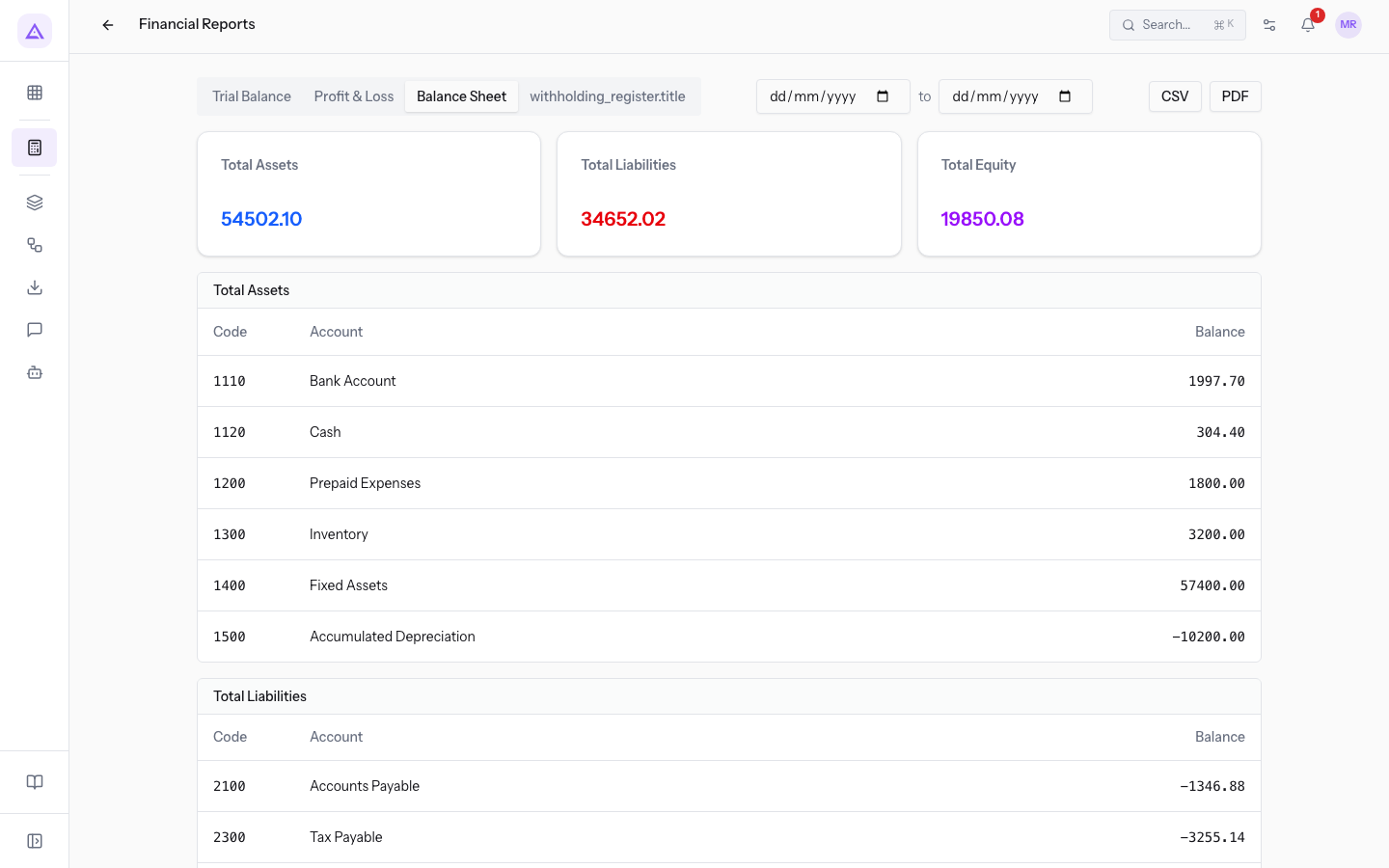
At the top, the tab shows three boxes:
- Total Assets: the sum of the balances of the asset accounts. In the demo it is
63898.98. - Total Liabilities: the sum of the balances of the liability accounts. In the demo it is
40444.90. - Total Equity: the sum of the balances of the equity accounts. If it is negative, the amount is shown in red and a note about negative equity appears below.
Below the boxes, the Total Assets, Total Liabilities and Total Equity sections list the accounts that make up each total, with the columns Code, Account and Balance.
Warning about prior-year results
A warning appears below the sections when the statement's fiscal year has a previous year but the opening entry has not yet been posted. This happens in two cases:
- the previous year is not yet closed: balances are carried forward by accounting until the year-end close posts the opening entry;
- the previous year is closed, but the opening entry in the new year has not been posted: balances are carried forward by accounting.
If the result of the unclosed prior years is not zero, the warning also shows that result with its amount and indicates that it is shown in equity.
Tip: to make the warning disappear, complete the previous year's close and post the opening entry.
Downloading a report as CSV or PDF
You can download the statement of the open tab, with the period you entered.
- Open Accounting › Reports and choose the tab.
- Enter the period.
- Press CSV for a file to open in a spreadsheet, or PDF for a document to print or send.
The browser downloads the file with the name assigned by Archimedes. The buttons are also available to users who can only view accounting, without editing it.
Note: in the withholding tax register tab, the CSV and PDF buttons are enabled only after you enter both the start date and the end date.
See it on your company, not on a slide deck.
In 30 minutes we map the software you use today.We show you how much work and how much margin Archimedes gives back.
Show me on my business →What industry are you in?
One tap — it lets us prepare the demo around your world.
What tools do you use today?
Pick the ones you recognise — or just type them. It helps us show you how they migrate.
Last step: your details.
We reply within one working day — and right after, if you like, you pick the demo slot yourself.
We couldn't send your request. Try again, or write to us at [email protected].
By sending, you agree to your data being processed so we can get back to you about the demo. Privacy notice.
Preview form — nothing is sent from this page.
Want to schedule the demo now?
Your call: book the slot you prefer yourself, or we'll call you to arrange it.
Live availability, 30 minutes, instant confirmation. The calendar opens in a new tab.
Lock in your slot ↗We'll get back to you within one working day — and we'll join the call already knowing your world.
The calendar is open in another tab: pick a slot and the demo is booked. Can't see it? Reopen it ↗
Preview page: nothing was sent.
Our calendar is live: take the slot that suits you and the demo is booked. 30 minutes, instant confirmation, no waiting.
Lock in your slot ↗