Accounting
All modules
Manage deferrals, accruals and recurring entries
Accounting · 13 of 17 · 4 min read
The Deferrals & Accruals page splits costs and revenues between two fiscal years when their accounting period crosses the fiscal year-end, for example an annual insurance premium paid in August. Recurring entries are templates that generate periodic journal entries, such as a loan instalment or an equipment rental fee.
Choosing between deferral, accrual and recurring entry
Use the Deferrals & Accruals page when an amount covers a period that goes beyond the fiscal year-end. Use Recurring entries when the same entry repeats at fixed intervals.
- If a cost or revenue is already in an invoice but the period is partly in the next fiscal year, record a Prepaid expense (on costs) or a Deferred revenue (on revenues).
- If a cost or revenue belongs to the fiscal year but is not documented yet, record an Accrued expense (on costs) or an Accrued revenue (on revenues).
- If you record the same entry with the same accounts every month or quarter, create a recurring entry.
Note: after the VAT settlement of a period you can still record entries without VAT, such as deferrals. Year-end adjustments therefore remain possible.
Reviewing deferrals and accruals
The page shows the recorded deferrals and accruals and suggests the invoices that cross the fiscal year-end.
- Open Accounting › Dashboard and choose Deferrals & Accruals.
- In Fiscal year-end enter the fiscal year closing date, for example
2026-12-31. - Press Reload to refresh the suggestions.
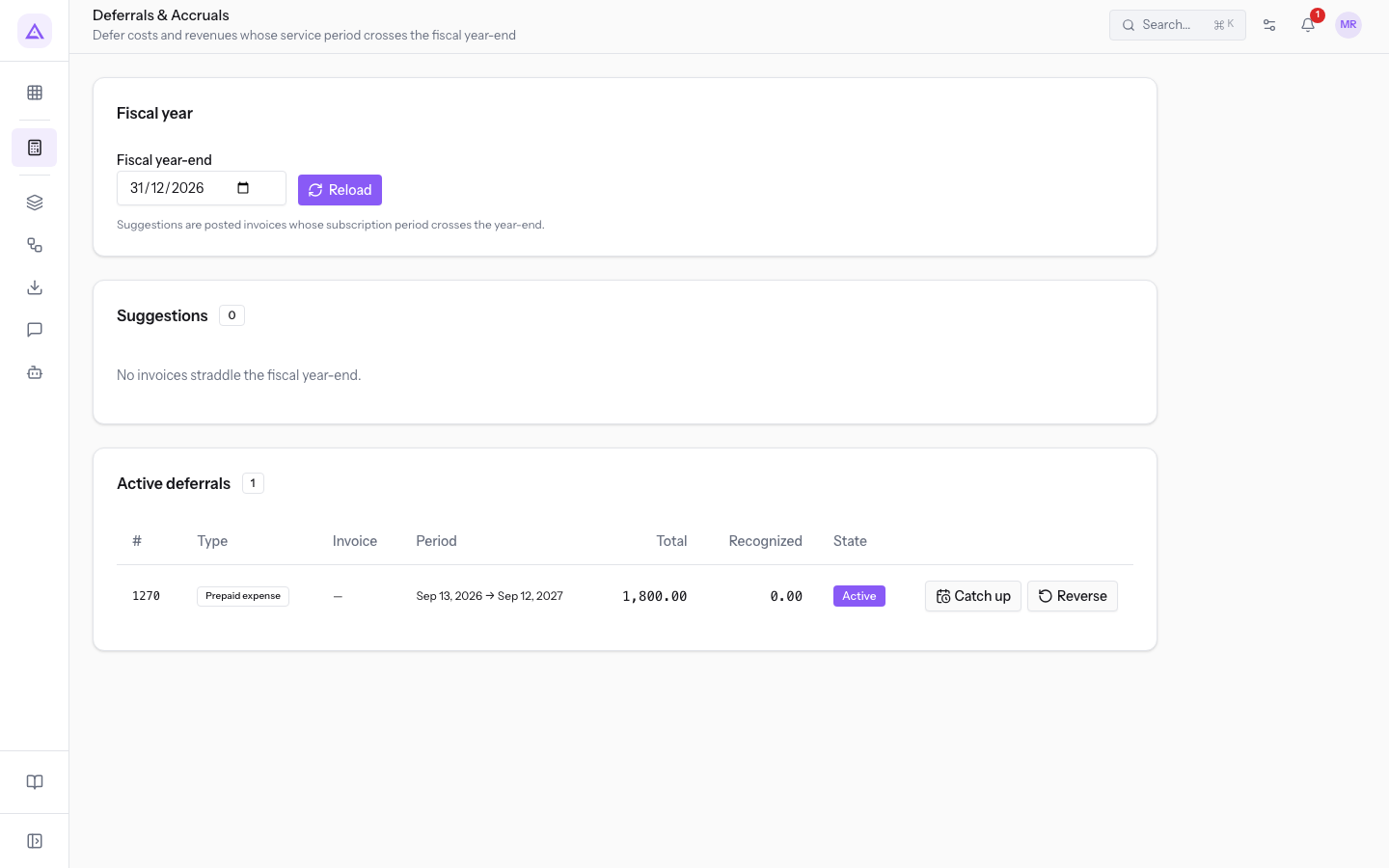
The page has two sections:
- Suggestions: posted invoices whose accounting period crosses the year-end.
- Active deferrals: the recorded deferrals and accruals. For each one the list shows the type (Prepaid expense, Deferred revenue, Accrued revenue, Accrued expense), the accounting period, the total amount, the amount already recognized (Recognized) and the status.
In the demo the list contains the prepaid expense «2026 liability insurance policy»: period from Aug 16, 2026 to Aug 15, 2027, total 1,800.00.
Recording recognitions and reversing a deferral
Each deferral or accrual in the list has the Catch up and Reverse buttons.
- In the row of the deferral or accrual, for example 2026 liability insurance policy, press Catch up.
- A message shows how many recognitions were recorded, such as 2 recognition(s) posted. The amount in the Recognized column increases accordingly.
Creating a recurring entry
A recurring entry is a template: it sets the journal, the frequency and the entry lines to generate.
- Open Accounting › Settings and choose the Recurring entries tab.
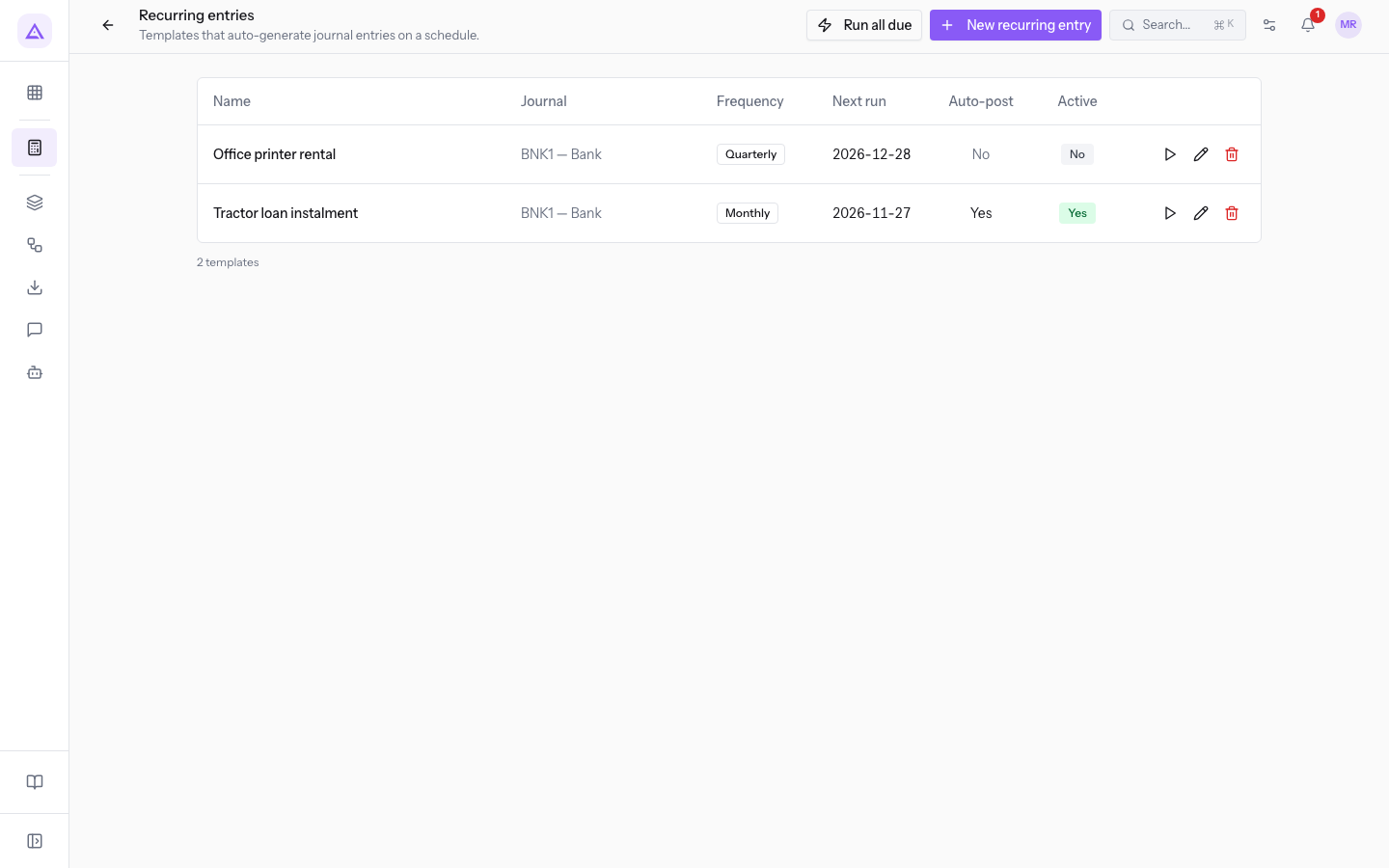
- Press New recurring entry.
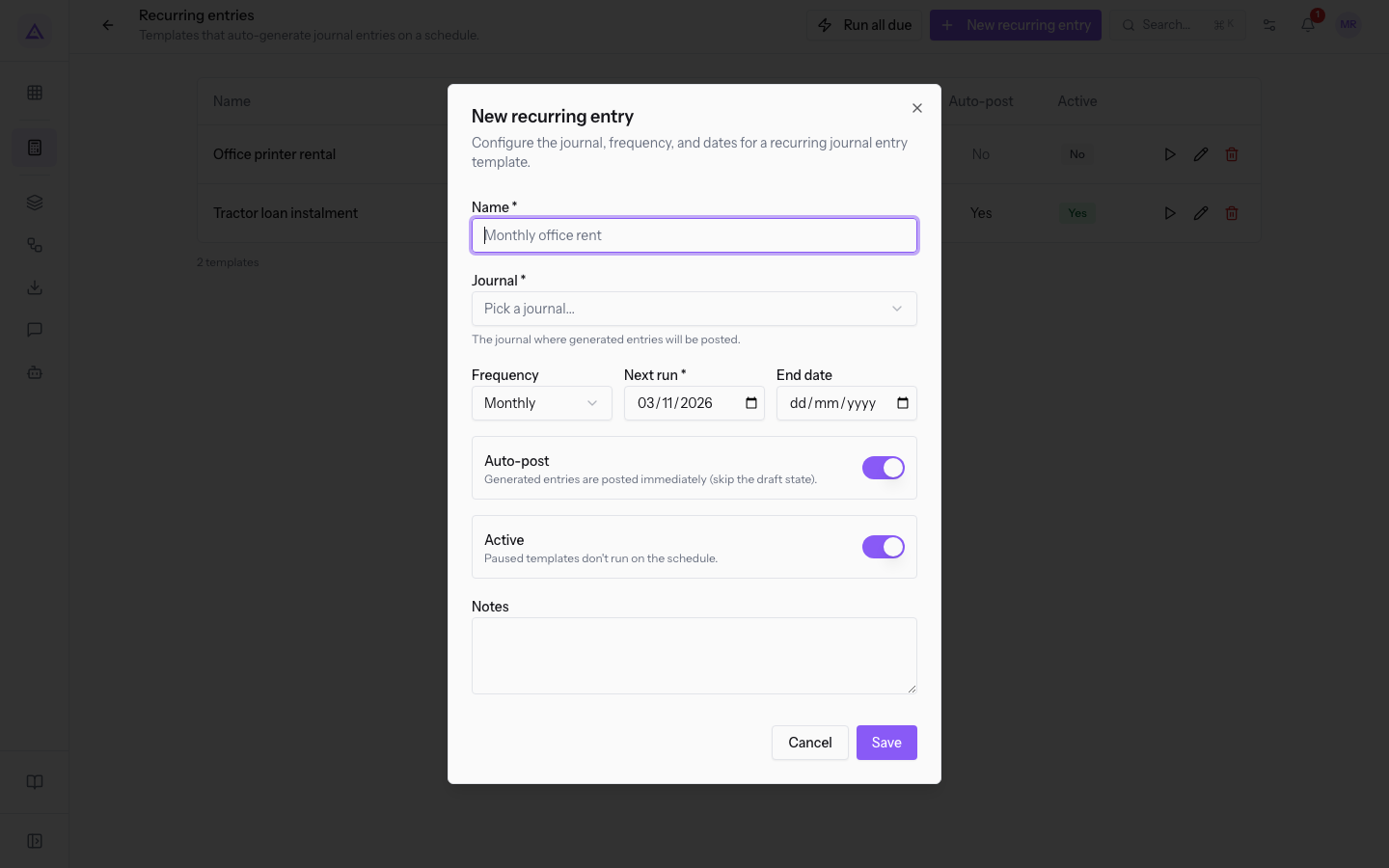
- Fill in the fields and press Save.
The form fields are:
- Name: the name of the template, for example
Tractor loan instalment. The field is required. - Journal: the journal where the generated entries are created, such as Bank. The field is required.
- Frequency: the interval between one entry and the next. The default value is Monthly.
- Daily
- Weekly
- Monthly
- Quarterly
- Yearly
The template also has a Next run date, an End date and the Auto-post option. Without a name and a next run date the template does not save: the message Name and next run date are required. appears.
- If you want to check each entry before it enters the reports, leave Auto-post turned off: the entries are generated as drafts.
- If the entry is always identical, turn on Auto-post: the generated entries are posted immediately and skip the draft status.
Defining the template lines
The recurring entry page shows the template data and the entry lines to generate.
- In the Recurring entries list press the template name, for example
Office printer rental. - In the Template lines section press Add line and enter the debit and credit lines.
- Check the indicator: Balanced when debit and credit match, Unbalanced when they do not.
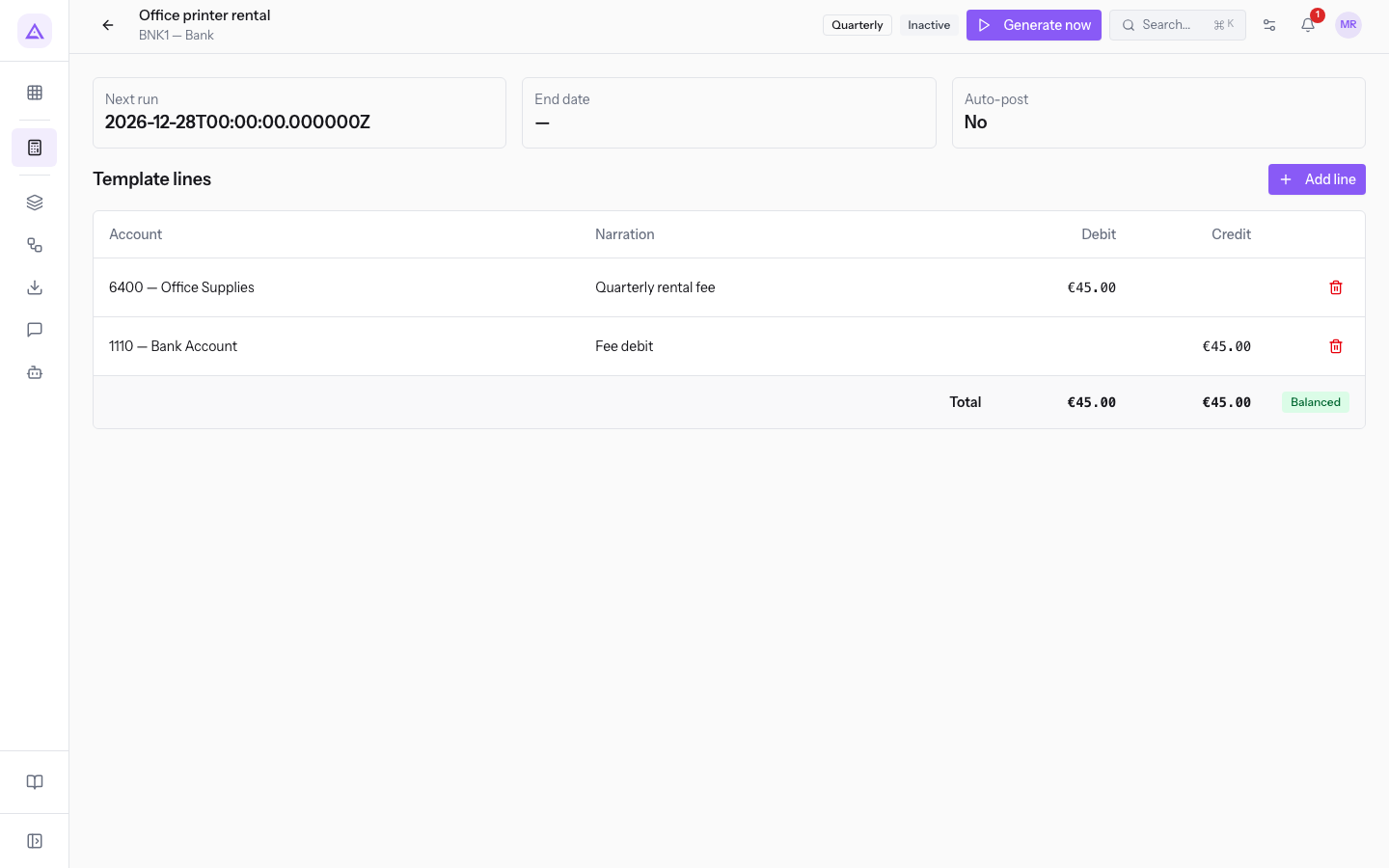
At the top of the page appear the journal (such as BNK1 — Bank), the frequency, the status (such as Inactive), the Next run, the End date and Auto-post. To delete a line use Delete.
Important: an entry is posted only if it is balanced. With Unbalanced lines the template does not produce a postable entry.
Generating the entries
You can generate an entry for a single template or for all the overdue ones.
- Generate now: on the template page, or on its list row, generate the entry of that template immediately.
- Run all due: in the Recurring entries list generate the entries of all templates whose next run is overdue.
An inactive template or a template without lines does not generate entries. In the demo, «Office printer rental» is Inactive: Generate now does not create any entry.
If a generated entry is not posted, the warning Entry generated but not posted: appears, followed by the reason. The entry stays as a draft and you can find it in Accounting › Journal Entries.
To change a template use Edit on its list row. To delete it use Delete.
See it on your company, not on a slide deck.
In 30 minutes we map the software you use today.We show you how much work and how much margin Archimedes gives back.
Show me on my business →What industry are you in?
One tap — it lets us prepare the demo around your world.
What tools do you use today?
Pick the ones you recognise — or just type them. It helps us show you how they migrate.
Last step: your details.
We reply within one working day — and right after, if you like, you pick the demo slot yourself.
We couldn't send your request. Try again, or write to us at [email protected].
By sending, you agree to your data being processed so we can get back to you about the demo. Privacy notice.
Preview form — nothing is sent from this page.
Want to schedule the demo now?
Your call: book the slot you prefer yourself, or we'll call you to arrange it.
Live availability, 30 minutes, instant confirmation. The calendar opens in a new tab.
Lock in your slot ↗We'll get back to you within one working day — and we'll join the call already knowing your world.
The calendar is open in another tab: pick a slot and the demo is booked. Can't see it? Reopen it ↗
Preview page: nothing was sent.
Our calendar is live: take the slot that suits you and the demo is booked. 30 minutes, instant confirmation, no waiting.
Lock in your slot ↗