Accounting
All modules
Check receivables, payables and movements with extended reports
Accounting · 9 of 17 · 6 min read
The extended reports collect on one page the receivables and payables aging, the customer and supplier ledgers, the general ledger, the audit of a journal and the VAT summary. For example, you use them to see how much Rossi Furnishings S.r.l. still has to pay, which invoices from Metalnord Industrial Supplies S.p.A. are overdue, or what movements the account 2100 Accounts Payable has had.
Open the extended reports
The page is split into tabs. Each tab is a different report.
- Open Accounting › Extended Reports.
- Choose the report tab: Aged Receivable, Aged Payable, Partner Ledger, General Ledger, Journal Audit or Tax Report.
- Set the period in the From and To fields.
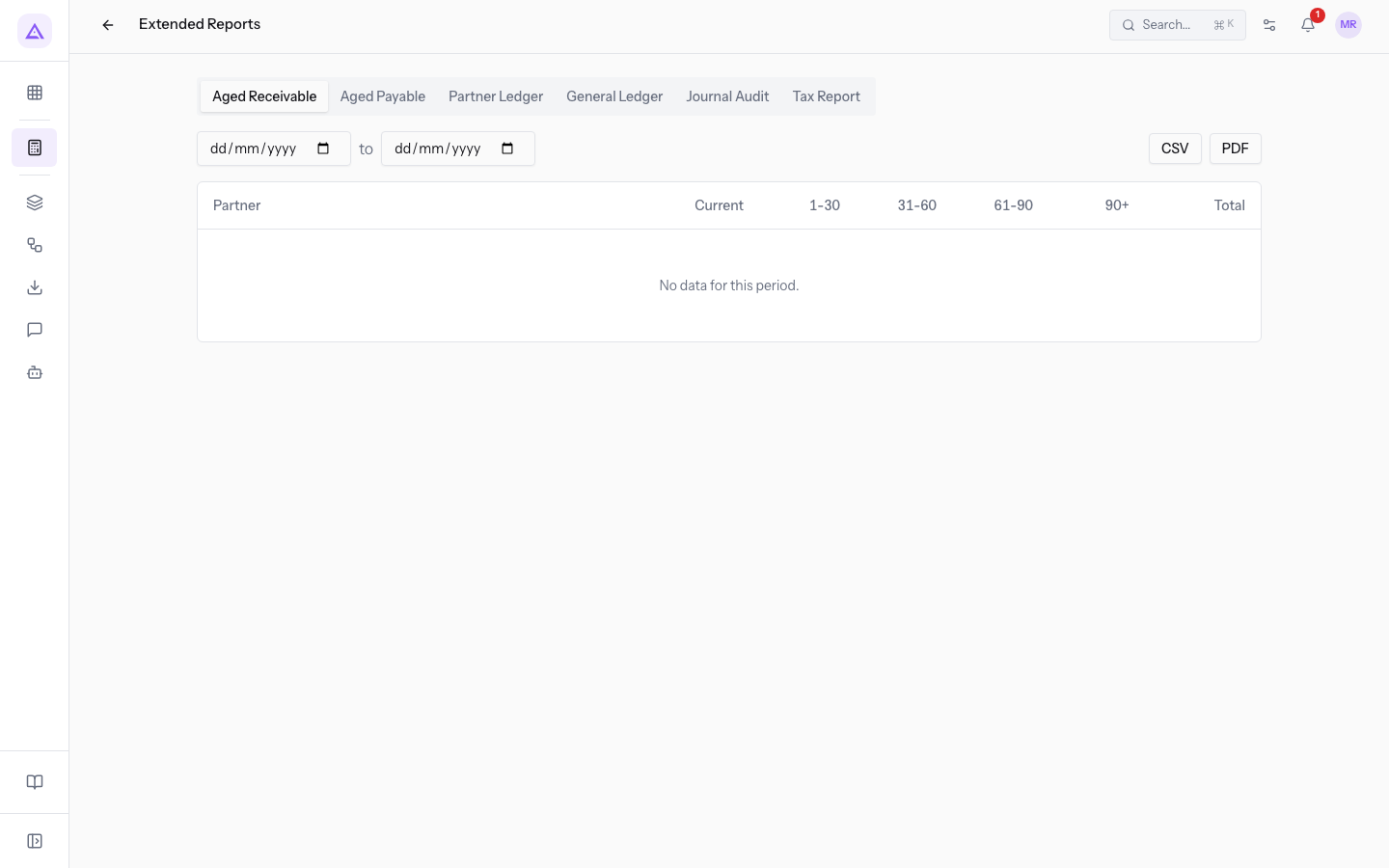
The fields on the page:
- From: the start date of the period. The field is in every tab and is not required.
- To: the end date of the period. The field is in every tab and is not required.
- CSV and PDF: download the open report. The buttons appear in the Aged Receivable, Aged Payable, Partner Ledger and General Ledger tabs.
Note: the reports only read journal entries in the Posted status. An entry in Draft, for example «Inventory adjustment», does not appear in the totals.
Check receivables with the Aged Receivable
The Aged Receivable shows how much customers still owe you, split by overdue bands. Use it to know who to remind.
- Open Accounting › Extended Reports.
- Press the Aged Receivable tab.
- Find the customer row, for example Rossi Furnishings S.r.l., with invoice FV/2026/0002 still to be collected.
The report columns:
- Partner: the customer the receivable refers to.
- Current: the amount not yet due.
- Bands 1-30, 31-60, 61-90 and 90+: the overdue amounts, split by days band.
- Total: the sum of the columns in the row.
Check payables with the Aged Payable
The Aged Payable shows how much you still have to pay suppliers, with the same bands as the receivables aging. Use it to plan payments and see overdue invoices.
- Open Accounting › Extended Reports.
- Press the Aged Payable tab.
- Find the supplier row, for example Metalnord Industrial Supplies S.p.A., with invoice BILL/2026/00001 (ref. MN 2026/0815) overdue and still open.
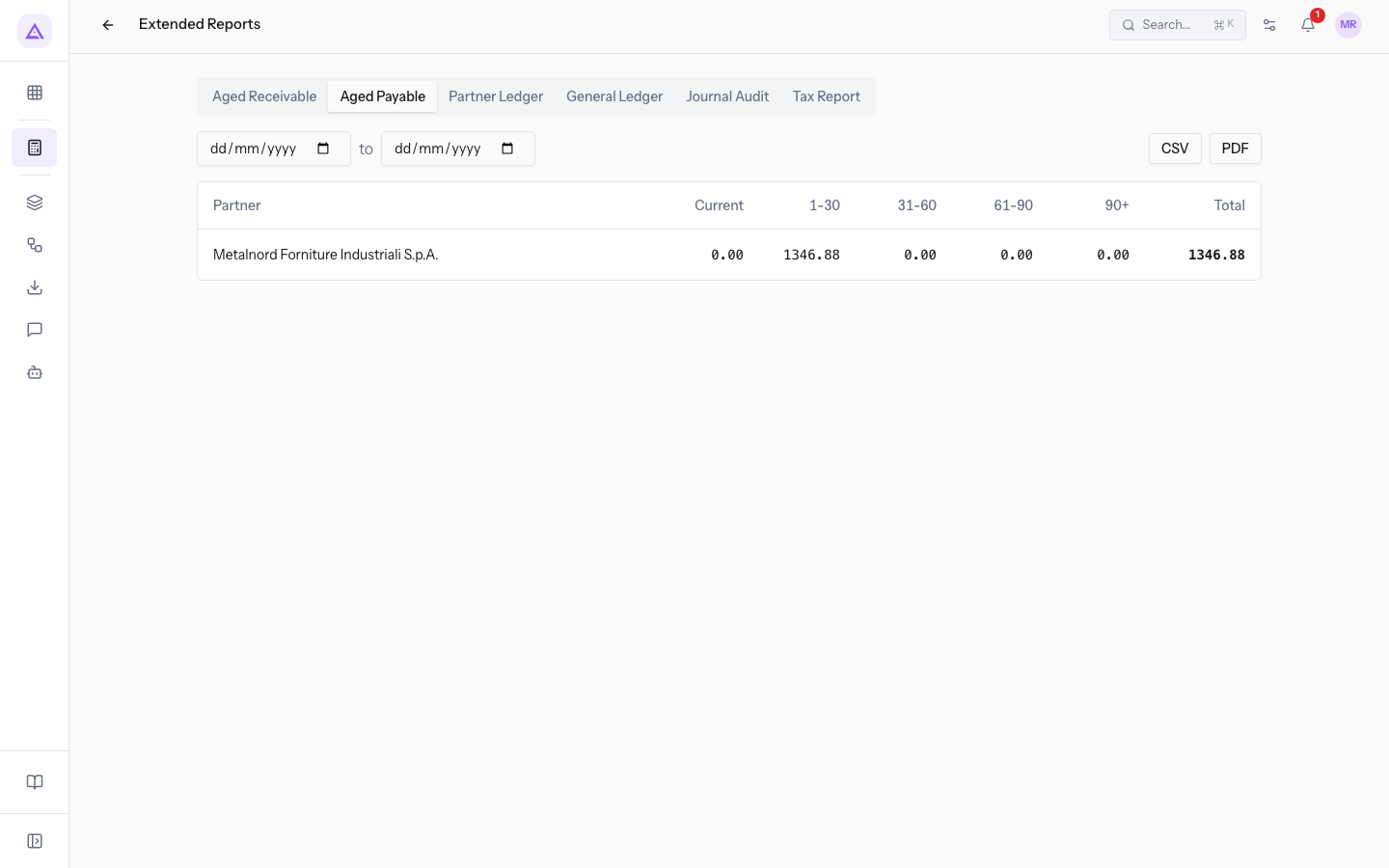
The columns are the same as the receivables aging: Partner, Current, the bands 1-30, 31-60, 61-90 and 90+, and Total.
View the ledger of a customer or supplier
The Partner Ledger lists one partner's movements in the period. First choose whether to see one partner, or all customers or suppliers.
- To check the position of one customer or supplier, choose One partner.
- To get the full list of customers, for example to give to the accountant, choose All customers.
- To get the full list of suppliers, choose All suppliers.
Ledger of one partner
- Open Accounting › Extended Reports and press the Partner Ledger tab.
- In the first list, leave One partner.
- Open the partner list and choose the contact. To find it faster, type in the Search contacts... field, for example
Rossi Furnishings S.r.l.. - In the third list, choose which position to see.
- To remove the chosen partner, press Clear selection.
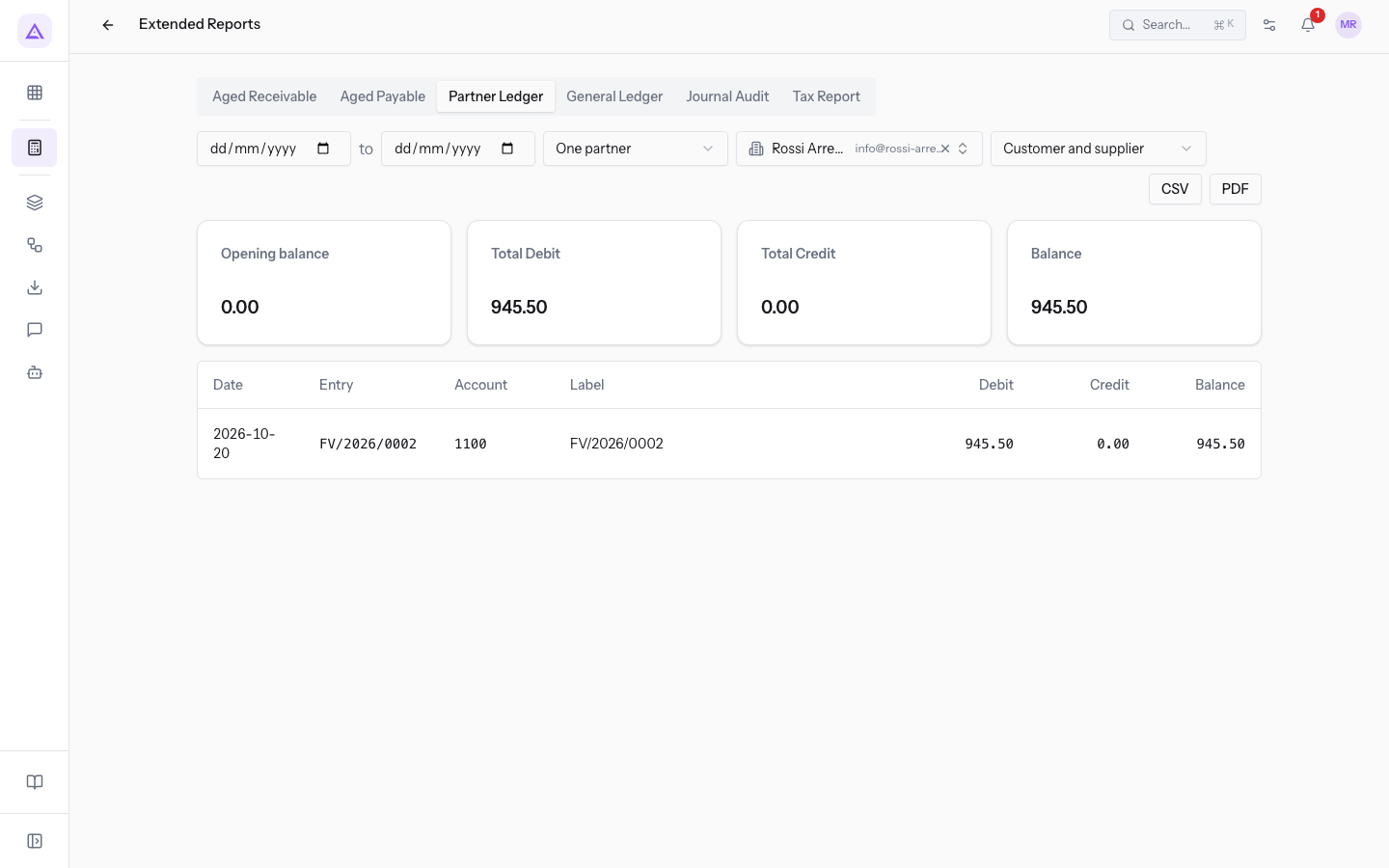
The fields of the tab:
- Scope: the first list.
- One partner: shows the movements of one contact only.
- All customers: shows one section for each customer.
- All suppliers: shows one section for each supplier.
- Partner: the contact list, present only with One partner.
- Position: the third list, present only with One partner.
- Customer and supplier: all movements of the partner. It is the starting value.
- As customer (receivable): only the receivables from the partner.
- As supplier (payable): only the payables to the partner.
Tip: a contact can be both a customer and a supplier. Choose As customer (receivable) or As supplier (payable) to see the two positions separately.
Ledger of all customers or all suppliers
- Open Accounting › Extended Reports and press the Partner Ledger tab.
- In the first list, choose All customers or All suppliers.
- Press CSV or PDF to download the report.
The report includes each customer or supplier with movements or a balance carried forward in the period, one section for each.
View the General Ledger
The General Ledger lists the movements of the accounts in the chart of accounts, one section per account with its balance. Use it to check all accounts or just one.
- Open Accounting › Extended Reports and press the General Ledger tab.
- In the account list, leave All accounts or choose an account, for example
2100 — Accounts Payable. - Press CSV or PDF to download the report.
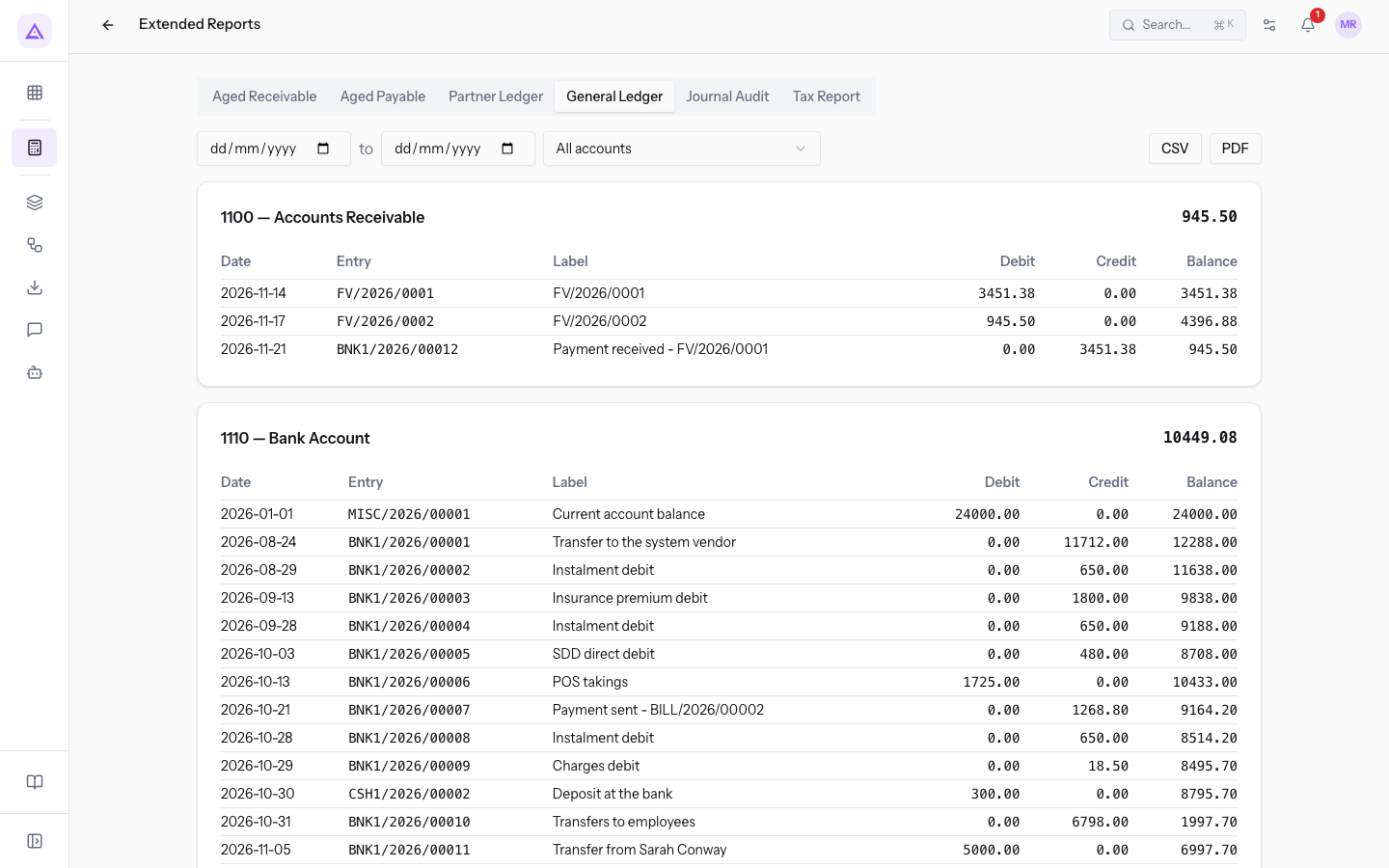
- Account: the account list.
- All accounts: one section for each account, such as
1100 — Accounts Receivable. It is the starting value. - One account from the chart of accounts, such as
1110 — Bank Accountor4100 — Product Sales: only the movements of that account.
- All accounts: one section for each account, such as
Check a journal with the Journal Audit
The Journal Audit shows the journal entries of one journal only. Use it to check, for example, all supplier invoices of the period.
- Open Accounting › Extended Reports and press the Journal Audit tab.
- Choose the journal in the list, such as
BILL — Vendor Bills. Until you choose a journal, the tab shows no entries.
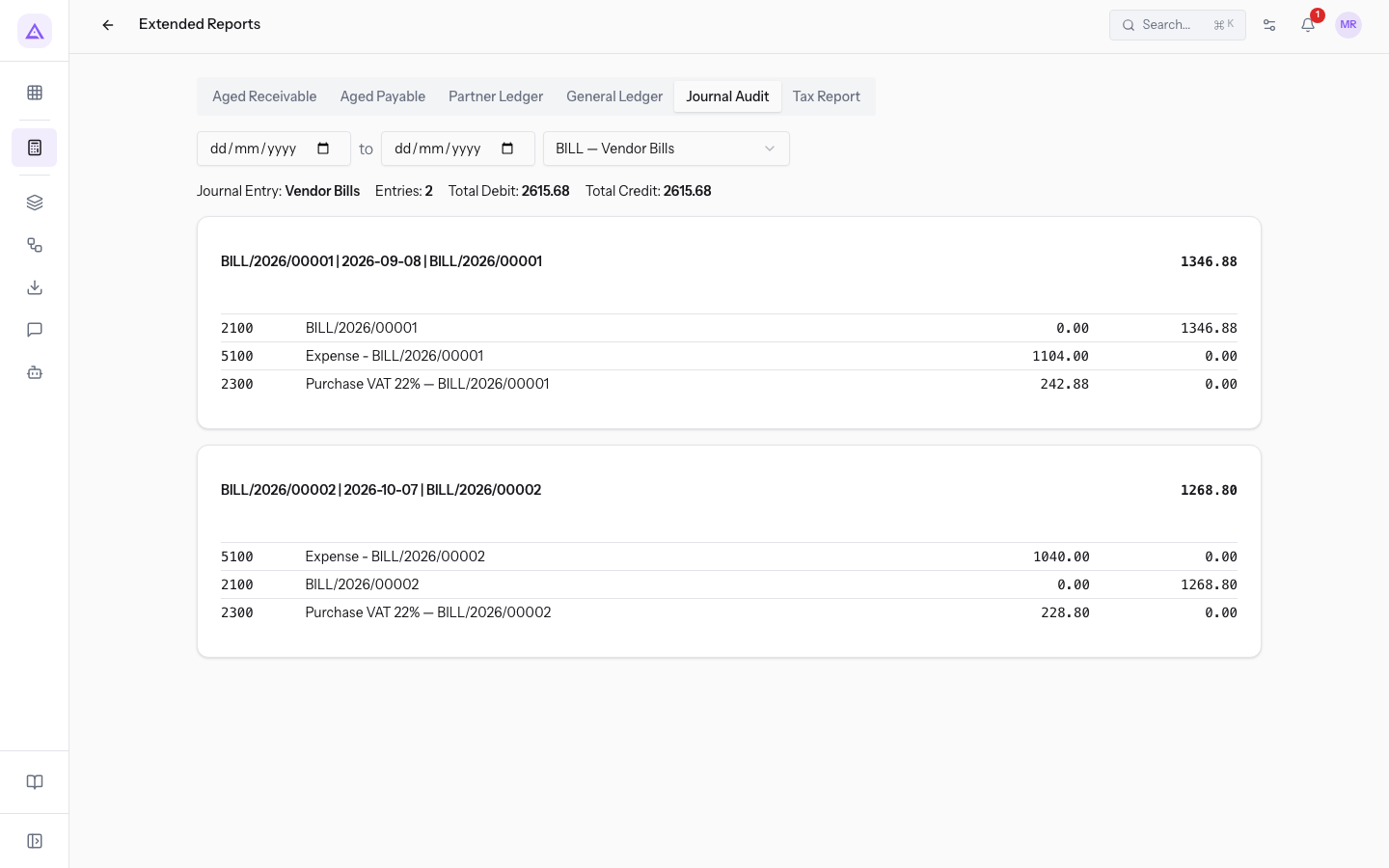
The demo journals you can choose: INV — Customer Invoices, RINV — Customer Credit Notes, BILL — Vendor Bills, RBILL — Vendor Credit Notes, BNK1 — Bank, BDC1 — Main Current Account, CRD1 — Events and Deposits Account, CSH1 — Cash, MISC — Miscellaneous Operations, AUTOF — Self-Invoices.
Note: this tab does not have the CSV and PDF buttons.
Check VAT with the Tax Report
The Tax Report compares the VAT on sales and the VAT on purchases in the period. Use it for a quick check before the VAT settlement.
- Open Accounting › Extended Reports and press the Tax Report tab.
- Set the period in the From and To fields.
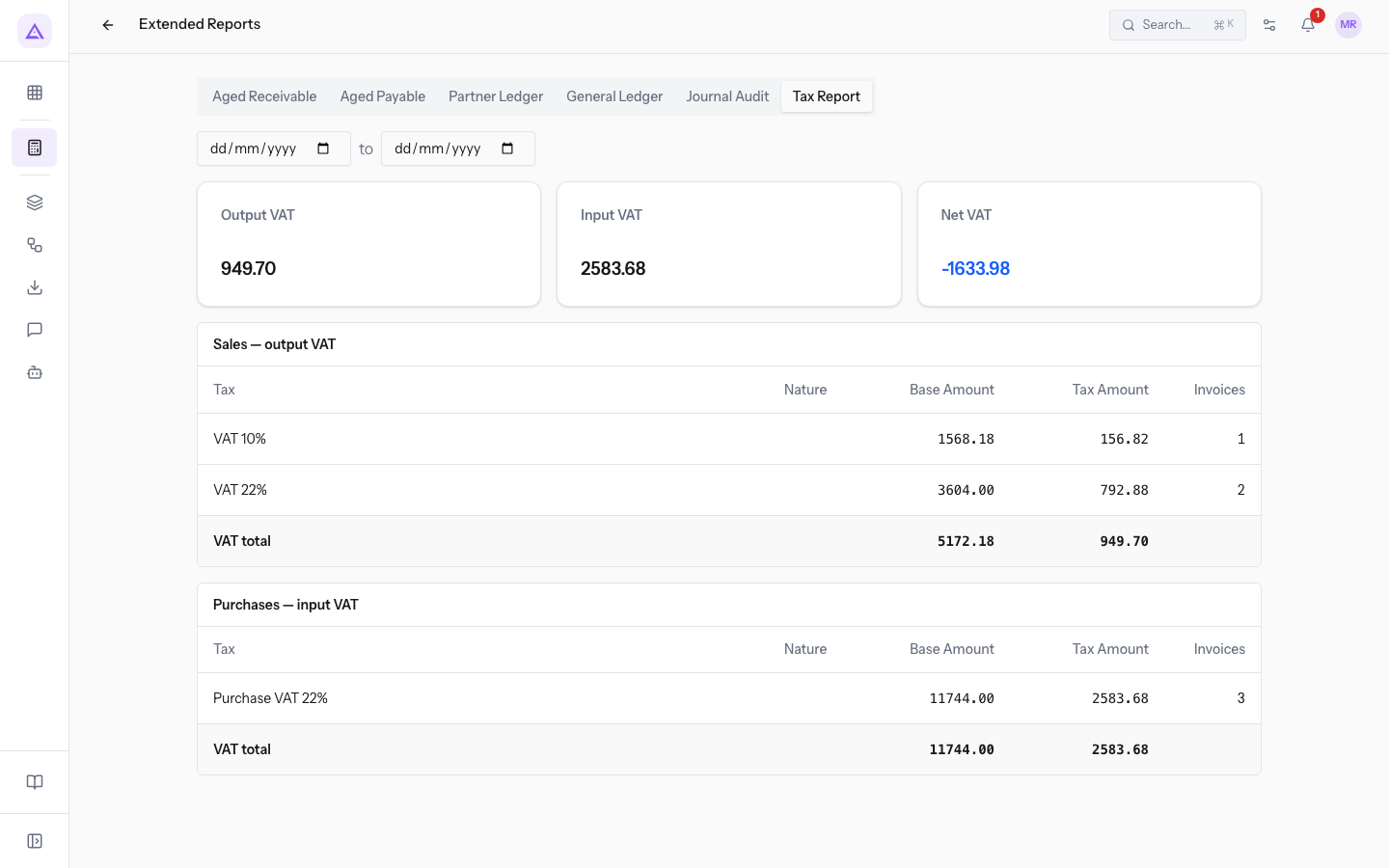
The values of the report:
- Output VAT: the VAT on sales.
- Input VAT: the VAT on purchases.
- Net VAT: the difference between output VAT and input VAT. A negative value means the input VAT is greater. In the demo Net VAT is
-1633.98. - Sales — output VAT and Purchases — input VAT: the two sections with the detail of sales and purchases.
Note: this tab does not have the CSV and PDF buttons.
On this page
See it on your company, not on a slide deck.
In 30 minutes we map the software you use today.We show you how much work and how much margin Archimedes gives back.
Show me on my business →What industry are you in?
One tap — it lets us prepare the demo around your world.
What tools do you use today?
Pick the ones you recognise — or just type them. It helps us show you how they migrate.
Last step: your details.
We reply within one working day — and right after, if you like, you pick the demo slot yourself.
We couldn't send your request. Try again, or write to us at [email protected].
By sending, you agree to your data being processed so we can get back to you about the demo. Privacy notice.
Preview form — nothing is sent from this page.
Want to schedule the demo now?
Your call: book the slot you prefer yourself, or we'll call you to arrange it.
Live availability, 30 minutes, instant confirmation. The calendar opens in a new tab.
Lock in your slot ↗We'll get back to you within one working day — and we'll join the call already knowing your world.
The calendar is open in another tab: pick a slot and the demo is booked. Can't see it? Reopen it ↗
Preview page: nothing was sent.
Our calendar is live: take the slot that suits you and the demo is booked. 30 minutes, instant confirmation, no waiting.
Lock in your slot ↗