Accounting
All modules
Create, book and find journal entries
Accounting · 4 of 17 · 7 min read
Journal entries are the double-entry records of the accounting, with lines in Debit and Credit on one or more accounts. From here you create a manual journal entry (for example, office stationery paid in cash or an inventory adjustment), post it, correct it with a cancellation or a reversal, and also find the entries created by invoices and payments.
Entry statuses
Each journal entry has one of three statuses. The status decides which actions appear on its page.
- Draft: the entry can be edited, deleted or posted with Post. It is the only status in which the entry can be modified.
- Posted: the entry flows into the reports. It cannot be modified: you correct it with Cancel or Reverse.
- Cancelled: the entry does not count in the accounting. With Reset to Draft it becomes editable again.
To choose how to correct a posted entry:
- If the entry is wrong and you want to fix it, use Cancel. Then reset it to draft, correct it and post it again. It keeps its number, so the numbering has no gaps.
- If the entry must stay and you need an opposite entry that offsets it, use Reverse. The reversal swaps debit and credit and can be done only once.
- If the entry is still in draft and is no longer needed, delete it.
Find an entry
The Journal Entries list shows all entries of the organization.
- Open Accounting › Journal Entries.
- In the Search entries... field, type the number or reference of the entry, for example
FV/2026/0001orInventory adjustment, and press Enter. - Choose a tab to filter by status: All, Draft, Posted or Cancelled.
- Press the entry to open its page.
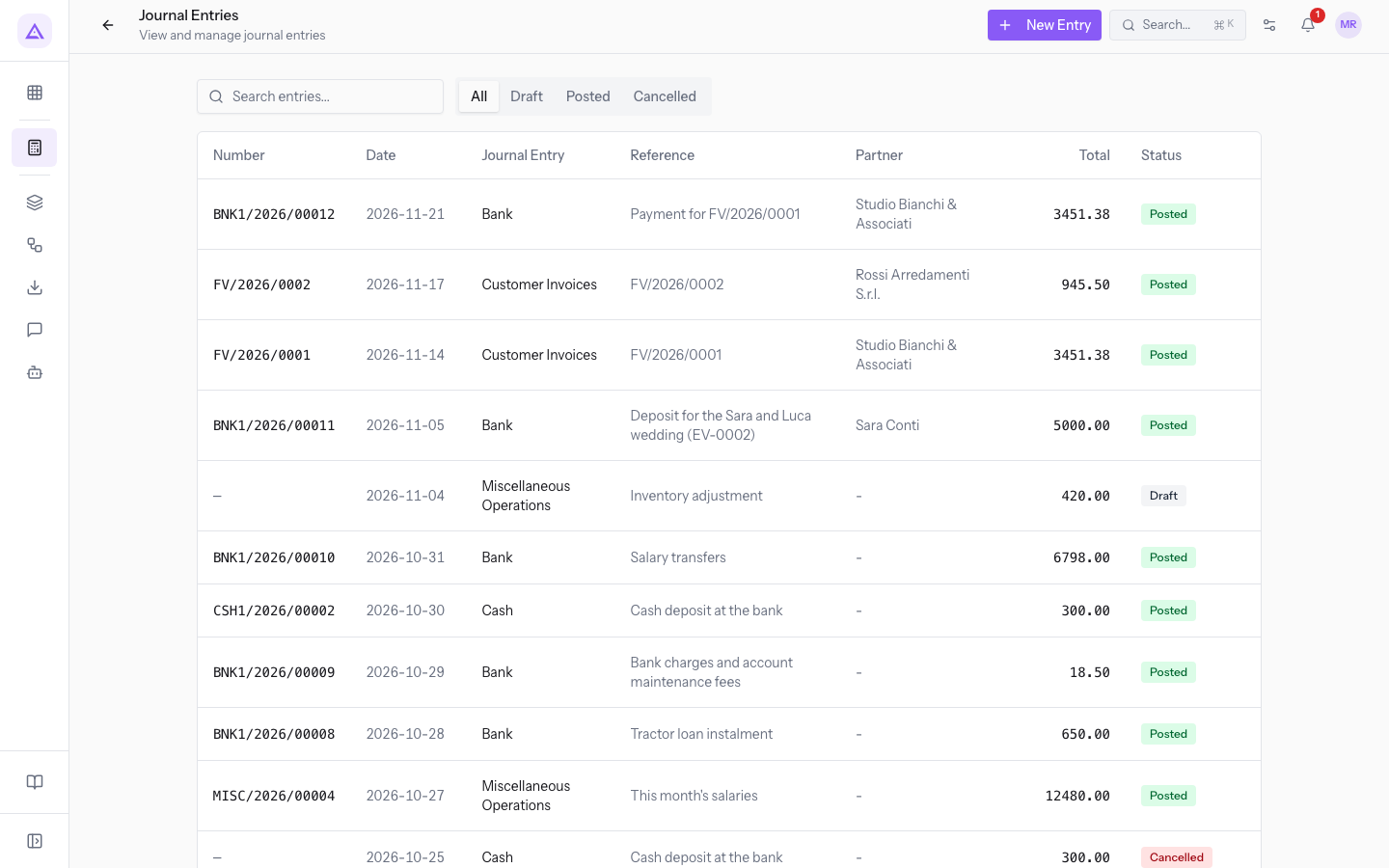
The list has the columns Number, Date, Journal Entry (the journal), Reference, Partner, Total and Status.
From the accounting dashboard, pressing the card of a journal (such as Miscellaneous Operations) opens the same list filtered on that journal, with the same status tabs and the same search.
Create an entry
A manual journal entry is for transactions that do not come from an invoice, a payment or another function of the module.
Before you start: creating and editing entries requires full access to accounting. A user with read-only access can see the entries but cannot create them.
- Open Accounting › Journal Entries and press New Entry. The New Journal Entry screen opens.
- Fill in the header.
- Fill in the lines: for each line choose the Account and enter the amount in Debit or Credit. For example, for
Office stationery: account 6400 Office Supplies in Debit for 120 and account 1120 Cash in Credit for 120. - To add a line press Add Line. To remove a line use the trash icon.
- Press Create. To leave without saving press Cancel.
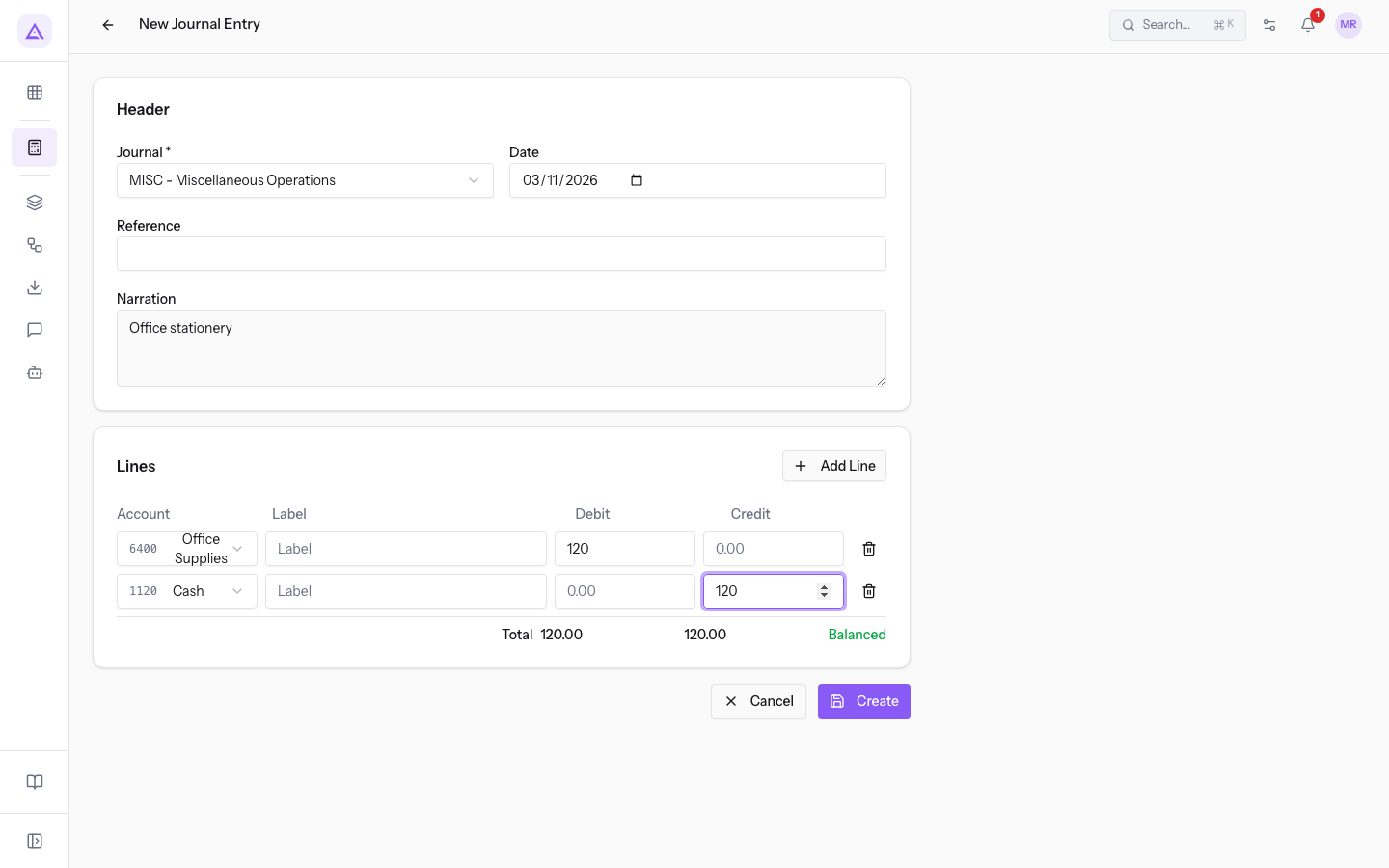
The saved entry is in Draft status.
Header fields
- Journal: the journal the entry goes into. The field is required. The options are the journals of the organization: AUTOF - Self-Invoices, CRD1 - Events and Deposits Account, BDC1 - Main Current Account, MISC - Miscellaneous Operations, RBILL - Vendor Credit Notes, CSH1 - Cash, BNK1 - Bank, BILL - Vendor Bills, RINV - Customer Credit Notes, INV - Customer Invoices.
- Date: the date of the entry. Today's date is proposed. The number assigned at posting depends on the year of this date, not on the day you post it.
- Reference: a short reference, for example
Inventory adjustment. It appears in the list and is used in search. - Narration: a free note, such as
To be checked against the month-end inventory count.
Line fields
- Account: the account from the chart of accounts, shown with code and name, for example 1110 Bank Account.
- Label: the text of the line, such as
Damaged LED lamps. - Debit: the amount in debit.
- Credit: the amount in credit.
Debit and credit balance
While the total debit differs from the total credit, the screen shows a warning that the entry is not balanced. When the totals match, the warning disappears and the entry shows Balanced.
Important: a journal entry can be posted only if it has at least one line, is balanced and has a date after the lock date.
Edit or delete a draft
A journal entry in Draft is corrected before it is posted. In the demo, Inventory adjustment is in draft.
- Open the entry from the list. The page shows the Draft status and the buttons Edit, Delete and Post.
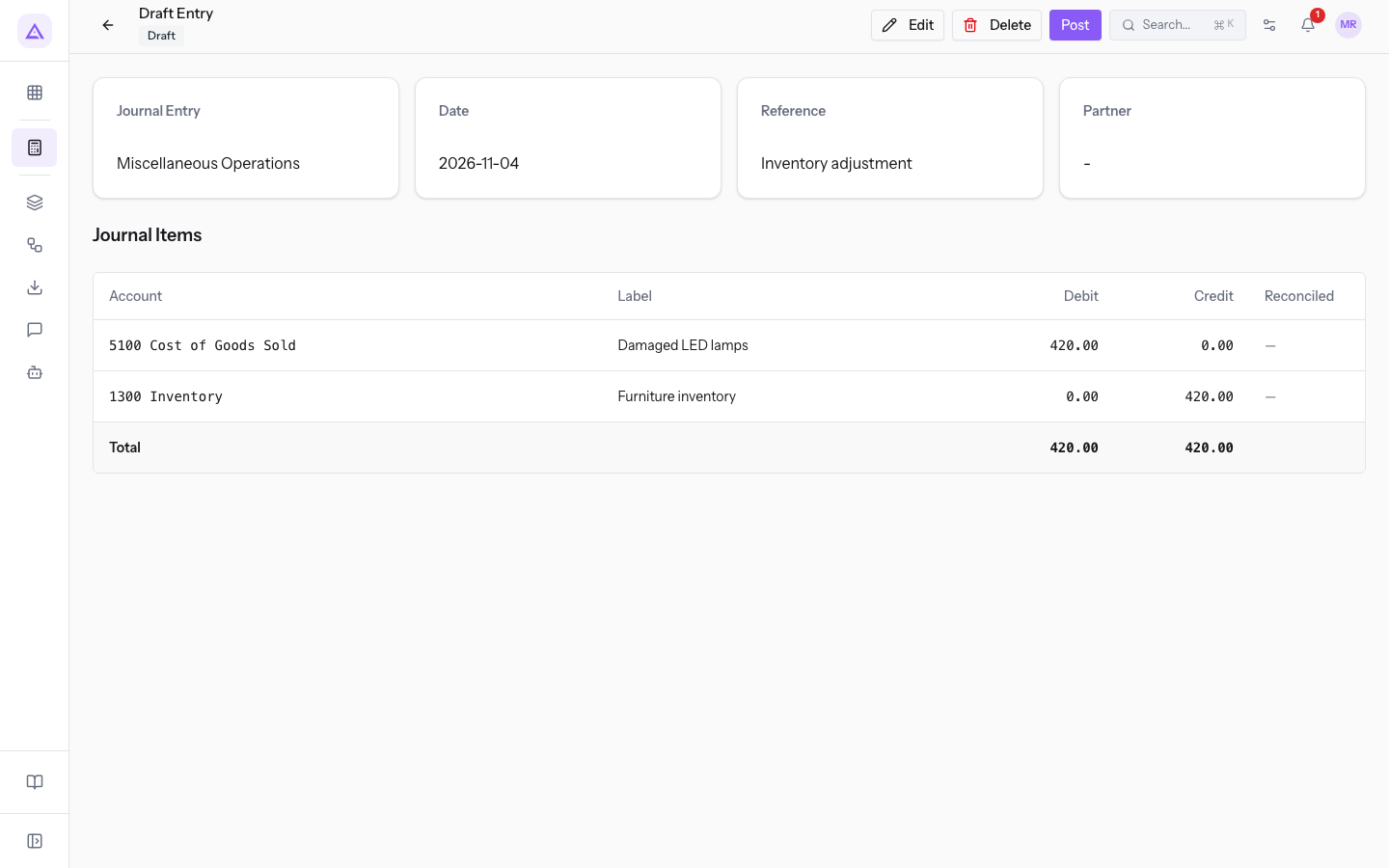
- Press Edit. Edit Journal Entry opens, with the same fields as a new entry.
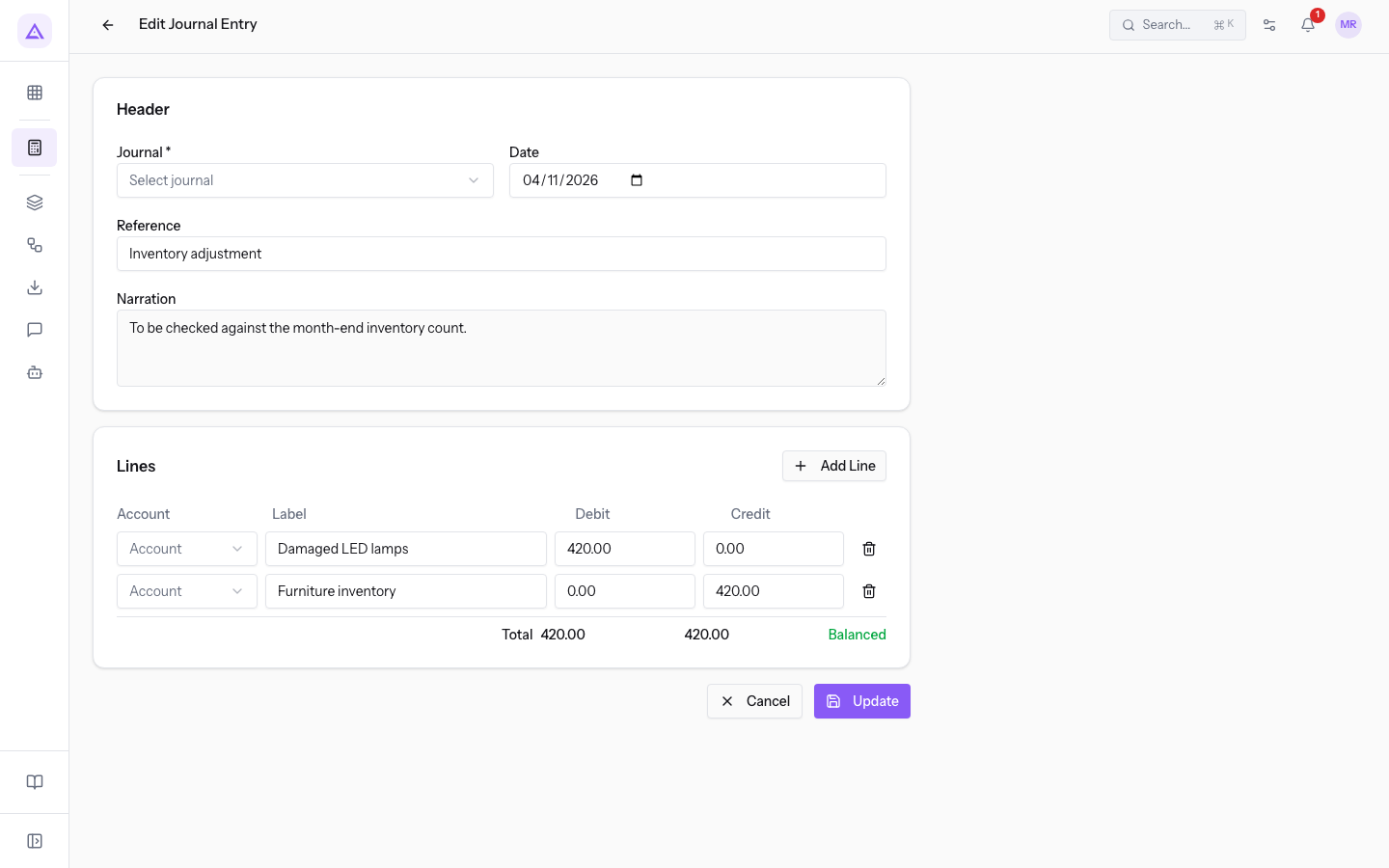
- Correct the fields and press Update.
To delete the draft, press Delete on the page and confirm in the Delete this entry? dialog. Only a draft can be deleted: a posted entry is cancelled.
Post an entry
Posting makes the entry final and includes it in the reports.
- Open the entry in Draft.
- Press Post.
Posting does the following automatically:
- the status changes to Posted;
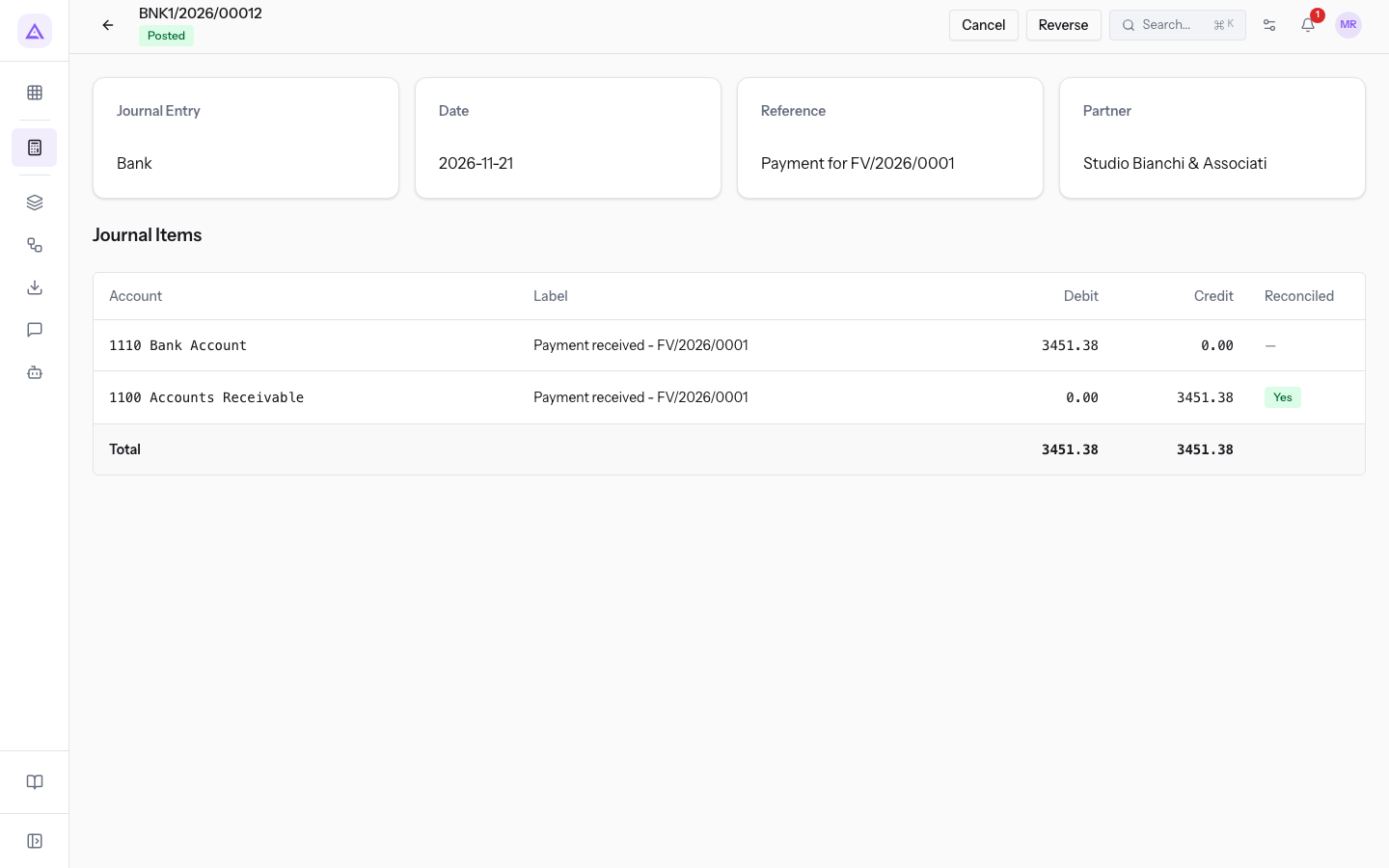
- the entry receives the journal number, if it does not already have one, for example
BNK1/2026/00012in the Bank journal; - the entry is sealed into the integrity chain of the journal, which the integrity check uses to verify that no entry has been altered.
Cancel and reset to draft
Cancelling removes a posted entry from the accounting without deleting it.
Important: you cannot cancel an entry whose lines are used in a reconciliation: cancel the reconciliation first. You also cannot cancel here a journal entry generated by another item, such as a depreciation, a VAT settlement or a cash day: cancel it from that item.
- Open the Posted entry.
- Press Cancel. The status becomes Cancelled and the Reset to Draft button appears.
- To correct it, press Reset to Draft, then edit it and post it again. The number stays the same.
In the demo, one of the two Cash deposit at the bank entries is cancelled because it had been recorded twice.
Reverse an entry
A reversal creates a new journal entry that mirrors the original, swapping debit and credit. The original entry stays posted.
- Open the Posted entry.
- Press Reverse. The reversal opens, already posted, with its own number, the Reverses link to the original and a reference such as
Reversal of FV/2026/0001.
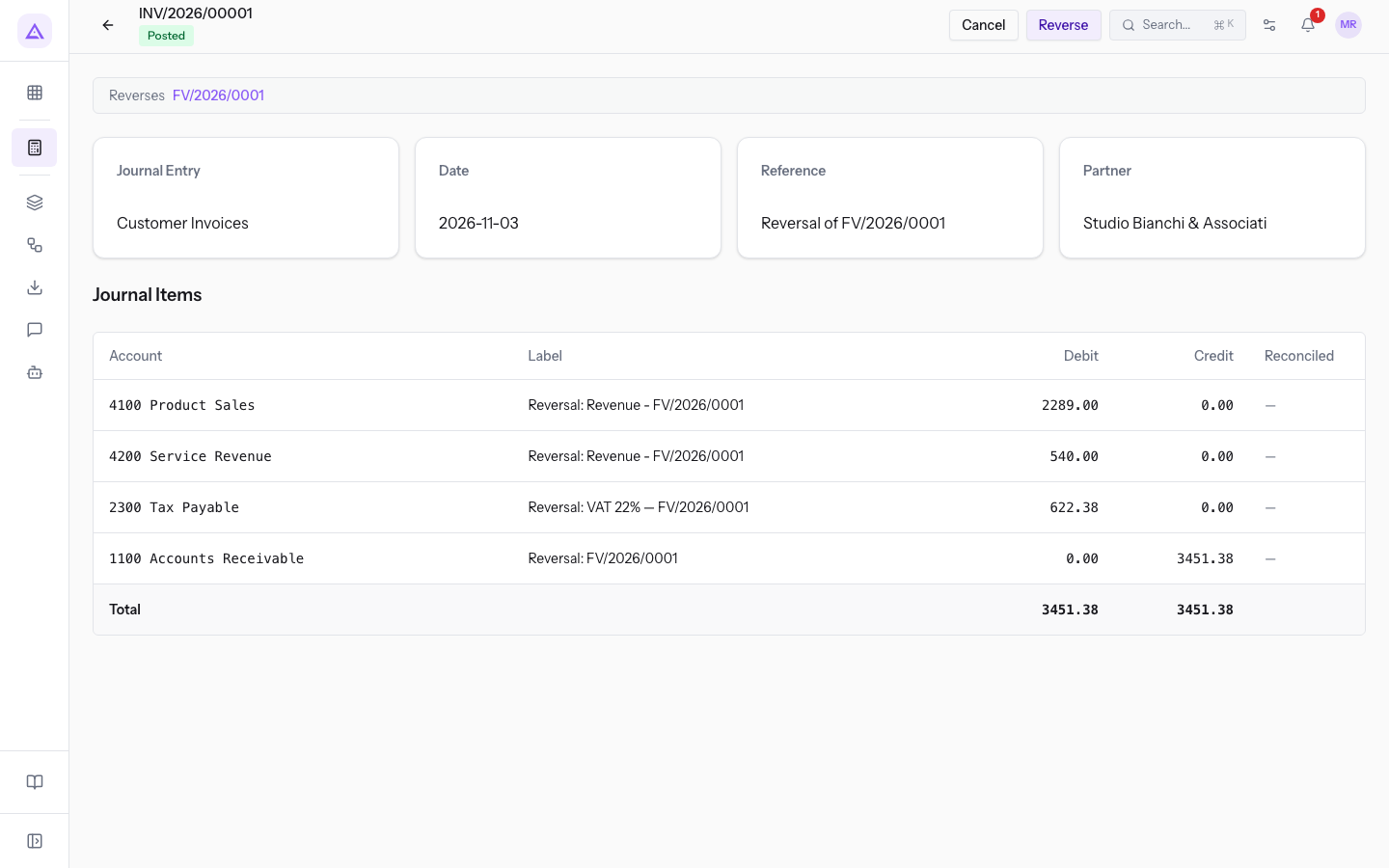
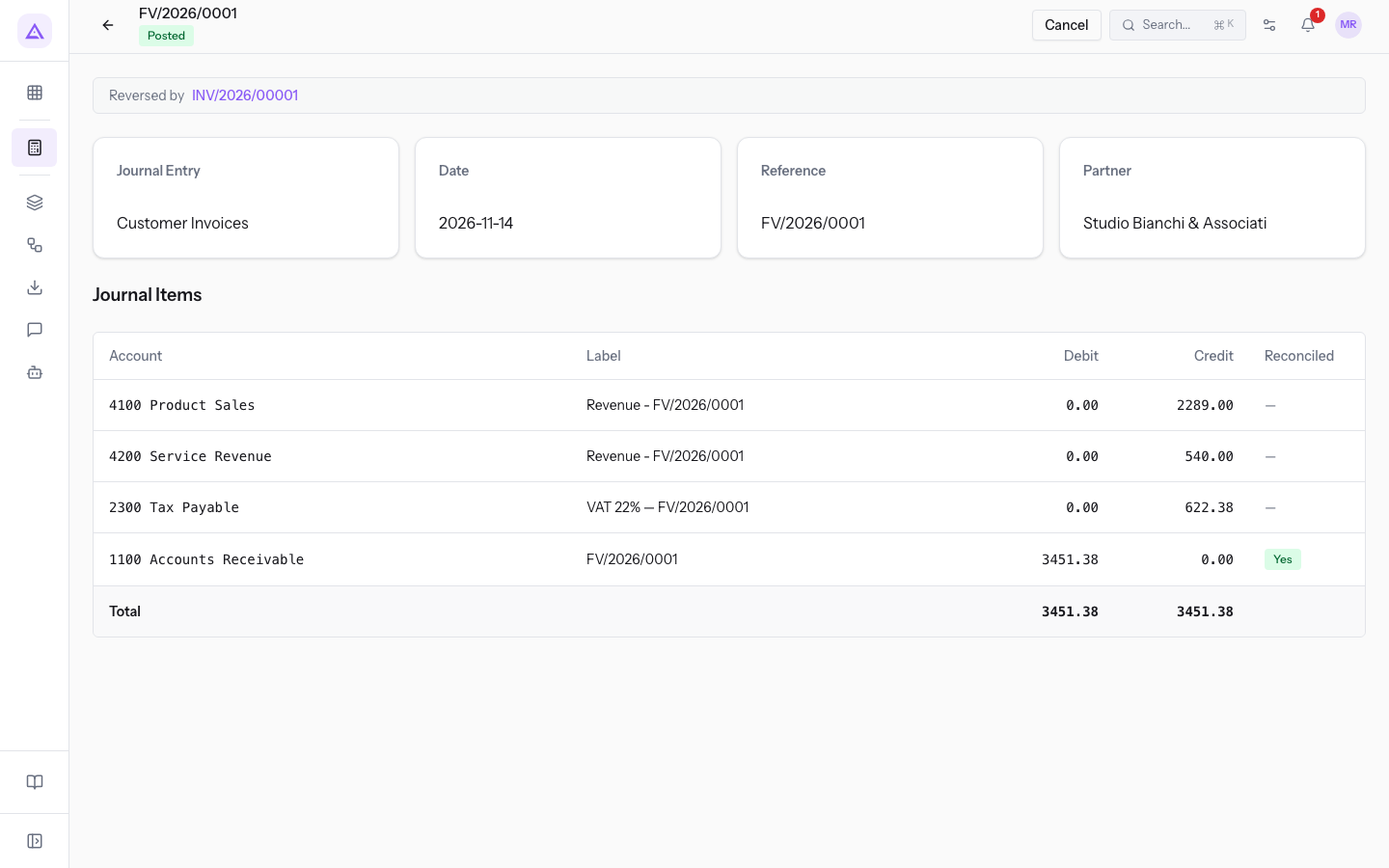
On the original entry's page Reversed by appears with the number of the reversal, and the Reverse button is no longer available.
- If you do not enter a date, the reversal is dated today.
- A second reversal of the same entry is refused.
- You can reverse the reversal: in that case the original entry becomes valid again.
Reading invoice and payment entries
Customer and supplier invoices issued or recorded in Invoicing create and post their own journal entry automatically, with the same number as the invoice. Paying an invoice also creates a journal entry automatically in the bank journal.
The page for each entry shows the number and status at the top, then Journal Entry (the journal), Date, Reference, Partner and the Journal Items table with the columns Account, Label, Debit and Credit.
- Customer invoice:
FV/2026/0001is in the Customer Invoices journal, has the invoice number as its reference and Bianchi & Associates as partner. The date is the invoice date.
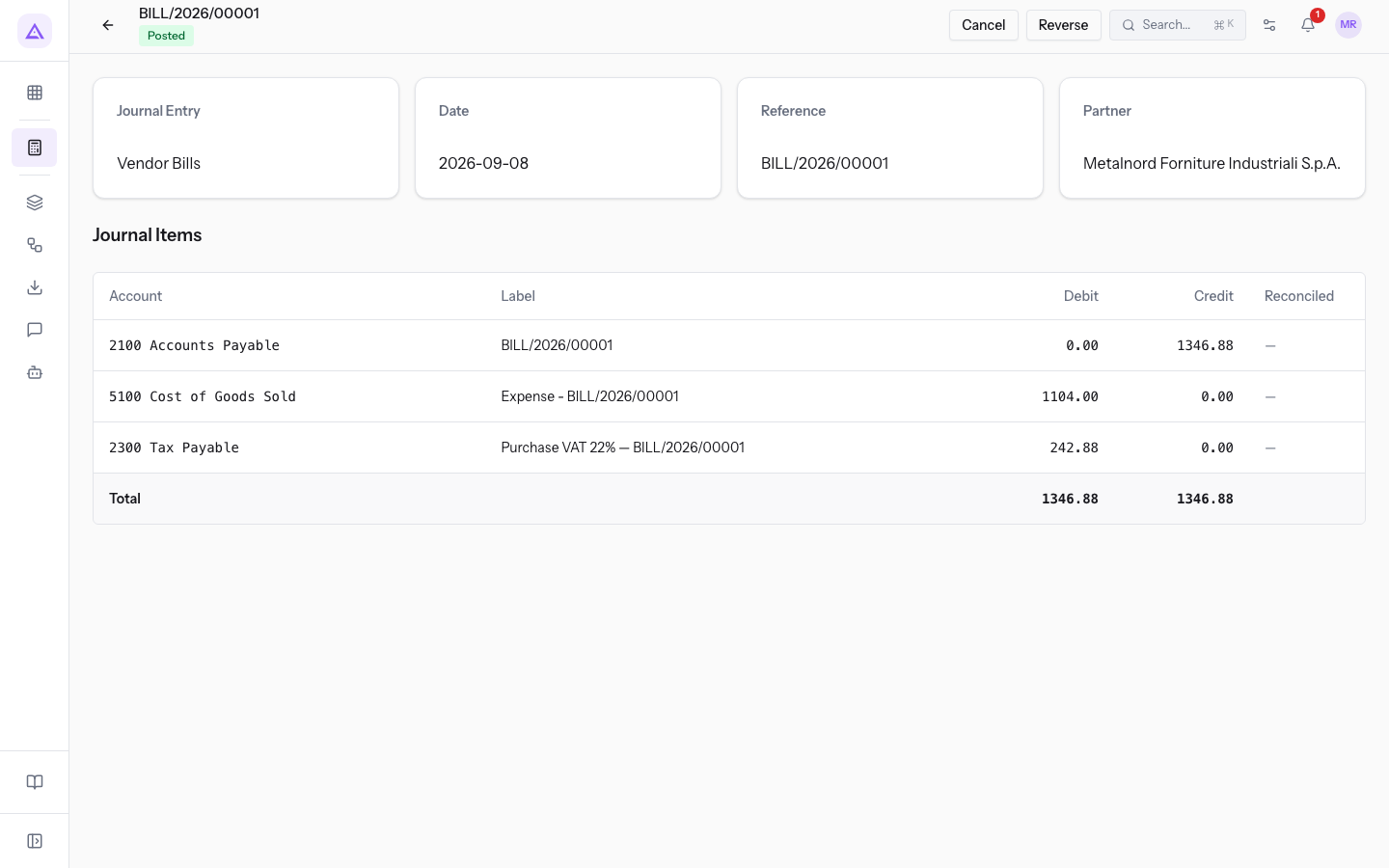
- Supplier invoice:
BILL/2026/00001is in the Vendor Bills journal, with Metalnord Industrial Supplies S.p.A. as partner. The date is the day the invoice was received and recorded, that is the period in which the VAT is deducted.
- Payment: the collection of
FV/2026/0001is entryBNK1/2026/00012in the Bank journal, with Bianchi & Associates as partner.
Note: if the invoice journal has no default account, posting the invoice stops.
Entries created by other functions of the module show their origin in the reference, for example Lunch for Elena's 50th birthday (EV-0005). The entry This month's salaries comes from the payroll entry.
See it on your company, not on a slide deck.
In 30 minutes we map the software you use today.We show you how much work and how much margin Archimedes gives back.
Show me on my business →What industry are you in?
One tap — it lets us prepare the demo around your world.
What tools do you use today?
Pick the ones you recognise — or just type them. It helps us show you how they migrate.
Last step: your details.
We reply within one working day — and right after, if you like, you pick the demo slot yourself.
We couldn't send your request. Try again, or write to us at [email protected].
By sending, you agree to your data being processed so we can get back to you about the demo. Privacy notice.
Preview form — nothing is sent from this page.
Want to schedule the demo now?
Your call: book the slot you prefer yourself, or we'll call you to arrange it.
Live availability, 30 minutes, instant confirmation. The calendar opens in a new tab.
Lock in your slot ↗We'll get back to you within one working day — and we'll join the call already knowing your world.
The calendar is open in another tab: pick a slot and the demo is booked. Can't see it? Reopen it ↗
Preview page: nothing was sent.
Our calendar is live: take the slot that suits you and the demo is booked. 30 minutes, instant confirmation, no waiting.
Lock in your slot ↗