Accounting
All modules
Record money in and out in the cash book
Accounting · 5 of 17 · 5 min read
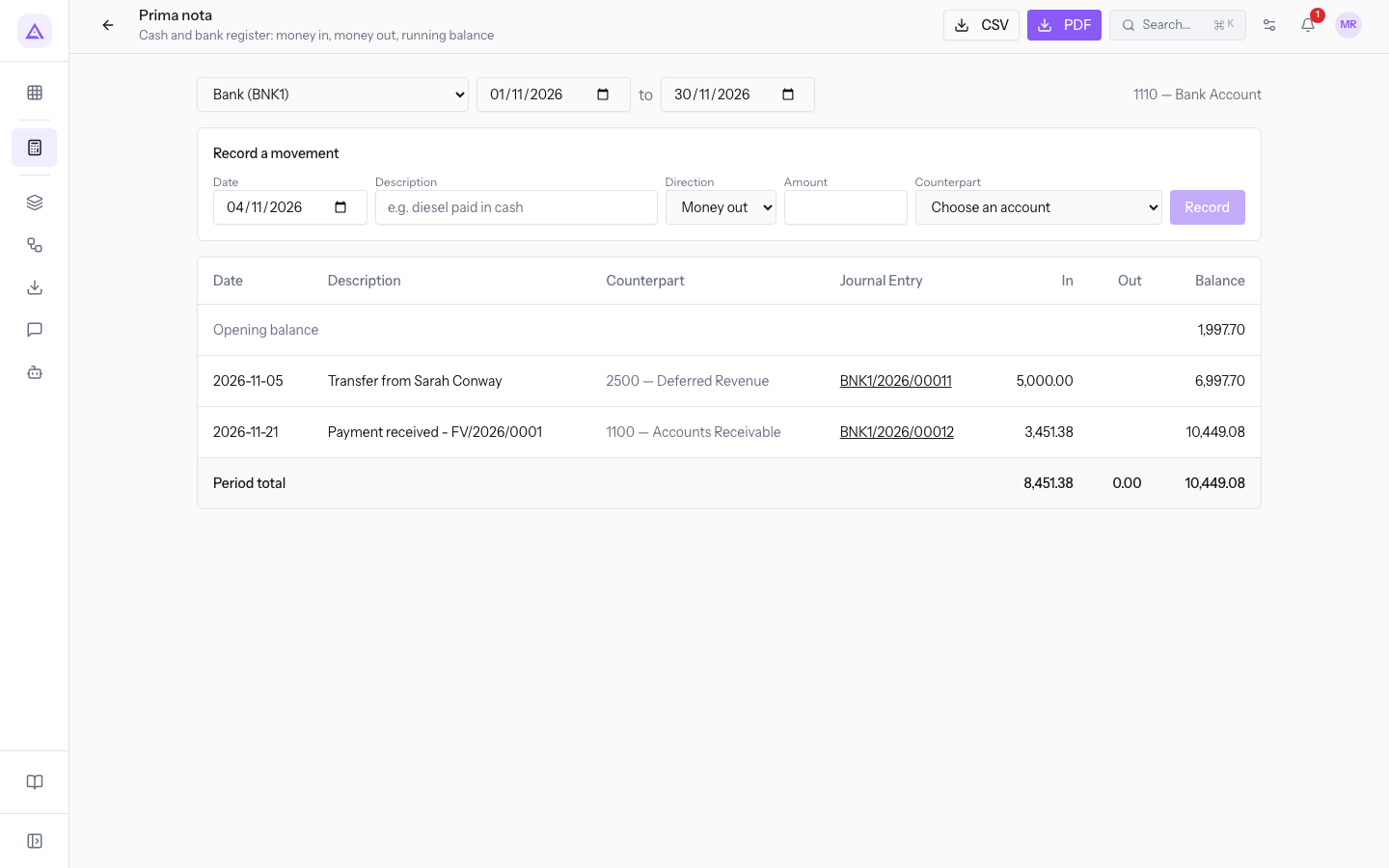
The cash book is the cash and bank register: it shows money in, money out and the running balance of a register over a period. You can also record a single-line movement, for example a cash receipt, a paid expense or a deposit received into the bank.
Open the page from Accounting › Prima nota. Prima nota is the Italian name of the cash book; the screen keeps it in the English interface too.
How the cash book works
Each cash book register matches a cash or bank journal and its default account. The running balance is the balance of that account, so it matches the general ledger reports for the same account.
- If the movement is cash, choose the register Cash (CSH1): the account is
1120 — Cash. - If the movement goes through the current account, choose the register Bank (BNK1): the account is
1110 — Bank Account. - If the entry has several debit and credit lines, do not use the cash book: create a journal entry from Accounting › Journal Entries. A cash book movement has only one counterpart.
Note: the page only shows cash and bank registers that have a default account. If none of them has one, the page shows the message No cash or bank journal has a default account, so there is no register to keep.
Choosing the register and the period
The chosen register and period decide which movements the table shows.
- In the first dropdown, choose the register: Bank (BNK1) or Cash (CSH1).
- In the two date fields, enter the start and end of the period. When you open the page, the period is the current month.
To the right of the fields, the register's account appears, for example 1110 — Bank Account or 1120 — Cash.
Reading the register
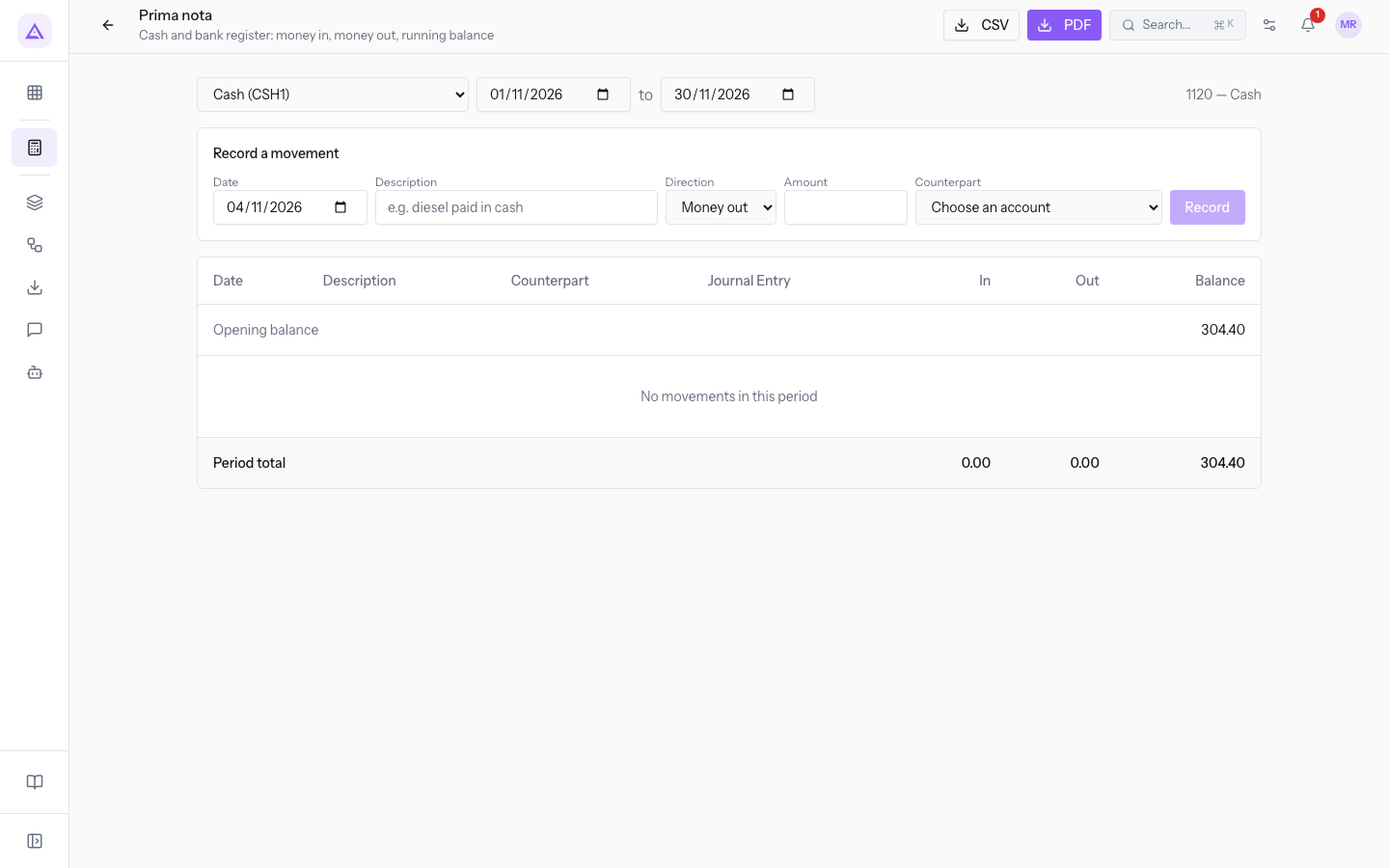
The table lists the register's movements in the period, in date order.
- Opening balance: the first row, with the account balance at the start of the period.
- Each movement shows the date, the description, the Counterpart and the journal entry number, for example
BNK1/2026/00009. Then comes the amount in the In or Out column, and the running balance after the movement. - Period total: the last row, with the total money in, the total money out and the balance at the end of the period.
If there are no movements in the period, the table shows only the opening balance and the total.
The entry number is a link. Press, such as, BNK1/2026/00009 to open the journal entry with its status (such as Posted), its lines in Journal Items, and the actions Cancel and Reverse.
Recording a movement
The Record a movement panel creates a journal entry in the chosen register, with one counterpart.
Before you start: recording a movement requires a user who can create journal entries. A user with view-only access can see the entries but cannot create them.
- At the top, choose the register to record in: Bank (BNK1) or Cash (CSH1).
- In the Record a movement panel, fill in the fields.
- Press Record.
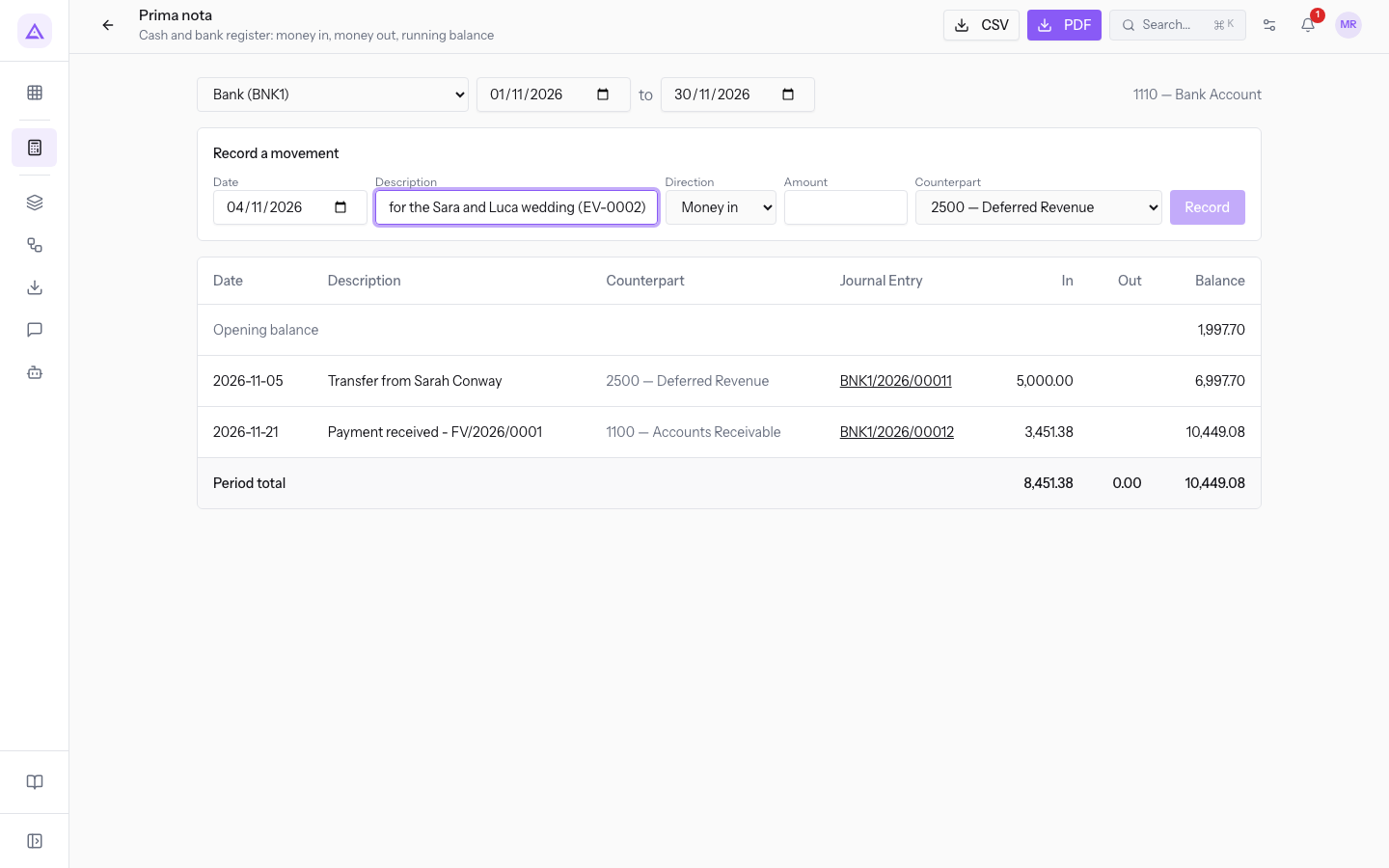
The fields in the panel are these.
- Date: the date of the movement. The default is today's date.
- Description: the text that appears in the register row, for example
Deposit for the Sara and Luca wedding (EV-0002). The hint in the field ise.g. diesel paid in cash. The field is required. - Direction: the direction of the movement. The default is Money out.
- Money in: money entering the register, such as a deposit received.
- Money out: money leaving the register, such as a paid expense.
- Amount: the amount of the movement, with two decimals. It must be greater than zero. The field is required.
- Counterpart: the account the counterpart goes to, chosen from the chart of accounts, such as
2500 — Deferred Revenuefor a deposit or6800 — Bank Feesfor bank fees. The starting value is Choose an account. The field is required.
Note: the chosen register's account does not appear among the counterparts. With Bank (BNK1) the
1110 — Bank Accountis missing, and with Cash (CSH1) the1120 — Cashis missing.
The Record button is only enabled when the description, amount and counterpart are filled in. After recording, the description and amount are cleared and the table updates with the new movement.
Important: a movement with a locked date is not recorded. The same applies to a rejected counterpart. In these cases the panel shows the reason below the fields; if no reason is available, it shows Could not record the movement.
Exporting the cash book to CSV and PDF
You can download the register shown on screen to keep it or pass it to your accountant.
- Choose the register and the period.
- At the top right, press CSV for a file to open in a spreadsheet, or PDF for a document to print.
The file contains the register and the period you loaded the table with.
See it on your company, not on a slide deck.
In 30 minutes we map the software you use today.We show you how much work and how much margin Archimedes gives back.
Show me on my business →What industry are you in?
One tap — it lets us prepare the demo around your world.
What tools do you use today?
Pick the ones you recognise — or just type them. It helps us show you how they migrate.
Last step: your details.
We reply within one working day — and right after, if you like, you pick the demo slot yourself.
We couldn't send your request. Try again, or write to us at [email protected].
By sending, you agree to your data being processed so we can get back to you about the demo. Privacy notice.
Preview form — nothing is sent from this page.
Want to schedule the demo now?
Your call: book the slot you prefer yourself, or we'll call you to arrange it.
Live availability, 30 minutes, instant confirmation. The calendar opens in a new tab.
Lock in your slot ↗We'll get back to you within one working day — and we'll join the call already knowing your world.
The calendar is open in another tab: pick a slot and the demo is booked. Can't see it? Reopen it ↗
Preview page: nothing was sent.
Our calendar is live: take the slot that suits you and the demo is booked. 30 minutes, instant confirmation, no waiting.
Lock in your slot ↗