Accounting
All modules
Calculating and recording the VAT settlement
Accounting · 10 of 17 · 8 min read
The VAT Period Close page calculates the VAT for a period: output VAT on sales minus input VAT on purchases. It then records the closing entry on the settlement account. Use it, for example, for the September monthly settlement or the fourth-quarter settlement.
How settlement works
A settlement closes one period at a time. These are the principles that drive your choices.
- Settlements follow the order of the periods. This way each credit carries forward to the next period only once. So settle the periods one after another, starting from the oldest.
- A period with no VAT transactions can still be recorded. In that case no entry is created and the period shows as settled with nothing due. So it does not block the following periods.
- A debit that does not exceed the minimum payment of 100 € is not paid. It is carried forward to the next period, which adds it to its own debit.
- After a period is settled, you can no longer record entries with VAT in that period. Entries without VAT remain allowed, such as depreciation, deferred items and invoices to be received.
Choose the frequency according to the organization's regime:
- If you pay VAT every month, choose Monthly.
- If you pay VAT every quarter, choose Quarterly and indicate whether the quarterly settlement is by option or by law.
- If you settle VAT once a year, choose Yearly.
Note: in Italy the quarterly settlement is optional if the previous year's turnover does not exceed 500,000 € for services or 800,000 € for other activities, with a 1% surcharge. Above these thresholds it is monthly.
Configuring the VAT settlement
Before the first settlement, choose the account and the journal where the closing entry goes. Until you choose the account, the page shows the notice Settlement account is not configured. Automatic posting is unavailable until you pick one.
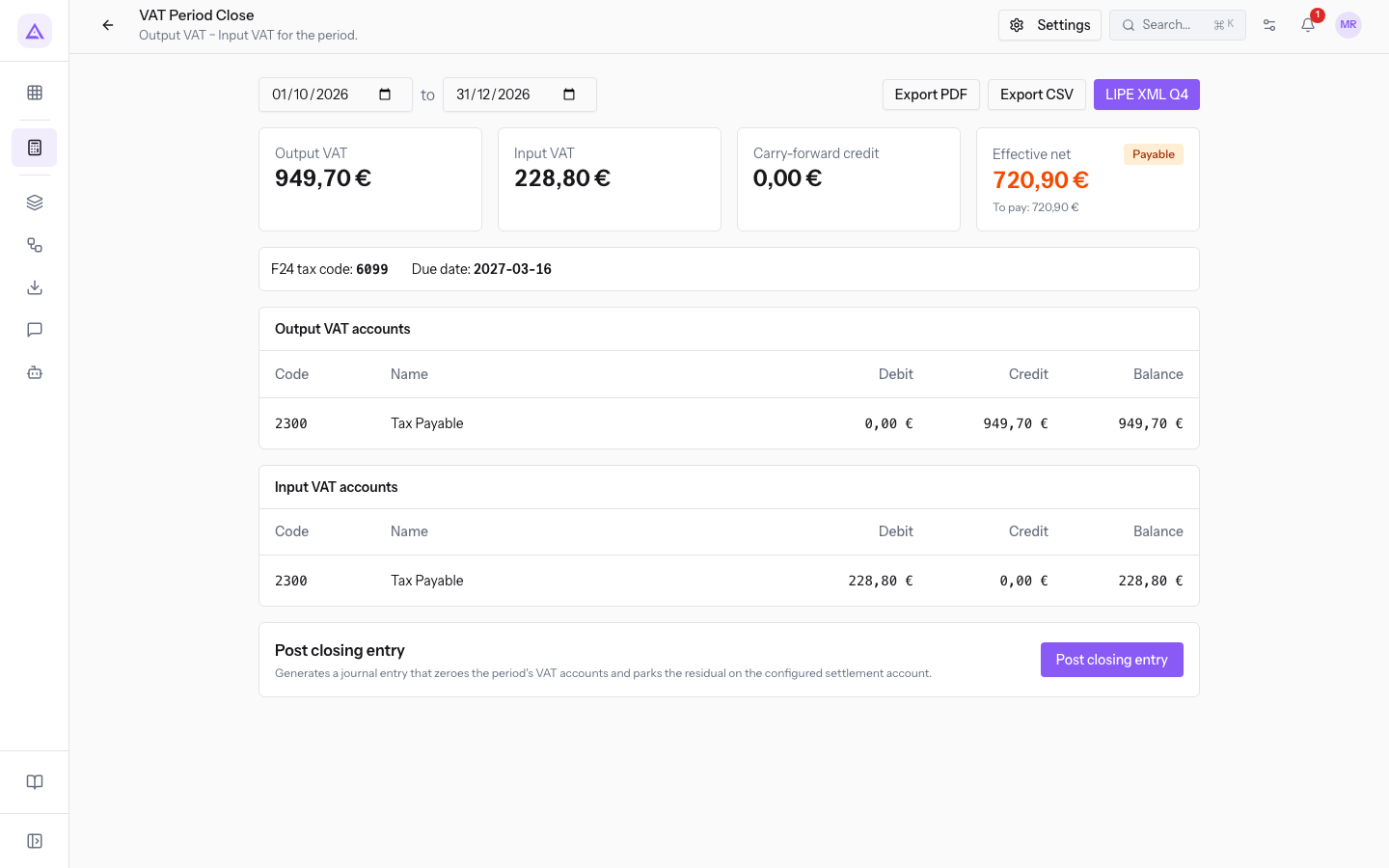
- Open Accounting › VAT Period Close.
- Press Settings at the top, or Configure now under the notice. The VAT Period Close Settings dialog opens.
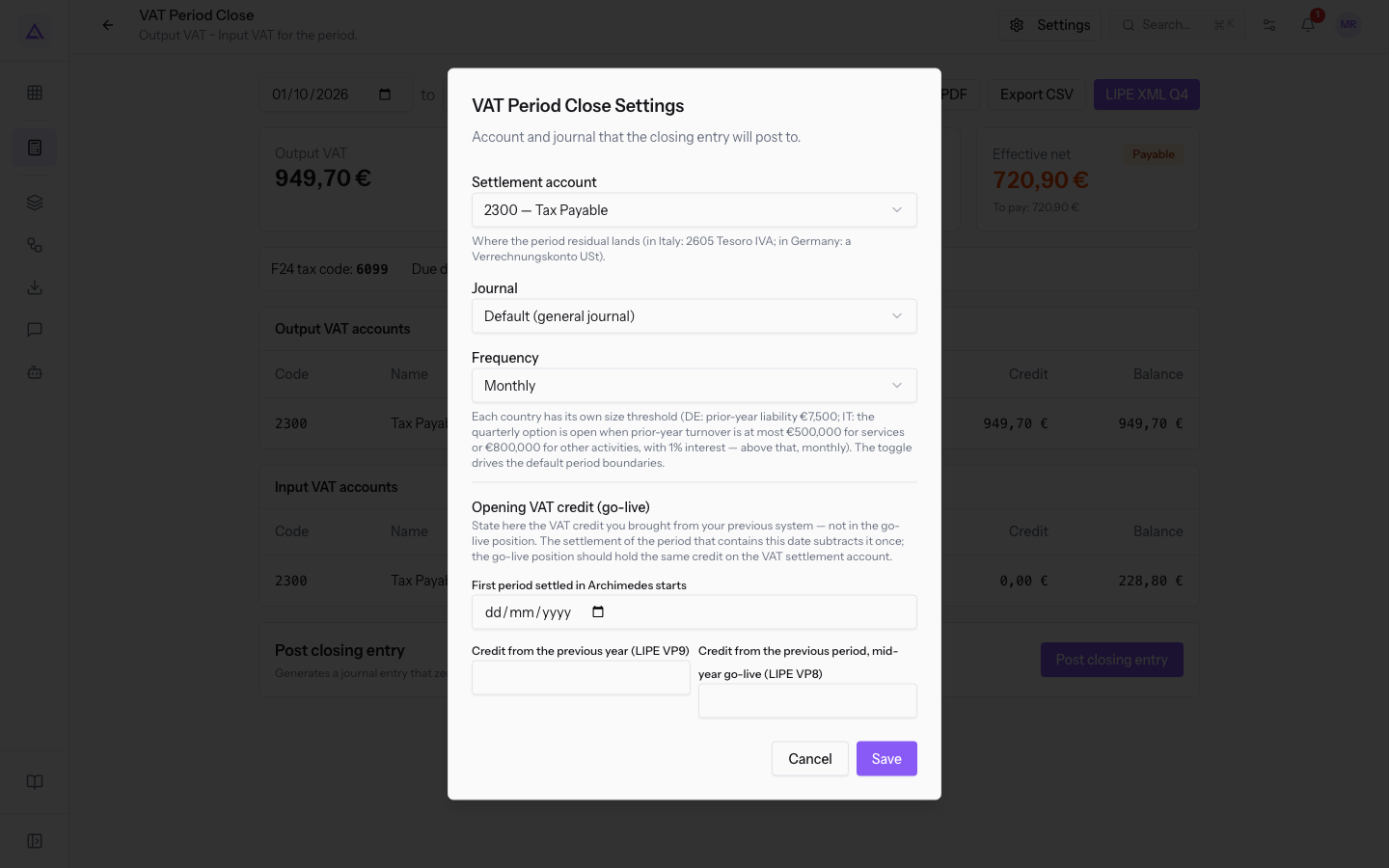
- Fill in the fields and press Save. The message Settings saved appears.
The fields of the dialog:
- Settlement account: the account where the balance to pay or the credit goes. Without this account you cannot record the closing. The list offers the debit accounts of the chart of accounts, for example
2300 — Tax Payable(VAT and withholding tax payable). - Journal: the journal of the closing entry. The initial value is Default (general journal). You can choose another journal, such as
MISC — Miscellaneous Operations. - Frequency: the length of the settlement period. The options are Monthly, Quarterly and Yearly.
- Quarterly regime: appears only with Quarterly.
- Quarterly by option (most companies): each quarter adds 1% of interest. The fourth quarter is not paid separately: it is settled with the annual VAT return by 16 March (F24 code 6099), interest included.
- The option for companies quarterly by law (art. 74 c. 4 DPR 633/72): no interest. The fourth quarter is paid by 16 February (F24 code 6034).
- Interest account: appears only with the quarterly-by-option regime. The initial value is Default (general journal).
- First period settled in Archimedes starts: the start date of settlements in Archimedes.
- Credit from the previous year (LIPE VP9): the VAT credit of the previous year carried over from the previous system.
- Credit from the previous period, mid-year go-live (LIPE VP8): the credit of the previous period, if you start using Archimedes during the year.
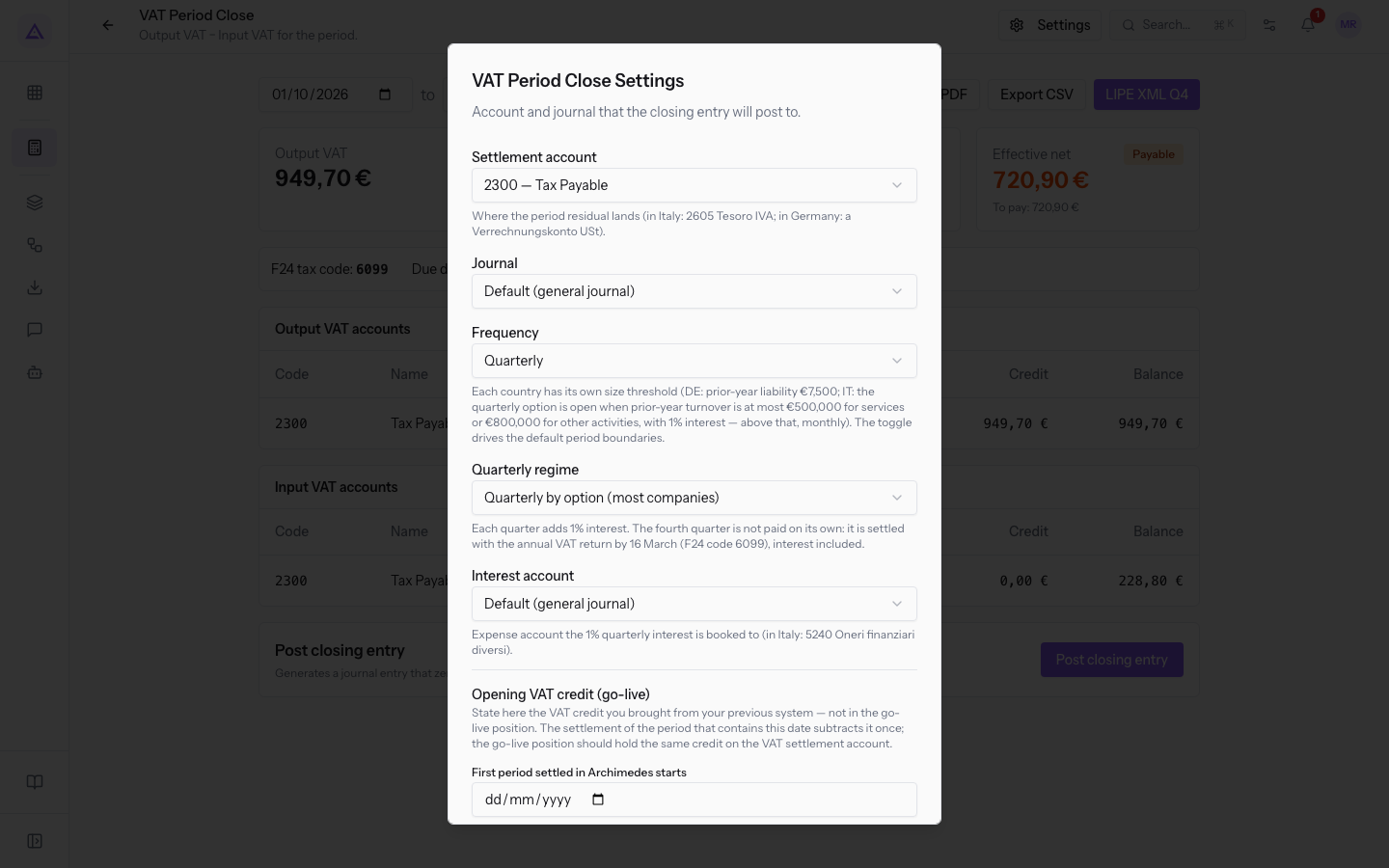
Important: enter the VAT credit carried over from the previous system in these fields and not in the opening balance. The settlement of the period that contains the given date deducts it only once. The opening balance must show the same credit on the VAT settlement account.
Note: after the first settlement, the three opening-credit fields can no longer be edited. To change them you must cancel that settlement. The other fields of the dialog remain editable.
Reading the period summary
The summary shows the VAT calculation for the chosen period at the top, with a start date and an end date. When the page opens, the period is the current quarter, for example from 2026-10-01 to 2026-12-31. When you change the dates, the summary updates.
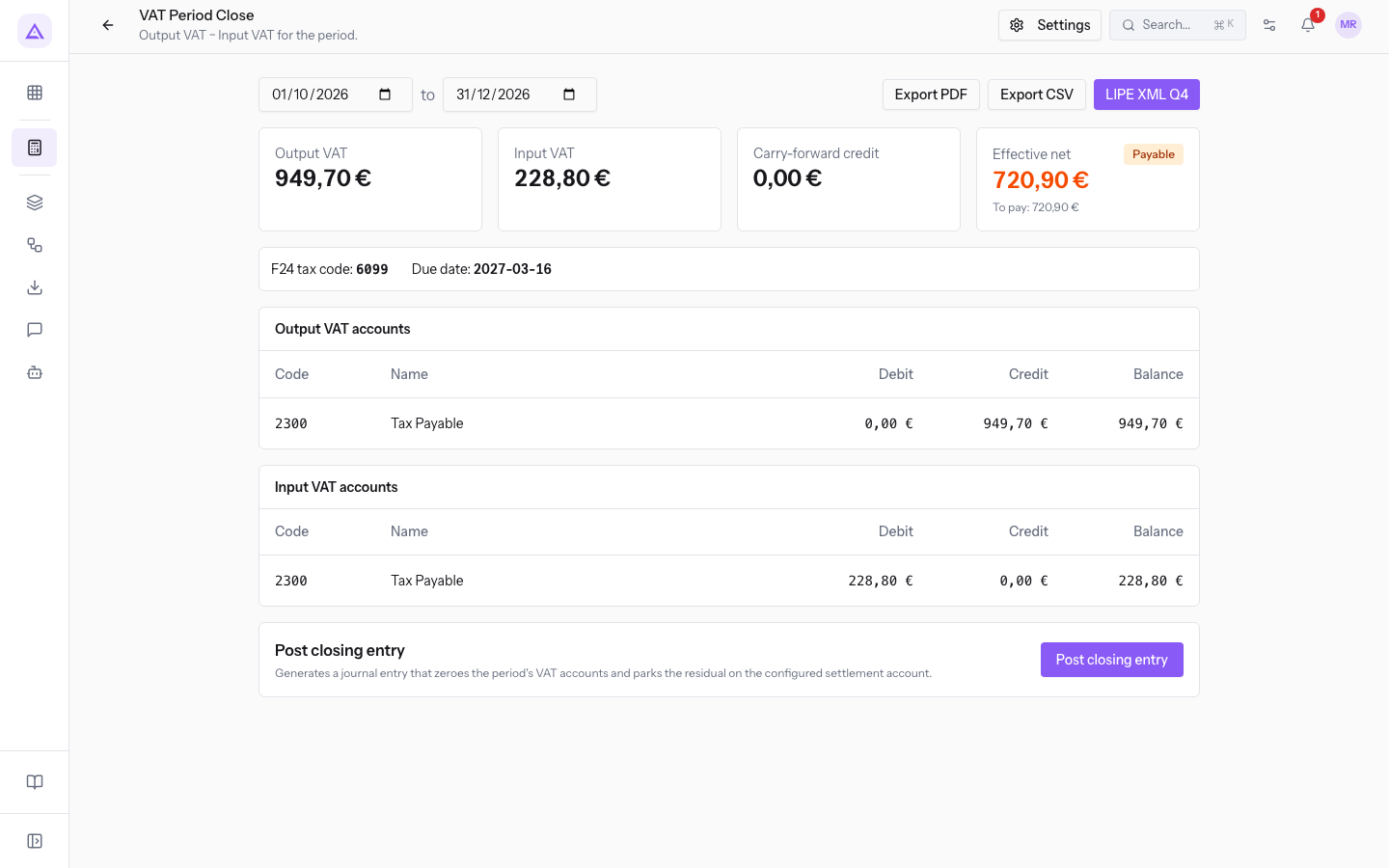
The summary tiles:
- Output VAT: the VAT on the period's sales, such as
792,88 €. - Input VAT: the VAT on the period's purchases.
- Carry-forward credit: the credit coming from previous periods. It is shown with a minus sign, because it reduces the balance.
- Effective net: the balance of the period after the carried-forward credit. Next to it appears the outcome of the period. Below appear the To pay amount and, in the quarterly-by-option regime, the 1% interest.
The possible outcomes:
- Payable: the output VAT exceeds the input VAT and the debit exceeds the minimum payment.
- Carried forward: the debit does not exceed the minimum payment of 100 €. A notice explains that the amount is not paid now and passes to the next period.
- Credit: the input VAT exceeds the output VAT. The credit passes to the next period.
- Zero: the balance of the period is nil.
Below the tiles the page also shows:
- for an Italian organization, the F24 tax code and the payment deadline;
- a notice when the period adds a debit carried over from the previous period, within the 100 € minimum;
- the Output VAT accounts table with the sales VAT accounts and their debit and credit movements in the period;
- the table of the purchase VAT accounts, if the period has purchases with VAT.
Exporting the settlement
From the summary you can download the period's calculation, for example to hand it to the accountant.
- Choose the period dates.
- Press the button for the format you need:
- Export PDF: the period's settlement as PDF.
- Export CSV: the period's settlement as CSV.
- LIPE XML Q4: the LIPE communication for the quarter in which the period falls. The number after the Q indicates the quarter. The button appears only for Italian organizations.
Recording the period closing
The closing generates the settlement entry. The entry zeroes the period's VAT accounts and carries the balance to the settlement account.
Before you start: choose the Settlement account in the VAT Period Close Settings dialog. Without the account, the Post closing entry button is not active and the page shows Configure a settlement account in Settings before posting the closing entry.
- Open Accounting › VAT Period Close.
- Choose the dates of the period to close and check the summary.
- In the Post closing entry tile, press Post closing entry. The Confirm posting? confirmation opens with the period and the balance, for example
792,88 €.
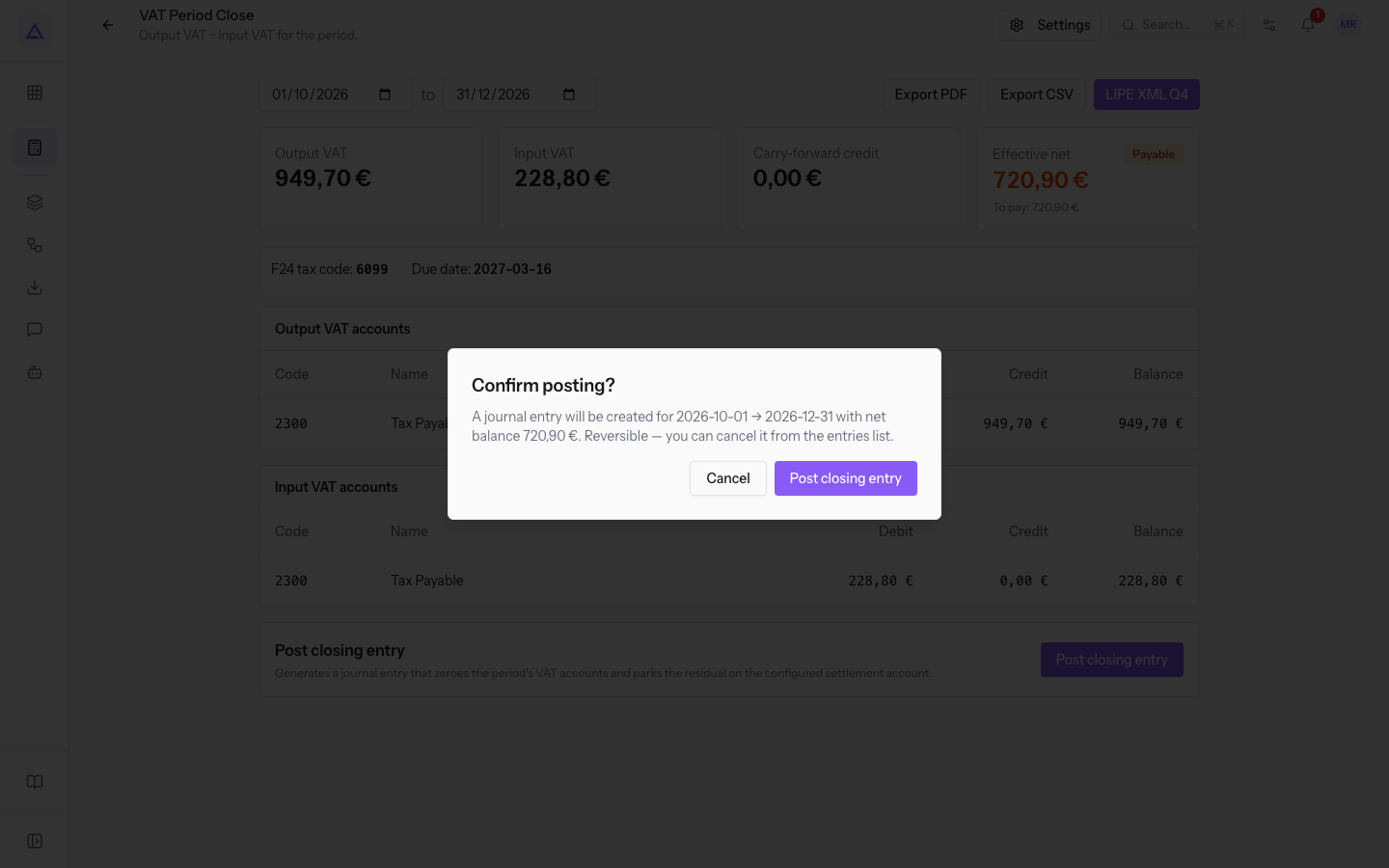
- Press Post closing entry to confirm, or Cancel to return to the page.
What happens after confirmation:
- The entry is posted with the date of the last day of the period. The message with the entry name appears and the newly created entry opens.
- If the period has no VAT transactions, no entry is created. The message Period recorded as settled: no VAT activity, nothing due. appears.
- The settlement appears in the Posted closes table.
When a period cannot be posted
If the chosen period cannot be settled, the page does not show the Post closing entry panel. Instead it shows a warning that explains what to do.
- An earlier period is still open: the warning names the period to settle first and reminds you that VAT settlements follow the order of periods. Settle that period first.
- A later period is already settled: first reverse the later settlements in the Posted closes table, then settle in order.
- The period has already been closed: to post it again, first reverse the previous close.
- The dates overlap a period that is already settled: reverse that settlement before settling a range that includes some of its days.
Review and reverse posted settlements
The Posted closes table lists the settlements already posted. It appears at the bottom of the page when there is at least one settlement.
For each settlement the table shows the period, Output VAT, Input VAT, Carry-forward credit, Effective net, the quarterly interest, Payable and the outcome.
Reverse a settlement to correct the period, for example after an invoice was posted late.
- In the Posted closes table, press the reverse button on the row.
- Confirm the question Reverse this close? The closing entry will be cancelled and you'll be able to re-post the period.
- The message Close reversed. appears. The period can be settled again.
Important: if you have settled later periods in the meantime, reverse those first, starting from the most recent. Settlements follow the order of periods.
Note: a journal entry generated by a VAT settlement cannot be reversed from Journal Entries. It must be reversed from this table, so the entry and the settlement stay aligned.
See it on your company, not on a slide deck.
In 30 minutes we map the software you use today.We show you how much work and how much margin Archimedes gives back.
Show me on my business →What industry are you in?
One tap — it lets us prepare the demo around your world.
What tools do you use today?
Pick the ones you recognise — or just type them. It helps us show you how they migrate.
Last step: your details.
We reply within one working day — and right after, if you like, you pick the demo slot yourself.
We couldn't send your request. Try again, or write to us at [email protected].
By sending, you agree to your data being processed so we can get back to you about the demo. Privacy notice.
Preview form — nothing is sent from this page.
Want to schedule the demo now?
Your call: book the slot you prefer yourself, or we'll call you to arrange it.
Live availability, 30 minutes, instant confirmation. The calendar opens in a new tab.
Lock in your slot ↗We'll get back to you within one working day — and we'll join the call already knowing your world.
The calendar is open in another tab: pick a slot and the demo is booked. Can't see it? Reopen it ↗
Preview page: nothing was sent.
Our calendar is live: take the slot that suits you and the demo is booked. 30 minutes, instant confirmation, no waiting.
Lock in your slot ↗