Accounting
All modules
Print the accounting books and prepare the period packages for the accountant
Accounting · 16 of 17 · 7 min read
The journal book is finalized and printed from the Statutory Books page. Journal entries in a finalized period receive a permanent progressive number, and the period is locked. With the Period packages page you download all documents for a month, a quarter or a year in a single archive, for example to hand them to the accountant.
When to finalize the journal book and when to only export it
The Statutory Books page offers two different operations.
- Finalizing with Finalize and lock is permanent. Entries dated up to the chosen date receive the progressive numbering and can no longer be posted or changed.
- Exporting to PDF or CSV changes nothing in the accounting. Periods already finalized come out with final numbers and pages. Entries after the last finalization come out as a watermarked draft, with the numbering continuing.
If you need to deliver the book of a period that is now concluded and checked, finalize it with Finalize and lock. If you only want to review the book or send a provisional copy, export it without finalizing it.
Important: the last finalized day in the journal book becomes a lock date. This lock remains even if the fiscal year is reopened.
Checking the status of the journal book
The Journal book panel shows how far the final printing of the chosen fiscal year has progressed.
- Open Accounting › Statutory Books.
- Choose the fiscal year in the selector at the top right of the panel, for example
FY 2026.
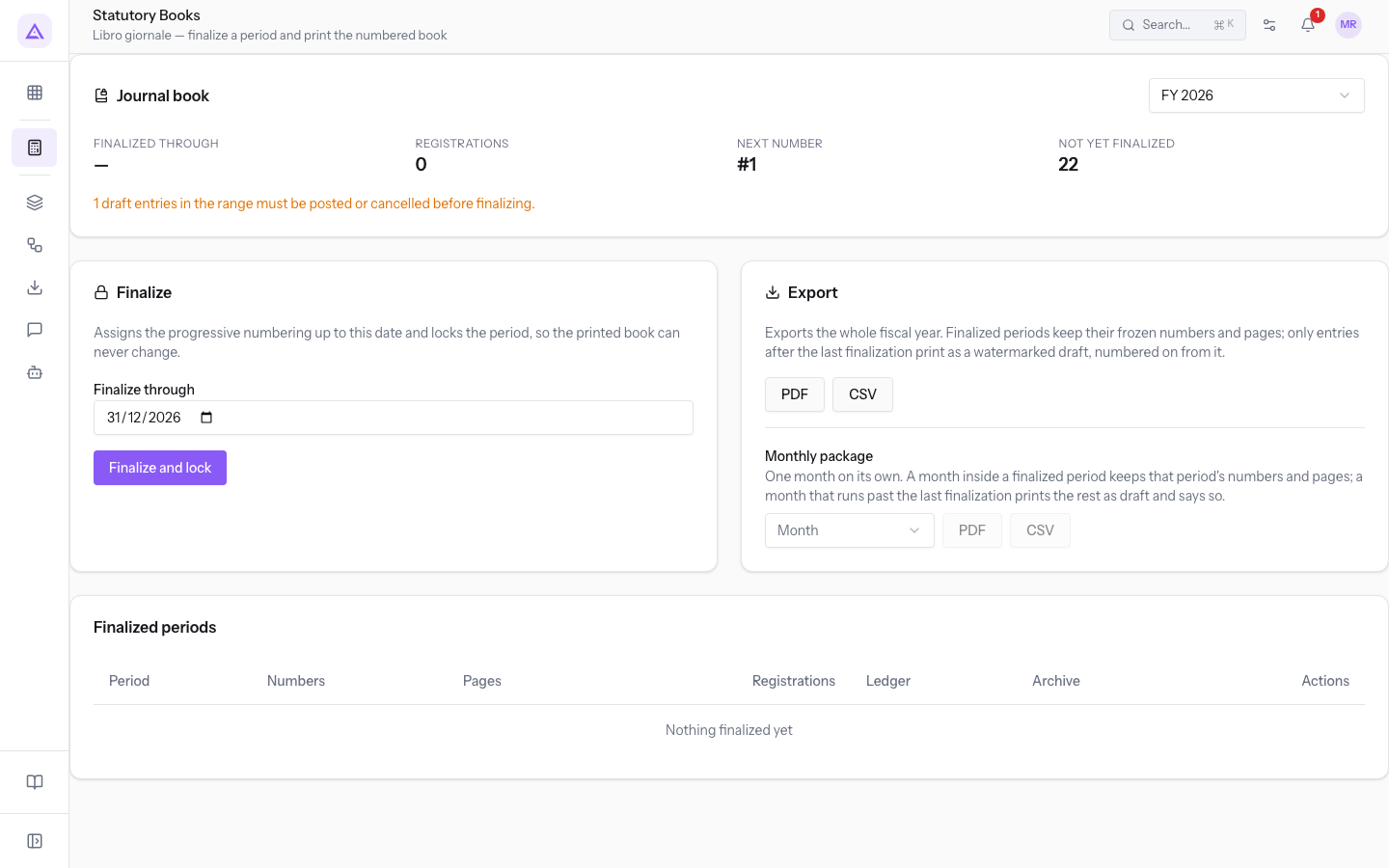
The panel shows these values:
- Finalized through: the last day already finalized. It shows a dash if no period has been finalized.
- Registrations: the number of entries already numbered in the book.
- Next number: the progressive number that the first line of the next finalization will receive, such as
#1. - Not yet finalized: the number of posted entries not yet included in the final book.
Below the values the page may show two warnings:
- one indicates how many draft entries there are in the period. They must be posted or cancelled before finalizing;
- one indicates how many posted entries have a date inside an already finalized period. They are not part of the printed book: they come out as a draft and receive their number at the next finalization.
Finalizing and locking a period
Finalizing assigns the progressive numbering up to the chosen date and locks the period, so the printed book no longer changes.
- Open Accounting › Statutory Books and choose the fiscal year.
- In Finalize through enter the last day to finalize. The field proposes the last day of the fiscal year, for example
2026-12-31. - Press Finalize and lock.
- In the Finalize the journal book? dialog, read the date shown and press Finalize and lock to confirm.
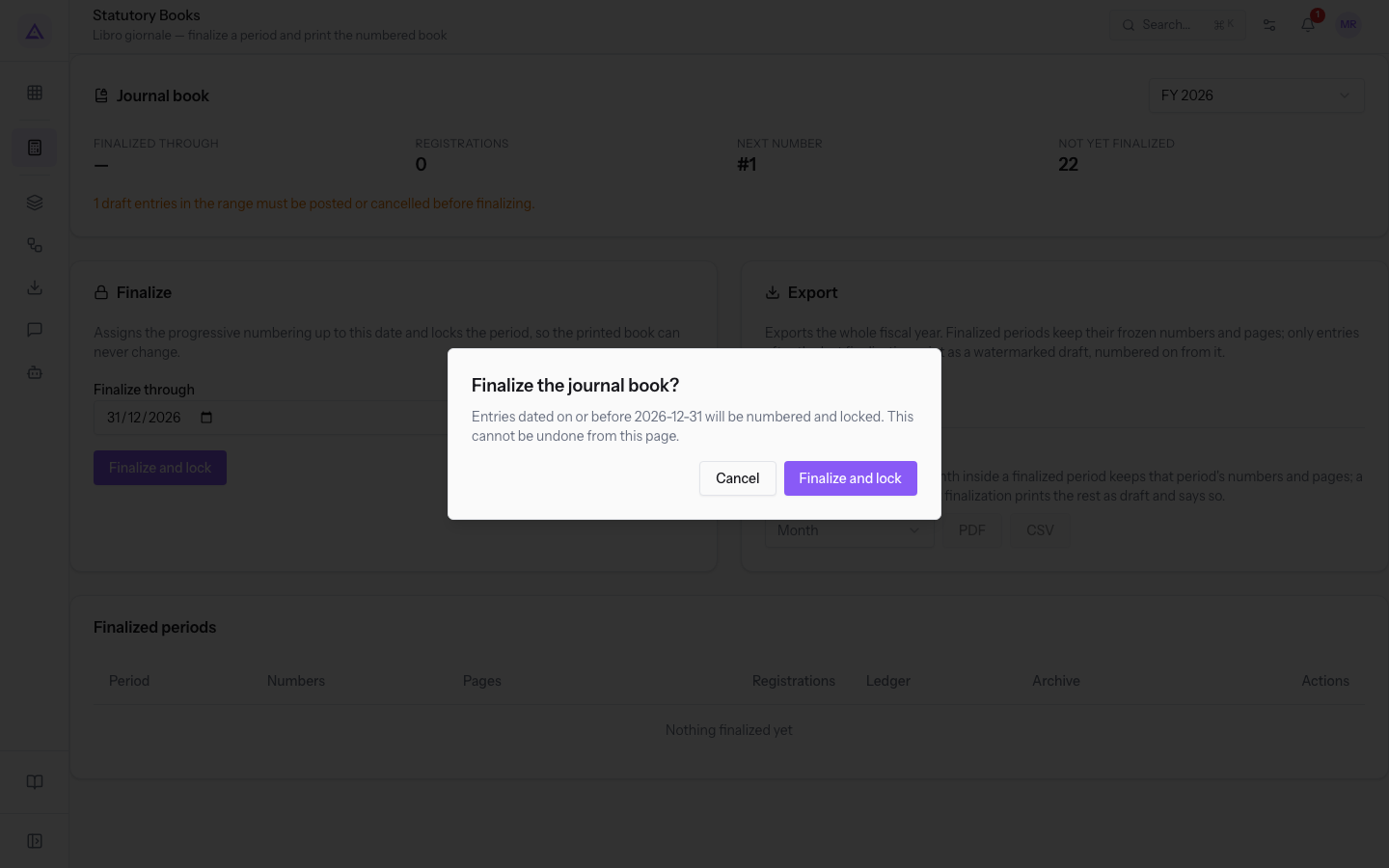
Fields and rules for finalizing:
- Finalize through: the date up to which entries are numbered and locked. It cannot be earlier than the day from which the numbering resumes, nor later than the end of the fiscal year.
Important: this operation cannot be undone from this page.
Note: when the whole fiscal year is finalized, the Finalize and lock button is no longer available.
Exporting the journal book
The export produces the journal book for the entire fiscal year.
- Open Accounting › Statutory Books and choose the fiscal year.
- Press PDF or CSV. The file downloads without leaving the page.
Finalized periods keep final numbers and pages. Only entries after the last finalization are printed as a watermarked draft, with the numbering continuing.
Exporting a single month with the monthly package
The Monthly package exports the journal book of a single month.
- In Monthly package choose the month, for example
2026-01. The list proposes the months of the chosen fiscal year. - Press PDF or CSV next to the month.
A month that falls within a finalized period keeps the numbers and pages of that period. A month that goes beyond the last finalization prints the rest as a draft, and the document flags it.
Checking the finalized periods
The Finalized periods section lists the finalizations made in the fiscal year.
For each finalization the table shows:
- the period, from the first to the last date;
- the range of progressive numbers assigned;
- the range of pages;
- the number of entries;
- whether the printed book still matches the accounting. The value distinguishes the case of entries that arrived after the finalization with a date inside the period from the case of a period changed after printing;
- whether the period has been archived;
- a button to download the book of that period in PDF.
Stamp duty on the books
Below Finalized periods the page may show the section Stamp duty on the books (bollo libri), dedicated to the Italian tax obligations on the fiscal year's book. When the duty has been paid, the page shows the message Stamp duty marked paid.
Generating a period package
The package gathers into a single archive everything a period has produced, including the journal book and the VAT settlement.
- Open Accounting › Period packages.
- In the Take a period away panel fill in the fields.
- Press Produce package.
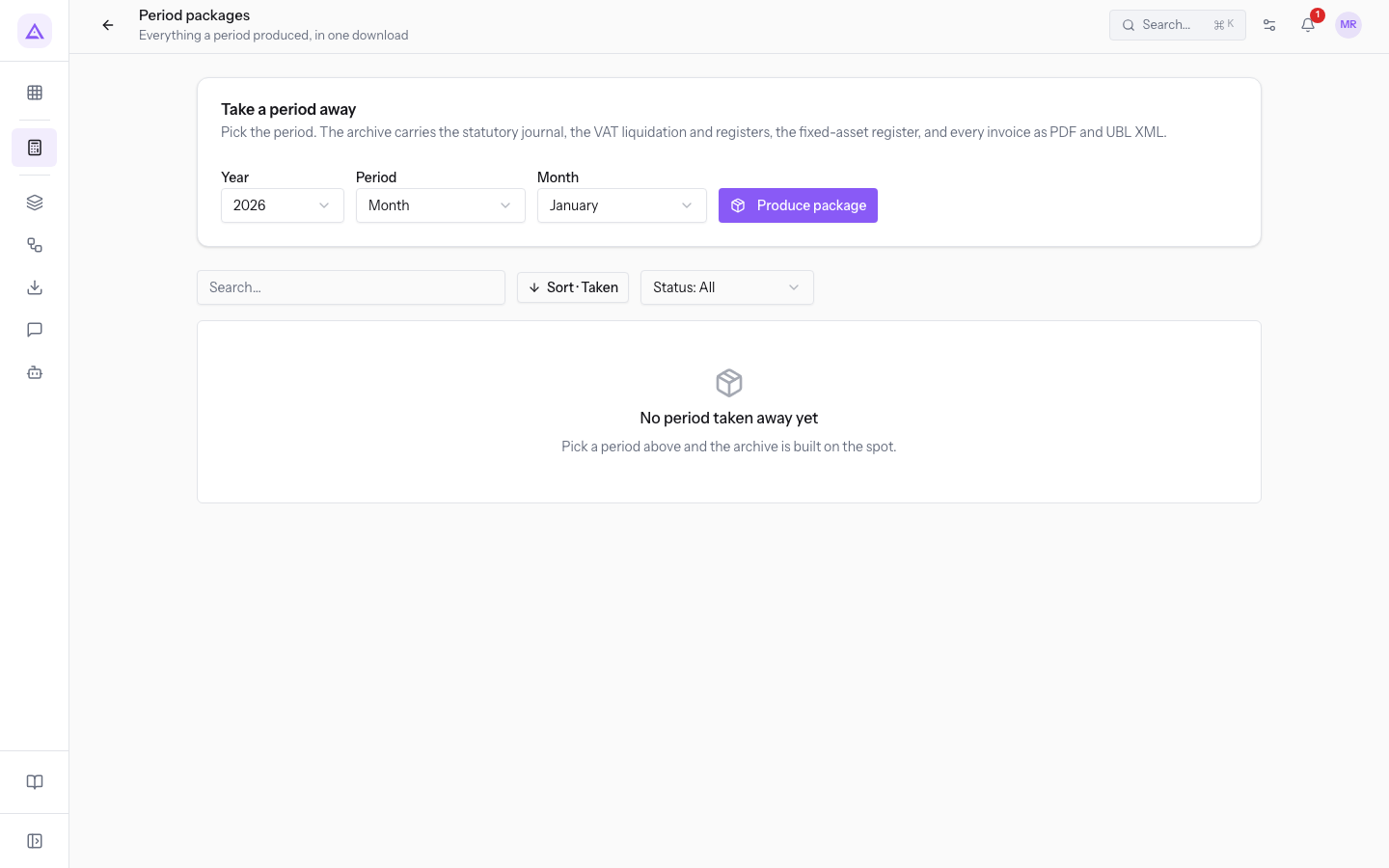
Fields in the Take a period away panel:
- Year: the year of the package, for example
2026. - Period: the width of the package.
- Month: shows the Month field, such as
January. - Quarter: shows the Quarter field, such as
Q1. - Year: the package covers the whole year and asks for nothing else.
- Month: shows the Month field, such as
When the package is ready the message The package for 2026-01 is ready. appears, with the chosen period. If one of the documents could not be produced, the message One of the documents could not be produced. Open the package to see which one. also appears.
Tip: some documents are included only in the whole-year package. The package page indicates this with the note Only in a whole-year package (1 January – 31 December).
Finding and downloading the packages
The list below the panel shows the generated packages.
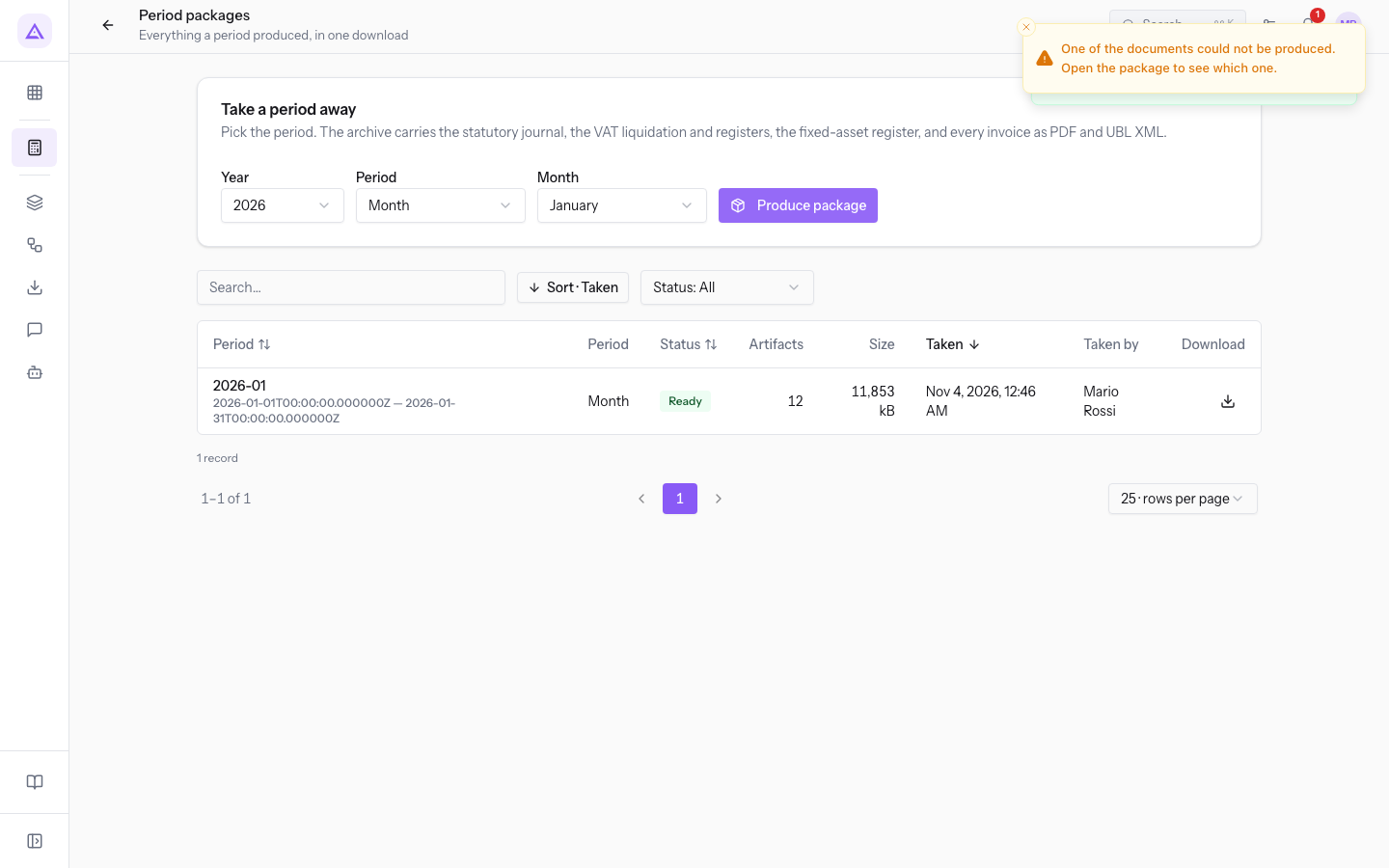
- Search…: searches for a package.
- Status: filters the packages by status. The initial value is Status: All.
- Sort by Period, Sort by Status, Sort by Taken: sort the list.
- Download: downloads the package archive.
- Rows per page: the number of packages per page.
Press the period of a package to open its page.
Reading the package page
The package page reports what the archive contains and what was left out.
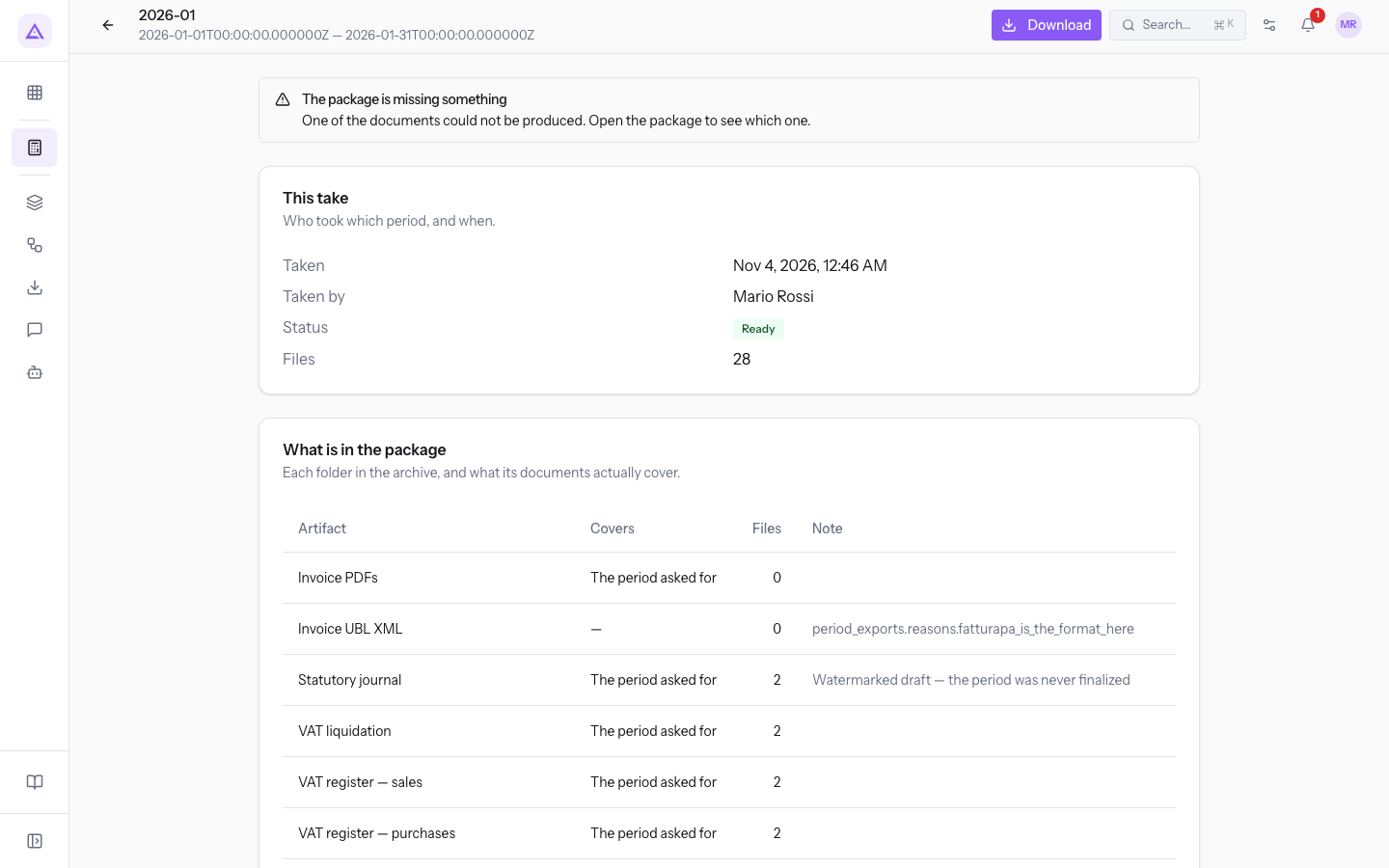
At the top the page shows the period and the Download button. If a document is missing the warning The package is missing something appears. If generation failed the warning This package failed appears.
A first panel reports when and by whom the package was generated, its status and the number of files.
The What is in the package panel lists the documents in the archive, one per line:
- the document type;
- the period covered: the package period or the whole fiscal year;
- the number of files;
- a note: the reason a document is missing, whether the journal book is final or draft, or how many documents were excluded.
The Documents left out panel appears only if some document was excluded. For each one it reports the document number, the type and the reason for exclusion.
Note: the Download button on the page appears only to the user who generated the package, and only if the package is complete. Other users with access to accounting see the page but do not download the archive.
See it on your company, not on a slide deck.
In 30 minutes we map the software you use today.We show you how much work and how much margin Archimedes gives back.
Show me on my business →What industry are you in?
One tap — it lets us prepare the demo around your world.
What tools do you use today?
Pick the ones you recognise — or just type them. It helps us show you how they migrate.
Last step: your details.
We reply within one working day — and right after, if you like, you pick the demo slot yourself.
We couldn't send your request. Try again, or write to us at [email protected].
By sending, you agree to your data being processed so we can get back to you about the demo. Privacy notice.
Preview form — nothing is sent from this page.
Want to schedule the demo now?
Your call: book the slot you prefer yourself, or we'll call you to arrange it.
Live availability, 30 minutes, instant confirmation. The calendar opens in a new tab.
Lock in your slot ↗We'll get back to you within one working day — and we'll join the call already knowing your world.
The calendar is open in another tab: pick a slot and the demo is booked. Can't see it? Reopen it ↗
Preview page: nothing was sent.
Our calendar is live: take the slot that suits you and the demo is booked. 30 minutes, instant confirmation, no waiting.
Lock in your slot ↗