Accounting
All modules
Close the fiscal year and verify the integrity of the ledgers
Accounting · 15 of 17 · 8 min read
The year-end close posts the closing entry for profit and loss, locks the period, and prepares the opening entry for the next fiscal year. The Audit & Integrity page shows who did what on the journal entries and checks that no posted entry has been altered. For example, you need it to close fiscal year FY 2026, or to check the Customer Invoices journal before handing the books to your accountant.
How the close works
The close follows four steps in order: Checks, Preview, Confirm, Opening. The next step opens only after the blocking checks pass.
When you confirm, the system does these things:
- posts the closing entry for profit and loss;
- sets the Lock date to the last day of the fiscal year;
- prevents new journal entries in the period.
The close can be undone only by reopening the fiscal year, and reopening requires a reason.
- If the previous fiscal year is not closed, close it first and generate its opening entry. Then return to the year you want to close.
- If there are invoices recorded after the end of the year with costs that belong to this year, check the proposed accrual entries for invoices to be received before closing. Otherwise those costs stay outside the fiscal year.
- If you have already printed the journal book as final up to the last day of the fiscal year, the close adds entries on that date and the printed journal no longer matches the accounting.
Note: lock dates add up and the most recent one applies. The lock of a journal book printed as final stays even if you reopen the fiscal year.
Note: profit and loss and the balance sheet do not count the closing, year-end and opening entries. The trial balance shows them.
List of fiscal years
The Year-end Close list shows the organization's fiscal years and their status. You start the procedure from here.
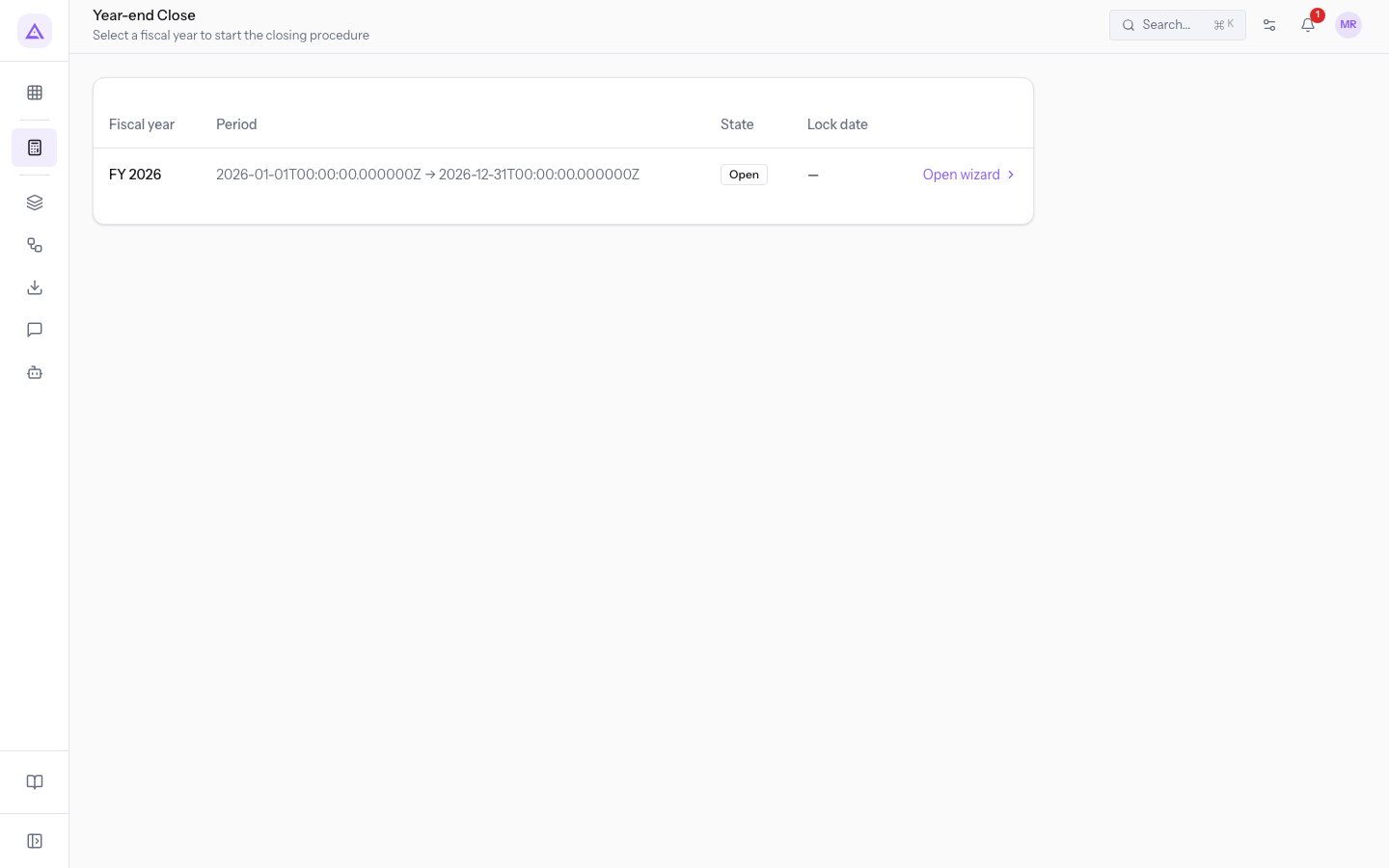
The list columns:
- Fiscal year: the name of the fiscal year, for example
FY 2026. - Period: the start date and end date of the fiscal year.
- State: the status of the fiscal year, such as Open.
- Lock date: the lock date set by the close. For an open fiscal year the column is empty.
Before you start: configure the Current year earnings account in Accounting › Settings. Without a fiscal year the module shows No fiscal years configured. Create one from accounting settings.
Run the checks
The first step checks that the fiscal year can be closed.
- In the Year-end Close list, press Open wizard on the fiscal year row, for example
FY 2026. - Read the Pre-flight checks list.
- Fix the checks that failed, then press Re-check.
- When the blocking checks pass, press Next — closing entry preview.
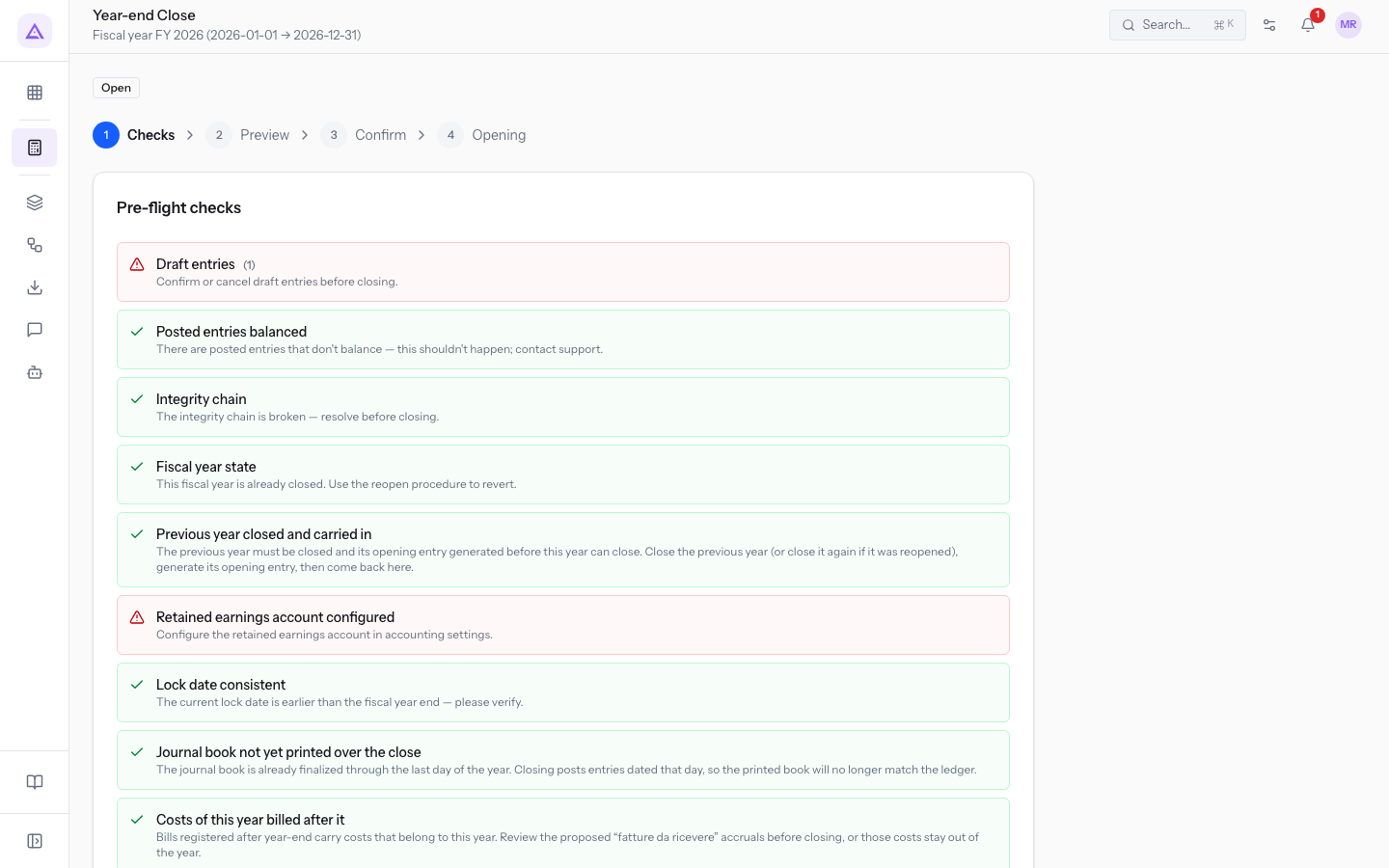
At the top the procedure shows the fiscal year with its period and status. Each check shows its result and, if it has not passed, how many items need fixing and what to do. A blocking check that has not passed is marked in red, a warning in yellow.
The checks:
- Draft entries: the entries of the fiscal year still in draft. Post them or cancel them. The demo has one draft entry,
Inventory adjustment. - Posted entries balanced: checks that the entries are balanced between debit and credit.
- Integrity chain: checks the hash chain of the ledgers. If the chain is not consistent, The integrity chain is broken — resolve before closing. appears.
- Fiscal year state: checks that the fiscal year is not already closed.
- Previous year closed and carried in: checks that the previous fiscal year is closed and its opening entry generated.
- Retained earnings account configured: if the account is not configured, Configure the retained earnings account in accounting settings. appears.
- Lock date consistent: compares the current lock date with the end of the fiscal year.
- Journal book not yet printed over the close: checks that the journal book is not already finalized through the last day of the fiscal year.
- Costs of this year billed after it: checks for invoices registered after year-end with costs that belong to this year.
While a blocking check has not passed, the Next — closing entry preview button is not active and Resolve the issues above before proceeding. appears.
Review the closing entry preview
The second step shows the closing entry before it is recorded. Nothing is recorded in this step.
- Check the Net result at the top. A profit is shown in green, a loss in red.
- Check the lines of the entry.
- Continue with the button to confirm the close, or go back to the checks with Back.
The line columns:
- Account: the code and name of the account, for example
4100 Product Sales. - Group: the group of the account (revenue, costs or equity).
- Debit and Credit: the amount of the line, in the column of the side where it is recorded.
Confirm the close
The third step summarizes what the close does and runs it.
- Read the summary that starts with «You're about to close fiscal year FY 2026. This will:».
- Press Close fiscal year.
The confirmation appears with the date set, for example «Fiscal year closed. Lock date set to 2026-12-31». The fiscal year moves to Fiscal year closed and the procedure goes to the Opening step.
Important: after the close you cannot record entries dated on or before the lock date.
Generate the opening entry
The fourth step carries the balance sheet balances over to the next fiscal year. If you reopen the procedure of a closed fiscal year, this step opens directly.
- Read the message «Fiscal year FY 2026 has been closed. To complete the rollover, generate the opening entry on the next fiscal year.».
- Press the button that generates the opening entry. The confirmation shows the date of the entry.
If the fiscal year is closed but the opening is not recorded, the reports of the next year warn that the balances are carried forward by the accounting.
Important: generate the opening entry before closing the next fiscal year. Without it, the close of the next year cannot start.
Reopen a fiscal year
Reopen a closed fiscal year when you need to correct journal entries of the period. The Reopen fiscal year button appears at the top of the procedure only for a closed fiscal year.
- Open the procedure of the closed fiscal year with Open wizard.
- Press Reopen fiscal year.
- Write the reason.
- Confirm the reopening.
The fields of the dialog:
- Reason: the reason for reopening. The field is required and must have at least 5 characters. The reason is kept for the audit.
Reopening cancels the closing entry and, if present, the opening entry. After confirmation Fiscal year reopened appears and the procedure goes back to the Checks step.
Note: the lock of a journal book printed as final stays even after reopening.
Check the audit events
The Audit Events tab lists the operations done on journal entries: postings, cancellations, reversals and reconciliations.
Before you start: the Audit Log item is visible only to users with full access to Accounting.
- Open Accounting › Audit Log.
- In the Audit Events tab, choose the type of operation from the tabs above the list, or All.
- Narrow the list with the filters.
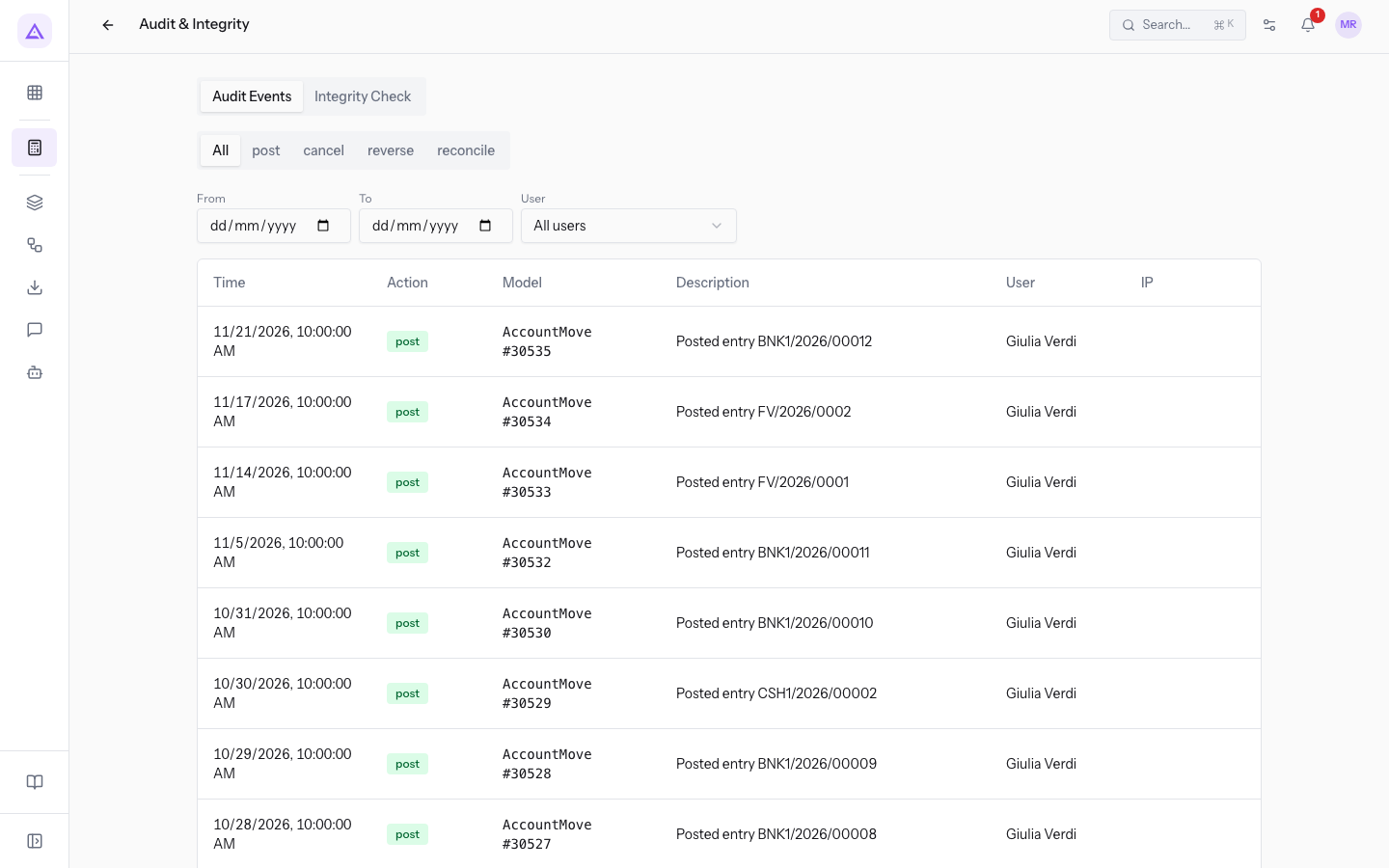
The filters:
- From and To: the period in which the operation happened.
- User: the user who did the operation, or All users.
When you change a filter, the list goes back to the first page. With a filter active the button to clear the filters appears.
The list columns:
- Time: date and time of the operation.
- Action: the type of operation.
- Model: the item the operation was done on, with its number.
- Description: the description of the operation.
- User: who did the operation.
- IP: the address it was done from.
The list shows 25 events per page. Scroll with Previous and Next.
Verify the integrity of a ledger
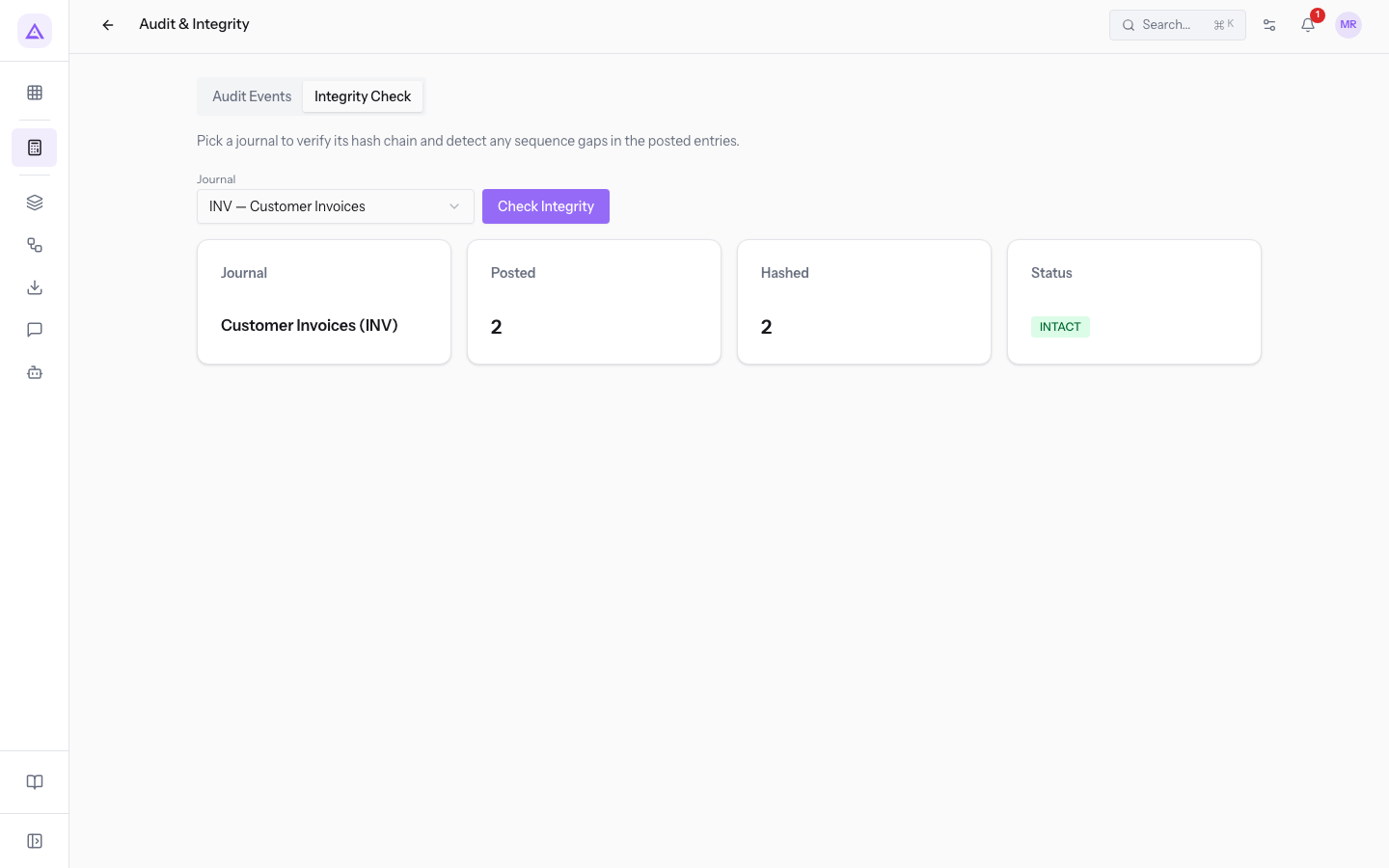
The Integrity Check tab verifies the hash chain of a journal and looks for numbering gaps in posted entries. Every posted entry is sealed in a hash chain, one per journal.
- Open Accounting › Audit Log.
- Press the Integrity Check tab.
- Choose the journal in Journal, for example
INV — Customer Invoices. - Press Check Integrity.
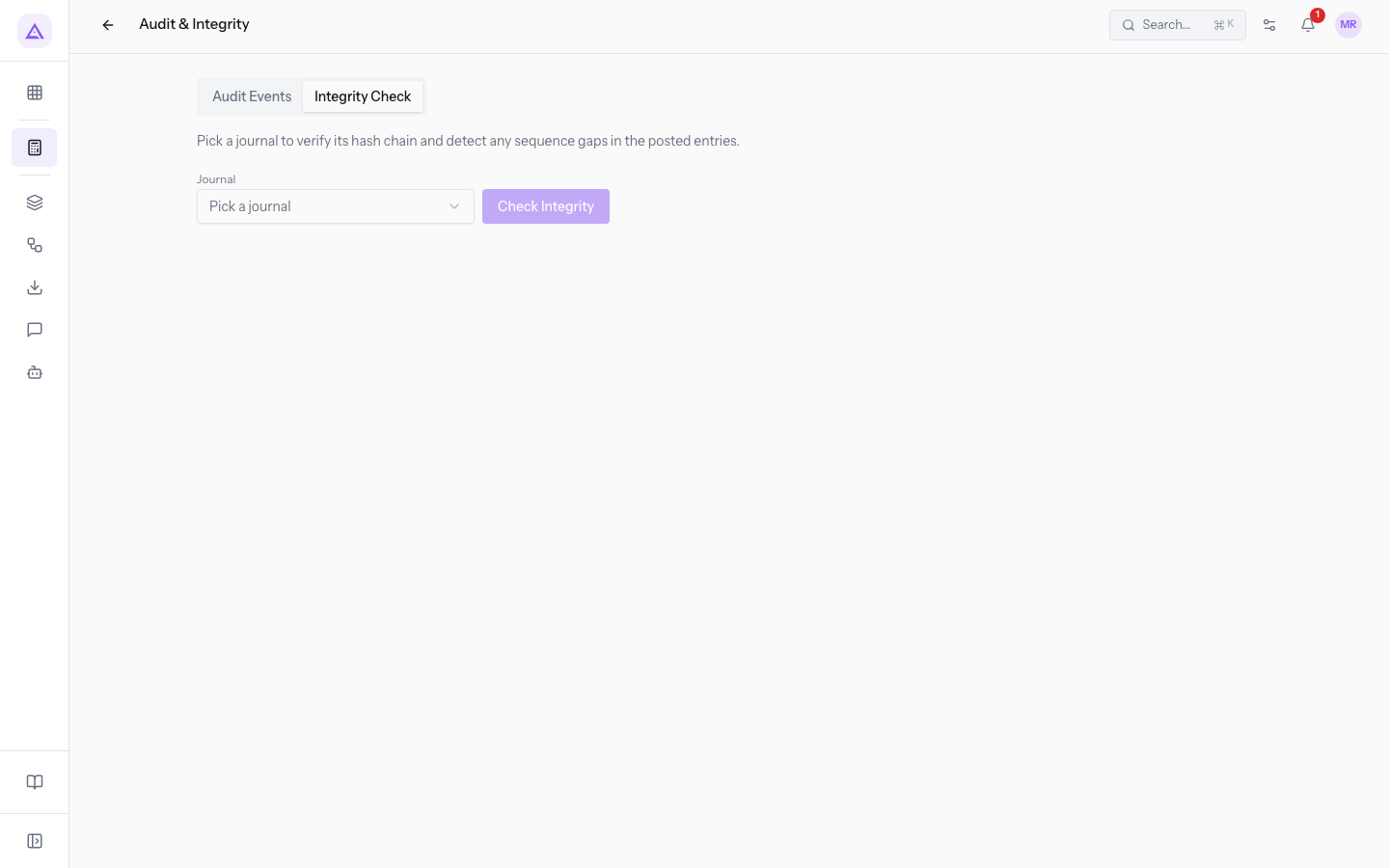
The result shows four tiles:
- Journal: the name and code of the journal checked.
- Posted: the number of posted entries in the journal;
- Hashed: how many entries have the hash seal;
- Status: INTACT in green if the chain is intact, ISSUES FOUND in red if the check finds anomalies.
If there are anomalies, lists appear below the tiles:
- Broken Hashes: entries whose seal no longer matches their content, with name and date and the reason hash mismatch.
- groups of imported entries, checked separately, with their entry count.
- Sequence Gaps: missing numbers in the journal's numbering.
Tip: check each journal before starting the close. The Integrity chain check in the close blocks the procedure if the chain is not consistent.
See it on your company, not on a slide deck.
In 30 minutes we map the software you use today.We show you how much work and how much margin Archimedes gives back.
Show me on my business →What industry are you in?
One tap — it lets us prepare the demo around your world.
What tools do you use today?
Pick the ones you recognise — or just type them. It helps us show you how they migrate.
Last step: your details.
We reply within one working day — and right after, if you like, you pick the demo slot yourself.
We couldn't send your request. Try again, or write to us at [email protected].
By sending, you agree to your data being processed so we can get back to you about the demo. Privacy notice.
Preview form — nothing is sent from this page.
Want to schedule the demo now?
Your call: book the slot you prefer yourself, or we'll call you to arrange it.
Live availability, 30 minutes, instant confirmation. The calendar opens in a new tab.
Lock in your slot ↗We'll get back to you within one working day — and we'll join the call already knowing your world.
The calendar is open in another tab: pick a slot and the demo is booked. Can't see it? Reopen it ↗
Preview page: nothing was sent.
Our calendar is live: take the slot that suits you and the demo is booked. 30 minutes, instant confirmation, no waiting.
Lock in your slot ↗