Accounting
All modules
Manage fixed assets and the depreciation schedule
Accounting · 12 of 17 · 7 min read
Fixed assets are what the organization owns and depreciates over several periods, for example furniture, machinery, plants or computers. For each asset you record the value and the depreciation method. The product computes the schedule and posts the instalments one at a time. The Fixed-asset register summarizes the instalment, accumulated depreciation and residual value of each asset per fiscal year.
The Fixed Assets list
The list shows all depreciable assets and their status.
- Open Accounting › Fixed Assets.
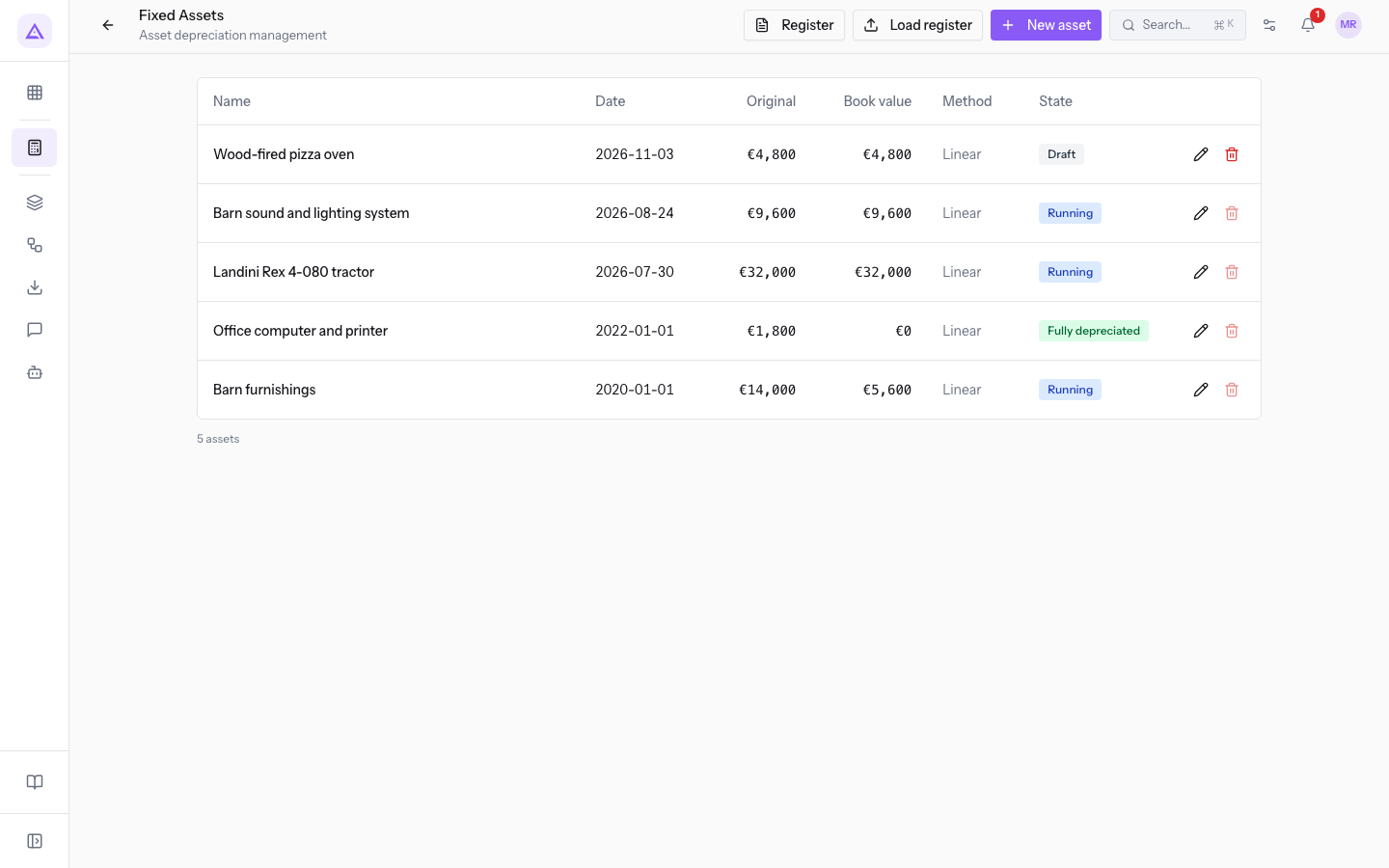
For each asset the list shows the columns Name, Date, Original, Book value, Method and State. At the top there are the buttons Register, Load register and New asset.
An asset goes through these statuses:
- Draft: the asset is recorded but the schedule is not computed yet. In the demo it is
Wood-fired pizza oven. - Running: the schedule is computed and the instalments are posted one at a time. In the demo these are
Barn barn furniture,Landini Rex 4-080 tractorandBarn barn sound and lighting system. - Fully depreciated: all instalments of the schedule have been posted. In the demo it is
Office computer and printer.
Creating an asset
Create one asset for each purchase to be depreciated. If it was already partly depreciated before you started using Archimedes, enable the option described in Recording an asset already depreciated at the start date.
- Open Accounting › Fixed Assets.
- Press New asset.
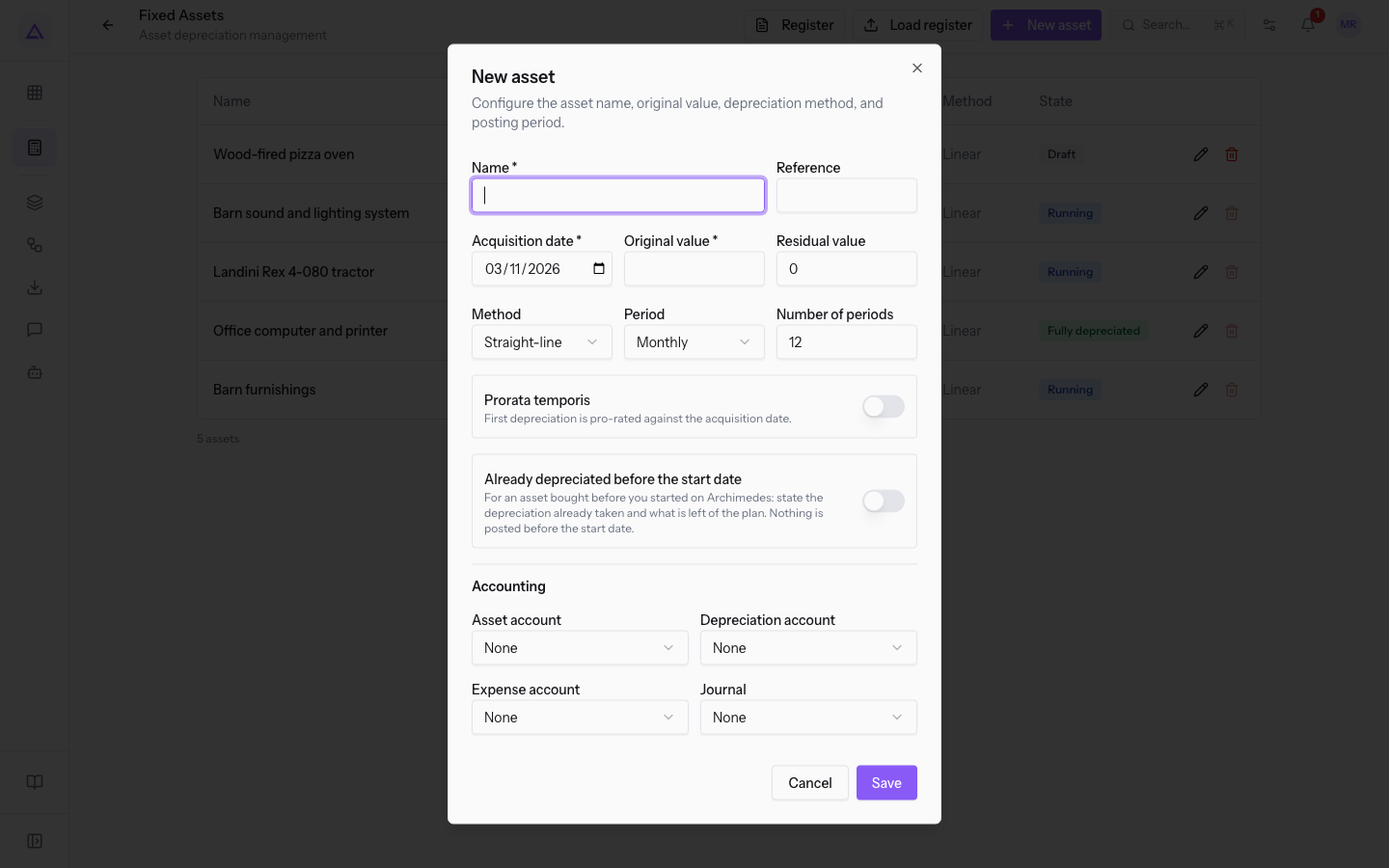
- Fill in the fields and press Save.
The fields of the New asset dialog:
- Name: the name of the asset, for example
Wood-fired pizza oven. The field is required. - Reference: the asset code, such as
CESP-005. - Acquisition date: the date the asset was acquired. The field is required and proposes today's date.
- Original value: the cost of the asset. The field is required.
- Residual value: the value the asset keeps at the end of the schedule. It is
0if you do not change it. - Method: how the value is distributed across the periods.
- Straight-line: the default value.
- Declining balance
- Declining then linear
- Period: the frequency of the instalments.
- Monthly: the default value.
- Yearly
- Number of periods: over how many periods the asset is depreciated. It is
12if you do not change it. - Prorata temporis: a toggle, off by default.
- Already depreciated before the start date: a toggle, off by default. If you enable it, more fields appear.
- Accounting: at the bottom of the dialog the Asset account, Depreciation account, Expense account and Journal lists start at None. The accounts come from the chart of accounts, such as
1400 — Fixed Assets,1500 — Accumulated Depreciationand6700 — Depreciation Expense.
The new asset appears in the list with status Draft.
Recording an asset already depreciated at the start date
Use this option for an asset purchased before you started using Archimedes. You enter the accumulated depreciation already set aside and how much of the schedule remains. Nothing is recorded before the start date.
- In Accounting › Fixed Assets press New asset.
- Fill in the asset fields as described in Creating an asset.
- Enable Already depreciated before the start date.
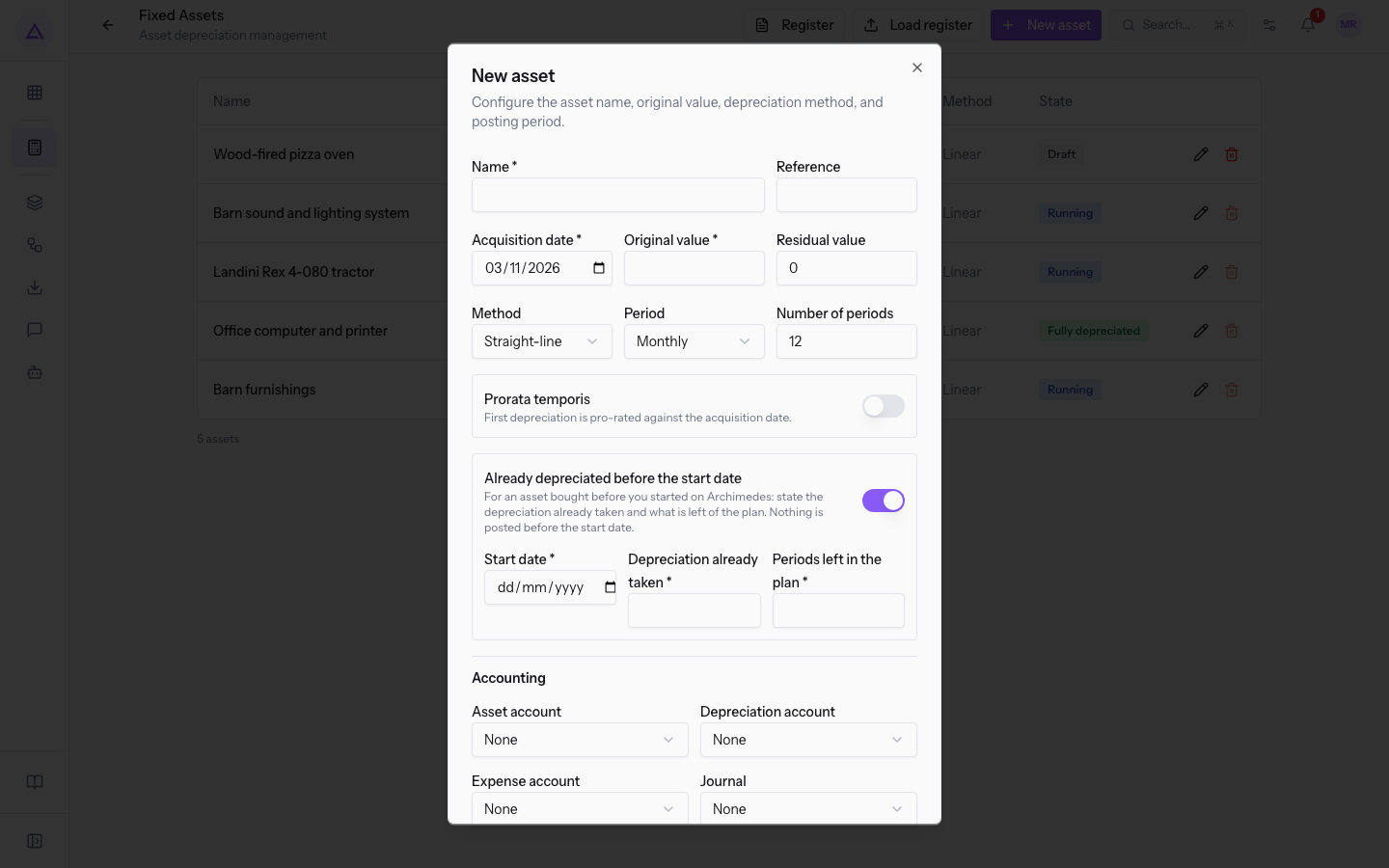
- Fill in the new fields and press Save.
The fields that appear with the toggle enabled:
- Start date: the date from which Archimedes starts managing the asset's schedule. The field is required.
- Depreciation already taken: the part of the value already depreciated before the start date. The field is required.
- Periods left in the plan: how many periods remain to be depreciated after the start date. The field is required.
Loading the asset register from a file
If at startup there are many assets to record, load them all together from a file instead of creating them one at a time.
- In Accounting › Fixed Assets press Load register.
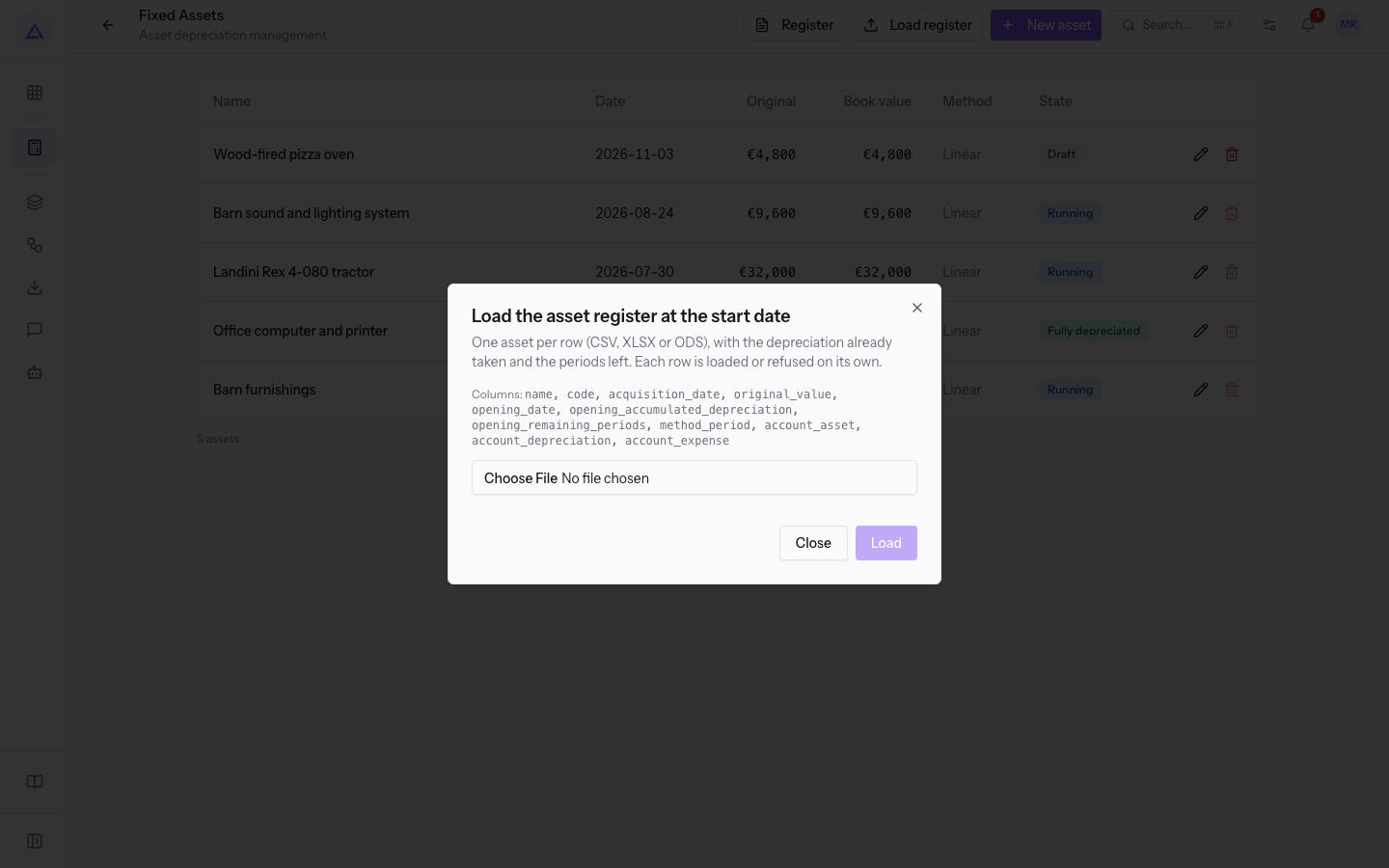
- Prepare a CSV, XLSX or ODS file with one asset per row. For each asset, enter the accumulated depreciation and the remaining periods. The dialog lists the columns the file must have.
- Choose the file and press Load.
Each row is loaded or rejected on its own: a row with an error does not block the loading of the others.
The asset page
The page gathers the asset's data and its depreciation schedule.
- In Accounting › Fixed Assets press the name of the asset, for example
Barn barn furniture.
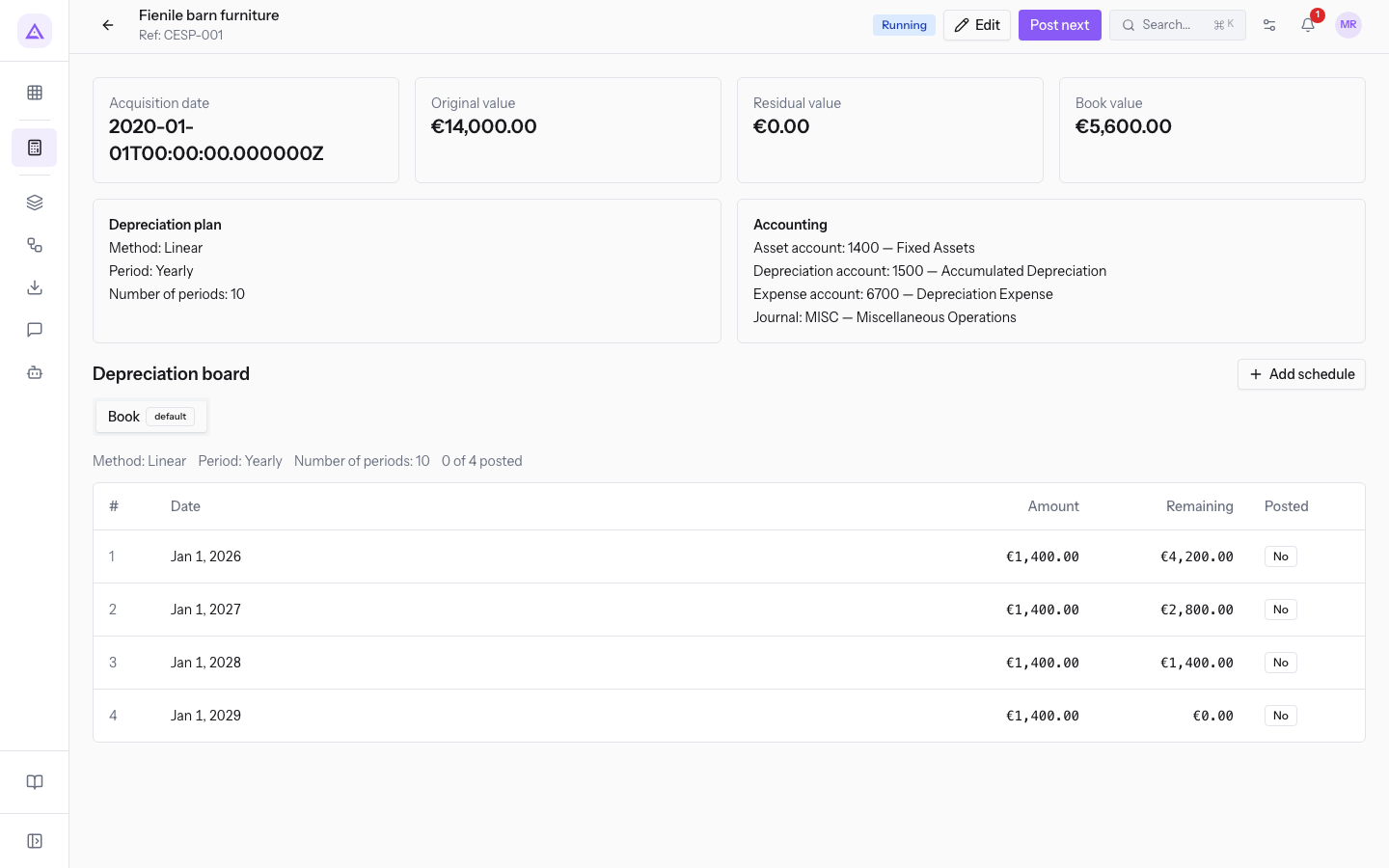
At the top the page shows the reference and status of the asset. Below are Acquisition date, Original value, Residual value and Book value. The Depreciation board section shows the depreciation schedule, split into tabs.
The buttons change with the asset's status:
- Edit: opens the asset's data to change it.
- Compute board: appears when the asset is in Draft.
- Post next: appears when the asset is Running.
- Add schedule: adds another schedule to the asset.
Computing the schedule
Compute the schedule when the asset's data is complete.
- Open an asset in Draft, for example
Wood-fired pizza oven. - Press Compute board.
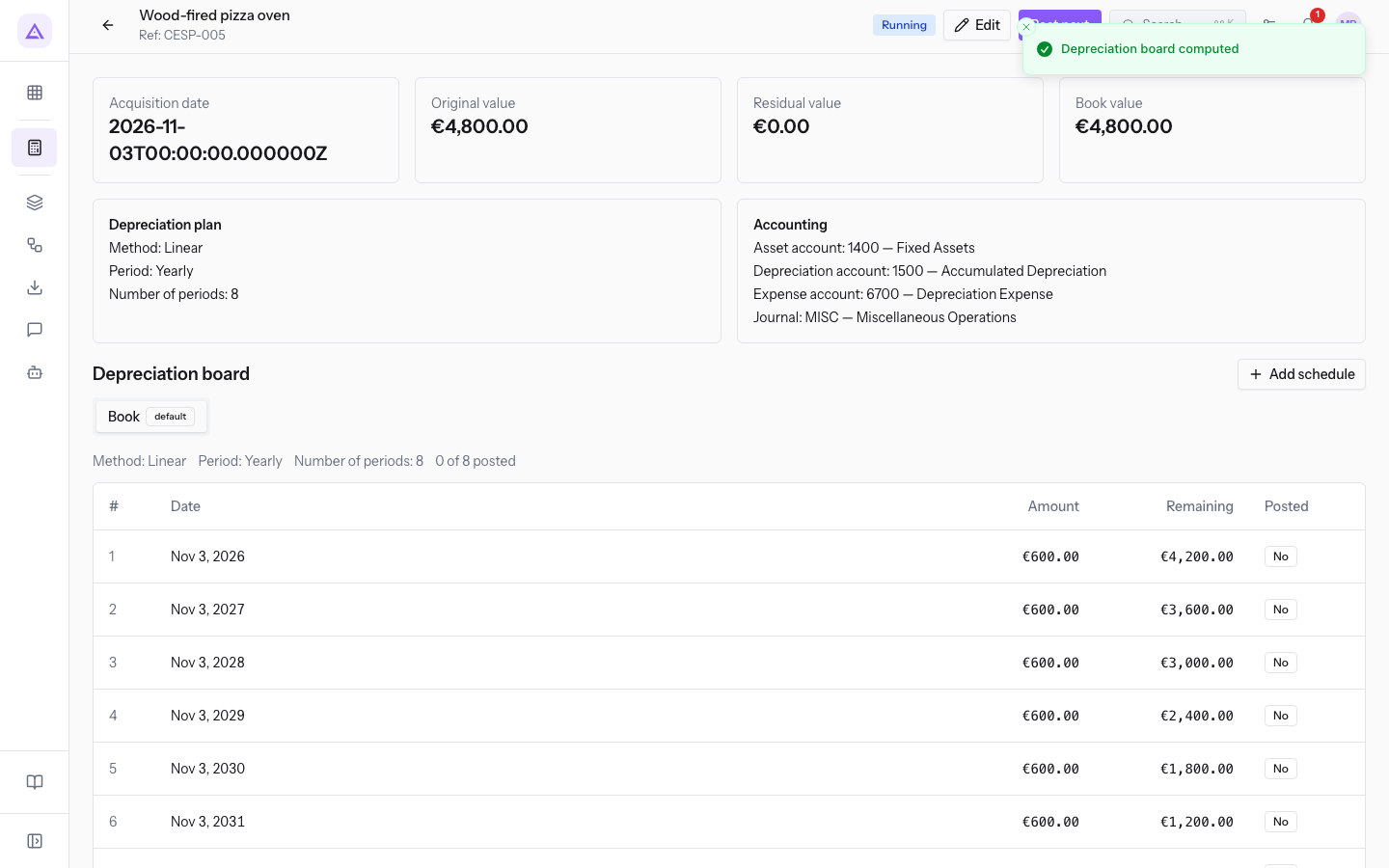
The message Depreciation board computed appears. The asset moves to status Running and Post next appears in place of Compute board.
Posting the instalments
Each instalment of the schedule is posted separately, in order.
- Open a Running asset, for example
Barn barn furniture. - Press Post next.
The product posts the first instalment of the schedule not yet posted, on the date set by the schedule, and shows a confirmation message.
Note: a depreciation entry is reversed from the asset, not from the list of journal entries. This keeps the asset and the accounting aligned.
Adding a schedule
The main schedule generates the journal entries. The other schedules you add are only memos and generate none. Use them to compute deferred taxes and prepare the tax financial statements, when tax depreciation differs from civil-law depreciation.
- On the asset page press Add schedule.
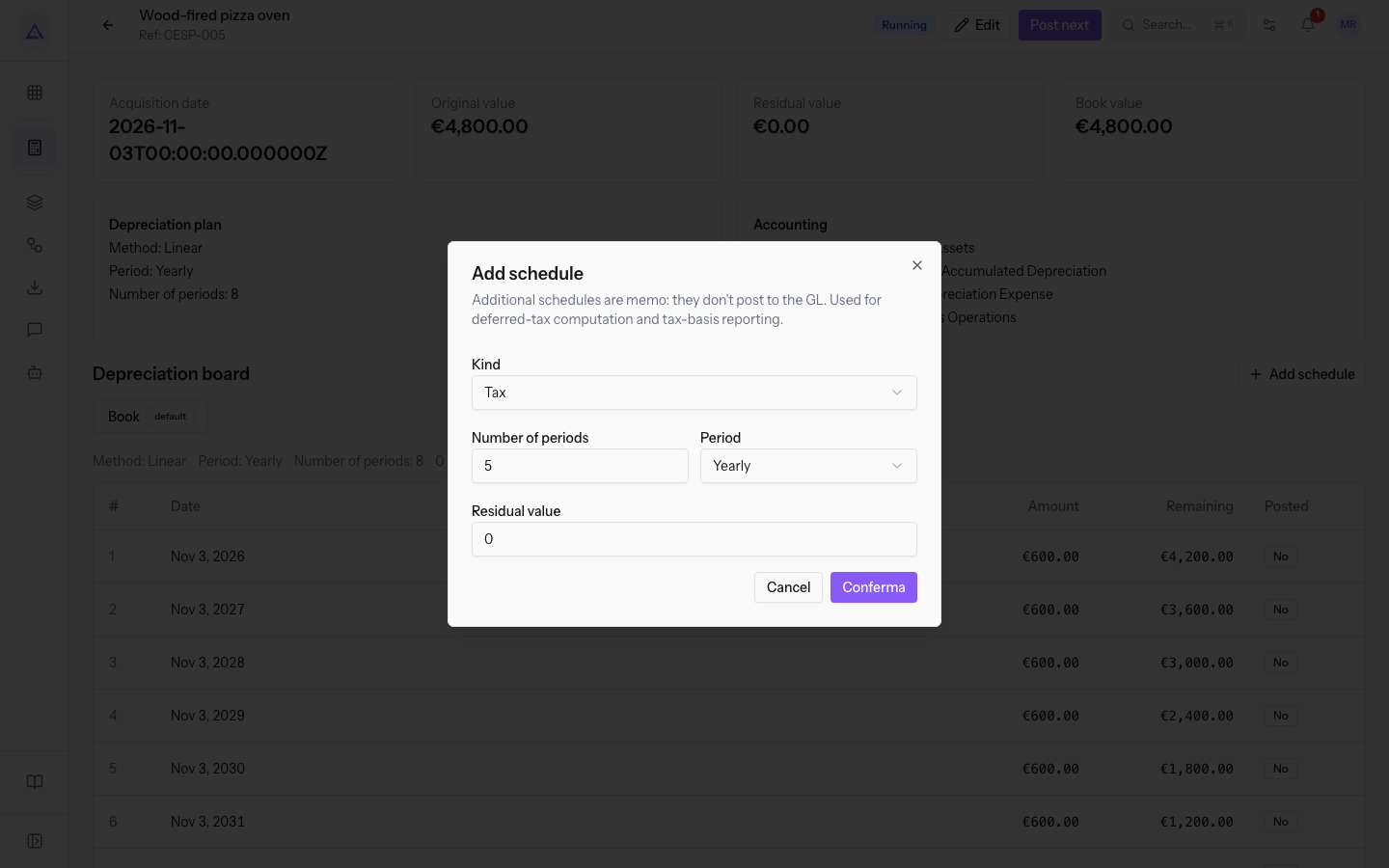
- Fill in the fields and press Confirm.
The fields of the Add schedule dialog:
- Kind: the type of schedule. It is Tax if you do not change it.
- Number of periods: over how many periods the asset is depreciated in this schedule. It is
5if you do not change it. - Period: the frequency of the instalments. It is Yearly if you do not change it.
- Residual value: the value the asset keeps at the end of this schedule. It is
0if you do not change it.
Each added schedule appears as a tab in the Depreciation board section.
The Fixed-asset register
The register shows all assets for a fiscal year, with the instalment, accumulated depreciation and residual value.
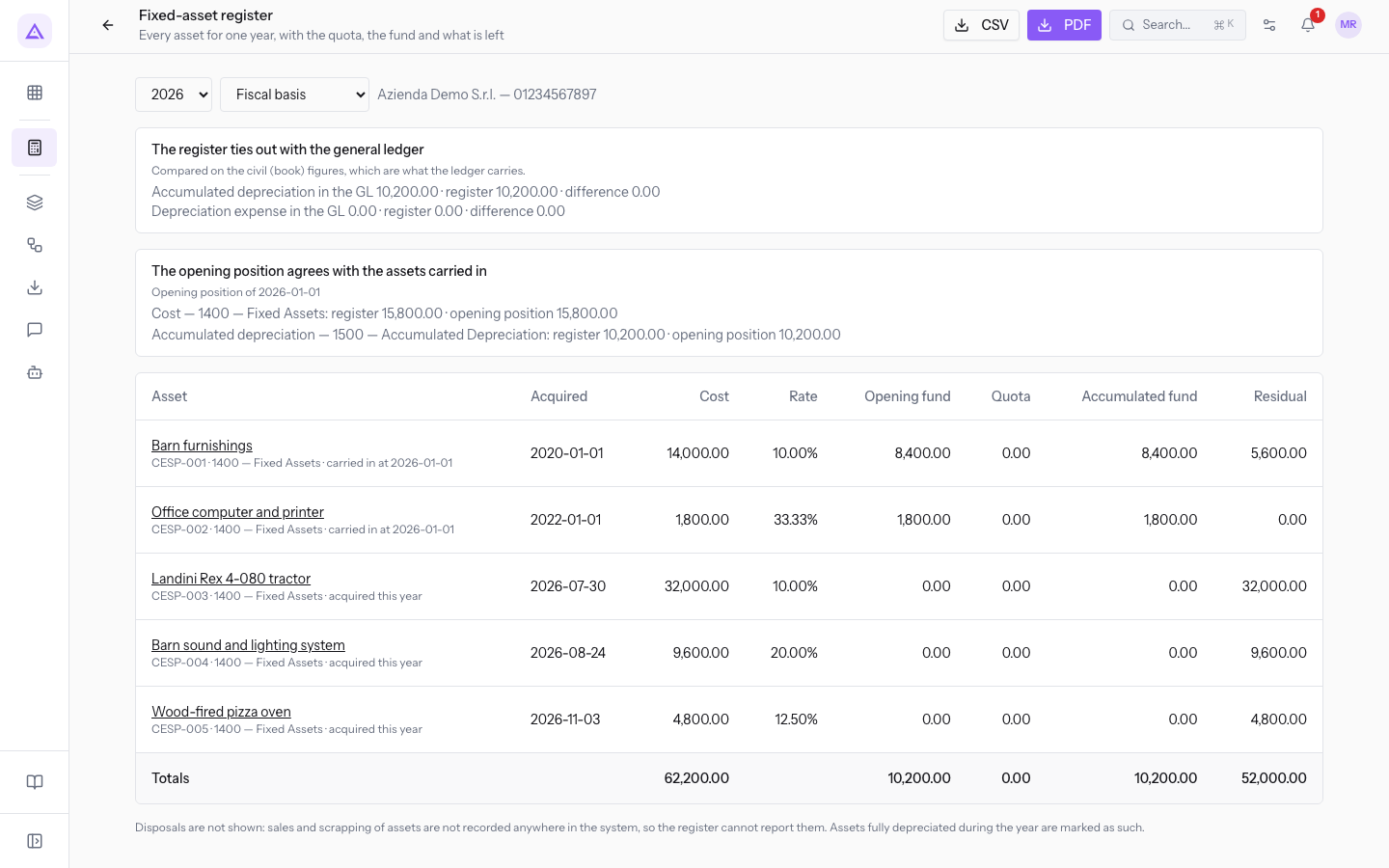
At the top, choose:
- the fiscal year, for example
2026; - the values to show:
- Fiscal basis: the values from the tax schedule. This is the default choice.
- Civil (book) basis: the values from the civil (book) schedule.
For each asset, the register shows among other things Rate, Quota, Accumulated fund and Residual. Pressing an asset name, such as Landini Rex 4-080 tractor, opens its page. Assets that are fully depreciated in the year are marked as such.
Note: the register does not show disposals. Sales and scrappings of assets are not recorded in the system, so the register cannot show them.
With CSV and PDF you download the register for the chosen year.
Reconciliation with the general ledger
The register compares its totals with the accounting. Next to the register totals it shows Depreciation expense in the GL and Accumulated depreciation in the GL. The result is one of these messages:
- The register ties out with the general ledger
- The register does not tie out with the general ledger
For assets loaded at the start date, the register also shows the Opening fund, that is the accumulated depreciation already set aside at startup.
Important: if the register does not reconcile, check that all instalments for the year have been posted with Post next.
See it on your company, not on a slide deck.
In 30 minutes we map the software you use today.We show you how much work and how much margin Archimedes gives back.
Show me on my business →What industry are you in?
One tap — it lets us prepare the demo around your world.
What tools do you use today?
Pick the ones you recognise — or just type them. It helps us show you how they migrate.
Last step: your details.
We reply within one working day — and right after, if you like, you pick the demo slot yourself.
We couldn't send your request. Try again, or write to us at [email protected].
By sending, you agree to your data being processed so we can get back to you about the demo. Privacy notice.
Preview form — nothing is sent from this page.
Want to schedule the demo now?
Your call: book the slot you prefer yourself, or we'll call you to arrange it.
Live availability, 30 minutes, instant confirmation. The calendar opens in a new tab.
Lock in your slot ↗We'll get back to you within one working day — and we'll join the call already knowing your world.
The calendar is open in another tab: pick a slot and the demo is booked. Can't see it? Reopen it ↗
Preview page: nothing was sent.
Our calendar is live: take the slot that suits you and the demo is booked. 30 minutes, instant confirmation, no waiting.
Lock in your slot ↗