Accounting
All modules
Check the VAT register and the annual summary
Accounting · 11 of 17 · 7 min read
The VAT Register lists the documents with VAT for a period, split into sales, purchases and receipts, with the taxable amount and the tax by rate. The page VAT — annual summary summarises the settlements and the VAT for a year and downloads it as CSV or PDF, for example to prepare the annual return or to send it to the accountant.
Which export to choose
The VAT Register has two types of export, which produce different files.
- Export CSV downloads the table as you see it, including the partner filter.
- Register CSV and Register PDF download the register for the whole period, with the progressive numbering of the year. The partner filter does not apply.
If you need the list of documents for a single customer or supplier, filter the table and use Export CSV. If you need the register to print or to keep, use Register PDF. If the register must be imported into another program, use Register CSV.
Note: the VAT Register and the annual summary only read posted entries. A draft entry does not appear.
Check the VAT register
The register shows the documents of the chosen period, one row for each rate of the document.
- Open Accounting › VAT Register.
- Choose the Sales, Purchases or Receipts tab.
- Set the start date and the end date of the period in the two date fields at the top. When opened, the period is the current month.
- To see a single partner, type the name or the VAT number in Filter by partner….
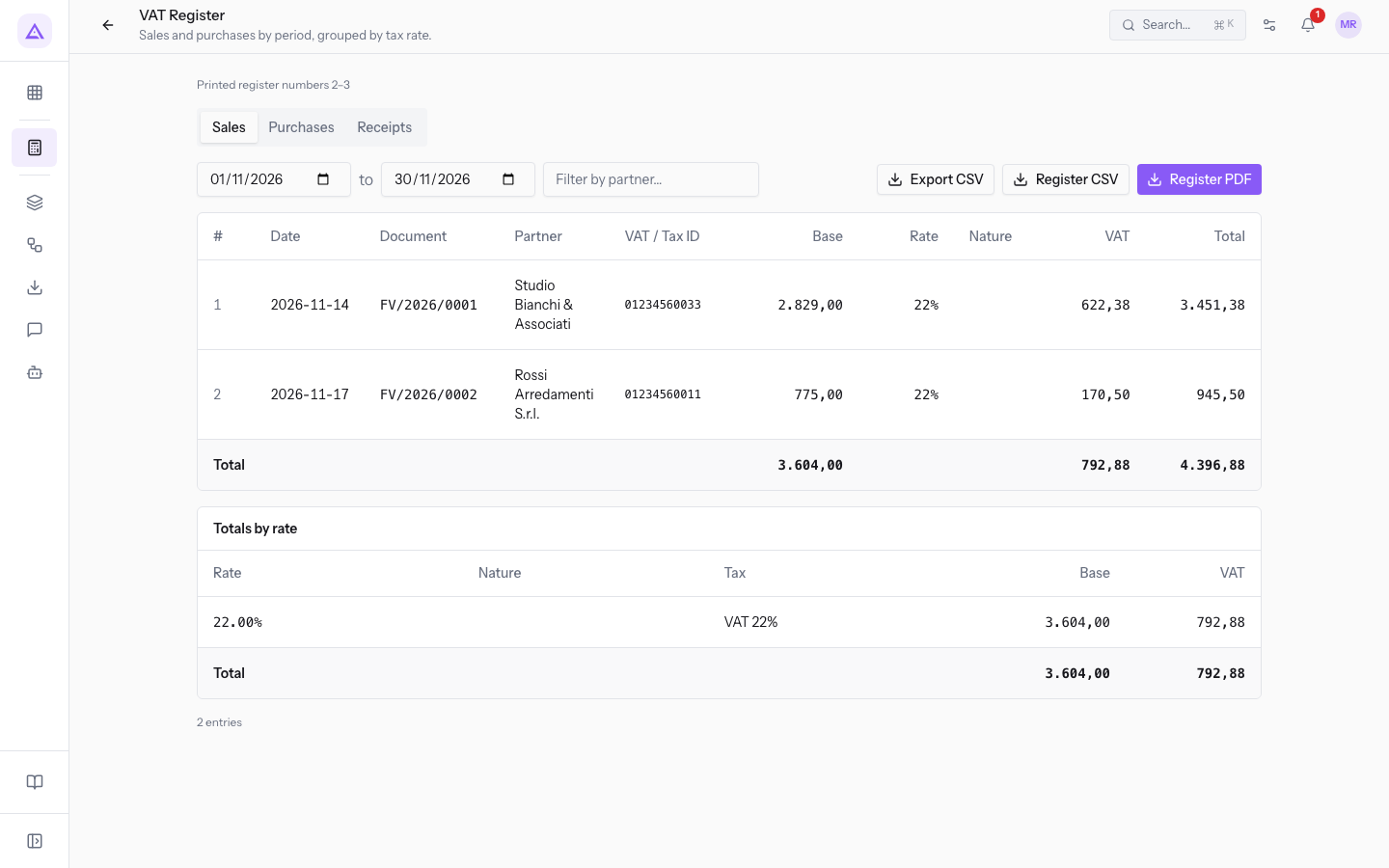
The page controls are these:
- Sales: the invoices and credit notes issued to customers. For example invoice FV/2026/0001 to Bianchi & Associates, with a taxable amount of 2.829,00 and a 22% rate.
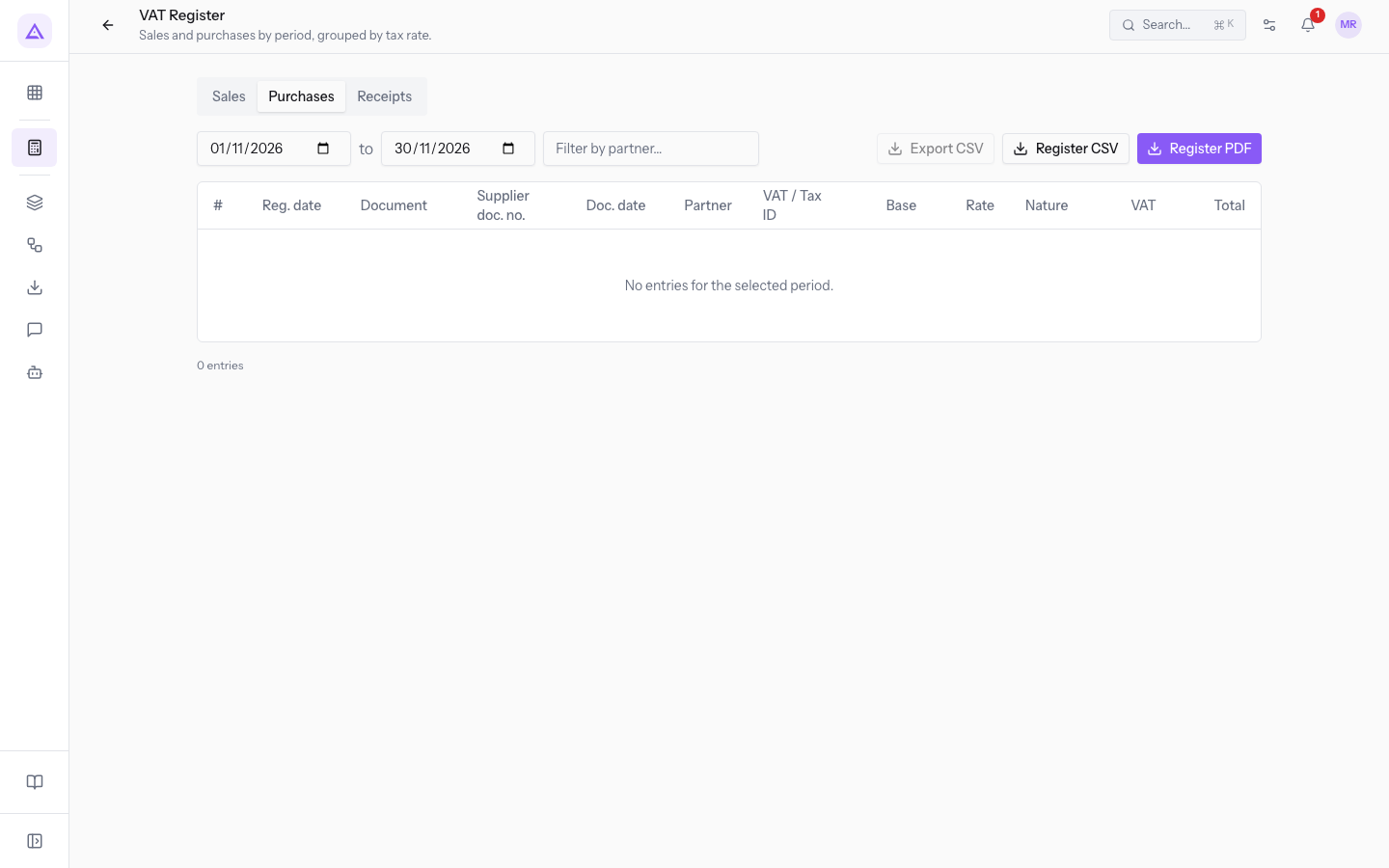
- Purchases: the invoices received from suppliers. The table has two extra columns for the supplier document data.
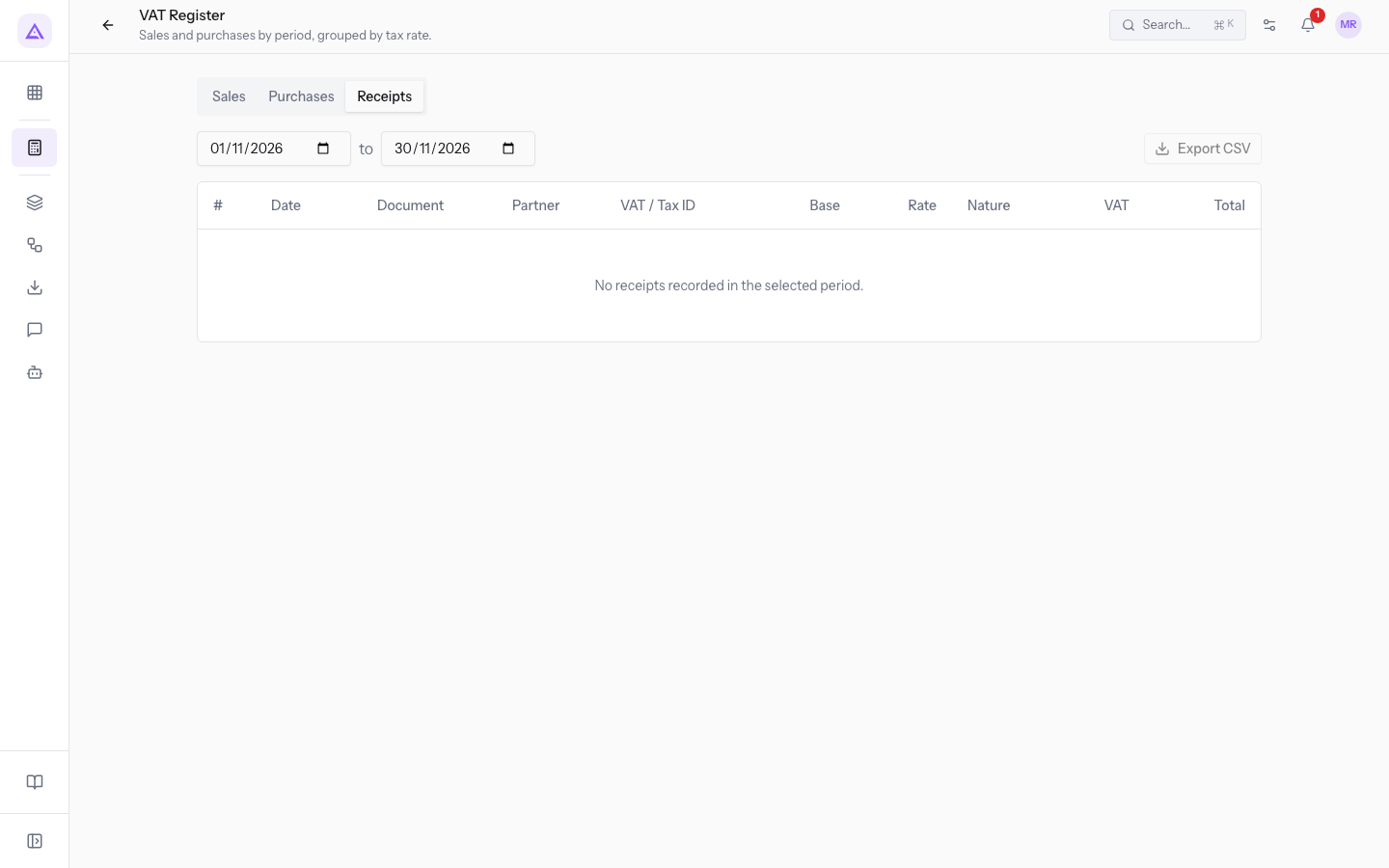
- Receipts: the daily collections recorded in accounting. This tab does not have the Filter by partner… field nor the Register CSV and Register PDF buttons.
- Filter by partner…: searches the partner name and the VAT number. Upper and lower case do not matter. The filter works only on the rows already loaded, and the total at the bottom of the table is recalculated on the filtered rows. If you switch to the Receipts tab, the filter is cleared.
The columns of the register
The columns change depending on the tab.
- The first column, headed with the hash symbol, shows the progressive number of the document in the register.
- Date: the date of the entry. It appears in the Sales and Receipts tabs.
- Reg. date: the date on which the supplier invoice was registered, that is the period in which the VAT is deducted. It appears only in the Purchases tab.
- Document: the document number, for example FV/2026/0001. For a reverse-charge integration it shows the self-invoice number followed by the document number in brackets.
- Supplier doc. no.: the number the supplier gave to the invoice. It appears only in the Purchases tab.
- Doc. date: the date of the supplier invoice. It appears only in the Purchases tab.
- Partner: the customer or supplier of the document.
- VAT / Tax ID: the VAT number of the partner.
- Base: the taxable amount of the row.
- Rate: the VAT rate of the row, such as 22%.
- Nature: the nature of the transaction, shown on the rows without tax.
- The last two columns show the tax of the row and the total of the document, such as 622,38 and 3.451,38 for FV/2026/0001.
A document with several rates takes up several rows. Number, dates, document and partner appear only on the first row, and so does the document total. A document without VAT takes one row with a dash in place of taxable amount, rate and tax.
At the bottom of the table a total row sums the taxable amount, the tax and the total of the visible rows. Below the table the number of entries shown appears.
Totals by rate
Below the register, the Totals by rate box summarises the period by rate and nature, with the tax name, the Base and the tax, plus a total row.
Note: the Totals by rate box is hidden when you type something in Filter by partner…, because it always shows the totals of the whole period and not those of the filtered partner.
Printed register numbering
At the top of the page, the Printed register numbers row shows the first and the last number that the documents of the period will have in the printed register, for example 2-3.
The numbering continues the one of the year and does not restart from 1 for each period. The row appears only in the Sales and Purchases tabs and only if the period contains at least one document.
Export the register
You can download the register of the period as CSV or PDF.
- Open Accounting › VAT Register and choose the tab and the period.
- Press one of the buttons:
- Export CSV: the visible rows, with the filter applied. The button is not active if the table is empty. It is also present in the Receipts tab.
- Register CSV: the register of the whole period, numbered according to the year, in CSV.
- Register PDF: the same register in PDF.
In the CSV files the amounts are written with the dot as decimal separator, so that another program imports them without ambiguity. The CSV of the Purchases tab also contains the number and date of the supplier document.
Check the annual VAT summary
The VAT — annual summary page brings together the VAT and the settlements of a year.
- Open Accounting › VAT Annual Summary.
- Type the year in the field at the top. When opened, the current year is set.
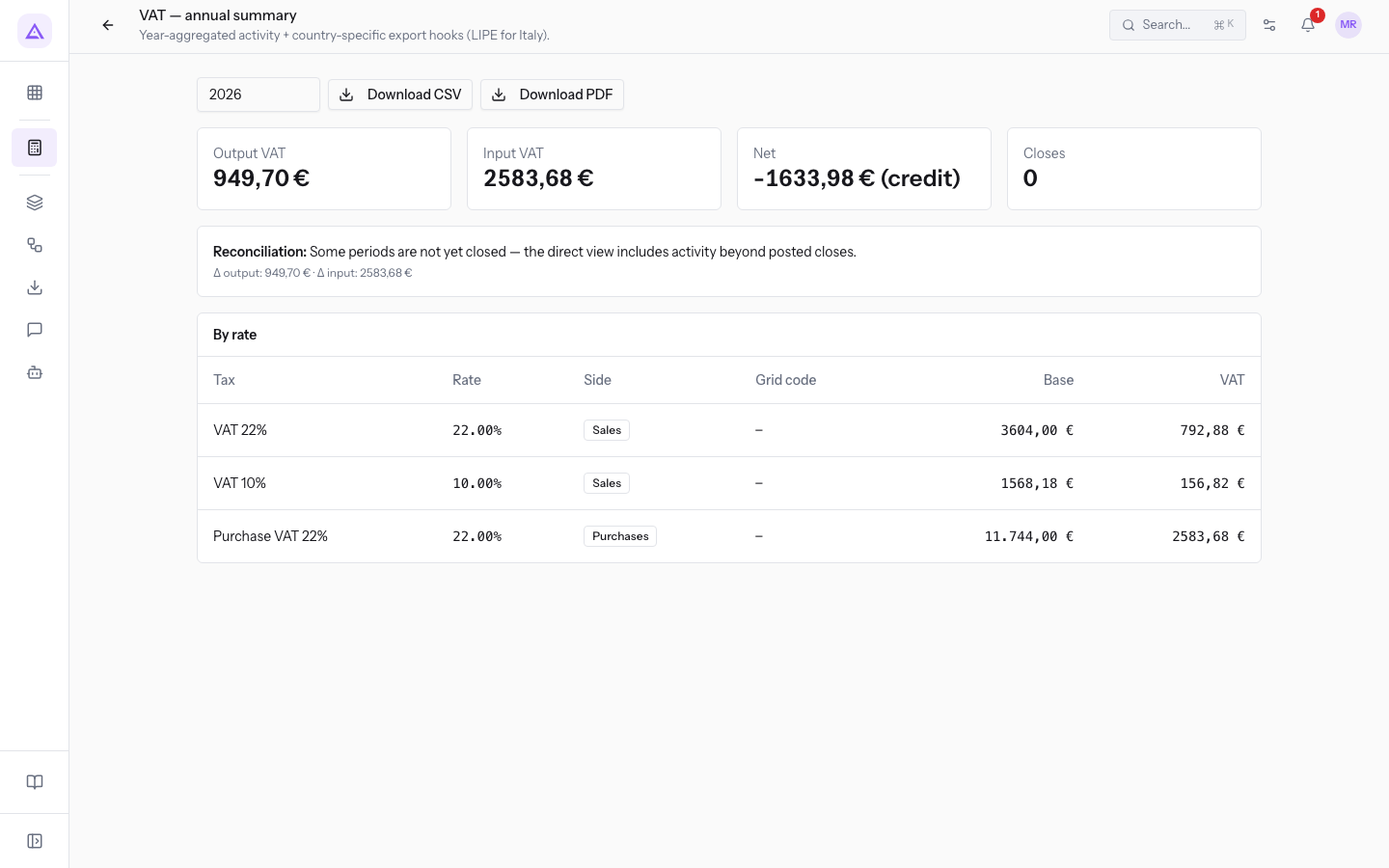
The page shows these elements:
- Output VAT and Input VAT: the VAT of the year calculated from the entries, for example
949,70 €of output VAT. Next to them appear the balance between the two and the number of settlements of the year. A credit balance is shown with a minus sign. - Reconciliation: a box compares the VAT calculated from the entries with the one from the recorded settlements and, if they do not match, shows the difference of output VAT and input VAT.
- By rate: one row for each tax and for each side (sales or purchases), with the tax name, the Rate, the return box code, the Base and the tax.
- Closes in year: appears when the year has recorded settlements. For each period it shows output VAT, input VAT, balance, effective balance, amount paid, payment status and outcome, with a total row. Below the table appear the remaining credit and, if present, the credit carried forward and the interest.
- Settlements to check before filing: lists the periods in which the payment is missing, has not been paid or does not match the amount due, with the amount due and the amount recorded.
Settlements are recorded from Accounting › VAT Period Close.
Download the annual summary
The summary of the year downloads as a file.
- Open Accounting › VAT Annual Summary and choose the year.
- Press Download CSV or Download PDF.
The two buttons become active when the summary of the year is loaded. The file contains the same summary shown on the page.
See it on your company, not on a slide deck.
In 30 minutes we map the software you use today.We show you how much work and how much margin Archimedes gives back.
Show me on my business →What industry are you in?
One tap — it lets us prepare the demo around your world.
What tools do you use today?
Pick the ones you recognise — or just type them. It helps us show you how they migrate.
Last step: your details.
We reply within one working day — and right after, if you like, you pick the demo slot yourself.
We couldn't send your request. Try again, or write to us at [email protected].
By sending, you agree to your data being processed so we can get back to you about the demo. Privacy notice.
Preview form — nothing is sent from this page.
Want to schedule the demo now?
Your call: book the slot you prefer yourself, or we'll call you to arrange it.
Live availability, 30 minutes, instant confirmation. The calendar opens in a new tab.
Lock in your slot ↗We'll get back to you within one working day — and we'll join the call already knowing your world.
The calendar is open in another tab: pick a slot and the demo is booked. Can't see it? Reopen it ↗
Preview page: nothing was sent.
Our calendar is live: take the slot that suits you and the demo is booked. 30 minutes, instant confirmation, no waiting.
Lock in your slot ↗