Accounting
All modules
Configure fiscal positions, exchange rates and FX revaluation
Accounting · 17 of 17 · 5 min read
Fiscal positions replace or remove a tax for customers and suppliers who fall under a rule, for example intra-EU B2B sales or non-EU exports. Exchange rates and FX revaluation update the euro value of foreign-currency amounts, such as a dollar or Swiss franc invoice.
Fiscal positions
A fiscal position matches the original taxes to the taxes that replace them. The Fiscal Positions page maps taxes and accounts for intra-EU, non-EU and Italian public administration cases.
Choose the mapping based on the case:
- If the VAT rate changes, for example from 22% to 0% for an intra-EU sale, map the original tax to the destination tax.
- If VAT should not be applied, such as in an export or a reverse charge, leave the destination tax on Remove tax.
To open the list, go to Accounting › Settings and choose the Fiscal Positions tab. The list has the search Search fiscal positions... and the columns Name, Scope, Flags, Mappings and Active. Each row has the Edit and Delete buttons.
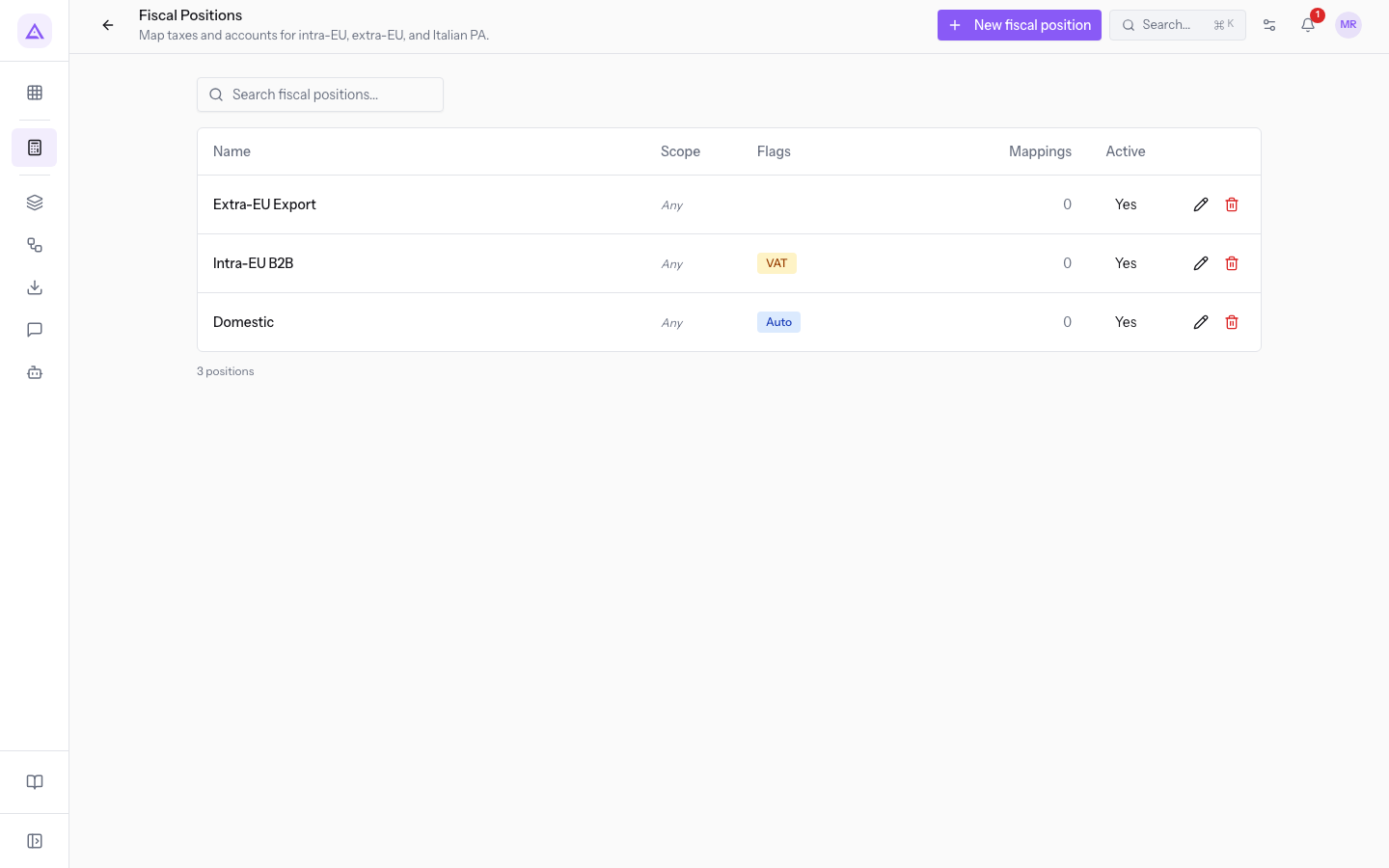
Note: if the list is empty, the page shows No fiscal positions yet. Use “New fiscal position” to add one.
Creating a fiscal position
Create a fiscal position for each rule that changes the taxes of a group of customers or suppliers.
- On the Fiscal Positions page, press New fiscal position.
- Fill in the form fields.
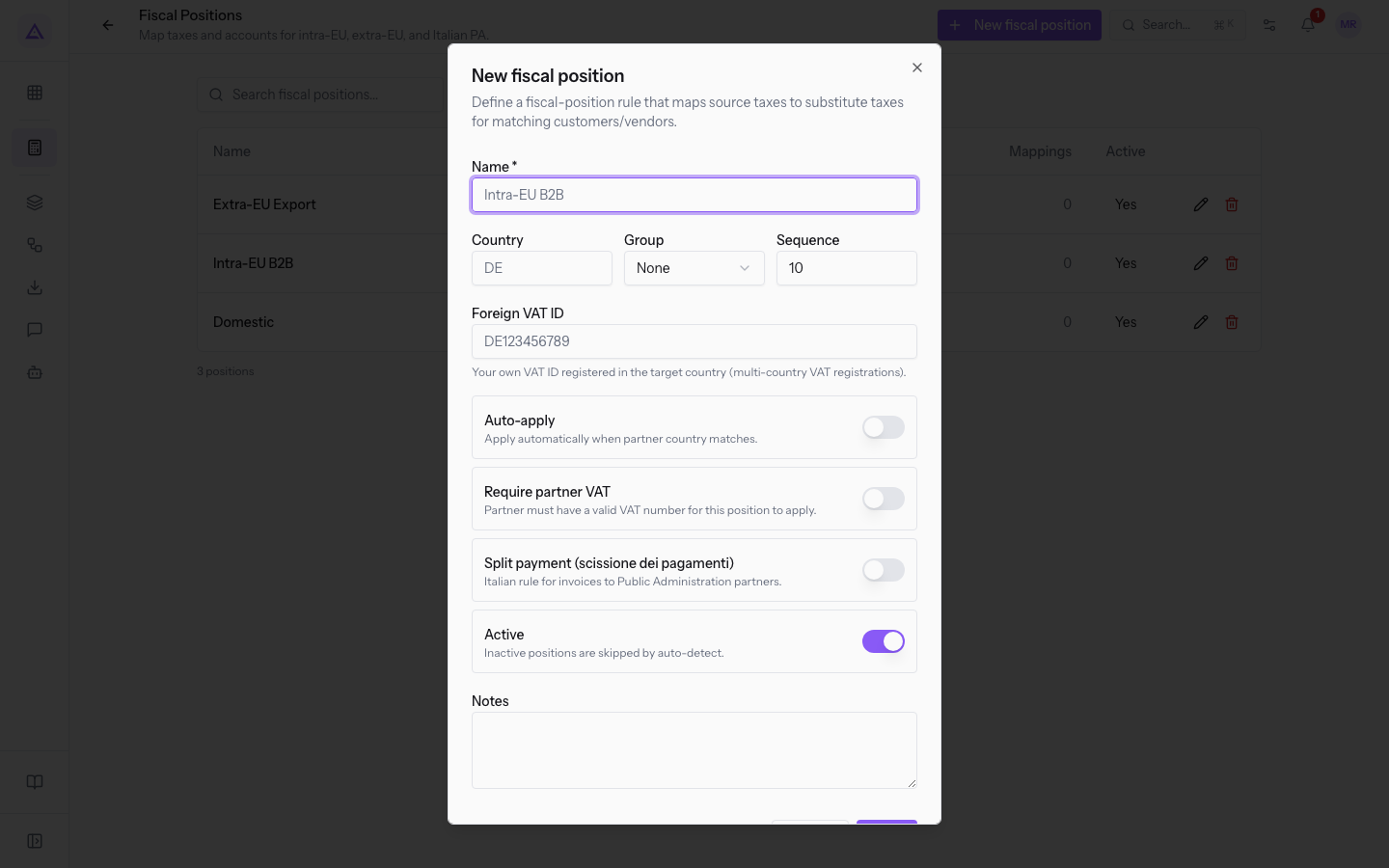
- Press Save. The product confirms with Fiscal position created.
The form fields are:
- Name: the name of the fiscal position, for example
Intra-EU B2B. The field is required. - Country: the country the position applies to, with the country code, such as
DE. - Group: a group of countries. The options are:
- None: no group. This is the starting value.
- EU: the countries of the European Union.
- Sequence: a number that sets the order of the fiscal positions.
- Foreign VAT ID: your VAT number in the destination country, for multi-country VAT registrations. For instance
DE123456789. - Auto-apply: a toggle. When it is on, the position applies automatically when the partner's country matches.
- Require partner VAT: a toggle. When it is on, the partner must have a valid VAT number.
- Split payment (scissione dei pagamenti): a toggle for the Italian rule on invoices to Public Administration partners.
- Active: shows whether the position is in use. The value appears in the Active column of the list.
- Notes: free text.
To change a fiscal position, press Edit on its row. The product confirms with Fiscal position updated. To delete it, press Delete and confirm in Delete fiscal position?.
Adding tax mappings
Mappings show which tax is replaced and with which one. You add them from the fiscal position's page.
- On the Fiscal Positions page, open the fiscal position. The page shows the Tax mappings section.
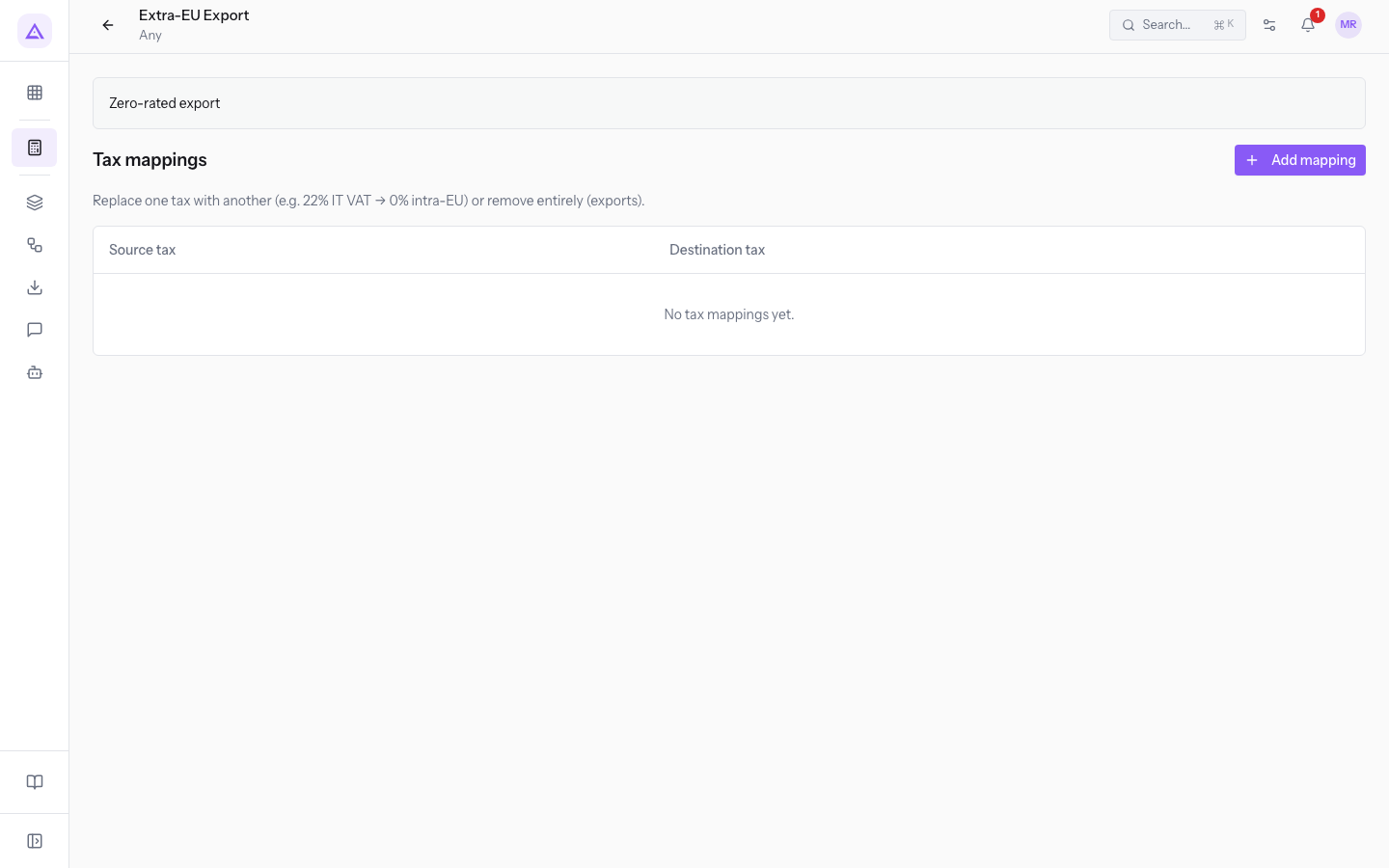
- Press Add mapping.
- Choose the Source tax and the Destination tax.
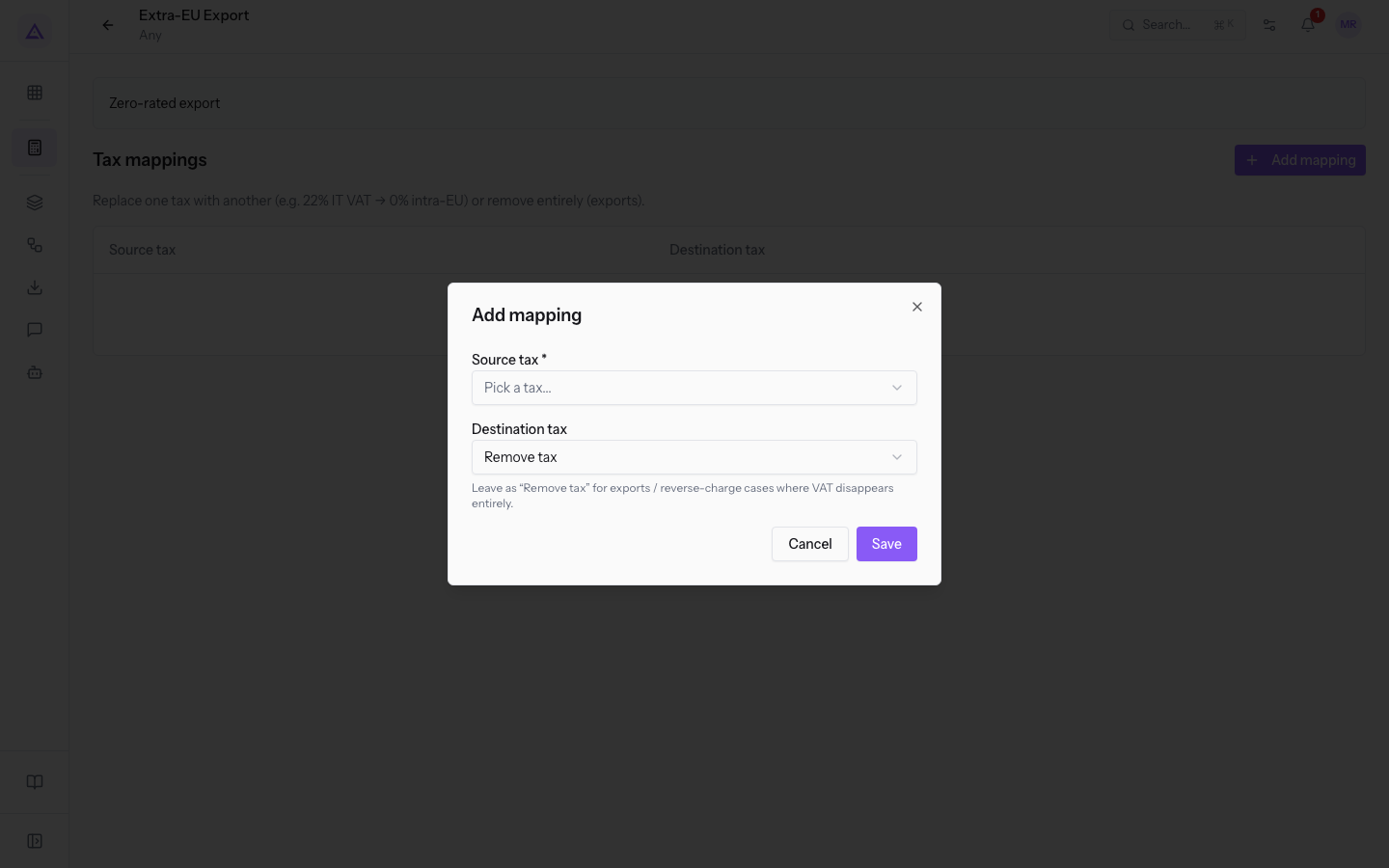
- Press Save.
The fields in the Add mapping dialog are:
- Source tax: the tax that the fiscal position replaces. The field is required.
- Destination tax: the tax that replaces it. The starting value is Remove tax: leave it for exports and reverse charge, where VAT does not apply.
Exchange rates
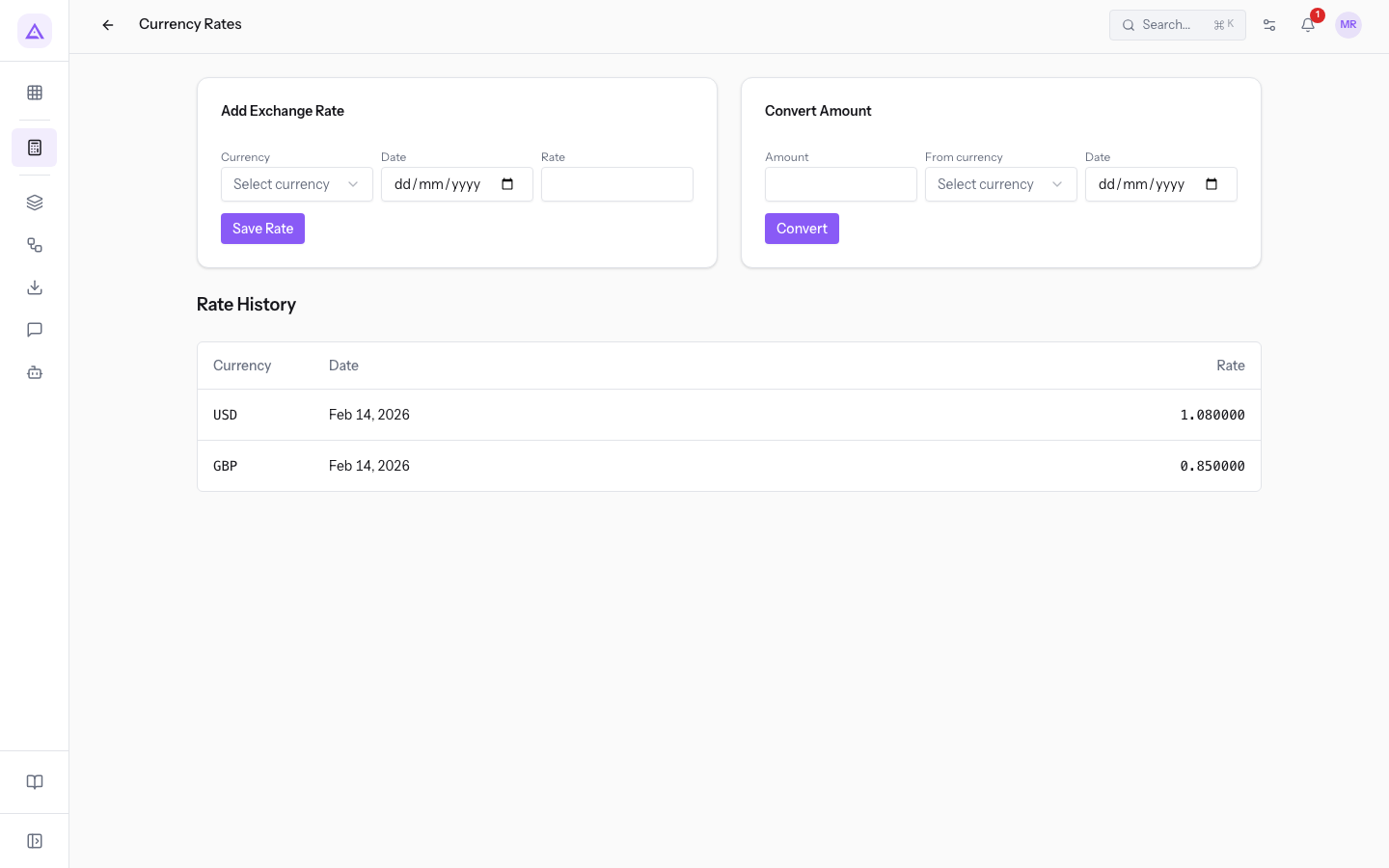
The Currency Rates page records the rate of a currency on a date, converts an amount and shows the rate history.
Adding an exchange rate
Record a rate for each currency and date you need.
- In the Add Exchange Rate panel, choose the Currency.
- Enter the Date and the Rate.
- Press Save Rate.
The fields in the panel are:
- Currency: the currency of the rate. The currencies available in the demo are CHF, EUR, GBP, JPY and USD.
- Date: the date the rate applies to.
- Rate: the exchange rate of the currency.
Converting an amount
The Convert Amount panel calculates the equivalent of an amount using the recorded rates.
- Enter the Amount.
- Choose the starting currency and the Date.
- Press Convert.
Viewing the history
The Rate History section lists the recorded rates, with the Currency, Date and Rate columns.
FX revaluation
The FX Revaluation updates the EUR value of foreign-currency exposures at period end. Use it when a period closes and you still have open receivables or payables in foreign currency.
Before you start: record the exchange rate of the currencies on the revaluation date in the Currency Rates page. The accounting settings must have the accounts for exchange gains and exchange losses configured.
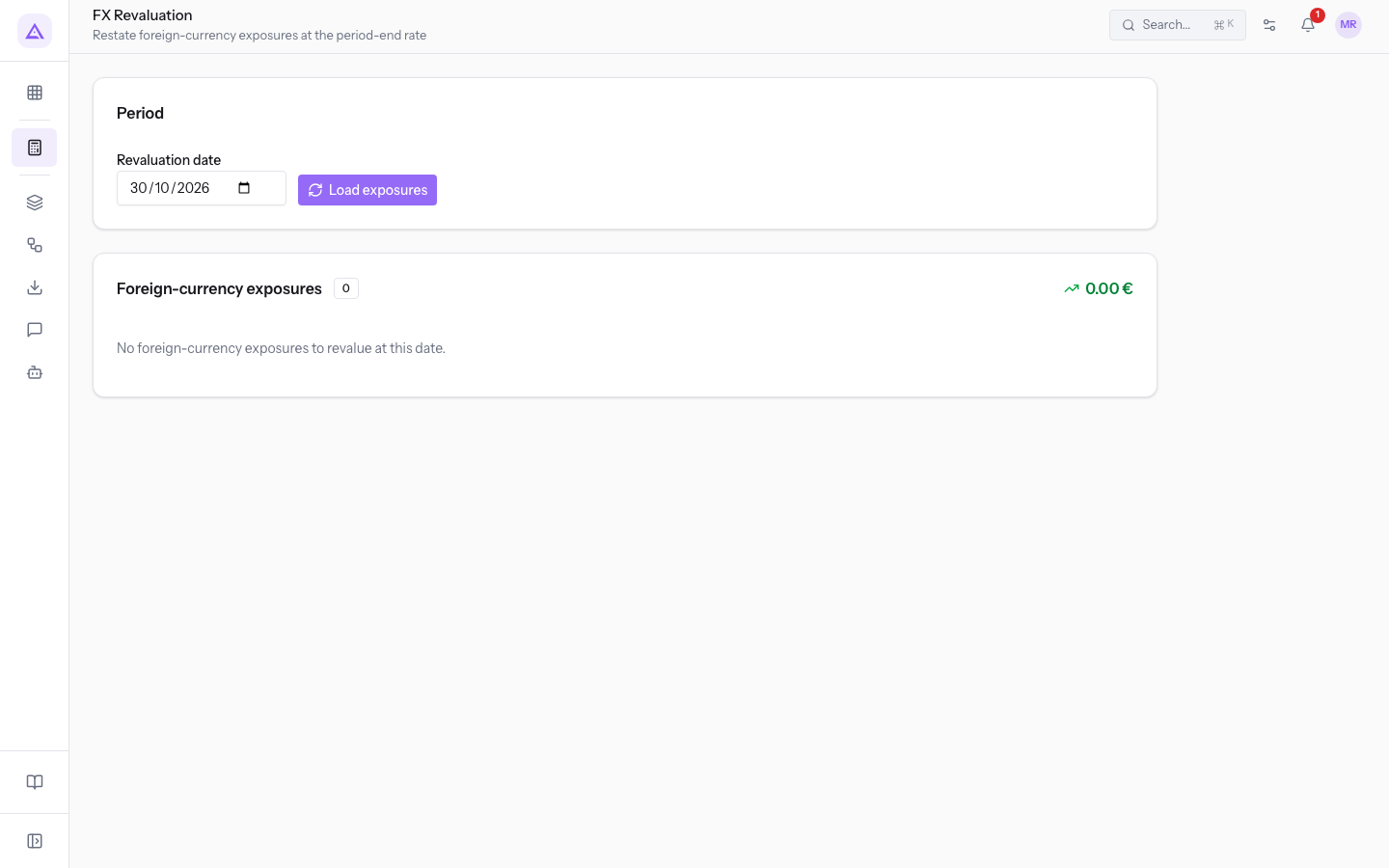
- On the FX Revaluation page, enter the Revaluation date in the Period panel. The starting value is the last day of the previous month.
- Press Load exposures. The Foreign-currency exposures section shows the number of exposures and their total.
- Choose the FX gain account and the FX loss account.
- Press Post revaluation.
Note: if there are no open foreign-currency amounts on the date, the page shows No foreign-currency exposures to revalue at this date. The demo has no foreign-currency exposures.
The revaluation is recorded on the chosen date and reversed automatically the next day. This way, when the payment is reconciled, the realized gain or loss is calculated on the original value.
Important: only one revaluation is recorded per date. If one already exists, the product reports it and does not record another.
Reversing a revaluation
To cancel the effect of a recorded revaluation, press Reverse revaluation. The product confirms with the reversed revaluation message and the reversal date.
See it on your company, not on a slide deck.
In 30 minutes we map the software you use today.We show you how much work and how much margin Archimedes gives back.
Show me on my business →What industry are you in?
One tap — it lets us prepare the demo around your world.
What tools do you use today?
Pick the ones you recognise — or just type them. It helps us show you how they migrate.
Last step: your details.
We reply within one working day — and right after, if you like, you pick the demo slot yourself.
We couldn't send your request. Try again, or write to us at [email protected].
By sending, you agree to your data being processed so we can get back to you about the demo. Privacy notice.
Preview form — nothing is sent from this page.
Want to schedule the demo now?
Your call: book the slot you prefer yourself, or we'll call you to arrange it.
Live availability, 30 minutes, instant confirmation. The calendar opens in a new tab.
Lock in your slot ↗We'll get back to you within one working day — and we'll join the call already knowing your world.
The calendar is open in another tab: pick a slot and the demo is booked. Can't see it? Reopen it ↗
Preview page: nothing was sent.
Our calendar is live: take the slot that suits you and the demo is booked. 30 minutes, instant confirmation, no waiting.
Lock in your slot ↗