Accounting
All modules
Planning with budgets and cost centers
Accounting · 14 of 17 · 6 min read
Budgets set the planned amounts for a period and compare them with what is recorded in accounting. Analytic accounting cost centers split costs and revenues by activity, for example catering and events, furniture sales, or a single project.
Budgets and cost centers: when to use them
A budget covers a period with a start date and an end date. Each budget line plans an amount on an account of the chart of accounts, on a cost center, or on both.
- If you want to control an account as a whole, for example
4100 — Product Sales, create a line with only the account. - If you want to control an activity that uses several accounts, such as the cost center
Catering and events, create a line with the cost center. - If you want to control an account only for a certain activity, specify both the account and the cost center.
The demo has Budget 2026, in the Confirmed status, and 2027 events season budget, in the Draft status. The cost centers are Catering and events, Furniture sales, Administration and Bianchi & Associates office fit-out (Bianchi & Associates office fit-out).
The budget list
The list shows all the budgets of the organization.
- Open Accounting › Budgets.
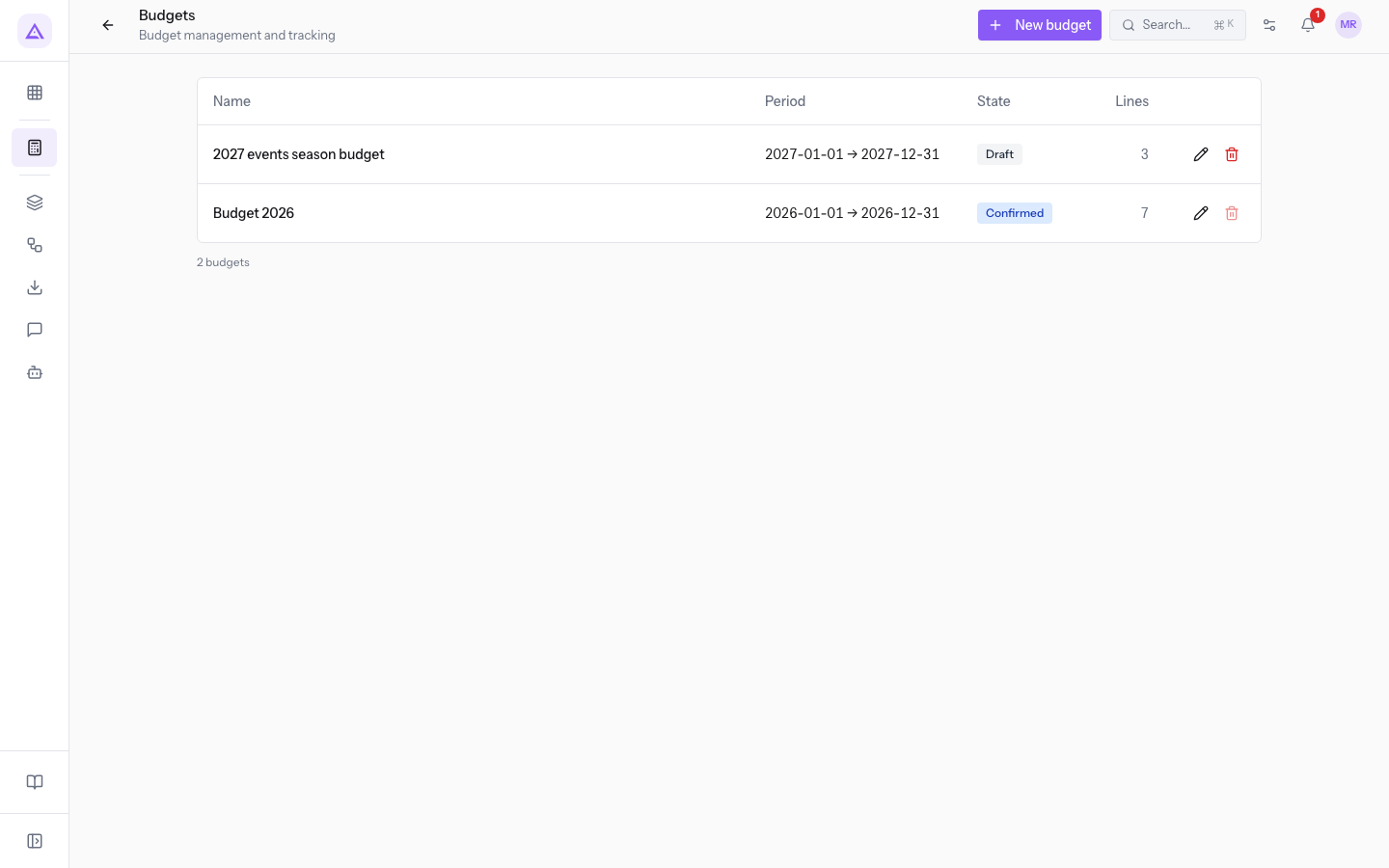
For each budget the list shows these columns:
- Name: the name of the budget.
- Period: the start and end dates, for example
2026-01-01 → 2026-12-31. - State: the status of the budget, such as Draft or Confirmed.
- Lines: the number of planned lines.
From each row of the list you can use Edit to change the name and period, and Delete to delete the budget.
Creating a budget
Create a budget for each period you want to plan, for example a year or a season.
- Open Accounting › Budgets.
- Press New budget.
- Fill in the fields and press Save.
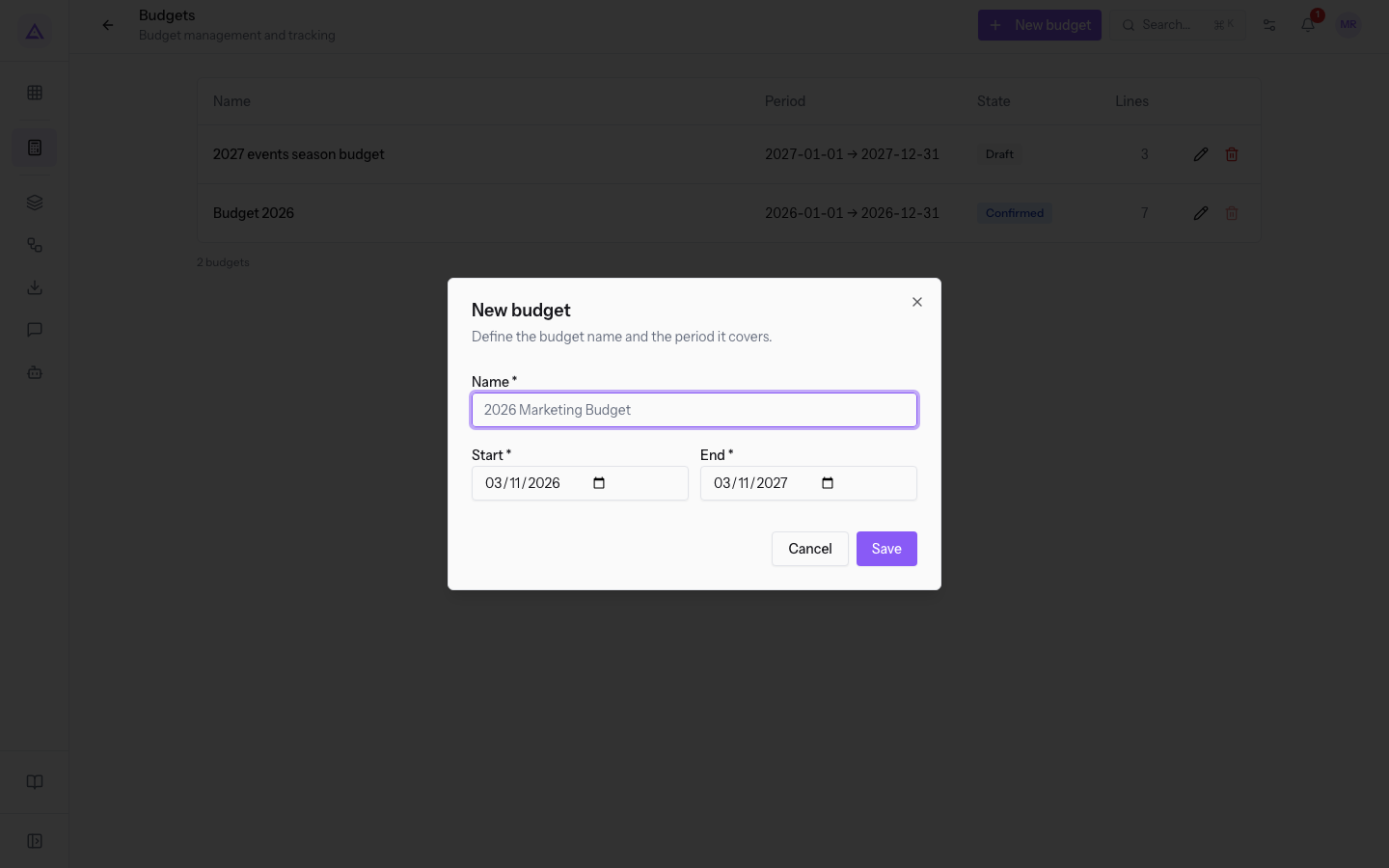
- Name: the name of the budget, such as
2027 events season budget. The field is required. - Start: the start date of the period. The field is required and is pre-filled with today's date.
- End: the end date of the period. The field is required and is pre-filled with today's date of the following year.
The new budget is in the Draft status.
Adding lines to the budget
Lines are added while the budget is in Draft: only then does the page show Add line.
- Open Accounting › Budgets and press the budget, for example
2027 events season budget. - Press Add line.
- Fill in the fields and press Save.
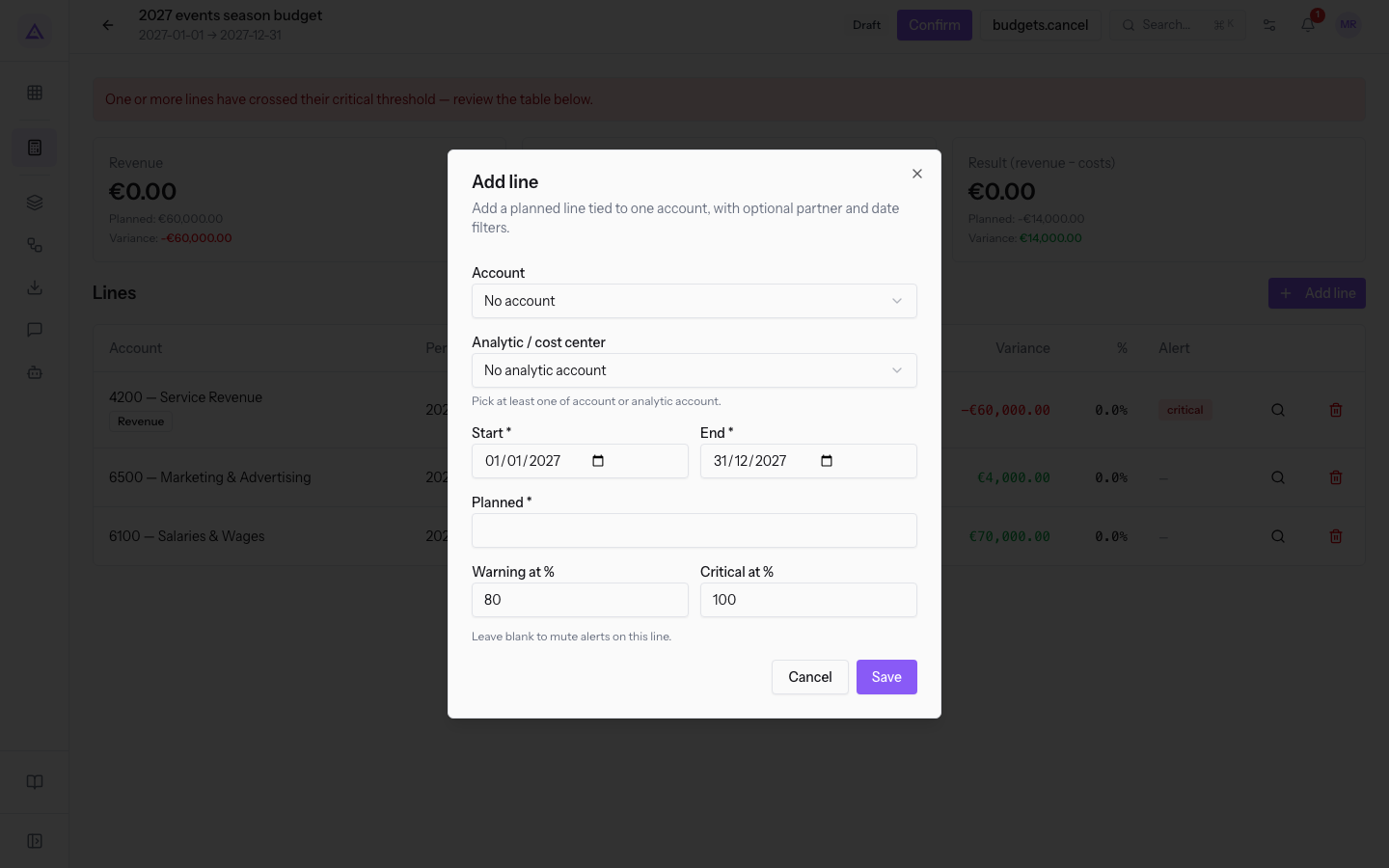
- Account: the account of the chart of accounts on which you plan the amount, such as
4100 — Product Salesor5200 — Cost of Services. The initial value is No account. - Analytic / cost center: the analytic account on which you plan the amount, chosen from the cost centers of Analytic Accounting. The initial value is No analytic account.
- Start, End and Planned: the period of the line and the expected amount. They are required.
- Warning at % and Critical at %: the percentages at which the line shows an alert. Leave them blank to mute alerts on this line.
Important: specify at least one of account and cost center.
Reading the budget page
The page compares, line by line, the planned amount with the amount recorded in accounting.
- Open Accounting › Budgets and press the budget, for example
Budget 2026.
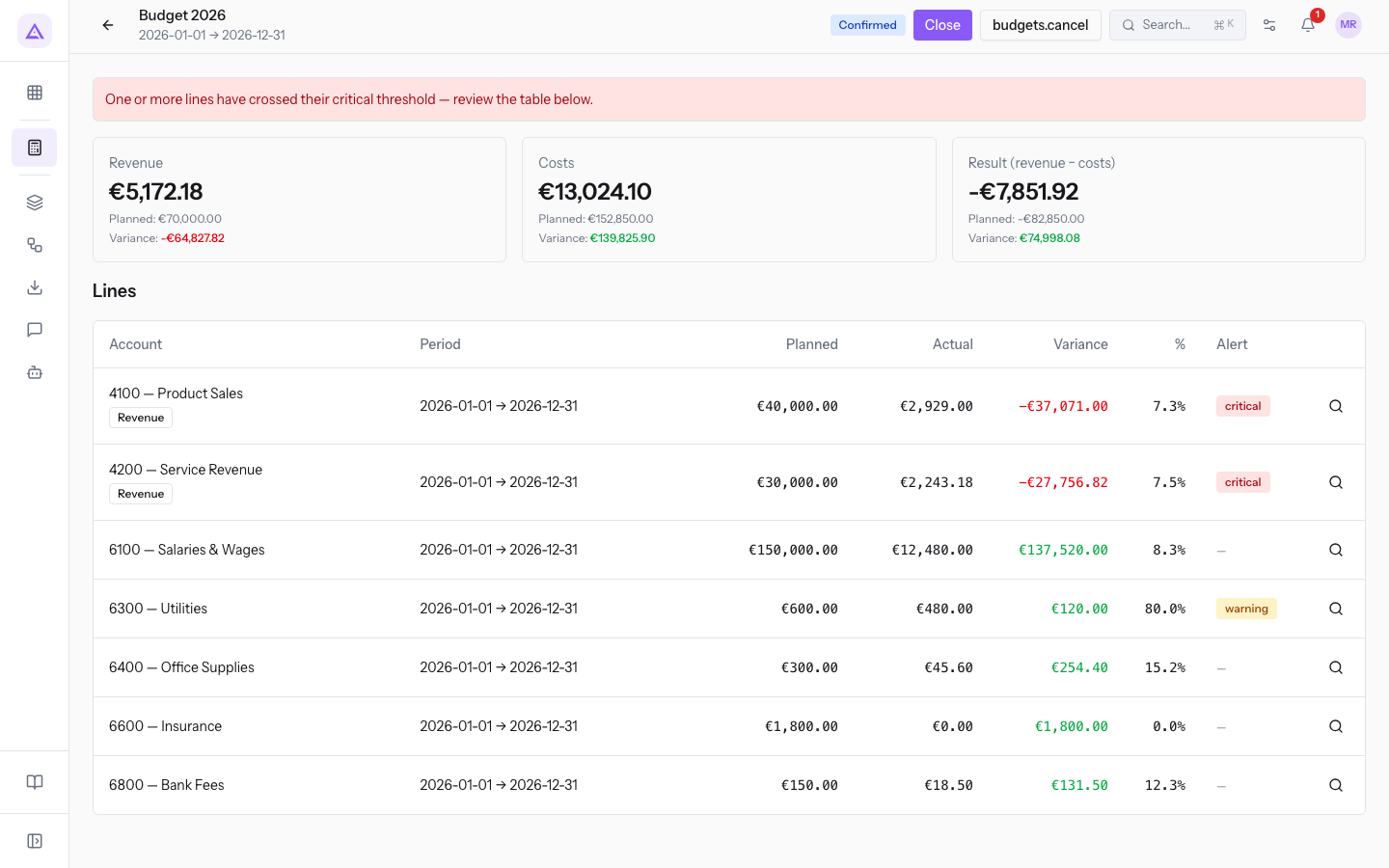
At the top the page shows the name, the period and the status of the budget. Then come the totals:
- Revenue: the total actual revenue, with the total planned below it.
- Costs: the total actual costs, with the total planned below it.
- Result (revenue − costs): the difference between revenue and costs.
The Lines table shows these columns for each line:
- Planned: the expected amount.
- Actual: the amount recorded on the account or cost center in the period of the line.
- Variance: the difference between actual and planned.
From each line you can open the list of journal entries that make up the actual amount, such as those of account 4100 in Budget 2026. The list shows the period, the actual amount and, for each transaction, date, journal and reference, description, partner and amount, such as invoice FV/2026/0001 of Bianchi & Associates. From each transaction you can open its journal entry.
Confirming, closing and cancelling a budget
The buttons at the top of the page change with the status of the budget.
- In Draft the page shows Confirm, Add line and a button to cancel the budget. Press Confirm when the lines are complete.
- In Confirmed the page shows Close and the button to cancel the budget. Lines can no longer be added. Press Close at the end of the period.
The statuses of a budget are Draft, Confirmed, closed and Cancelled.
Creating plans and cost centers
In Analytic Accounting cost centers are grouped into plans. Each plan collects the cost centers of one criterion, for example by department or by project.
- Open Accounting › Settings and choose the Analytic Accounting tab.
- On the Plans & Accounts tab press New plan.
- Fill in the fields and press Save.
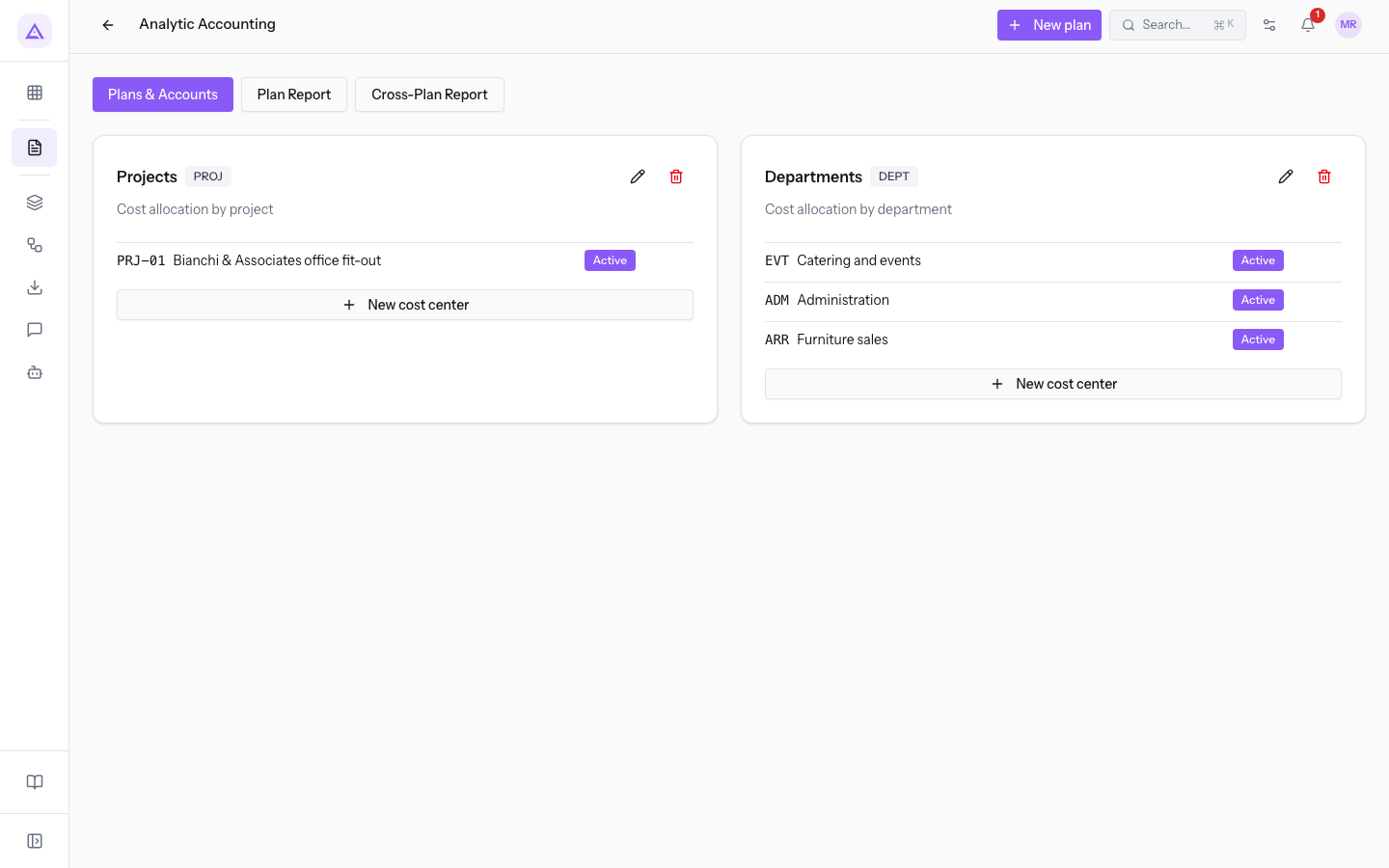
- Plan name: the name of the plan. The field is required.
- Code: a short code of the plan.
- Description: what the plan is for.
- Active: whether the plan is in use.
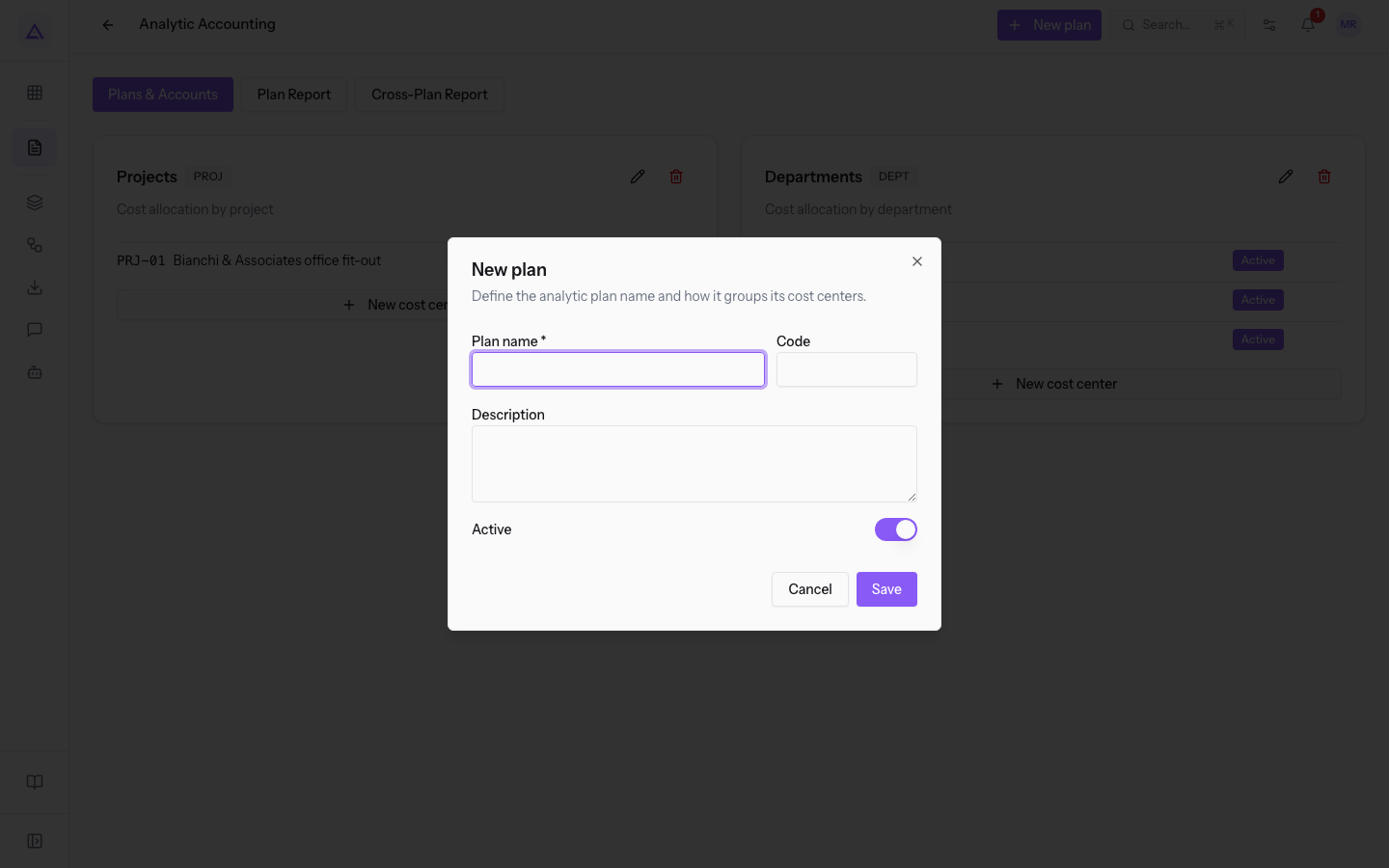
To add a cost center to a plan:
- On the Plans & Accounts tab press New cost center under the plan.
- Fill in the fields and press Save.
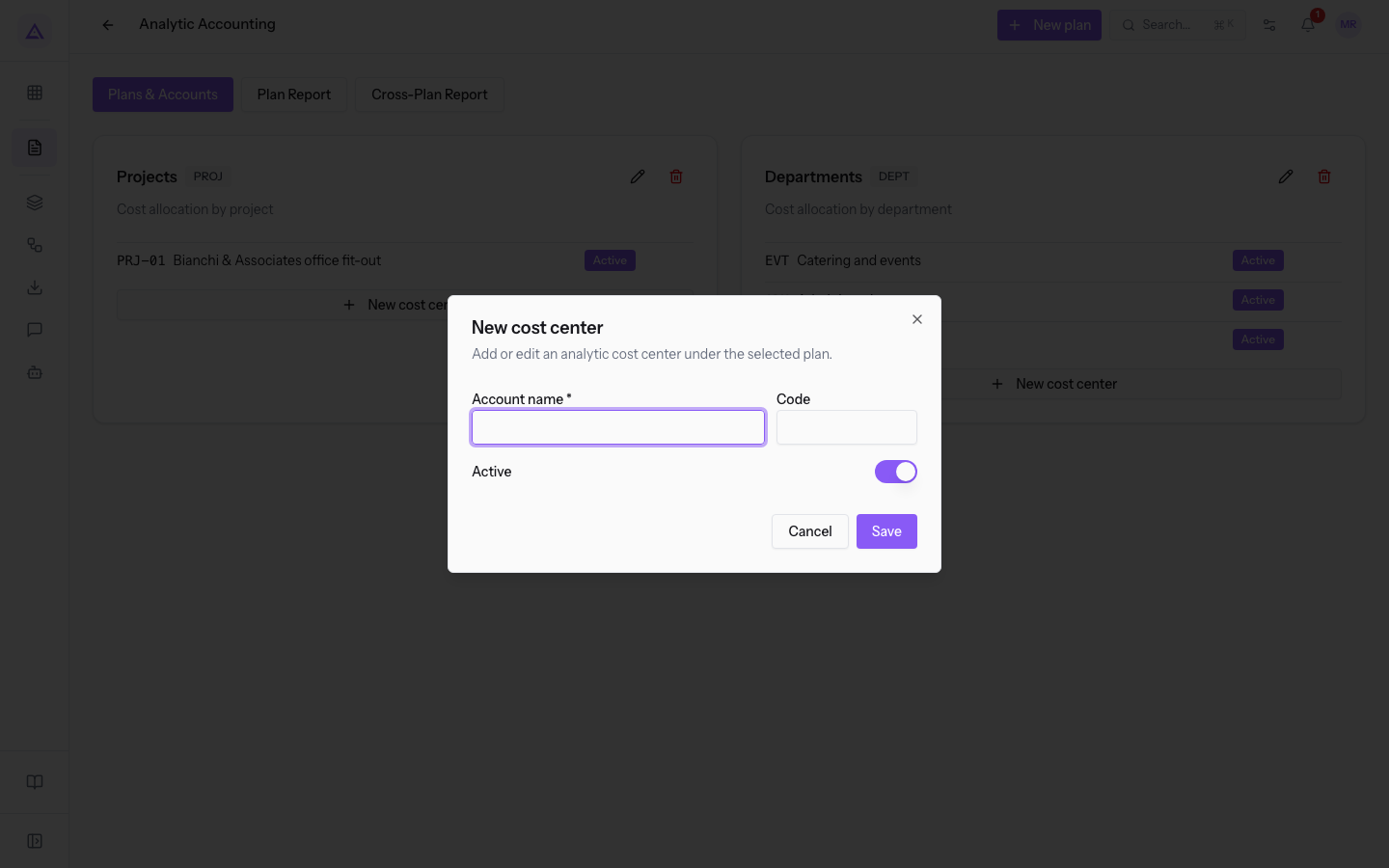
- Account name: the name, such as
Bianchi & Associates office fit-out. The field is required. - Code: a short code, such as
PRJ-01. - Active: whether the cost center is in use. It is active from the start.
With Edit and Delete you can change or delete a plan or a cost center.
Plan Report and Cross-Plan Report
The two reports show the amounts recorded on the cost centers.
- Open Accounting › Settings and choose the Analytic Accounting tab.
- Press Plan Report and choose the plan in Select plan....
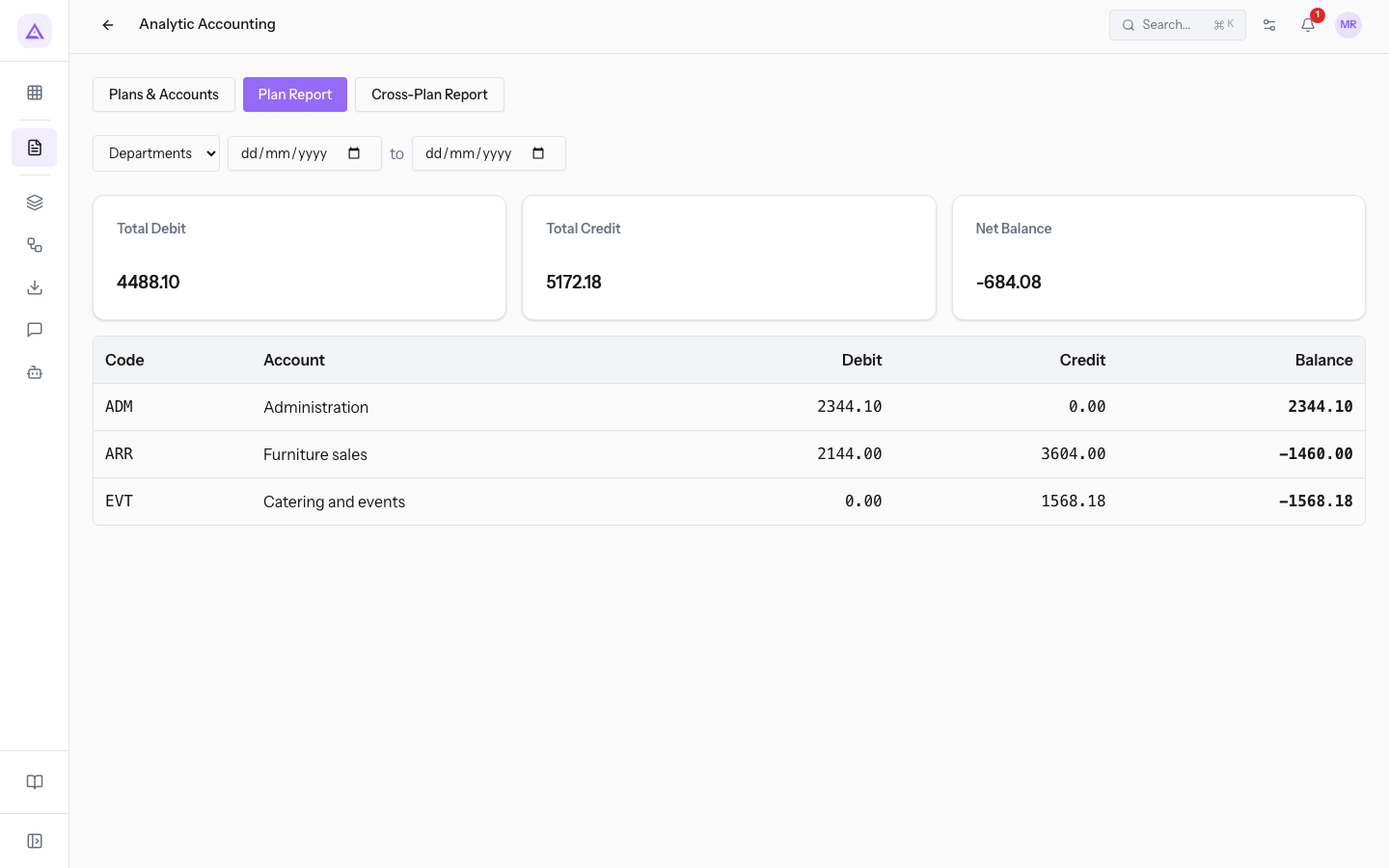
The Plan Report shows the Total Debit, Total Credit and Net Balance of the plan, then the detail for each cost center with Code and Account.
- Press Cross-Plan Report to cross the accounts of the chart of accounts with the cost centers.
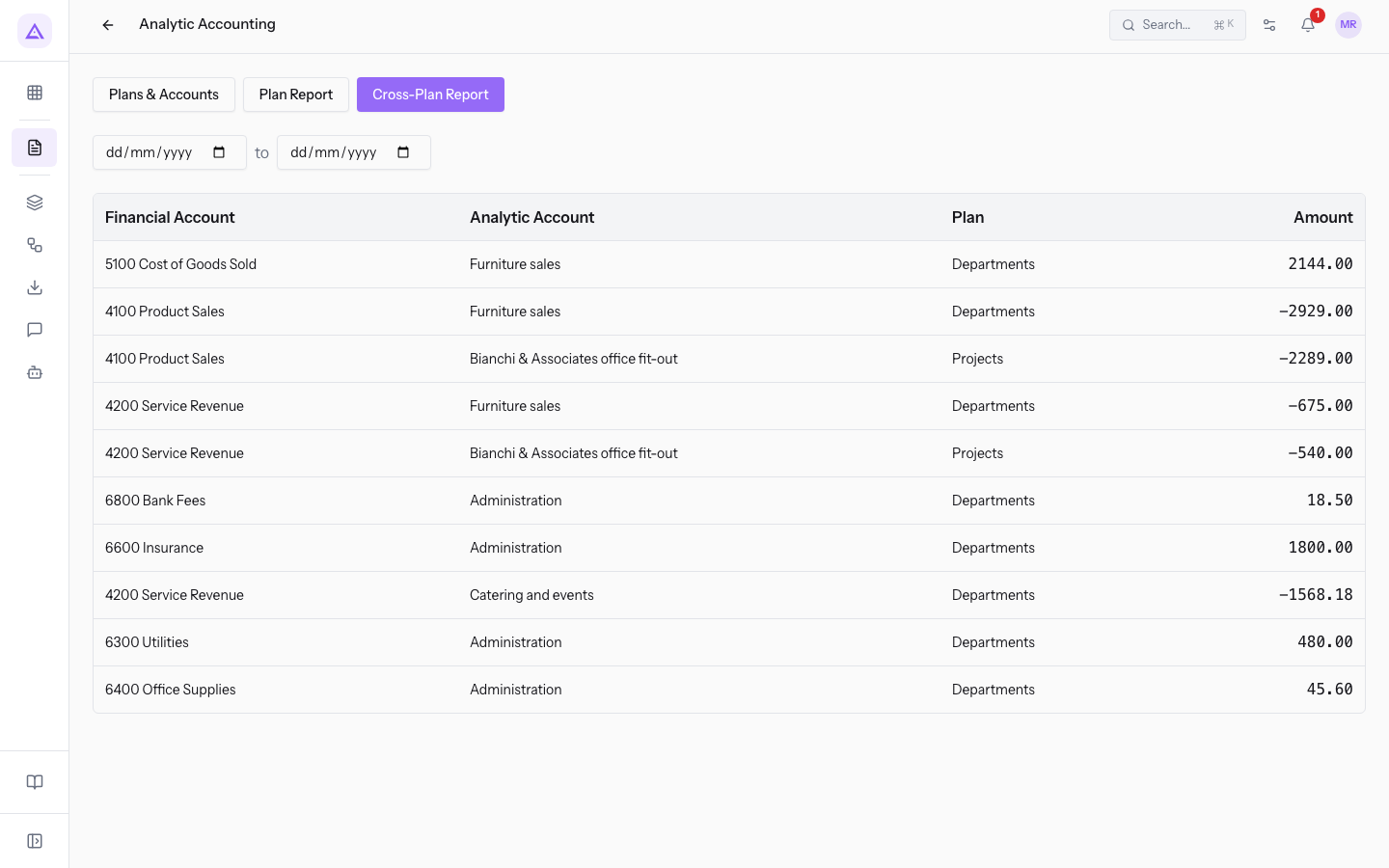
The Cross-Plan Report has the columns Financial Account, Analytic Account, Plan and Amount, for example the cost center Furniture sales on account 5100.
See it on your company, not on a slide deck.
In 30 minutes we map the software you use today.We show you how much work and how much margin Archimedes gives back.
Show me on my business →What industry are you in?
One tap — it lets us prepare the demo around your world.
What tools do you use today?
Pick the ones you recognise — or just type them. It helps us show you how they migrate.
Last step: your details.
We reply within one working day — and right after, if you like, you pick the demo slot yourself.
We couldn't send your request. Try again, or write to us at [email protected].
By sending, you agree to your data being processed so we can get back to you about the demo. Privacy notice.
Preview form — nothing is sent from this page.
Want to schedule the demo now?
Your call: book the slot you prefer yourself, or we'll call you to arrange it.
Live availability, 30 minutes, instant confirmation. The calendar opens in a new tab.
Lock in your slot ↗We'll get back to you within one working day — and we'll join the call already knowing your world.
The calendar is open in another tab: pick a slot and the demo is booked. Can't see it? Reopen it ↗
Preview page: nothing was sent.
Our calendar is live: take the slot that suits you and the demo is booked. 30 minutes, instant confirmation, no waiting.
Lock in your slot ↗