Appointments
All modules
Checking who modified appointments
Appointments · 15 of 16 · 4 min read
The Appointments Log lists everything that has happened to the organization's appointments, starting from the most recent. It shows you who created, modified, canceled, deleted or restored an appointment, when they did it, and what changed. It is useful, for example, to find out who rescheduled a tasting session, who canceled a site visit, or which appointment was deleted.
Opening the appointments log
The log is opened from the appointments page.
The appointments log is restricted to the organization's owner and administrators: for other users, the Log button does not appear.
- Open Appointments.
- Click Log, in the upper right next to New Appointment.
- The Appointments log page opens, listing actions from the most recent.
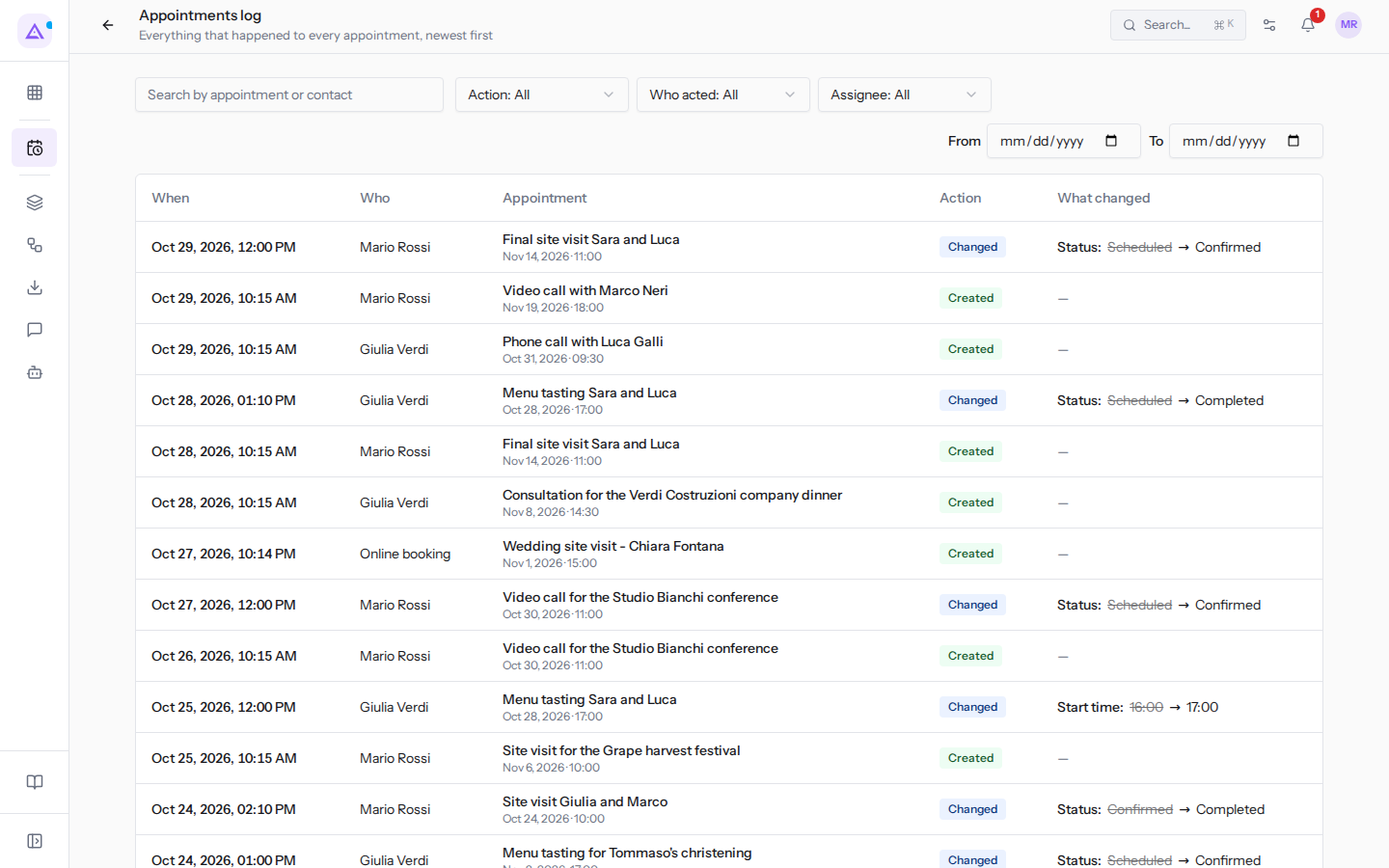
Reading a log row
Each row is a single action on an appointment. An appointment modified multiple times appears in multiple rows, one for each modification.
- When: the date and time of the action, for example
Oct 24, 2026, 01:00 PM. - Who: who performed the action. This is a member of the organization, for example Giulia Verdi, or Online booking when the appointment was booked via the public link.
- Appointment: the title of the appointment, with the date and time it takes place, for example Menu tasting Sara and Luca, Oct 27, 2026 at 17:00.
- Action: the type of action.
- Created: the appointment was created, manually or via an online booking.
- Changed: a detail of the appointment changed, for example the status or start time.
- Canceled: the appointment was canceled.
- Deleted: the appointment was deleted.
- Restored: the appointment was restored.
- What changed: the modified detail, with the before and after values. For a creation or deletion, the column shows a dash.
Some examples:
- The Sara e Luca tasting was rescheduled by Giulia Verdi: action Changed, start time from 16:00 to 17:00.
- The Giulia and Marco site visit was confirmed and then completed by Mario Rossi: two Changed rows, with the status from Scheduled to Confirmed and then from Confirmed to Completed.
- The Anna e Paolo site visit was canceled by Mario Rossi: action Canceled, status from Scheduled to Canceled.
- The Chiara Fontana site visit was booked via the website: action Created, who acted Online booking.
- A duplicate of the Giulia and Marco site visit was deleted by Giulia Verdi: action Deleted.
Note: a deleted appointment no longer appears in the calendar, but remains in the log. Next to its title the label «(deleted)» appears, in all its rows.
To open an appointment, click its row: the appointment detail opens. In the Discussion panel of the detail, the History icon shows all the changes to that appointment. The rows of a deleted appointment cannot be opened, because the detail no longer exists.
Filtering and searching the log
The filters at the top of the page narrow the list. You can combine them with each other and with the search.
- Type the appointment title or contact name in the Search by appointment or contact field, for example
Sara e Luca. The list updates as you type. - Choose the filter values you need.
- To return to the full list, click Clear filters.
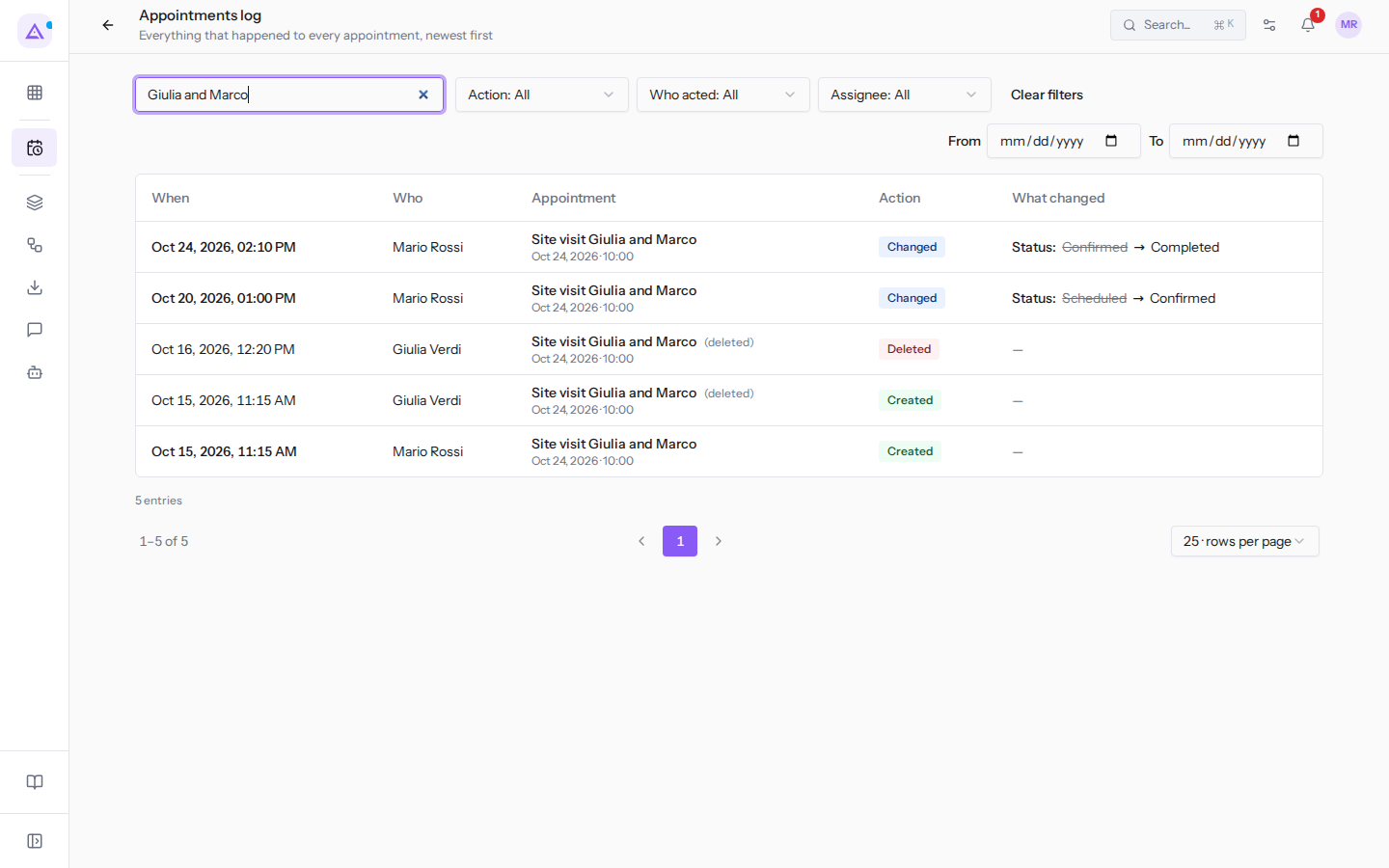
Available filters:
- Action: shows only one type of action. The options are Created, Changed, Canceled, Deleted and Restored. The default value is Action: All.
- Who acted: shows the actions of a single person or a single source. The options are the people who appear in the log (for example Giulia Verdi and Mario Rossi), Online booking, Automation and AI agent. The default value is Who acted: All.
- Assignee: shows actions on appointments assigned to a person, for example Mario Rossi. The default value is Assignee: All.
- From and To: limit the list to a date range.
- Rows per page: how many rows to show per page. The default value is 25. To browse pages, use the Previous page and Next page arrows below the list.
When to use a filter:
- If you are looking for appointments removed from the calendar, choose Deleted in the Action filter.
- If you want to know which appointments came from the website, choose Online booking in the Who acted filter.
- If you want to reconstruct the history of a single appointment, search for its title in the Search by appointment or contact field.
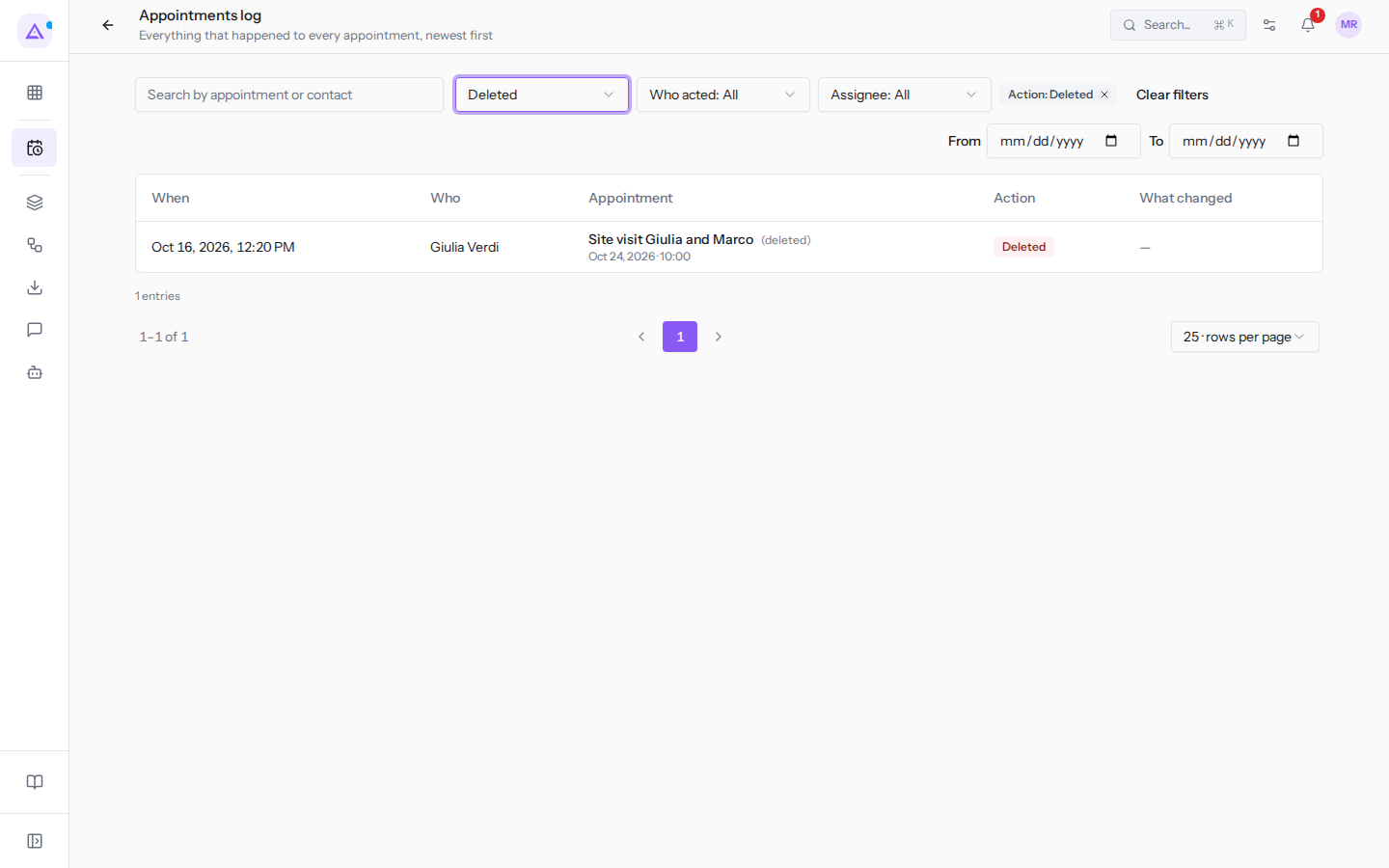
Each active filter appears next to the filters as a label, for example «Action: Deleted». To remove it, click the × icon on the label.
See it on your company, not on a slide deck.
In 30 minutes we map the software you use today.We show you how much work and how much margin Archimedes gives back.
Show me on my business →What industry are you in?
One tap — it lets us prepare the demo around your world.
What tools do you use today?
Pick the ones you recognise — or just type them. It helps us show you how they migrate.
Last step: your details.
We reply within one working day — and right after, if you like, you pick the demo slot yourself.
We couldn't send your request. Try again, or write to us at [email protected].
By sending, you agree to your data being processed so we can get back to you about the demo. Privacy notice.
Preview form — nothing is sent from this page.
Want to schedule the demo now?
Your call: book the slot you prefer yourself, or we'll call you to arrange it.
Live availability, 30 minutes, instant confirmation. The calendar opens in a new tab.
Lock in your slot ↗We'll get back to you within one working day — and we'll join the call already knowing your world.
The calendar is open in another tab: pick a slot and the demo is booked. Can't see it? Reopen it ↗
Preview page: nothing was sent.
Our calendar is live: take the slot that suits you and the demo is booked. 30 minutes, instant confirmation, no waiting.
Lock in your slot ↗