Appointments
All modules
Creating and editing appointment types
Appointments · 8 of 16 · 7 min read
An appointment type describes what can be booked online and who handles it, for example a wedding venue inspection, a menu tasting or an informational video call. From here you create types, set their duration, schedule, location, reminders and host, and archive or delete them when you no longer offer them.
Before you start: only those who manage appointments can create and edit types. The Booking setup entry is only visible to users with this permission.
Choosing how to set up a type
Some choices determine whether the type is offered online and how it works.
- A type is offered online when it is active, has a schedule with real slots, a host, and that host still has free time.
- If you do not assign a host, the type remains in the catalog but is not bookable and has no public link.
- If you do not choose a schedule, the type offers no slots: this is the case, for example, with Company events consultation.
- If the meeting takes place by video call, choose Online: bookings include the host's meeting link. With In person and Phone there is no link.
- If the schedule changes from a certain date (for example in winter), set a Planned schedule change instead of manually changing the schedule on that day.
- If you no longer want to offer a type but want to keep it, archive it instead of deleting it.
Viewing appointment types
The organization's types are in the Bookables tab of Booking setup.
- Open Appointments › Settings › Booking setup.
- Click the Bookables tab. The list of types appears, with columns Name, Public address, Duration, Hosts and State.
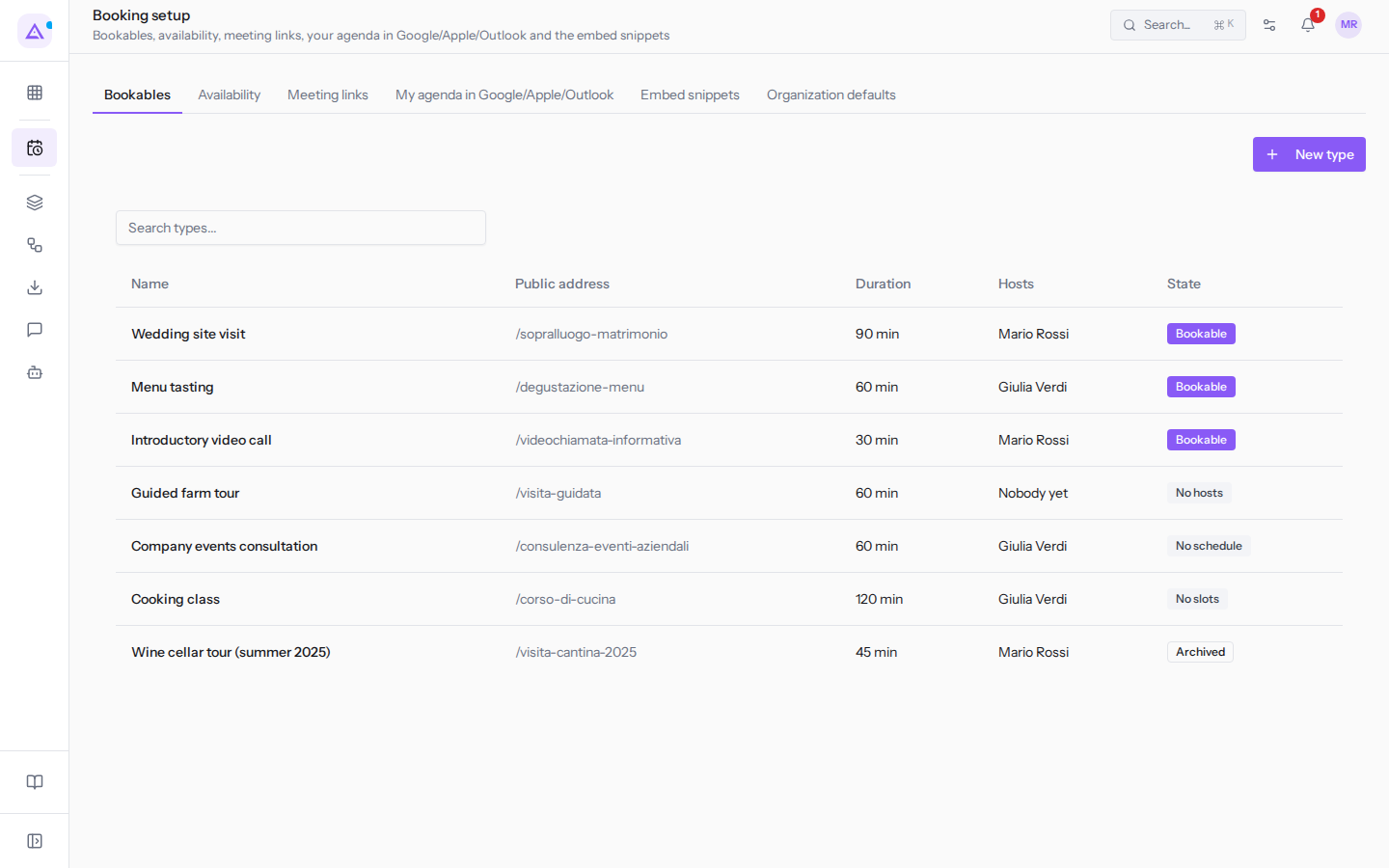
- To find a type, type part of its name in Search types....
If the organization has no types yet, the list shows «No appointment types yet. Create one to have something to offer.».
Creating an appointment type
A new type is created from the type list.
- In Appointments › Settings › Booking setup, Bookables tab, click New type. The New appointment type dialog opens.
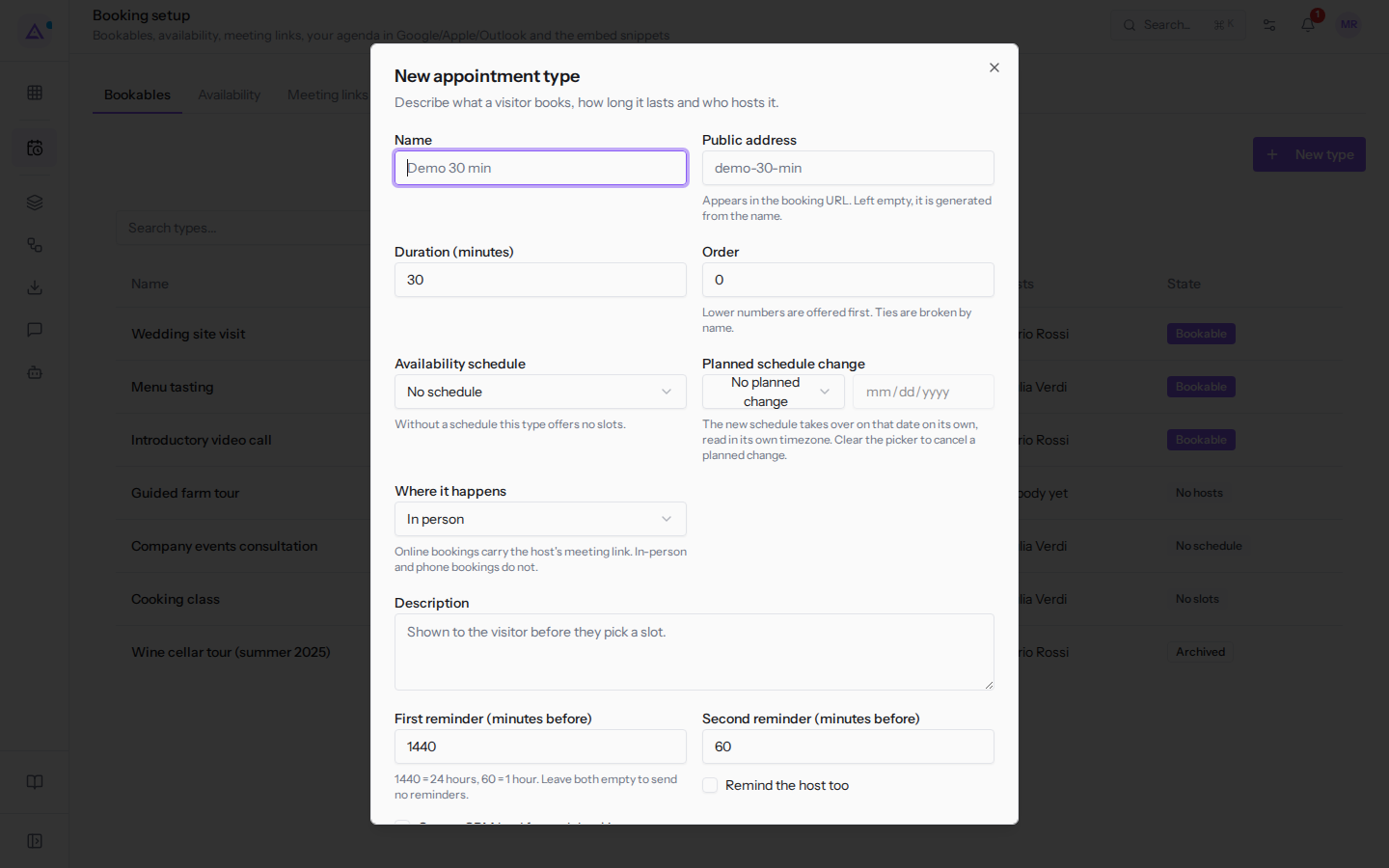
- Fill in the fields described below.
- Click Save. The Appointment type created message appears. To exit without saving click Cancel.
Fields in the dialog:
- Name: the type's name, for example
Wedding site visit. The field is required. - Public address: a short name for the type, made up of lowercase letters, numbers and hyphens. If left blank it is generated from the name, for example
sopralluogo-matrimonio. It is unique within the organization. The hint below the field says it appears in the booking URL, but currently the Public booking link does not contain it: to publish the type always use the link shown in the detail view. - Duration (minutes): how long the appointment lasts, from 5 minutes to 24 hours. The initial value is 30. The field is required.
- Order: lower numbers are listed first. When equal, the name decides. The initial value is 0.
- Availability schedule: the weekly schedule from which bookable slots are generated. The initial value is No schedule; without a schedule the type offers no slots. Archived schedules appear with the label «archived». For example
Booking hours for tours and site visits. - Planned schedule change: another schedule that replaces the type's current one from a set date. The initial value is No planned change.
- Takes over on (the date field next to the schedule change): the date of the planned schedule change. It is required when you choose a change and must be a future date. The new schedule takes effect automatically on that date, read in its own time zone. Clear the picker to cancel a planned change.
- Where it happens: the meeting location. The initial value is In person.
- In person: the meeting takes place in person.
- Phone: the meeting takes place by phone.
- Online: bookings include the host's meeting link.
- Description: the text shown to the visitor before choosing a slot.
- First reminder (minutes before) and Second reminder (minutes before): when reminders are sent, in minutes before the start. 1440 = 24 hours, 60 = 1 hour; these are the initial values. Leave both blank to send no reminders. Each reminder ranges from 5 minutes to 7 days before.
- Remind the host too: when active, the host also receives reminders.
- Open a CRM lead for each booking: each new booking on this type opens a CRM lead for the person who booked. Existing bookings are not affected.
- Host: the person who holds appointments of this type. The initial value is No host yet; the options are users, for example Mario Rossi or Giulia Verdi.
Note: a type has only one host. The bookable slots are those of the type: the host only adds the times when they are already busy.
Important: without a host the type is not bookable. To obtain the public booking link assign a host.
Opening the detail view of a type
The detail view summarizes how a type is set up and whether it is offered online.
- In the Bookables tab, click the type's row, for example
Wedding site visit.
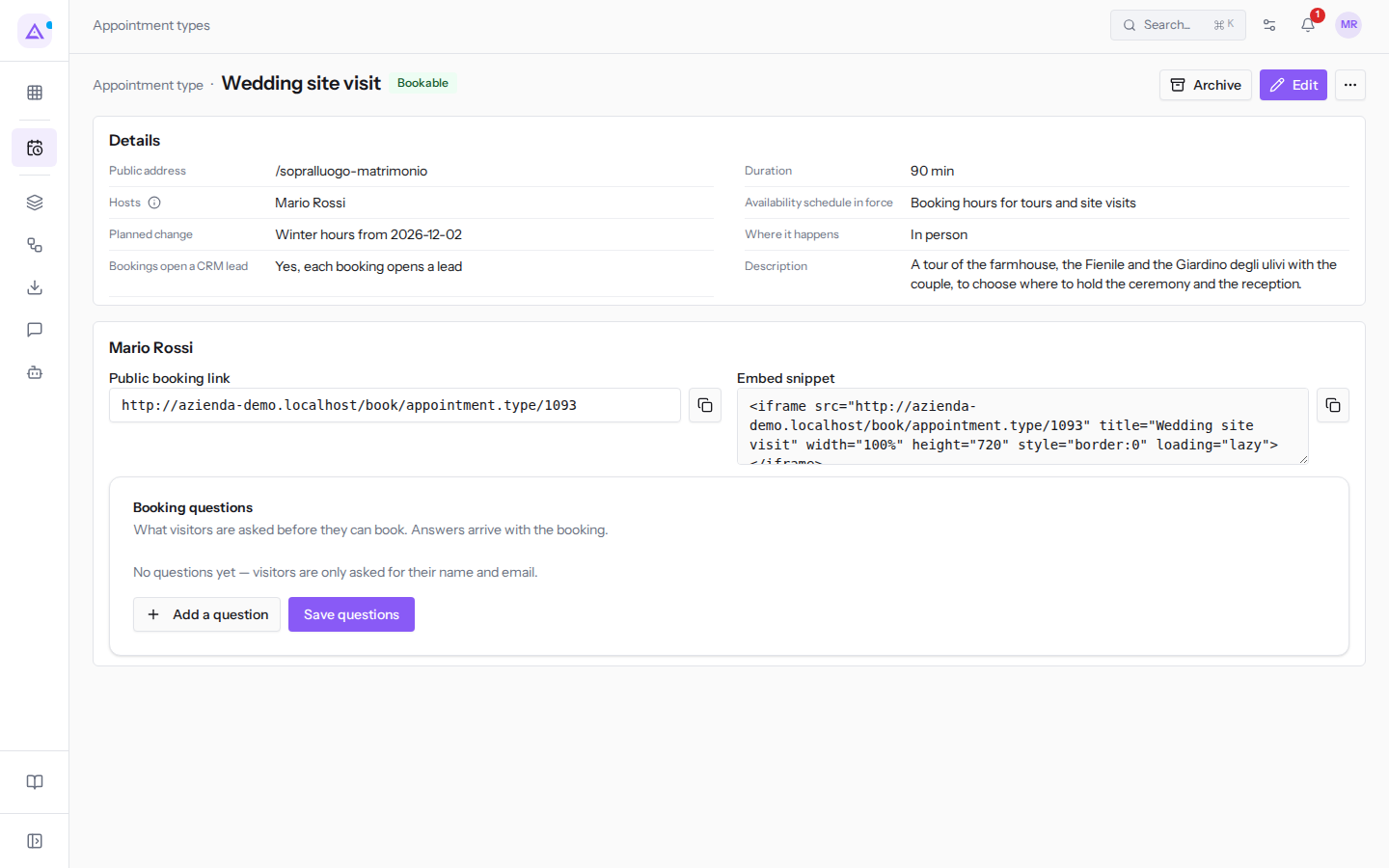
In the header the type's status appears, for example Bookable or Archived, with the Archive (or Restore) and Edit buttons; the More actions icon menu (⋯) contains Delete.
The Details section shows:
- Public address: for example
/sopralluogo-matrimonio. - Duration: for example
90 min. - Hosts: for example Mario Rossi. The information icon next to the label explains when a type is offered online.
- Availability schedule in force: for example
Booking hours for tours and site visits. - Planned change: the new schedule and the date from which it applies, for example
Winter hours from 2026-12-01. - Where it happens: for example In person.
- Bookings open a CRM lead: Yes, each booking opens a lead or No.
- Description: the text shown to the visitor.
Those who manage appointments can change some of these values directly in the Details section, without opening Edit: Public address, Duration, Availability schedule in force, Where it happens, Bookings open a CRM lead (if CRM is active) and Description.
Below the details, in a box titled with the host's name, there are the Public booking link, the Embed snippet and the Booking questions. If the type has no host, «Assign a host to get a public booking link.» appears in their place. To use them, follow the article Publishing the booking link and questions for bookers.
Editing a type
Changes apply to new bookings.
- Open the type detail view.
- Click Edit. The Edit appointment type dialog opens, with the same fields as the creation dialog already filled in.
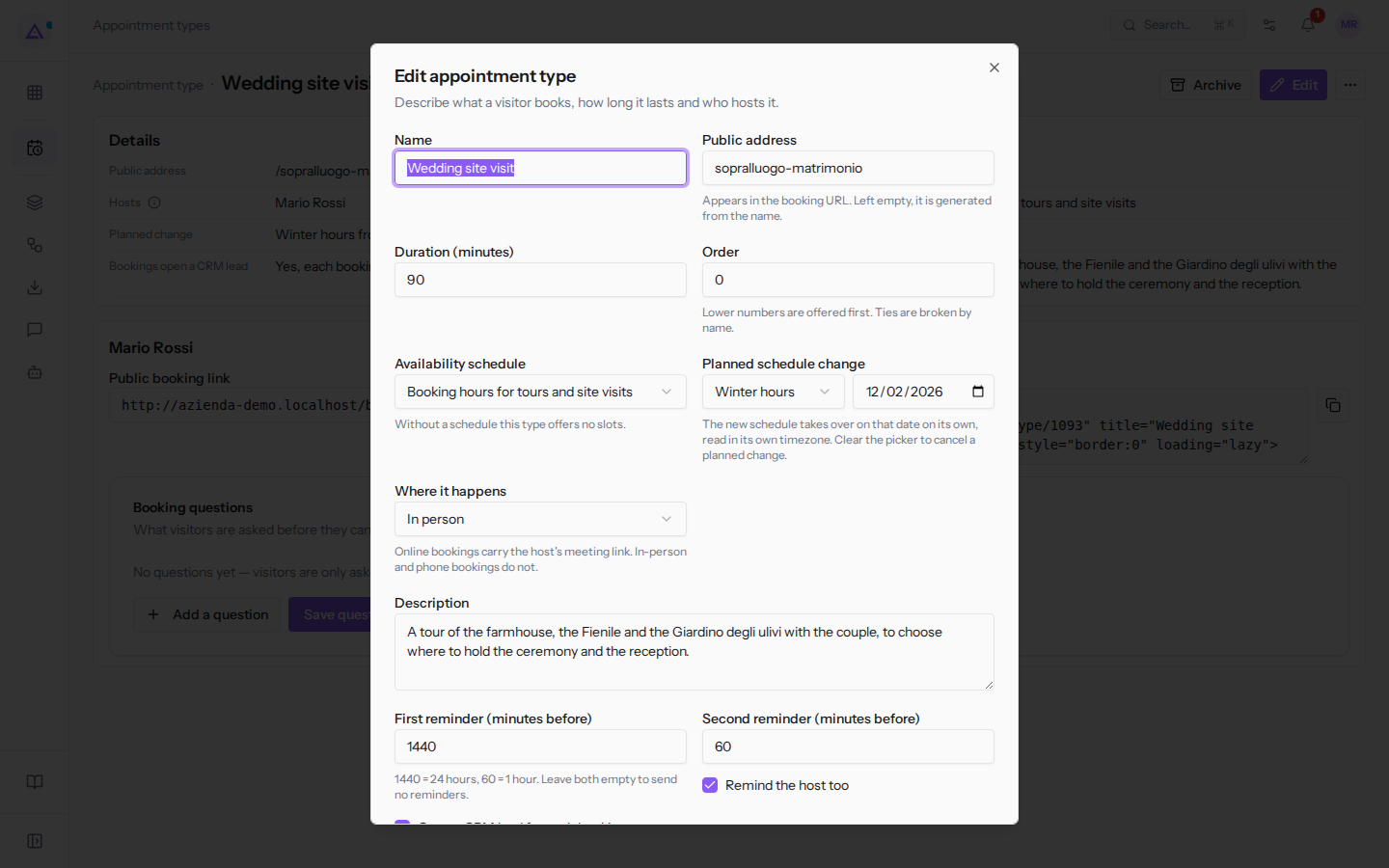
- Change the fields and click Save. The Appointment type updated message appears.
For example, Wedding site visit has Availability schedule Booking hours for tours and site visits and Planned schedule change Winter hours from 12/01/2026.
Note: the Public address cannot be empty.
Archiving and restoring a type
Archiving a type removes it from online booking but keeps the bookings already made.
- Open the type detail view.
- Click Archive. The Appointment type archived message appears and the status becomes Archived.
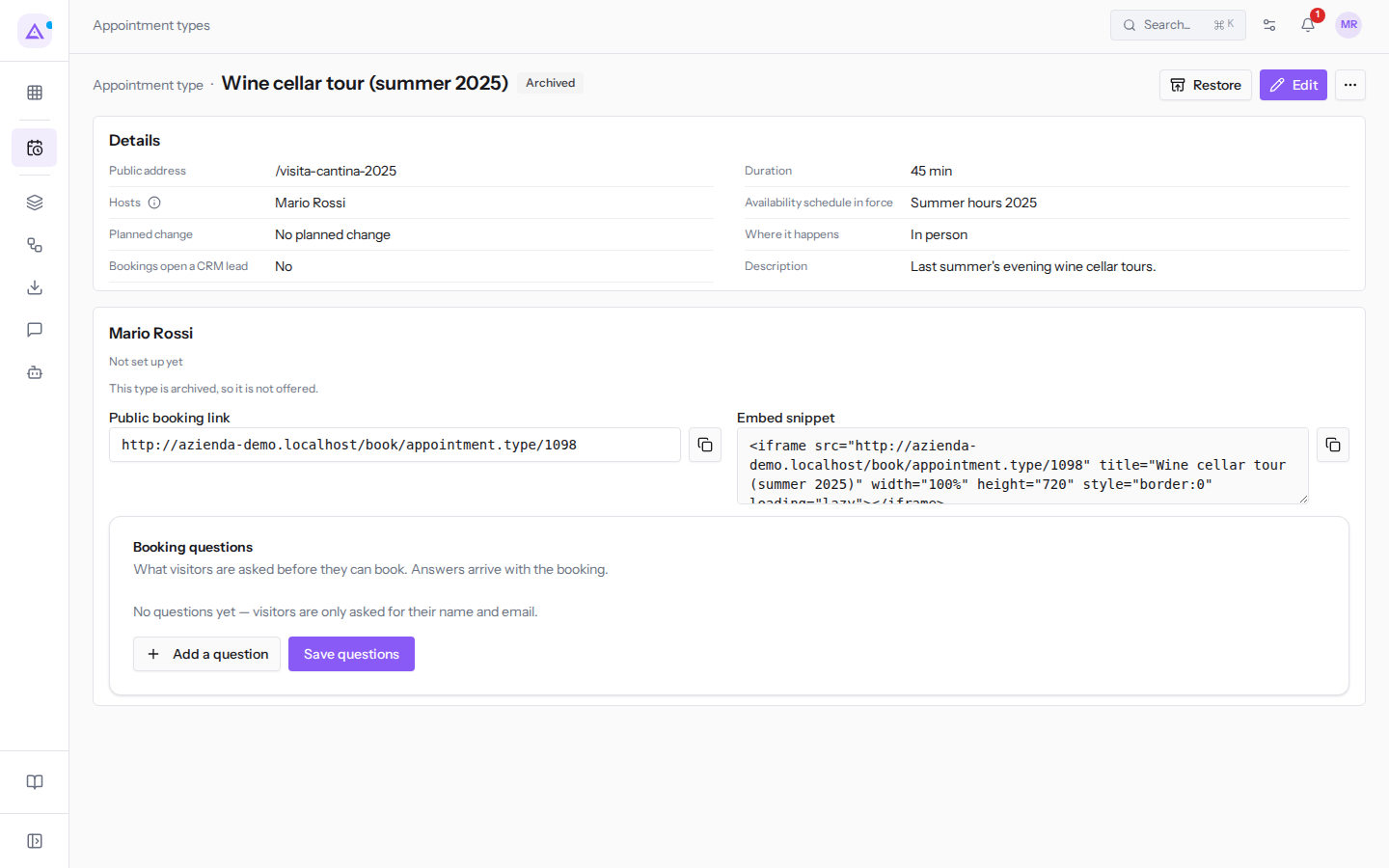
An archived type is not offered, for example Wine cellar tour (summer 2025). In the detail view the public link remains visible, but with the note «This type is archived, so it is not offered.». To offer it again, open the detail view and click Restore: the Appointment type restored message appears.
Deleting a type
Delete a type only if you no longer need it: to remove it from booking, simply archive it.
- Open the type detail view.
- Click the More actions (⋯) icon and choose Delete.
- In the confirmation prompt «Delete this appointment type? Bookings already made keep their details.» click Delete. The Appointment type deleted message appears and you return to the type list.
See it on your company, not on a slide deck.
In 30 minutes we map the software you use today.We show you how much work and how much margin Archimedes gives back.
Show me on my business →What industry are you in?
One tap — it lets us prepare the demo around your world.
What tools do you use today?
Pick the ones you recognise — or just type them. It helps us show you how they migrate.
Last step: your details.
We reply within one working day — and right after, if you like, you pick the demo slot yourself.
We couldn't send your request. Try again, or write to us at [email protected].
By sending, you agree to your data being processed so we can get back to you about the demo. Privacy notice.
Preview form — nothing is sent from this page.
Want to schedule the demo now?
Your call: book the slot you prefer yourself, or we'll call you to arrange it.
Live availability, 30 minutes, instant confirmation. The calendar opens in a new tab.
Lock in your slot ↗We'll get back to you within one working day — and we'll join the call already knowing your world.
The calendar is open in another tab: pick a slot and the demo is booked. Can't see it? Reopen it ↗
Preview page: nothing was sent.
Our calendar is live: take the slot that suits you and the demo is booked. 30 minutes, instant confirmation, no waiting.
Lock in your slot ↗