Appointments
All modules
Setting up the room for online meetings
Appointments · 12 of 16 · 4 min read
The Meeting links tab in Appointments › Settings › Booking setup contains each host's permanent personal room. It is the fixed address where the host holds online meetings, for example an informational video call or a remote consultation.
How the meeting room works
Each host has a single room, with an address that never changes. There is no organization-wide room and the link is not generated automatically: you copy it from your video call service and paste it here once.
- Only bookings of types with Where it happens set to Online carry the meeting link. In-person and phone bookings do not.
- The link is added to the online booking automatically, with no action required: it is the room of the type's host. For example the Introductory video call type, 30 minutes long, is Online and has Mario Rossi as its host, so its bookings carry
https://meet.example/casale-mario-rossi. - If you save a room when future online bookings without a link already exist, the link is added to those bookings and their invitees receive an email.
If a host handles Online types, set up their room before publishing the booking link. If a host only handles in-person or phone types, no room is needed.
Setting up a host's room
The Booking setup item only appears to users who manage appointments.
The tab lists the hosts, each with their own field and their own Save button.
- Open Appointments › Settings › Booking setup.
- Click the Meeting links tab.
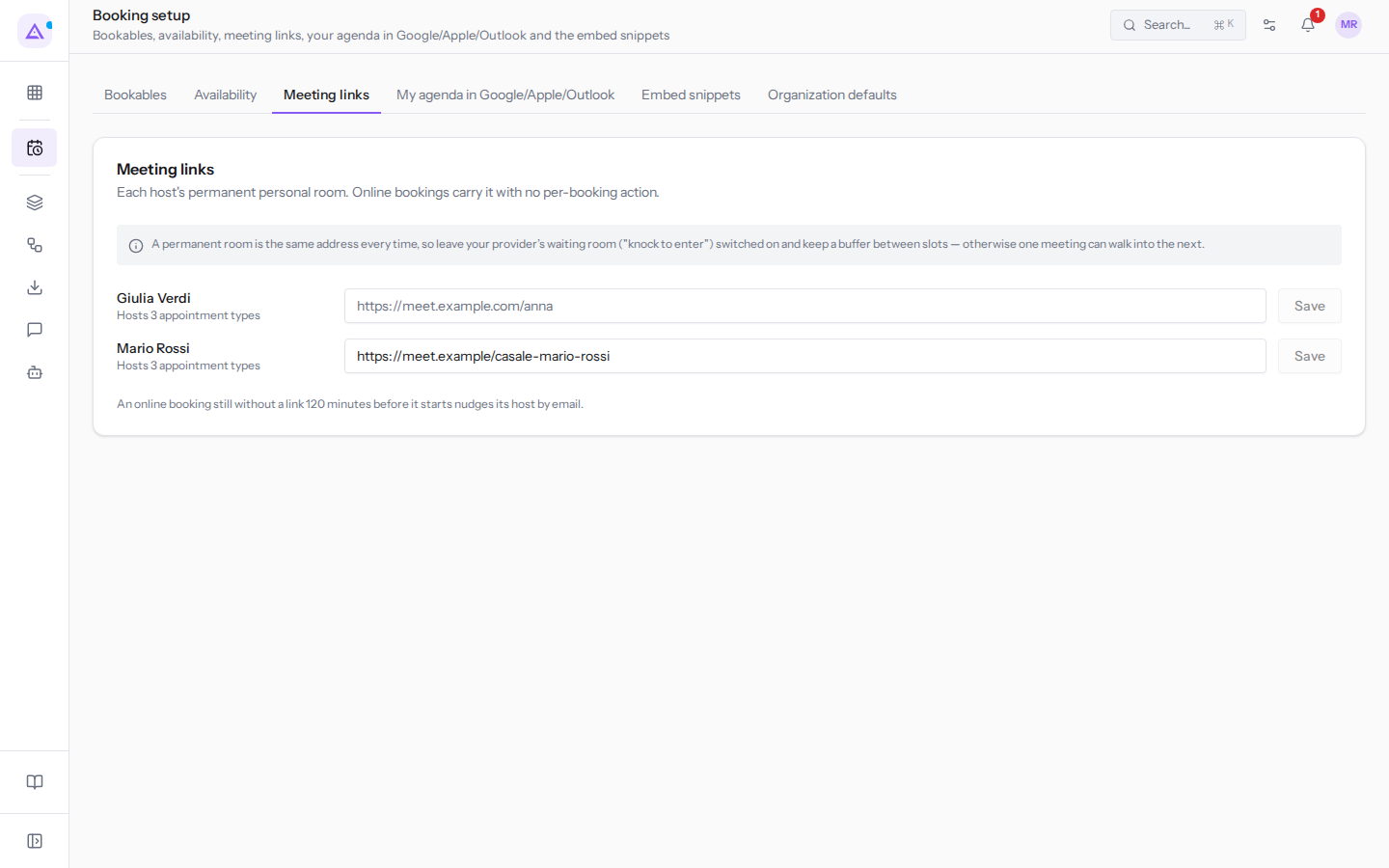
- In the host's row, paste the full address of their room into the field.
- Click Save in the same row.
The fields in each row:
- Host name: the person's name, with the number of types they host below it, for example «Hosts 1 appointment type» or «Hosts N appointment types». A host with no types shows «Hosts nothing yet».
- Room address: the host's fixed link. When empty it shows the example
https://meet.example.com/anna. Enter the full link, beginning with https://. If the address is not valid, on saving the message «That is not a valid meeting room address. Enter the full link, starting with https://.» appears. For example, Mario Rossi hashttps://meet.example/casale-mario-rossi. - Save: saves the room for that row. It is active only if you have changed the address.
After saving, Meeting room saved appears. If some future bookings have received the link, the message shows the number, for example «Meeting room saved. 1 upcoming booking was given the link and its invitee was emailed.».
Note: if you clear the field and click Save, the host's room is removed.
The waiting room and the buffer between slots
The room always has the same address, so two bookings one after the other take place in the same room.
For this reason, keep the waiting room of your video call service enabled («knock to enter») and maintain a buffer between slots: otherwise one meeting can run into the next. The notice at the top of the Meeting links tab also reminds you of this.
The alert to the host for bookings without a link
At the bottom of the Meeting links tab, the number of minutes before the start at which the alert is triggered is shown, for example «An online booking still without a link 120 minutes before it starts nudges its host by email.». If at that point an online booking still has no link, its host receives an email. This way the host can set up the room before the meeting.
If you receive this alert, open the Meeting links tab and save the host's room: the link is added to the booking and the invitee is notified by email.
See it on your company, not on a slide deck.
In 30 minutes we map the software you use today.We show you how much work and how much margin Archimedes gives back.
Show me on my business →What industry are you in?
One tap — it lets us prepare the demo around your world.
What tools do you use today?
Pick the ones you recognise — or just type them. It helps us show you how they migrate.
Last step: your details.
We reply within one working day — and right after, if you like, you pick the demo slot yourself.
We couldn't send your request. Try again, or write to us at [email protected].
By sending, you agree to your data being processed so we can get back to you about the demo. Privacy notice.
Preview form — nothing is sent from this page.
Want to schedule the demo now?
Your call: book the slot you prefer yourself, or we'll call you to arrange it.
Live availability, 30 minutes, instant confirmation. The calendar opens in a new tab.
Lock in your slot ↗We'll get back to you within one working day — and we'll join the call already knowing your world.
The calendar is open in another tab: pick a slot and the demo is booked. Can't see it? Reopen it ↗
Preview page: nothing was sent.
Our calendar is live: take the slot that suits you and the demo is booked. 30 minutes, instant confirmation, no waiting.
Lock in your slot ↗