Appointments
All modules
Inviting other people and scheduling reminders
Appointments · 6 of 16 · 4 min read
An appointment can have invitees: colleagues or people outside the organization who take part in the meeting. For example the chef at a menu tasting or the godmother at a baptism. For each appointment you also choose when reminders go out before the start.
Invitees and contacts: which to use
An appointment distinguishes two groups of people.
- Contacts are the records in the Contacts module that the appointment refers to. There can be at most 2.
- Invitees are the people who take part in the meeting. They do not need to have a record in contacts.
If a person takes part but is not a customer, for example a colleague or a supplier, add them as an invitee. If the appointment concerns a customer, indicate them among the contacts.
The contacts of an appointment created by hand do not receive invitations or reminders: if you want the customer to receive them, add their email address among the invitees. Someone who books online does receive reminders at the address they booked with.
Reminders go to invitees and, if the organization has it enabled, to all people assigned to the appointment.
Adding invitees to an appointment
Add invitees when you create the appointment or when you edit it.
- In Appointments, click New Appointment. For an existing appointment open it and click Edit.
- In the Schedule Appointment or Edit Appointment dialog click Add person. A row for the invitee appears.
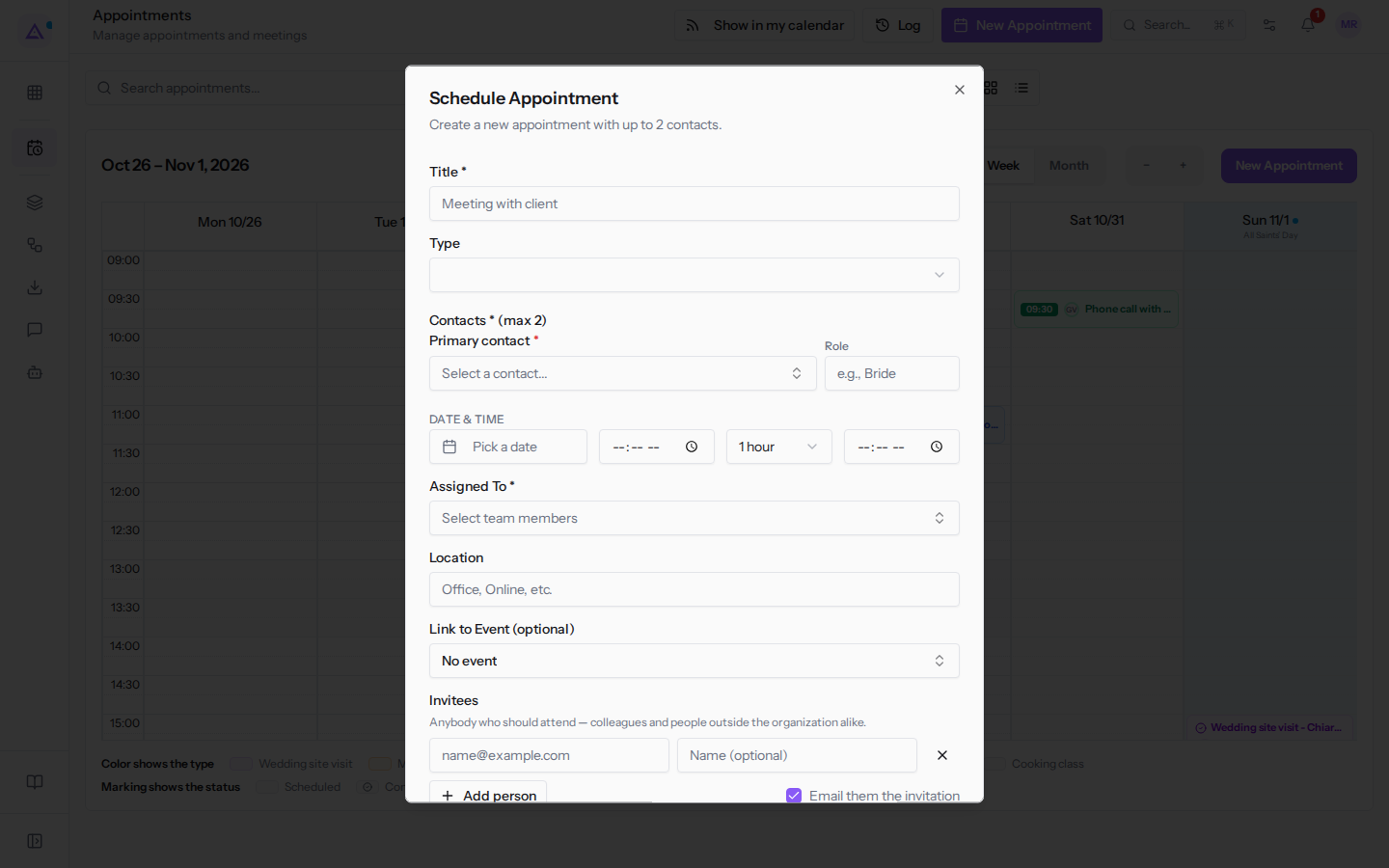
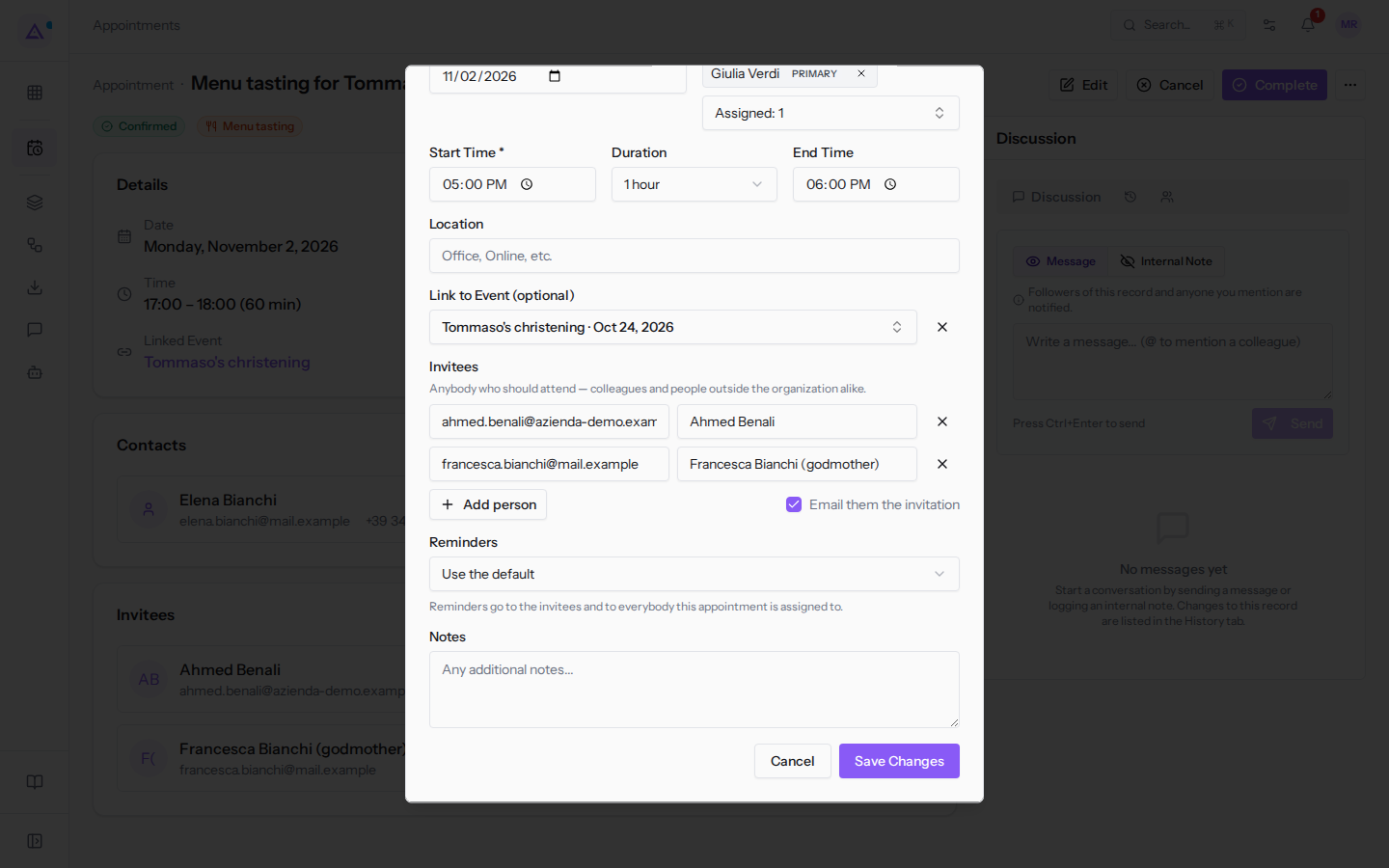
- Type the invitee's email address in the [email protected] field and, if you wish, their name in Name (optional).
- To add another person click Add person again.
- Leave the Email them the invitation checkbox selected if invitees should receive the invitation.
- Click Create Appointment or Save Changes.
The fields for each invitee:
- Email address: the address where the invitation arrives, for example
[email protected]. - Name (optional): the name shown in place of the address, for example
Francesca Bianchi (godmother). - The × icon (Remove invitee): removes the person from the list.
- Email them the invitation: if selected, invitees receive the invitation by email. It is selected by default.
Seeing who has been invited
The appointment detail shows the Invitees section when the appointment has at least one invitee.
For each invitee the section shows:
- the name, or the email address if the name is missing;
- the email address;
- the Colleague badge, if the invitee is a user of the organization;
- Invited, if the invitation has been sent, or Not invited yet, if the invitation has not been sent yet.
For example, in the «Menu tasting for Tommaso's christening» Ahmed Benali shows as Invited and Francesca Bianchi (godmother) as Not invited yet.
Choosing an appointment's reminders
The Reminders field in the dialog determines when reminders go out before the start.
- If the usual reminders are sufficient for the appointment, leave Use the default.
- If the appointment requires a different lead time, choose a fixed value.
- If you do not want to notify anyone, choose No reminders.
- Open the Schedule Appointment dialog with New Appointment, or the Edit Appointment dialog with Edit from the detail.
- In the Reminders field choose an option.
- Click Create Appointment or Save Changes.
The options for the Reminders field:
- Use the default: the appointment uses the organization's Default reminders. An online booking instead uses the reminders of its appointment type. This is the initial value.
- 1 day and 1 hour before: two reminders.
- 1 day before
- 2 hours before
- 1 hour before
- No reminders: no reminder is sent.
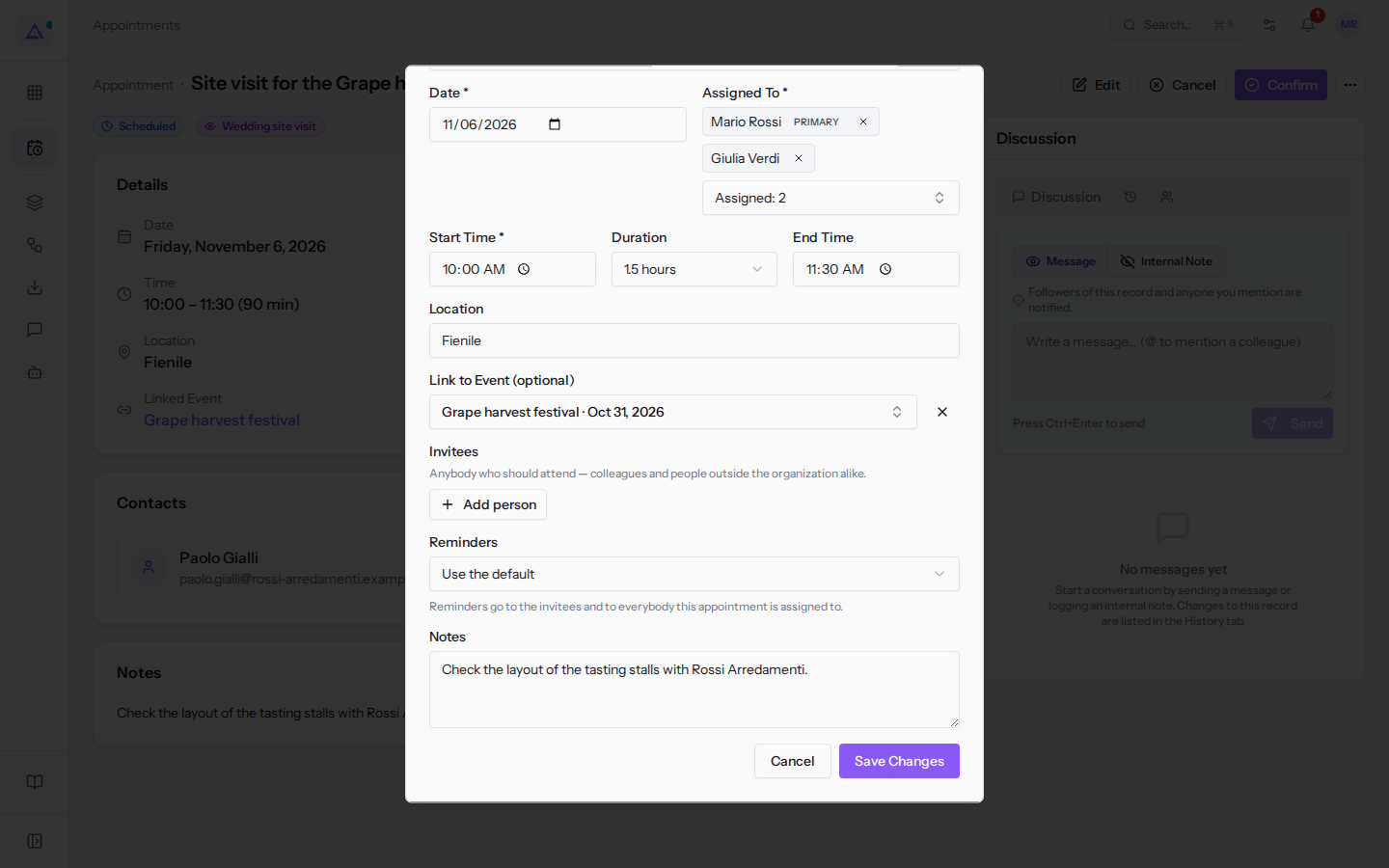
Note: the value chosen on the appointment always takes precedence over the default settings. Reminders are not sent for canceled, completed, or no-show appointments.
Organization default reminders
The organization's reminders apply to appointments that do not have their own reminders and have not been booked online.
Note: only administrators and Appointments module managers can change the organization's default settings.
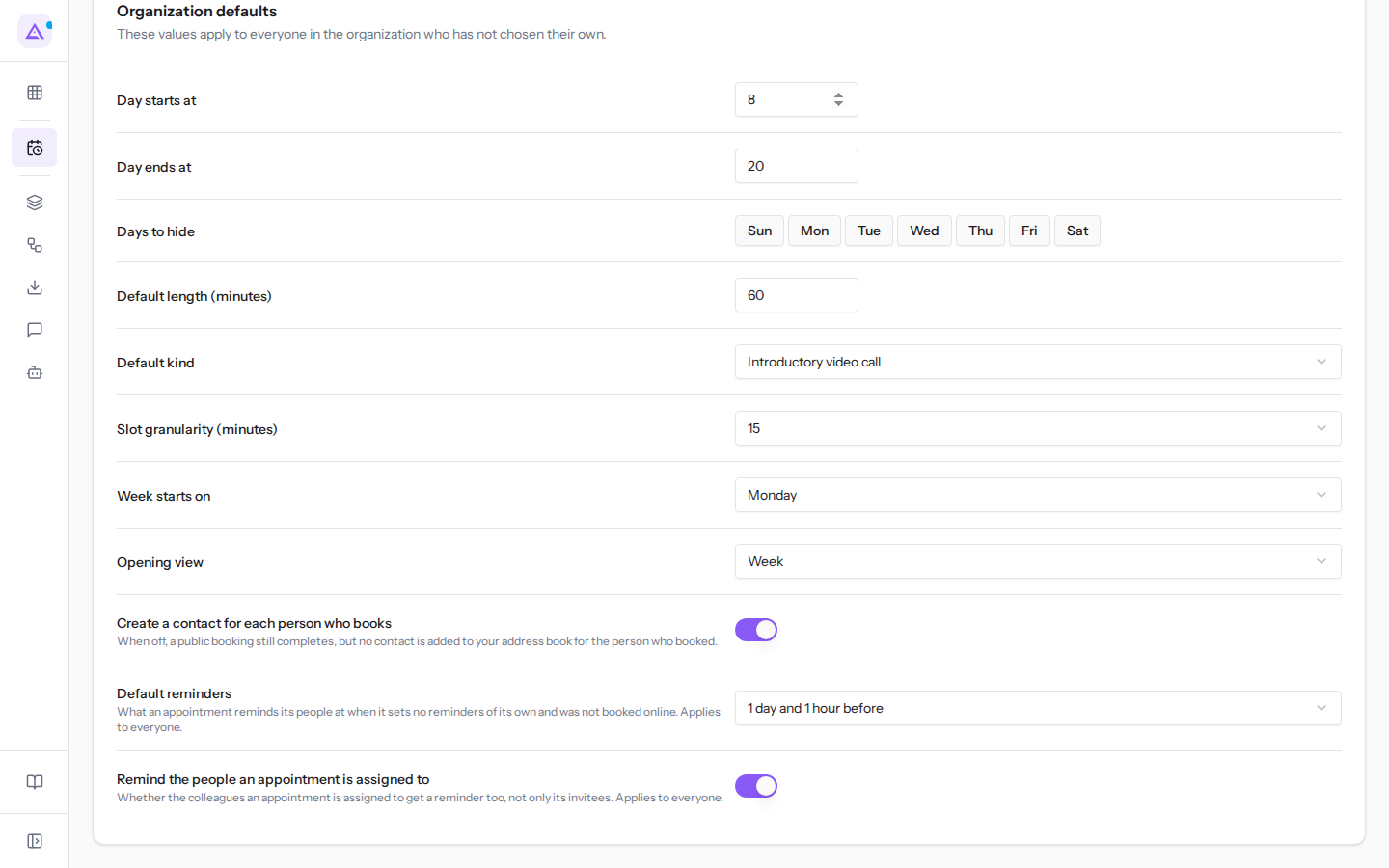
- Go to Appointments › Settings › Booking setup.
- Click the Organization defaults tab.
- Scroll down to the reminder fields and configure them.
The fields:
- Default reminders: when an appointment sends reminders if it does not have its own and was not booked online, for example 1 day and 1 hour before.
- Remind the people an appointment is assigned to: if enabled, the reminder is also sent to colleagues the appointment is assigned to, not only to invitees. This does not apply to online bookings, which follow the settings of their type.
Note: these two settings apply to the entire organization and cannot be changed per individual in Appointments › Settings › Appointment settings.
See it on your company, not on a slide deck.
In 30 minutes we map the software you use today.We show you how much work and how much margin Archimedes gives back.
Show me on my business →What industry are you in?
One tap — it lets us prepare the demo around your world.
What tools do you use today?
Pick the ones you recognise — or just type them. It helps us show you how they migrate.
Last step: your details.
We reply within one working day — and right after, if you like, you pick the demo slot yourself.
We couldn't send your request. Try again, or write to us at [email protected].
By sending, you agree to your data being processed so we can get back to you about the demo. Privacy notice.
Preview form — nothing is sent from this page.
Want to schedule the demo now?
Your call: book the slot you prefer yourself, or we'll call you to arrange it.
Live availability, 30 minutes, instant confirmation. The calendar opens in a new tab.
Lock in your slot ↗We'll get back to you within one working day — and we'll join the call already knowing your world.
The calendar is open in another tab: pick a slot and the demo is booked. Can't see it? Reopen it ↗
Preview page: nothing was sent.
Our calendar is live: take the slot that suits you and the demo is booked. 30 minutes, instant confirmation, no waiting.
Lock in your slot ↗