Appointments
All modules
Editing or moving an appointment
Appointments · 5 of 16 · 5 min read
A recorded appointment can be edited from its detail page or moved to another day by dragging it in the Calendar page. For example, you can change the date of a site visit, add a second person who holds it, or link it to an event.
Choose the method based on what you need to change:
- If only the day changes and the time stays the same, you can drag the appointment in the Calendar page.
- If the time or other data changes, such as the type, assigned people, contacts, location, or status, use Edit in the detail page.
In both cases the appointment continues to occupy the time of the primary assigned person. A move that overlaps with another commitment of theirs is rejected.
Editing an appointment from its detail page
The Edit Appointment dialog contains almost all the fields used to create the appointment, plus the Status field. Contacts are chosen from a single list and do not have the Role field.
- Open Appointments and find the appointment, for example from the List view.
- Click the appointment, for example
Site visit for the Grape harvest festival, to open its detail.
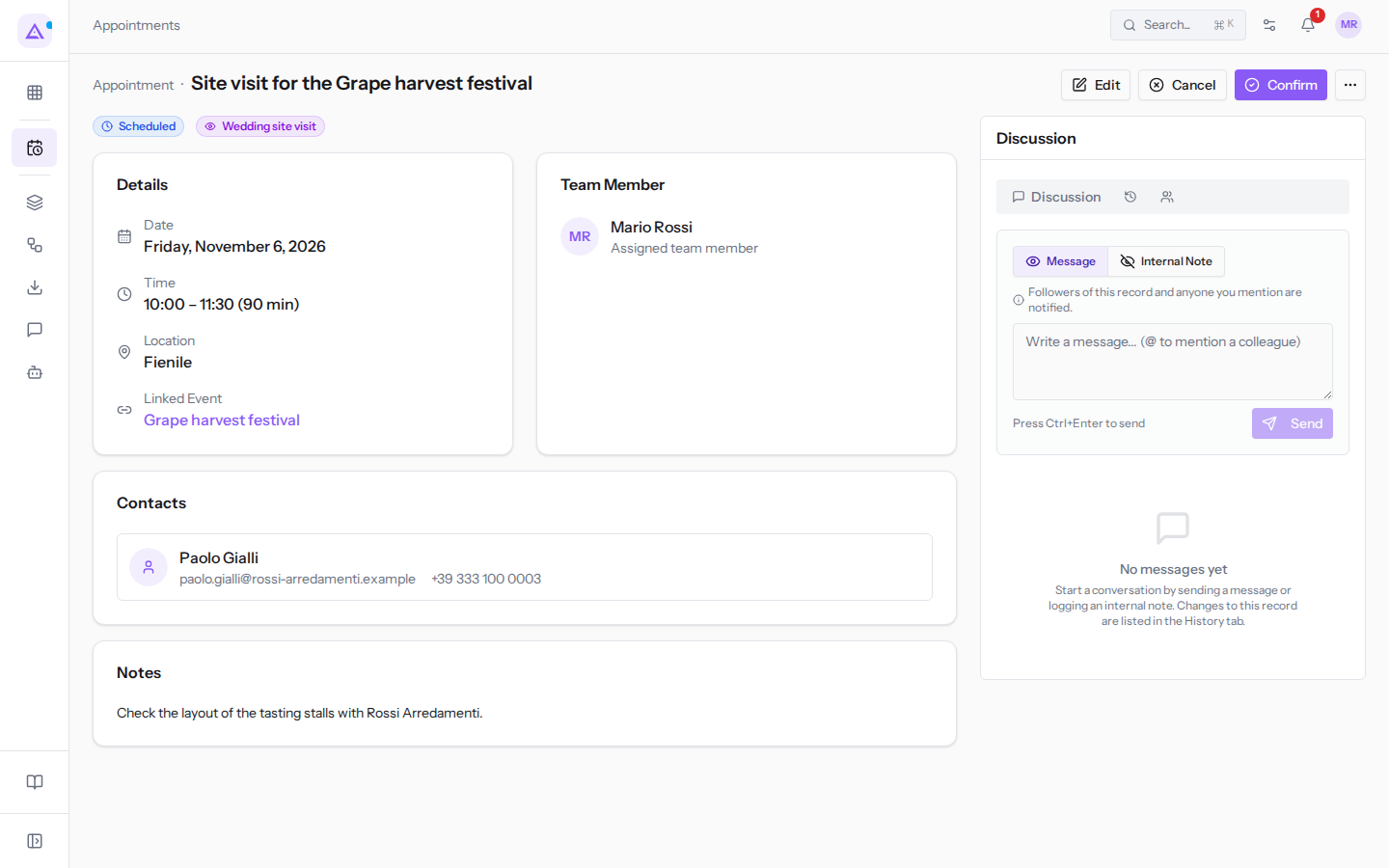
- Click Edit. The Edit Appointment dialog opens, with the subtitle «Update appointment details.»
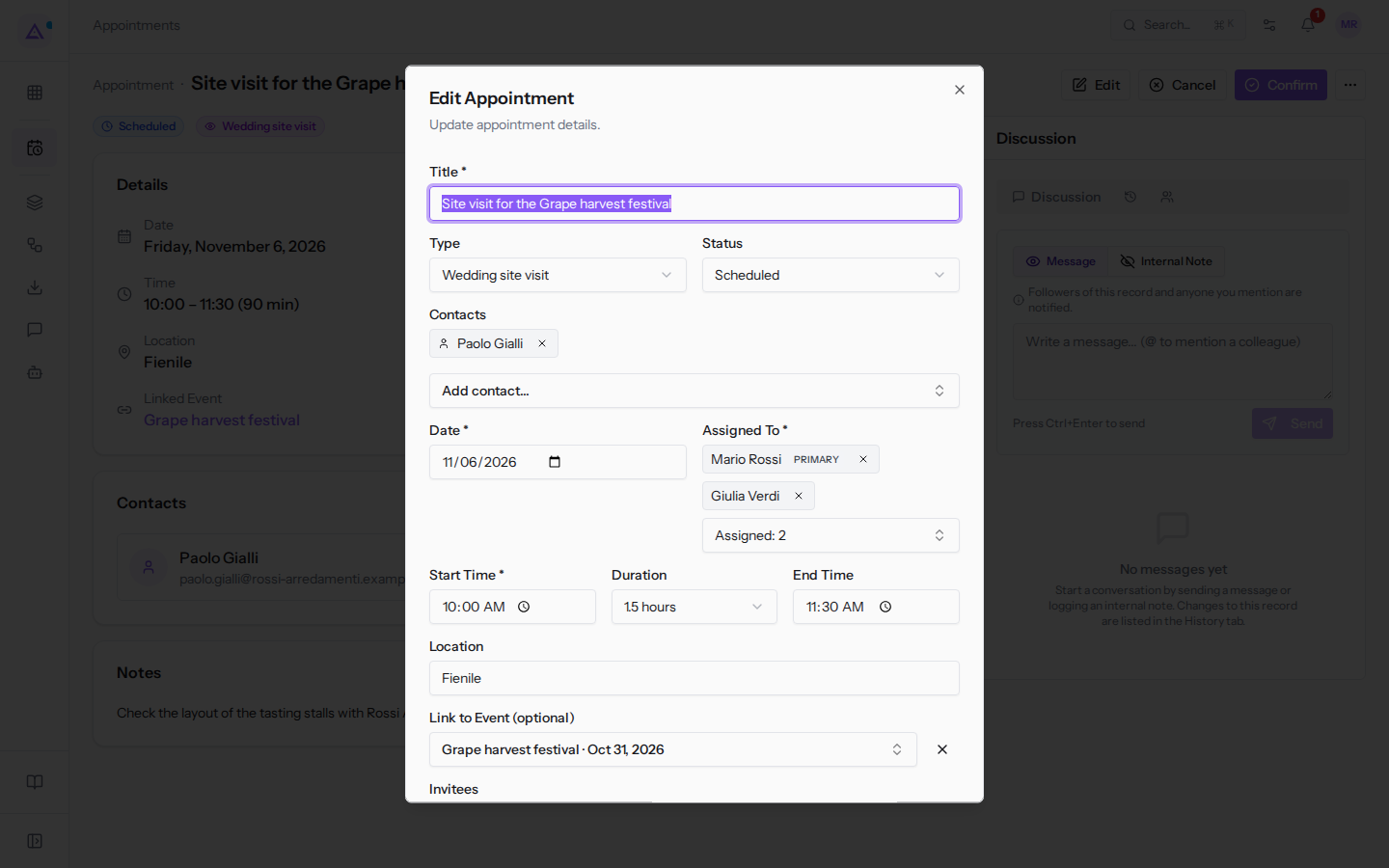
- Change the fields you need.
- Click Save Changes.
The dialog fields:
-
Title: the name of the appointment, for example
Site visit for the Grape harvest festival. This field is required. -
Type: the type of appointment. The options are the organization's types, for example Wedding site visit, Menu tasting, Introductory video call, Guided farm tour, Company events consultation, Cooking class.
-
Status: the appointment status.
- Scheduled
- Confirmed
- Completed
- Canceled: the time slot becomes free for the assigned person.
The list also contains No Show, but at present an appointment saved with this status is not accepted.
-
Contacts: the contacts the appointment refers to. Add them with Add contact... and remove them with the × icon next to the name. You can specify at most 2.
-
Date: the date of the appointment. This field is required.
-
Assigned to: the people who hold the appointment. This field is required. See Assigning the appointment to multiple people.
-
Start Time: the start time, for example
10:00. This field is required. -
Duration: the duration of the appointment. The options are 30 min, 1 hour, 1.5 hours, 2 hours.
-
End Time: the end time, calculated from the start time and duration. For example, with Start Time
10:00and Duration 1.5 hours it shows11:30. You can also type it in manually. -
Location: where the appointment takes place, for example
Fienile. -
Link to Event (optional): the event the appointment refers to, for example
Grape harvest festival · Oct 31, 2026. To remove the link click the × icon next to the field (Remove the linked event). -
Invitees: with Add person add a row with the email address and Name (optional) of the invitee. To remove an invitee, use the × icon (Remove invitee). The Email them the invitation checkbox decides whether invitees receive the invitation.
-
Reminders: when the appointment reminders are sent.
Invitees and reminders are described in Inviting other people and scheduling reminders.
- Notes: free text about the appointment.
Note: if the new date or new time overlaps with another commitment of the primary assigned person, the change is rejected.
Assigning the appointment to multiple people
An appointment can be held by multiple people, including a primary one. The occupied time is that of the primary person.
- In the Edit Appointment dialog click Assigned to.
- Choose people from the list, for example Giulia Verdi and Mario Rossi.
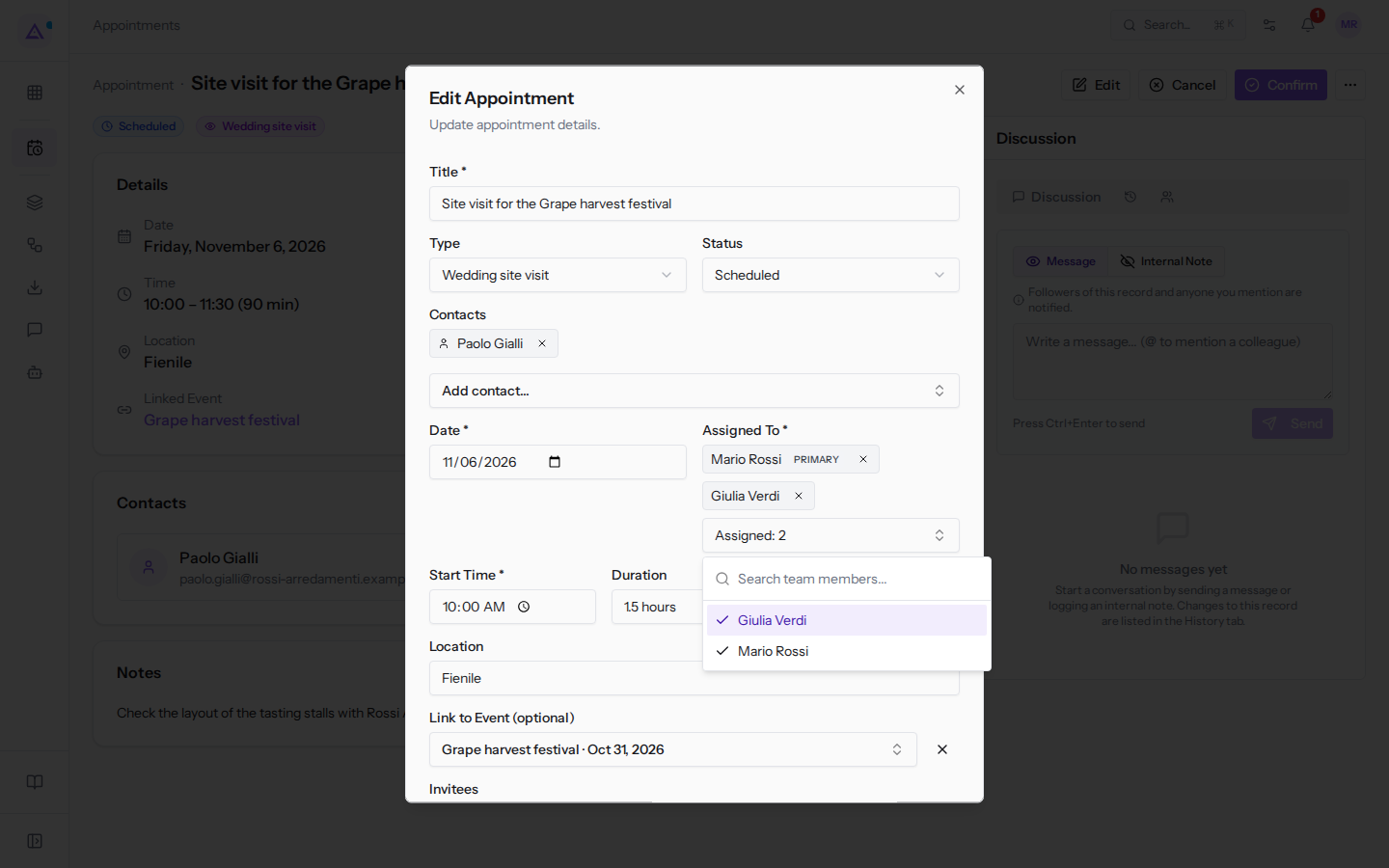
- Click Save Changes.
With multiple people the field shows their number, for example Assigned: 2. The primary person has the Primary marker: they are the first in the list. To remove a person click the × icon next to their name (for example Remove Mario Rossi). If you remove the primary person, the next person becomes primary.
Note: you can assign at most 20 people to an appointment. Beyond that the message «At most 20 people can be assigned to one appointment.» appears.
Moving an appointment to another day
In the Calendar page you can move an appointment to another day without opening the dialog. The time stays the same. In the Calendar view of the Appointments page appointments cannot be dragged: to change the time use Edit.
- Open the Calendar page.
- Drag the appointment to the new day.
If the move succeeds the message «Moved to …» appears with the new date. If the primary assigned person already has a commitment at that time, the move is rejected with a message indicating the conflicting commitment, and the appointment stays where it was.
Note: completed, canceled, or no-show appointments cannot be dragged.
Where changes are recorded
Every change is recorded.
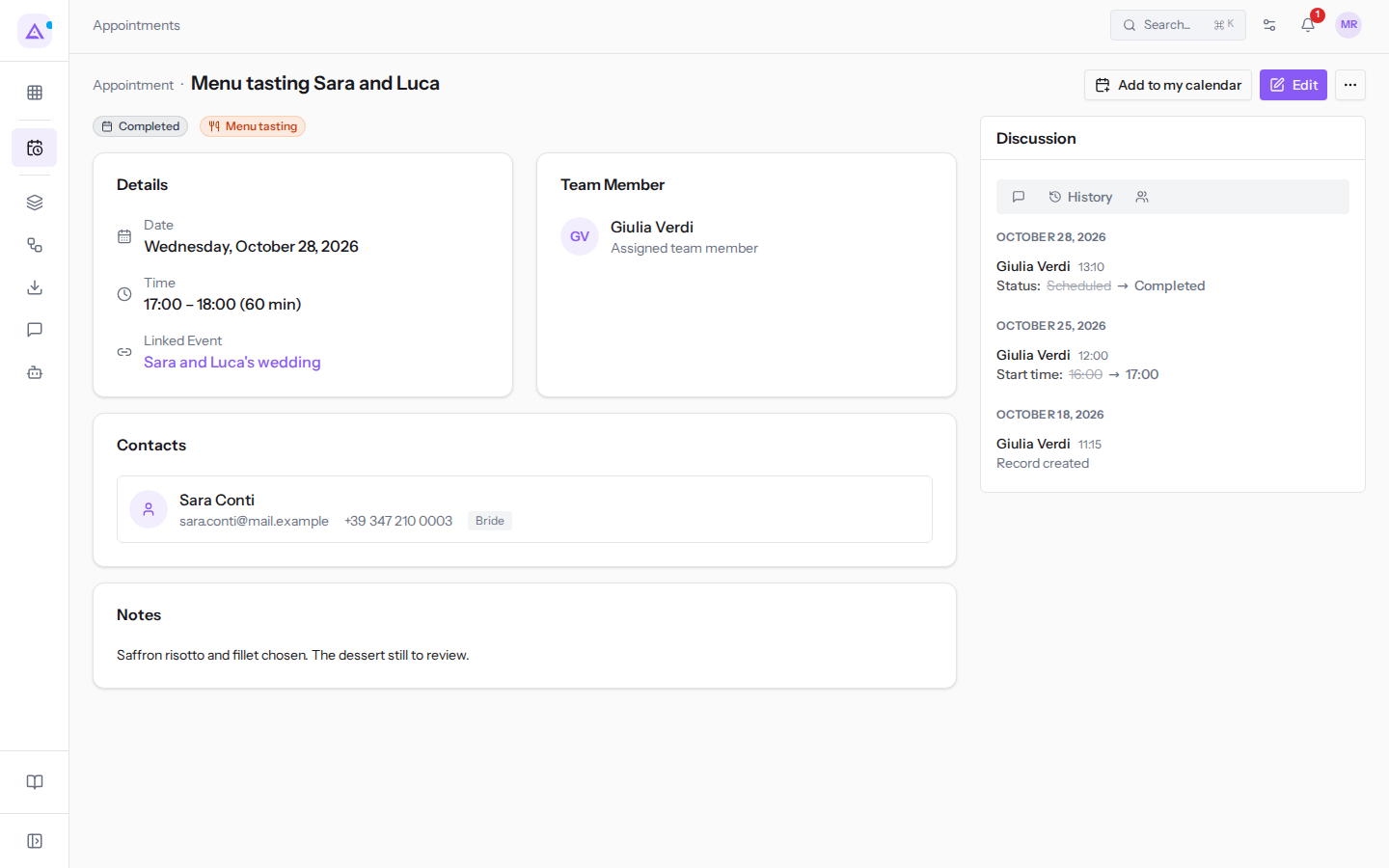
- In the appointment detail, in the History tab of the Discussion column: it is the icon next to Discussion.
- In the appointment log, which opens with the Log button on the Appointments page. It shows creations, edits, cancellations, deletions, and restorations, with who made them and when. It is visible only to owners and administrators of the organization. See Checking who modified appointments.
See it on your company, not on a slide deck.
In 30 minutes we map the software you use today.We show you how much work and how much margin Archimedes gives back.
Show me on my business →What industry are you in?
One tap — it lets us prepare the demo around your world.
What tools do you use today?
Pick the ones you recognise — or just type them. It helps us show you how they migrate.
Last step: your details.
We reply within one working day — and right after, if you like, you pick the demo slot yourself.
We couldn't send your request. Try again, or write to us at [email protected].
By sending, you agree to your data being processed so we can get back to you about the demo. Privacy notice.
Preview form — nothing is sent from this page.
Want to schedule the demo now?
Your call: book the slot you prefer yourself, or we'll call you to arrange it.
Live availability, 30 minutes, instant confirmation. The calendar opens in a new tab.
Lock in your slot ↗We'll get back to you within one working day — and we'll join the call already knowing your world.
The calendar is open in another tab: pick a slot and the demo is booked. Can't see it? Reopen it ↗
Preview page: nothing was sent.
Our calendar is live: take the slot that suits you and the demo is booked. 30 minutes, instant confirmation, no waiting.
Lock in your slot ↗