Appointments
All modules
Recognizing and tracking an online booking
Appointments · 7 of 16 · 6 min read
An online booking is an appointment that a visitor schedules on their own from the public link of an appointment type, for example a wedding venue visit, a menu tasting, or an informational video call. In this article you will see how to recognize it, what it brings with it, and where to find the contact and lead it created.
Where an online booking comes from
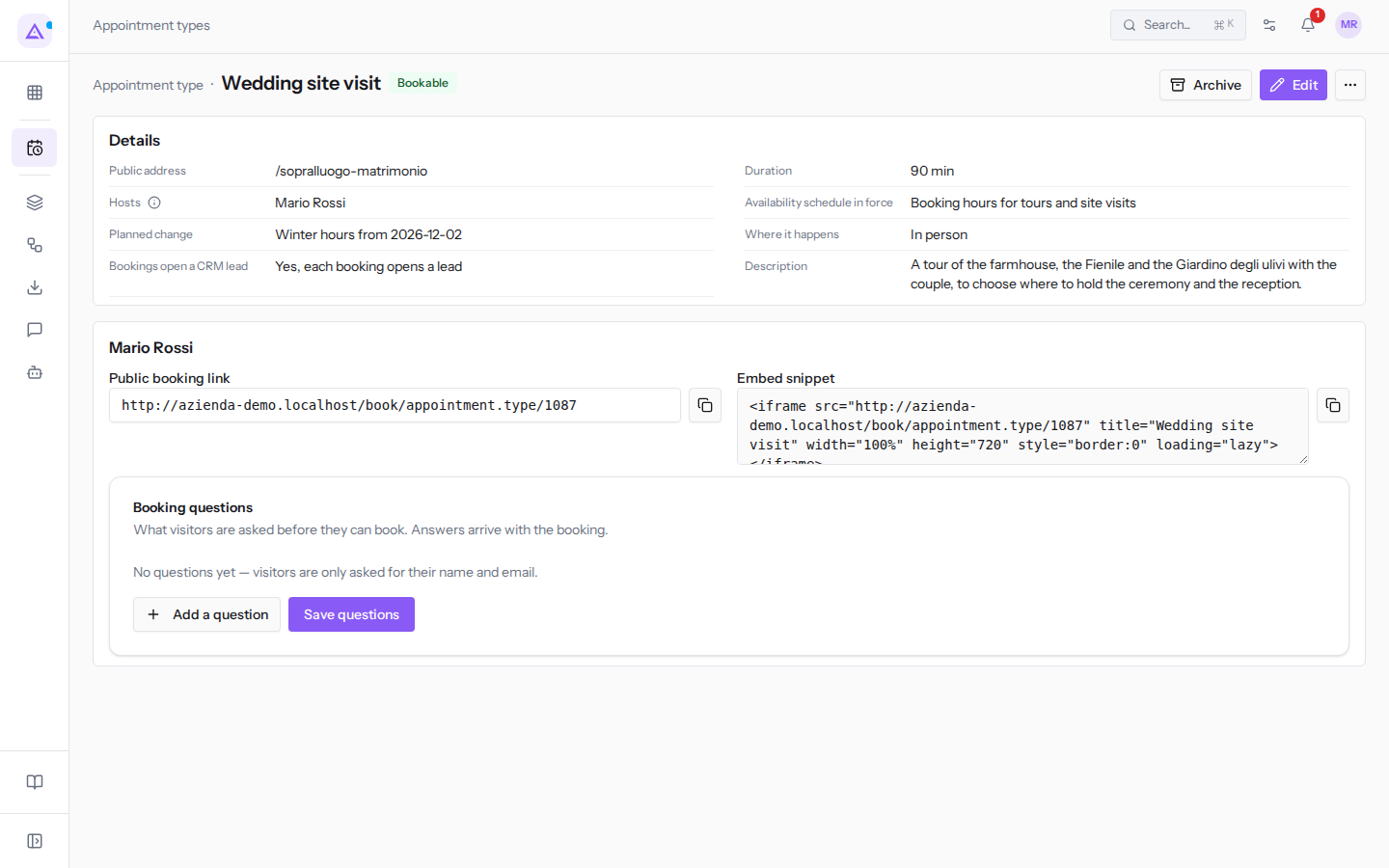
The visitor books from the Public booking link of an appointment type, or from the Embed snippet placed on the website. Both appear in the detail of a bookable type, for example Wedding site visit. To publish them, follow the article Publishing the booking link and questions for bookers.
What happens when the visitor confirms:
- The appointment is created in the Confirmed state. There is no approval state: the visitor only sees genuinely available time slots.
- The appointment takes up the time of the appointment type's host, just like a manually created appointment.
- If the booker has left their email address, the booking is linked to a contact when the Create a contact for each person who books setting is active. If a contact with the same email address already exists, that contact is used; otherwise a new one is added to the contacts directory.
- If the type has the Open a CRM lead for each booking option enabled and the CRM module is active, the booking is also linked to a lead: either an already open lead with the same email address, or a new one.
Opening the booking
An online booking opens like any other appointment.
- Open Appointments.
- In the Search appointments... field, type the name of the person who booked, for example Chiara Fontana, and press Enter.
- Click List view.
- On the appointment row, open More actions and choose View Details.
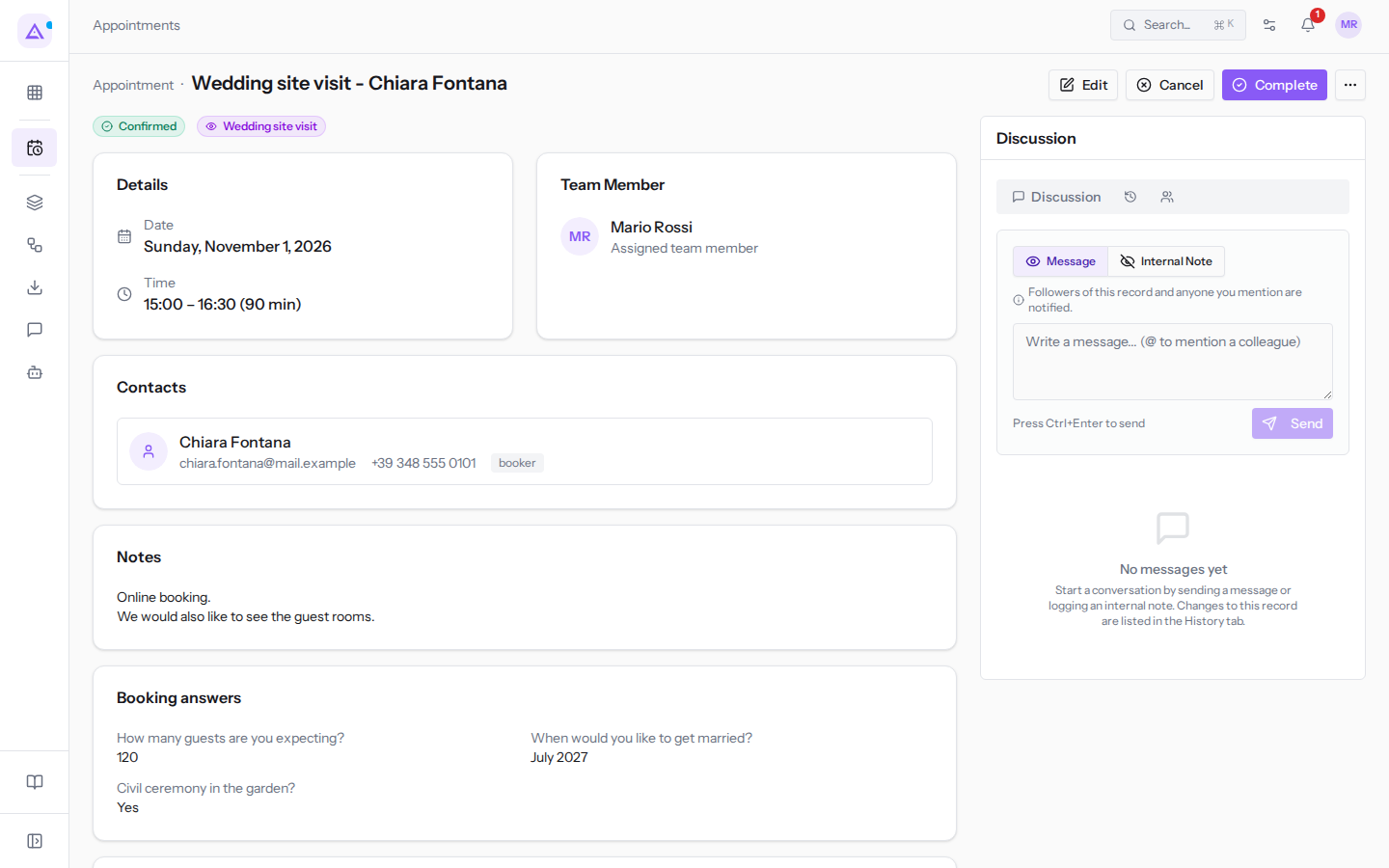
The detail of «Wedding site visit - Chiara Fontana» shows the Confirmed status, the Wedding site visit type and the Details section with Date and Time.
Since the booking is already confirmed, the header actions are:
- Complete: marks the appointment as done.
- Edit and Cancel: change or cancel the appointment.
- In the More actions icon menu (⋯): Add to my calendar and Delete.
For statuses and actions, follow the article Opening an appointment and changing its status.
The sections of an online booking
Below Details, the detail shows a few additional sections. Each section only appears if it has something to show.
Booking answers
The Booking answers section lists the questions the visitor was asked before booking and the answers they gave.
- Each row shows the question and the answer.
- A checkbox question shows the answer as Yes or No.
- A question with no answer shows a dash.
- The question appears as it was written at the time of the booking. If the question has since been rephrased or removed from the type, the answer remains readable.
Note: questions are set in the type's detail with Add a question. If the type has no questions, only the name and email are requested from the visitor.
Additional guests
The Additional guests section lists the other email addresses that the booker indicated in the booking form, for example [email protected] in Chiara Fontana's venue visit. These addresses are only recorded: they do not become invitees and do not receive an invitation. If you want to invite them, add them yourself as invitees.
Invitees
The Invitees section lists the people invited to the appointment and, for each one, whether the invitation has been sent (Invited) or not (Not invited yet). The online booking does not add invitees: the section only appears if someone adds them afterwards. For invitees, follow the article Inviting other people and scheduling reminders.
Contacts
The Contacts section shows the contact cards from the Contacts module to which the appointment refers, with name, email, and phone number when present. In an online booking, the contact of the person who booked appears here. Next to their name the label «booker» may appear: this is a technical label not yet translated, indicating who made the booking.
Notes
The Notes section shows the message that the booker wrote in the form, followed by their email address and phone number.
Lead
The Lead section shows the CRM lead opened by the booking, for example «Chiara Fontana wedding». Click on the name to open the lead in the CRM.
Note: the Lead section only appears if the CRM module is active for the organization and if you have permission to read leads. Without either of these, the section is not shown, even if the lead exists.
The lead opened by the booking
An appointment type opens a lead for each booking when the Open a CRM lead for each booking option is enabled. In the type's detail, the option can be read under Bookings open a CRM lead: Wedding site visit shows Yes, each booking opens a lead.
- If you want to track every request in the CRM, for example wedding venue visits, enable the option on the type.
- If the type does not involve deals, for example a guided tour, leave it off.
Important: the option only applies to new bookings. Existing bookings are not affected.
To change the option, follow the article Creating and editing appointment types.
The contact created for the booker
The Create a contact for each person who books setting decides whether the person who books is added to the contacts directory. It applies to the entire organization.
Note: the Organization defaults tab only appears to users who can manage appointment types.
- Open Appointments › Settings › Booking setup.
- Click Organization defaults.
- Enable or disable Create a contact for each person who books.
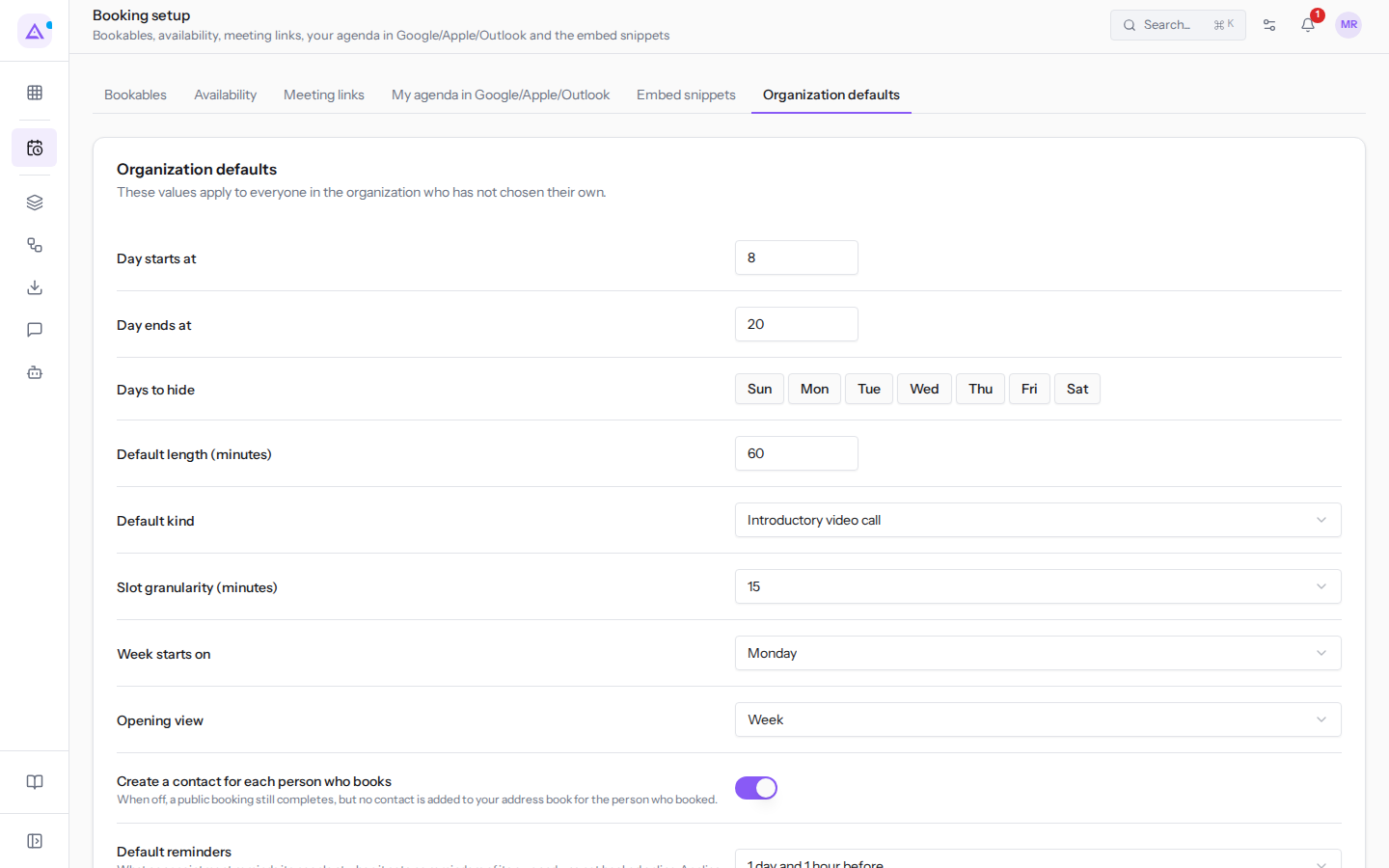
- Create a contact for each person who books: if enabled, the booker becomes a contact and appears in the Contacts section of the appointment. If disabled, the booking is still completed, but no contact is added to the directory for the person who booked. The CRM lead, if the type calls for one, is still opened.
The other settings on this tab are described in the article Customizing the appointment calendar.
Recognizing the booking in the log
In the Appointments log, an online booking has Online booking as its author instead of a user's name.
Before you start: the log is reserved for organization owners and administrators.
- Open Appointments and click Log.
- In the Search by appointment or contact field, type the name of the person who booked, for example Chiara Fontana, and press Enter.
- To see only online bookings, open the Who acted filter and choose Online booking.
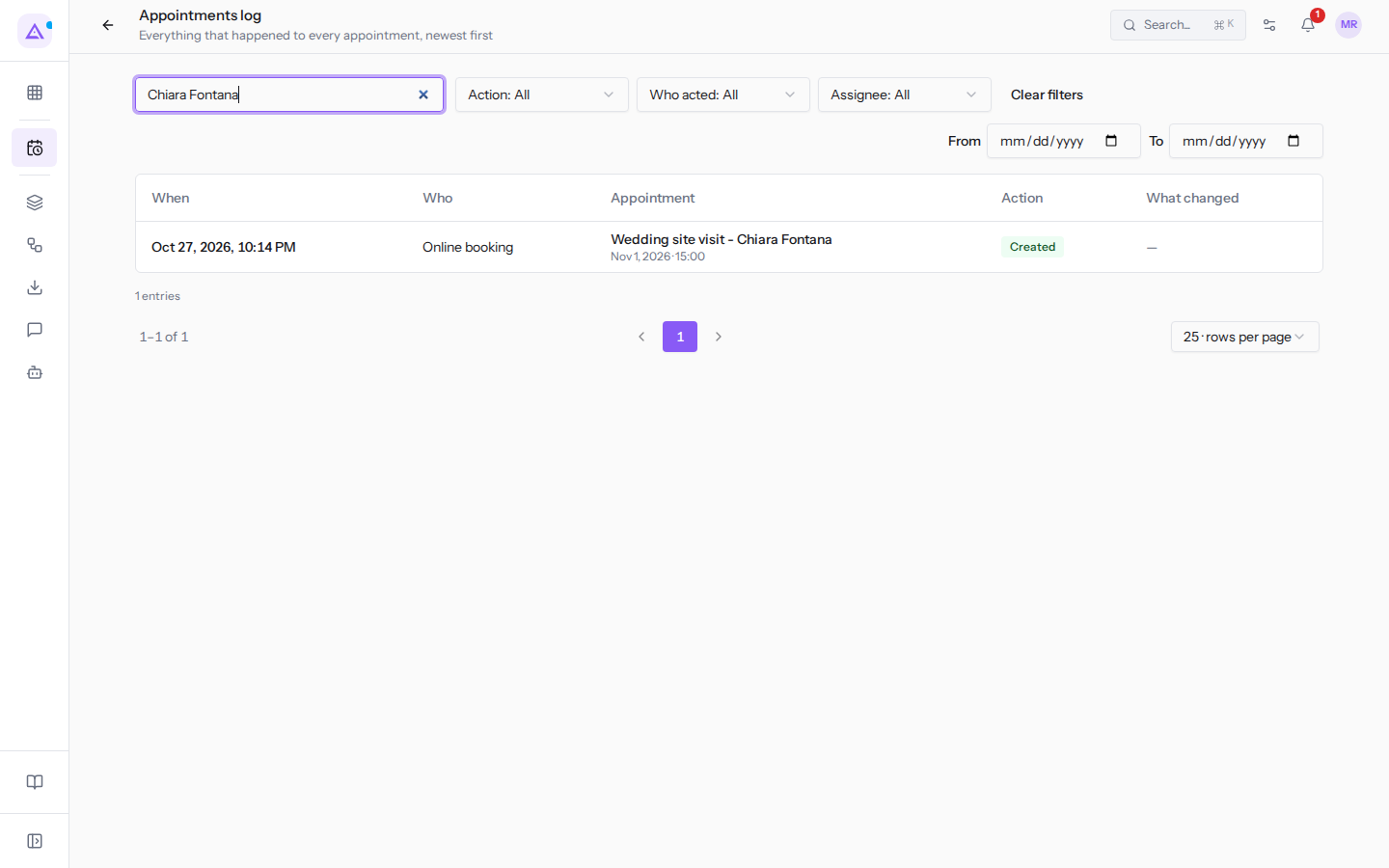
Each row shows When, Who, and Appointment. For columns and other filters, follow the article Checking who modified appointments.
Changes made to the appointment after the booking can also be read in the appointment's detail, in the History tab (clock icon) of the Discussion panel.
See it on your company, not on a slide deck.
In 30 minutes we map the software you use today.We show you how much work and how much margin Archimedes gives back.
Show me on my business →What industry are you in?
One tap — it lets us prepare the demo around your world.
What tools do you use today?
Pick the ones you recognise — or just type them. It helps us show you how they migrate.
Last step: your details.
We reply within one working day — and right after, if you like, you pick the demo slot yourself.
We couldn't send your request. Try again, or write to us at [email protected].
By sending, you agree to your data being processed so we can get back to you about the demo. Privacy notice.
Preview form — nothing is sent from this page.
Want to schedule the demo now?
Your call: book the slot you prefer yourself, or we'll call you to arrange it.
Live availability, 30 minutes, instant confirmation. The calendar opens in a new tab.
Lock in your slot ↗We'll get back to you within one working day — and we'll join the call already knowing your world.
The calendar is open in another tab: pick a slot and the demo is booked. Can't see it? Reopen it ↗
Preview page: nothing was sent.
Our calendar is live: take the slot that suits you and the demo is booked. 30 minutes, instant confirmation, no waiting.
Lock in your slot ↗