Appointments
All modules
Viewing the appointment calendar
Appointments · 2 of 16 · 4 min read
The Appointments page shows the organization's appointments in a calendar, in cards, or in a list. From here you can find an appointment — for example a site visit for a wedding, a menu tasting, or an informational video call — and open it.
Choosing the view
The page has three views, which you choose using the three icons next to the filters: Calendar view, Grid view, and List view.
- If you want to see commitments over time and free slots, choose Calendar view.
- If you want to scroll through appointments as cards and open them from their menu, choose Grid view.
- If you want a compact list of all appointments, choose List view.
- Open Appointments.
- Click the icon for the view you need.
The view you are using is reflected in the page URL, along with the displayed period.
Using the Calendar view
The Calendar view shows appointments on a day, week, or month grid. When you open the page it shows the period selected in Opening view in the settings — for example the current week Oct 26 – Nov 1, 2026. Click an appointment to open its detail.
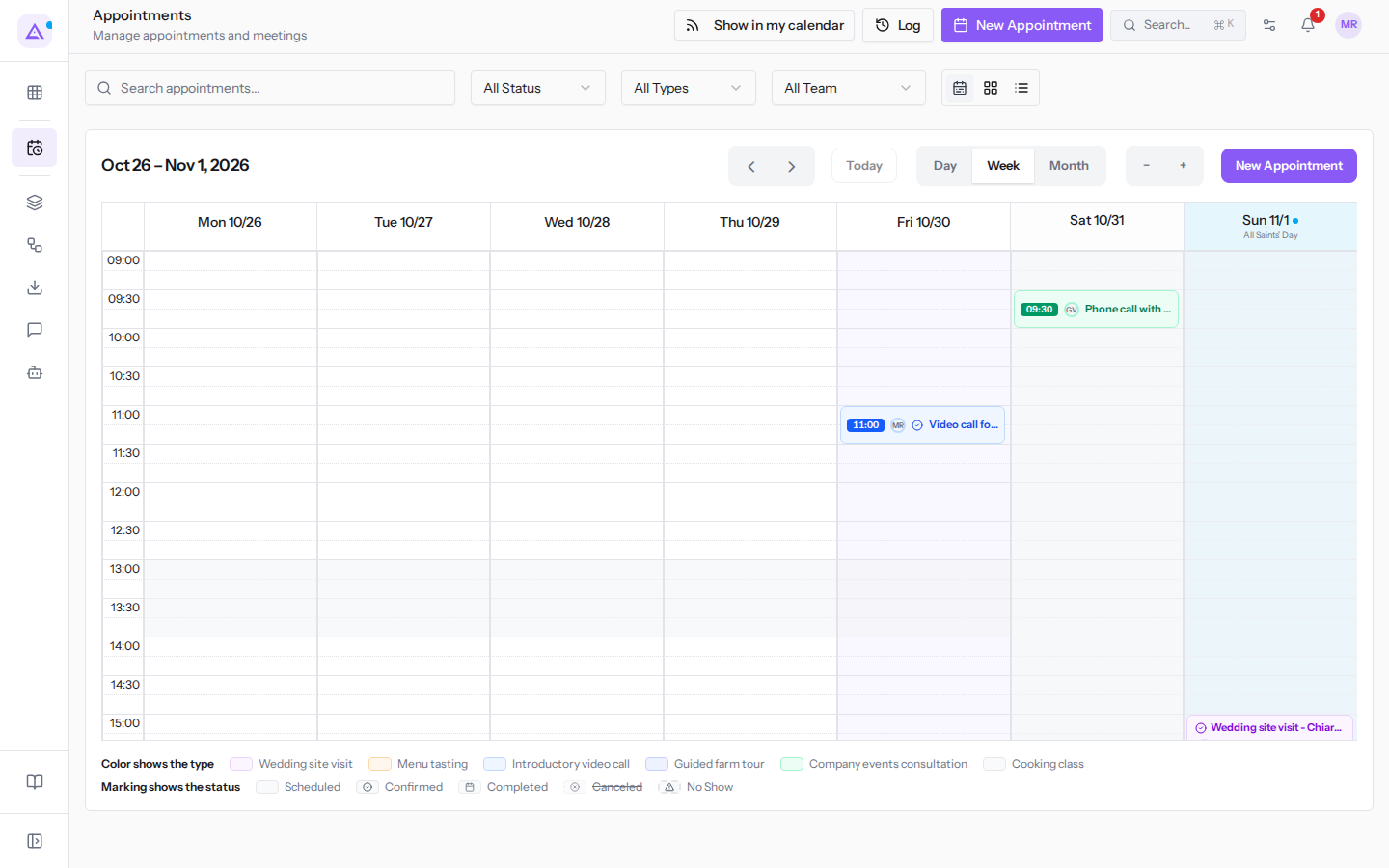
The calendar toolbar controls:
- The ‹ and › arrows: move to the previous or next period.
- Today: returns to the period containing today's date.
- Day: shows a single day, for example
October 29, 2026. - Week: shows seven days.
- Month: shows the entire month, for example
October 2026. - The − and + buttons (Zoom out and Zoom in): change the height of the hour rows in the grid. They appear only in the Day and Week views.
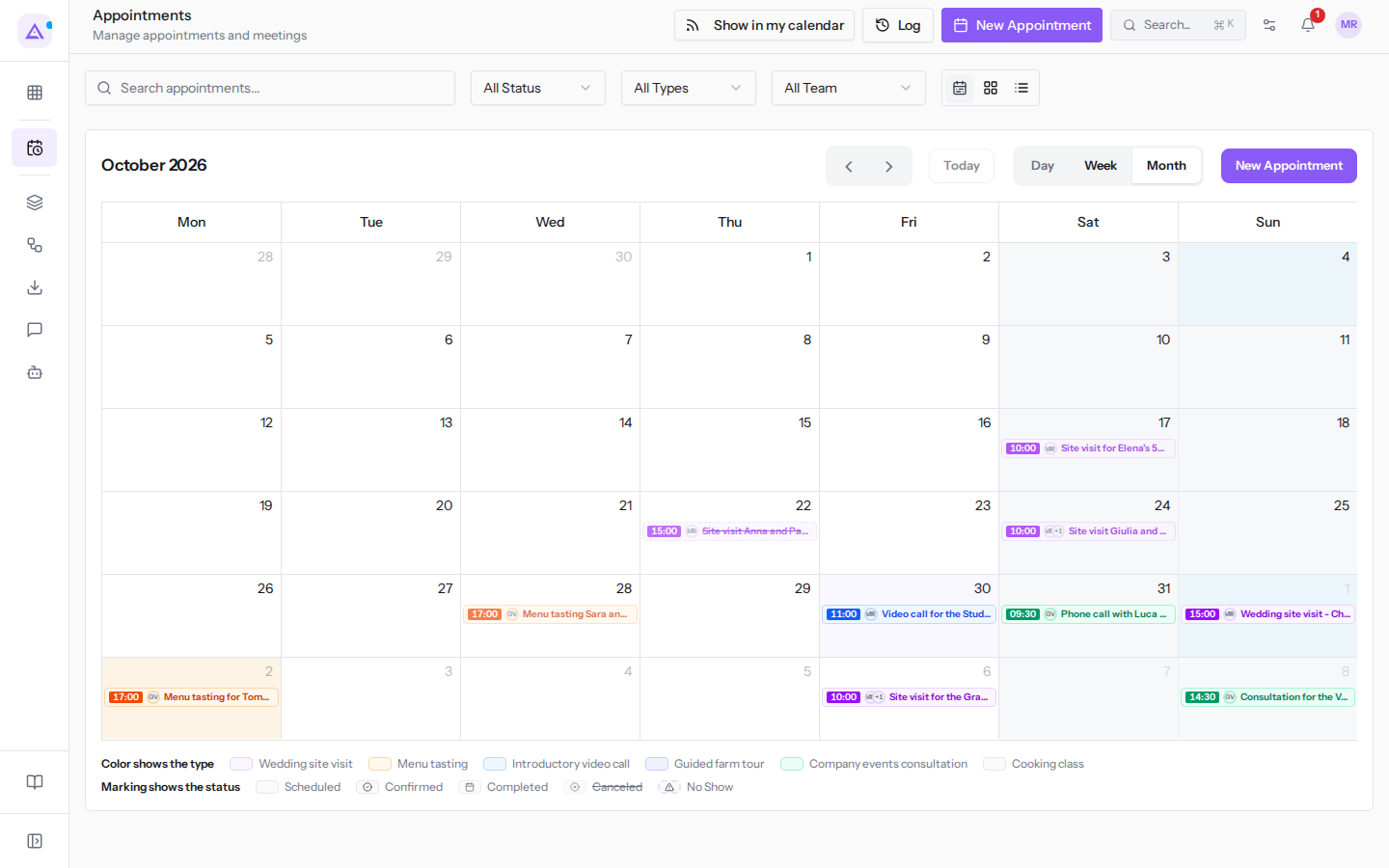
The color and marker of each appointment carry a meaning, summarized in the legend: Color shows the type and Marking shows the status.
The grid only shows the hours and days configured in the calendar settings. If there are appointments in the period that fall outside them, a warning appears showing their count, for example 1 appointment in this period is outside the hours or days the grid shows.
Note: the start and end hours of the day and hidden days can be changed in Appointments › Settings › Appointment settings. See Customizing the appointment calendar.
Using the Grid view and List view
The two views show appointments one after another, from oldest to most recent, for example from Site visit for Elena's 50th birthday lunch to Video call with Marco Neri.
- Click the Grid view or List view icon.
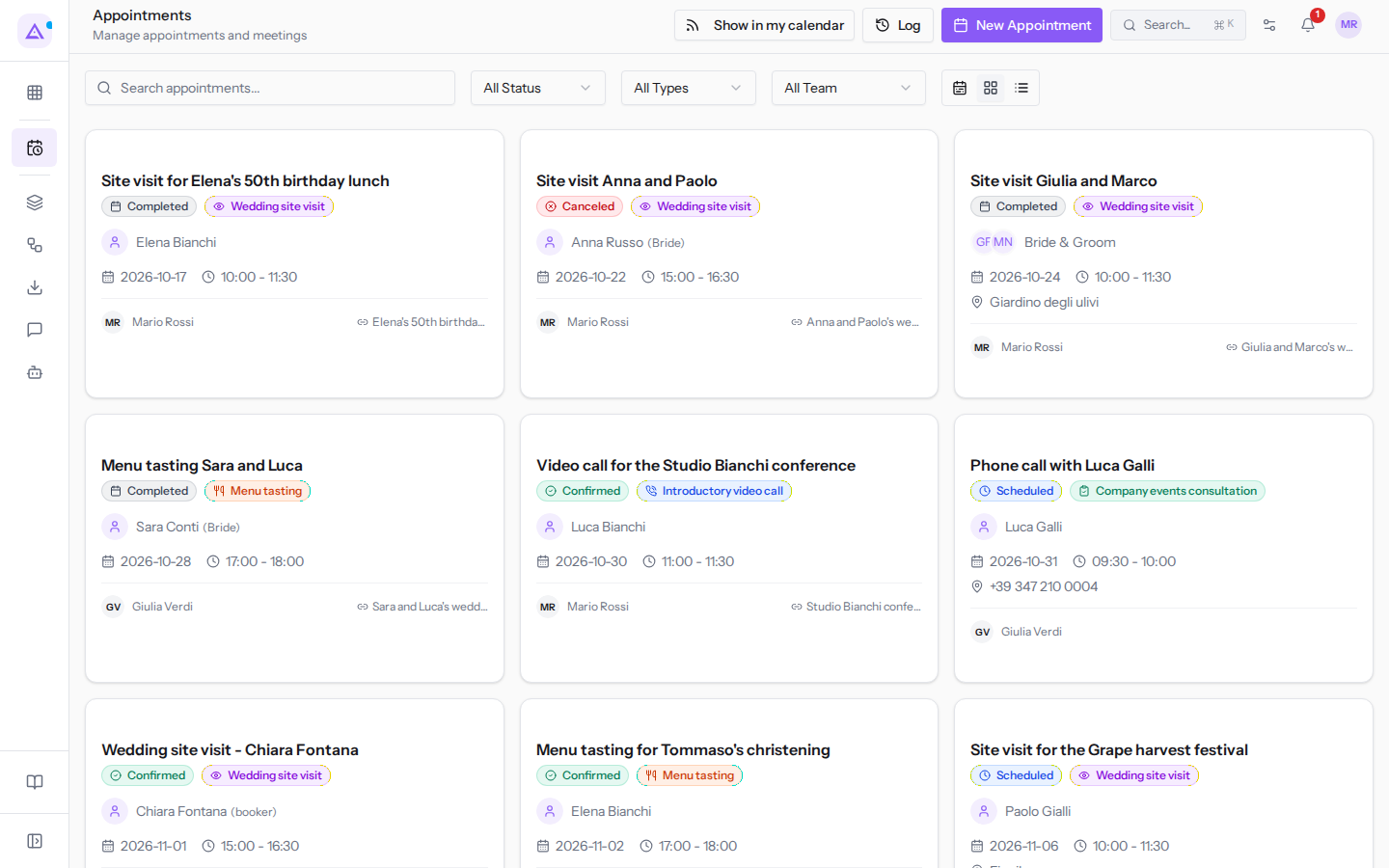
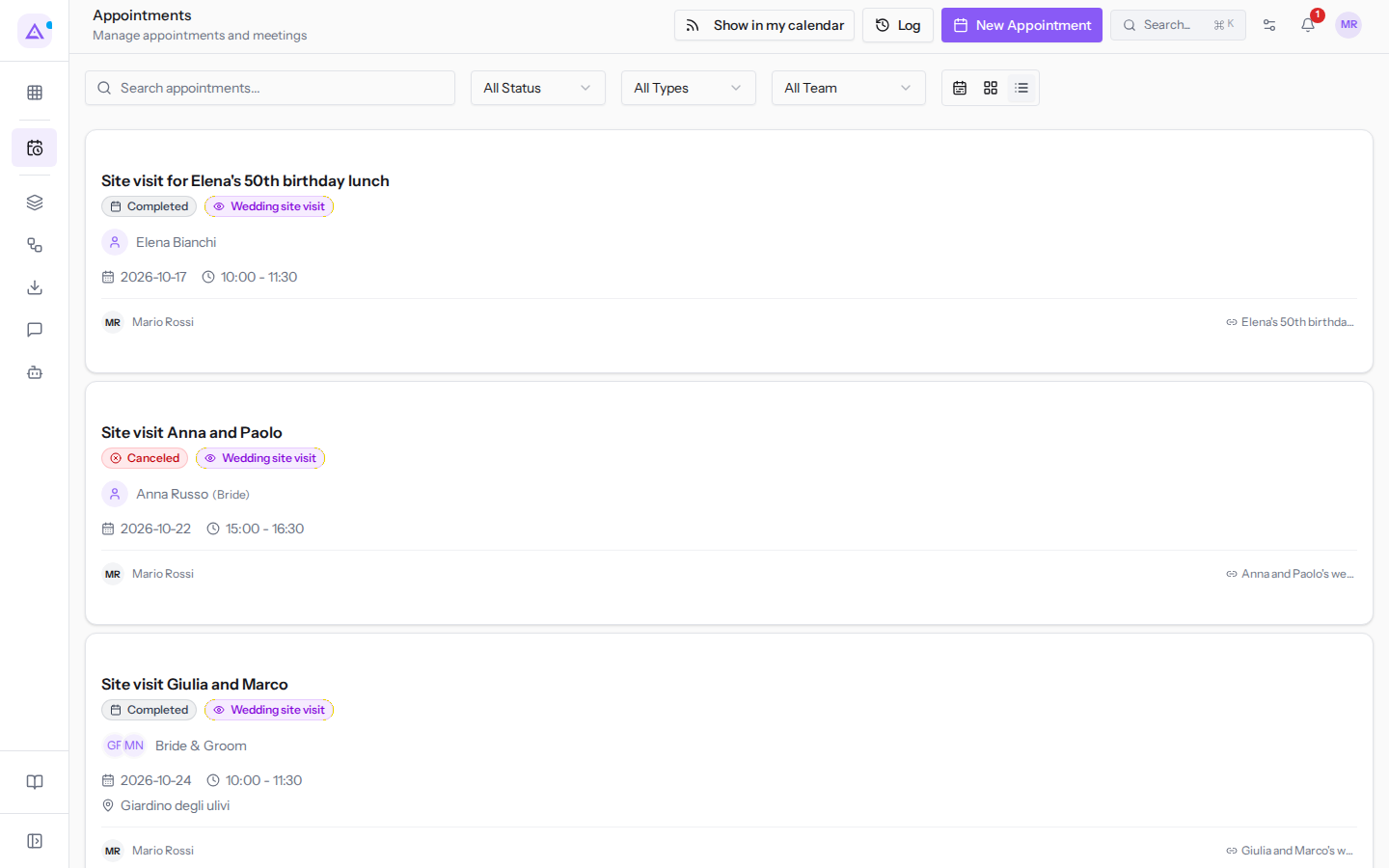
- Click an appointment to open its detail.
When you hover over a card, the ⋯ (More actions) icon appears, with View Details and, for scheduled or confirmed appointments, Cancel.
The appointment detail and status actions are described in Opening an appointment and changing its status.
Searching and filtering appointments
The search and filters are above the view and apply to all three views.
- Type an appointment title or contact name in the Search appointments... field. The list updates as you type.
- Choose the filters you need.
The fields:
- Search appointments...: searches the appointment title, contact names, and the name of the assigned person.
- All Status: limits appointments to one status.
- Scheduled
- Confirmed
- Completed
- Canceled
- No Show
- All Types: limits appointments to one appointment type, for example Wedding site visit, Menu tasting, or Introductory video call. The filter also lists archived types, such as Wine cellar tour (summer 2025).
- All Team: shows the calendar for the entire organization or for an individual, for example Giulia Verdi or Mario Rossi.
Important: the organization's full calendar is visible to administrators and Appointments module managers. Other users do not see the All Team filter and see only their own appointments.
When no appointments appear
If the search or filters return no results, No appointments found appears in List view and Grid view, with the indication Try adjusting your filters.
- Clear the Search appointments... field.
- Reset the filters to All Status, All Types, and All Team.
See it on your company, not on a slide deck.
In 30 minutes we map the software you use today.We show you how much work and how much margin Archimedes gives back.
Show me on my business →What industry are you in?
One tap — it lets us prepare the demo around your world.
What tools do you use today?
Pick the ones you recognise — or just type them. It helps us show you how they migrate.
Last step: your details.
We reply within one working day — and right after, if you like, you pick the demo slot yourself.
We couldn't send your request. Try again, or write to us at [email protected].
By sending, you agree to your data being processed so we can get back to you about the demo. Privacy notice.
Preview form — nothing is sent from this page.
Want to schedule the demo now?
Your call: book the slot you prefer yourself, or we'll call you to arrange it.
Live availability, 30 minutes, instant confirmation. The calendar opens in a new tab.
Lock in your slot ↗We'll get back to you within one working day — and we'll join the call already knowing your world.
The calendar is open in another tab: pick a slot and the demo is booked. Can't see it? Reopen it ↗
Preview page: nothing was sent.
Our calendar is live: take the slot that suits you and the demo is booked. 30 minutes, instant confirmation, no waiting.
Lock in your slot ↗