CMS
All modules
Check page SEO and set the rules
CMS · 14 of 17 · 4 min read
The SEO screen lists the site's pages and articles that have issues for search engines, and holds the rules used to check them, for example the title and description length. Here you see what to fix, review the SEO agent's proposals, and set the rules.
Open the screen from CMS › SEO. At the top there are three tabs: Check, Rules and Redirects. For redirects, read Redirect an old address to a new page.
Check pages with issues
The Check tab contains three more tabs: Audit, Proposals and SEO agent. The Audit tab lists pages and articles with the number of issues found and the description of each.
- Open CMS › SEO. The Check tab opens, on Audit.
- In the Language field, indicate the language of the content to check. In the demo the value is
en. - Scroll the list. For each page or article, the number of issues and the message for each issue are shown.
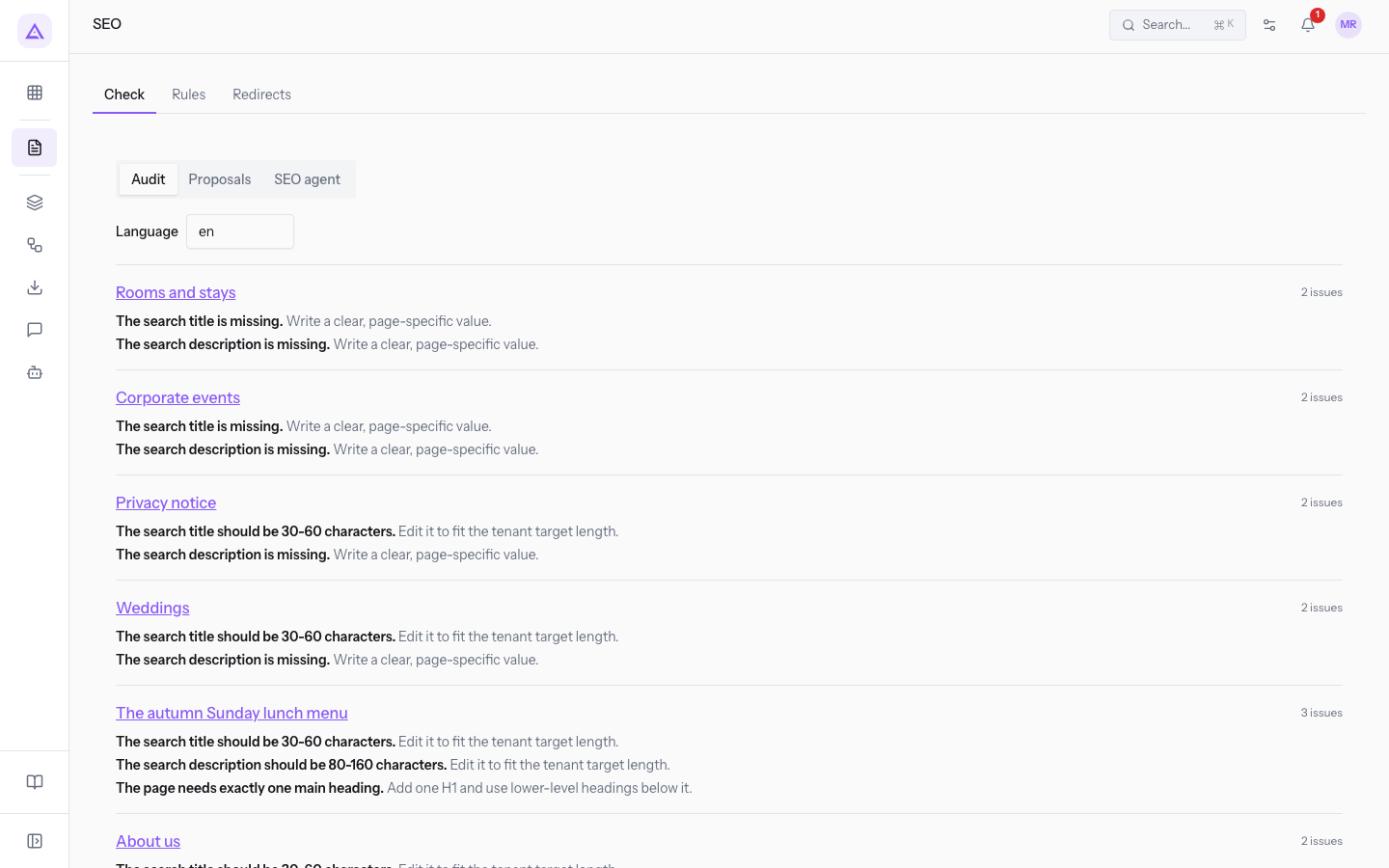
In the demo the list contains the site's pages, such as Rooms and stays, Corporate events, Weddings and Privacy notice, and the blog articles, such as The autumn Sunday lunch menu. For Weddings 2 issues are shown: "The search title should be 30-60 characters." and "The search description is missing."
Note: the limits shown in the messages are the ones set in the Rules tab. In the demo the title goes from 30 to 60 characters, as in the Minimum title length and Maximum title length fields.
Fix a page from the editor
Issues are fixed in the editor of the page or article.
- In the Audit tab, press the page name, for example Weddings. The page's visual editor opens.
- In the editor sidebar, open the SEO tab. The SEO status panel appears.
- Correct the texts indicated in the check. Use Details to see the page's issues and Suggest SEO text to receive a proposal for the texts. Site audit returns to the SEO screen.
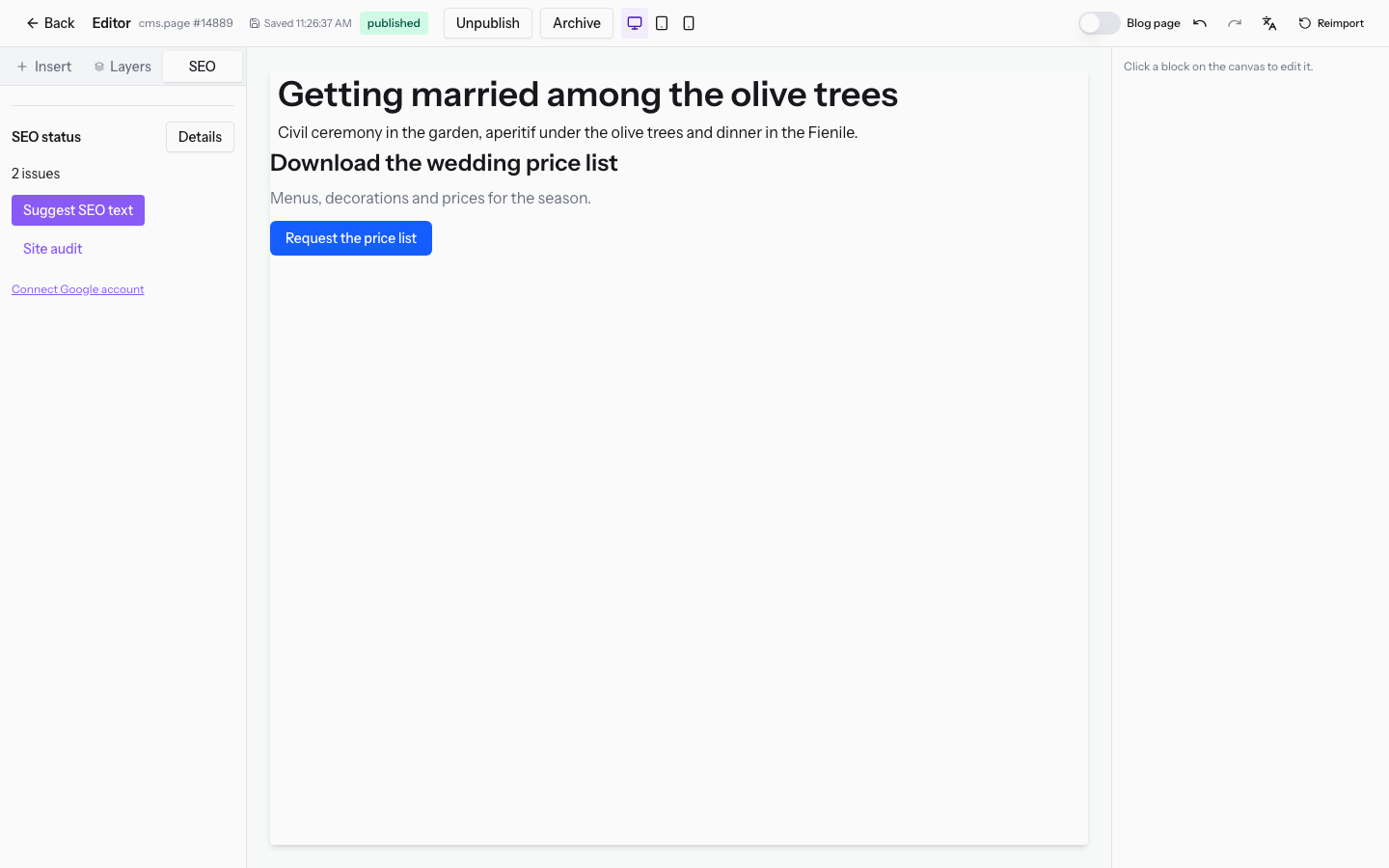
For the rest of the editor, read Editing a page with the visual editor.
Review the proposals and the SEO agent
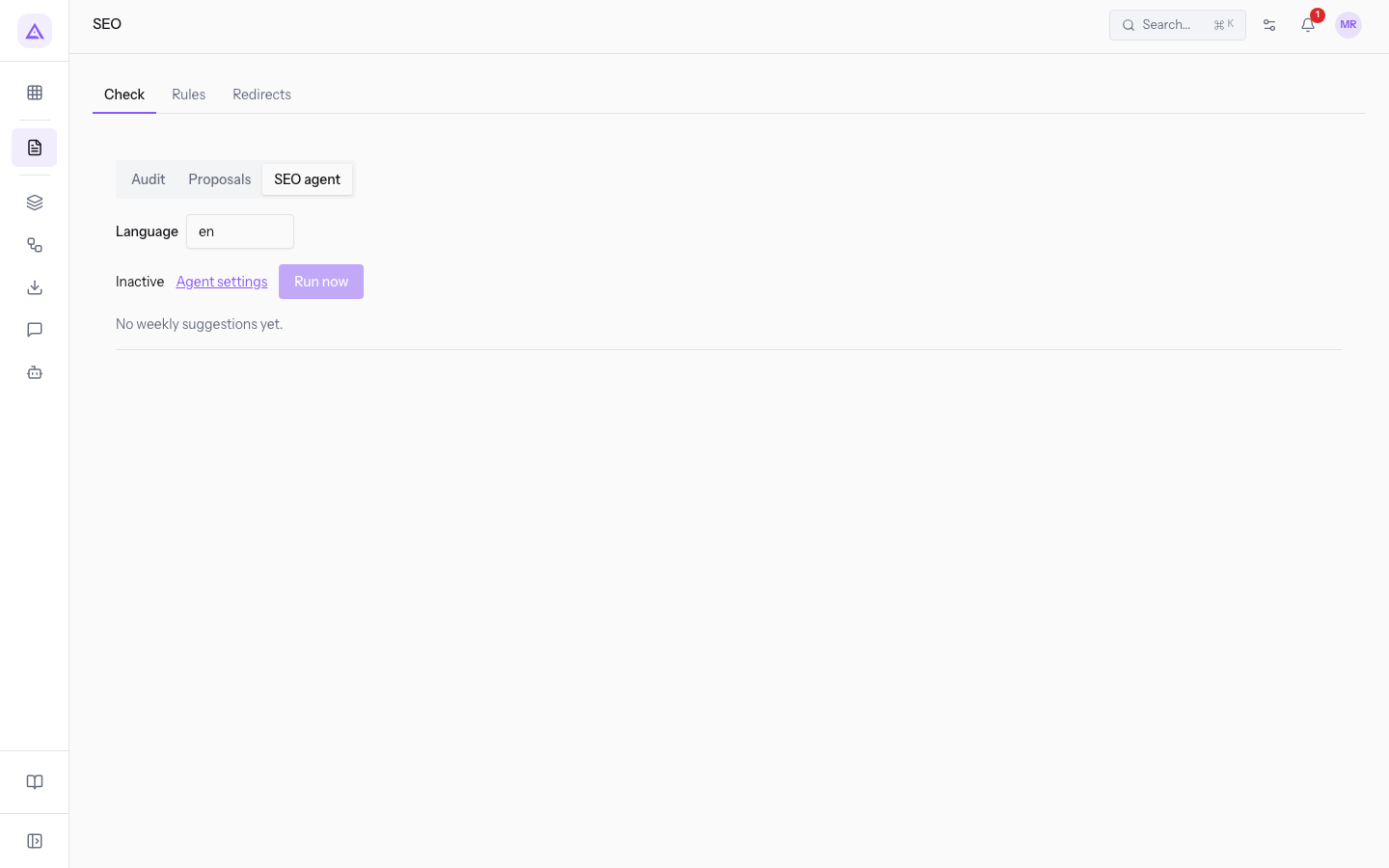
The SEO agent analyzes the site every week and proposes changes. Changes apply only if you accept them.
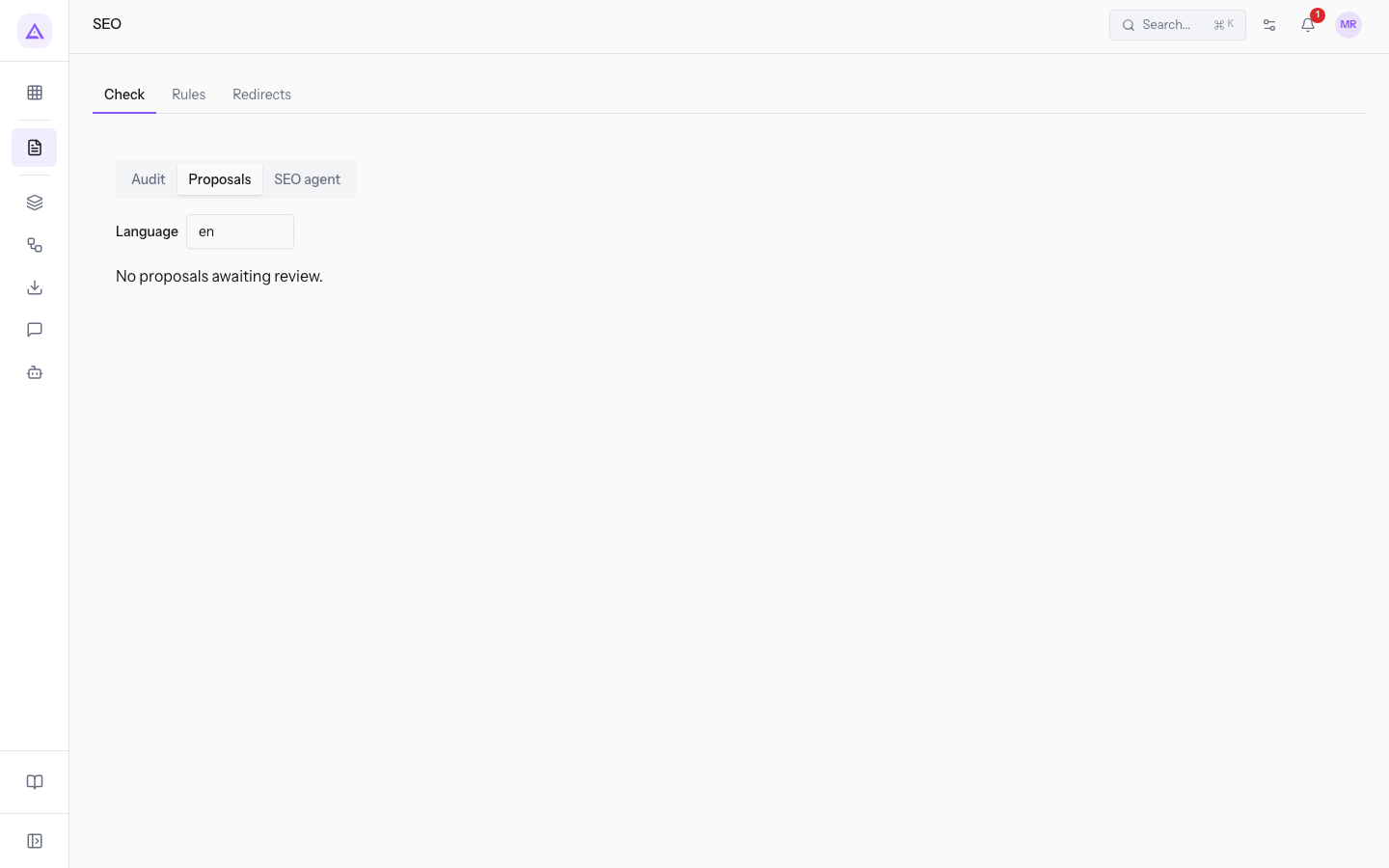
- Proposals: the list of changes to review. In the demo the tab shows No proposals awaiting review.
- SEO agent: the agent's status and its weekly proposals. In the demo the agent is Inactive and the tab shows No weekly suggestions yet. The Run now button is on the same tab.
Set the SEO rules
The rules set the allowed lengths for the title and description, the brand to add to the title, the tone of the descriptions, the words to avoid, and the languages.
- If you want longer or shorter titles, change the title lengths: the check uses the new limits.
- If you do not want the brand name in the title, leave Brand position on No brand.
- Open CMS › SEO and press Rules.
- Fill in the fields.
- Press Save.
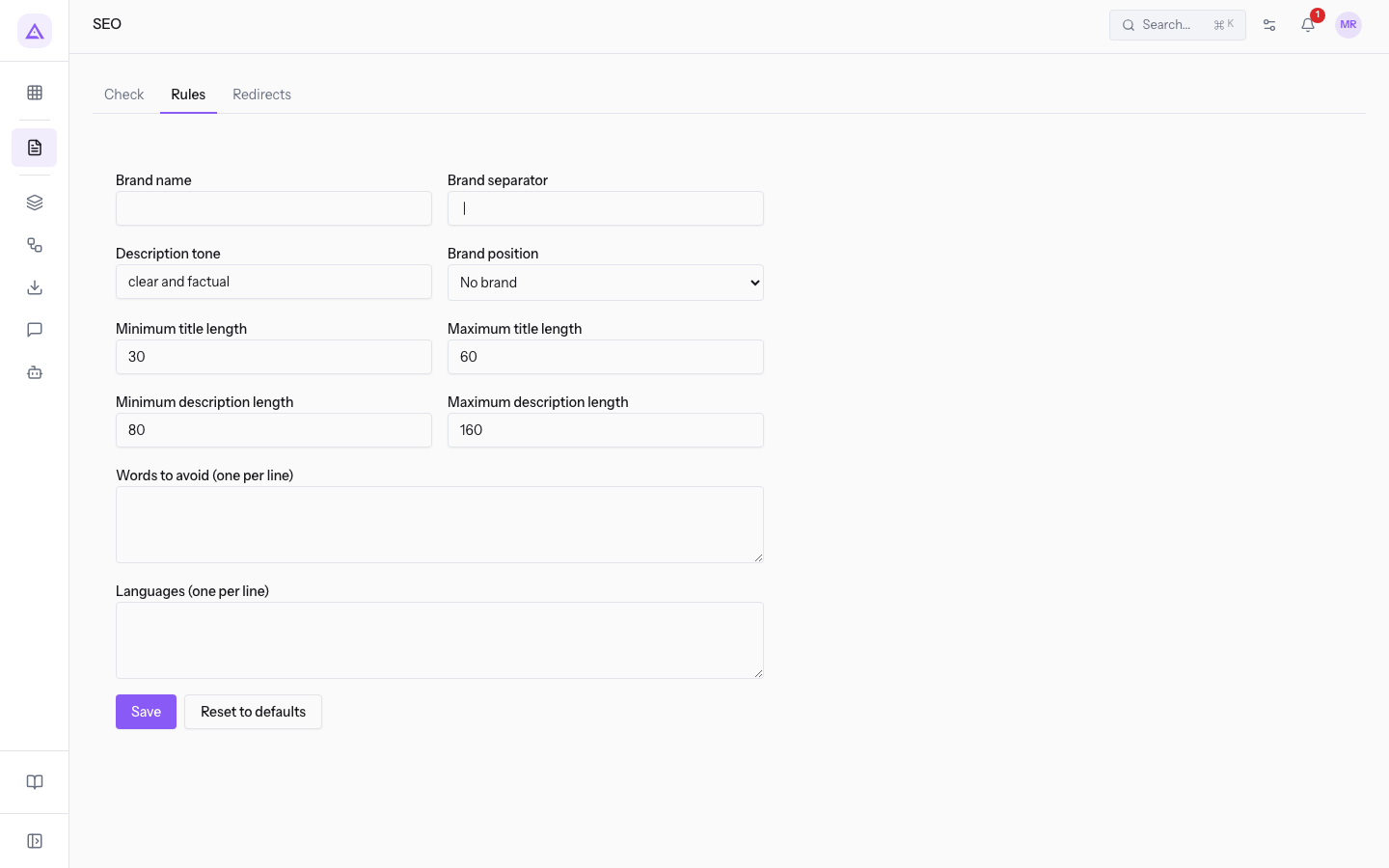
The fields of the Rules tab:
- Brand name: the name to show together with the title. In the demo it is empty.
- Brand position: where the brand name goes. The default value in the demo is No brand.
- No brand: the brand does not appear.
- Before title: the brand comes before the title.
- After title: the brand follows the title.
- Brand separator: the character between the title and the brand. In the demo it is
|. - Description tone: the tone used to write the descriptions,
clear and factualin the demo. - Minimum title length and Maximum title length: the number of characters allowed for the title. In the demo they are 30 and 60.
- Minimum description length and Maximum description length: the number of characters allowed for the description. In the demo they are 80 and 160.
- Words to avoid (one per line): the words not to use, one per line. In the demo it is empty.
- Languages (one per line): the languages, one per line. In the demo it is empty.
To undo changes made to the rules, press Reset to defaults.
See it on your company, not on a slide deck.
In 30 minutes we map the software you use today.We show you how much work and how much margin Archimedes gives back.
Show me on my business →What industry are you in?
One tap — it lets us prepare the demo around your world.
What tools do you use today?
Pick the ones you recognise — or just type them. It helps us show you how they migrate.
Last step: your details.
We reply within one working day — and right after, if you like, you pick the demo slot yourself.
We couldn't send your request. Try again, or write to us at [email protected].
By sending, you agree to your data being processed so we can get back to you about the demo. Privacy notice.
Preview form — nothing is sent from this page.
Want to schedule the demo now?
Your call: book the slot you prefer yourself, or we'll call you to arrange it.
Live availability, 30 minutes, instant confirmation. The calendar opens in a new tab.
Lock in your slot ↗We'll get back to you within one working day — and we'll join the call already knowing your world.
The calendar is open in another tab: pick a slot and the demo is booked. Can't see it? Reopen it ↗
Preview page: nothing was sent.
Our calendar is live: take the slot that suits you and the demo is booked. 30 minutes, instant confirmation, no waiting.
Lock in your slot ↗