CMS
All modules
Using shared blocks, the header, and the footer
CMS · 6 of 17 · 3 min read
Shared blocks are parts of the site that are the same on every page, such as the header, the footer, or a banner. You edit them once, and the change applies to every page that uses them.
In Appearance, choose whether the site's header and footer come from the theme or from a shared block you can edit in the CMS.
Choosing between a fixed theme and a shared block
For the header and the footer you have two options.
- If you want the header and footer of the existing theme, without changing them, choose Fixed theme.
- If you want to edit the header or footer content from the CMS, choose CMS editable and indicate the shared block to use. Every CMS page will use the selected block.
Shared blocks are inserted automatically on every page that does not include its own navbar or footer block.
Shared blocks
The Shared blocks tab on the Pages screen lists the organization's blocks with their scope of use.
- Open the Pages screen.
- Press Shared blocks.
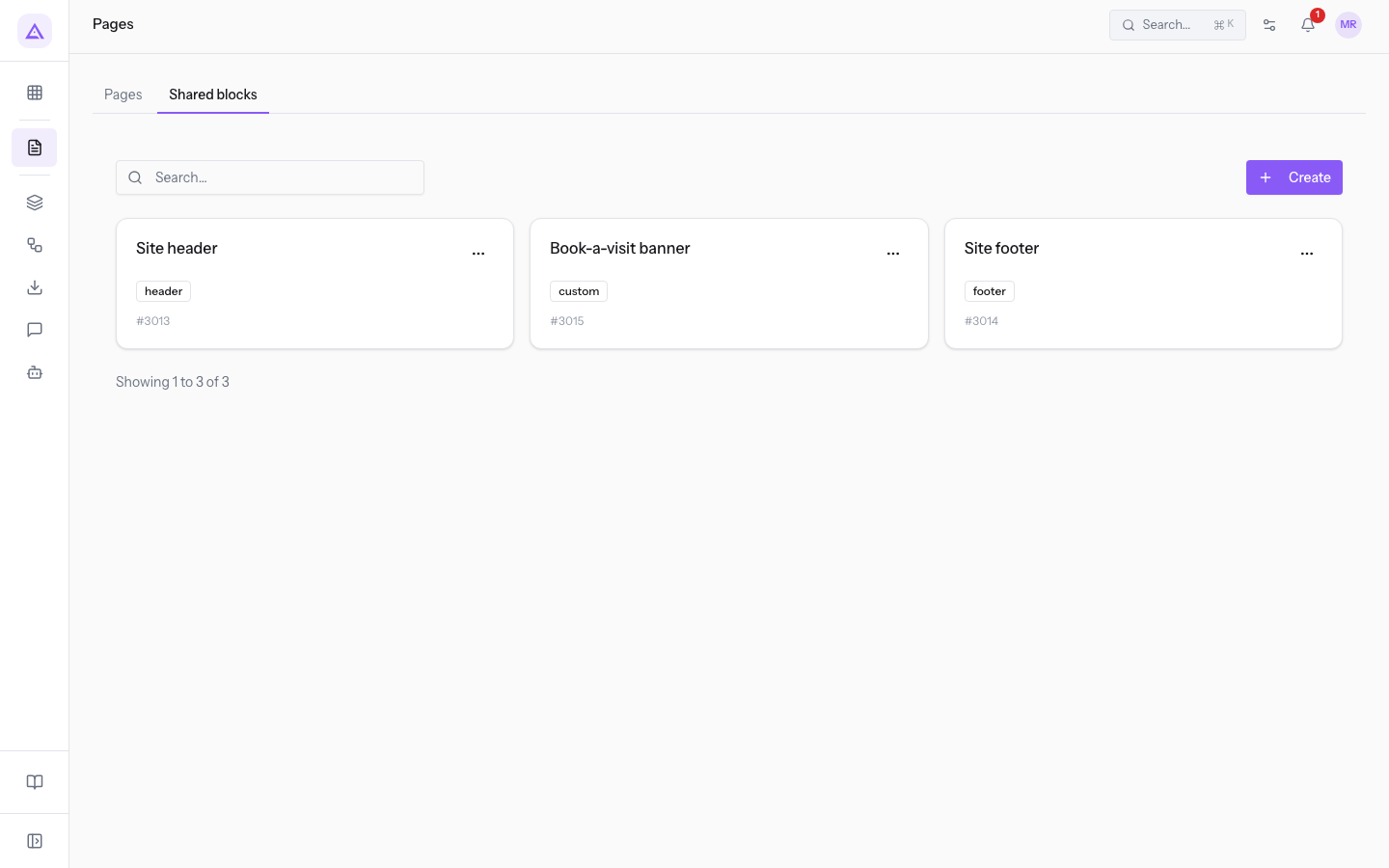
In the demo organization the list contains three blocks:
- Site header: scope
header, the block to use as the header. - Site footer: scope
footer, the block to use as the footer. - Book-a-visit banner: scope
custom, a block with a use other than header and footer.
The Search… field filters the list. The Create button opens the screen for a new block, with a required name and the scope of use.
Note: a header or a footer is created or edited here, in Shared blocks. Then you choose it in Appearance.
Setting the site's header and footer
Before you start: the Appearance screen is visible only to organization administrators.
In the Header & footer tab, choose the source of the header and footer of every public CMS page.
- In the CMS menu, open the Settings group and press Appearance.
- Press the Header & footer tab.
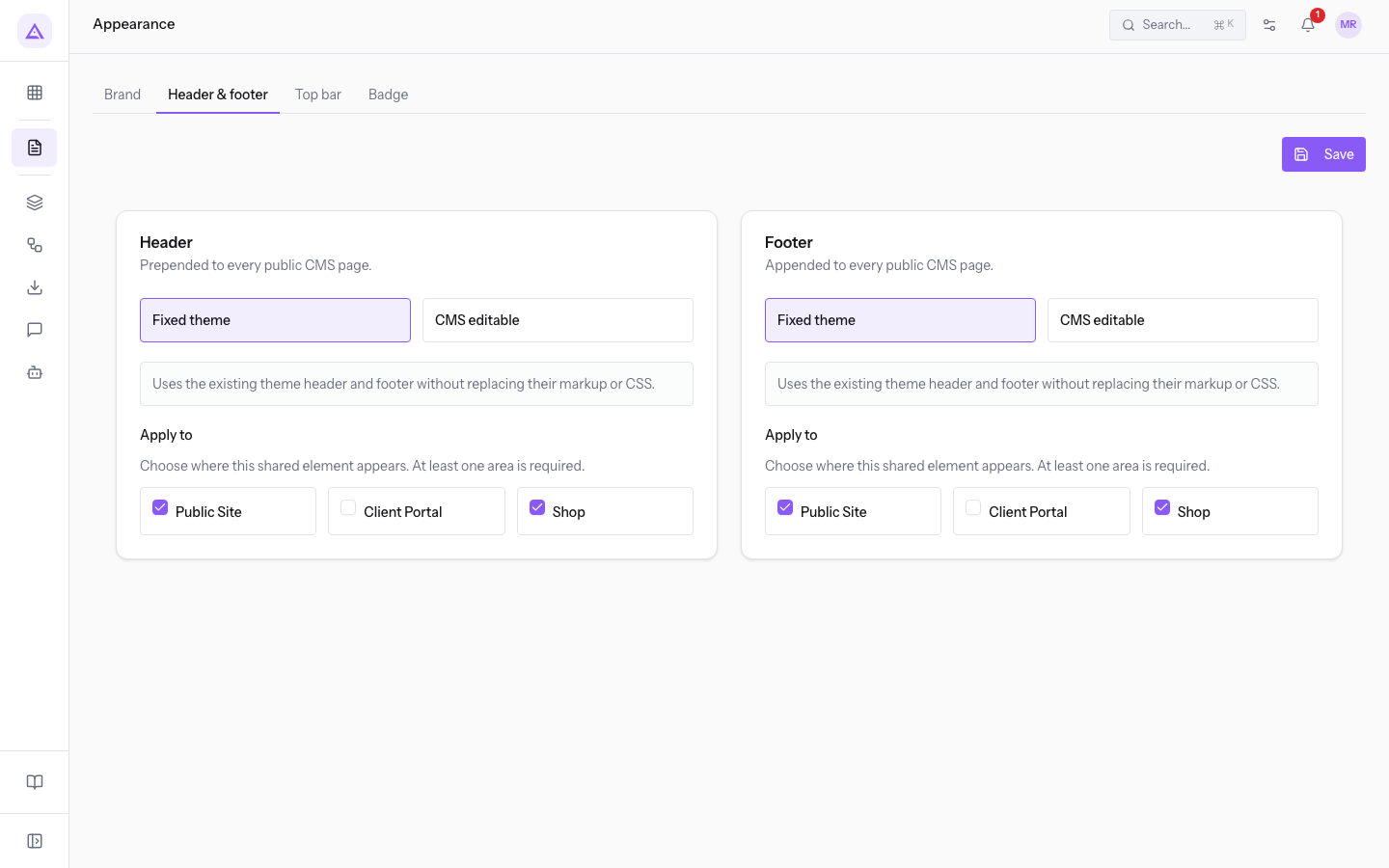
- In the Header section choose Fixed theme or CMS editable. The header is inserted before every public CMS page.
- If you chose CMS editable, open Shared block and select the block, for example Site header.
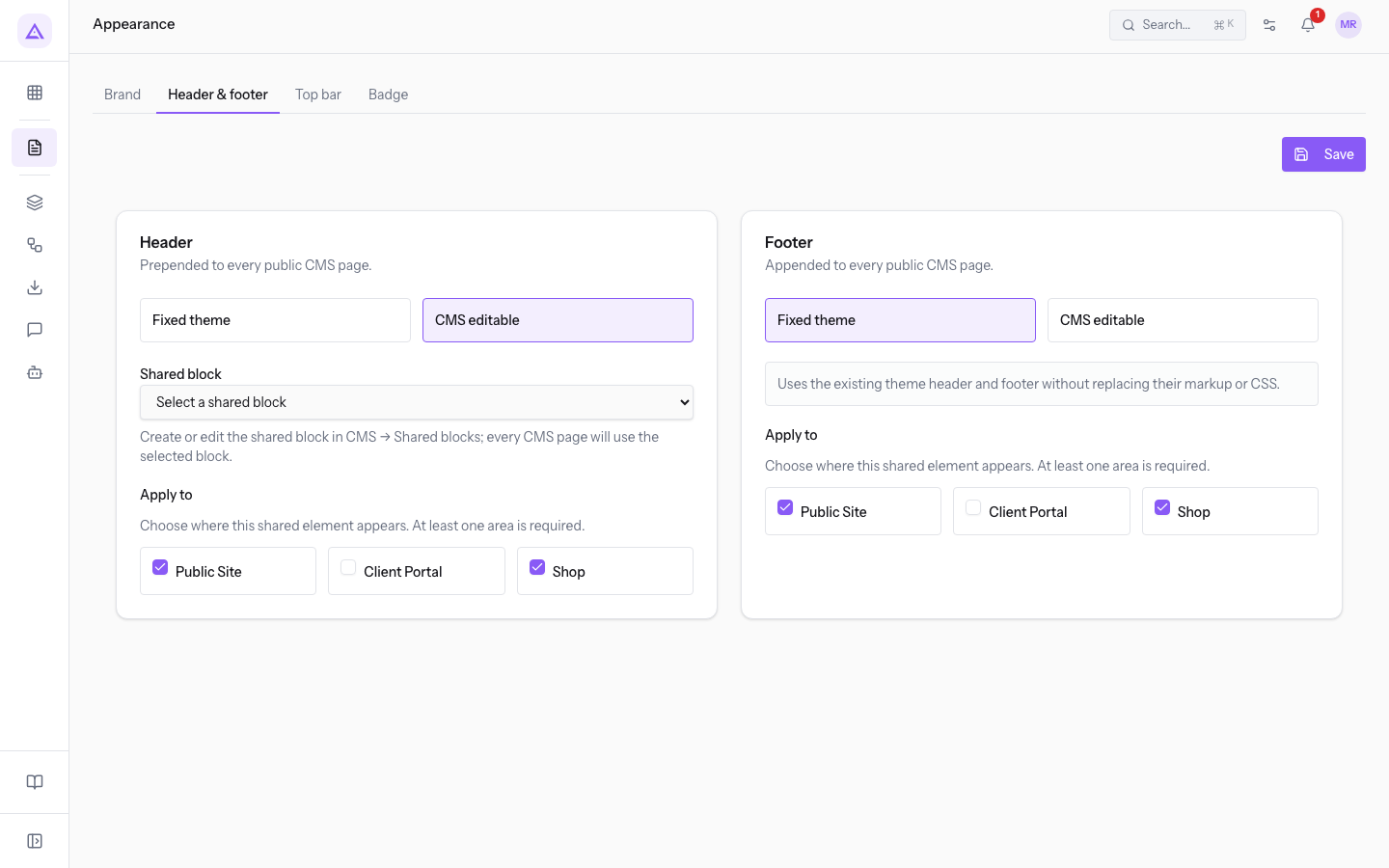
- Repeat the choice in the Footer section, with the Site footer block.
- Press Save.
The fields of the tab:
- Fixed theme: uses the header and footer of the existing theme.
- CMS editable: uses a shared block. It shows the Shared block field.
- Shared block: the block to use. The initial value is Select a shared block. The options are the blocks from the Shared blocks tab:
- Site header
- Site footer
- Book-a-visit banner
- Apply to: the areas of the site that use the choice, with one checkbox for each. In the demo Public Site and Shop are active, Client Portal is not.
- Public Site
- Client Portal
- Shop
For the site's colors, fonts, and logo see Customizing the site's look: brand, top bar and badge. To edit pages see Editing a page with the visual editor.
See it on your company, not on a slide deck.
In 30 minutes we map the software you use today.We show you how much work and how much margin Archimedes gives back.
Show me on my business →What industry are you in?
One tap — it lets us prepare the demo around your world.
What tools do you use today?
Pick the ones you recognise — or just type them. It helps us show you how they migrate.
Last step: your details.
We reply within one working day — and right after, if you like, you pick the demo slot yourself.
We couldn't send your request. Try again, or write to us at [email protected].
By sending, you agree to your data being processed so we can get back to you about the demo. Privacy notice.
Preview form — nothing is sent from this page.
Want to schedule the demo now?
Your call: book the slot you prefer yourself, or we'll call you to arrange it.
Live availability, 30 minutes, instant confirmation. The calendar opens in a new tab.
Lock in your slot ↗We'll get back to you within one working day — and we'll join the call already knowing your world.
The calendar is open in another tab: pick a slot and the demo is booked. Can't see it? Reopen it ↗
Preview page: nothing was sent.
Our calendar is live: take the slot that suits you and the demo is booked. 30 minutes, instant confirmation, no waiting.
Lock in your slot ↗