CMS
All modules
Reading form submissions and publishing them on the site
CMS · 13 of 17 · 4 min read
The Form submissions screen collects everything the site's public forms have saved. It also includes submissions that the anti-spam filter held back. The Forms & Embeds screen gives you the public link and snippet of each published form, to share or to insert into a site page. In the demo the form is Wedding quote request.
To build a form and publish it, see Create a web form for the site.
Reading received submissions
The Form submissions screen lists the submissions of all public forms. The demo has those from Claire Fenton, David Morton and Roberta Cole, plus one submission held back as spam.
- Open CMS › Forms and press the Submissions tab. The Form submissions screen opens.
- Choose which submissions to see with the filters at the top.
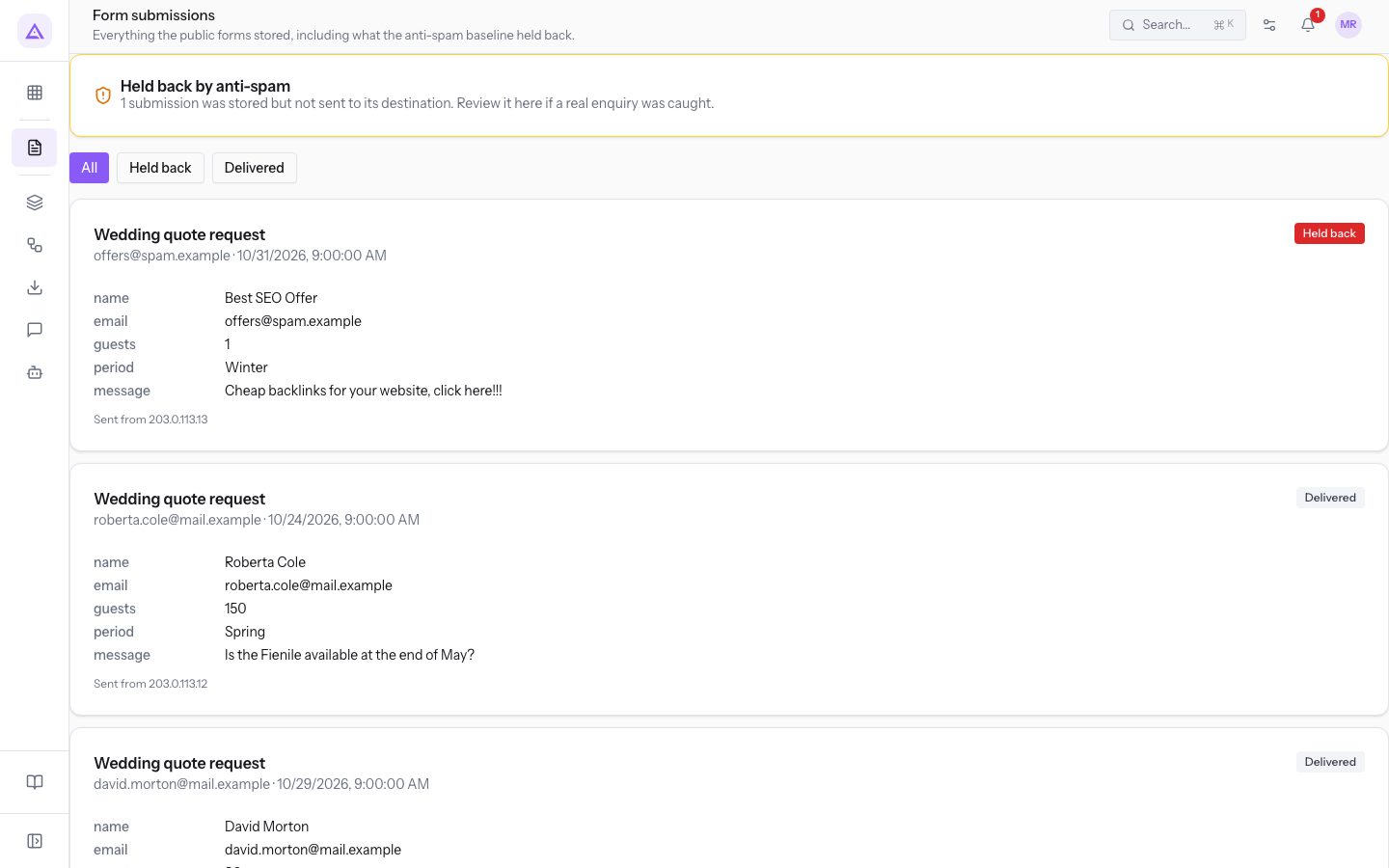
The screen's filters:
- All: all saved submissions, delivered and held back.
- Held back: only the submissions the anti-spam filter stopped.
- Delivered: only the submissions forwarded to the form's destination.
Each submission carries a badge with its status:
- Delivered: the submission reached the form's destination. For
Wedding quote requestthe destination is an opportunity in the CRM. - Held back: the submission is saved but was not forwarded to the destination.
Note: submissions stay saved for two years from the submission date. If a person asks to delete their data, the submission is deleted together with its attached files.
The number of received submissions also appears in the Form submissions received tile, described in Reading the Site Summary.
Checking submissions held back by anti-spam
When the anti-spam filter holds back submissions, the Held back by anti-spam box appears at the top of the screen. The box says how many there are, for example: "1 submission was stored but not sent to its destination. Review it here if a real enquiry was caught."
A held-back submission does not reach the form's destination: it does not create an opportunity in the CRM, for instance. That is why it should be checked: it could be a real request.
- On the Form submissions screen, press Held back.
- Read the submissions with the Held back badge and check whether they are real requests.
Important: if the site has no anti-spam protection configured, submissions are accepted without checks. In this case the screen tells you so, with a prompt to contact support. You do not need to enter any credentials.
Copying a form's public link and snippet
The Forms & Embeds screen is the single place to copy the public link and snippet of each form and embeddable element. It shows only published forms. In the demo there is Wedding quote request.
Choose the link or the snippet based on how you will use it:
- If you want to share the form in an email, a message or on social media, use the Public link. It opens the form's own page (
/f/wedding-quote-request). - If you want to show the form inside a page of the site or of another site, use the Embed snippet.
- Open the Forms & Embeds screen. The screen has no menu item: it opens at the address
/cms/forms-embedsof the back office. - Find the form in the Forms section, for example
Wedding quote request. - Press Copy link to copy the public link, or Copy snippet to copy the embed snippet.
- Paste the link or snippet where you need it.
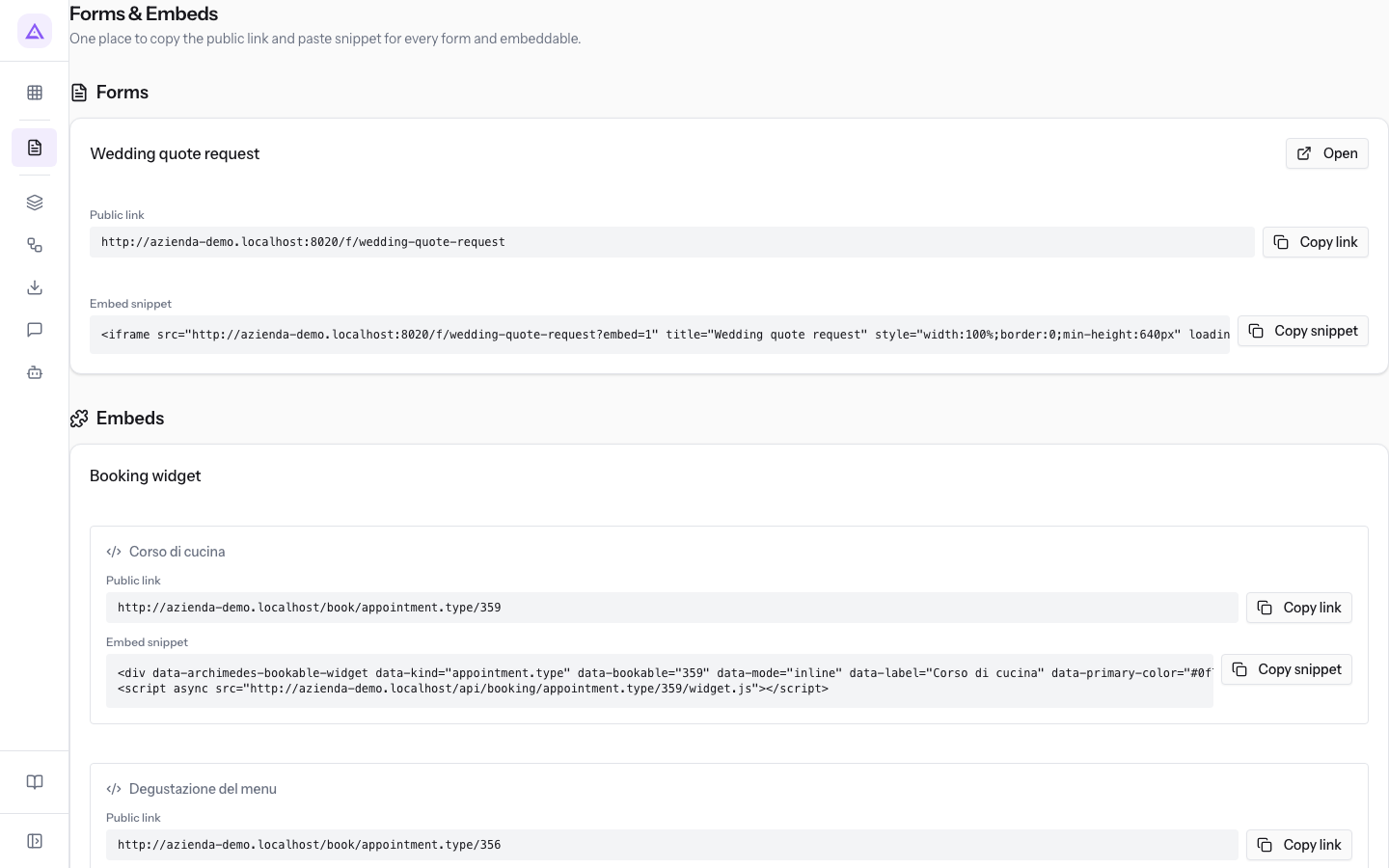
What each form's card shows:
- The form name.
- Open: opens the form.
- The count of views and submissions,
46 views · 4 submissionsin the demo. - Public link, with the Copy link button.
- Embed snippet, with the Copy snippet button.
If no form is published yet, the screen shows "Nothing to embed yet. Publish a form to get its link and snippet."
Important: reCAPTCHA v3 works only on the form's own page. If you embed a form protected by reCAPTCHA v3 in a site page, submissions made from there are rejected. In that case use Cloudflare Turnstile.
See it on your company, not on a slide deck.
In 30 minutes we map the software you use today.We show you how much work and how much margin Archimedes gives back.
Show me on my business →What industry are you in?
One tap — it lets us prepare the demo around your world.
What tools do you use today?
Pick the ones you recognise — or just type them. It helps us show you how they migrate.
Last step: your details.
We reply within one working day — and right after, if you like, you pick the demo slot yourself.
We couldn't send your request. Try again, or write to us at [email protected].
By sending, you agree to your data being processed so we can get back to you about the demo. Privacy notice.
Preview form — nothing is sent from this page.
Want to schedule the demo now?
Your call: book the slot you prefer yourself, or we'll call you to arrange it.
Live availability, 30 minutes, instant confirmation. The calendar opens in a new tab.
Lock in your slot ↗We'll get back to you within one working day — and we'll join the call already knowing your world.
The calendar is open in another tab: pick a slot and the demo is booked. Can't see it? Reopen it ↗
Preview page: nothing was sent.
Our calendar is live: take the slot that suits you and the demo is booked. 30 minutes, instant confirmation, no waiting.
Lock in your slot ↗