CMS
All modules
Redirect an old address to a new page
CMS · 15 of 17 · 4 min read
A redirect sends people who open an old site address to a new one. Use it when a page changes address or is replaced, for example from /weddings-2025 to /events/weddings, or to send /easter to /restaurant for a period.
Where redirects are managed
Redirects are handled in the Redirects tab of the SEO screen in the CMS module.
- In the CMS module, open the SEO screen.
- Press the Redirects tab.
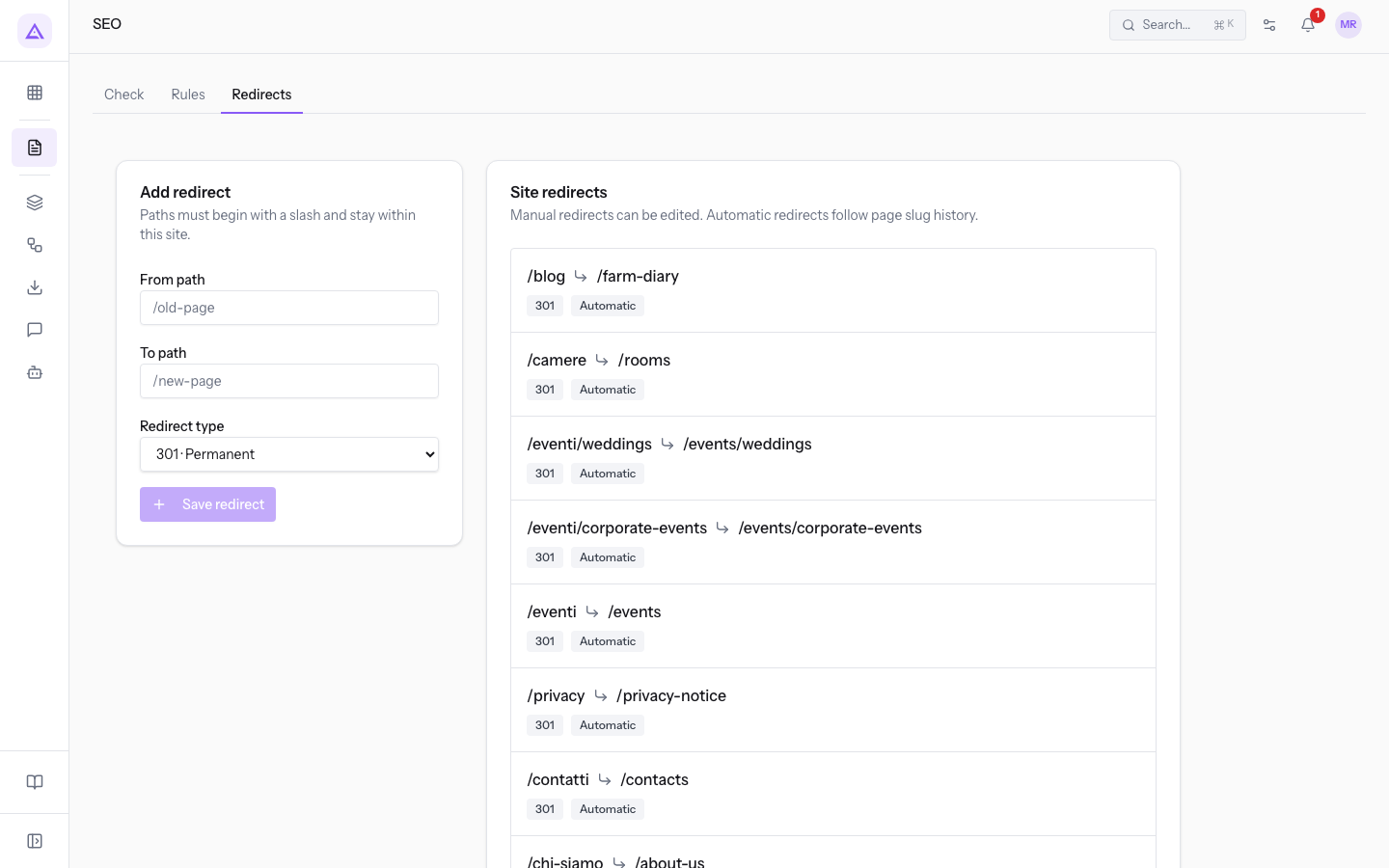
The tab has two parts: the panel to add or edit a redirect, and the list of the site's redirects.
Each row in the list shows:
- the old path and, after the arrow, the new path;
- the redirect code, for example 301 or 302;
- the origin of the redirect:
ManualorAutomatic.
In the demo organization, the list contains /weddings-2025 → /events/weddings (301) and /easter → /restaurant (302).
Manual and automatic redirects
The list has two types of redirect.
Manual: you create it yourself from the panel on the tab. You can edit and delete it.Automatic: the system creates it and follows the address history of the pages. It is created when a page's address changes, so the old address keeps leading to the page. It has no edit and delete buttons.
If you change the address of a site page, you do not need to create a redirect by hand: the system adds it. Create a manual redirect when you want to send an address to another page, for example an old address of a page that no longer exists.
Choosing the redirect type
The Redirect type field tells whether the move is permanent or temporary.
- If the old address will not be used again, choose 301 · Permanent, as for
/weddings-2025→/events/weddings. - If the old address will be used again after a period, choose 302 · Temporary, as for
/easter→/restaurant.
The field also offers 307 · Temporary, preserve method and 308 · Permanent, preserve method, which are temporary and permanent respectively.
Adding a redirect
The Add redirect panel creates a new manual redirect.
- In the CMS module, open the SEO screen and press Redirects.
- In the From path field, type the old path, for example
/weddings-2025. - In the To path field, type the new path:
/events/weddingsin this case. - In the Redirect type field, choose the type.
- Press Save redirect.
The redirect appears in the list as Manual and the panel empties.
The panel's fields are:
- From path: the old path to redirect. The placeholder is
/old-page. The field is required. - To path: the path to send people to when they open the old address. The placeholder is
/new-page. The field is required. - Redirect type: the type of redirect. The default value is 301 · Permanent.
- 301 · Permanent
- 302 · Temporary
- 307 · Temporary, preserve method
- 308 · Permanent, preserve method
Important: both paths must start with the slash
/and stay within the site. You cannot redirect to another site.
Note: the Save redirect button is enabled only when From path and To path are filled in.
Editing a redirect
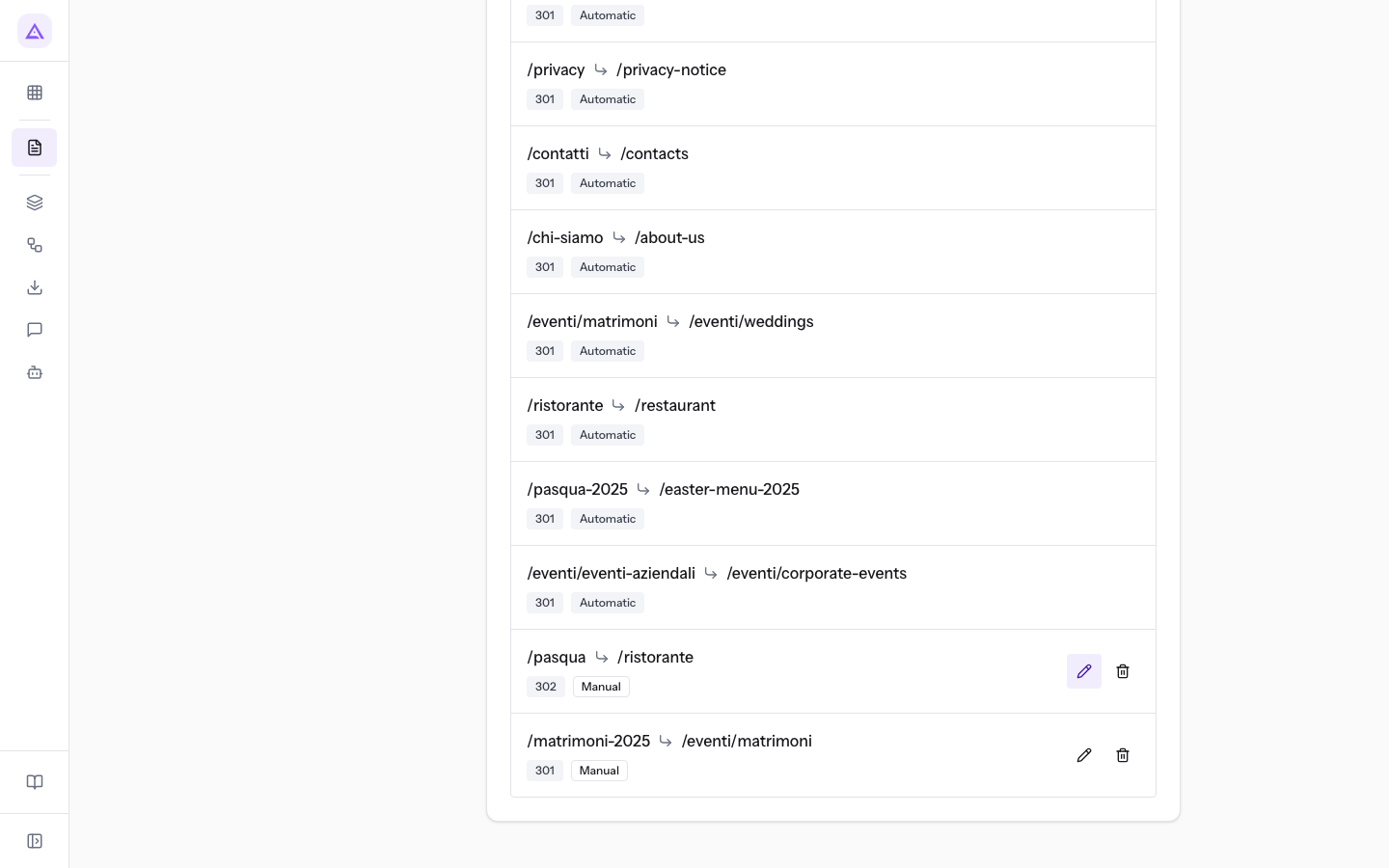
You can edit only Manual redirects.
- In the list, press the pencil icon on the row, such as the one for
/easter. - The panel changes to
Edit redirectand shows the redirect's values: From path/easter, To path/restaurant, Redirect type 302 · Temporary.
- Change the fields you need.
- Press Save redirect to save, or Cancel to leave the edit without saving.
After saving or canceling, the panel returns to Add redirect and empties.
Deleting a redirect
You can delete only Manual redirects.
- In the list, press the trash icon on the row, such as the one for
/weddings-2025.
The redirect is deleted immediately, with no confirmation request, and disappears from the list. From that moment, the old address no longer leads to the new page.
Important: deletion does not ask for confirmation. Before pressing the trash icon, check that the old address is no longer needed.
To check the other SEO aspects of pages, see Check page SEO and set the rules.
See it on your company, not on a slide deck.
In 30 minutes we map the software you use today.We show you how much work and how much margin Archimedes gives back.
Show me on my business →What industry are you in?
One tap — it lets us prepare the demo around your world.
What tools do you use today?
Pick the ones you recognise — or just type them. It helps us show you how they migrate.
Last step: your details.
We reply within one working day — and right after, if you like, you pick the demo slot yourself.
We couldn't send your request. Try again, or write to us at [email protected].
By sending, you agree to your data being processed so we can get back to you about the demo. Privacy notice.
Preview form — nothing is sent from this page.
Want to schedule the demo now?
Your call: book the slot you prefer yourself, or we'll call you to arrange it.
Live availability, 30 minutes, instant confirmation. The calendar opens in a new tab.
Lock in your slot ↗We'll get back to you within one working day — and we'll join the call already knowing your world.
The calendar is open in another tab: pick a slot and the demo is booked. Can't see it? Reopen it ↗
Preview page: nothing was sent.
Our calendar is live: take the slot that suits you and the demo is booked. 30 minutes, instant confirmation, no waiting.
Lock in your slot ↗