CMS
All modules
Publish, schedule and get a page reviewed
CMS · 5 of 17 · 5 min read
Every page on the site has a status. The status decides whether visitors can see it. From the editor header you can publish a page right away, schedule it for a date, send it for review, take it off the site, or archive it. For example, you can publish the weddings page, schedule a holiday menu, or archive an expired offer.
Page statuses and when to choose them
A page can be in five statuses. The page tree shows the status of each page next to its path, for example Published for Farm Stay Demo.
- Draft: the page is not on the site. Use it while you write (
Rooms and stays). - In review: the page is waiting for approval (
Corporate events). - Scheduled: the page will go online on the chosen date (
Restaurant). - Published: the page is on the site (
About us). - Archived: the page is removed from the site but kept on file (
2025 Easter menu).
How to choose:
- If another person must check the page before it goes online, send it for review.
- If the page must go out on a specific date, schedule it.
- If the page is ready, publish it right away.
- If the page needs changes and must not stay visible in the meantime, put it back in draft.
- If the page is no longer needed, archive it. You can put it back in draft whenever you want.
The editor header only shows the buttons that fit the page's current status. The buttons change after each action.
| Current status | Buttons | Status after the action |
|---|---|---|
| Draft | Request review, Schedule, Publish | In review, scheduled, published |
| In review | Reject, Approve + publish | Draft, published |
| Published | Unpublish, Archive | Draft, archived |
| Scheduled | Unschedule | Draft |
| Archived | Restore to draft | Draft |
Before you start: in the CMS, publishing is a permission of the website manager. To change the page content, see Editing a page with the visual editor.
Open a page in the editor
The publishing buttons are in the header of the page editor.
- From the CMS menu, open Pages.
- In the row of the page, for example
Rooms and stays, press Edit. The editor opens and shows the buttons for the current status in the header. To find the row, type the title in the Search pages… field.
To leave the editor, press Back: it returns to the page's detail screen.
Publish a draft or send it for review
On a draft page, the header shows Request review, Schedule and Publish.
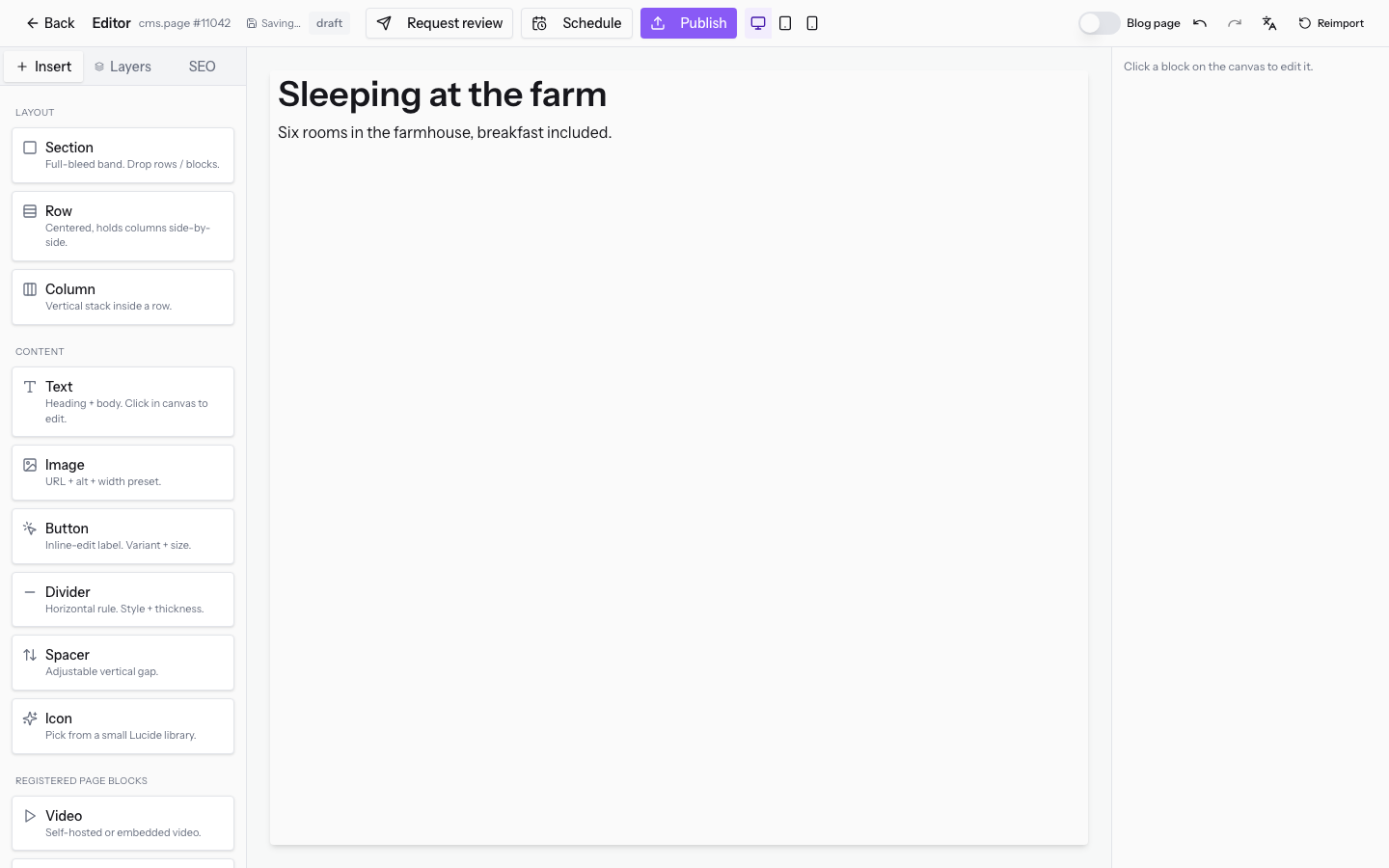
To publish the page right away:
- Open the draft page in the editor, for example
Rooms and stays. - Press Publish. The page becomes published and the header shows Unpublish and Archive.
To request a review before publishing:
- Open the draft page in the editor.
- Press Request review. The page moves to review and the header shows Reject and Approve + publish.
Schedule publishing
Scheduling publishes the page at a future date and time. Until then, the page is not on the site.
- Open the draft page in the editor.
- Press Schedule. The Schedule publish window opens.
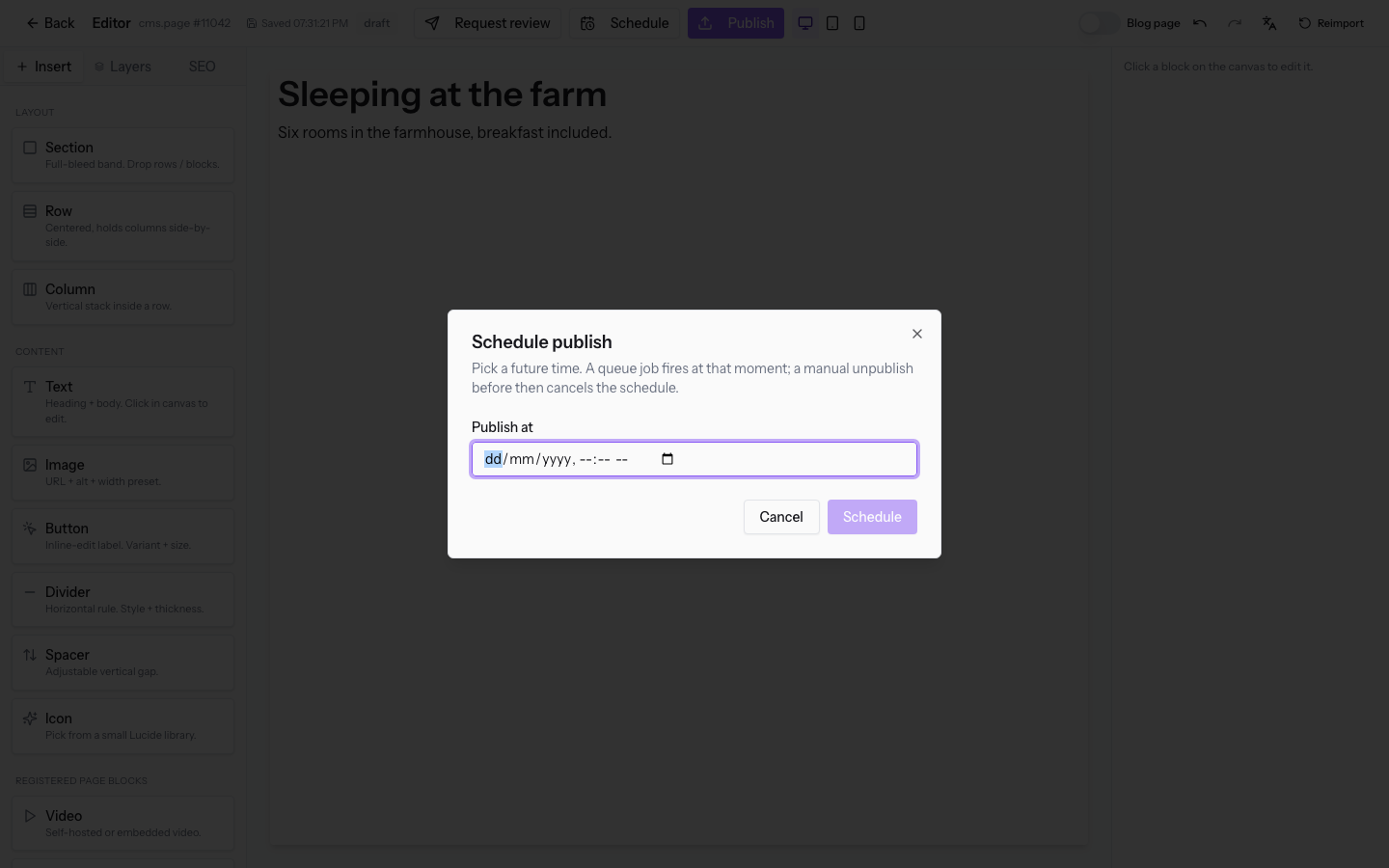
- Fill in the field and press Schedule. To close the window without scheduling, press Cancel.
Fields in the Schedule publish window:
- Publish at: the date and time when the page goes online. It must be a future moment.
Note: at the chosen date, publishing starts automatically, with no other action needed.
Approve or reject a page in review
On a page in review, the header shows Reject and Approve + publish.
- Open the page in review in the editor, for example
Corporate events.
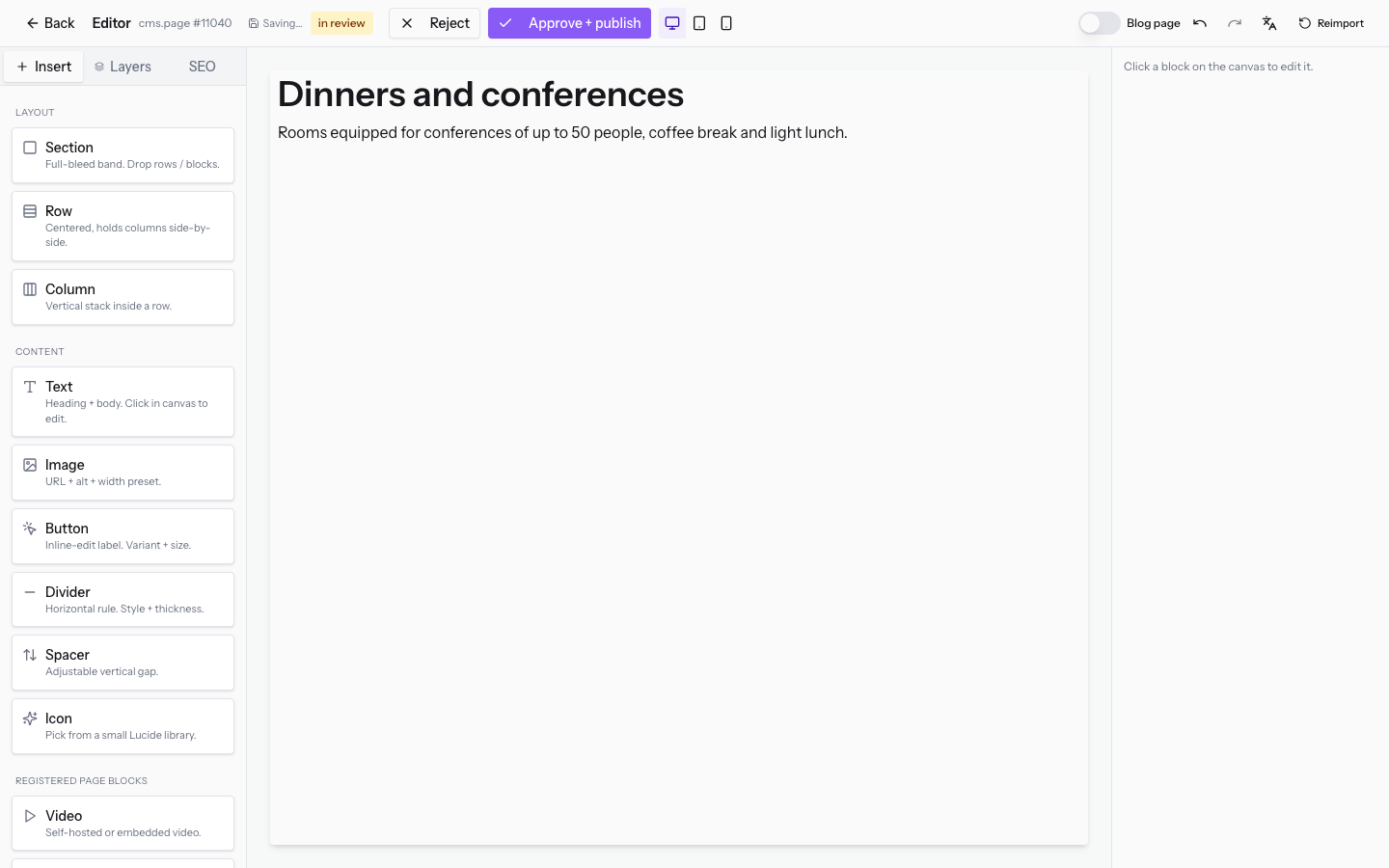
- Check the content of the page.
- Choose the action:
- Approve + publish: approves the page and publishes it in the same step.
- Reject: rejects the page. The page goes back to draft and the header shows Request review, Schedule and Publish again.
Take a published page off the site or archive it
On a published page, the header shows Unpublish and Archive.
- Open the published page in the editor, for example
About us.
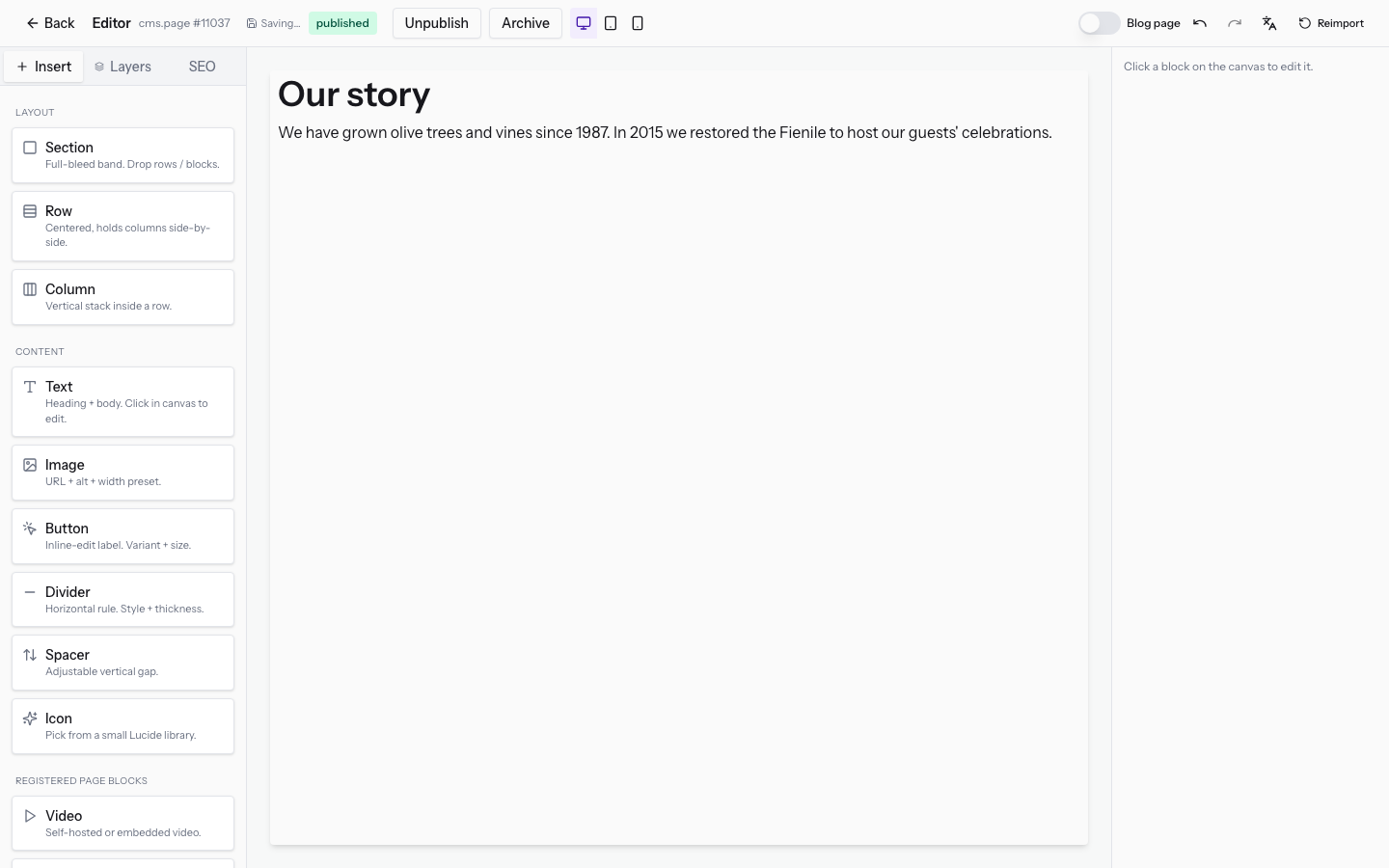
- Choose the action:
- Unpublish: removes the page from the site and puts it back in draft. Use it for a page to fix and publish again.
- Archive: archives the page. The header shows only Restore to draft. Use it for a page that is no longer needed, such as a seasonal menu.
Cancel a scheduled publishing
On a scheduled page, the header shows only Unschedule.
- Open the scheduled page in the editor, for example
Restaurant.
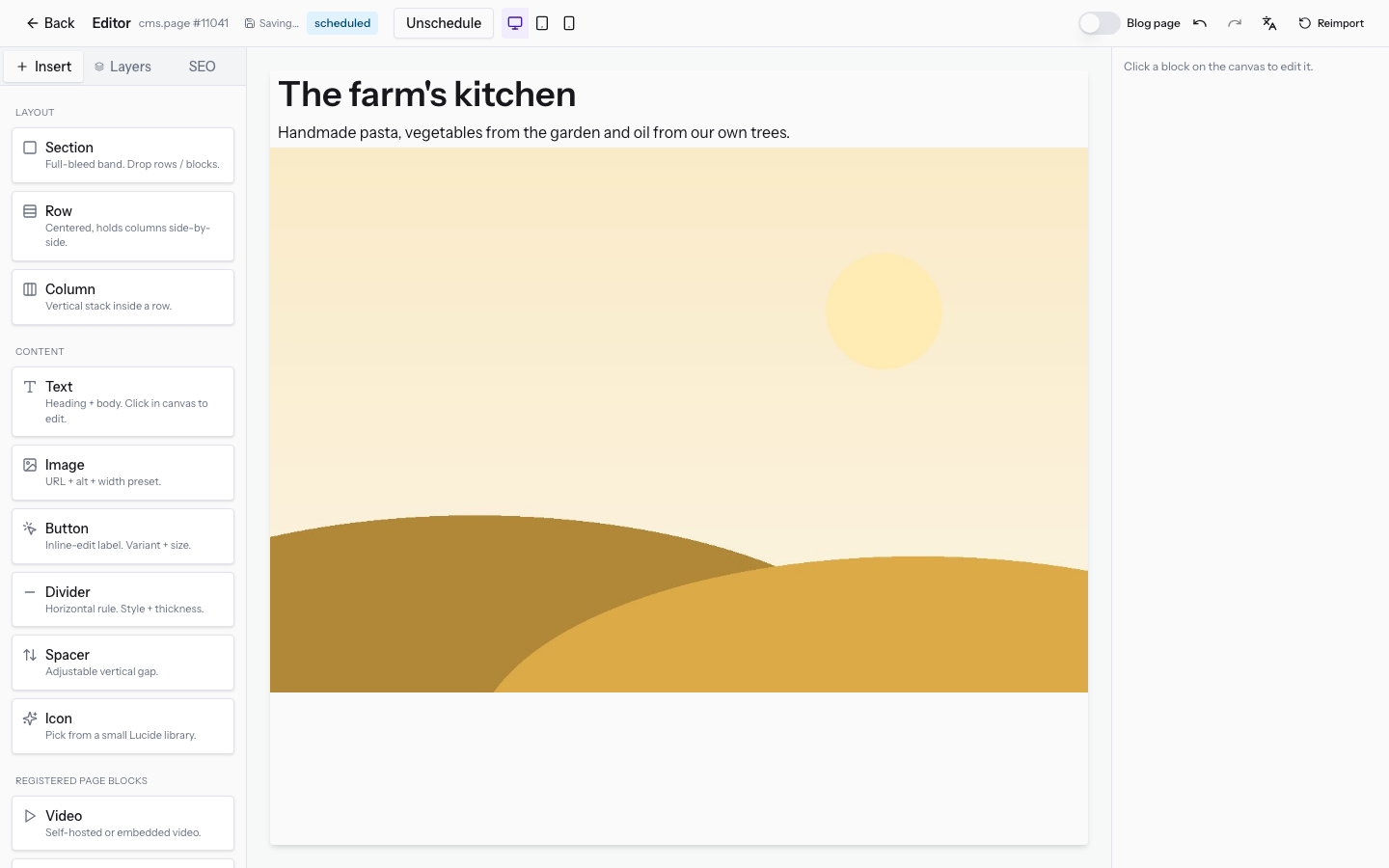
- Press Unschedule. The schedule is canceled and the page goes back to draft.
To choose another date, press Schedule again on the draft.
Put an archived page back in draft
An archived page cannot be published directly: first it must be put back in draft.
- Open the archived page in the editor, for example
2025 Easter menu. - Press Restore to draft. The page goes back to draft and the header shows Request review, Schedule and Publish.
- Update the content and publish, schedule or send the page for review as with any draft.
See it on your company, not on a slide deck.
In 30 minutes we map the software you use today.We show you how much work and how much margin Archimedes gives back.
Show me on my business →What industry are you in?
One tap — it lets us prepare the demo around your world.
What tools do you use today?
Pick the ones you recognise — or just type them. It helps us show you how they migrate.
Last step: your details.
We reply within one working day — and right after, if you like, you pick the demo slot yourself.
We couldn't send your request. Try again, or write to us at [email protected].
By sending, you agree to your data being processed so we can get back to you about the demo. Privacy notice.
Preview form — nothing is sent from this page.
Want to schedule the demo now?
Your call: book the slot you prefer yourself, or we'll call you to arrange it.
Live availability, 30 minutes, instant confirmation. The calendar opens in a new tab.
Lock in your slot ↗We'll get back to you within one working day — and we'll join the call already knowing your world.
The calendar is open in another tab: pick a slot and the demo is booked. Can't see it? Reopen it ↗
Preview page: nothing was sent.
Our calendar is live: take the slot that suits you and the demo is booked. 30 minutes, instant confirmation, no waiting.
Lock in your slot ↗