CMS
All modules
Reading the Site Summary
CMS · 2 of 17 · 4 min read
The CMS Summary shows, on one screen, what needs attention on the site today: content waiting, SEO issues, form submissions and, when data is available, visits and clicks from Google. Each tile shows a number and, when pressed, takes you to the screen where you can act.
Opening the Summary
The Summary is the first item in the CMS menu, where it is called Overview.
- Go to CMS › Overview.
- Read the tiles under the subtitle What needs attention on the website today.
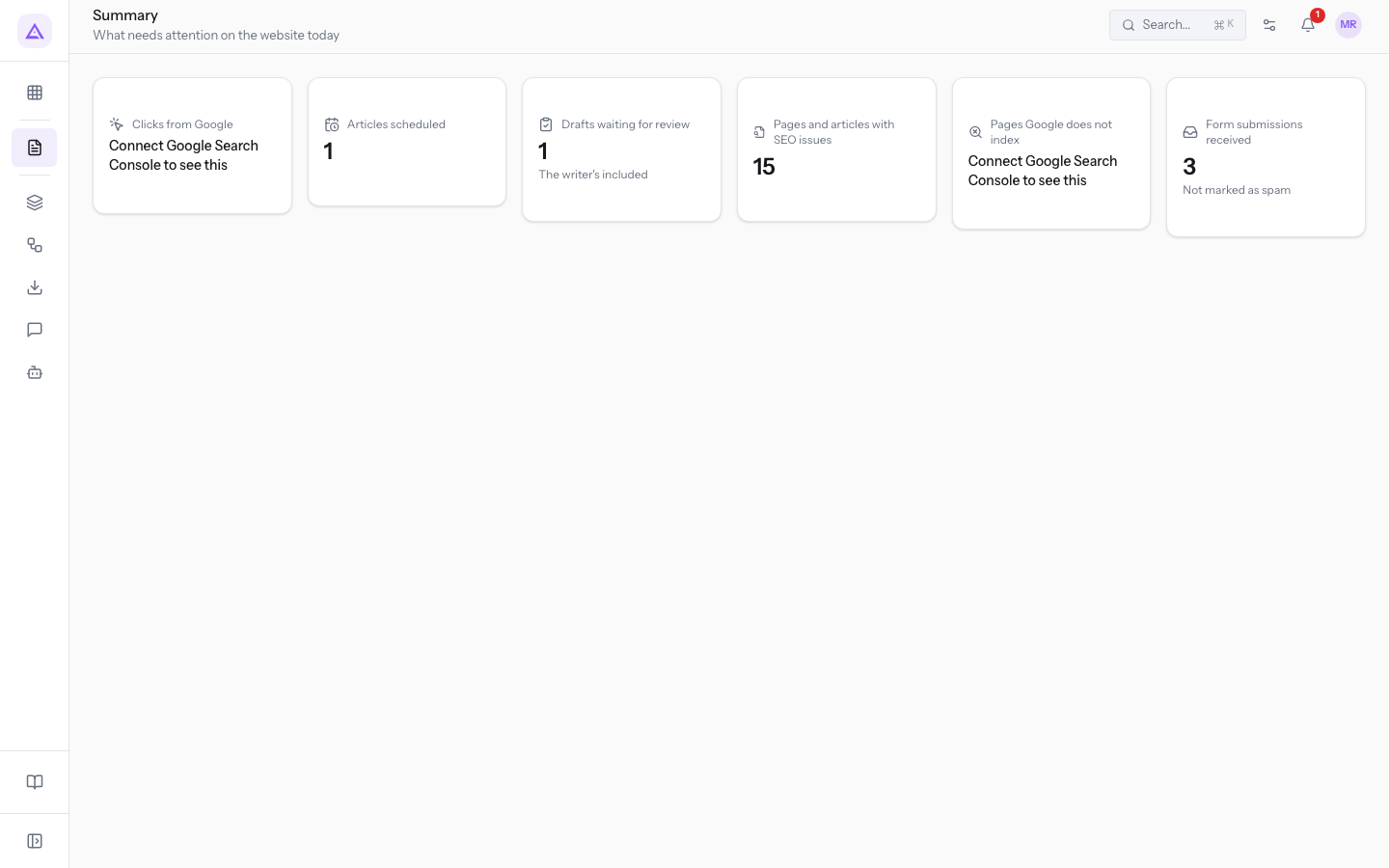
The tiles count data for the whole site, not only the content you created yourself. The system only shows the tiles your profile can see: a tile that doesn't concern you does not appear.
Note: if the CMS content types have not yet been created for the organization, the Summary shows Finish setting up the CMS, with the text "One last step — create the content types (pages, shared blocks, menus, categories, media library) for your organization." Only an organization administrator can complete the step; other users read "An organization administrator has to complete the CMS setup."
The Summary tiles
Each tile has a title, a number and, in some cases, a detail line. Press the tile to open the linked screen.
- Visits: visits to the public site in the last 28 days, measured by the site statistics.
- Clicks from Google: clicks coming from Google search results in the last 28 days. Pressing it opens the Statistics screen.
- Articles scheduled: blog articles with a future publication date. Pressing it opens the article list filtered on the Scheduled status; in the demo the tile shows 1 and the list contains
The autumn Sunday lunch menu. - Drafts waiting for review: articles under review. The line The writer's included indicates the number includes drafts written by the blog writer. Pressing it opens the In review article list; in the demo it contains
Five ideas for a company dinner in the countryside. - Pages and articles with SEO issues: pages and articles that do not meet the site's SEO rules. Pressing it opens the Audit tab of the SEO screen, with the list of content and its issues; in the demo the tile shows 16 and the page
Weddingshas 2 issues. - Pages Google does not index: site pages that Google does not include in search results. Pressing it opens the Statistics screen.
- Form submissions received: submissions arriving from the public forms of the site. The line Not marked as spam indicates the number excludes submissions held back by the anti-spam. Pressing it opens the Form submissions screen; in the demo the tile shows 3.
Tip: the SEO check of the Pages and articles with SEO issues tile uses the interface language, the same one set in the Language field of the Audit tab.
Visits and Google data
Three tiles depend on data external to the content: Visits from the site statistics, Clicks from Google and Pages Google does not index from Google Search Console. When the data is missing, the tile shows an invitation instead of a number.
- Connect Google Search Console to see this: appears in Clicks from Google and Pages Google does not index when the Google account is not connected. Pressing it opens the Statistics screen, whose Google Search tab contains the Connect Google account button.
- Turn on site statistics to count visits: appears in the Visits tile when the site statistics are not active. In the demo the Visits tile does not appear.
Archimedes reads Search Console data, submits the sitemap and verifies the sites it hosts. It does not change the Search Console settings or data.
Site statistics do not use cookies and show no banners: the data stays on the platform's servers. For this reason they must be turned on explicitly.
Note: the Statistics screen is visible only to organization administrators.
Where to act after the Summary
Use the tile as a starting point and finish the work in the linked screen.
- If Drafts waiting for review is greater than zero, open the article and approve it or send it back to draft, as described in Publish, schedule and get a page reviewed.
- If Pages and articles with SEO issues is greater than zero, correct the flagged fields following Check page SEO and set the rules.
- If Form submissions received is greater than zero, read the submissions and also check the held-back ones, with the filters All, Held back and Delivered, as described in Reading form submissions and publishing them on the site.
- For scheduled articles and writer drafts, see Managing blog articles and writer rules.
See it on your company, not on a slide deck.
In 30 minutes we map the software you use today.We show you how much work and how much margin Archimedes gives back.
Show me on my business →What industry are you in?
One tap — it lets us prepare the demo around your world.
What tools do you use today?
Pick the ones you recognise — or just type them. It helps us show you how they migrate.
Last step: your details.
We reply within one working day — and right after, if you like, you pick the demo slot yourself.
We couldn't send your request. Try again, or write to us at [email protected].
By sending, you agree to your data being processed so we can get back to you about the demo. Privacy notice.
Preview form — nothing is sent from this page.
Want to schedule the demo now?
Your call: book the slot you prefer yourself, or we'll call you to arrange it.
Live availability, 30 minutes, instant confirmation. The calendar opens in a new tab.
Lock in your slot ↗We'll get back to you within one working day — and we'll join the call already knowing your world.
The calendar is open in another tab: pick a slot and the demo is booked. Can't see it? Reopen it ↗
Preview page: nothing was sent.
Our calendar is live: take the slot that suits you and the demo is booked. 30 minutes, instant confirmation, no waiting.
Lock in your slot ↗