CMS
All modules
Managing blog articles and writer rules
CMS · 11 of 17 · 5 min read
The blog writer collects a blog's articles and the rules the writer uses to draft them. Here you check the status of the articles, for example those of the blog Farm diary, open an article in the editor, and set the frequency, length, structure, and voice of the drafts.
The blog screens have four tabs: Plan, Articles, Writer rules and Learning. This guide describes the last three. The Plan tab is described in Plan the blog with the editorial plan.
Open a blog's writer
The writer opens from the page tree, on the page that has the active blog.
- In the CMS menu, open Pages.
- On the row of the blog page, for example
Farm diary, press Blog. - Choose the tab you need: Plan, Articles, Writer rules or Learning.
Note: if a page doesn't have the blog button, first turn on the Blog page switch in the page editor. The plan and the articles always belong to a page.
Check the articles
The Articles tab lists the blog's articles with their status.
- In the blog writer, press Articles.
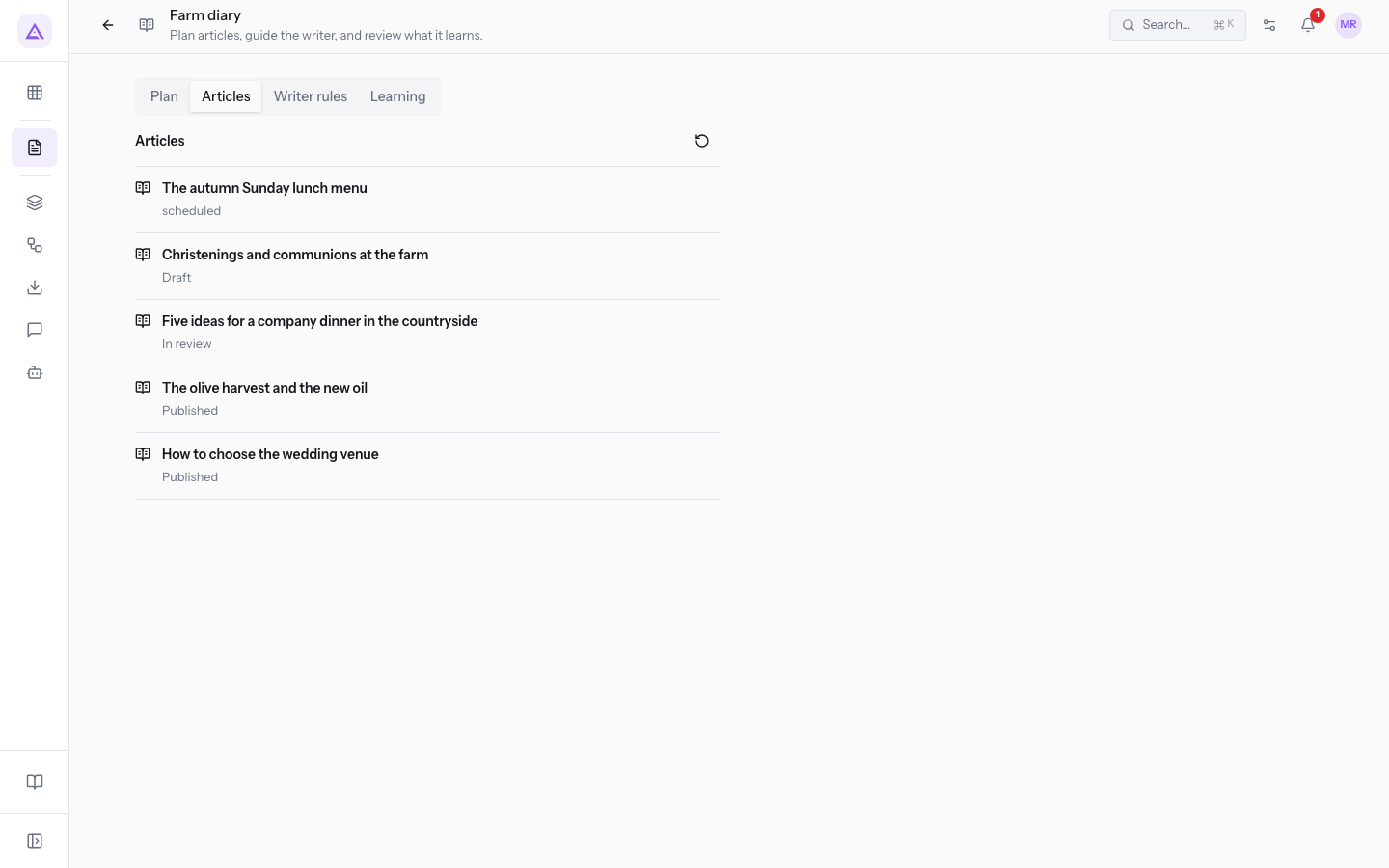
- Press Refresh articles (the round arrow) to reload the list, for example after the writer has completed a draft.
Each row shows the article's title and its status. In the demo, the list contains:
How to choose the wedding venueandThe olive harvest and the new oil: status Published, visible on the site.Five ideas for a company dinner in the countryside: status In review, waiting for approval.Christenings and communions at the farm: status Draft.The autumn Sunday lunch menu: statusscheduled, which will be published on the set date.
When the blog has no articles, the tab shows the message No articles yet. Draft requests appear here after the writer finishes.
Open an article in the editor
From the list, open an article's details and from there its editor.
- In the Articles tab, press the article, for example
Christenings and communions at the farm. Below the list, the article's details appear, with its Sources.
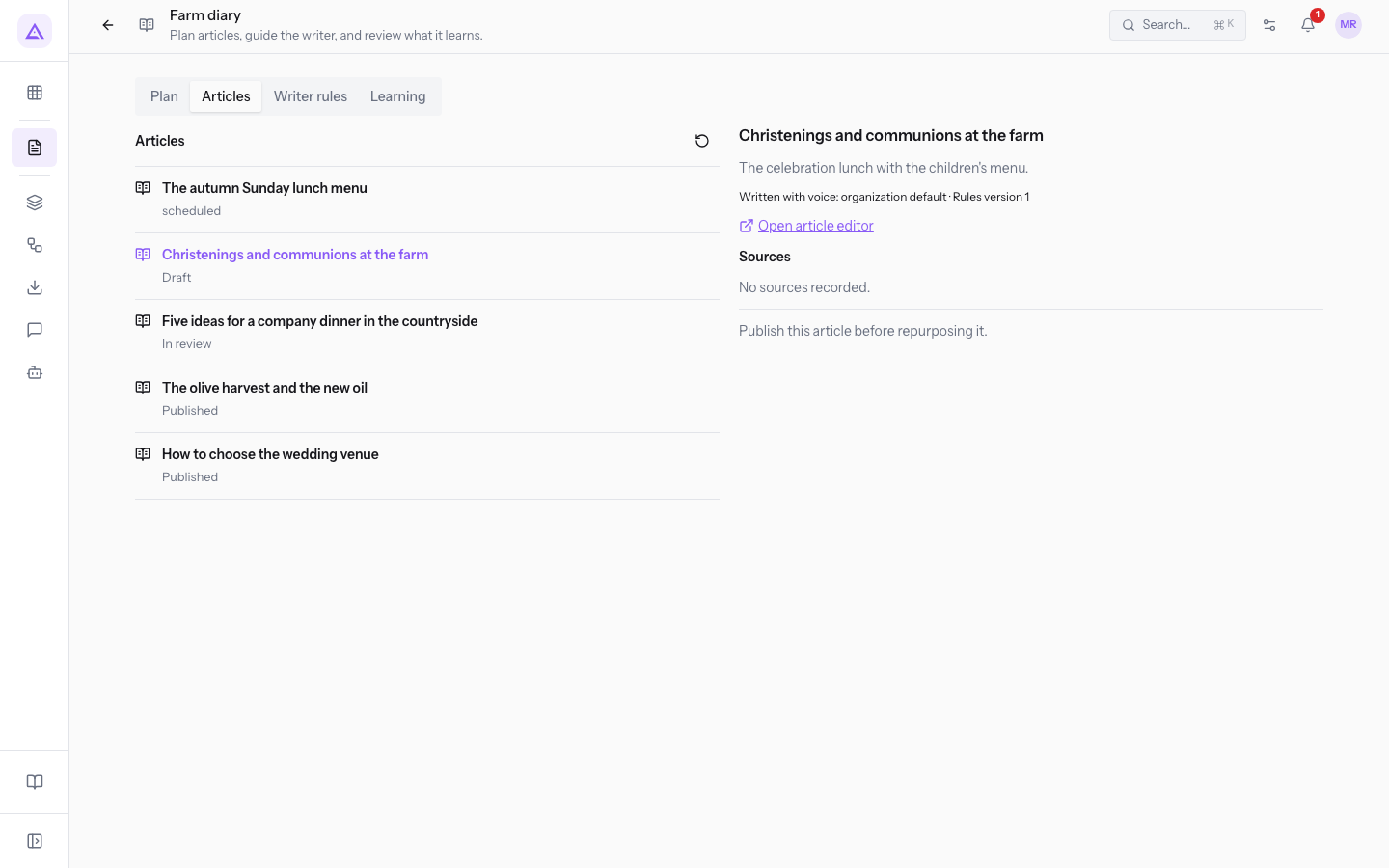
- Press Open article editor. The article opens in the visual editor, with the Desktop, Tablet and Mobile previews, the Translations button and the SEO status panel.
In the editor you edit the text as you would on a page: see Editing a page with the visual editor. To send the article for review, schedule it or publish it, use the header buttons described in Publish, schedule and get a page reviewed.
Set the writer rules
The Writer rules tab contains the blog's Writer settings: whether the writer is active, how often it writes, and how the drafts are structured. The settings apply to one blog only.
Before choosing the frequency, consider how you work:
- If you want to decide on every draft yourself, leave Manual only and request the draft from the editorial plan.
- If you want drafts at regular intervals, choose a frequency such as Weekly or Daily.
- In the blog writer, press Writer rules.
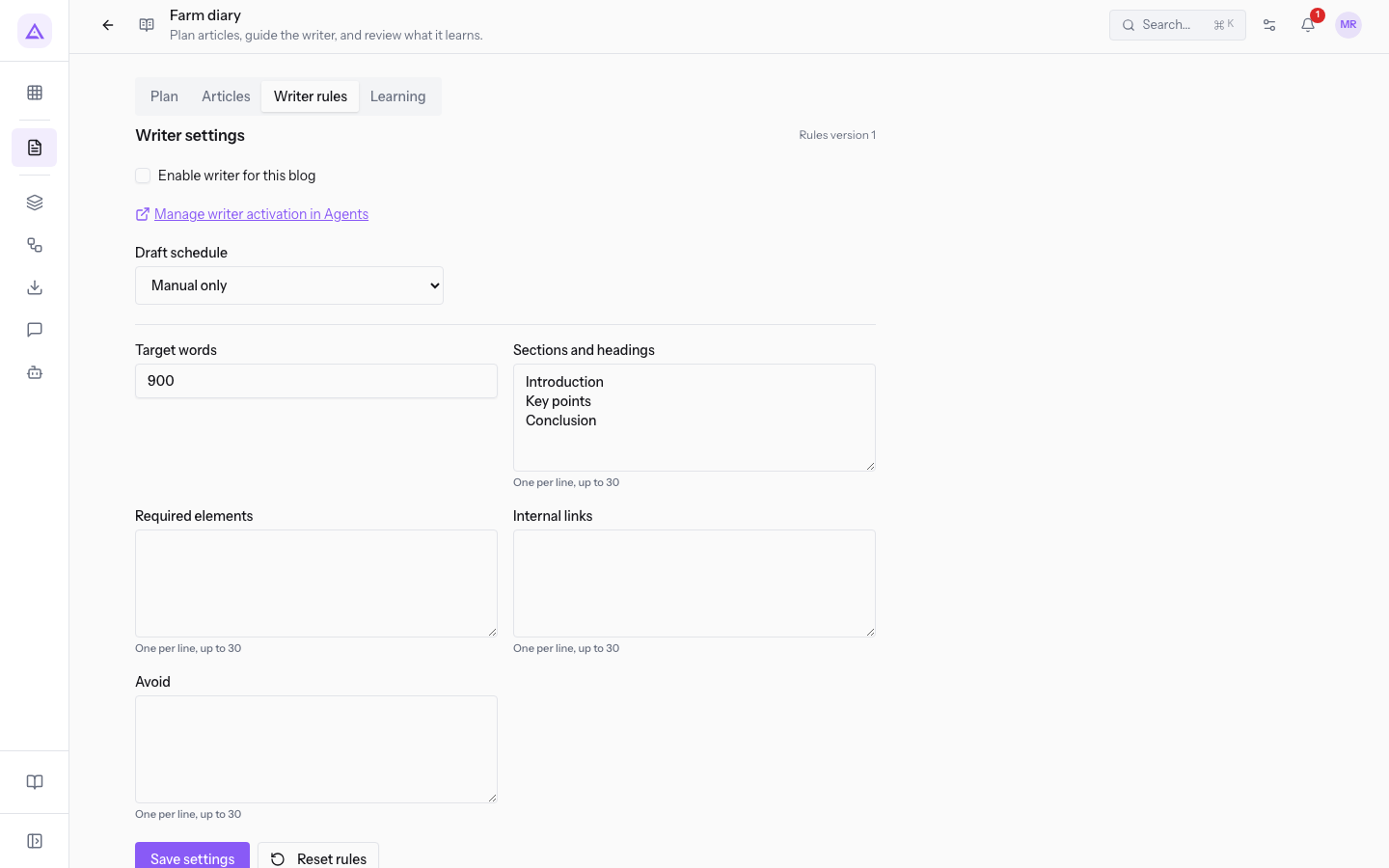
- Select Enable writer for this blog.
- Fill in the fields described below.
- Press Save settings.
Important: the writer must be enabled for each blog before you request a draft. Otherwise the message Enable this blog's writer before requesting a draft. appears. In the demo, the writer of the
Farm diaryblog is off.
Fields of the Writer settings:
- Enable writer for this blog: turns the writer on for this blog. The Manage writer activation in Agents button takes you to activating the writer in the Agents module.
- Draft schedule: how often the writer writes drafts. The default value is Manual only.
- Manual only
- Hourly
- Every 6 hours
- Every 12 hours
- Daily
- Weekly
- Target words: the expected length of each draft, in words. The default value is
900. - Sections and headings: the sections each draft must have, one per line, up to 30.
- Required elements: the elements each draft must contain, one per line, up to 30.
- Internal links: the links to site pages to insert in drafts, one per line, up to 30.
- Avoid: what drafts must not contain, one per line, up to 30.
At the top, next to the settings, the tab shows the Rules version in use. The Reset rules button cancels the rules set for the blog.
Set the company voice
The Company voice section, in the same tab, defines the tone the writer uses.
- In the Writer rules tab, scroll down to Company voice.
- Fill in the fields.
- Press Save company voice. The message Company voice saved. appears.
Fields of the Company voice:
- Tone and style: how the writer should write, in one or more sentences.
- Words to use: terms the drafts must use.
- Words to avoid: terms the drafts must not use.
- Example writing (separate examples with a blank line): sample texts the writer takes its style from. Separate one example from another with a blank line.
With Reset voice, the voice returns to the default settings and the message Company voice reset. appears.
Note: when the Marketing module is not active, the company voice uses the default settings.
Review rule proposals
The Learning tab collects the Rule proposals: changes to the writer rules that come from corrections made to published drafts.
- In the blog writer, press Learning.
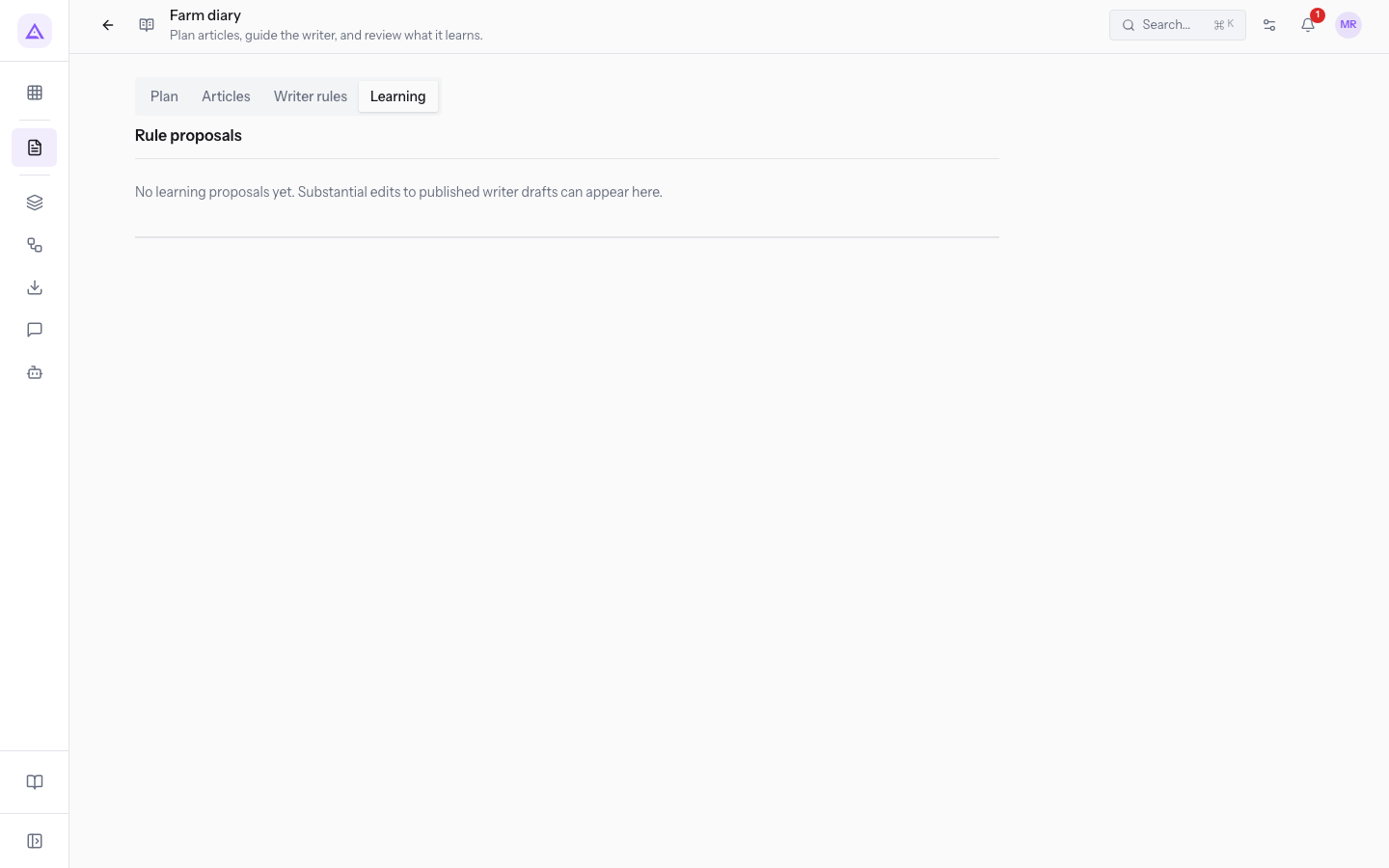
In the demo there are no proposals. The tab shows the message No learning proposals yet. Substantial edits to published writer drafts can appear here.
See it on your company, not on a slide deck.
In 30 minutes we map the software you use today.We show you how much work and how much margin Archimedes gives back.
Show me on my business →What industry are you in?
One tap — it lets us prepare the demo around your world.
What tools do you use today?
Pick the ones you recognise — or just type them. It helps us show you how they migrate.
Last step: your details.
We reply within one working day — and right after, if you like, you pick the demo slot yourself.
We couldn't send your request. Try again, or write to us at [email protected].
By sending, you agree to your data being processed so we can get back to you about the demo. Privacy notice.
Preview form — nothing is sent from this page.
Want to schedule the demo now?
Your call: book the slot you prefer yourself, or we'll call you to arrange it.
Live availability, 30 minutes, instant confirmation. The calendar opens in a new tab.
Lock in your slot ↗We'll get back to you within one working day — and we'll join the call already knowing your world.
The calendar is open in another tab: pick a slot and the demo is booked. Can't see it? Reopen it ↗
Preview page: nothing was sent.
Our calendar is live: take the slot that suits you and the demo is booked. 30 minutes, instant confirmation, no waiting.
Lock in your slot ↗