All modules
Managing unsubscribed and suppressed addresses
Mail · 16 of 18 · 5 min read
The Unsubscribed addresses page lists the addresses to which the organization no longer delivers emails, with the reason for the block. Use it to check who is not receiving campaigns and who is no longer receiving anything, and to re-enable an address when the recipient asks for it.
What each reason blocks
The block reason determines which emails the address no longer receives.
- Unsubscribed from everything and Reported as spam: the address does not receive marketing emails or campaigns. It still receives the messages the customer expects: order confirmation, invoice, portal invitation.
- Bounced: mail sent to the address has bounced. The address receives nothing until you correct it and unblock it from this page.
Addresses enter the list automatically: when the sending service reports a permanent delivery failure or a spam report, or when the recipient unsubscribes from everything. A temporary delivery failure or an out-of-office auto-reply does not block anything.
The block is tied to the email address, not the contact record: it persists even if the contact is deleted or re-imported, so no campaign reaches them by mistake.
Blocked emails do not disappear without a trace: the send log reports them with the status Unsubscribed. You can reach the log from this page with Open the send log.
Viewing suppressed addresses
The page shows the currently suppressed addresses when opened.
- Open Mail › Communications › Unsubscribed. The Unsubscribed addresses page opens. You can also reach it from the Email Logs page with See the unsubscribed addresses.
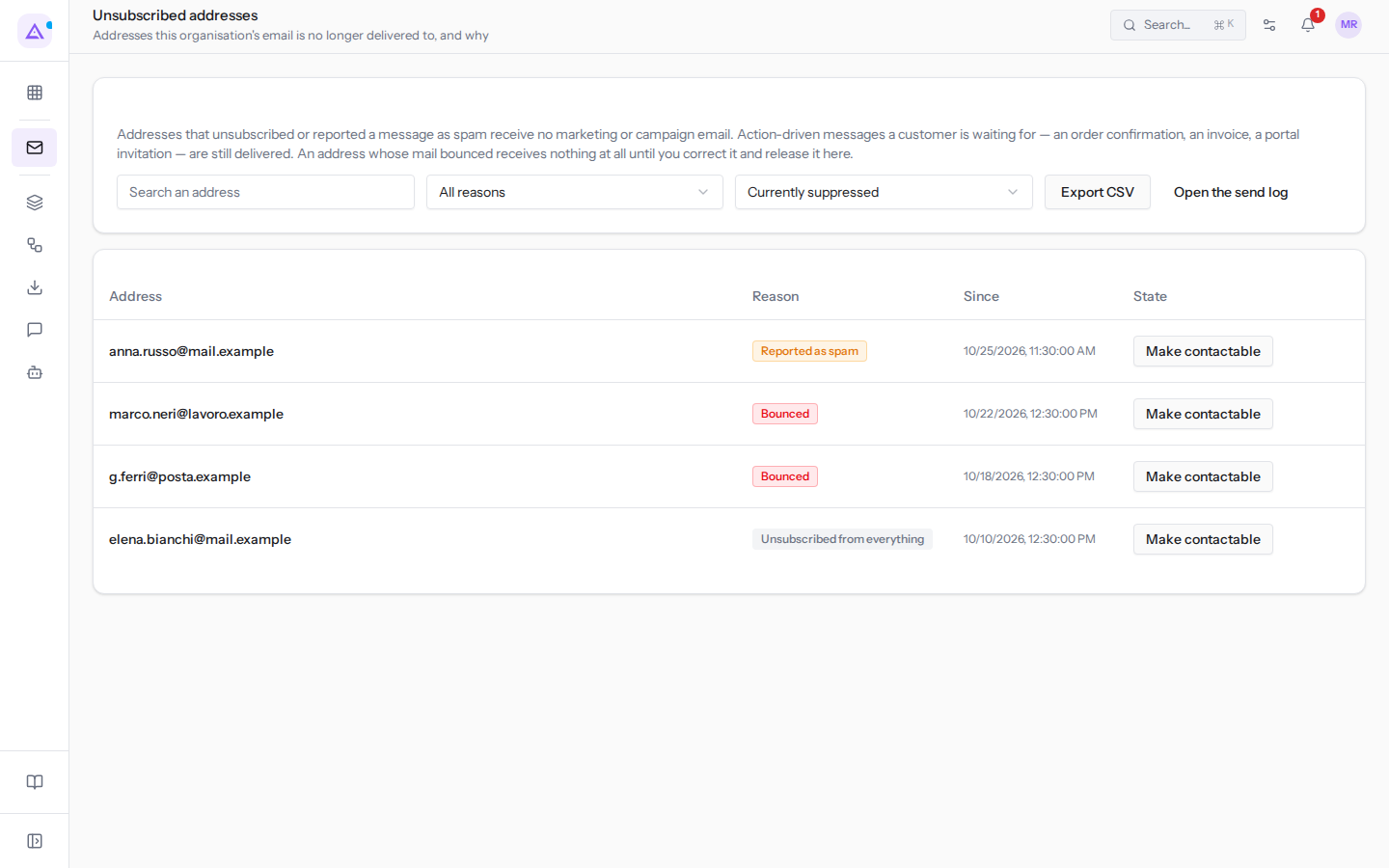
- To find an address, type it in Search an address, for example
luca.galli. - To see a single reason, choose a value in the All reasons filter.
- To see already unblocked addresses, choose Released in the state filter, which defaults to Currently suppressed when opened.
The page filters:
- Search an address: limits the list to addresses that contain the typed text.
- All reasons: filters by block reason.
- All reasons: shows every reason. This is the default value.
- Bounced: mail to the address has bounced.
- Reported as spam: the recipient reported a message as spam.
- Unsubscribed from everything: the recipient unsubscribed.
- State filter:
- Currently suppressed: addresses that are still blocked. This is the default value.
- Released: addresses unblocked with Make contactable.
- All: suppressed and re-enabled addresses together.
The list shows for each address the Reason for the block and, in the Since column, the date from which it has been blocked. In the State column a suppressed address has the Make contactable button; a re-enabled one instead shows the date and reason for re-enabling, for example for [email protected] Released on 9/30/2026 — The mailbox was full; the customer confirmed on the phone that it works now.
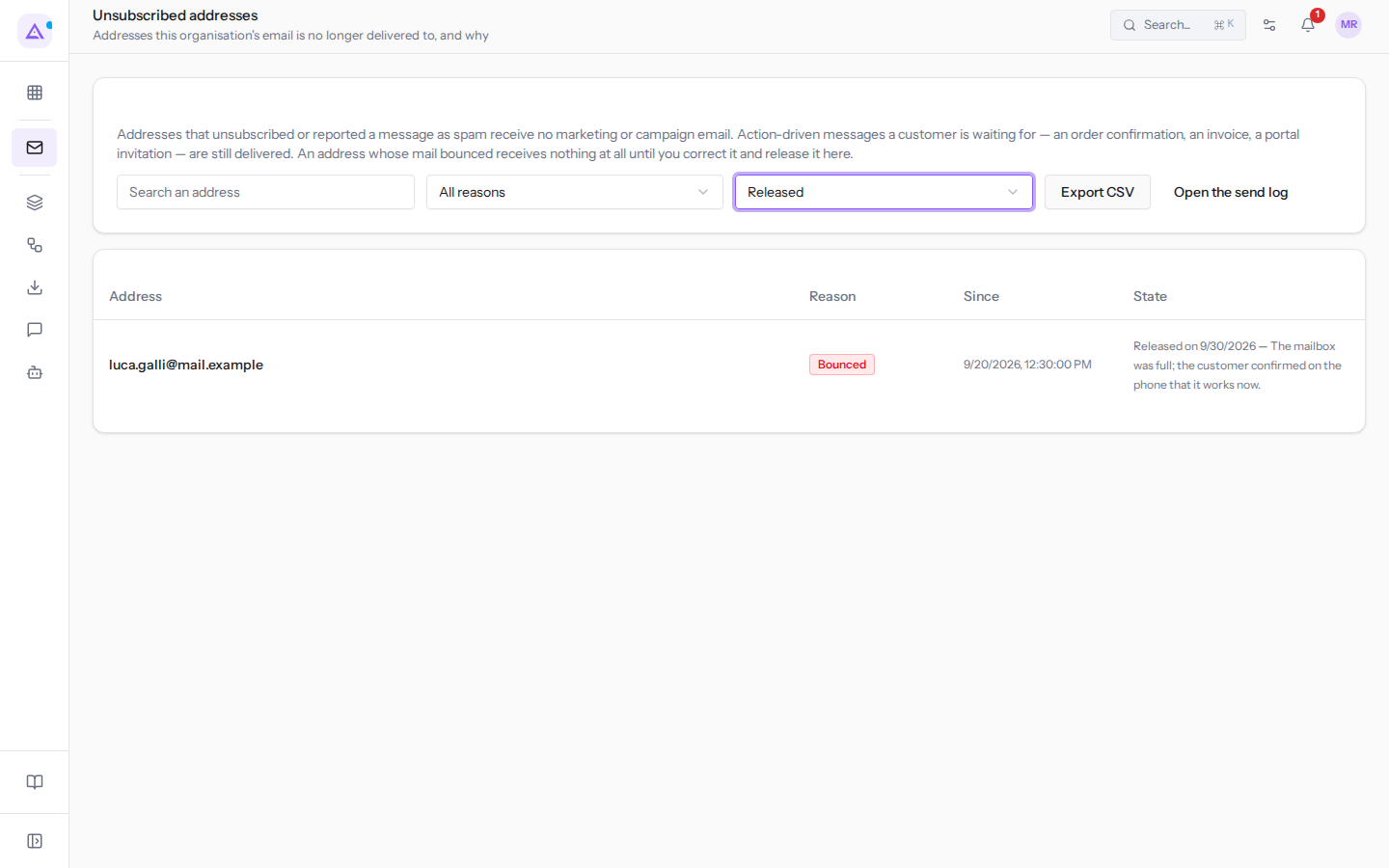
In the Released view the Make contactable button does not appear: an already re-enabled address has nothing to unblock.
Exporting the list and opening the log
Two buttons at the top take data out of the page.
- Export CSV: downloads a CSV file of the addresses shown with the chosen filters, with the reason, the block date and, if present, the date and reason for re-enabling. It is useful for example to exclude the same addresses from another sending programme or to document unsubscriptions.
- Open the send log: opens the Email Logs page, with the history of every send attempt for the organization's templates.
Making an address contactable again
Re-enabling an address removes the block: the address resumes receiving what the block was preventing, that is campaigns or, after a permanent delivery failure, every email.
When to do it:
- If the recipient has asked to start receiving emails again, for example by phone, re-enable the address and write the reason.
- If the address was Bounced, re-enable it only after correcting it and only at the recipient's request. A re-enabled address that bounces again damages your domain's reputation.
- If the recipient has not asked for anything, leave the address suppressed.
Someone who unsubscribed from everything can also re-subscribe themselves from the preferences page; a bounced or spam-reported address can only be unblocked from here. The re-enabling is recorded with your name and the reason you write. One address is re-enabled at a time: there is no mass unblocking, because unblocking all bounced addresses at once would ruin the domain's reputation in one go.
- In the Currently suppressed view, find the address, for example
[email protected]. - Click Make contactable on its row. The Make this address contactable again dialog opens.
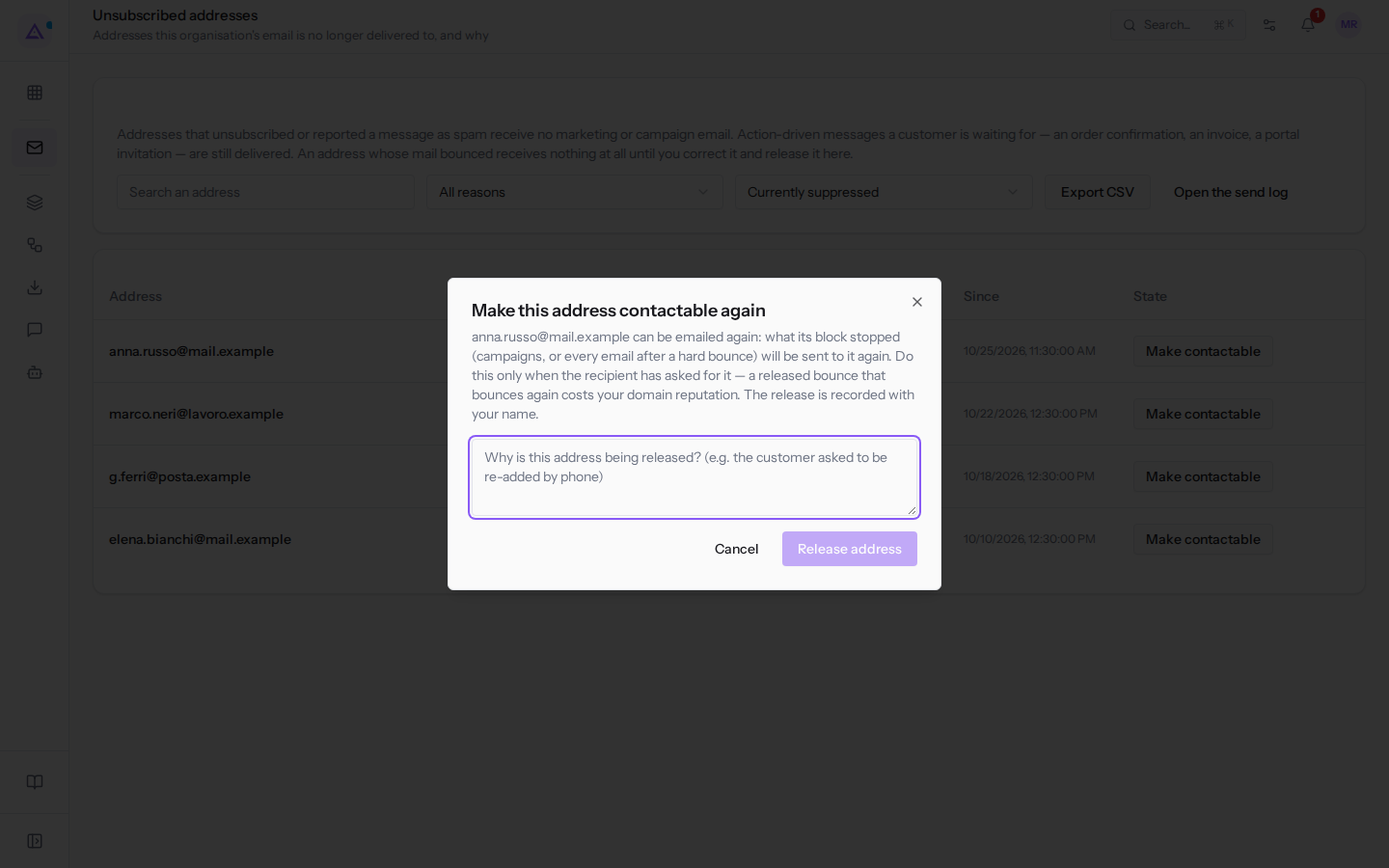
- Write the reason in the text field, for example how you found out the address is working again. The reason is mandatory: Release address becomes active after at least 3 characters.
- Click Release address. To exit without changing anything, click Cancel.
The dialog fields:
- Dialogue text: indicates the address that will resume receiving emails and reminds you that this should only be done if the recipient has asked.
- The field showing «Why is this address being released? (e.g. the customer asked to be re-added by phone)»: the reason for re-enabling, mandatory. It then appears in the State column and in the CSV file.
After re-enabling, the address appears in the Released view and resumes receiving what the block was preventing. If its mail bounces again, or the recipient unsubscribes or reports spam, the address becomes suppressed again automatically.
See it on your company, not on a slide deck.
In 30 minutes we map the software you use today.We show you how much work and how much margin Archimedes gives back.
Show me on my business →What industry are you in?
One tap — it lets us prepare the demo around your world.
What tools do you use today?
Pick the ones you recognise — or just type them. It helps us show you how they migrate.
Last step: your details.
We reply within one working day — and right after, if you like, you pick the demo slot yourself.
We couldn't send your request. Try again, or write to us at [email protected].
By sending, you agree to your data being processed so we can get back to you about the demo. Privacy notice.
Preview form — nothing is sent from this page.
Want to schedule the demo now?
Your call: book the slot you prefer yourself, or we'll call you to arrange it.
Live availability, 30 minutes, instant confirmation. The calendar opens in a new tab.
Lock in your slot ↗We'll get back to you within one working day — and we'll join the call already knowing your world.
The calendar is open in another tab: pick a slot and the demo is booked. Can't see it? Reopen it ↗
Preview page: nothing was sent.
Our calendar is live: take the slot that suits you and the demo is booked. 30 minutes, instant confirmation, no waiting.
Lock in your slot ↗