All modules
Reading and managing a conversation
Mail · 4 of 18 · 6 min read
A conversation's page shows all the messages in an exchange with a contact. Here you decide the conversation's status and who follows it, and you link it to the records it concerns: for example a quote request, an invoice copy, or a pickup confirmation.
Opening a conversation
Open the page from the conversation list.
- Open the Conversations page.
- If the conversation is not in the open view, choose the right view. For example, for
Furniture quote for the new officeschoose Waiting for customer. - Click the conversation subject.
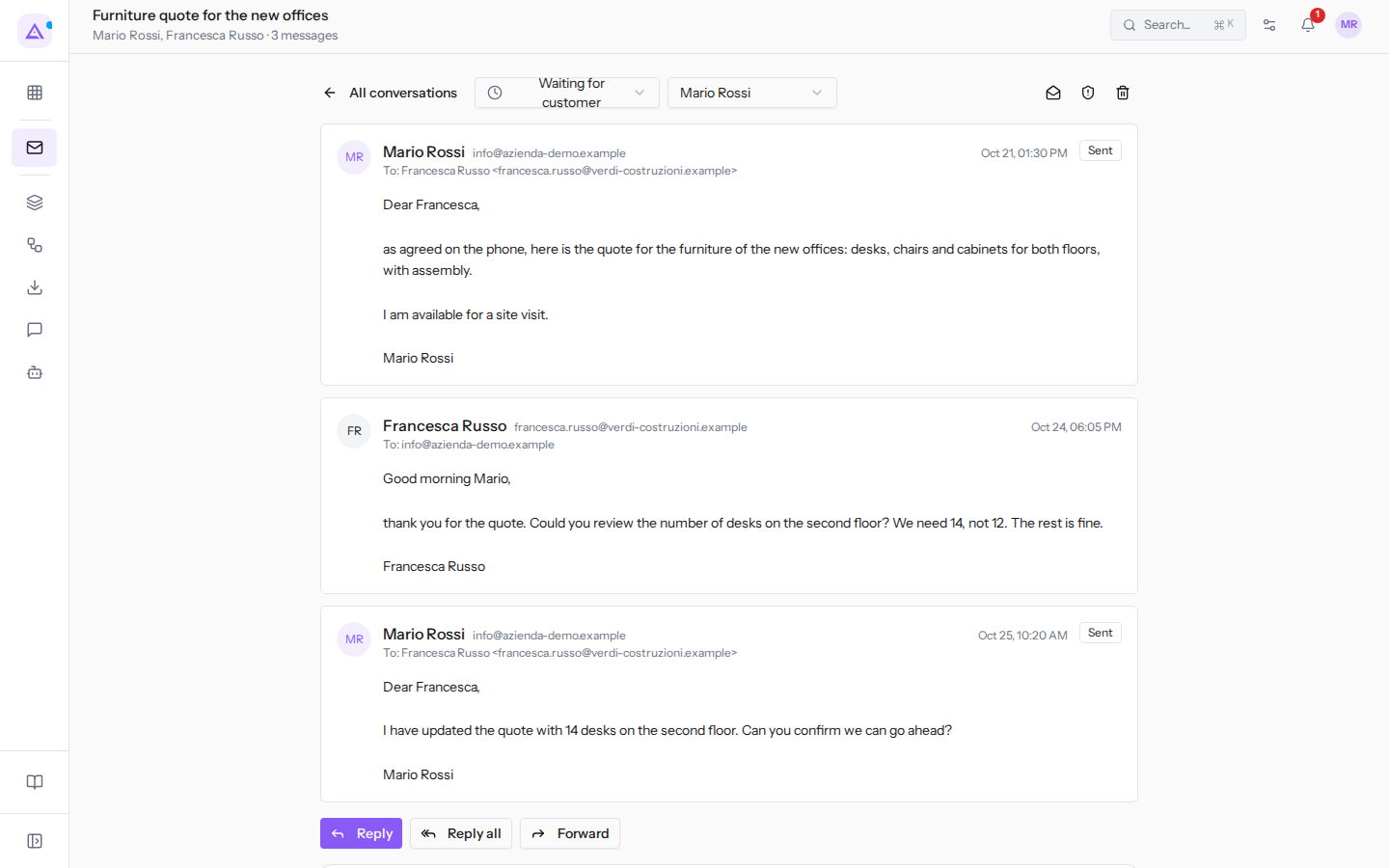
Opening the conversation marks it as read for you.
At the top of the page you'll find:
- The title: the conversation subject. Below are the participants and the number of messages, for example
Mario Rossi, Francesca Russo · 3 messages. - All conversations: goes back to the list.
- The status selector and the assignee selector, described below.
- Three icons in the top right: the open envelope (Mark unread), the shield (Spam) and the bin (Trash). The name appears when you hover over it with the mouse.
Reading the messages
Messages are listed from oldest to most recent. For each one you see the sender with their address, the «To:» line with recipients (and «Cc:» if there were CC recipients), the date and time: for example Mario Rossi, [email protected], Oct 21, 01:30 PM. Messages sent by the organization have the Sent label; those sent automatically have the «Sent automatically» label.
If a message has an attachment, below the text you see the file name, the size and two icons, as with Rossi Arredamenti payment schedule.pdf in the message from Paolo Gialli in Copy of the September invoice:
- the downward arrow (Download): saves the file to your computer;
- the folder with a plus (Save to Documents): archives the file in the Documents module, where the rest of the team can find it without having to search through email. After archiving, the icon becomes «Filed».
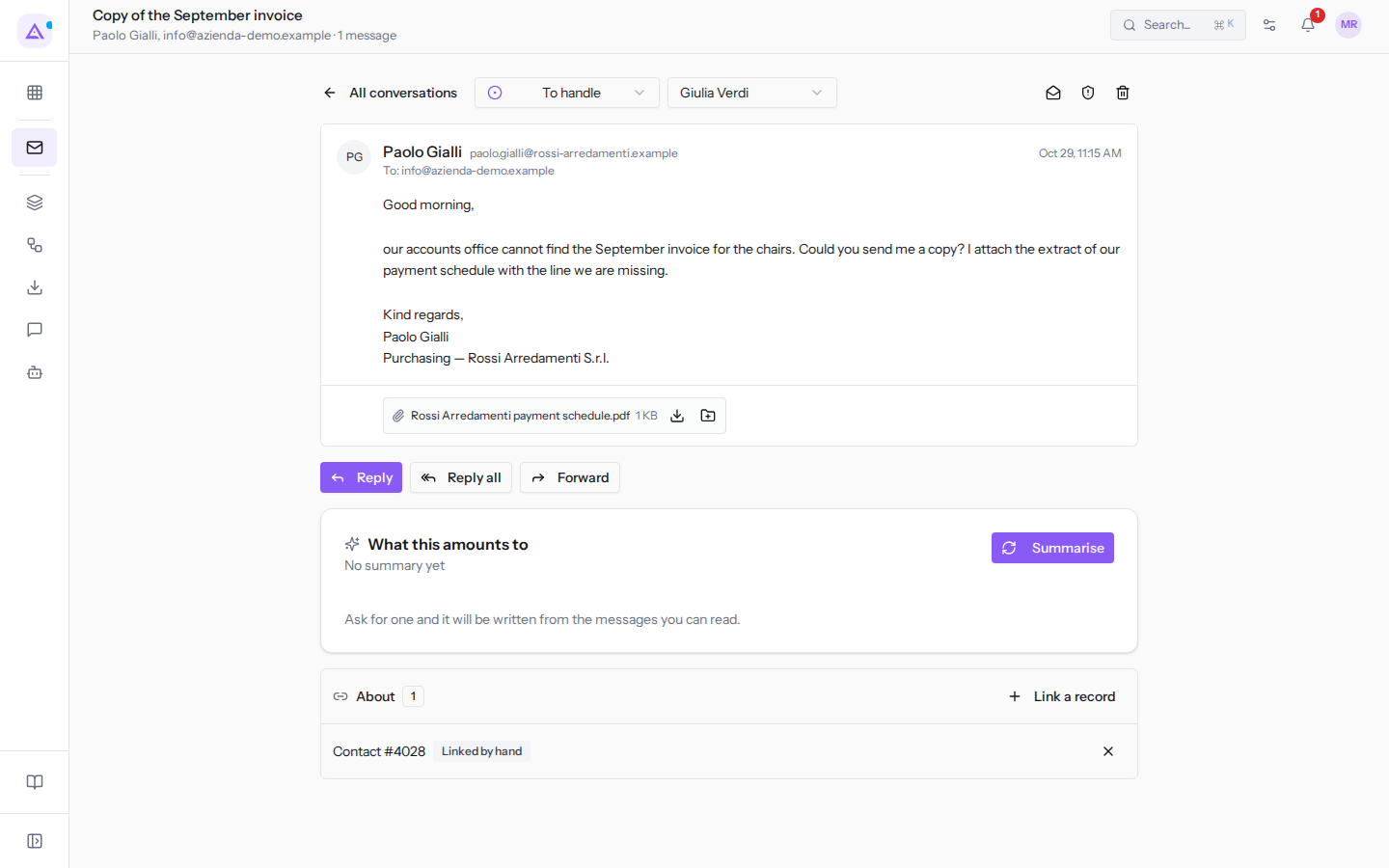
Below the messages are the Reply, Reply all and Forward buttons: see Writing a new message or a reply.
Changing the status
The status says whose turn it is for the next move and determines which view of the list the conversation appears in. In the page selector the options are:
- To handle: the contact is waiting for a reply or action from the organization.
- Waiting for customer: you have replied and are now waiting for the contact.
- Done: there is nothing more to do. In the list the conversation moves to the Done view.
- Open the conversation.
- Click the status selector, which shows the current status, for example To handle.
- Choose the new status.
Often you don't need to change it manually: when you send a reply the conversation moves on its own to Waiting for customer, if it's not concluded, and when the contact writes back it returns to To handle, even if it was concluded.
Assigning the conversation
The assignee is the colleague who follows the conversation. Assigning it prevents two people from replying to the same customer and a request from going unanswered: everyone finds their own conversations in the Assigned to me view.
- Open the conversation.
- Click the assignee selector. It shows the current user, for example Giulia Verdi, or Nobody.
- Choose a user, for example Mario Rossi. To remove the assignment choose Nobody.
When you assign the conversation to a colleague, they receive a notification in the bell at the top.
Marking as unread, moving to spam or trash
Use the icons in the top right of the page. After each one you return to the conversation list.
- The open envelope (Mark unread): the conversation becomes unread for you and appears in bold in the list, so you remember to come back to it. Nothing changes for your colleagues.
- The shield (Spam) and the bin (Trash): move the conversation to the Spam and trash view. The status stays as it was, and when shown again, the conversation returns to where it was.
On a conversation already in spam or trash, in place of these two icons there is Show again, and next to the selectors the label «Hidden as spam.» or «In the trash.» appears.
Summarizing the conversation
The What this amounts to panel is for understanding a long conversation without re-reading it all. As long as there is no summary it shows «No summary yet». The Summarise button has the AI write a summary from the messages you can read: for example what the conversation is about, the last request, what is still open, and the next step. Each summary uses the organization's AI credits.
If new messages arrive after the summary, the panel flags this with «Messages have arrived since this was written.» and the button becomes Rewrite. If the organization's AI credits are exhausted, the summary is not written.
Linking the conversation to a record
The About panel lists the records the conversation concerns, for example a contact or an opportunity. The number next to the title counts confirmed links. For example Furniture quote for the new offices is linked to the opportunity Arredo nuova sede Verdi Costruzioni.
Linking a conversation changes two things:
- anyone who can see that record can also read the conversation, even if they don't have access to the mailbox it arrived in: for example the salesperson following the opportunity;
- the conversation is kept for as long as the record exists, if it is linked to a contact, an opportunity, a project, or a ticket. A conversation not linked to anything is removed after the period set in Mail › Settings, by default 24 months from the last message.
Each linked record has a label:
- Linked by hand: the record was linked by a user.
- «Matched a document number»: the platform found a document number in the message and linked the record.
- Suggested: the platform proposes the record, but the link doesn't count until you confirm it. For example, in
Pickup confirmation for order OA-4471the contact of Forniture Neri S.r.l. is suggested.
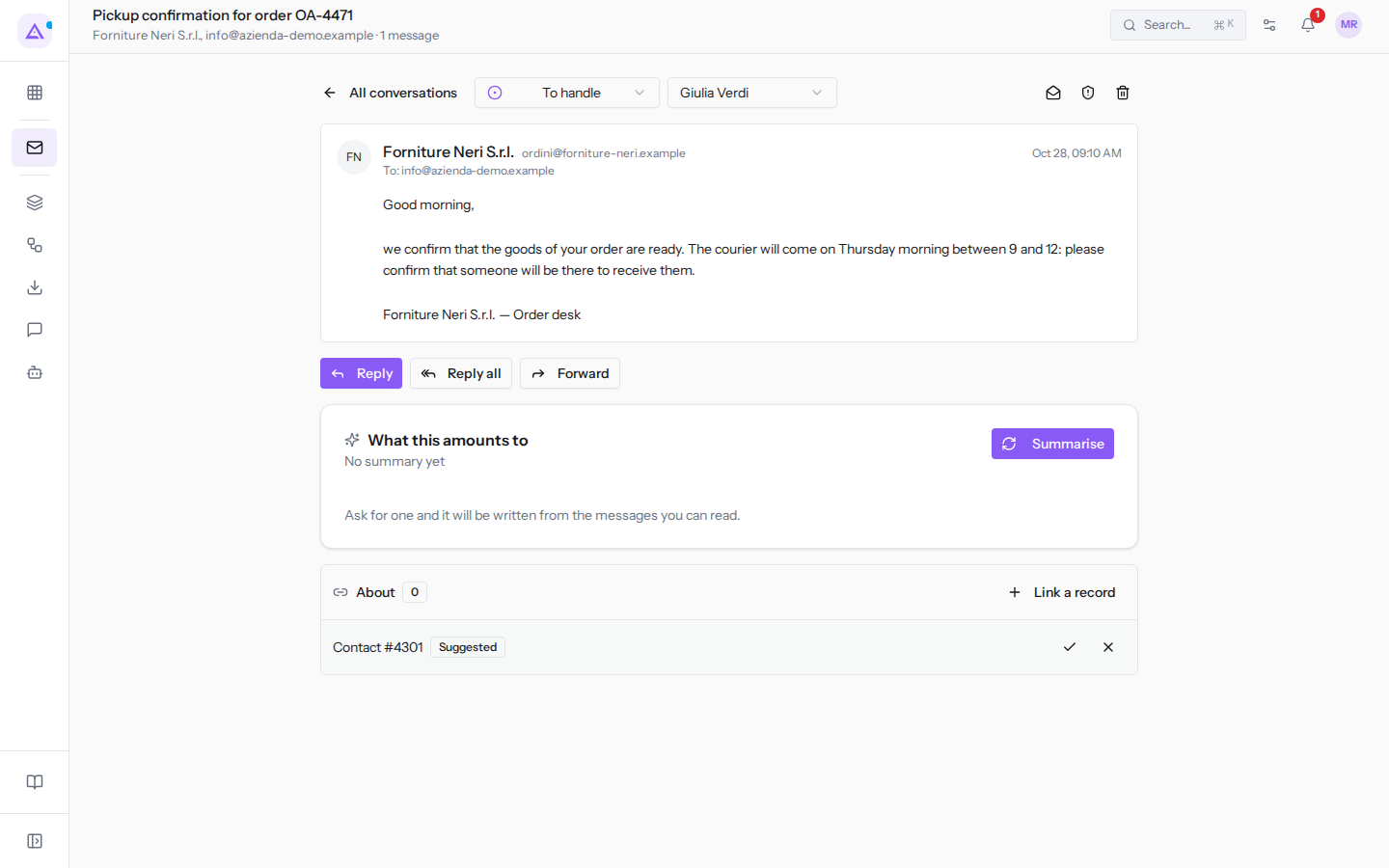
On a suggestion there are two icons: the tick confirms it and turns it into a link, the X discards it. On a confirmed link the X removes it: anyone who could see the conversation only thanks to that record can no longer see it.
The linked record appears with the type and number, for example «Contact #4301», not with the name.
To link a record manually:
- In the About panel click Link a record.
- In the type selector, choose which type of record you're looking for: Contact, Opportunity, Project, Ticket or Sales order.
- Type part of the name in the Search… field. Below, the results appear, each with the name and number, for example
Forniture Neri S.r.l.with#4031.
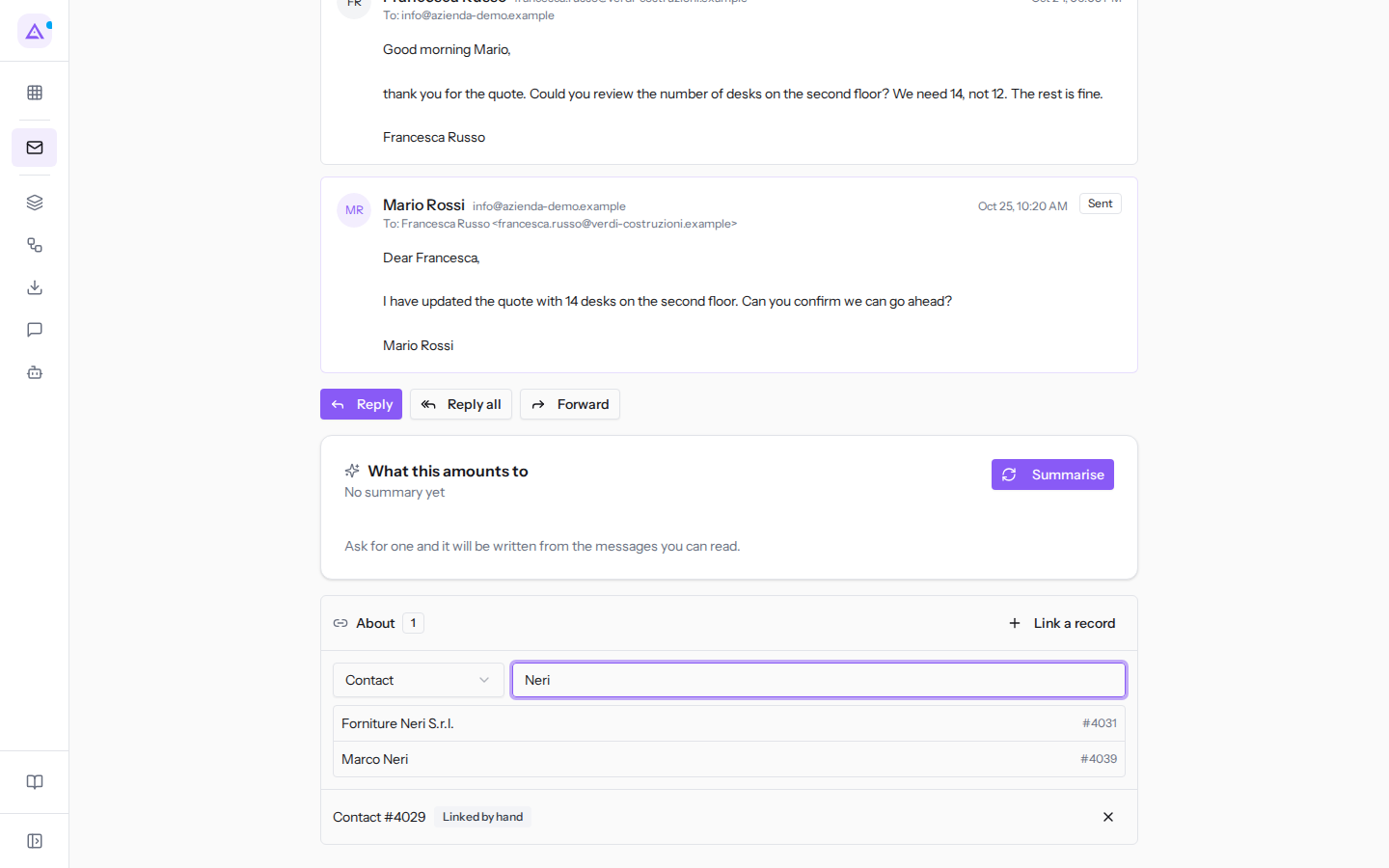
- Click the record in the results list.
See it on your company, not on a slide deck.
In 30 minutes we map the software you use today.We show you how much work and how much margin Archimedes gives back.
Show me on my business →What industry are you in?
One tap — it lets us prepare the demo around your world.
What tools do you use today?
Pick the ones you recognise — or just type them. It helps us show you how they migrate.
Last step: your details.
We reply within one working day — and right after, if you like, you pick the demo slot yourself.
We couldn't send your request. Try again, or write to us at [email protected].
By sending, you agree to your data being processed so we can get back to you about the demo. Privacy notice.
Preview form — nothing is sent from this page.
Want to schedule the demo now?
Your call: book the slot you prefer yourself, or we'll call you to arrange it.
Live availability, 30 minutes, instant confirmation. The calendar opens in a new tab.
Lock in your slot ↗We'll get back to you within one working day — and we'll join the call already knowing your world.
The calendar is open in another tab: pick a slot and the demo is booked. Can't see it? Reopen it ↗
Preview page: nothing was sent.
Our calendar is live: take the slot that suits you and the demo is booked. 30 minutes, instant confirmation, no waiting.
Lock in your slot ↗