All modules
Reading the results of a campaign
Mail · 14 of 18 · 6 min read
The results page shows what happened after a campaign was sent: how many recipients it had, how many emails were delivered, opened and clicked, and the outcome for each recipient. Use it to understand whether a campaign worked, who did not receive it and why, and which links interested the recipients.
Opening a campaign's results
Results are opened from the campaign list.
- Open Mail › Communications › Campaigns. The Sends page opens.
- Click the row of a sent campaign, for example
Autumn menu and chestnut festival.
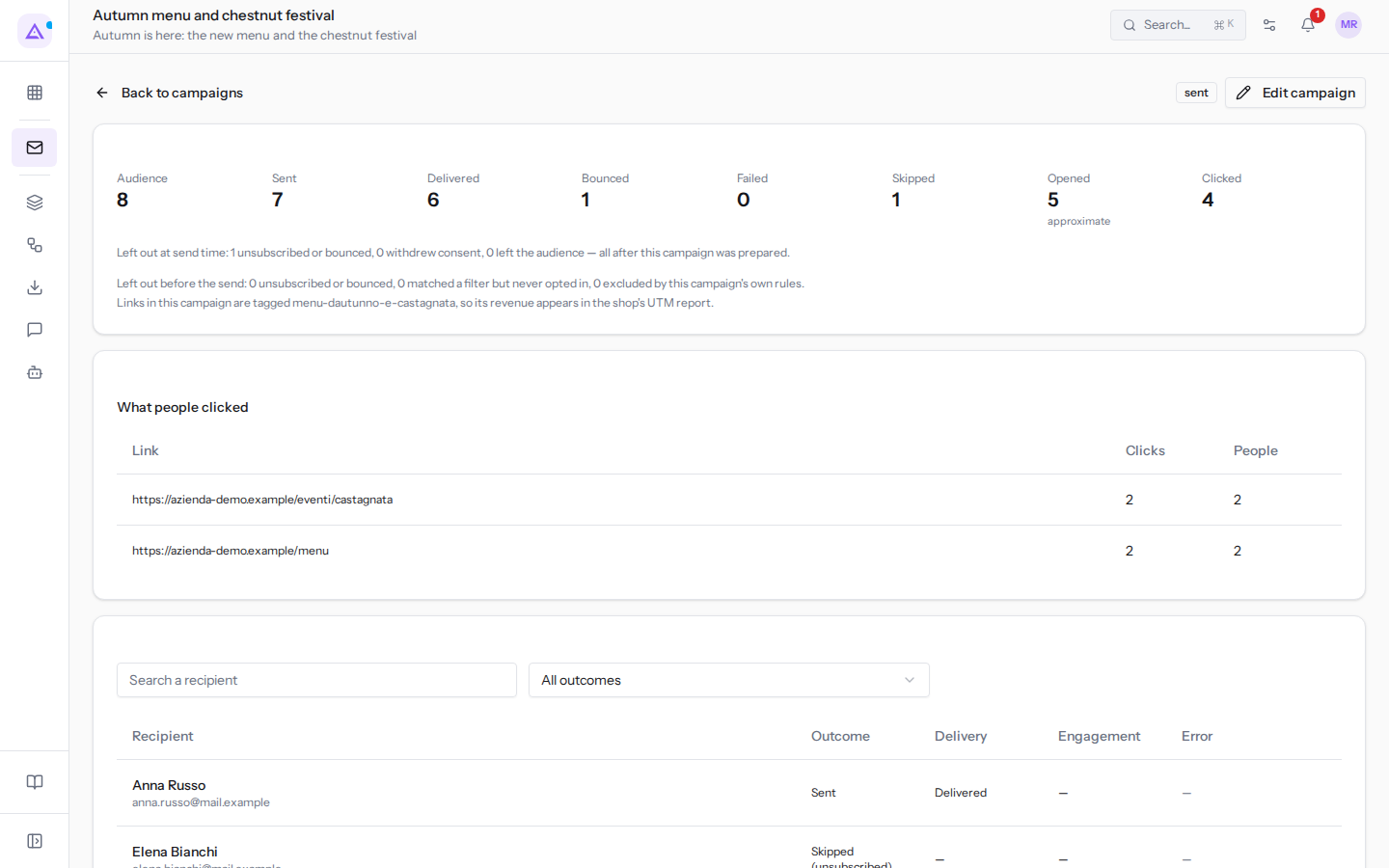
At the top of the page there are the campaign's name and subject and two buttons:
- Back to campaigns: takes you back to the Sends list.
- Edit campaign: opens the campaign content. For an already sent campaign the fields are locked: it is meant for re-reading what was sent, not for changing it.
Next to the buttons there is the campaign status; for now it appears as technical English text, for example sent for a sent campaign.
The same page also opens for a draft or scheduled campaign: until it is sent, the numbers are 0.
Campaign numbers
The boxes summarize the send. For Autumn menu and chestnut festival they show 8 recipients, 7 emails sent, 6 delivered, 1 not delivered, 0 errors, 1 recipient skipped, 5 opens and 4 clicks.
- Audience: the people the campaign was addressed to when it was prepared.
- Sent: the emails that actually went out. The difference from Audience is the skipped and the failed ones.
- Delivered: the emails that the recipient's mail server accepted. This does not mean they were read.
- Bounced: emails rejected by the recipient's mail server, for example because the address no longer exists, like Giulia Ferri's old address. After a permanent delivery failure the address is suspended and no longer receives any emails until someone re-enables it.
- Failed: the emails that the platform tried to send but could not. These are the only ones that can be retried.
- Skipped: the recipients to whom the campaign was deliberately not sent, because in the meantime they had unsubscribed, had revoked their consent or were no longer part of the audience, like Elena Bianchi who had unsubscribed.
- Opened: opened emails. The number is approximate: many email programmes block images, and an email opened in this way is often not counted. Use it to compare campaigns with each other, not as an exact count. If tracking was off, the box shows tracking off.
- Clicked: how many recipients clicked on at least one link.
Below the boxes two lines explain who was left out and when. These are not errors: in both cases the platform respected a recipient's choice or a campaign rule.
- Left out before the send: those who were not included in the audience when the campaign was prepared, because they were unsubscribed or undeliverable, because they match a filter but did not give consent, or because they were excluded by the campaign rules, i.e. the lists and campaigns listed in Exclude.
- Left out at send time: those who were in the audience but, between preparation and sending, had unsubscribed, revoked their consent or left the list. They are counted among the Skipped. For
Autumn menu and chestnut festivalthere is 1 unsubscribed: Elena Bianchi.
If the links are tagged, a line shows the campaign tag, for example menu-dautunno-e-castagnata. The tag ties the purchases made by those who clicked to the campaign: the revenue appears in the shop's UTM report.
What people clicked
The What people clicked table shows which links interested the recipients. Clicks counts all clicks, including repeated ones from the same person; People counts the different recipients who clicked. For Autumn menu and chestnut festival the menu link and the chestnut festival link have 2 clicks from 2 people each. The table is populated only if tracking was active.
The recipient list
At the bottom of the page there is a row for each recipient, with their outcome.
- To find a person, type their email address, or part of it, in Search a recipient. The search looks at the address, not the name.
- To see only one outcome, choose an option in All outcomes.
The list's columns:
- Recipient: the name and address.
- Outcome: what the platform did with that recipient: it sent the email, skipped it or could not send it.
- Delivery: what the recipient's mail server replied, for example Delivered or Bounced. A sent but undelivered email left and was rejected.
- Engagement: opened or clicked, if tracking recorded it; a dash if nothing is recorded.
- Error: the reason, when sending failed.
What each outcome means
The All outcomes filter offers these options:
- Sent: the email was sent. The delivery result is in the Delivery column.
- Failed: the platform tried to send but could not; the reason is in the Error column. These messages can be retried.
- Skipped (unsubscribed): the address is among the unsubscribed or undeliverable, so the campaign was not sent to it. This is the case of Elena Bianchi.
- Skipped (no longer eligible): the recipient was in the audience when the campaign was prepared, but at the time of sending had revoked their consent or was no longer part of the list.
- Waiting: the message is in the queue and has not yet been sent.
- Stuck sending: sending stopped halfway. At the top of the page a notice says how many recipients are in this state: the send did not complete.
- Awaiting reconciliation: the message reached the sending service but no response came back, so it is unknown whether it was sent. It is not automatically resent, to avoid sending two copies to the same person.
An address skipped because it is unsubscribed does not receive campaigns, but still receives order confirmations and invoices. An undeliverable address no longer receives anything until it is corrected and unblocked in Mail › Communications › Unsubscribed, as explained in Managing unsubscribed and suppressed addresses.
Retrying failed messages
When the Failed box is greater than zero, the Try the … failed message(s) again button appears below the numbers, with their count. The button puts back in the queue only the messages with the Failed outcome and actually sends them to the recipients. It does not touch undelivered emails, which the recipient's server has already rejected, nor those awaiting reconciliation, which may have already arrived.
Before pressing it, choose Failed in All outcomes and read the Error column: if the problem depends on the sender, fix it first in Mail › Settings, otherwise the error will repeat. For Autumn menu and chestnut festival there are 0 errors and the button does not appear.
If instead the campaign was not even able to prepare itself, a notice shows the reason and says that nothing was sent; Try preparing it again prepares it again and sends it.
See it on your company, not on a slide deck.
In 30 minutes we map the software you use today.We show you how much work and how much margin Archimedes gives back.
Show me on my business →What industry are you in?
One tap — it lets us prepare the demo around your world.
What tools do you use today?
Pick the ones you recognise — or just type them. It helps us show you how they migrate.
Last step: your details.
We reply within one working day — and right after, if you like, you pick the demo slot yourself.
We couldn't send your request. Try again, or write to us at [email protected].
By sending, you agree to your data being processed so we can get back to you about the demo. Privacy notice.
Preview form — nothing is sent from this page.
Want to schedule the demo now?
Your call: book the slot you prefer yourself, or we'll call you to arrange it.
Live availability, 30 minutes, instant confirmation. The calendar opens in a new tab.
Lock in your slot ↗We'll get back to you within one working day — and we'll join the call already knowing your world.
The calendar is open in another tab: pick a slot and the demo is booked. Can't see it? Reopen it ↗
Preview page: nothing was sent.
Our calendar is live: take the slot that suits you and the demo is booked. 30 minutes, instant confirmation, no waiting.
Lock in your slot ↗