All modules
Writing a new message or a reply
Mail · 5 of 18 · 5 min read
From the Conversations page you can write a new message to a contact, for example a customer or a supplier. From a conversation's record you can reply, reply to all, or forward the message. An unfinished message is saved as a draft and can be picked up later.
You always use the same window to write, whether for a new message or a reply. Only the fields shown change:
- If you are writing to someone for the first time, or on a new topic, use New message: you specify the recipients and subject.
- If you need to reply to a received message, use Reply or Reply all in the conversation: the platform derives from the conversation who the reply should go to.
- If you need to forward the message to another person, use Forward: you specify the recipient and subject.
Send sends the message immediately: before pressing it, check the recipients and text.
Writing a new message
A new message starts an exchange with a contact or a colleague.
- Open the Conversations page.
- Press New message at the top of the left column. The New message window opens.
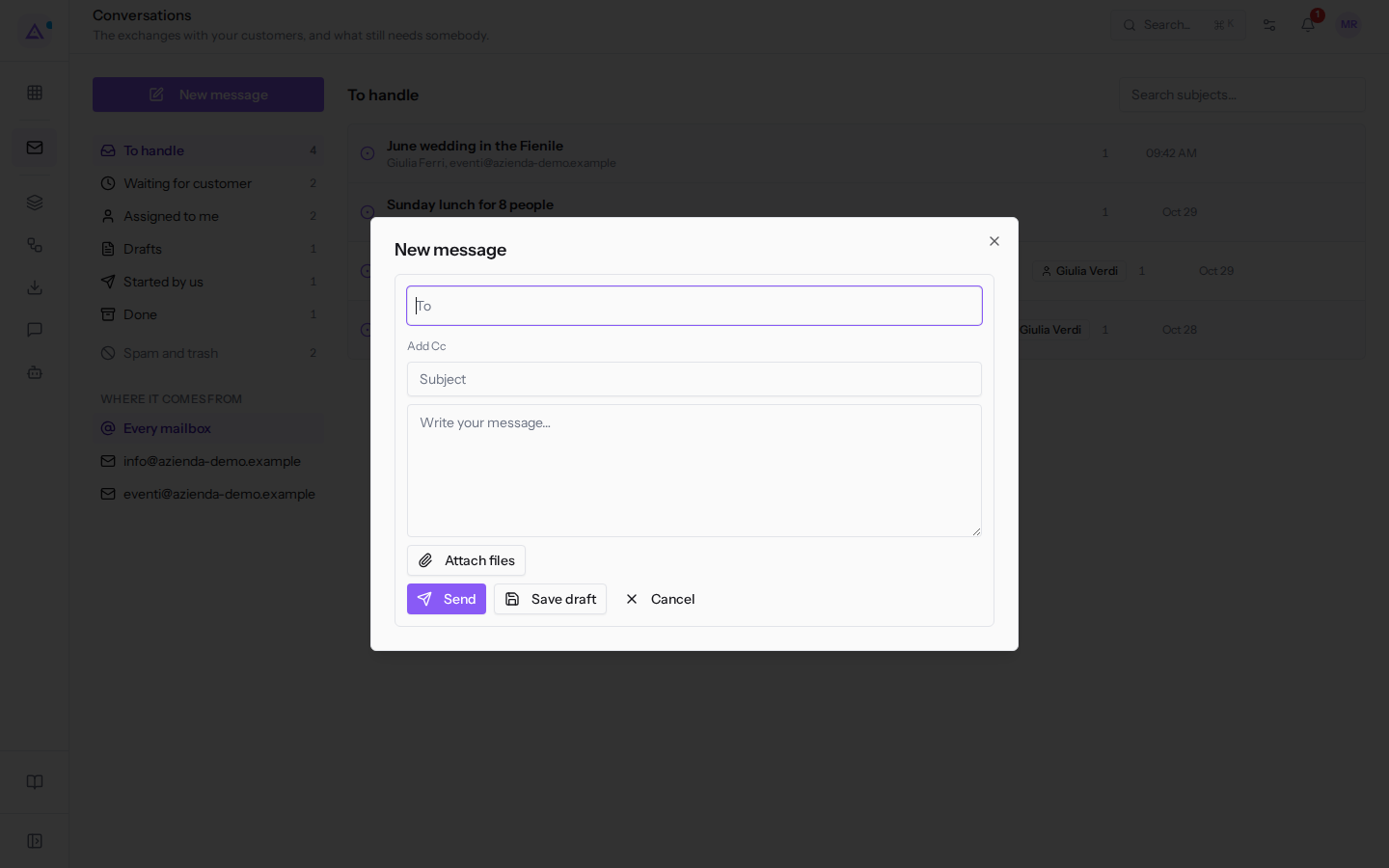
- Fill in the fields described below.
- Press Send to send the message, or Save draft to resume it later.
The window's fields are:
- To: the recipients. Type at least two letters of a name or address and choose from the suggested contacts and colleagues, or type a full address and press Enter. You can also paste multiple addresses separated by commas. Each recipient appears as a separate item in the field. If you specify multiple recipients, the first receives the message as the primary recipient and the others receive it as a copy.
- Add Cc: shows the Cc field, to copy other recipients. The Cc field works like the To field.
- Subject: required in a new message, for example
Sunday lunch for 8 people. It becomes the subject of the conversation. - Write your message…: the message text.
- Attach files: opens the file selection for attachments. You can attach multiple files; each appears below the text with an icon to remove it. A file over 25 MB is not attached and the window signals this.
The buttons at the bottom of the window are:
- Send: sends the message.
- Save draft: saves the message without sending it. The window stays open and no confirmation appears.
- Cancel: closes the window without sending or saving. The X in the top right also closes the window.
If sending fails, the reason appears in red above the buttons and the message is not sent. The reason may appear in English, for example «There is nobody to send this to.» when the recipient is missing.
After sending, the window closes. The new conversation appears in the Started by us and Waiting for customer views, because it is now the recipient's turn to reply.
Which address the message is sent from
A new message is sent from the organization's default verified sender, for example [email protected]. If the organization has no verified sender, the message is not sent and the window shows the reason.
If you can write from one or more connected mailboxes, a sender selector also appears at the top of the window, with «Organization's sender» and the mailboxes. Choose a mailbox when the reply should return to that office: the message is sent from that mailbox and the copy stays there, so whoever reads the mailbox also sees the exchange. The selector appears for a new message and for a forward, not for a reply. If the window does not show it, as in the image above, the message is sent from the default sender.
The default sender and connected mailboxes are configured in Mail › Settings, a page reserved for the Email Manager group.
Replying or replying to all
The reply is written from the conversation's record, below the messages.
- Open the Conversations page and click on the conversation, for example
Copy of the September invoiceby Paolo Gialli. - Press Reply to reply only to the sender, or Reply all to also copy anyone who was copied in the message. The writing window opens below the messages, with the «Replying to» line and the recipient's name.
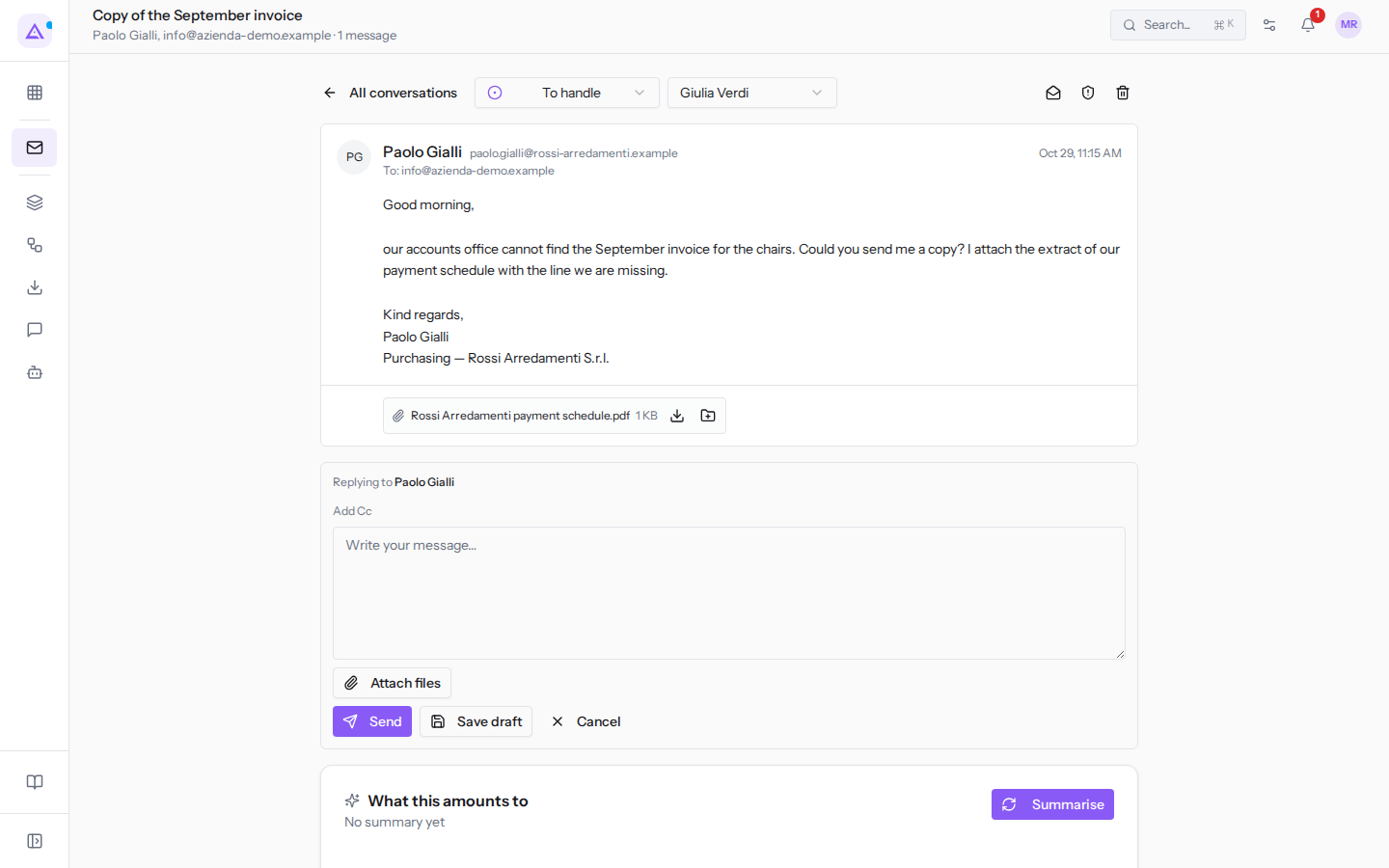
- Write the text in Write your message….
- If needed, press Add Cc to copy someone in, or Attach files to attach a file.
- Press Send, or Save draft. Cancel closes the window without sending.
In the reply there are no To and Subject fields: the platform derives the recipient and subject from the conversation. After sending, the reply appears in the conversation with the Sent label and the conversation moves to Waiting for customer, unless it was already concluded.
Forwarding a message
Forwarding passes the message from a conversation to someone who is not part of the exchange, for example a colleague in administration.
- Open the conversation from the Conversations page, for example
Copy of the September invoice. - Press Forward. The writing window opens with the To, Subject and Write your message… fields.
- In To choose the recipient. If needed, press Add Cc to add recipients in copy.
- Fill in Subject and write the text.
- Press Send, or Save draft.
The fields have the same meaning as in a new message.
Drafts
With Save draft the message is saved without being sent. If it was a reply, the conversation appears in the Drafts view of the Conversations page, with the count next to the view name. Everyone sees only their own drafts: for example, Mario Rossi's draft reply to Sara Conti in Sunday lunch for 8 people is only in Mario Rossi's Drafts.
- Open the Conversations page.
- In the left column click on Drafts.
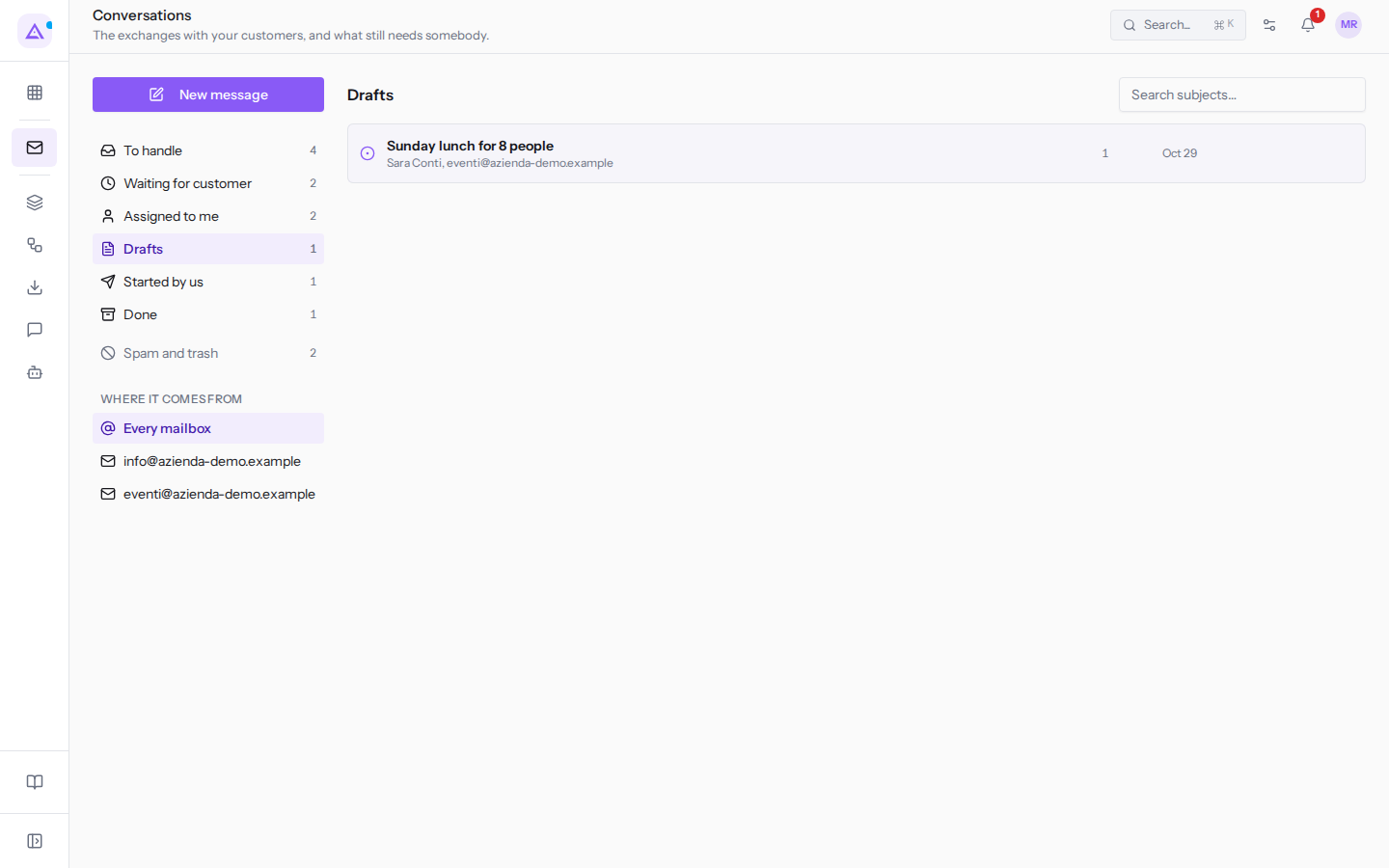
- Click on the conversation to open it.
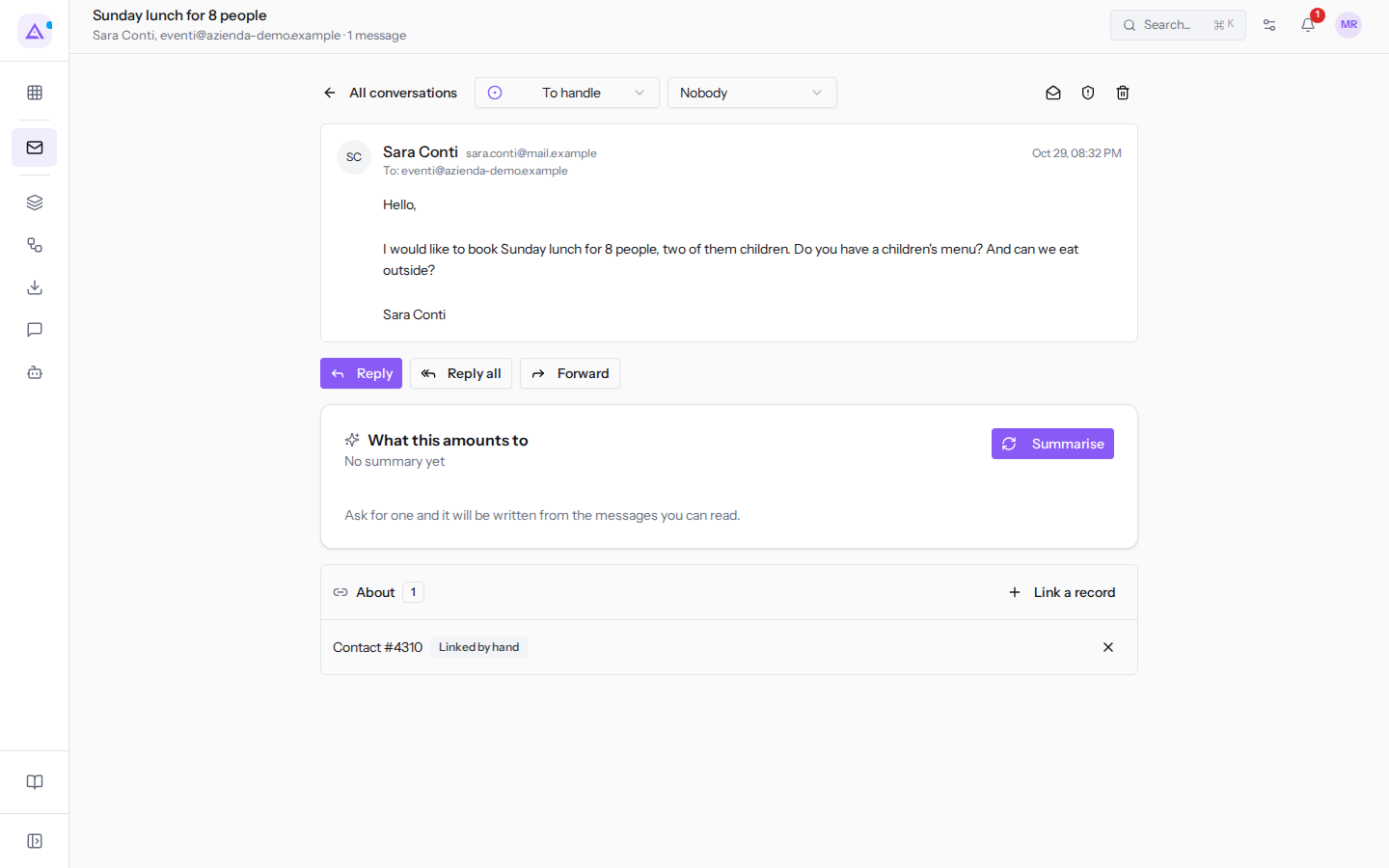
The conversation record does not show the saved text, and Reply opens the writing window empty: the draft text is not reloaded. The draft of a new message, which does not yet belong to a conversation, does not appear in the Drafts view.
To return to the list press All conversations.
See it on your company, not on a slide deck.
In 30 minutes we map the software you use today.We show you how much work and how much margin Archimedes gives back.
Show me on my business →What industry are you in?
One tap — it lets us prepare the demo around your world.
What tools do you use today?
Pick the ones you recognise — or just type them. It helps us show you how they migrate.
Last step: your details.
We reply within one working day — and right after, if you like, you pick the demo slot yourself.
We couldn't send your request. Try again, or write to us at [email protected].
By sending, you agree to your data being processed so we can get back to you about the demo. Privacy notice.
Preview form — nothing is sent from this page.
Want to schedule the demo now?
Your call: book the slot you prefer yourself, or we'll call you to arrange it.
Live availability, 30 minutes, instant confirmation. The calendar opens in a new tab.
Lock in your slot ↗We'll get back to you within one working day — and we'll join the call already knowing your world.
The calendar is open in another tab: pick a slot and the demo is booked. Can't see it? Reopen it ↗
Preview page: nothing was sent.
Our calendar is live: take the slot that suits you and the demo is booked. 30 minutes, instant confirmation, no waiting.
Lock in your slot ↗