All modules
Understanding at a glance how email is performing
Mail · 2 of 18 · 6 min read
The Email page summarizes the status of the organization's email channel and leads to the pages from which it is managed. Use it to see how many emails were sent, how many were not sent, and what requires action, for example a held email or an automation that has never started.
Opening the Email page
The Email page has no entry in the Mail menu and no button opens it: it is reached by its address.
- Type the platform address followed by
/emailin the browser bar and press Enter. - The page opens with the title Email and the subtitle «How the channel is doing, and everywhere it is managed from».
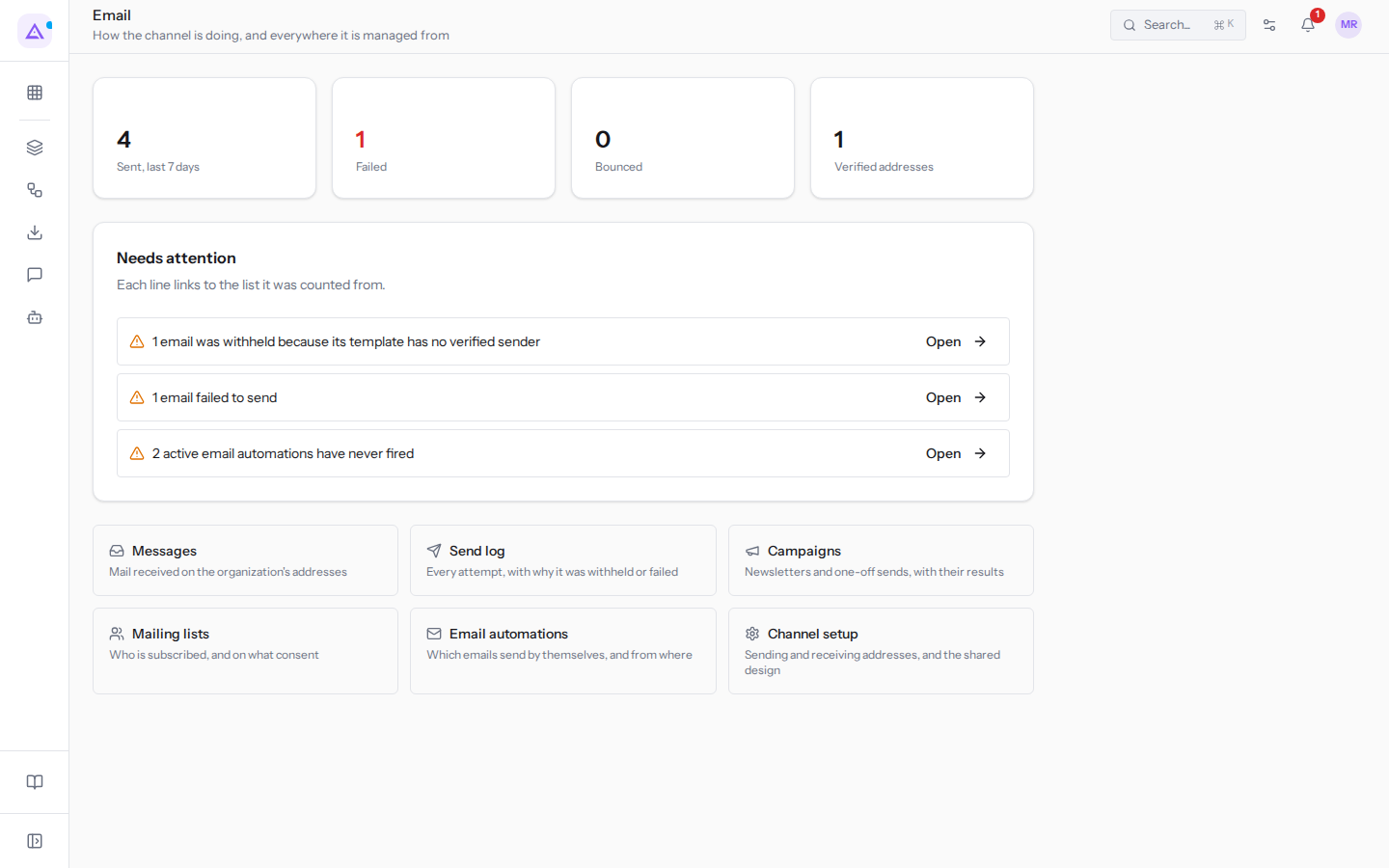
The four tiles
At the top of the page four tiles show the channel numbers for the last seven days. Test emails are not counted.
- «Sent, last 7 days»: emails sent on behalf of the organization in the last seven days, for example
4. If the number is lower than usual, something is holding back sends: look at the Needs attention tile. - Failed: emails whose sending was attempted and failed, for example
1. When it is not zero the number is in red. Held emails or deliberately skipped emails, for example because the recipient unsubscribed, are not counted here. - Bounced: emails delivered to the recipient's server and rejected by it, for example because the address does not exist. A bounced address ends up among the Unsubscribed and receives nothing more until it is unblocked.
- Verified addresses: sending addresses with verified DNS, for example
1, that is[email protected]. An address still Pending DNS, like[email protected], is not counted: nothing is sent from there until verification succeeds. With zero verified addresses, no email on behalf of the organization can be sent.
The Needs attention tile
The Needs attention tile lists, one per row, the things preventing emails from being sent or that need checking. Each row says how many there are and why, and the Open button leads to the list from which they were counted, as the text says «Each line links to the list it was counted from.»: the number and the list read the same data, so they match. If there is nothing to fix, the tile shows «Nothing is holding email back.».
In the example the tile contains three entries: one email held for lack of a sender, one email not sent, and two active email automations that have never started.
Email held for lack of a sender
The entry «1 email was withheld because its template has no verified sender» counts emails that the platform did not send because the template they come from had no verified sending address, for example the quote S00001. The email is not lost: it remains in the log as held and, if it is a document email, can be resent when a sender is available.
- In the entry, press Open. The Email Logs page opens with only held emails.
- If the organization does not yet have a verified address, verify one in Mail › Settings: see Configuring the addresses you send from.
- In the held emails tile at the top of Email Logs, press Send again from the document on the document's row.
Send again from the document actually sends the email to the recipient, and each document can be resent only once. Emails that announced an event, such as a received order, a booking, or an assigned activity, are not resent and are marked as «Not replayed»: they would arrive when the event has already passed.
Email not sent
The entry «1 email failed to send» counts emails whose sending was attempted and failed, for example Documents to upload for the contract for Studio Bianchi & Associati. Unlike held emails, here the problem is in the message or the mail server, and the reason says what to correct.
- In the entry, press Open. The Email Logs page opens with only failed sends.
- Open the row and read the Error field, for example «The courier refused the message: attachment over 40 MB.».
- Correct the cause and send the email again from the record it came from, indicated in Related record.
Active email automations that have never started
The entry «2 active email automations have never fired» counts active automations that send an email and have not yet triggered even once. This is not necessarily an error: an automation tied to a rare event, such as a deadline reminder, may not have started yet. It is a problem if the event has already occurred and the email did not arrive.
- In the entry, press Open. The Email automations page opens.
- For each active automation, check when it is due to start. If the event has already occurred, check the condition and the sender; if the automation is no longer needed, deactivate it. See Choosing which emails go out on their own.
Other entries
When they occur, the tile also shows these entries:
- «No verified sending address, so every email on the organization's behalf is withheld»: Open leads to Mail › Settings, where you can verify an address.
- «1 email bounced»: Open leads to Email Logs, where you can see which address rejected the mail.
The tabs for other pages
At the bottom of the page six tabs lead to the module's pages. Each tab has a title and a line that says what the page is for. The tab title does not always match the title of the page it opens or the menu entry.
- Messages («Mail received on the organization's addresses»): opens the Messages page, which has no menu entry. See Viewing all received and sent messages.
- Send log («Every attempt, with why it was withheld or failed»): opens the Email Logs page, the same as Mail › Communications › Logs.
- Campaigns («Newsletters and one-off sends, with their results»): opens the Mailings page, the same as Mail › Communications › Campaigns.
- Mailing lists («Who is subscribed, and on what consent»): opens the Mailing lists page, the same as Mail › Communications › Mailing lists.
- Email automations («Which emails send by themselves, and from where»): opens the Email automations page.
- Channel setup («Sending and receiving addresses, and the shared design»): opens the Email addresses page, the same as Mail › Settings.
See it on your company, not on a slide deck.
In 30 minutes we map the software you use today.We show you how much work and how much margin Archimedes gives back.
Show me on my business →What industry are you in?
One tap — it lets us prepare the demo around your world.
What tools do you use today?
Pick the ones you recognise — or just type them. It helps us show you how they migrate.
Last step: your details.
We reply within one working day — and right after, if you like, you pick the demo slot yourself.
We couldn't send your request. Try again, or write to us at [email protected].
By sending, you agree to your data being processed so we can get back to you about the demo. Privacy notice.
Preview form — nothing is sent from this page.
Want to schedule the demo now?
Your call: book the slot you prefer yourself, or we'll call you to arrange it.
Live availability, 30 minutes, instant confirmation. The calendar opens in a new tab.
Lock in your slot ↗We'll get back to you within one working day — and we'll join the call already knowing your world.
The calendar is open in another tab: pick a slot and the demo is booked. Can't see it? Reopen it ↗
Preview page: nothing was sent.
Our calendar is live: take the slot that suits you and the demo is booked. 30 minutes, instant confirmation, no waiting.
Lock in your slot ↗