All modules
Testing, scheduling and sending a campaign
Mail · 13 of 18 · 5 min read
When a campaign's content and recipients are ready, at the bottom of the draft page you choose how to measure it, how fast to send it and whether to test two subject lines, send yourself a test and finally send or schedule it. How to prepare a campaign is explained in Preparing a campaign; how to read its results in Reading the results of a campaign.
You get here from Mail › Communications › Campaigns: click on the draft, for example Christmas at the farmhouse, then on Edit campaign.
Measurement and sending pace
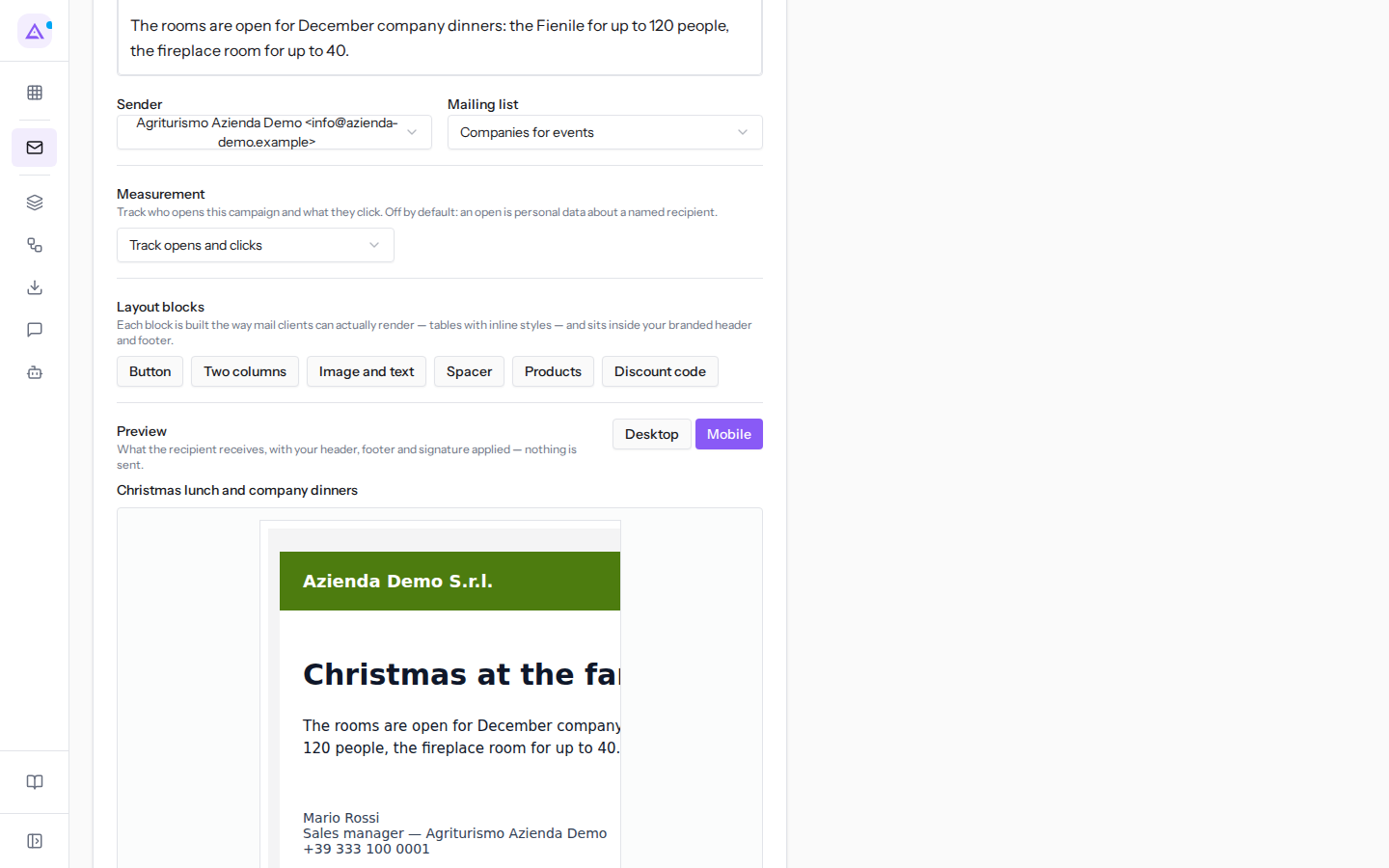
In Measurement you decide whether to record who opens the campaign and which links they click. This is a privacy choice: an open is personal data belonging to an identified recipient, which is why tracking is off until the organization or the campaign turns it on.
- Follow the organization's setting: the organization's choice applies. This is the value for a new campaign.
- Track opens and clicks: records opens and clicks for this campaign.
- Do not track: does not record opens and clicks.
If you choose Do not track, the campaign results do not show opens and clicks, and the A/B test has no data to decide on.
The Sending pace field indicates how many messages are sent per minute, for example 60. Leave it empty to use the platform's default value. A recently verified domain is throttled regardless, to protect its reputation. In the send confirmation dialog you can see how long the delivery will take at that pace.
Testing two subject lines
The A/B test tries two subject lines on a portion of the audience, then sends the better one to the rest. The result uses the opens or clicks recorded by this campaign.
- Press Test two subject lines.
- Write the two subject lines in the Subject for this variant fields.
- In Test share (%) indicate the portion of the audience that receives the two variants; the rest waits for the winner.
- Choose how to decide the winner:
- Decide on opens: the subject line with the most opens wins.
- Decide on clicks: the subject line with the most clicks wins.
To remove the test press Remove the test.
The winner does not go out on its own. After sending, on the results page the A/B test box shows which variant is leading, or that the difference is not yet enough to decide; the Send variant … to the rest button sends the chosen variant to the remaining audience.
Checking the preview and sending a test
Before sending, check how the email looks and send it to yourself.
- In Preview press Desktop or Mobile. The preview shows the email as the recipient receives it, with header, footer and signature; viewing it does not send anything.
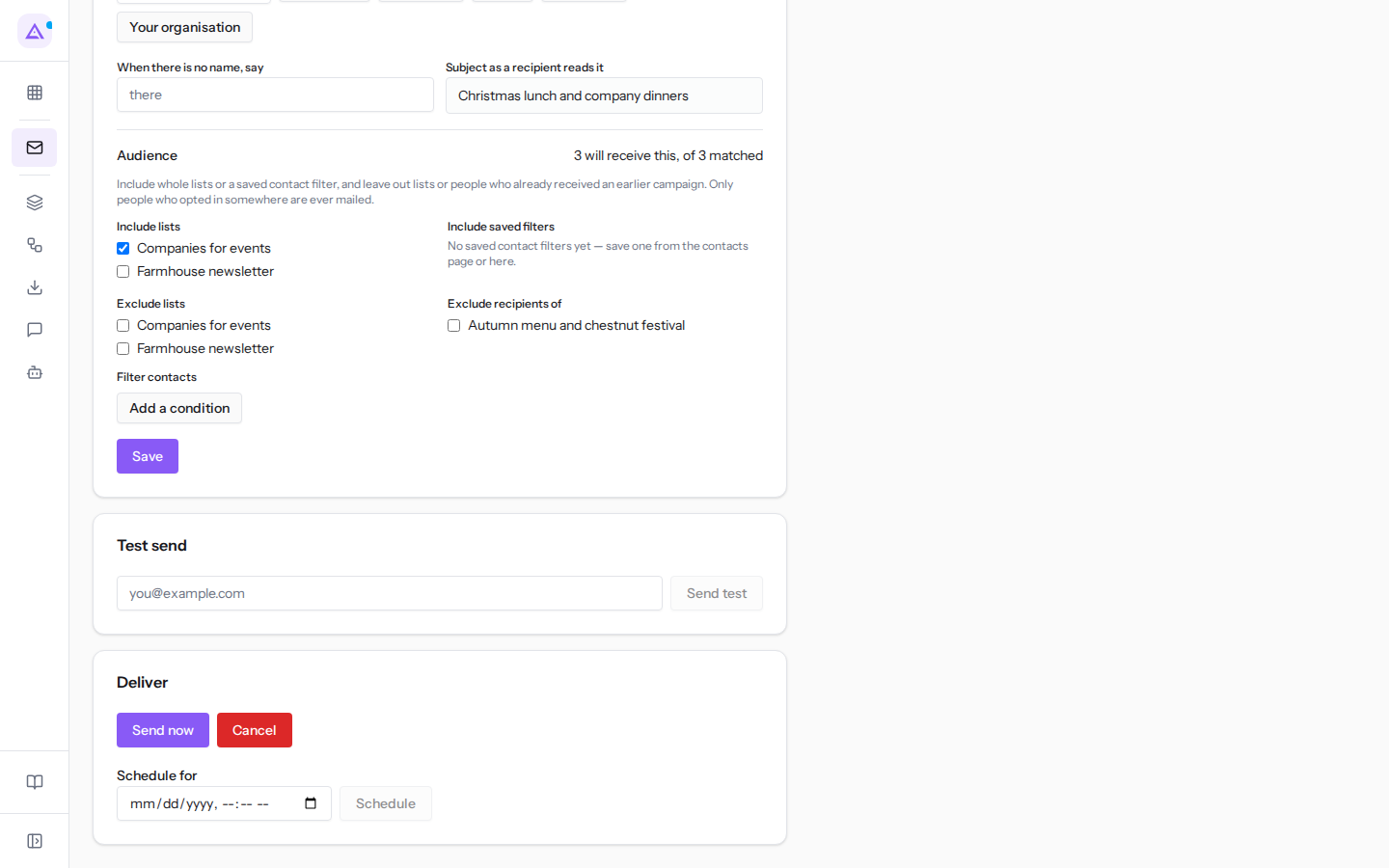
- In Test send write the address that should receive the test in the field with the example
[email protected]. - Press Send test.
Send test actually sends an email, but only to the address you entered: the test is not part of the campaign, does not count in the results and does not change the draft status. Personalized fields are filled with your data, so you read the email as a recipient would. If the test is held, for example because the sender is not verified, the message that appears says so. Sending a test only requires edit permission.
The Test send and Deliver boxes only appear after the first save: in the New mailing form there is only Save. The Deliver box remains visible as long as the campaign is in draft or scheduled.
Scheduling or sending immediately
A saved draft can be sent immediately or scheduled for a date and time.
Sending or scheduling requires the Email Campaign Sender group. Before starting, a confirmation dialog summarizes what is about to happen: how many people will receive the campaign, the sender, the subject, any A/B test and how long the delivery will take.
To schedule the send:
- Open the draft with Edit campaign.
- In the Schedule for field enter the date and time of the send.
- Press Schedule and confirm in the Schedule this campaign? dialog.
The campaign becomes scheduled and shows the date and time in the Scheduled for column of the Mailings page, like Grape harvest open to all. At the indicated time the delivery starts on its own, without anyone needing to be connected. Until it has started you can reschedule it: reopen the campaign, enter another date in Schedule for and press Schedule again. The content of a scheduled campaign, however, can no longer be edited.
To send immediately:
- Press Send now. The Send this campaign now? dialog opens.
- Check the summary: the number of people who will receive the campaign, the sender and the subject. For
Christmas at the farmhousethe sender isAgriturismo Azienda Demo <[email protected]>. - Press Send now to confirm, or Cancel.
A send cannot be recalled once it has started: emails that have gone out stay gone. From that moment the campaign page shows the results, described in Reading the results of a campaign.
Cancelling a campaign
In the Deliver box, next to Send now, the red Cancel button does not close the page: it cancels the campaign, immediately and without asking for confirmation. A cancelled draft or scheduled campaign will no longer go out and appears as cancelled in the list, like Easter Monday in the Giardino degli ulivi; it cannot be reopened or edited. To propose it again, duplicate it with Duplicate or with Start from…. To leave the page without changing anything, return to the list from the menu.
See it on your company, not on a slide deck.
In 30 minutes we map the software you use today.We show you how much work and how much margin Archimedes gives back.
Show me on my business →What industry are you in?
One tap — it lets us prepare the demo around your world.
What tools do you use today?
Pick the ones you recognise — or just type them. It helps us show you how they migrate.
Last step: your details.
We reply within one working day — and right after, if you like, you pick the demo slot yourself.
We couldn't send your request. Try again, or write to us at [email protected].
By sending, you agree to your data being processed so we can get back to you about the demo. Privacy notice.
Preview form — nothing is sent from this page.
Want to schedule the demo now?
Your call: book the slot you prefer yourself, or we'll call you to arrange it.
Live availability, 30 minutes, instant confirmation. The calendar opens in a new tab.
Lock in your slot ↗We'll get back to you within one working day — and we'll join the call already knowing your world.
The calendar is open in another tab: pick a slot and the demo is booked. Can't see it? Reopen it ↗
Preview page: nothing was sent.
Our calendar is live: take the slot that suits you and the demo is booked. 30 minutes, instant confirmation, no waiting.
Lock in your slot ↗