All modules
Checking the sending log
Mail · 15 of 18 · 7 min read
The Email Logs page records every sending attempt for your organization's email templates, such as invoices, quotes, order confirmations, and portal invitations. Use it to find out whether an email was sent, whether it was delivered, and if it did not arrive, why.
Platform emails, such as password resets and internal user notifications, are not sent on behalf of the organization and do not appear in the log.
Opening the sending log
The log lists all of the organization's sends.
- Open Mail › Communications › Logs. The Email Logs page opens.
- Read the subtitle: it shows the number of recorded sends, the bounce rate, and the spam complaint rate, for example
19 logs · 12.5% bounce rate · 6.25% complaint rate. The two rates are calculated on emails that actually left and measure the health of your sending domain: if they rise, the domain's reputation worsens and even legitimate emails risk not arriving.
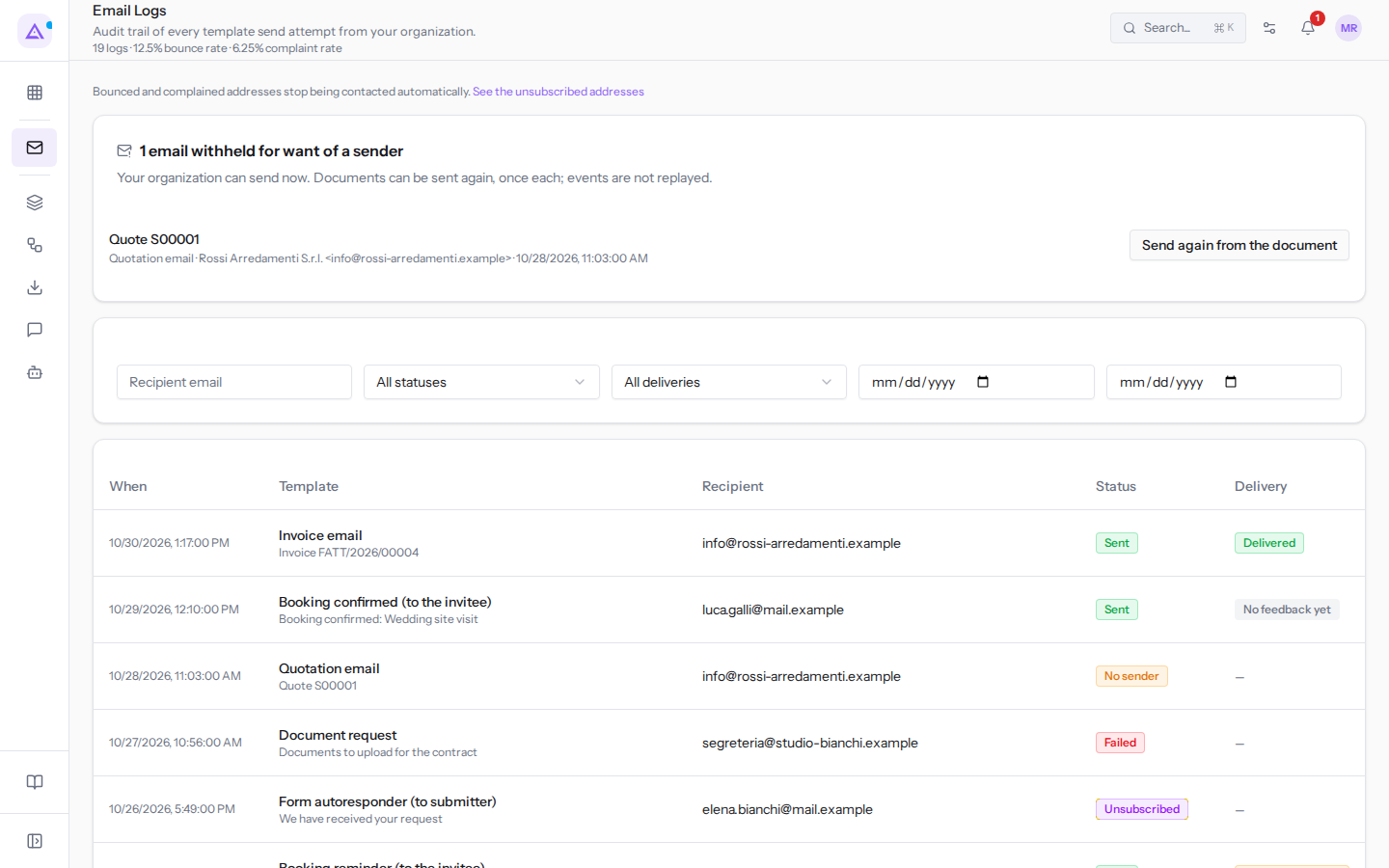
Above the log, a line reminds you that addresses that bounce or report spam are no longer contacted; the See the unsubscribed addresses link opens their list.
The list has these columns:
- When: the date and time of the sending attempt.
- Template: the email template used and, below it, the subject, for example the quote template with
Quote S00001. Template names appear as, for example,Quotation emailorInvoice email. - Recipient: the address the email was addressed to.
- Status: what the platform did: sent the email, withheld it for a rule, or failed to send it.
- Delivery: what happened after sending, according to the service that delivered the email. For an email that never left, the column shows a dash.
Withheld emails
An email is withheld when its template has no verified sender. Without a verified sender, nothing leaves: invoices, quotes, and order receipts remain on hold, because the platform only sends from an organization domain.
At the top of the log, the 1 email withheld for want of a sender box lists the held emails, for example Quote S00001 for Rossi Arredamenti S.r.l. In the list, the same email has the No sender status.
What to do depends on what the box says:
- if it says that nothing will be sent until the sending domain is configured, first configure and verify a sending address in Mail › Settings, as explained in Configuring the addresses you send from;
- if it says that the organization can now send, next to each document there is Send again from the document.
Send again from the document actually sends the email to the customer. Each document can be resent only once. Emails that announced something that has already happened, such as an order, a booking, or an activity, are marked Not replayed and do not leave late. Before pressing it, check that the document is still the one to send.
Filtering sends
Use the filters above the list to find a send or a group of sends. The filters combine with each other.
- Type an address in Recipient email to see only sends to that recipient.
- Choose a status in All statuses.
- Choose an outcome in All deliveries.
- Set the period in the two date fields: the first is the start, the second the end.
The page filters:
- Recipient email: the recipient's address.
- All statuses: the status of the sending attempt. The options are:
- Sent: the email was sent.
- Sent (fallback): an outcome that appears only on old sends; it is no longer produced today.
- Skipped (disabled): the email was not sent because of an organization choice, as that email template is not active. In the list the status reads Skipped.
- Skipped (no sender): the email is withheld because there is no verified sender to send it from. In the list the status reads No sender.
- Unsubscribed: the email was not sent because the address is among the unsubscribed or suspended.
- No unsubscribe link: a send to many recipients withheld because it was not possible to build the unsubscribe link; sending it without that link would be worse than not sending it.
- Over the courier's limit: the email exceeds a limit of the sending service, for example the size or the number of recipients, and would have been rejected, so it does not leave.
- Failed: the platform tried to send but did not succeed. It is the only status where retrying can help; for example
Documents to upload for the contract.
- All deliveries: the outcome reported by the provider. The options are:
- Delivered: the email reached the recipient's server.
- Bounced: the message bounced.
- Reported as spam: the recipient reported the email as spam.
- No feedback yet: the provider has not reported an outcome.
- The two date fields: the first and last day of the period to show.
If you are looking for emails that were not sent, choose Failed or Skipped (no sender) in All statuses. If you are looking for emails that were sent but did not arrive, choose Bounced in All deliveries.
Opening a send's record
A send's record shows the details of a single attempt.
- In the list, click the send's row, for example
Documents to upload for the contract. - Read the Delivery box.
- Press Back to logs to return to the list.
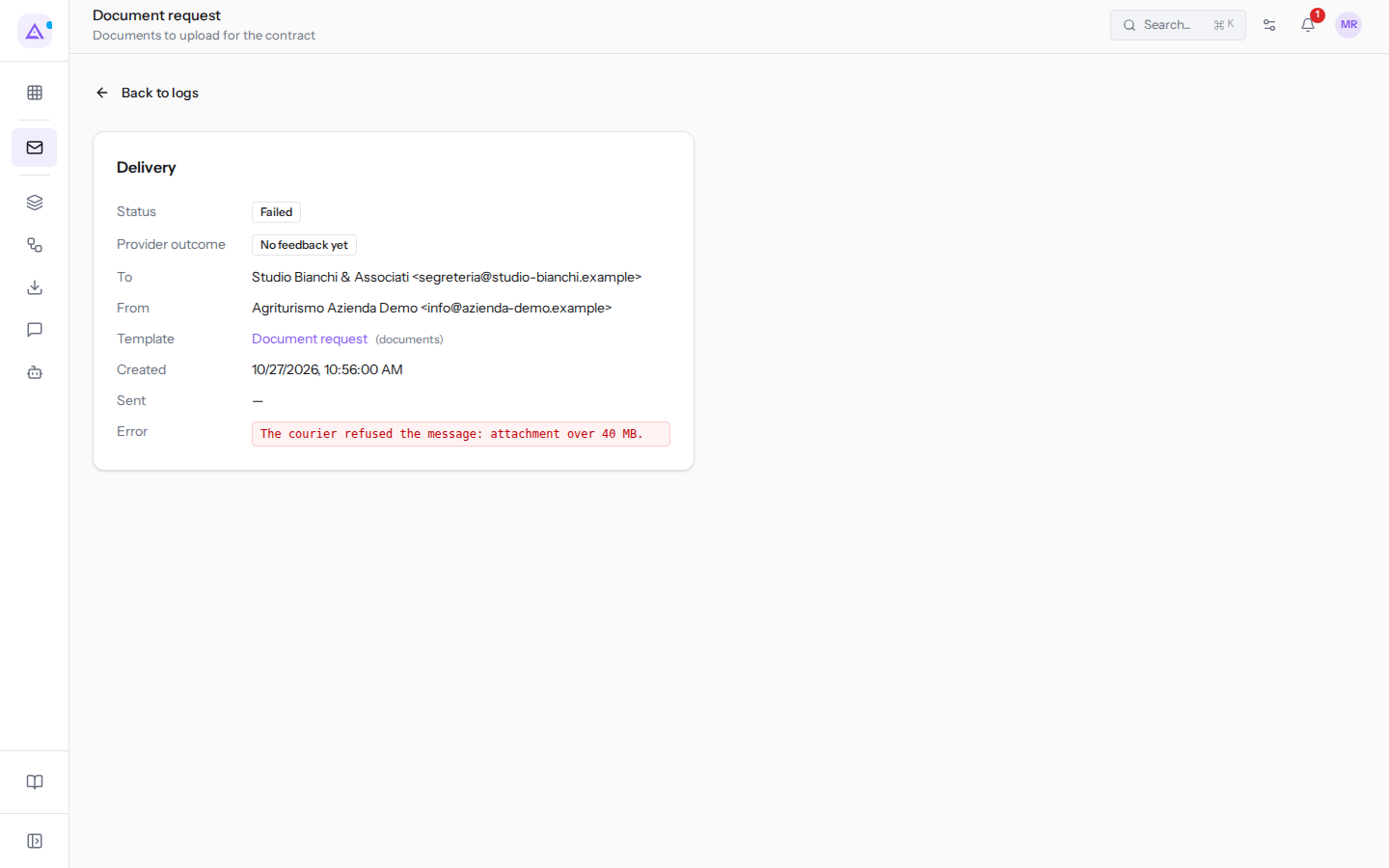
The Delivery box contains:
- Status: the status of the sending attempt, with the same options as the filter. In the example it is Failed.
- Provider outcome: the outcome reported by the mail provider. In the example it is No feedback yet.
- To: the recipient, with the name and address. In the example it is
Studio Bianchi & Associati <[email protected]>. - From: the sender, for example
Agriturismo Azienda Demo <[email protected]>. - Template: the email template used, with a link to its page and, in parentheses, the module that sends it, for example
Document request(documents). - Created: when the sending attempt was recorded.
- Sent: when the email left; a dash if it never left.
- Error: the reason the send failed, as reported by the sending service. For
Documents to upload for the contractit isThe courier refused the message: attachment over 40 MB.: the attachment was too large to be sent.
Understanding why an email did not arrive
The cause can be read by combining the Status column and the Delivery column.
- If the status is No sender, the email was not sent because there is no verified sender. Verify a sending address and resend the email, as described in the section on withheld emails.
- If the status is Skipped, that email's template is not active for the organization: until it is activated, emails of that type are not sent.
- If the status is Unsubscribed, the email was not sent because the address is among the unsubscribed or suspended. Someone who has unsubscribed does not receive campaigns or marketing emails, but still receives order confirmations, invoices, and portal invitations.
- If the status is Failed, open the send's record and read the Error field.
- If the delivery is Bounced, the message bounced. A bounced address receives nothing more until it is corrected and unblocked among the unsubscribed addresses.
- If the delivery is Reported as spam, the recipient no longer receives campaigns or marketing emails, but still receives invoices and order confirmations.
A blocked address can only be re-enabled if the recipient has requested it: a re-enabled address that starts bouncing again damages the reputation of your domain. The re-enabling is recorded under your name; the steps are in Managing unsubscribed and suppressed addresses.
See it on your company, not on a slide deck.
In 30 minutes we map the software you use today.We show you how much work and how much margin Archimedes gives back.
Show me on my business →What industry are you in?
One tap — it lets us prepare the demo around your world.
What tools do you use today?
Pick the ones you recognise — or just type them. It helps us show you how they migrate.
Last step: your details.
We reply within one working day — and right after, if you like, you pick the demo slot yourself.
We couldn't send your request. Try again, or write to us at [email protected].
By sending, you agree to your data being processed so we can get back to you about the demo. Privacy notice.
Preview form — nothing is sent from this page.
Want to schedule the demo now?
Your call: book the slot you prefer yourself, or we'll call you to arrange it.
Live availability, 30 minutes, instant confirmation. The calendar opens in a new tab.
Lock in your slot ↗We'll get back to you within one working day — and we'll join the call already knowing your world.
The calendar is open in another tab: pick a slot and the demo is booked. Can't see it? Reopen it ↗
Preview page: nothing was sent.
Our calendar is live: take the slot that suits you and the demo is booked. 30 minutes, instant confirmation, no waiting.
Lock in your slot ↗