All modules
Handling conversations with customers
Mail · 3 of 18 · 7 min read
The Conversations page collects message exchanges with customers and suppliers. Mail arrives here from connected mailboxes and the organization's receiving addresses. From this page you choose which conversations to work on — for example a quote request, a question about an invoice, or a goods collection confirmation — and mark them as done or remove them from the list.
What is a conversation
A conversation collects the messages from a single exchange with a contact. When a message arrives at one of the organization's addresses or at a connected mailbox, the platform adds it to the conversation it belongs to, or opens a new one.
The status shows whose move is next:
- To handle: the organization needs to reply or act.
- Waiting for customer: you have replied and are waiting for the contact.
- Done: there is nothing left to do.
The status also changes on its own. When you send a message in the conversation, it moves to Waiting for customer, unless it is already done. When the contact writes back it returns to To handle, even if it was done: this way a closed conversation does not hide a new request.
A conversation can have an assignee — the colleague who handles it — and can be linked to the records it concerns: for example Furniture quote for the new offices is linked to the opportunity Arredo nuova sede Verdi Costruzioni. Status, assignee, and links are changed from the conversation record: see Reading and managing a conversation.
In the list you only see the conversations you can read: those from mailboxes open to your group and those linked to a record you can see.
Opening the Conversations page
- Open Mail › Conversations. The Mail menu item also opens this page.
- The page opens on the To handle view, which shows the work waiting for a reply.
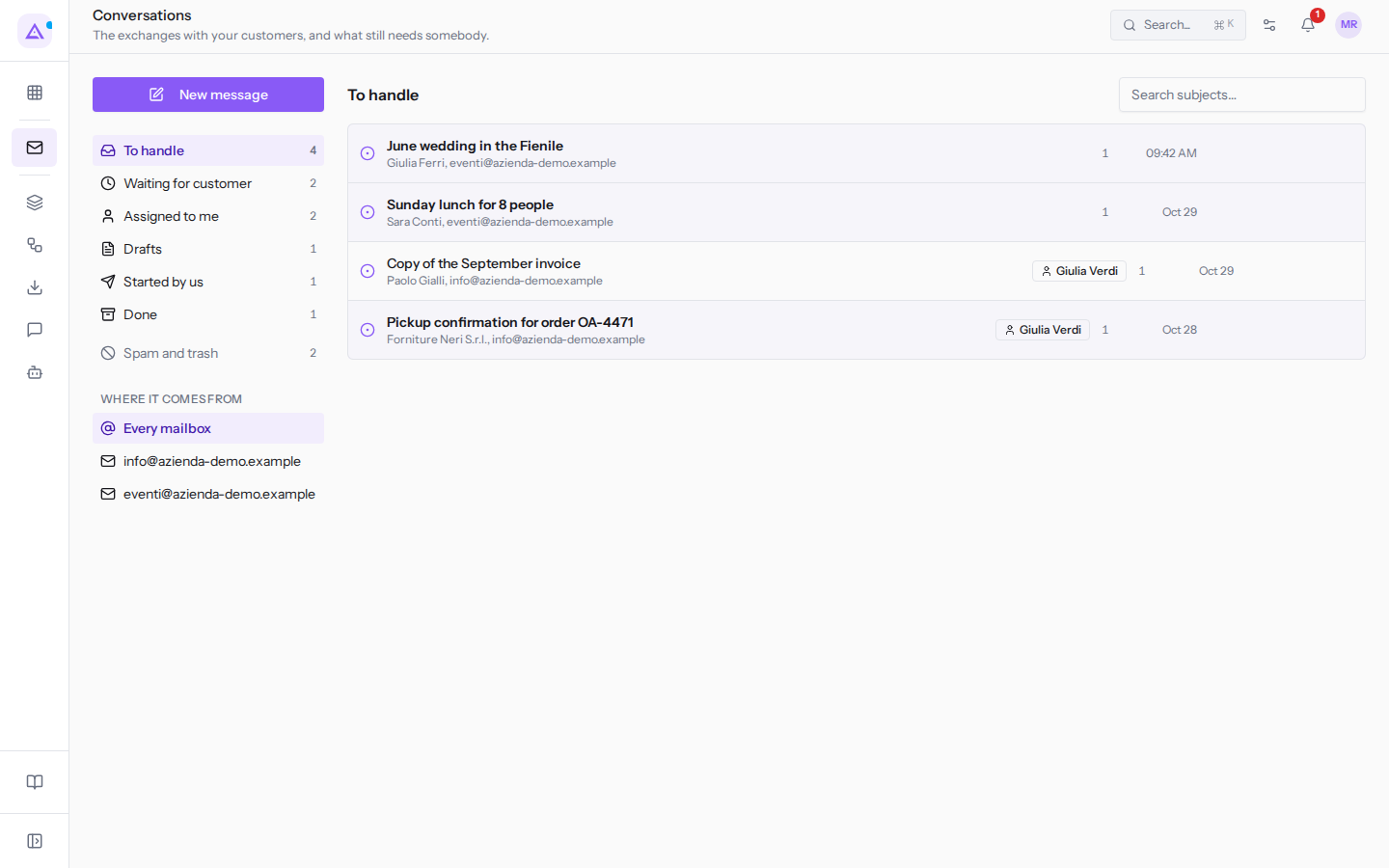
On the left are the New message button, the views, and the Where it comes from panel; on the right is the list of conversations for the selected view. New message opens the window for writing to a contact: see Writing a new message or a reply.
Choosing a view
The views divide conversations according to what remains to be done. Next to each view is the number of conversations it contains, so you can see at a glance how much work is queued.
- In the left column, click on the view.
- The list shows the conversations for that view and the heading above the list displays its name.
The views are:
- To handle: conversations waiting for a reply from the organization. This is the view to start from each day, for example with
June wedding in the FienileandCopy of the September invoice. - Waiting for customer: conversations where you have replied and the move is the contact's, for example
Chestnut festival datesandFurniture quote for the new offices. When the contact replies they automatically return to To handle. - Assigned to me: conversations where you are the assignee, in any status. Use it to see only your work. For example, for Mario Rossi,
Furniture quote for the new officesandDesk layout. - Drafts: conversations where you have saved a reply without sending it, for example
Sunday lunch for 8 people. Everyone sees only their own drafts. - Started by us: conversations opened by a message from the organization rather than a customer, for example
Furniture quote for the new offices. Your reply in an exchange started by the customer does not bring the conversation here. - Done: completed conversations, for example
Desk layout. They remain accessible. - Spam and trash: conversations removed from the list, for example
Guaranteed ranking on GoogleandUndelivered: Autumn menu and chestnut festival. They do not appear in any other view.
Filtering by mailbox
The Where it comes from panel limits the list to mail that arrived at a single mailbox. This is useful when each mailbox has a dedicated team: for example the events office only works with mail from [email protected].
- In the Where it comes from panel, click on a mailbox.
- The heading above the list shows the view and the mailbox, for example «To handle · [email protected]».
- The numbers next to the views count only the conversations for that mailbox: for example To handle drops to 2.
The panel options are:
- Every mailbox: conversations from all addresses. Select it to return to all mail.
[email protected]: mail that arrived at the organization's main address.[email protected]: mail from the events office's connected mailbox.
Reading the list
Each row in the list is a conversation, from the most recent.
- The icon on the left shows the status: a circle with a dot for To handle, a clock for Waiting for customer, a tick for done conversations, a shield or a bin for those in spam or trash.
- The subject, for example
June wedding in the Fienile, is in bold if there is something in the conversation you have not yet read. Reading is personal: opening a conversation marks it as read for you, not for your colleagues. Clicking the subject opens the conversation record. - Below the subject are the participants: who wrote and the organization's address at which the message arrived, for example
Giulia Ferri, [email protected]. For conversations started by the organization the names of the participants appear, for exampleMario Rossi, Francesca Russo. - The label with the assignee's name, for example
Giulia Verdi, if the conversation is assigned. - The number of messages and the date of the last one, or the time if it is today.
Searching for a conversation
The search finds conversations by their subject.
- Type a word in the Search subjects… field, for example
invoice. - The list updates as you type and shows only the conversations in the open view with that word in the subject, for example
Copy of the September invoice.
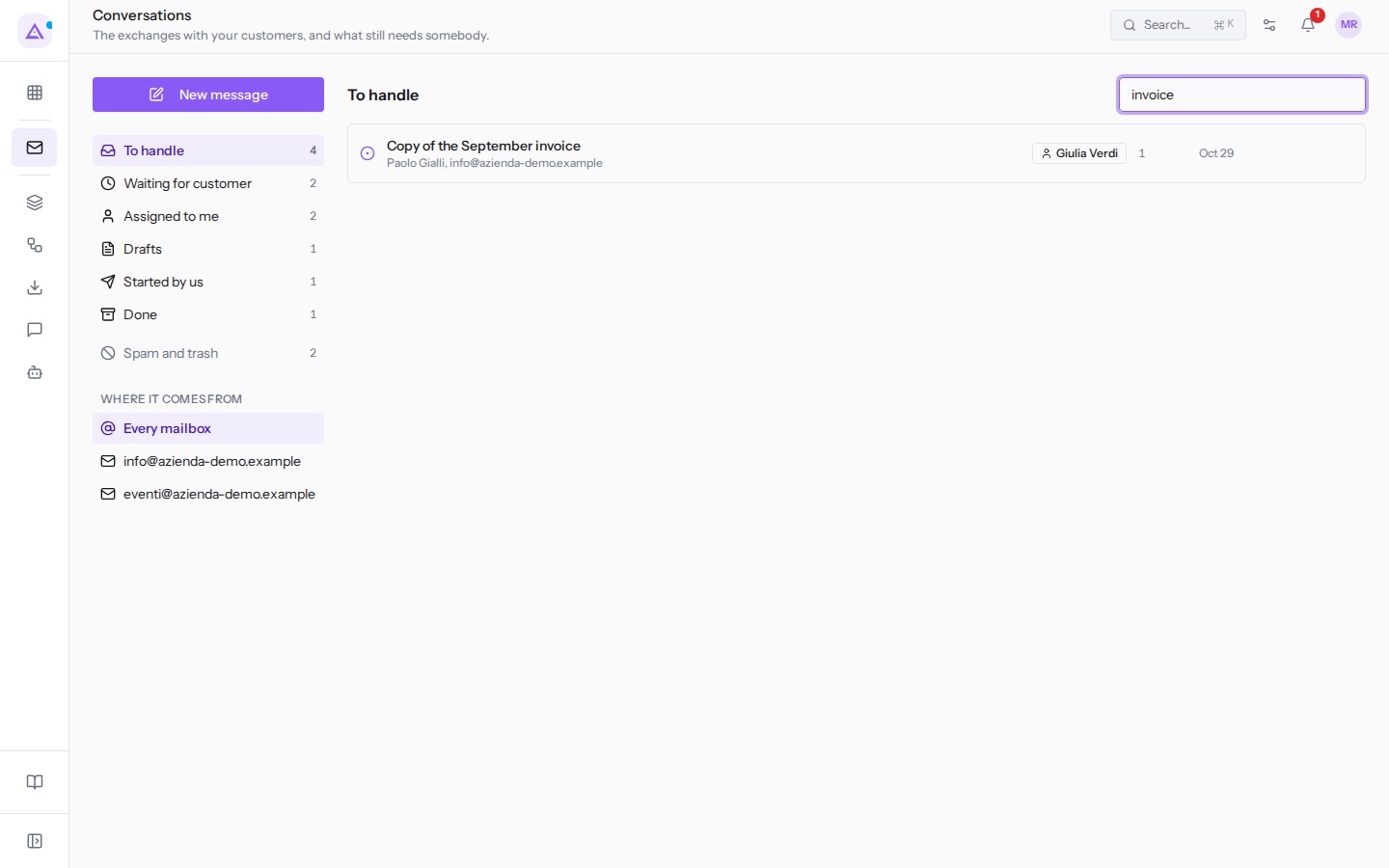
The search looks only at the subject, not the text of the messages, and only in the open view. If you cannot find a conversation, switch to another view, for example Done or Spam and trash.
Acting on a conversation from the list
When you hover over a row, icons appear on the right that change the conversation without opening it. The name of each icon appears when you hover over it.
- The tick (Done): marks the conversation as completed and moves it to Done. Use it when there is nothing left to do, for example after sending the copy of the invoice. If the contact writes again, the conversation automatically returns to To handle.
- The inbox icon (Back to handle): appears in place of the tick on done conversations and returns them to To handle.
- The circle with a dot (Mark read): appears only on conversations with messages you have not read, and marks them as read for you.
- The shield (Spam): moves the conversation to Spam and trash. Use it for unsolicited advertising, for example
Guaranteed ranking on Google. - The bin (Trash): moves the conversation to Spam and trash. Use it for messages that are not needed, for example a delivery failure notice.
- Show again: appears only in the Spam and trash view, in place of the other icons, and brings the conversation back to the list.
Spam and Trash do not delete the conversation and do not change its status: they only remove it from the working views.
Spam and trash
The Spam and trash view collects the conversations removed from the list with Spam or Trash.
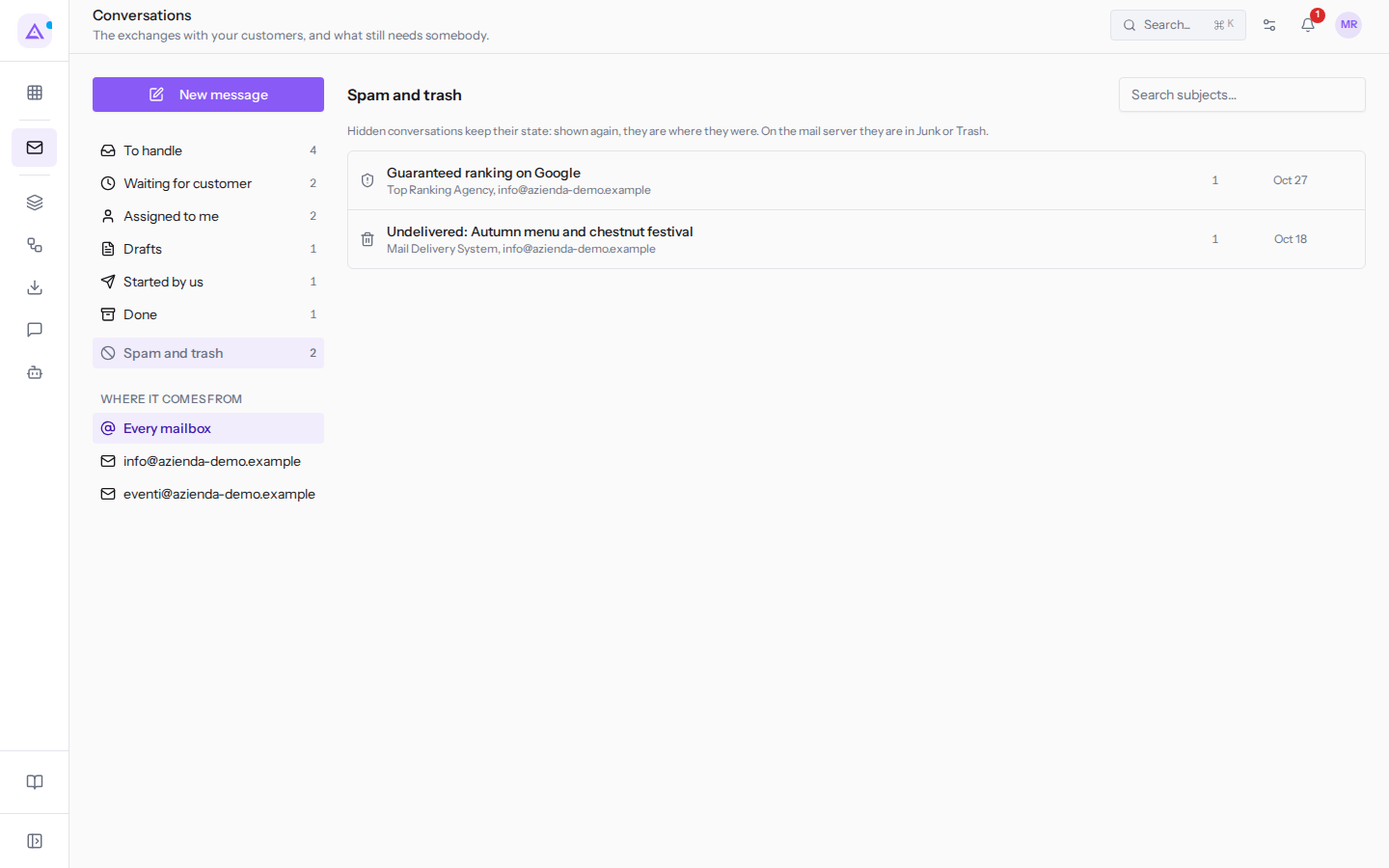
A hidden conversation keeps its status. When you show it again, it returns to where it was: a conversation to handle returns to To handle, a done one returns to Done. On the mail server these conversations are in the Junk or Trash folder.
To recover a conversation:
- In the left column, click Spam and trash.
- Hover over the conversation row and click the Show again icon.
- The conversation returns to the view it was in before.
See it on your company, not on a slide deck.
In 30 minutes we map the software you use today.We show you how much work and how much margin Archimedes gives back.
Show me on my business →What industry are you in?
One tap — it lets us prepare the demo around your world.
What tools do you use today?
Pick the ones you recognise — or just type them. It helps us show you how they migrate.
Last step: your details.
We reply within one working day — and right after, if you like, you pick the demo slot yourself.
We couldn't send your request. Try again, or write to us at [email protected].
By sending, you agree to your data being processed so we can get back to you about the demo. Privacy notice.
Preview form — nothing is sent from this page.
Want to schedule the demo now?
Your call: book the slot you prefer yourself, or we'll call you to arrange it.
Live availability, 30 minutes, instant confirmation. The calendar opens in a new tab.
Lock in your slot ↗We'll get back to you within one working day — and we'll join the call already knowing your world.
The calendar is open in another tab: pick a slot and the demo is booked. Can't see it? Reopen it ↗
Preview page: nothing was sent.
Our calendar is live: take the slot that suits you and the demo is booked. 30 minutes, instant confirmation, no waiting.
Lock in your slot ↗