All modules
Viewing all received and sent messages
Mail · 6 of 18 · 6 min read
The Messages page lists mail acquired from receiving addresses and connected mailboxes, along with sent messages, with the technical details of each one. It is used to find a specific message, to see which mailbox it arrived in, to check bounce notifications, and to move a message that ended up in the wrong conversation.
Messages and conversations
Received mail is grouped into conversations, which are read and managed from the Conversations page: that is where they are assigned, replied to, and marked as done.
The Messages page instead shows mail exactly as it arrived or was sent, from any connected mailbox or address, with the direction, status, and technical details of each message. It has no work statuses or assignees.
- If you need to reply to a customer or follow an exchange, use Conversations.
- If you are looking for a specific message, want to know which mailbox it came from, or want to check bounce notifications, use Messages.
- If a message ended up in the wrong conversation, move it with Split into a new conversation.
Opening the Messages page
The page has no entry in the Mail menu.
- Open the Email page: type the platform address followed by
/emailin the browser bar. See Understanding at a glance how email is performing. - Click the Messages tab.
Alternatively, type the platform address followed by /email/messages directly.
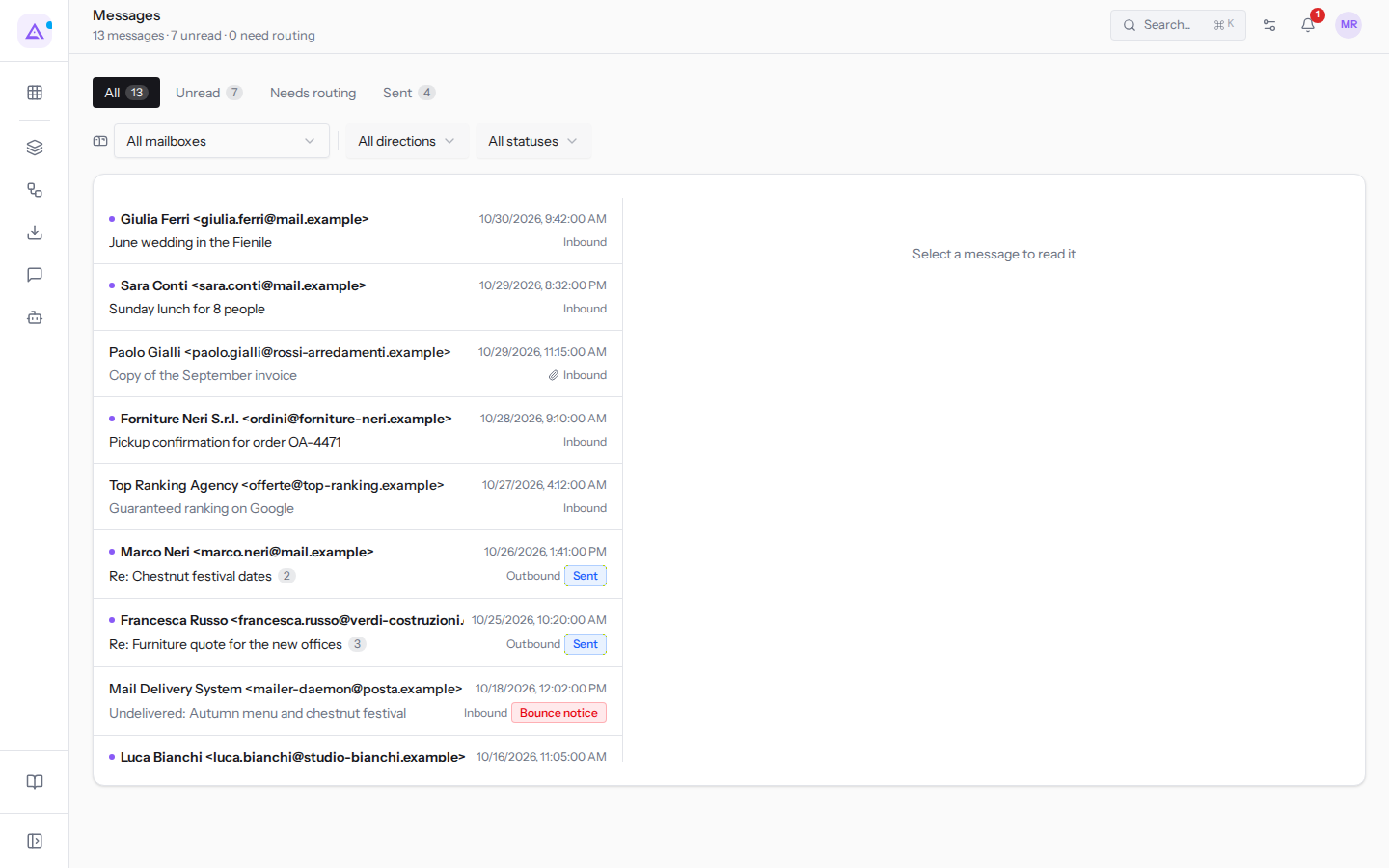
The message list
The subtitle shows the number of messages, unread ones, and ones to route, for example 13 messages · 7 unread · 0 need routing.
The tabs above the list show the number of messages they contain:
- All: all messages, received and sent, for example 13.
- Unread: messages not yet read, for example 7.
- Needs routing: messages that the AI did not route, for example because the organization had run out of AI credits when they arrived. These are the messages to check manually: in the reading pane a yellow box says «The AI could not handle this one» and, if known, the reason. The tab applies the status filter Not classified; Clear filters returns to the full list.
- Sent: messages sent by the organization, for example 4.
The list shows one row per conversation, with the most recent message. If the conversation has more than one message, the count is shown next to the subject: for example Re: Furniture quote for the new offices with 3. Each row shows:
- the contact, with their name and address, for example
Paolo Gialli <[email protected]>; a colored dot before the name indicates there is something to read; - the date and time, for example
10/29/2026, 11:15:00 AM; - the subject, for example
Copy of the September invoice, with a paperclip if there are attachments; - the direction, Inbound or Outbound;
- for sent messages, the delivery outcome, for example Sent on the reply
Re: Chestnut festival dates; - the Bounce notice label on messages where a mail server reports that an organization email was not delivered, for example
Undelivered: Autumn menu and chestnut festivalfromMail Delivery System. These messages are not routed by the AI and do not receive automatic replies.
The list also includes messages from conversations in spam or the trash, for example Guaranteed ranking on Google from Top Ranking Agency.
Filtering messages
The three filters above the list combine with the selected tab.
- Open the filter you need and choose an option.
- To return to the full list, press Clear filters.
Fields and options:
- All mailboxes: the mailbox from which messages arrive.
- All mailboxes: all mailboxes.
- «Connected: [email protected]»: the events office mailbox, connected via its provider.
- «Hosted: [email protected]»: the receiving address hosted by the platform.
- All directions:
- Inbound: received messages;
- Outbound: sent messages.
- All statuses: the message status.
- Received: the message has arrived and been saved, and has not yet been routed.
- Routed: the AI has routed the message.
- Not classified: the AI did not route the message; these are the same as those in the Needs routing tab.
- Bounce notice: the message reports an undelivered organization email.
Reading a message in the reading pane
Until you select a message, the reading pane shows «Select a message to read it».
- Click a message in the list, for example
Copy of the September invoicefromPaolo Gialli. - The pane shows the subject, sender, date, and below it the entire conversation, from the oldest message to the most recent. Each message has the label «Received» or «Sent».
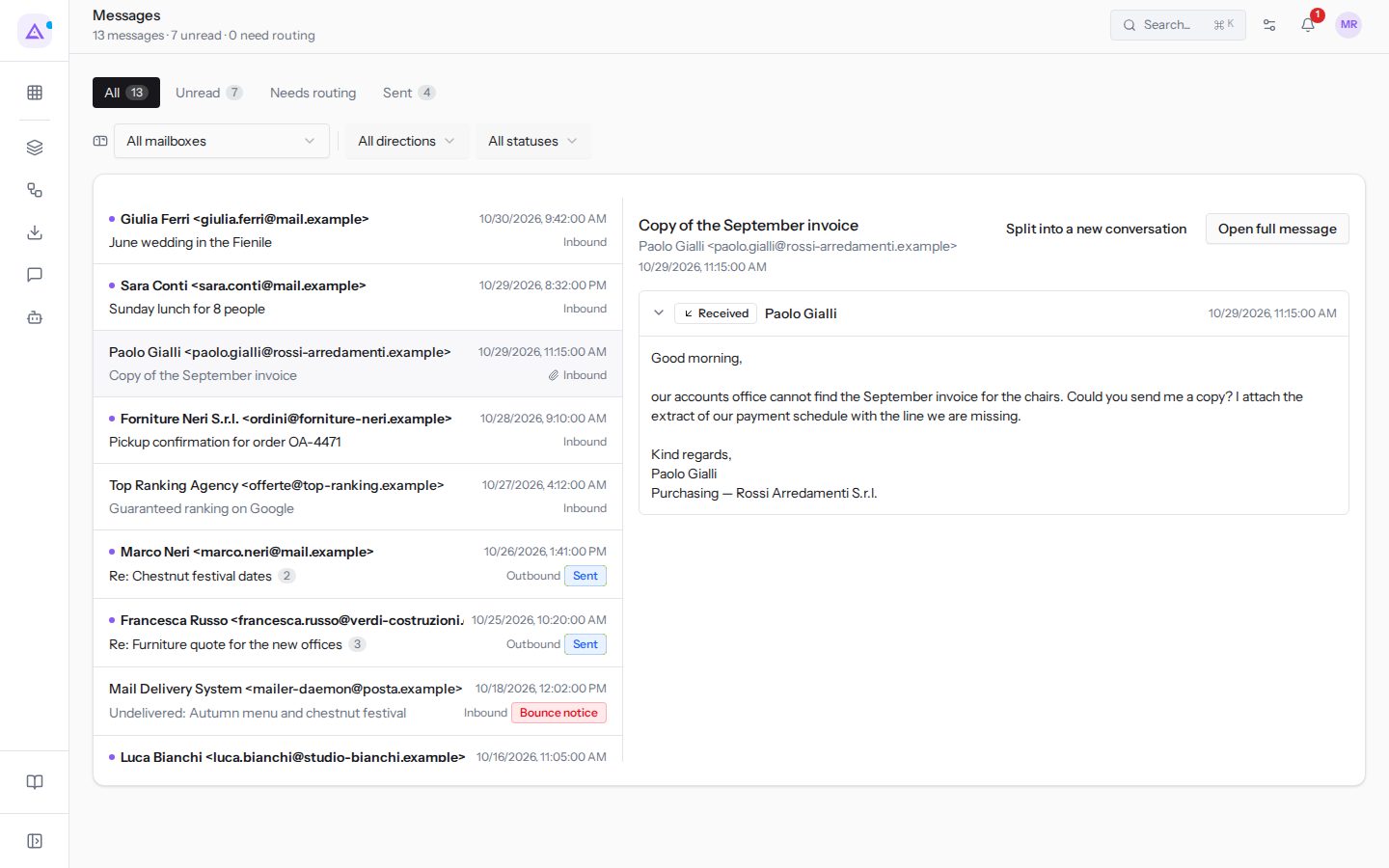
At the top of the pane you will find two buttons:
- Open full message: opens the message page.
- Split into a new conversation: removes the message from the conversation the platform placed it in and creates a new one just for it. Message grouping is automatic and sometimes makes mistakes, for example when a customer replies to an old email to discuss something else. After the split, «Message moved into a new conversation.» appears and the message is worked on separately in Conversations, with its own status and assignee.
The message page
The message page brings together the conversation, linked records, attachments, and technical details. The details are especially useful when a customer says they have not received a reply: they show which mailbox the message passed through and with which identifier.
- In the reading pane press Open full message.
- To return to the list, press Back to the messages.
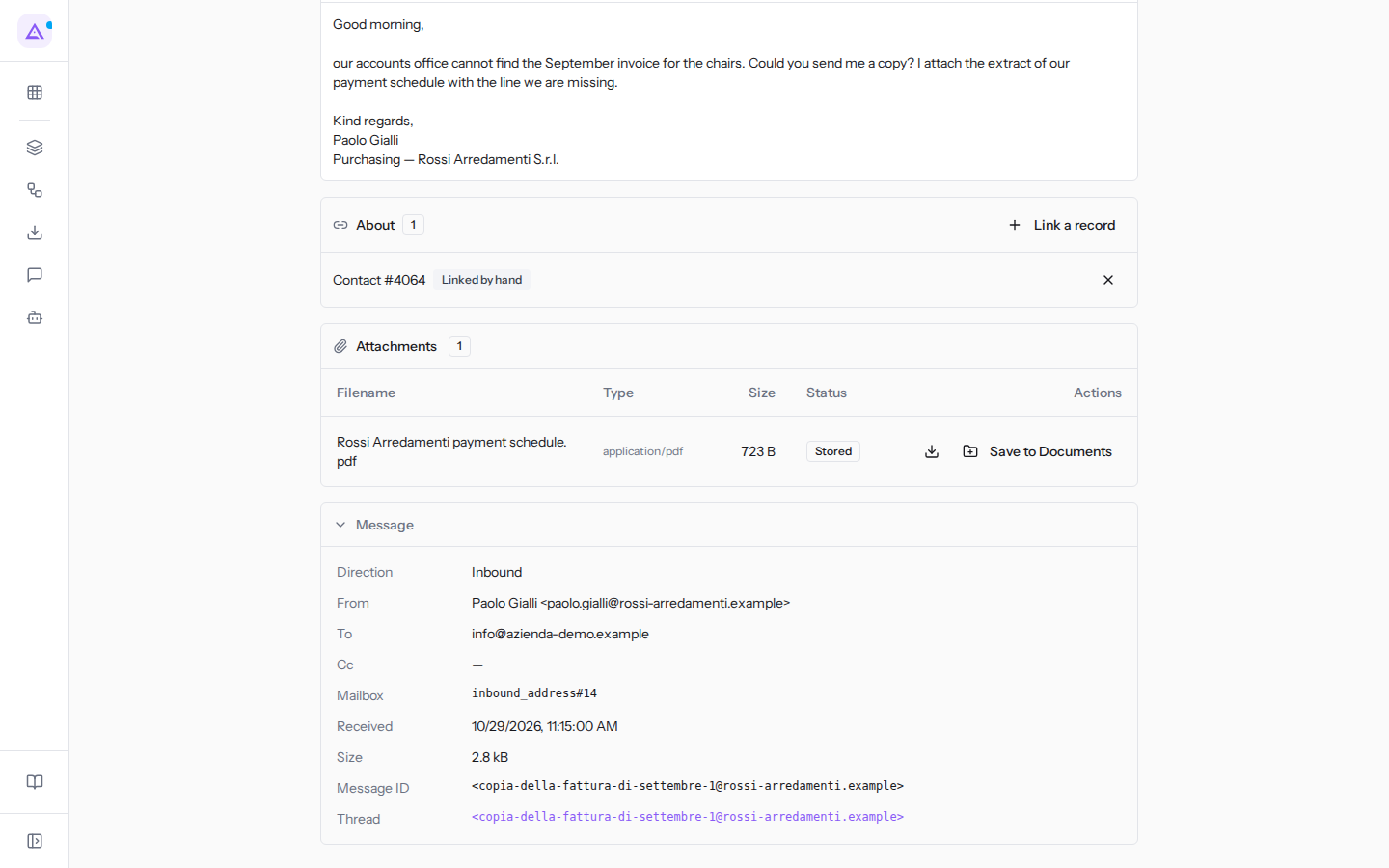
The page title is the message subject, with the sender below it. In the top right is the message status, for example Routed for Paolo Gialli's message. Below are the conversation messages, from the most recent, and the About panel with linked records and Link a record, which works as on the conversation page: see Reading and managing a conversation.
Attachments
The Attachments panel, showing the file count, only appears if the message has attachments. Click the title to open it: the table lists the files with the columns Filename, Type, Size, Status, and Actions. The status indicates whether the platform has stored the file: Stored, Blocked, Too large, or Not stored.
For each attachment you have two actions:
- Download: saves the file to your computer.
- Save to Documents: archives the file in the Documents module, where the team can find it without searching through email.
Message
The Message panel is closed: click the title to open it. It contains:
- Direction: Inbound or Outbound.
- From, To and Cc: sender and recipients.
- Mailbox: the mailbox or address that received the message. It appears as a code with type and number, not as an address.
- Received: date and time of arrival.
- Size: the size of the message.
- Message ID: the identifier assigned by the mail server, the detail to give the mail provider to trace a message.
- Thread: the conversation identifier. Clicking it, the Messages page shows only the messages in that conversation, one per row; Show all conversations returns to the full list.
See it on your company, not on a slide deck.
In 30 minutes we map the software you use today.We show you how much work and how much margin Archimedes gives back.
Show me on my business →What industry are you in?
One tap — it lets us prepare the demo around your world.
What tools do you use today?
Pick the ones you recognise — or just type them. It helps us show you how they migrate.
Last step: your details.
We reply within one working day — and right after, if you like, you pick the demo slot yourself.
We couldn't send your request. Try again, or write to us at [email protected].
By sending, you agree to your data being processed so we can get back to you about the demo. Privacy notice.
Preview form — nothing is sent from this page.
Want to schedule the demo now?
Your call: book the slot you prefer yourself, or we'll call you to arrange it.
Live availability, 30 minutes, instant confirmation. The calendar opens in a new tab.
Lock in your slot ↗We'll get back to you within one working day — and we'll join the call already knowing your world.
The calendar is open in another tab: pick a slot and the demo is booked. Can't see it? Reopen it ↗
Preview page: nothing was sent.
Our calendar is live: take the slot that suits you and the demo is booked. 30 minutes, instant confirmation, no waiting.
Lock in your slot ↗